
When to Use Marketing Templates
Use Marketing templates when you want to reach out to a customer who has not recently contacted you:
Running a festive promotion (e.g. Hari Raya, Christmas, year-end sale)
Announcing a new service your business is offering
Sending a limited-time discount to customers who have not ordered recently
Sharing a seasonal campaign across your customer list
Pre-Built Templates Available
EasyBiz provides 3 ready-made Marketing templates to get you started.
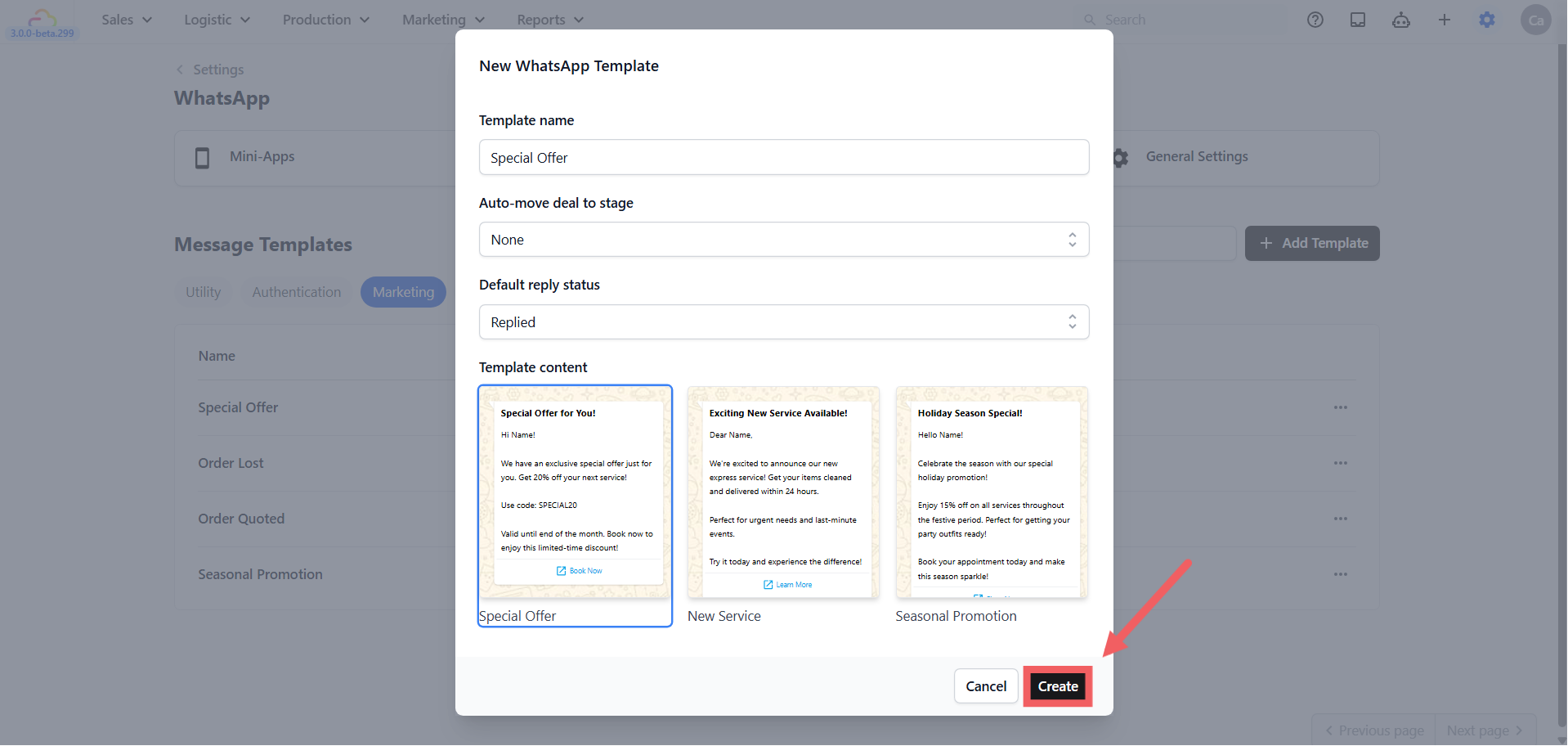
Special Offer → Announce a discount or limited-time deal. Pre-written with a promotional message, coupon code, and a Book Now button.
New Service → Announce a new service (e.g. express same-day laundry). Comes with a Learn More button.
Seasonal Promotion → For festive or seasonal campaigns. Comes with a Shop Now button.
Creating a Marketing Template
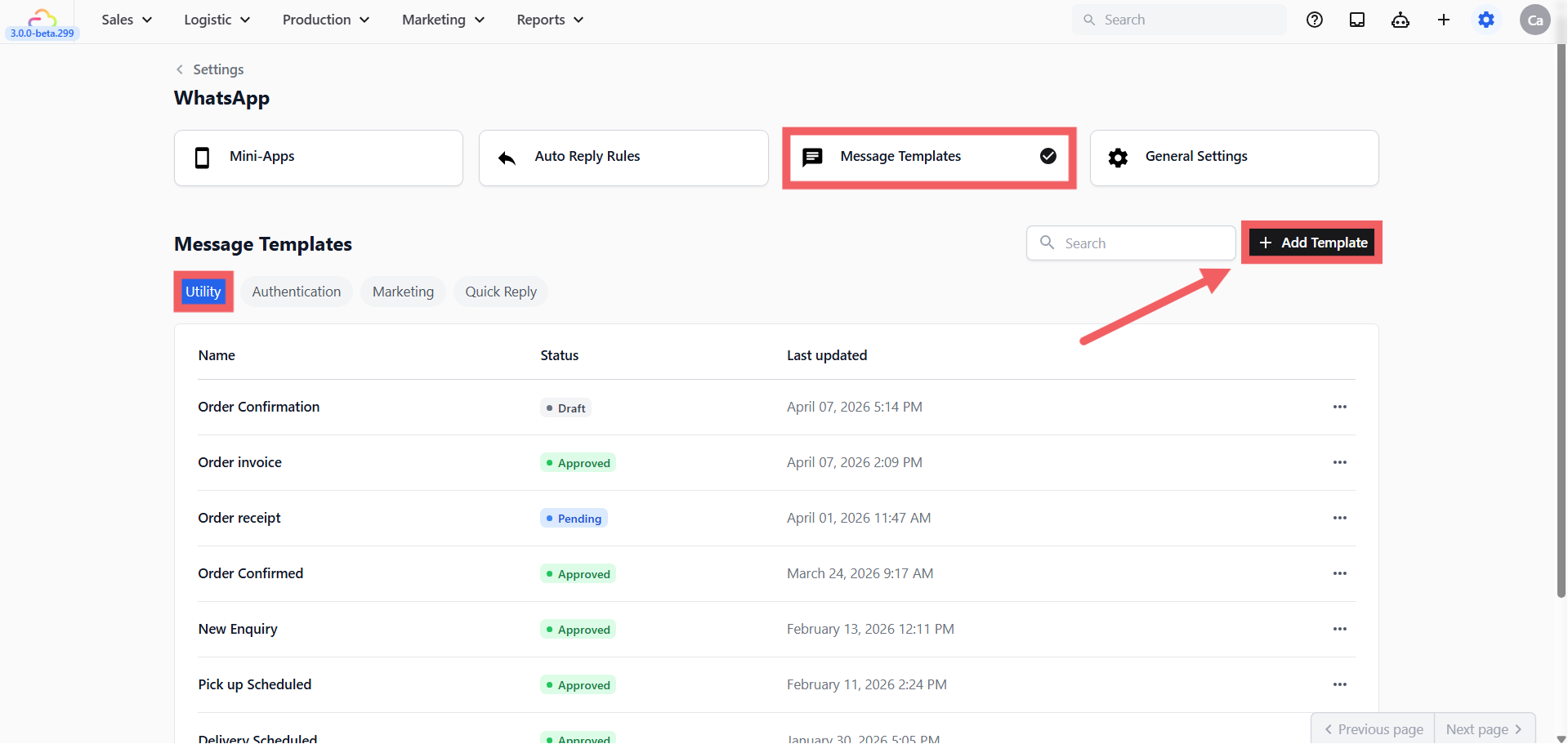
- Click the Marketing tab then click + Add Template, a dialog titled "New WhatsApp Template" will appear.
- Fill in the template details:
Template name — An internal label for your team. Not shown to customers.
Auto-move deal to stage — Optional. Automatically moves the customer to a stage in your sales pipeline when this template is sent. Leave as None if you are not using Deals. Learn more about Deals
Default reply status:
Replied — Marks the conversation as done and removes it from your Pending list.
Pending — Keeps it in your Pending list so your team remembers to follow up.
- Click a pre-built template card to select it. A blue border appears around the selected card. The Create button is greyed out until you have selected one. Click Create and the editor will open with the template pre-loaded and ready for you to customize.
Configuring the Template in the Editor
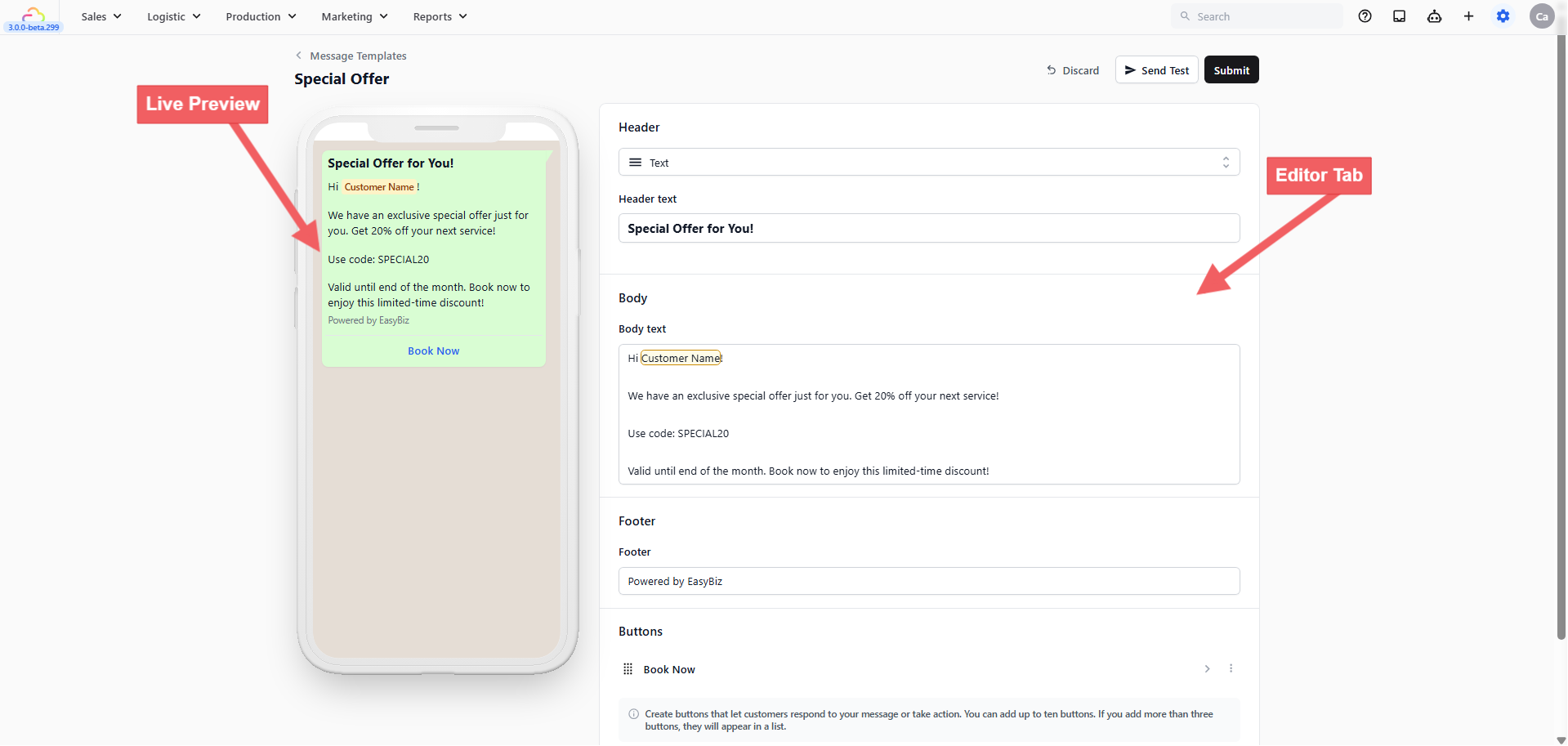
The editor shows a live preview on the left that updates as you make changes. Configure the template using the sections on the right.
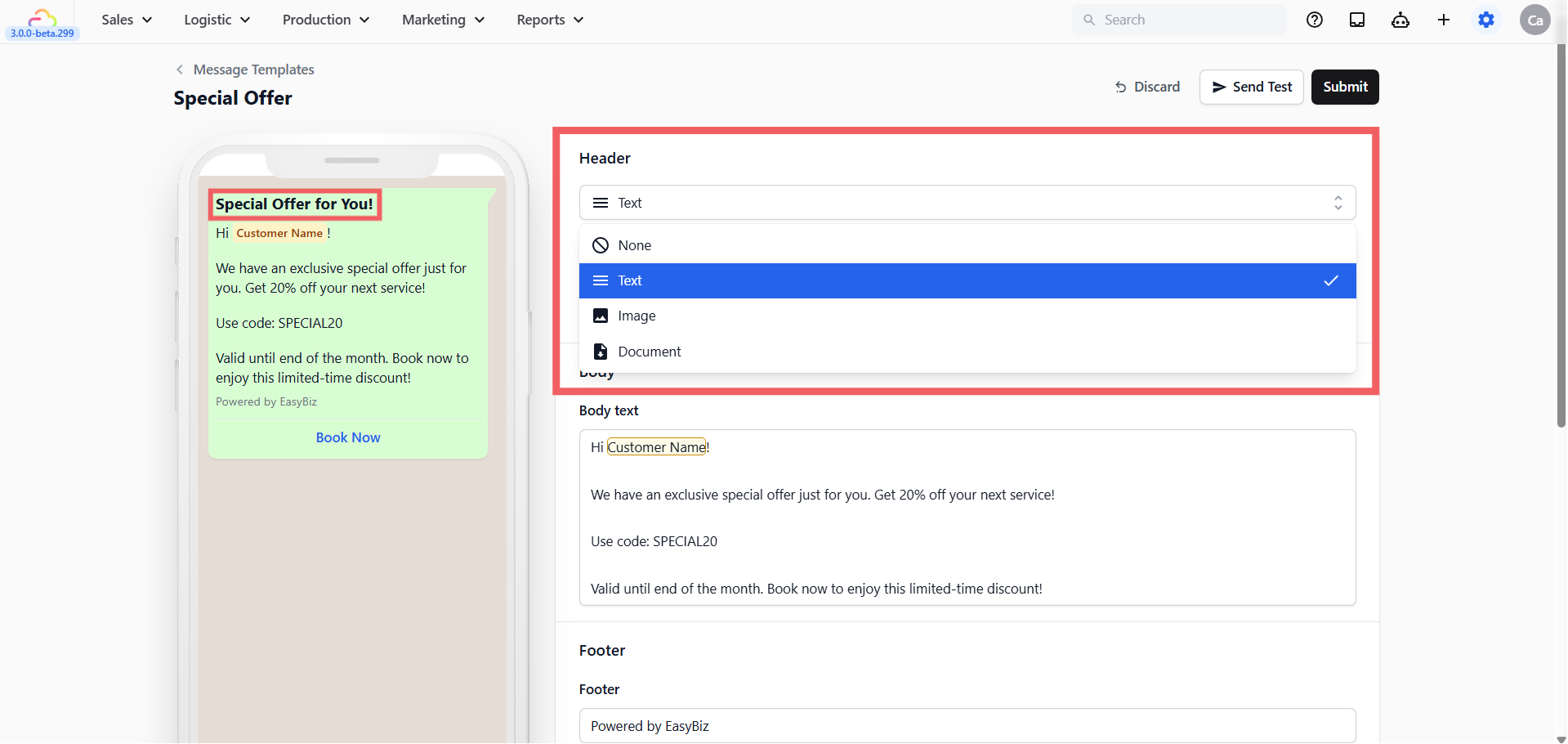
Header
Appears at the very top of the message. Options:
None — No header
Text — A short bold title (e.g. Special Offer for You!)
Image — A photo or promotional banner
Document — A PDF attachment
Body
The main message your customer reads. Keep it punchy and action-oriented — include your offer clearly and give the customer a reason to tap the button.
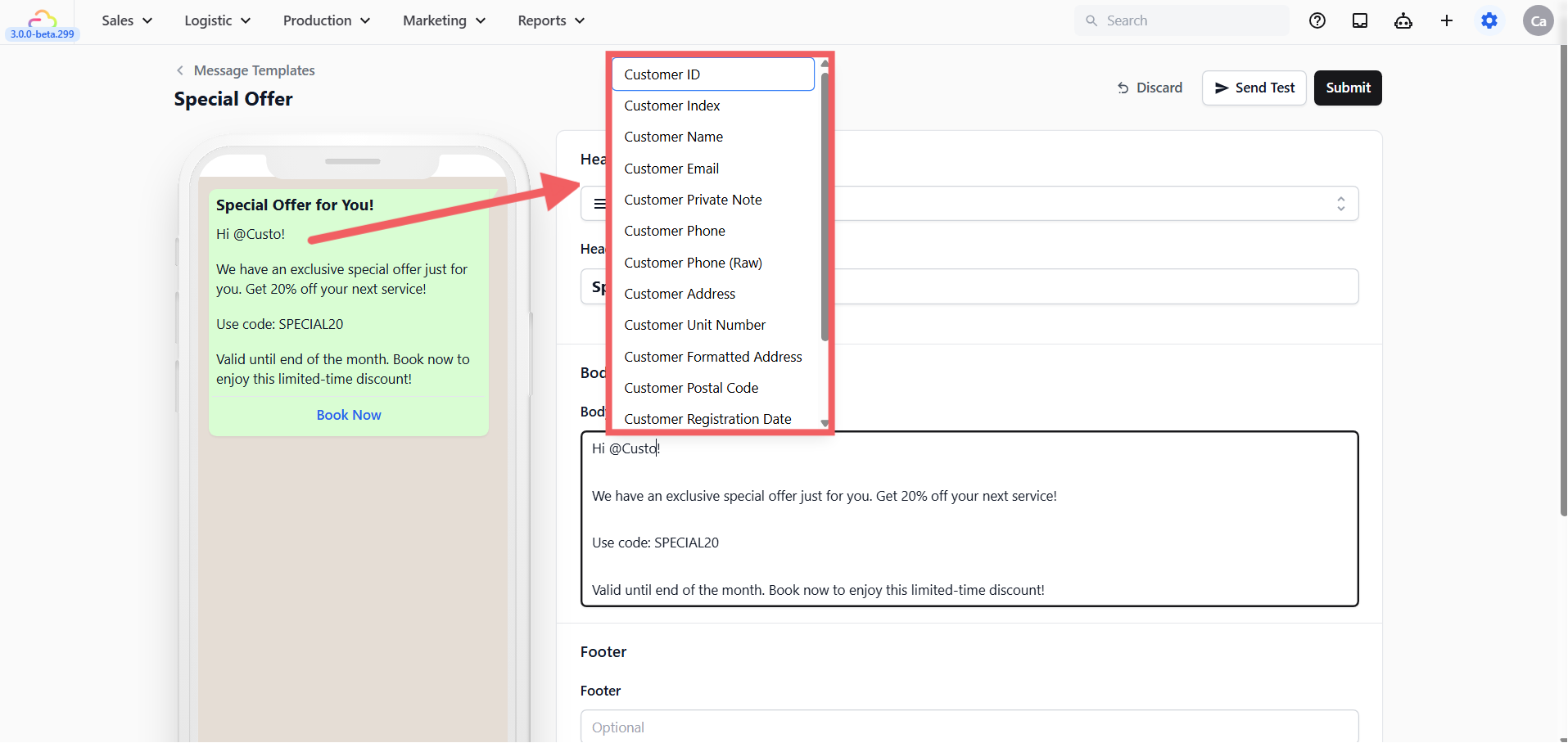
To personalise the message, type @ in the Body field and a dropdown list of available placeholders will appear, Click any one to insert it into your message. EasyBiz fills these in automatically with real information when the message is sent. Some commonly used placeholders:
@Customer Name— e.g. Sarah@Order Number— e.g. #00234@Order Pickup Date— e.g. Wednesday, 9 April@Order Pickup Time— e.g. 10:00 AM – 12:00 PM@Order Delivery Date— e.g. Friday, 11 April@Order Delivery Time— e.g. 2:00 PM – 5:00 PM@Order Amount Due— e.g. SGD 45.00
These are just the most commonly used ones. The system has many more available — customer email, customer phone, store name, order date, order subtotal, and more. Type @ in the Body field to see the full list and pick exactly what you need.
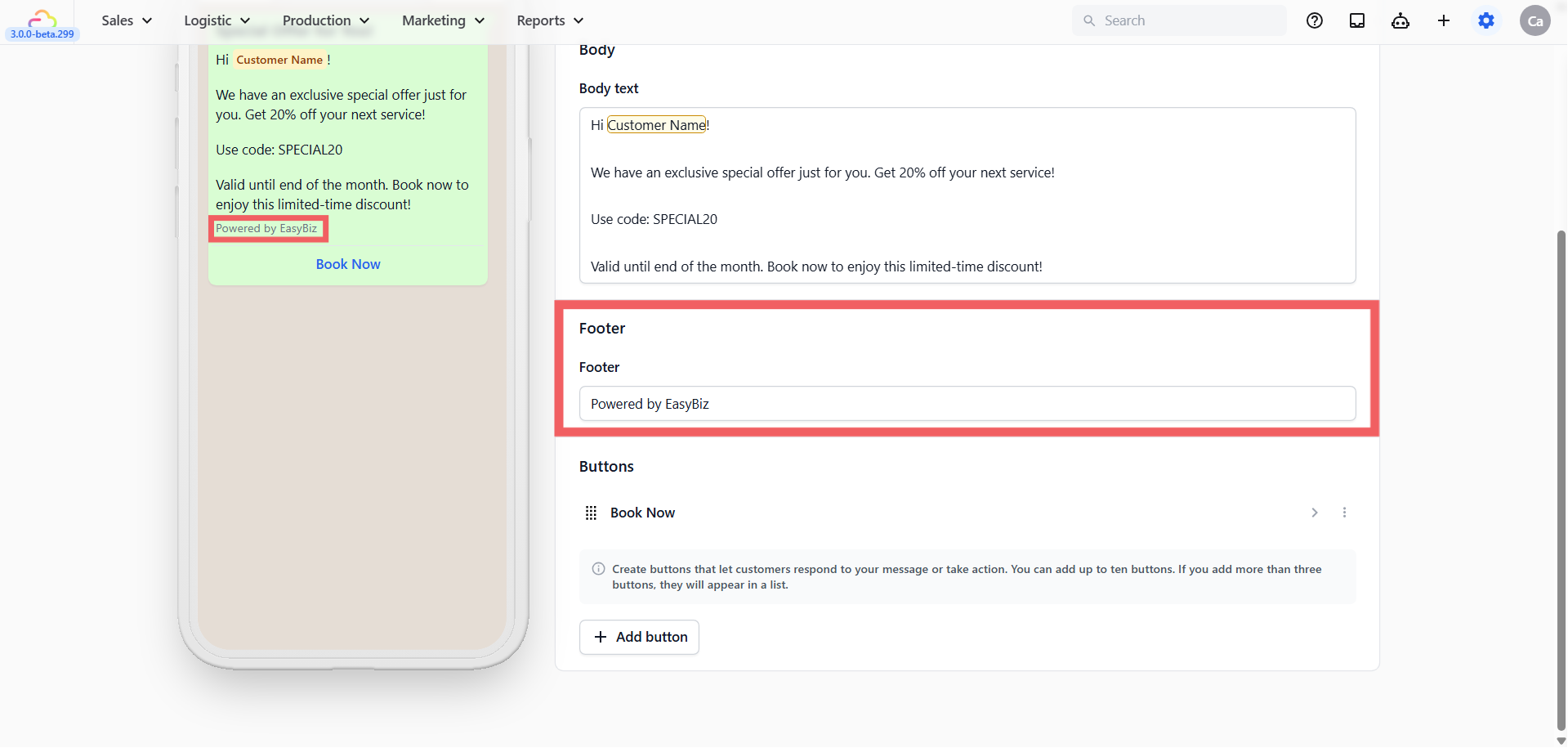
Footer
A short closing line below the body. Use it for your business name or a brief disclaimer. Cannot contain placeholders.
Buttons
Buttons appear below the message as tappable links. Click + Add button and choose:
Quick reply → A tappable reply button (e.g. "Yes, I'm interested", "Stop Promotions").
Visit website → Opens a webpage. Choose Static (same URL for everyone) or Dynamic (URL changes per customer). For most businesses, Static is all you need.
Call phone number → Dials a number you enter.
Open Mini App → Opens a booking or order form inside WhatsApp. Select which Mini App to link. Learn more about Mini Apps
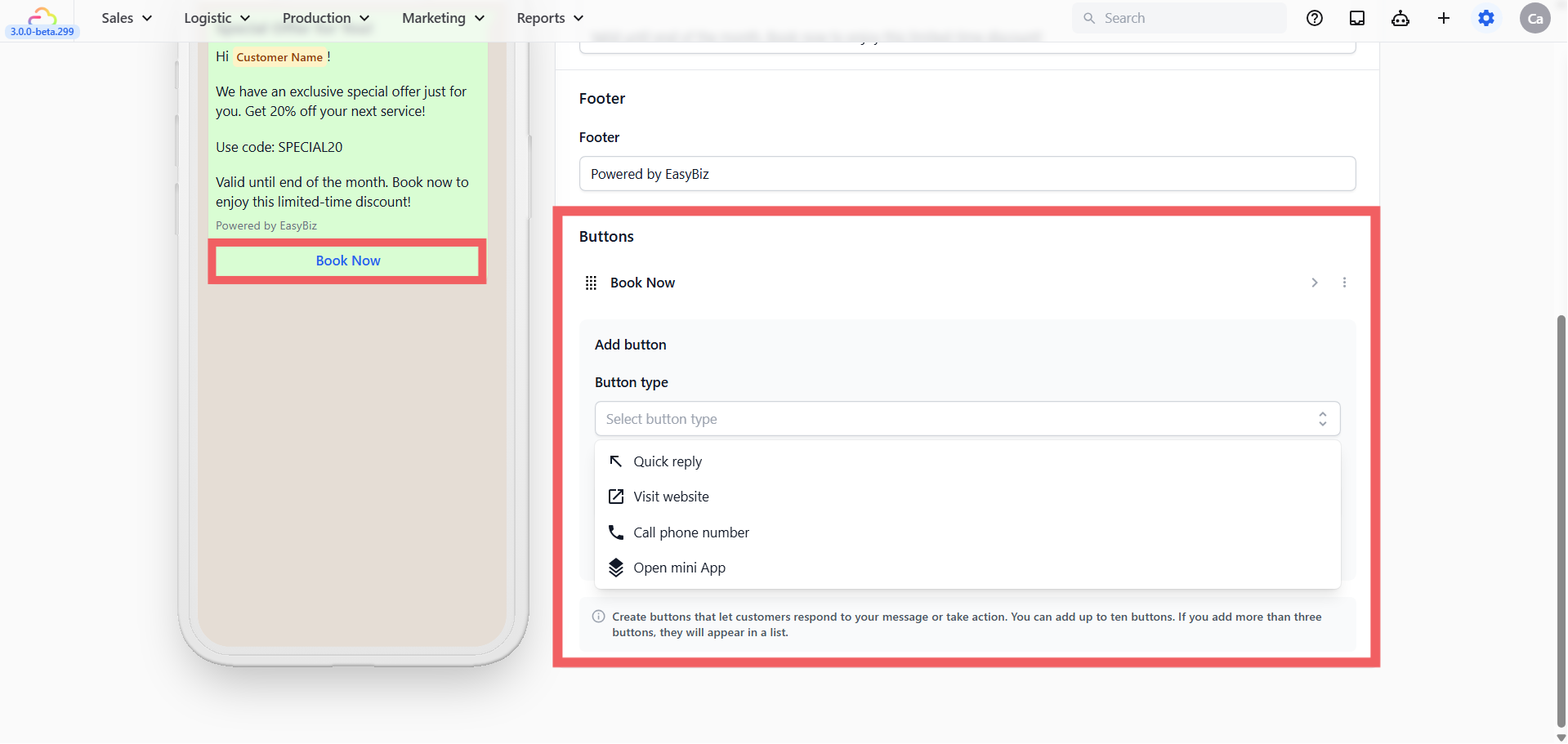
You can add up to 10 buttons. If you add more than 3, they automatically appear as a scrollable list. Drag and drop to reorder.
Letting Customers Stop Promotions
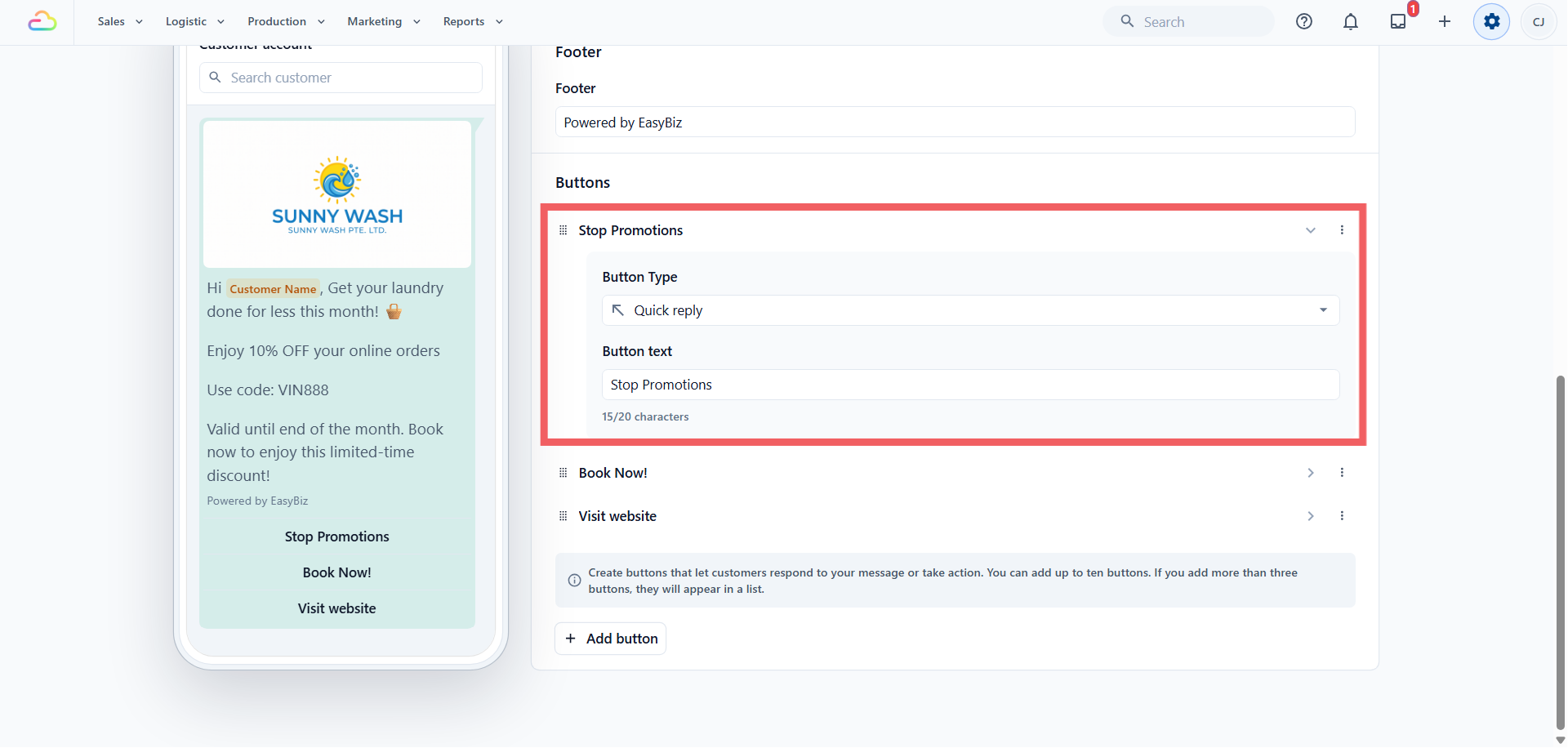
Every marketing message needs an easy way out. Give customers one tap.
Create or edit a Marketing template.
Add a Quick reply button and type the text exactly as Stop Promotions.
Submit the template to Meta.
Wait for the status to become Approved.
Use that approved template in your campaign.
When a customer taps it, they are unsubscribed straight away and receive a confirmation reply. Typing STOP or UNSUBSCRIBE on its own does the same thing. To come back, they reply START or SUBSCRIBE.
Submitting for Approval
When you are happy with your template, click Submit at the top right
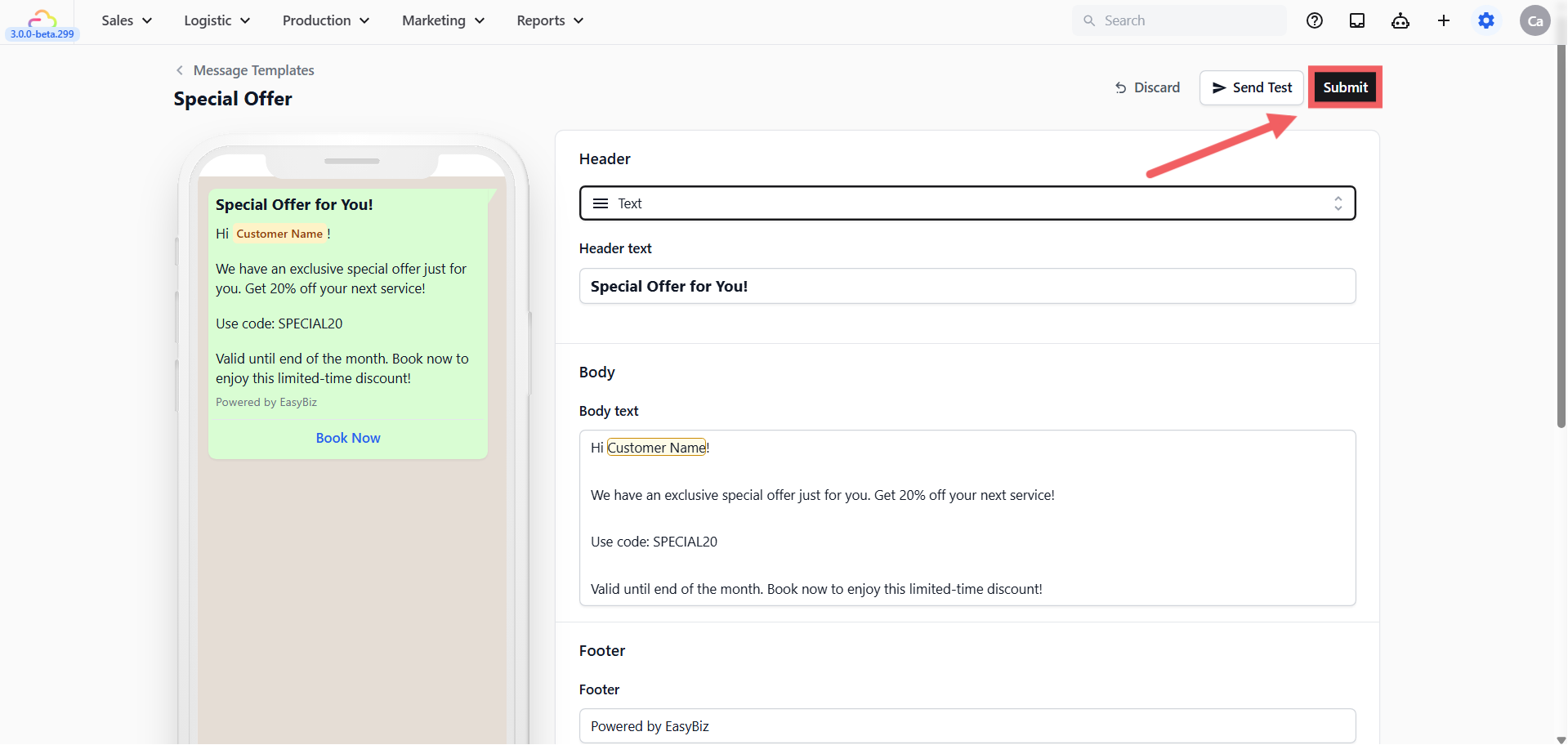
Select your WhatsApp Business Account and click Submit. Meta review usually takes a few minutes but can take up to 24 hours.
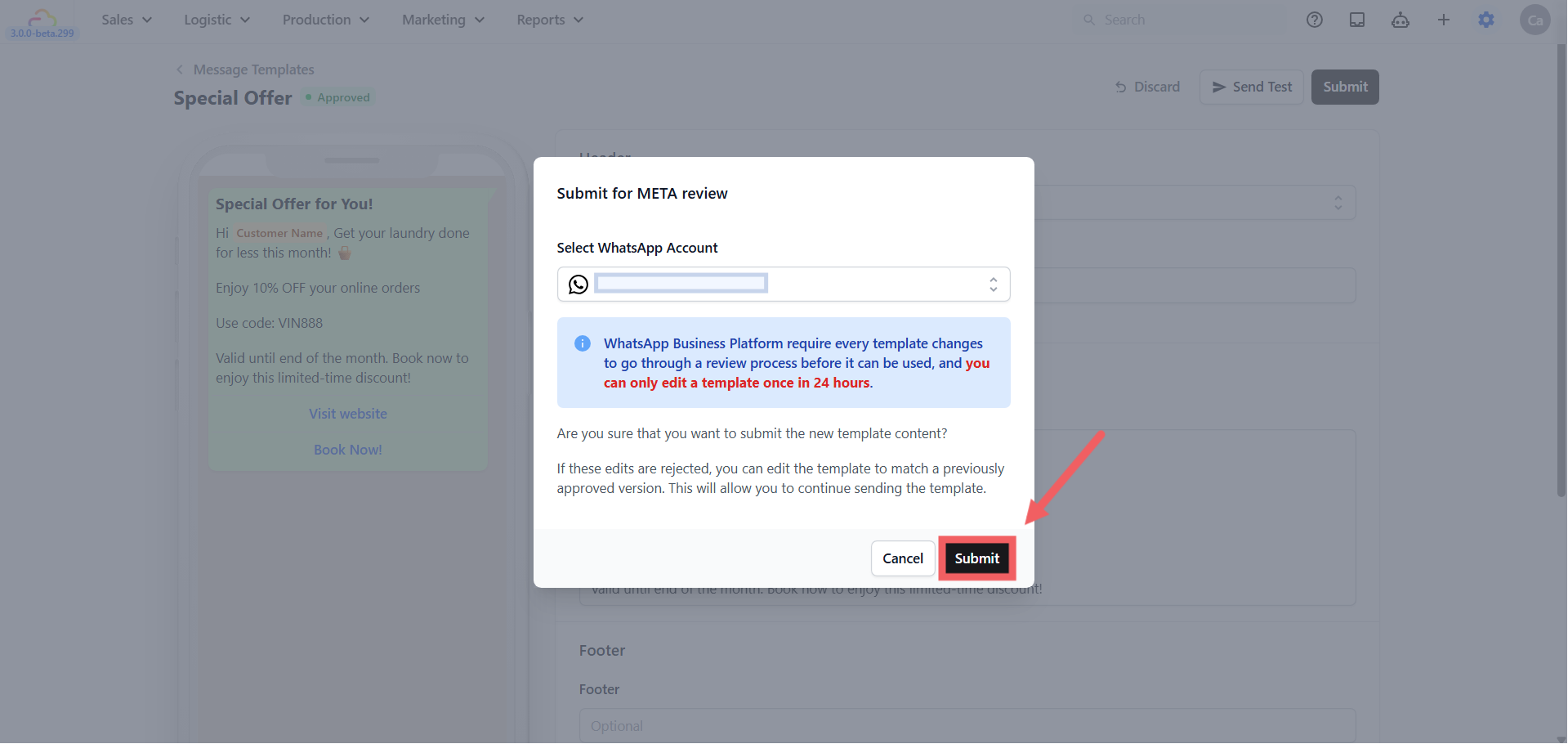
After submitting, you can return to the template list where the status will show as Pending. Once Meta approves it, the status will change to Approved and the template is ready to send to customers.
How to Send Your Marketing Template
Once your template is approved, there are two ways to send it.
Send to many customers at once with a campaign
A campaign sends this template to a targeted group of your customers in one go. Set it up in Sending WhatsApp Broadcasts and Campaigns, and read Introduction to WhatsApp Campaigns first if you have never run one, because Meta charges you for every message sent.
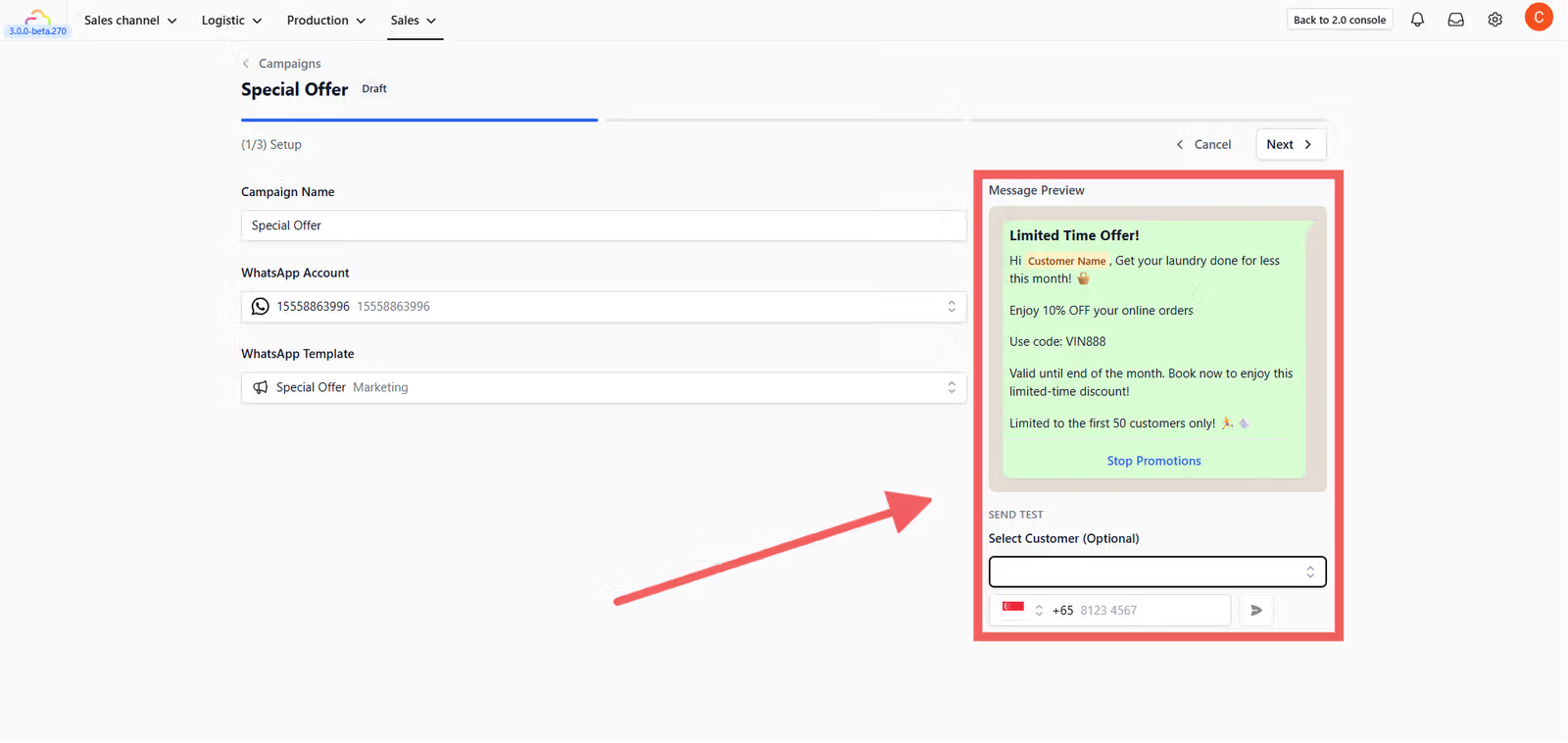
This is the most common way to run a promotion
Send to a single customer
You can also send a Marketing template to one specific customer in two ways:
Directly from the template list:
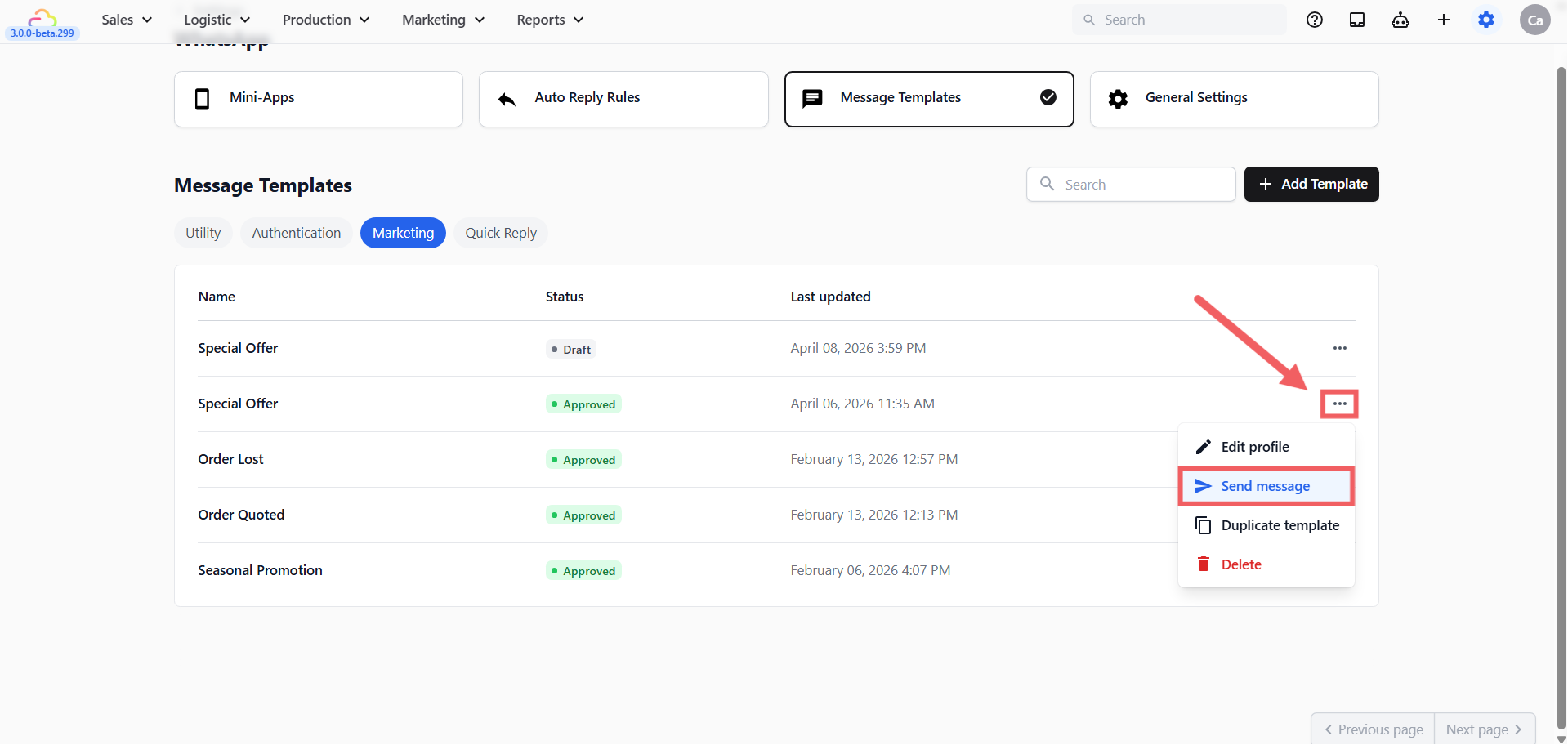
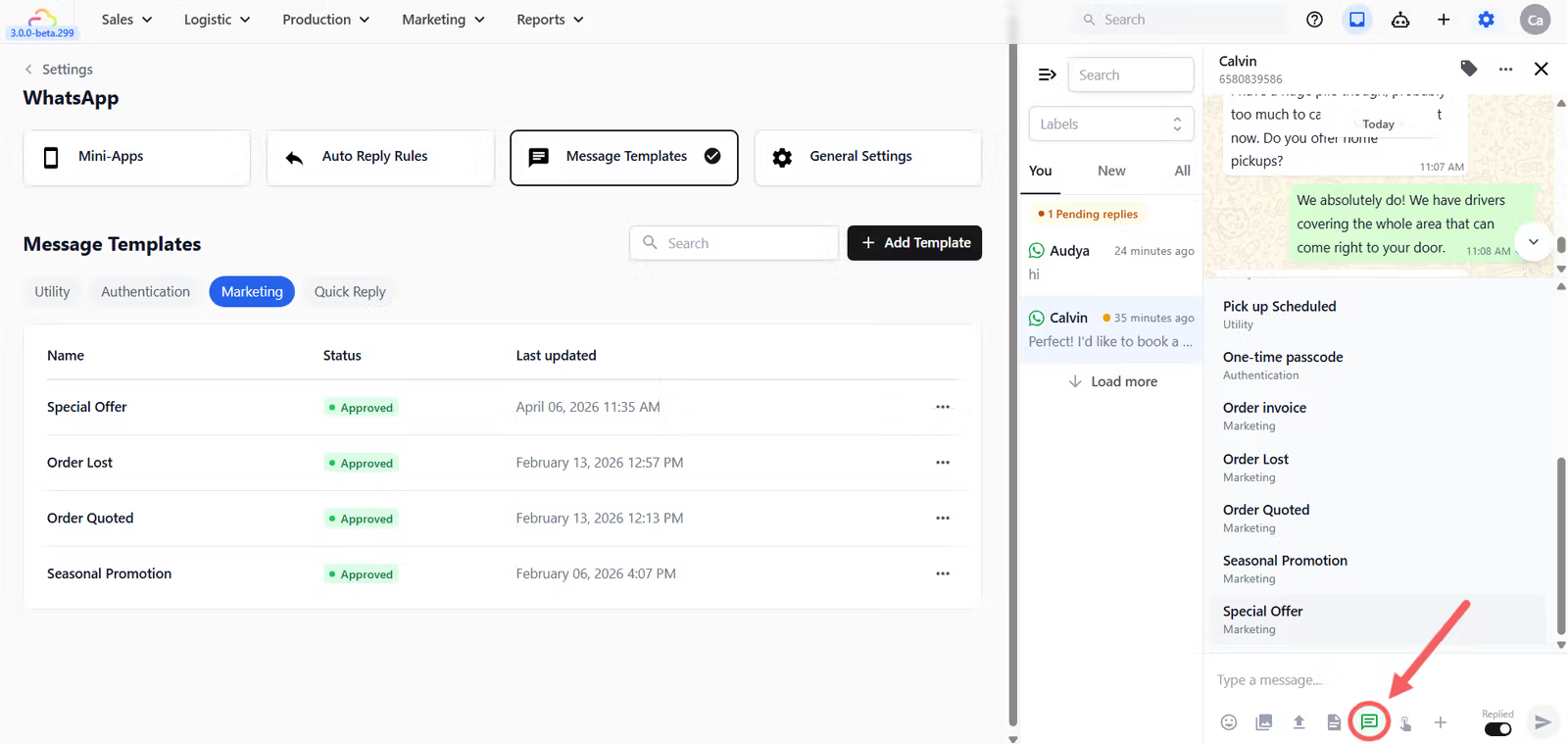
Go to the Message Templates page and click the Marketing tab
Find the template you want to send
Click the ⋮ three-dot menu on the right of that template row
Click Send message and a dialog will appear
If your template contains placeholders like
@Customer Nameor@Order Number, EasyBiz will ask you to confirm the details before sending. Templates with no placeholders will send immediately.Click Send
Or from the inbox:
Open your WhatsApp Inbox and select the customer
Below the typing area, click the Template icon (it looks like a message bubble 💬)
Select your approved Marketing template
If your template contains placeholders like
@Customer Nameor@Order Number, EasyBiz will ask you to confirm the details before sending. Templates with no placeholders will send immediately.Click Send
Understanding Error 131049 — When Marketing Messages Stop Delivering
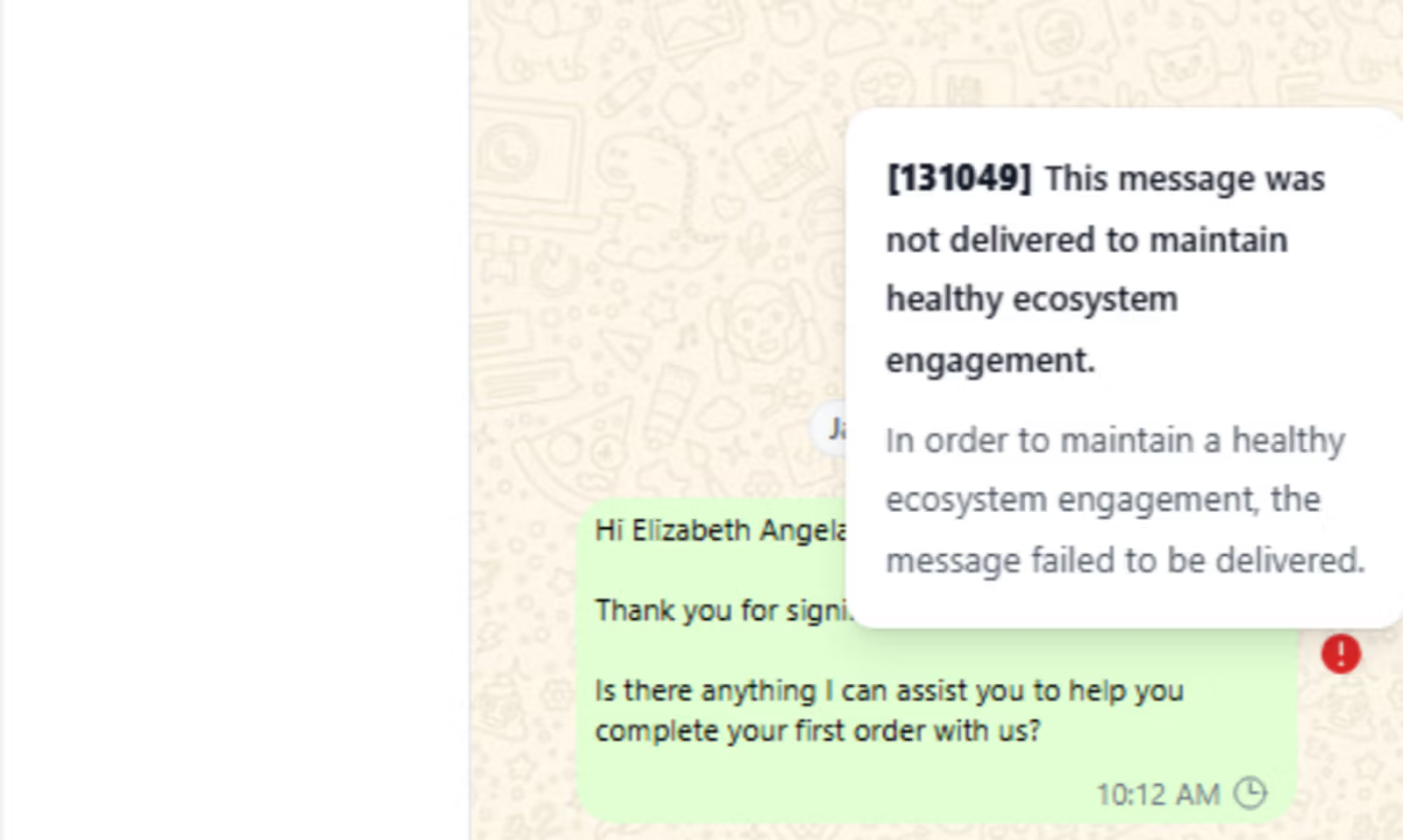
If your Marketing templates suddenly stop being delivered to customers, WhatsApp has temporarily blocked them. This is Error 131049 — WhatsApp's way of flagging low-engagement outreach as potential spam. It happens when too many recipients receive your message but do not reply or interact.
Utility templates are never affected by this block because they respond to real customer actions, not unsolicited outreach.
If you see Error 131049:
Stop sending that Marketing template
Create a new template written as Utility
Follow the Utility writing tips in this article → How to Keep Your Template as Utility.
Submit the new template and use it going forward
FAQs
Do I need Meta approval again after editing an approved template?
Yes. Any edit sends the template back to Pending review, and it cannot be used for a campaign until it is Approved again. You can only edit a submitted template once every 24 hours.
Does Stop Promotions also stop order updates and receipts?
No. Those keep sending. Only marketing campaigns are blocked.
Why must the button say exactly Stop Promotions?
The system reads the words the customer sends back. "Stop Promotion", "Stop promo", or "No more offers" are not recognised and nothing happens.
How does a customer come back?
They reply START or SUBSCRIBE and receive a welcome back confirmation.
Does opting out stop an automatic Deal follow-up?
Yes. If that WhatsApp conversation is attached to a Deal, its follow-up sequence stops at the same time.
The same phone number is on two customer records. Does opting out cover both?
Yes. Every record sharing that number is opted out together.
If someone opts out after I schedule a campaign, do they still get it?
Yes. The recipient list is frozen when the campaign launches. They are excluded from your next one.
Does a test send cost money?
Yes. A test is a real marketing message through Meta, billed like any other, and it opens a real conversation in your Inbox.
What's Next?
Now that your marketing templates are in place, continue to Setting Up Quick Reply Templates to give your team one-tap responses for the most common questions in the inbox.