
What Are Measurement-Based Line Item Steps?
When staff tap a measurement-based item, a short set of steps opens instead of the item simply going into the cart. Staff enter two things:
Quantity → the measurement that drives the price. For example 4.2 for 4.2 kg, or 25 for 25 sqft. The system multiplies this by the item's per-unit price to calculate the line total.
Pieces → the count of physical items. For example 3 curtain panels, or 2 rugs. This tells the system how many labels to generate for this order line. One label per piece.
These are separate because one job can have multiple physical items with a single combined measurement. Three curtain panels might together weigh 4.2 kg the price comes from 4.2, but you need 3 labels.
When to Use This
Use this only if your shop has items where the price depends on a physical measurement:
Laundry charged per kilogram (bulk wash, comforters)
Curtains charged per square foot or per hook
Rugs charged per square meter or per foot
Blinds or alterations charged per inch
If every item has a fixed price per piece, skip this article.
Before You Start
Two things need to be in place before you add the steps.
Check your items in the Product Catalog
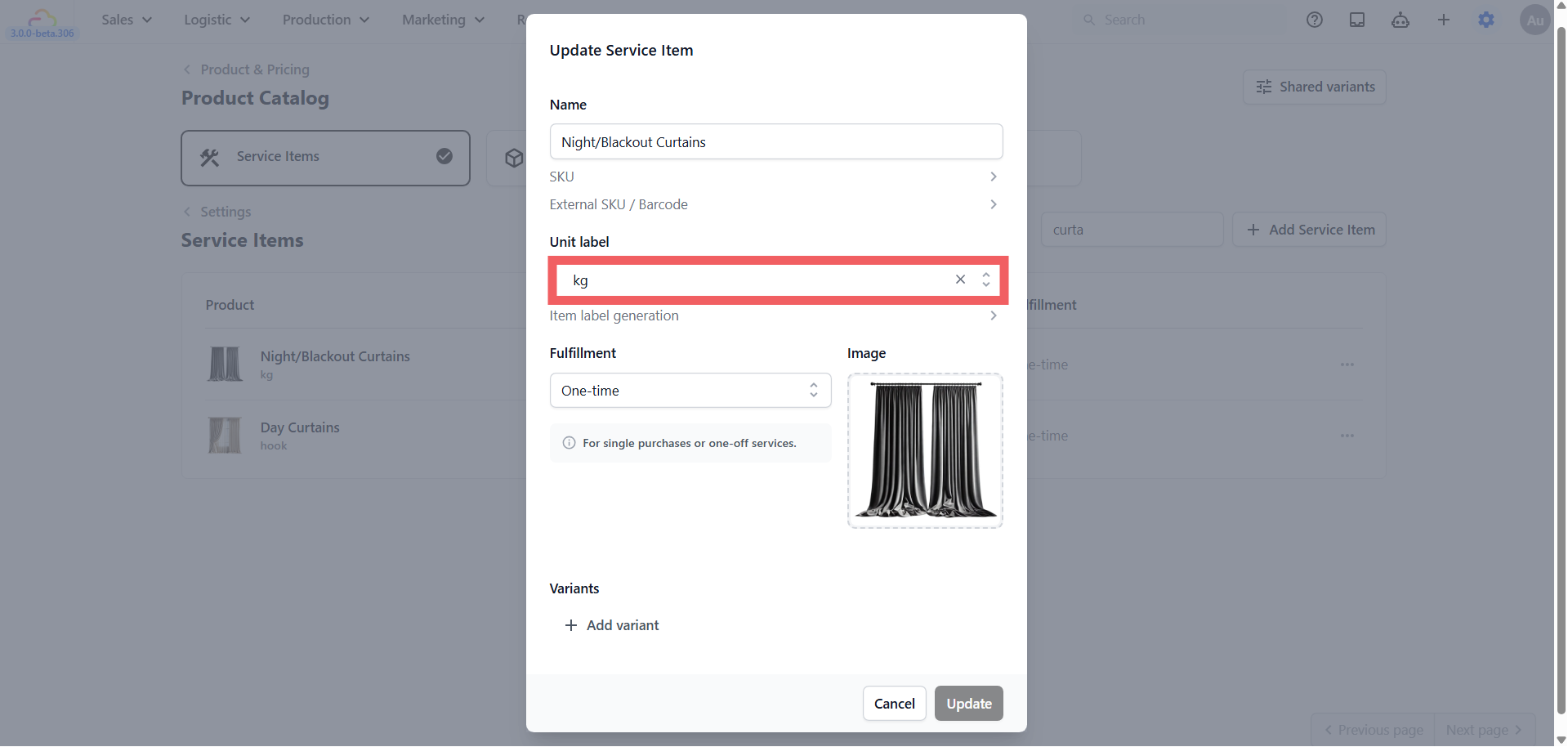
Open your product catalog and find the items you want these steps to apply to. For example Curtain, Carpet, or Bulk Wash. Make sure each one has the correct unit set, such as kg, sqft, ft, inch, or hook. This is what tells the system which items should open the steps. See Adding Service Items.
Check your Published Price List
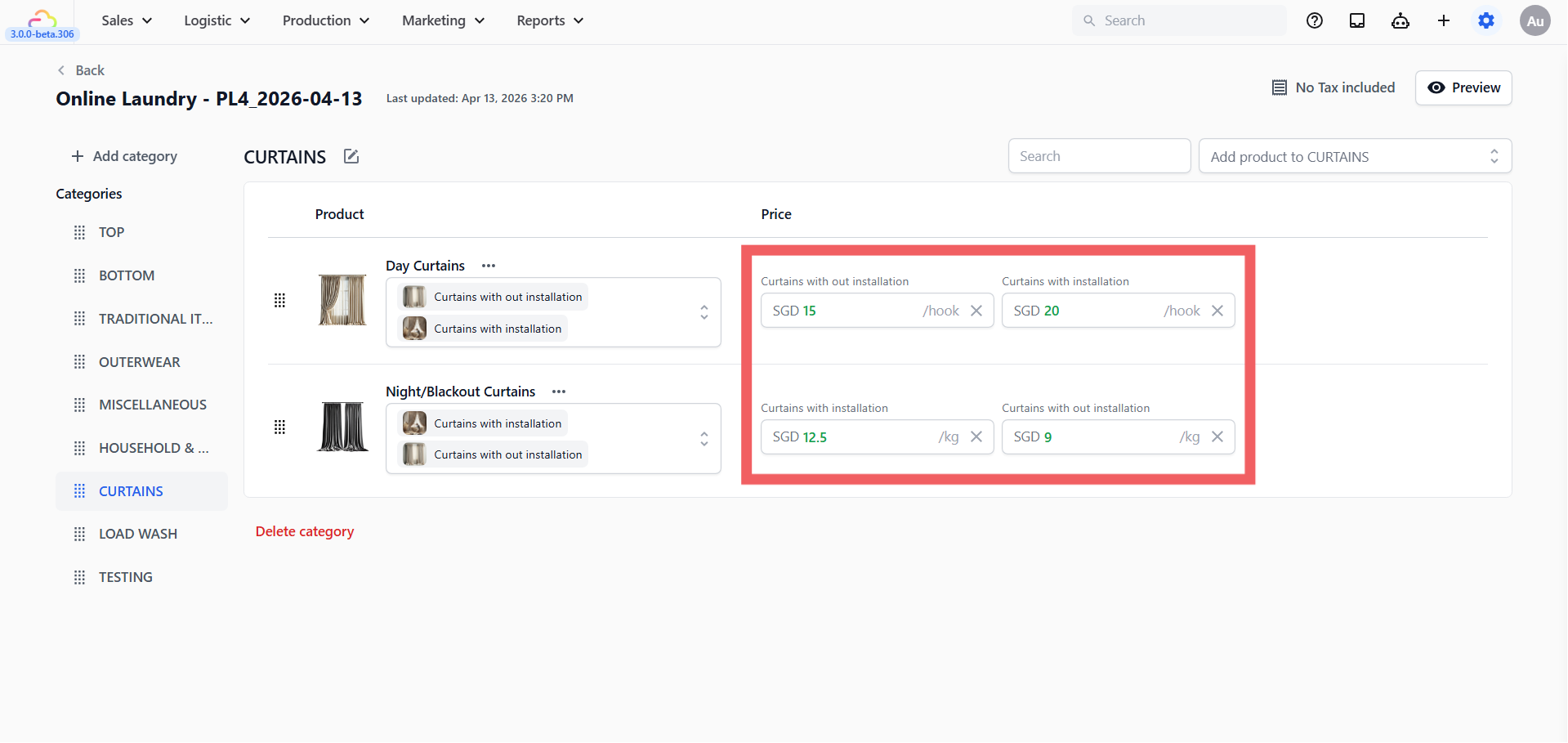
Open the price list linked to your Laundry Business Unit and confirm that the same items are priced per unit. For example Curtain at $3.50 per sqft, or Bulk Wash at $4.50 per kg. When staff enter the measurement in the steps, the POS multiplies it by this per-unit price to calculate the total automatically. See Create Price Lists.
Step 1: Open Line Item Steps on Your Business Unit
Click the ⚙️ Settings icon in the top-right corner of your screen
Under Company & business structure or Administration, click Business Units
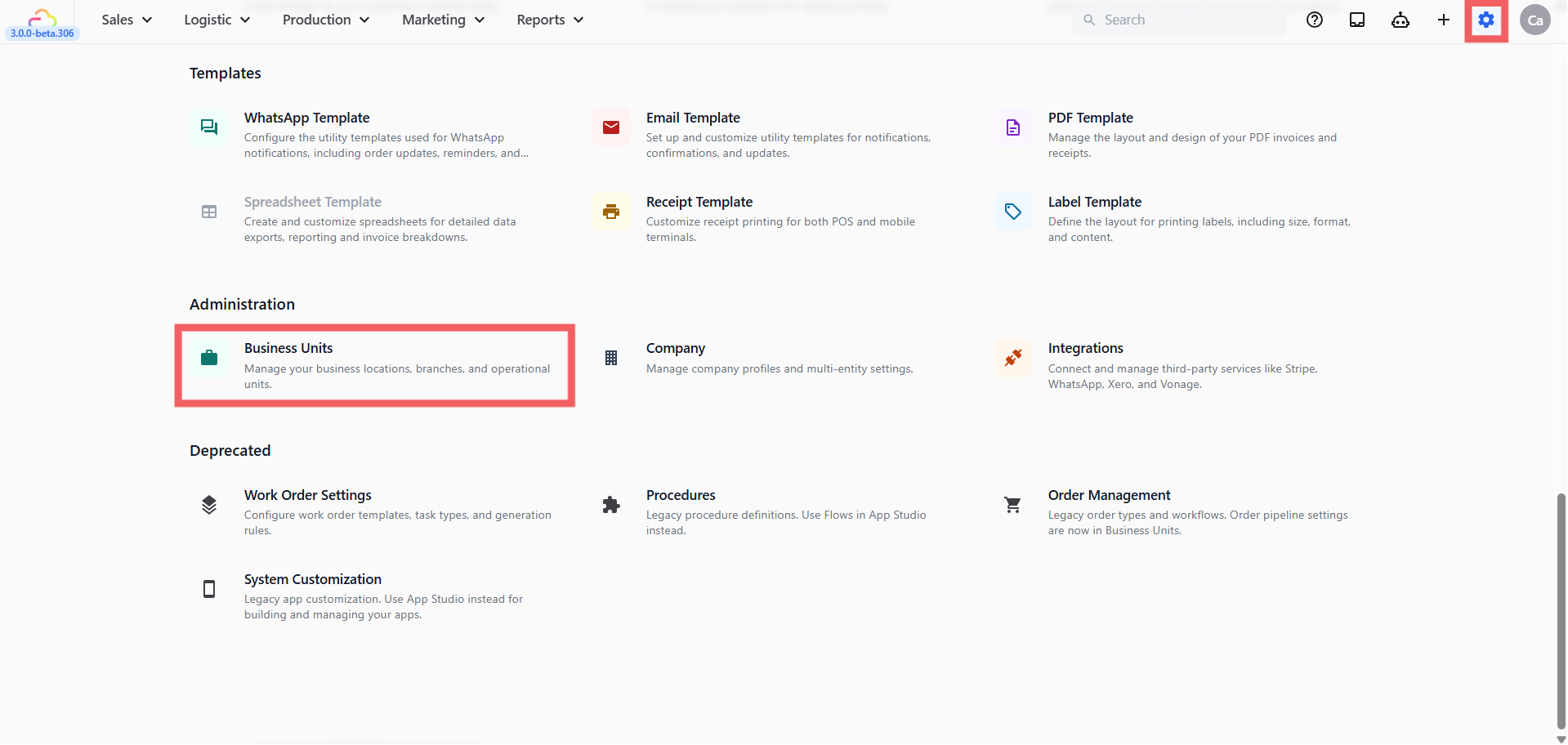
Open your Laundry Business Unit and go to the Selling tab
Under Staff checkout, find Line item steps and click Add line item steps. A full page opens.
Step 2: Add the Steps
Click Add Step and pick a step from the list. Each step asks staff for one value.
Add these four steps in order:
| # | Step | Process Method | What it does |
|---|---|---|---|
| 1 | Enter Quantity | Required | The measurement staff enter — 4.2 for 4.2 kg, or 25 for 25 sqft. The system multiplies this by the unit price to calculate the total. |
| 2 | Enter Pieces | Required | The count of physical items. Determines how many labels the system generates for this order line. Three curtain panels = 3 labels, even if their combined weight is entered as one Quantity value. |
| 3 | Enter Unit Price | On Demand | The per-unit price from the price list. On Demand means it is available if staff need it but does not appear by default. Useful when a customer negotiates a rate or staff want to check the price before confirming. |
| 4 | Enter Note | On Demand | A free-text field for extra remarks — fabric type, stains, special care. Staff open it only when they have something to record. |
New steps start as Required. Select each step and set its Process Method as shown.
Step 3: Choose Which Items Use the Steps
- At the top of the page, under Apply To, choose Specific units.
| Option | What it means |
|---|---|
| All items | Leave Apply To empty: every item in your catalog uses these steps |
| All service items | Only service items use these steps |
| All retail products | Only retail products use these steps |
| Specific units | Only items with specific unit labels use these steps (e.g. sqft, kg, hook) |
| Specific products | Only specific products you select use these steps |
You can select multiple units at once for example kg, sqft, ft, inch, and hook together. Any item tagged with one of these units will open these steps automatically.
Click Save
What Staff See at the Counter
Example 👉 Curtain by hook/weight:
Customer drops off 3 curtain panels.
Staff taps Curtain on the POS.
The steps open: staff enter Quantity 4 kg/hook and Pieces 3.
POS calculates: 4 × $15 = $60.00. System queues 3 labels — one per panel.
The item is in the cart with price and label count set.
FAQs
Can I use decimals for Quantity?
Yes, for items in kg, sqft, ft or inch. For example, 3.5 kg or 2.75 ft work fine. Other units take whole numbers.
What is the difference between Quantity and Pieces?
Quantity is the combined measurement that drives the price. Pieces is the physical item count that drives labelling. Three curtain panels at 4.2 kg total: Quantity is 4.2, Pieces is 3.
Can one set of steps cover all my measurement-based items?
Yes. Set Apply To to Specific units and select all the relevant units — kg, sqft, ft, inch, hook — in one set. The same steps open for every item tagged with any of those units.
What if an item is sometimes charged by kg and sometimes per piece?
Create two separate price list entries — for example "Curtain per kg" and "Curtain per pcs" — and tag each with its unit. Staff tap the right one at drop-off.
Can staff override the calculated price?
Staff can change the unit price, and the total recalculates. Use the On Demand Enter Unit Price step, or turn on Allow edit unit price on the business unit's Catalog tab so staff can tap the unit price in the cart. For that, staff also need permission to override prices.
Does the measurement show on receipts?
The default receipt shows each line's unit price, quantity and total. To print the unit too, such as kg, add the Line Item Unit placeholder to your receipt template.
What if the measurement changes after checkout?
Staff can edit the line item from the order detail page and update the measurement. The total recalculates automatically.