
Key Terms
| Term | What it means |
|---|---|
| Line Item | A single item line inside a customer order. |
| Business Unit | A line of business in your shop, for example Laundry and Garment Care. |
| Sales Channel | Where the order comes from, for example a POS counter or your online store. |
| Specific Units | The "Apply To" option that limits a flow to items in a chosen unit, like kg or hook. |
Where Process Flows Live
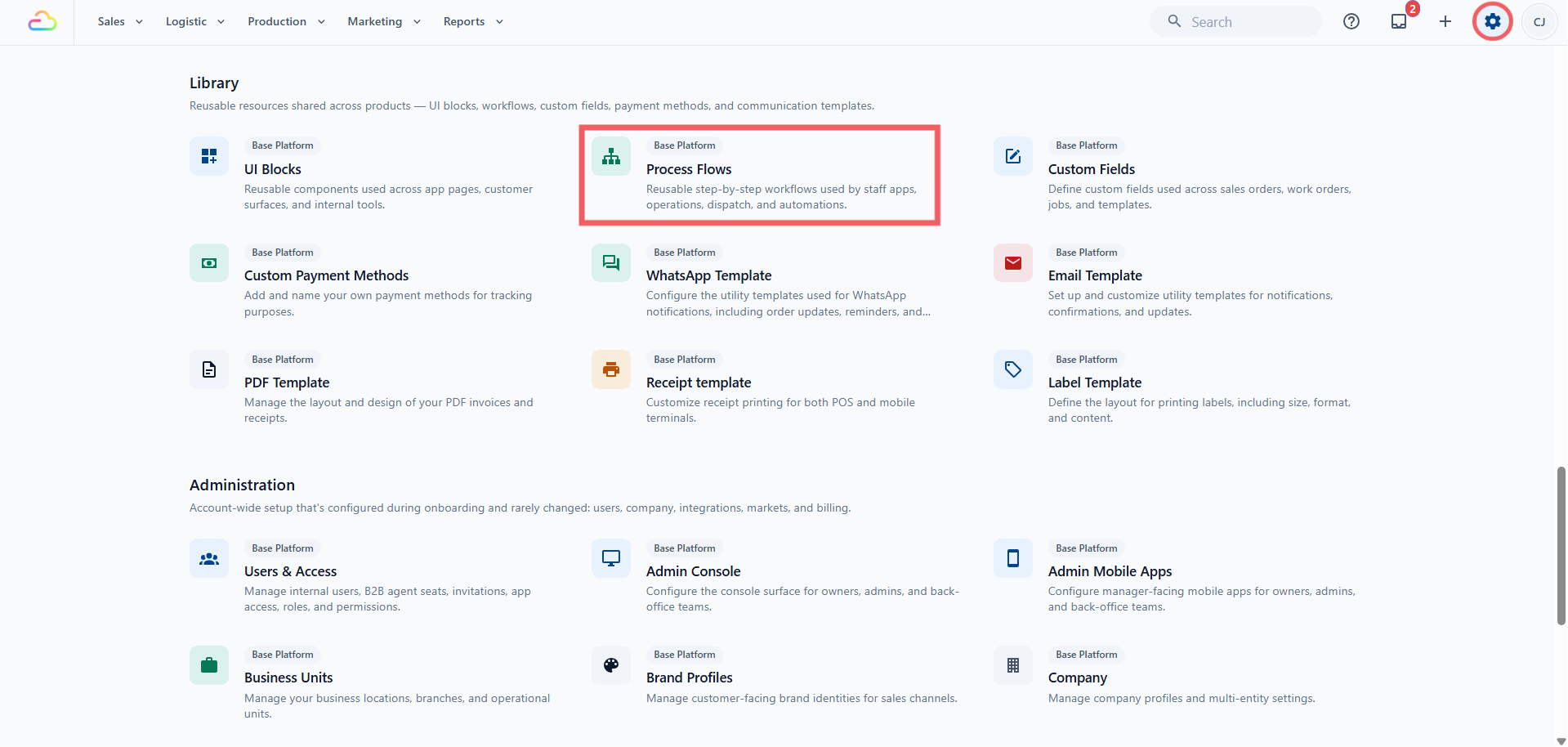
Click the ⚙️ Settings icon in the top-right corner.
Under Library or Library & templates, click Process Flows.
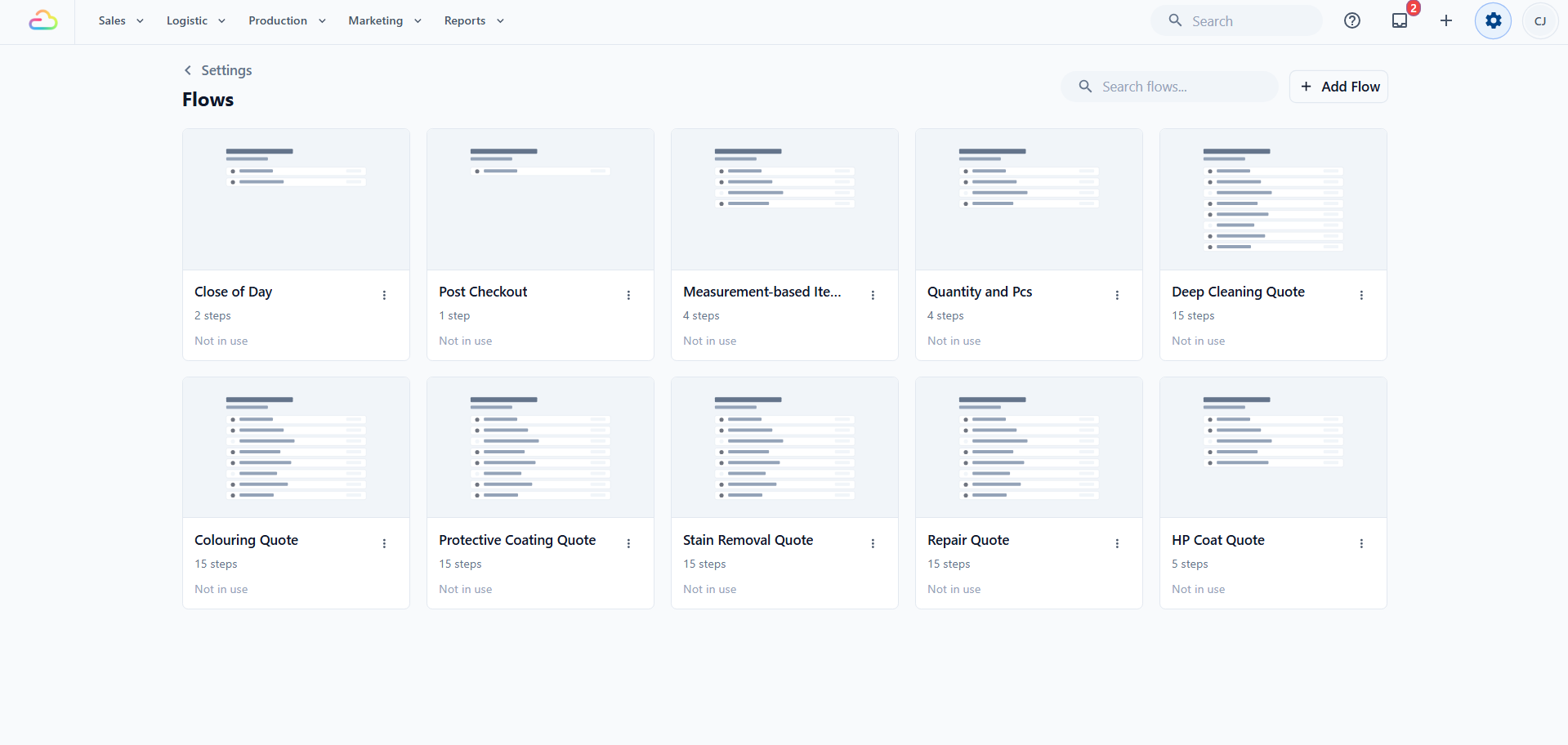
This page lists the flows in your account. Each card shows the flow name, the number of steps, and whether the flow is in use. Use the search bar at the top to filter the list, and use Add Flow to create a new one.
The checkout steps and line item steps you set up on a business unit are not listed here. They belong to that business unit and are edited on its Selling tab.
The Flow Types in Console 3.0
Flows on this page are reusable. The same flow can be attached to different moments. Packing and handover flows are attached on the Business Unit's Production tab. See Introduction to Business Units.
| Flow attachment | When it runs |
|---|---|
| Packing Flows | While staff pack items during production |
| Completion & Handover Flows | When staff hand the order back to the customer at the shop, on delivery, or on-site |
Checkout steps and line item steps are not built on this page. Since 1 October 2026, each business unit sets up its own on its Selling tab, under Staff checkout:
| Steps | When they run |
|---|---|
| Line item steps | When staff add or edit an item in the cart |
| POS checkout and Console checkout | Before staff create a new order |
Customer checkout steps, for orders on your Online Store, are set up in the Online Store editor.
Flows, checkout steps and line item steps use the same step editor. The steps you can add depend on where they run.
Line item steps can take different shapes depending on the item. Quantity and pieces steps are for items priced by weight or count. A bag repair intake, for example, captures a colour, a serial number, and a damage photo instead.
Why a Shop Owner Would Use One
Use a flow, or a business unit's checkout or line item steps, when staff need to answer something extra at a specific moment. A few examples:
A laundry curtain needs its weight and piece count entered before the price is calculated and the labels are printed (line item steps).
A bag repair intake needs a colour, a serial number, and a damage photo recorded before the work starts (line item steps).
A delivery driver needs the customer's signature and a photo of the parcel before the order can be marked complete.
If every item has a fixed price and needs no extra details, you do not need a flow.
FAQs
Do I need to build a Flow before I go live?
No. Most shops with fixed price items can go live without touching this page.
Can one flow be used in more than one Business Unit?
Yes. A flow on this page is reusable. Attach the same flow to as many Business Units as you need, and a change to the flow appears everywhere it is used. Checkout steps and line item steps are different: each business unit has its own.
Can I change a flow that is already in use?
Yes. Edits save to the same flow, so the next time the flow runs they see the new version. There is no separate publish step.
What is the difference between line item steps and checkout steps?
Line item steps run once per item, while a staff member is adding that item. Checkout steps run once for the whole order, just before staff confirm it.
Can I delete a flow if I built it wrong?
Yes, but carefully. Removing a flow is not blocked even if the flow is still attached to a Business Unit. After you remove it, the places that used it stop using it. Past orders keep their data.
What's Next
Now that you know what a Process Flow is, pick the guide that matches what you want to set up:
If you charge by weight or count (like laundry by kg or curtains by hook), continue to Setting Up Quantity and Pieces Steps to set up the most common line item steps.
If you run a repair service and need a colour, serial number, or damage photo at intake, see Setting Up Bag Repair Intake Steps (guide coming soon).
If you need a check before confirming an order, see Setting Up Your Checkout Steps (guide coming soon).
If you track items during production, see Setting Up Your Packing Flow (guide coming soon).
If you collect a signature or photo at handover, see Setting Up Your Completion & Handover Flow (guide coming soon).