
Before You Start
If you want to assign jobs to a team member/driver, make sure they already have an account, see Inviting Your Team and Managing Access first. If you want to assign pickup & delivery jobs by area, set up Custom Zones first.
What Assignment Rules Do
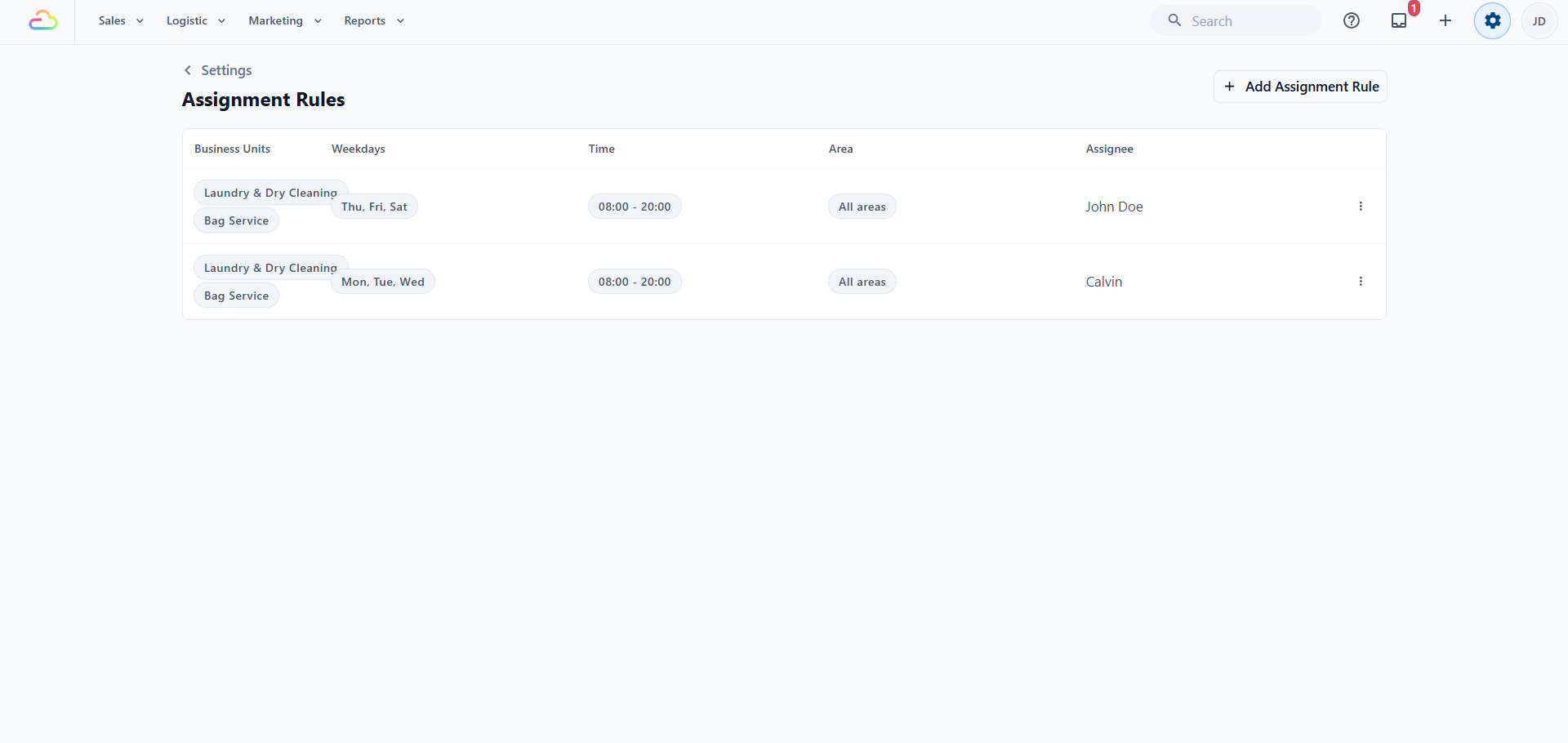
Every time a customer books a pickup or delivery, that booking becomes a job for one of your team to handle. Without Assignment Rules, the job sits in a shared list until a staff member opens it and passes it to a driver by hand. With Assignment Rules, the job goes straight to the right person the moment the customer books.
Where to Find Assignment Rules
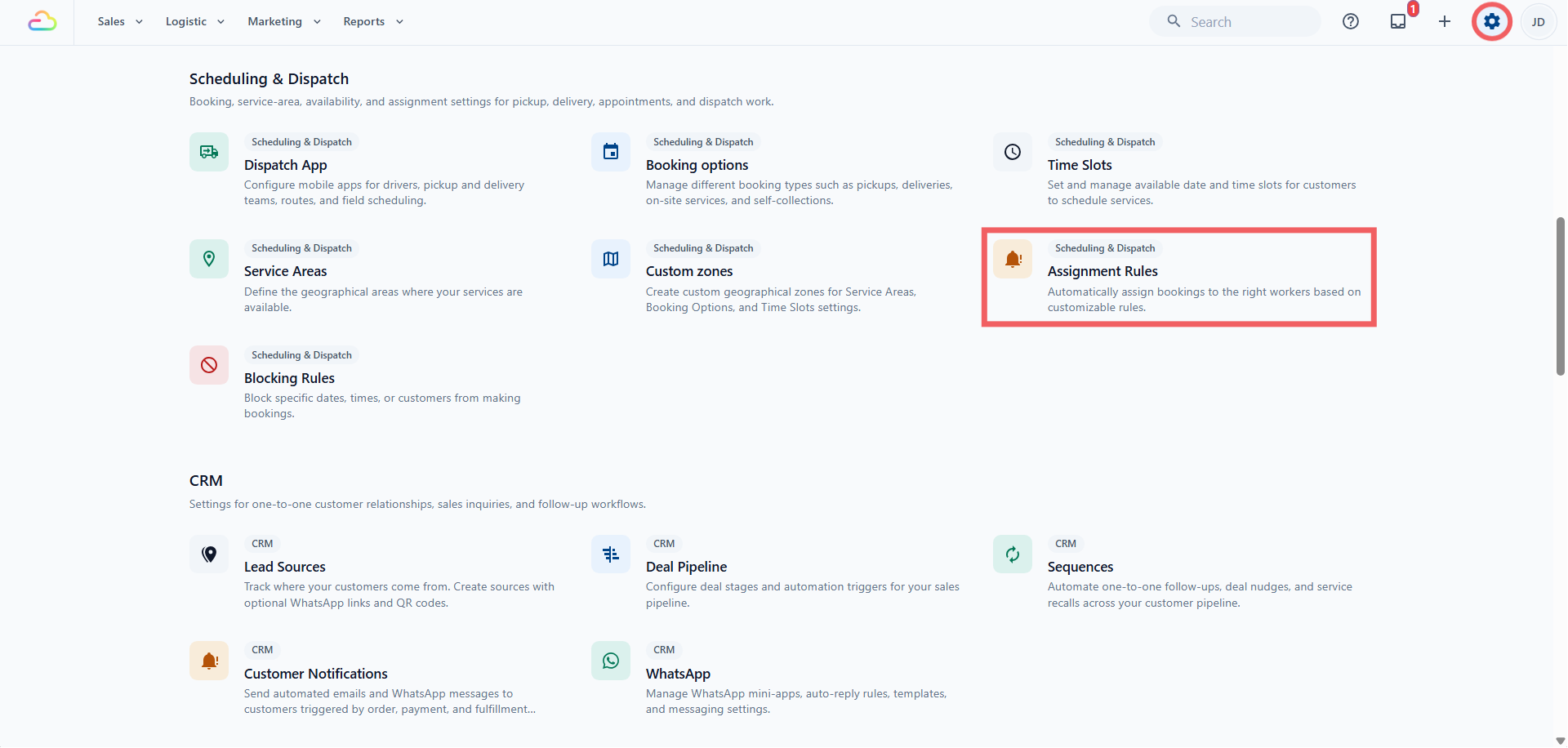
Click the ⚙️ Settings icon in the top-right corner.
Under the Scheduling & Dispatch section, click Assignment Rules.
How Assignment Rules Fit with Scheduling & Dispatch
Assignment Rules are the routing step at the end of the setup chain, and they use what you have already configured:
Booking Options and Time Slots → create the booking when the customer picks a date and time.
Service Areas and Custom Zones → decide whether you serve that address, so a booking is only created for addresses you cover.
Assignment Rules → run once the booking exists, looking at its business unit, weekday, time, and area to pick a team member.
The assigned pickup or delivery then appears in your Job Table, on the Job Map, and in that person's Dispatch App. See Setting Up the Job Table and Setting Up the Job Map.
What an Assignment Rule Looks At
Every rule has five things. The first four are filters that decide when the rule applies, and the last is who gets the work:
Business Units → which line of work the booking is for, like Laundry or Bag Repair.
Weekdays → which days of the week the rule applies to.
Time → the time window the booking falls into.
Area → the zone the customer's address sits in, from your Custom Zones.
Assignee → the one team member who receives the pickup or delivery.
Any of the first four can be left empty, which means "applies to all". Only the assignee is required.
FAQs
Do I need Assignment Rules if I only have one driver?
They still help. Without a rule, each new pickup or delivery stays unassigned until someone assigns it by hand. One rule with only the assignee filled in sends every new pickup and delivery to your driver.
Will an Assignment Rule ever stop my customer from booking?
No. Assignment Rules run after the customer has booked. They only decide who picks up the work. To control what customers can book, use Booking Options, Time Slots, Service Areas, or Blocking Rules.
If I change my zones later, do my rules still work?
Yes, as long as the zone still exists. A rule stores a reference to the zone, so changing the zone's area is fine. If you delete a zone a rule used, the rule no longer matches that area, so review your rules after big changes in Custom Zones.
What's Next
Now that you understand the concept, continue to Setting Up Assignment Rules to create your first rule.