
Setting Up Permissions
In this article
Control exactly what each teammate can see, access, and do in your EasyBiz account. Which apps they can open, what data they can view, what actions they can perform, and whether they can access admin settings. This guide walks you through each permission type and explains every option available, so you can confidently set up the right access for every team member
Contents
Contents
Before You Start
To set up permissions, you'll need to open the teammate's profile first:
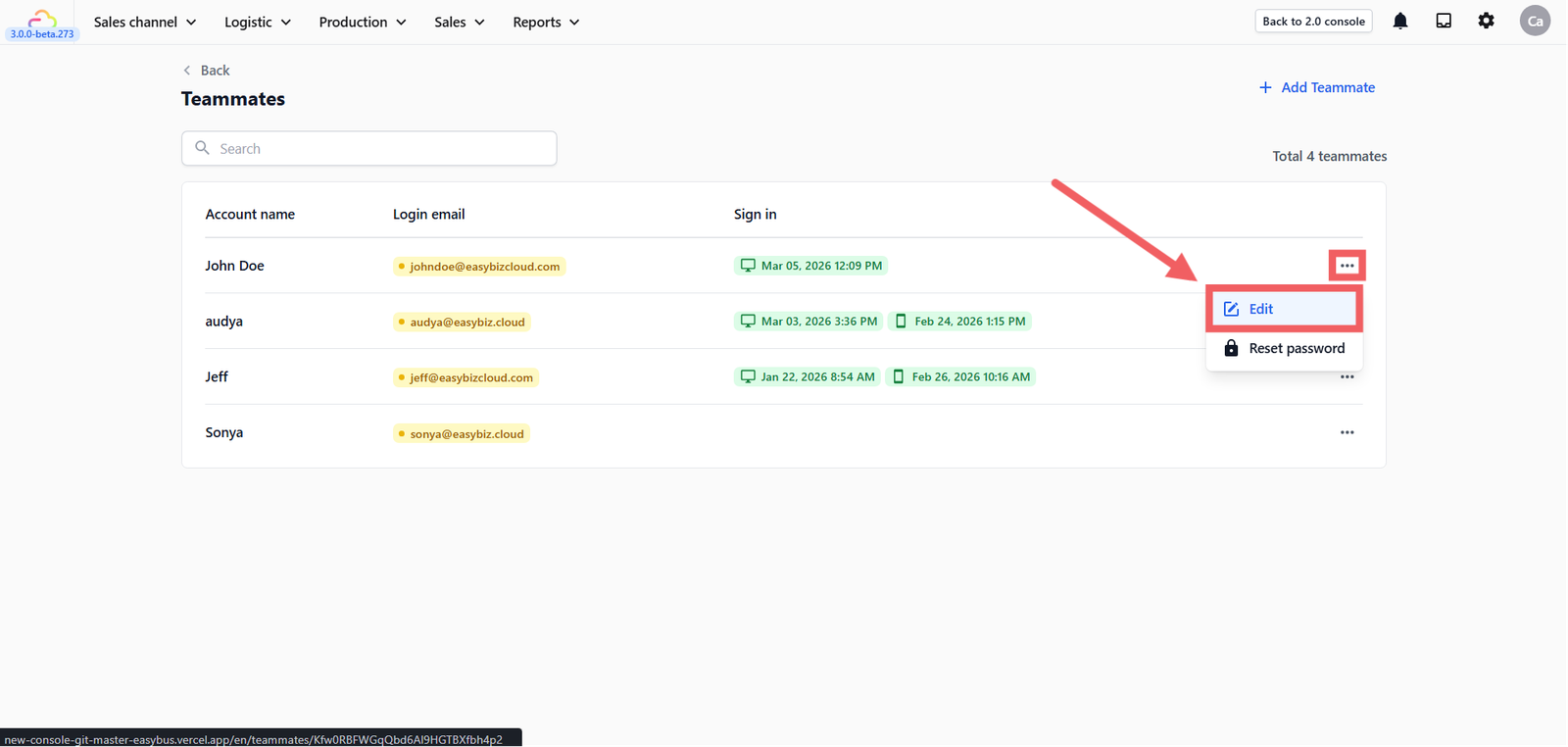
- Go to profile icon and clik Teammates on the top right corner.
- Click the ⋯ (three dots) on the teammate's row and click Edit.
You'll see four permission sections on their profile page. We'll go through each one below.
System Access
System Access controls which apps the teammate can open. These are the apps you've built or set up in Settings → Operations → System Customization.
For example, if you've created a POS app, a Driver app, and a Production app, you can choose which ones each teammate gets access to.
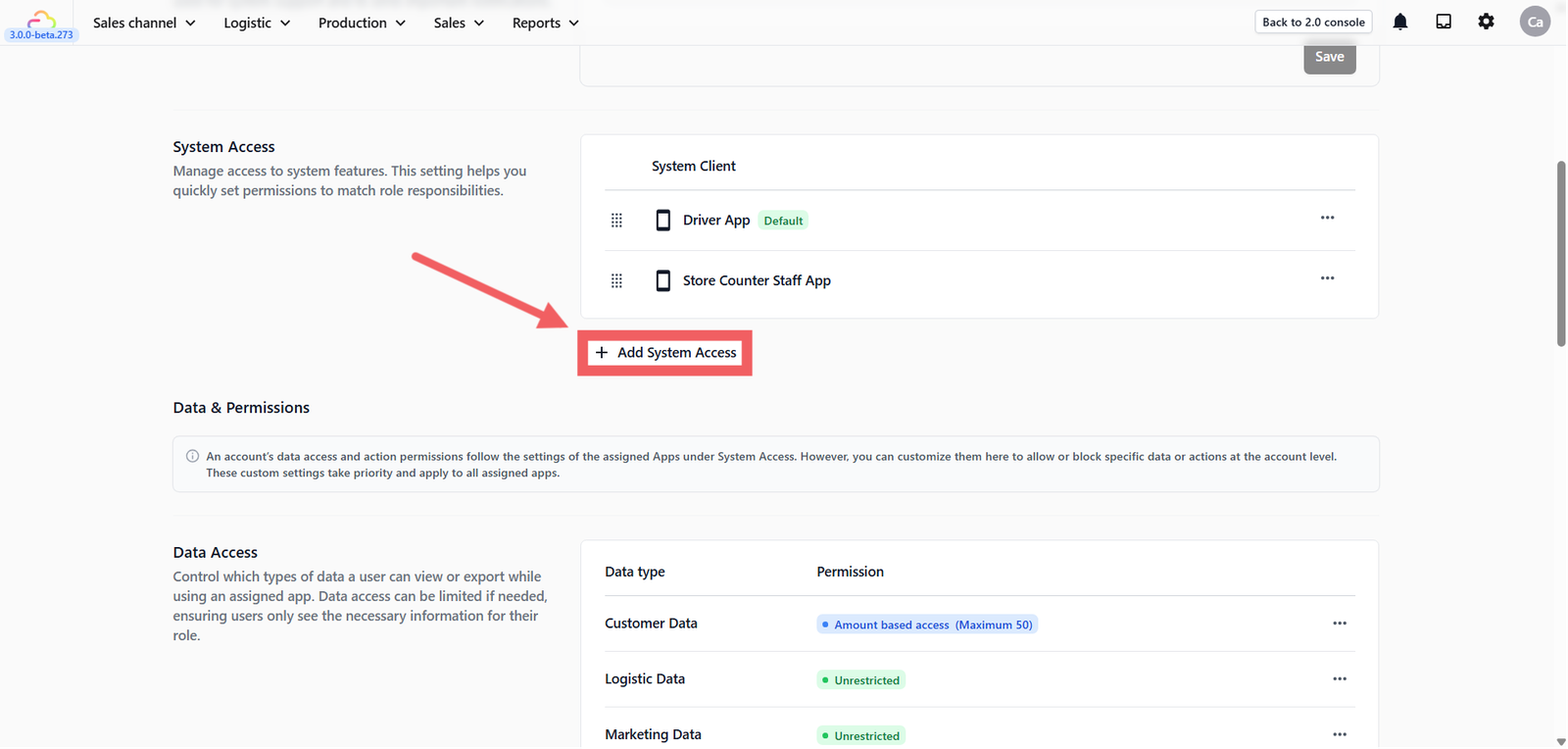
To add an app, click + Add System Access, then select the app you want the teammate to use. You can add more than one — just click the button again for each additional app.
Data Access
Data Access controls what kind of information the teammate can see or export while using their assigned apps. You can set each category independently.
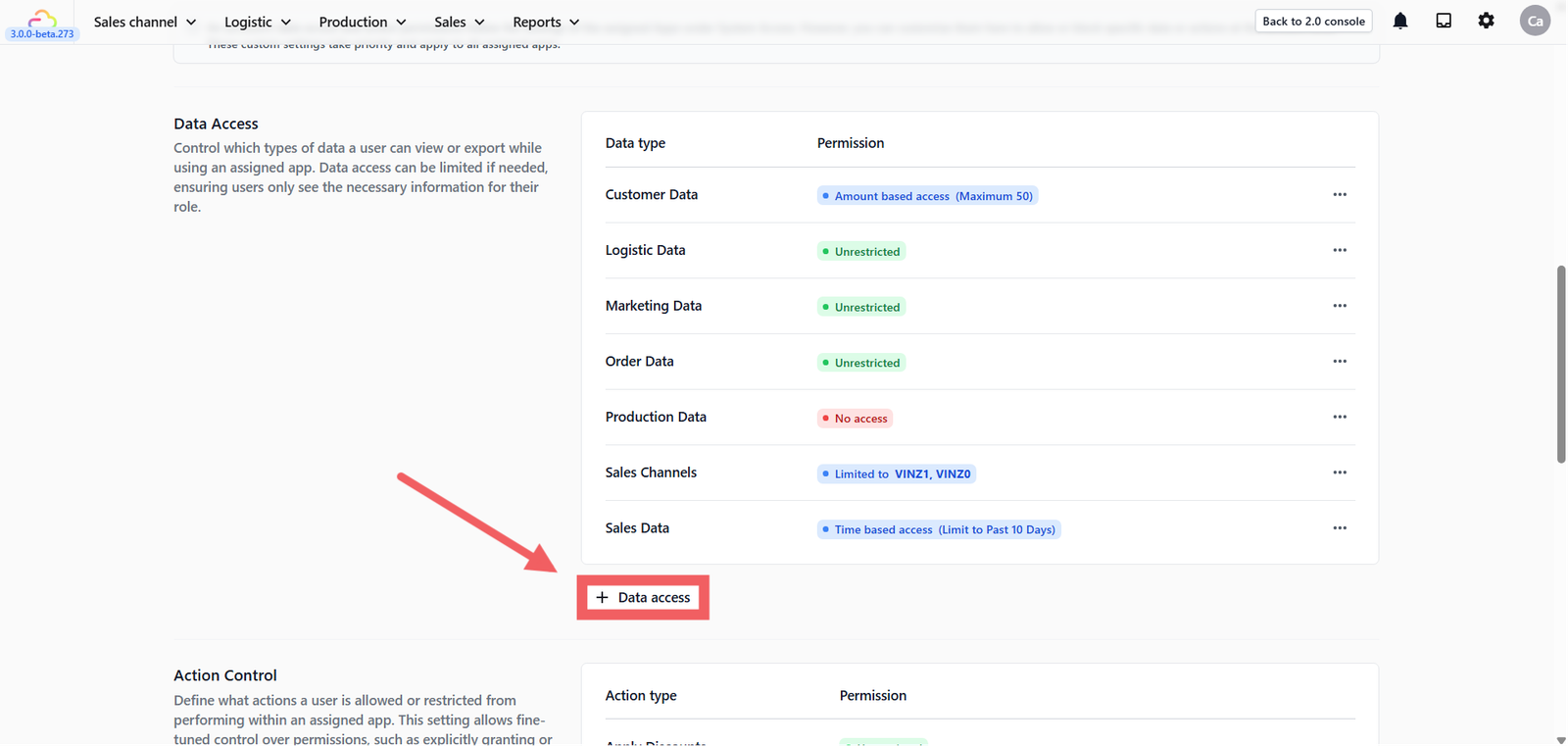
To add a data access rule, click + Data access, then choose the data type and permission level. You can add more than one — just click the button again for each additional data type.
Sales Channel
Controls which sales channels the teammate can access.
- Unrestricted — Can see data from all sales channels
- Limited to specific sales channel — Can only see data from the channels you select
- No access — Cannot see any sales channel data
Order Data
Controls which orders the teammate can view.
- Unrestricted — Can see all orders
- Limited to specific sales channel — Can only see orders from selected channels
- Time-based access — Can only see recent orders (choose "Same day only" or "Limit to past X days")
- No access — Cannot see any order data
Customer Data
Controls whether the teammate can view customer information.
- Unrestricted — Can see all customers
- Amount-based access — Can only see a limited number of customer records (you set the maximum)
Sales Data
Controls access to sales figures and revenue data.
- Unrestricted — Can see all sales data
- Limited to specific sales channel — Can only see sales from selected channels
- No access — Cannot see any sales data
Logistics Data
- Unrestricted — Can see all logistics data
- No access — Cannot see any logistics data
Production Data
- Unrestricted — Can see all production data
- No access — Cannot see any production data
Marketing Data
- Unrestricted — Can see all marketing data
- No access — Cannot see any marketing data
Action Control
Action Control decides what specific actions a teammate is allowed to perform inside their app. By default, action permissions follow the settings of the assigned apps. You can customize them here for fine-tuned control, such as explicitly granting or blocking specific actions.
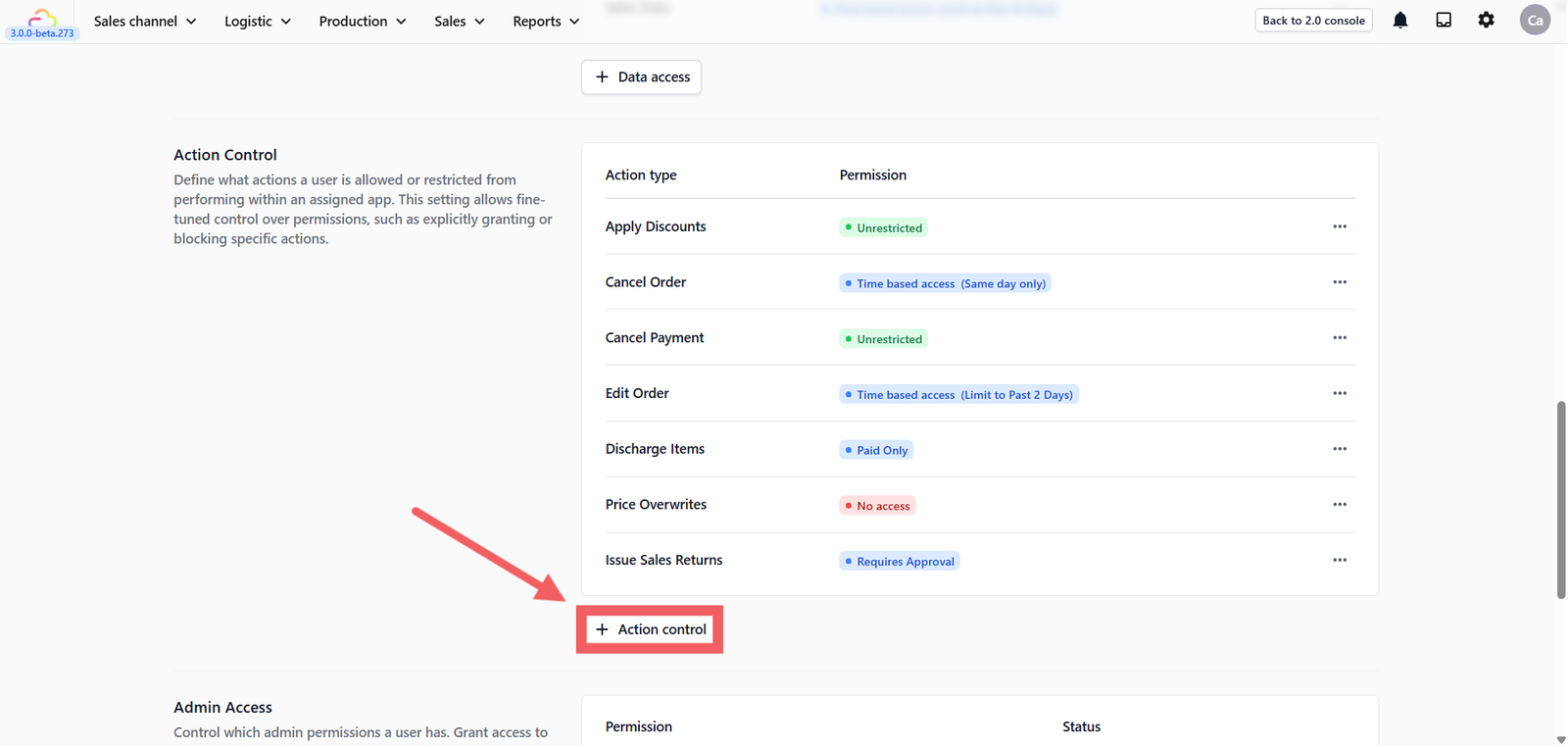
To add an action rule, click + Action control, then choose the action type and permission level. You can add more than one — just click the button again for each additional action.
Apply Discounts
- Unrestricted — Can apply discounts freely
- No access — Cannot apply any discounts
Cancel Order
- Unrestricted — Can cancel any order
- Time-based access — Can only cancel recent orders (choose "Same day only" or "Limit to past X days")
- No access — Cannot cancel orders
Cancel Payment
- Unrestricted — Can cancel any payment
- Time-based access — Can only cancel recent payments (choose "Same day only" or "Limit to past X days")
- No access — Cannot cancel payments
Edit Order
- Unrestricted — Can edit any order
- Time-based access — Can only edit recent orders (choose "Same day only" or "Limit to past X days")
- No access — Cannot edit orders
Discharge Items
- Unrestricted — Can discharge items(release to customer) freely
- Paid only — Can only discharge paid items
- No access — Cannot discharge items
You can also toggle on Enforce QR code scanning for item discharge if you want to require a QR scan before discharging items. This adds an extra layer of verification to make sure the right item is being released.
Price Overwrites
- Unrestricted — Can change prices freely
- Paid only — Can only override prices on paid items
- No access — Cannot change any prices
Issue Sales Returns
- Unrestricted — Can issue returns freely
- Requires approval — Returns need to be approved before processing
- No access — Cannot issue returns
Admin Access
Admin Access controls whether the teammate can access the admin console settings. By default, teammates have no admin access — they can only use the features assigned to them.
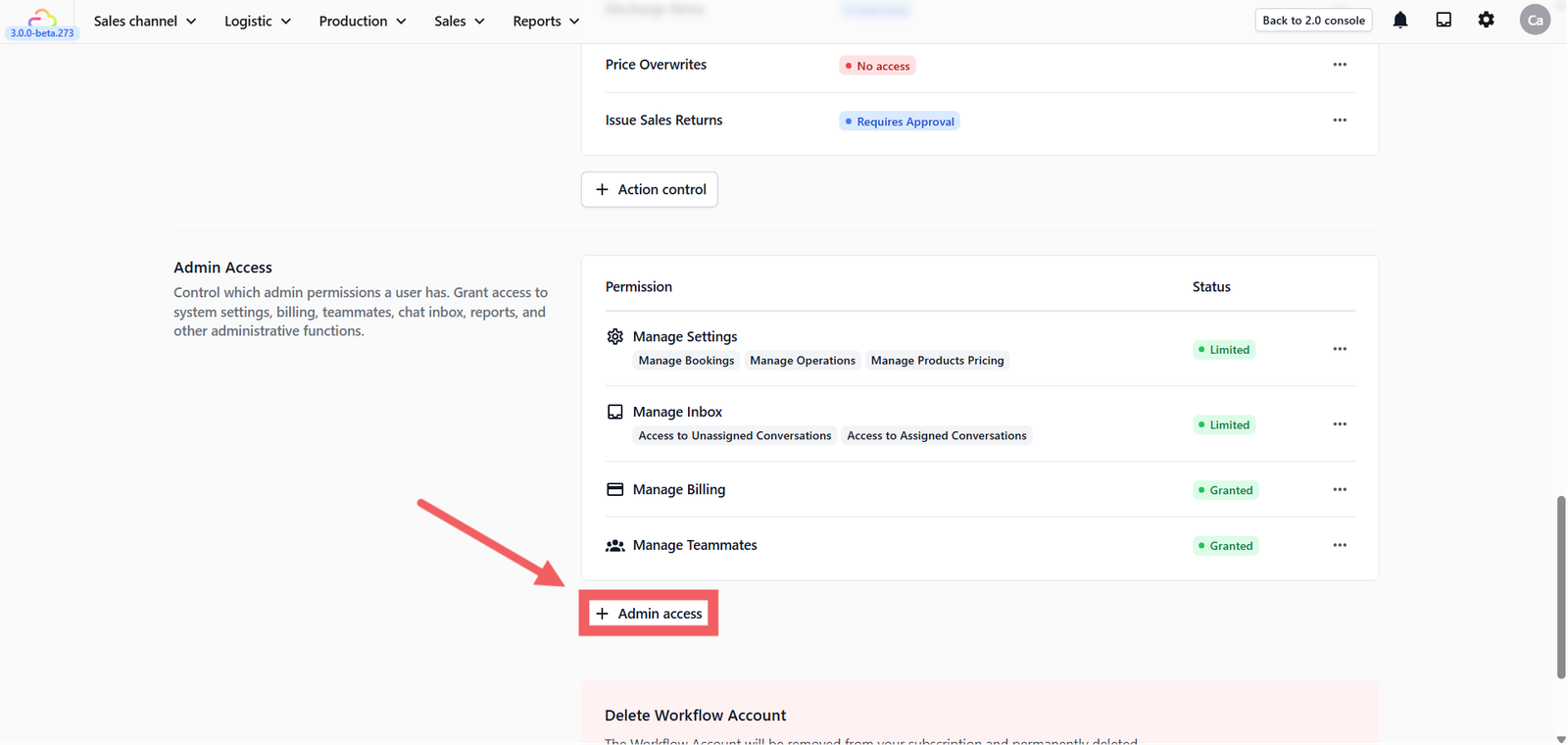
Adding Admin Access
- Scroll down to the Admin Access section.
- Click + Admin access.
- Choose a permission from the dropdown.
- Depending on what you select, a second dropdown may appear to let you choose a more specific scope.
- Click Add.
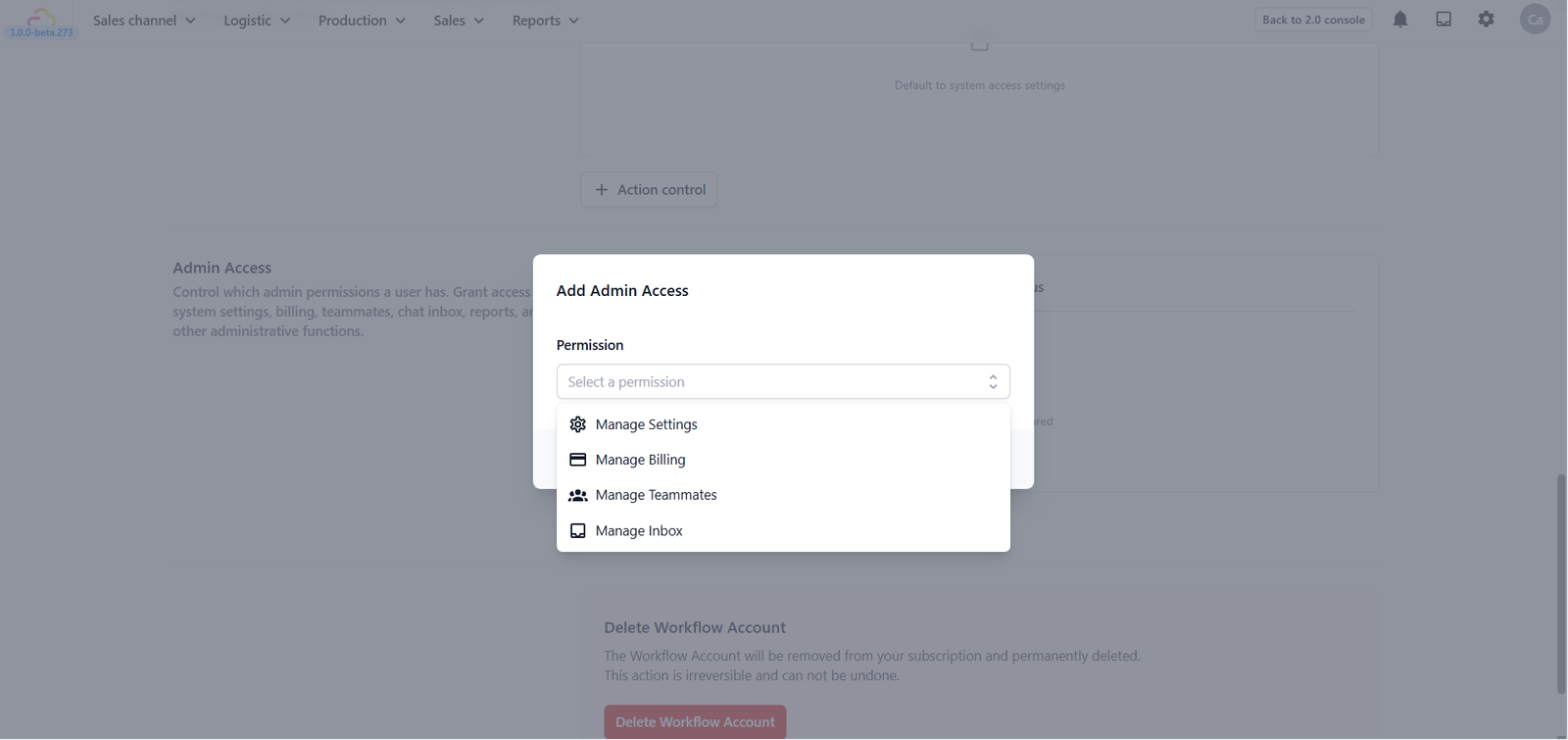
You can add more than one — just click the button again for each additional permission.
Manage Settings
Gives access to admin console settings. When you select this, a second dropdown called Setting Scope appears.
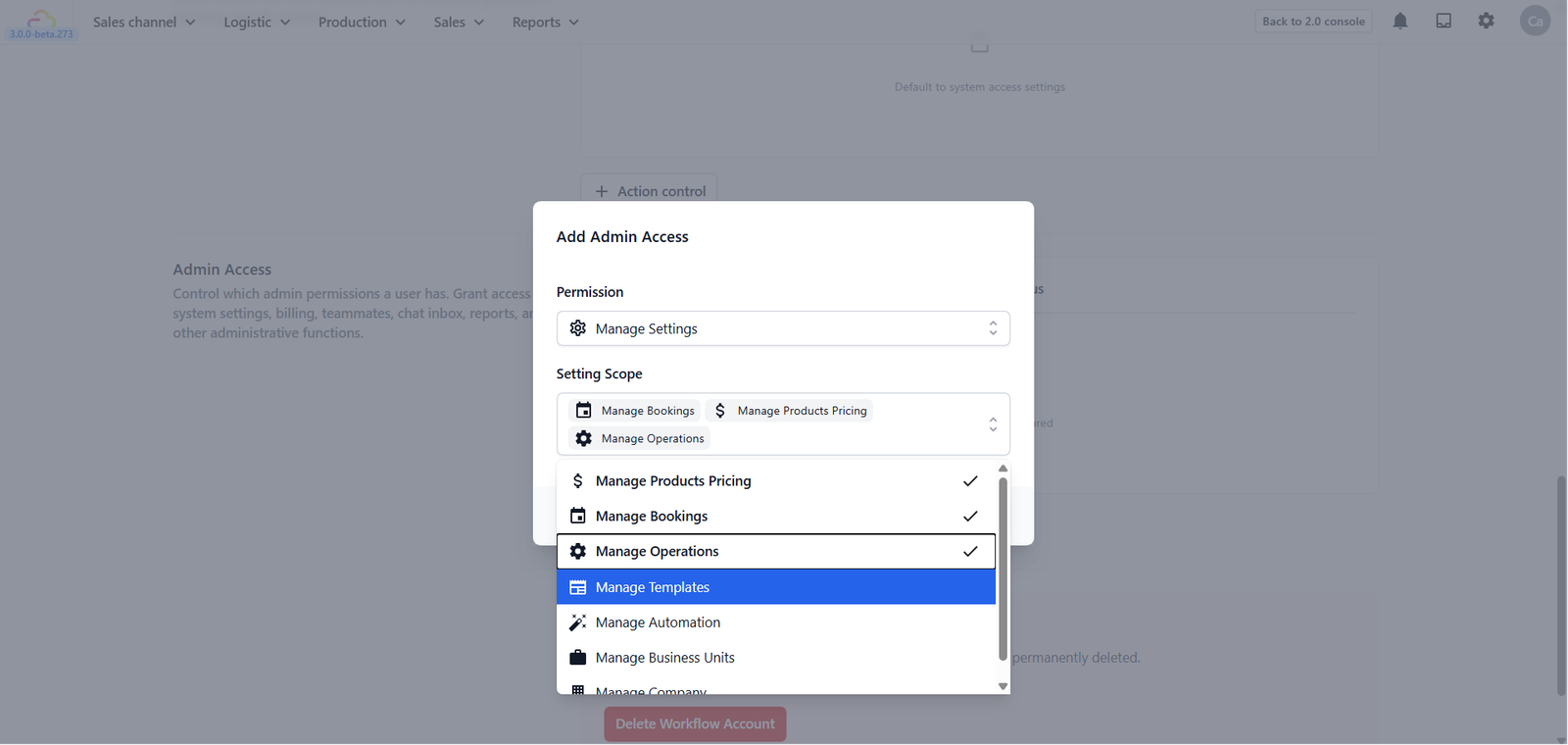
You can leave it empty to grant access to all settings, or choose specific scopes:
| Setting Scope | What It Covers |
|---|---|
| Leave empty | Full access to all settings below |
| Manage Products Pricing | Products, services, pricing, service options, and pricing rules |
| Manage Bookings | Booking schedules, areas, assignment rules, and other booking settings |
| Manage Operations | BPM, order management, system mobile apps, payment methods, and other operational settings |
| Manage Templates | Receipt, invoice, WhatsApp, email, label, and other templates |
| Manage Automation | Automation rules — recurring schedulers and event notifications |
| Manage Business Units | Create and manage business units |
| Manage Company | Company profile and integrations (Stripe, WhatsApp Business, Vonage, Xero) |
Manage Billing
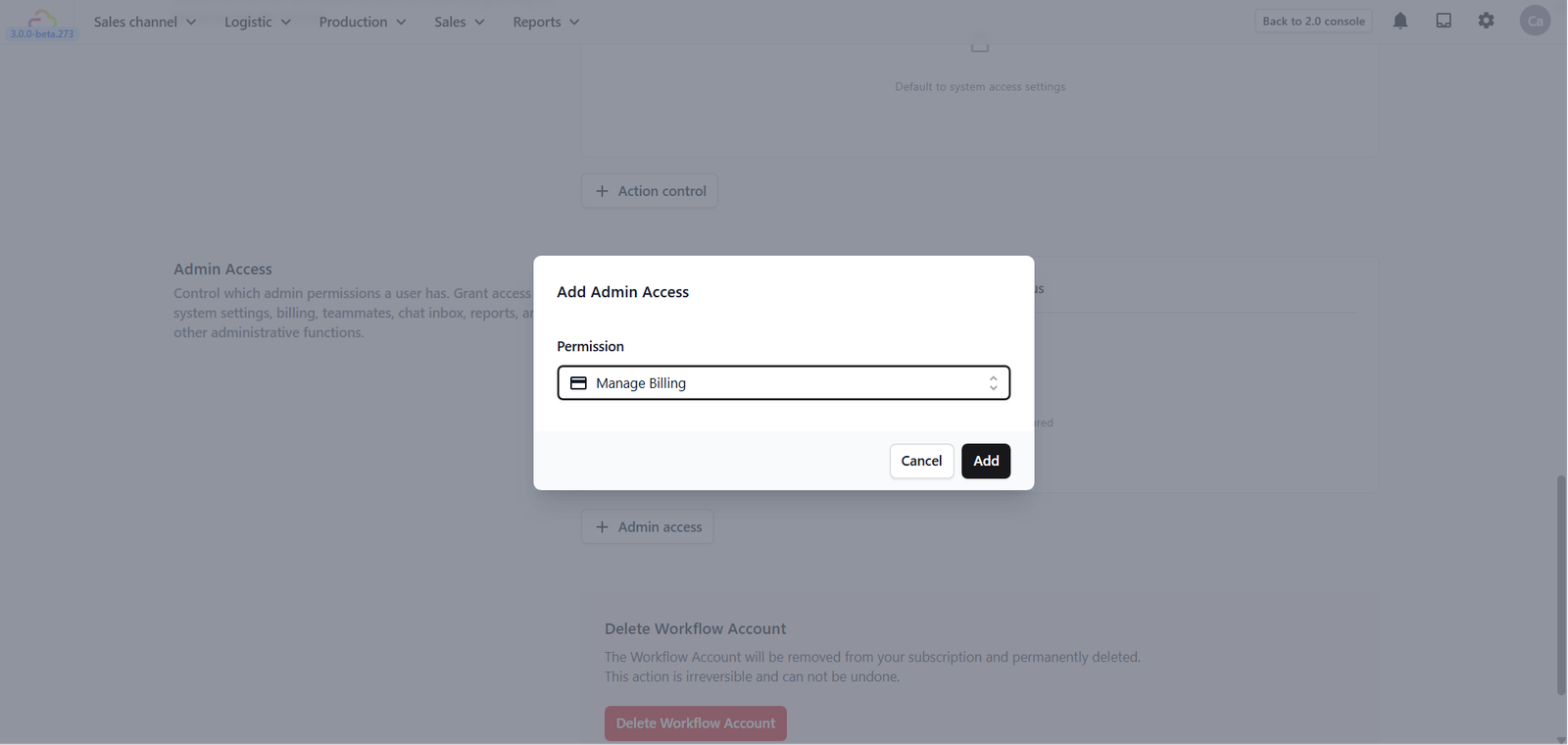
Gives access to view and manage subscription and billing. No additional scope options — just select it and click Add.
Manage Teammates
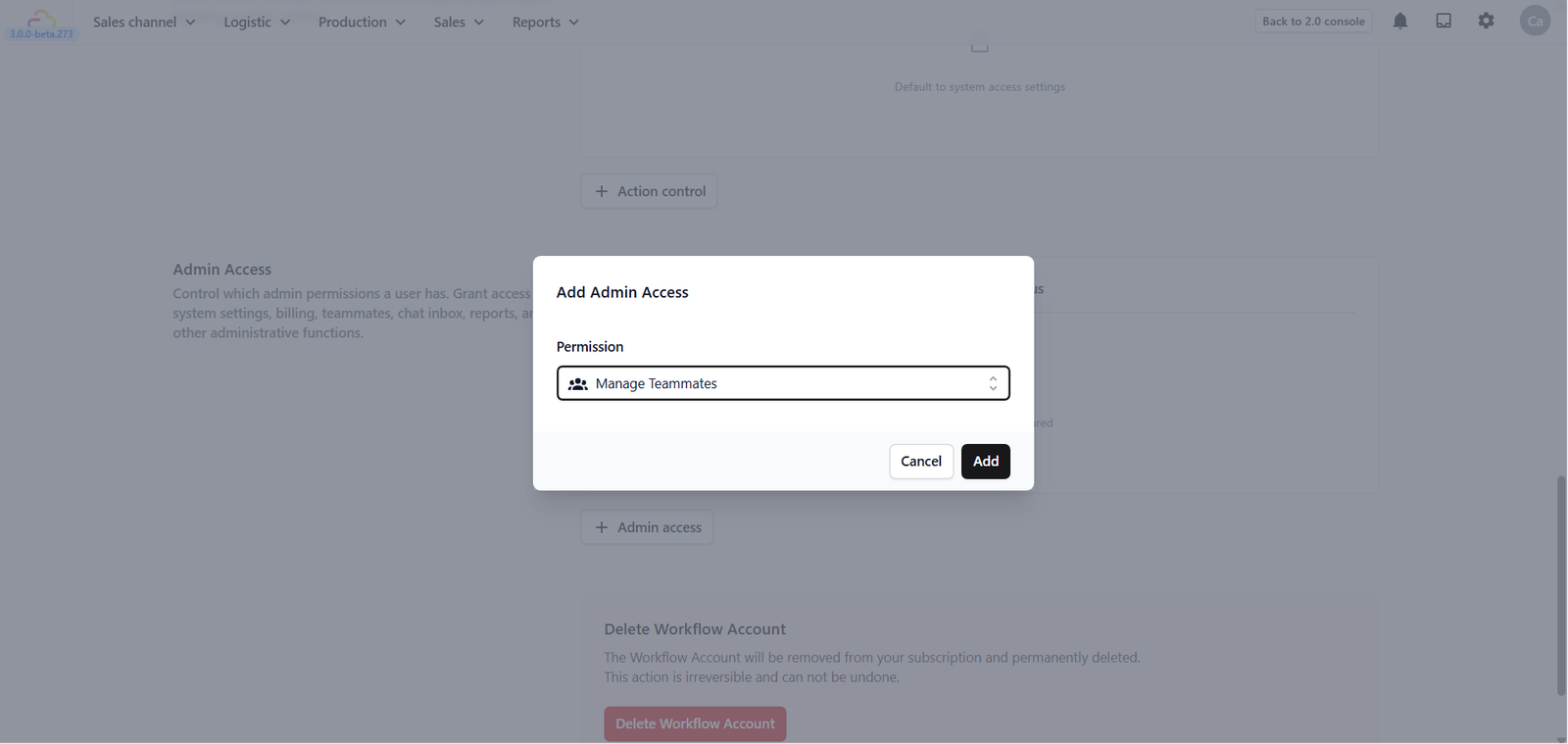
Gives the ability to add, edit, and remove other teammates. No additional scope options — just select it and click Add.
Manage Inbox
Gives access to the WhatsApp chat inbox. When you select this, a second dropdown called Conversation Access appears.
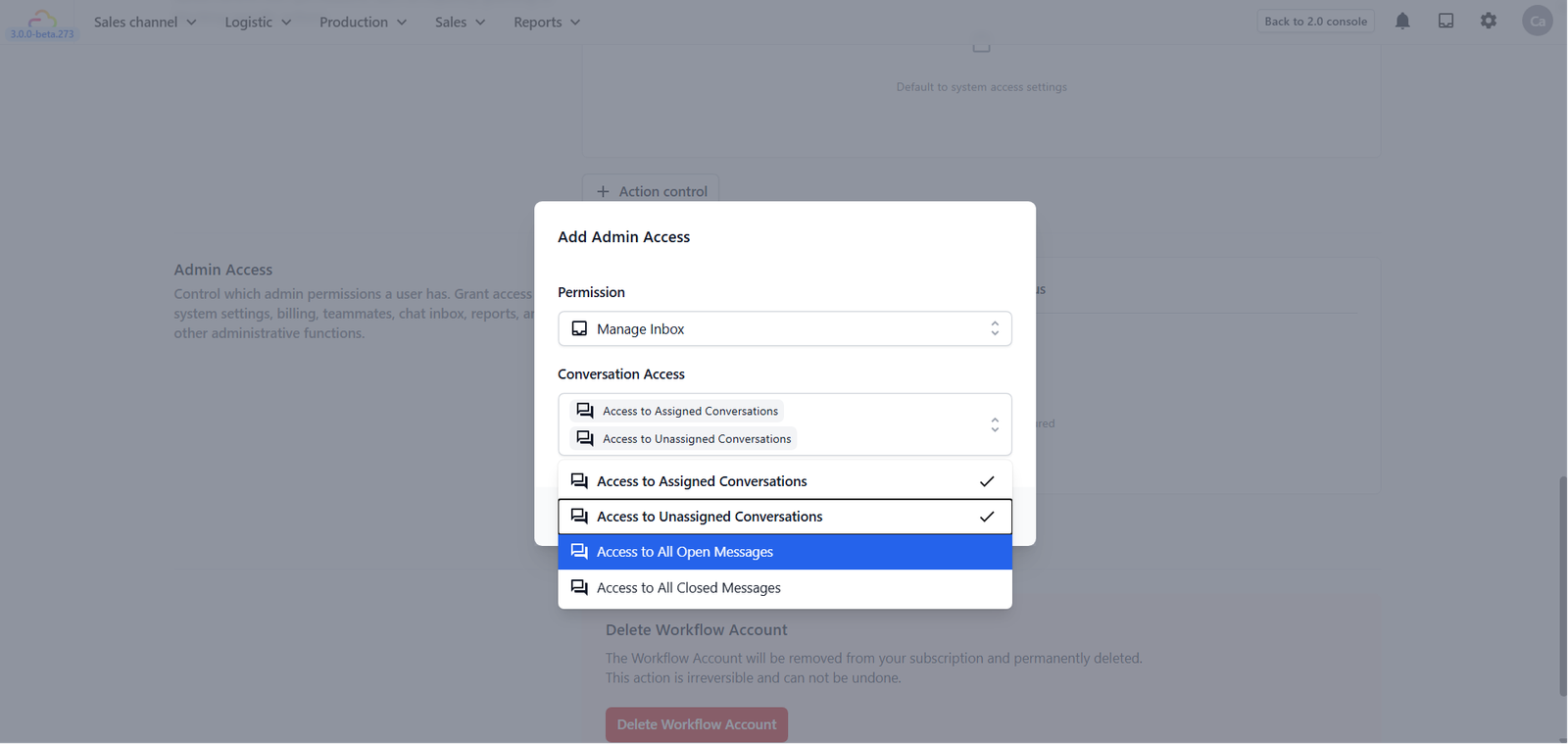
You can leave it empty to grant access to all conversations, or choose a specific scope:
| Conversation Access | What It Covers |
|---|---|
| Leave empty | Full access to all conversations below |
| Access to Assigned Conversations | View only conversations assigned to them |
| Access to Unassigned Conversations | View conversations not yet assigned to anyone |
| Access to All Open Messages | View all currently open conversations |
| Access to All Closed Messages | View all archived/closed conversations |
Need Help?
If you're not sure what permissions to give someone, start with less access and add more as needed. It's always safer to grant additional access later than to remove it after something goes wrong.
Give feedback
Up next
Auto Reply RulesAutomatically respond to your customers on WhatsApp the moment they message — even when your team is busy or the shop is closed.
Read more