
Adding & Managing Teammates
In this article
Add team members to your EasyBiz account, manage their details, and control their login credentials — all from one place. Each teammate gets their own login account, so you can track who signed in and when, and you can manage what each person has access to individually. This guide covers how to add new teammates, make changes to existing accounts, reset passwords, and remove accounts when needed.
Contents
Contents
Accessing Teammates
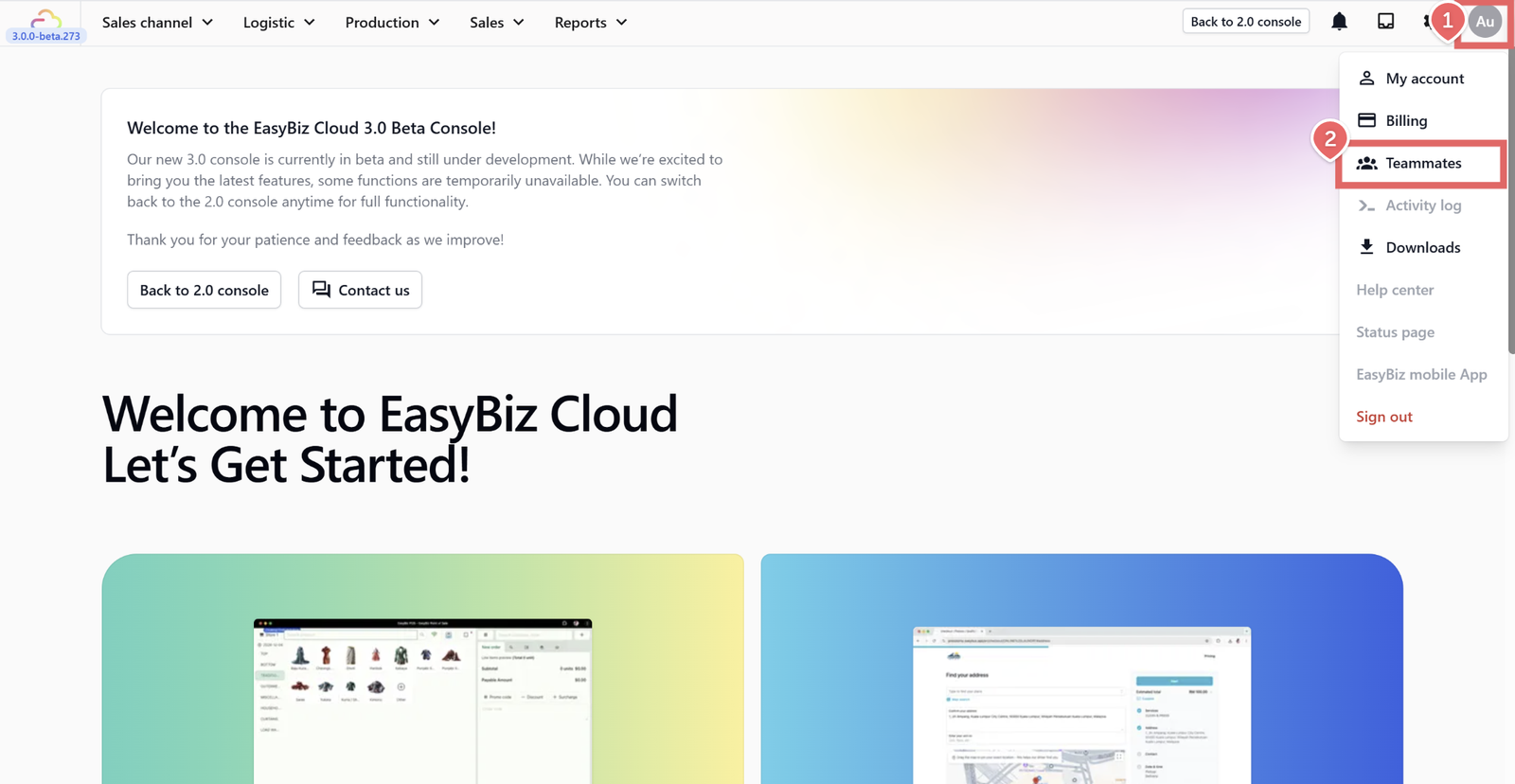
- From the console dashboard, click your profile icon in the top right corner.
- Click Teammates.
You'll see a list of all teammate accounts, including their account name, login email, and last sign-in dates (for both console and mobile).
Adding a New Teammate
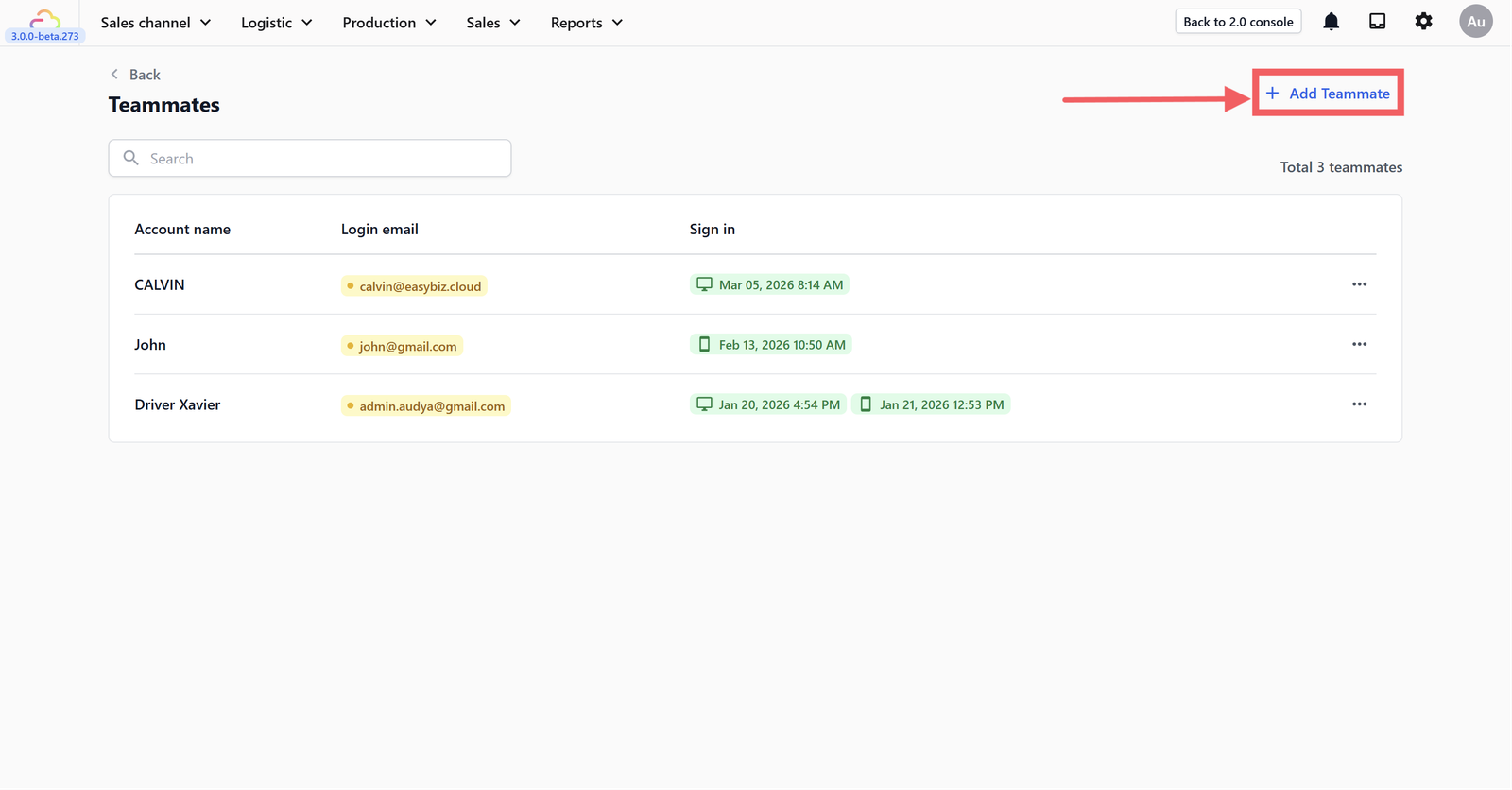
On the Teammates page, click + Add Teammate in the top right.
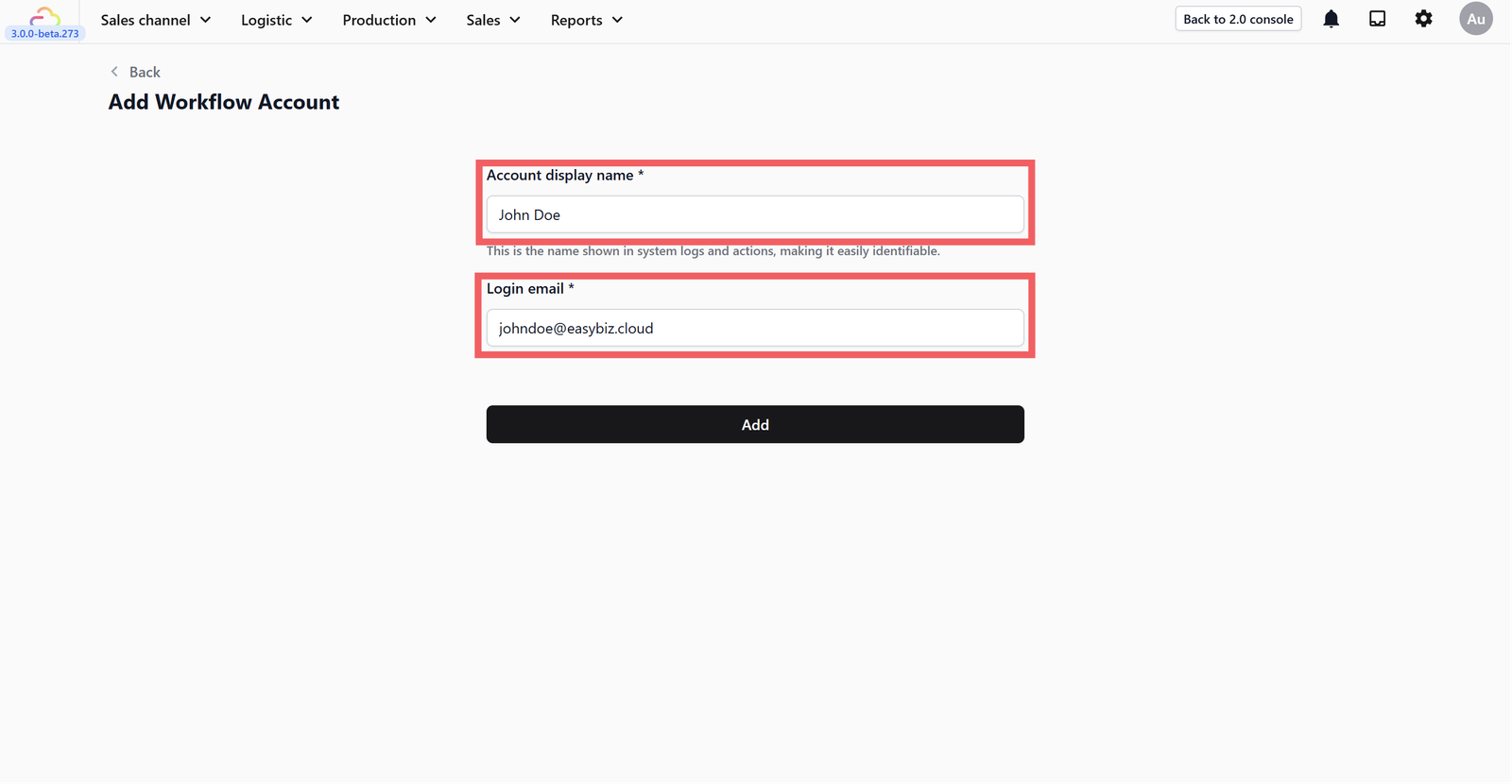
Fill in the account name and email address.
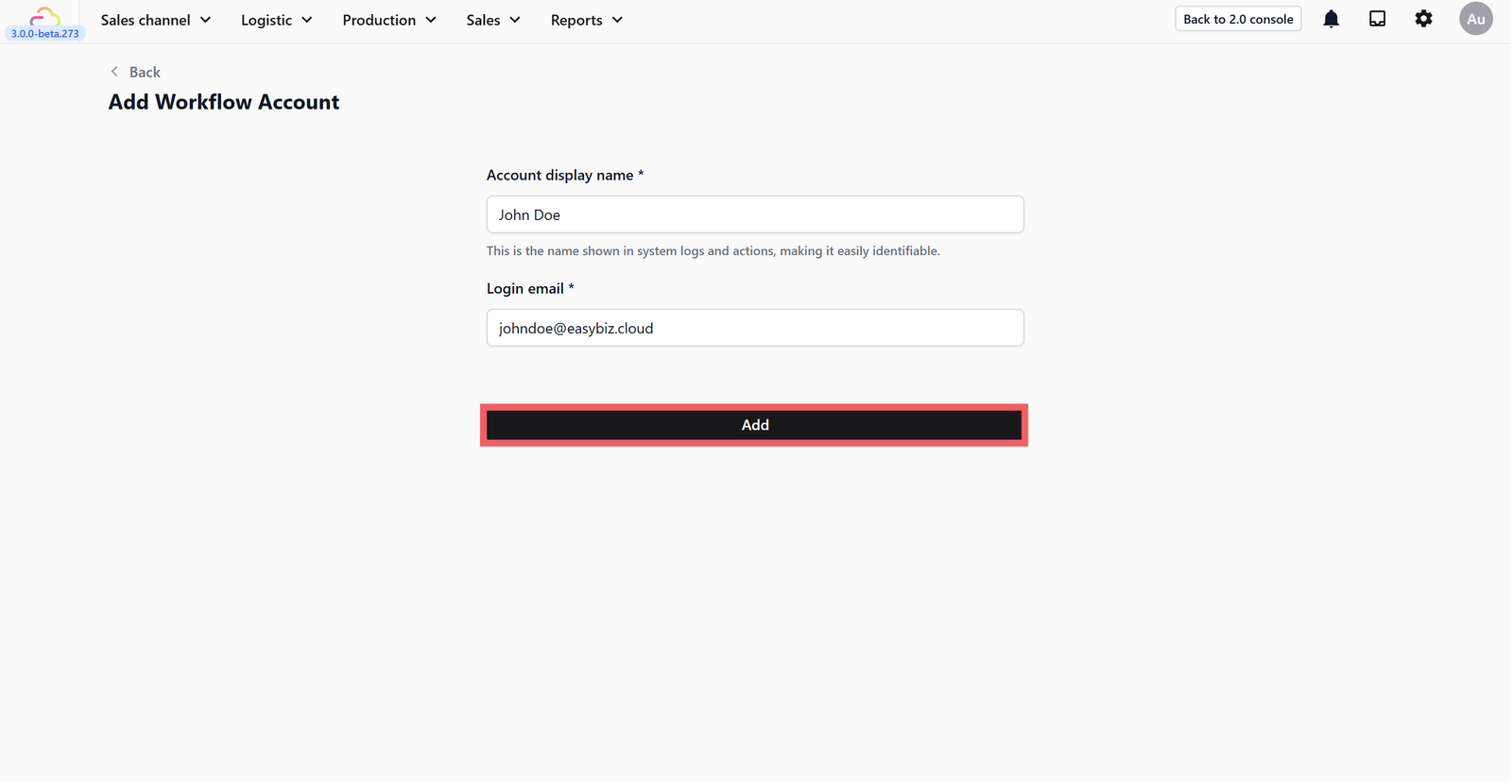
Click Add to create the account.
Once the account is created, the system will automatically open the teammate editor. From here you can:
- Add a phone number (WhatsApp) — This is the WhatsApp number linked to the account. It will be used for system support and to send important notifications.
- Set up all four permission areas: System Access, Data Access, Action Control, and Admin Access
After setting up permissions, click the Send Sign-in Email button (top right) to send the teammate their login details with an initial password or manually create the password.
Editing a Teammate
If you need to make changes after creating a teammate — such as updating their phone number, adjusting permissions, or changing their account details — you can edit their profile at any time.
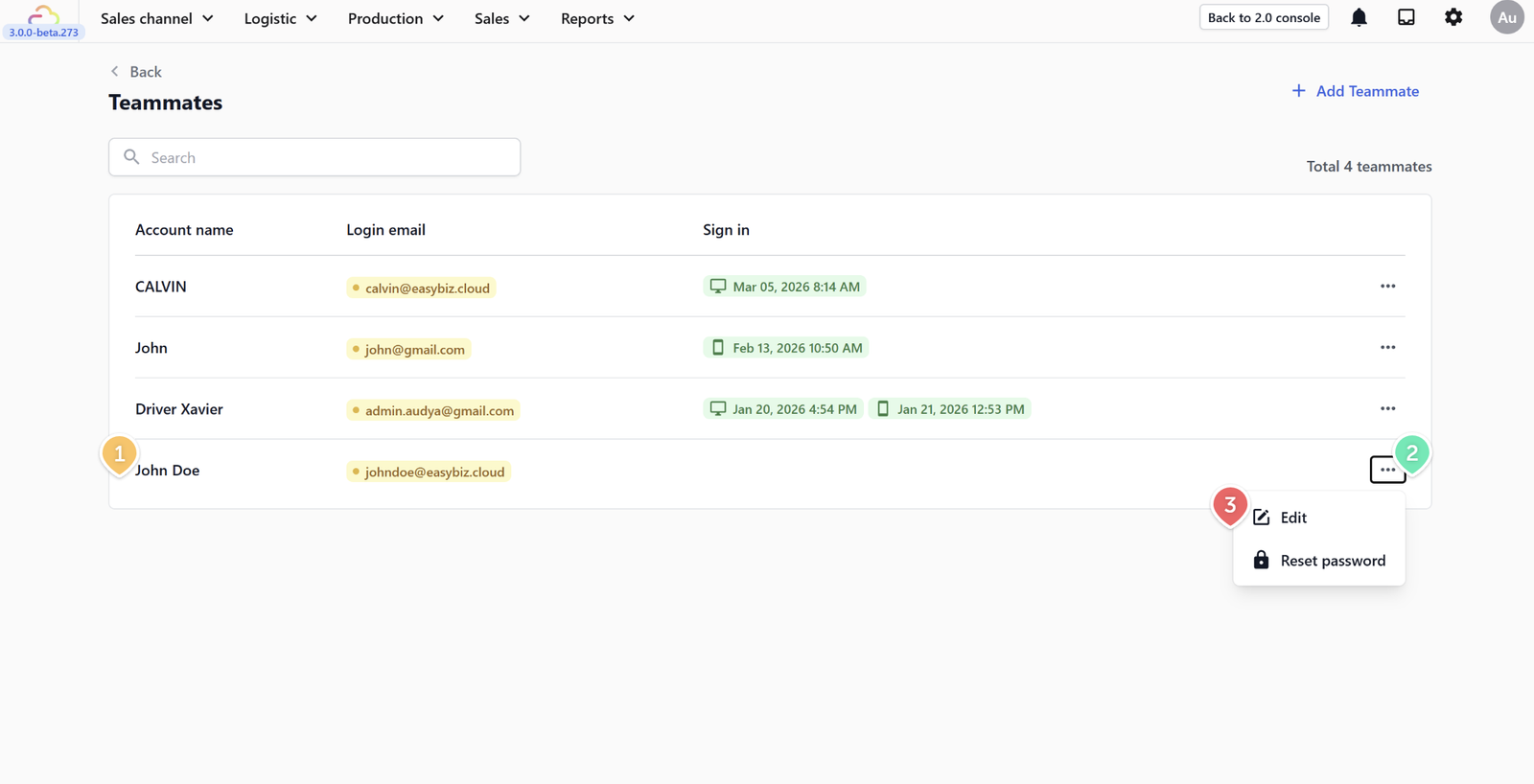
- On the Teammates page, find the teammate you want to edit.
- Click the ⋯ (three dots) button on the right side of their row.
- Click Edit.
This opens the same editor as when you first created the account. Make your changes, then scroll to the bottom and click Save.
Always click Save after making changes — otherwise nothing will be applied.
Resetting a Password
If a teammate forgets their password, or you need to change it for security reasons, there are two ways to reset it:
From the Teammates list:
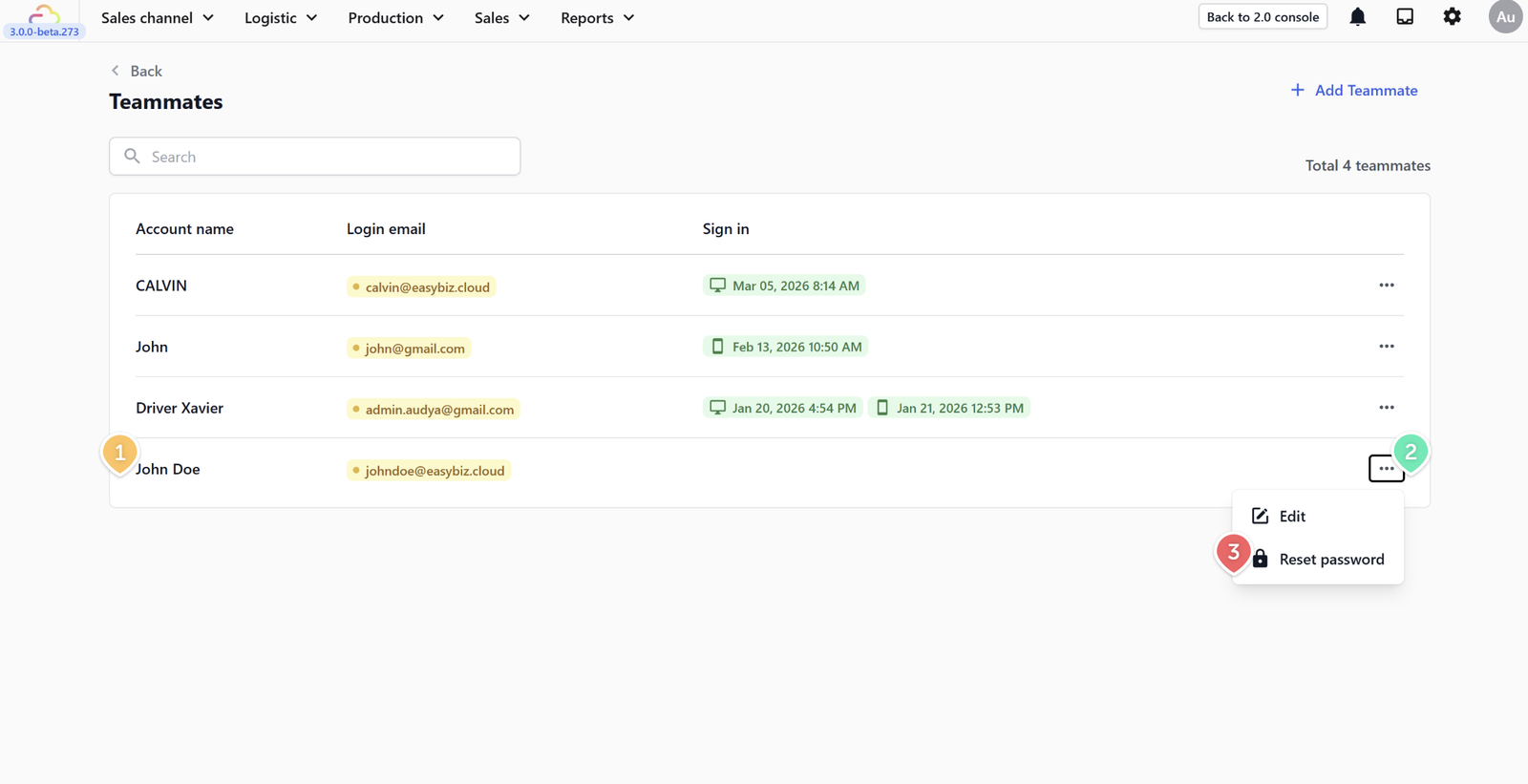
- On the Teammates page, find the teammate you want to edit.
- Click the ⋯ (three dots) button on the right side of their row.
- Click Reset Password.
From inside the teammate editor:
- Open the teammate's profile by clicking ⋯ → Edit.
- Scroll down to the email section.
- Click Reset password.
For both methods, enter the new password and click Reset to confirm. The teammate will need to use the new password the next time they sign in.
Only the main account or a teammate with "Manage Teammates" permission can reset another teammate's password.
Deleting a Teammate Account
Deleting a teammate account is permanent and cannot be undone. The account will be completely removed from your subscription.
To delete a teammate:
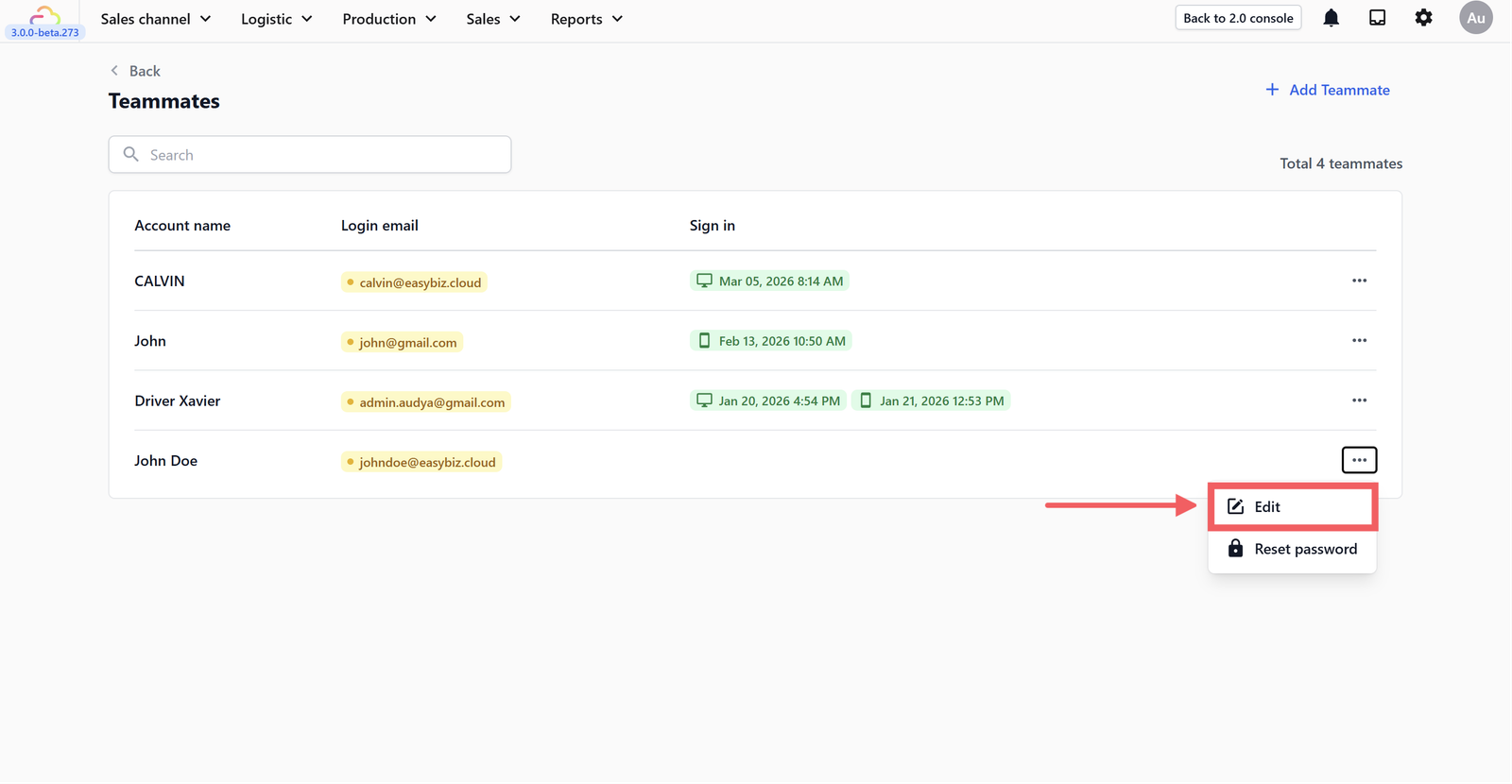
Open the teammate's profile by clicking ⋯ → Edit.
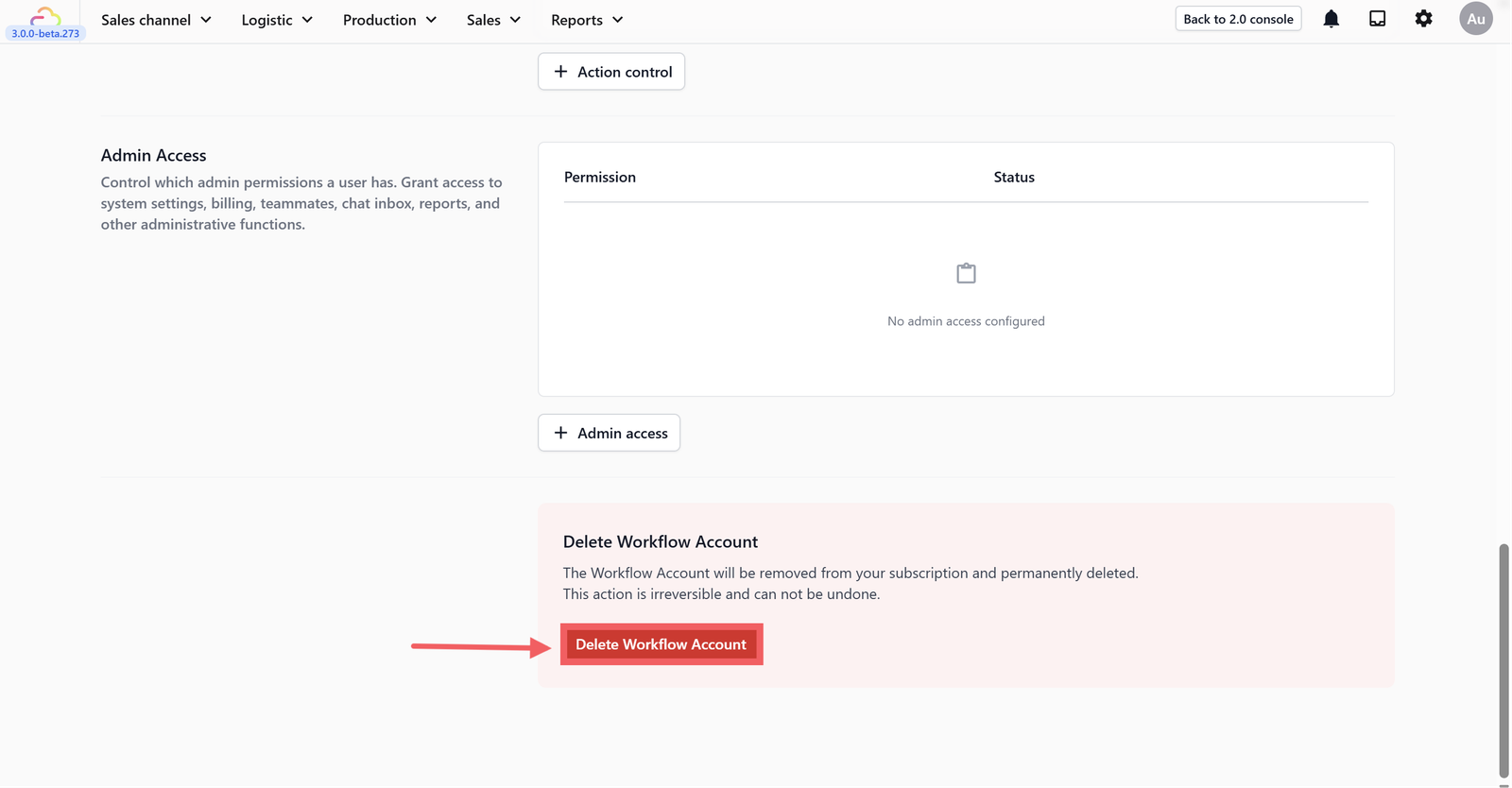
Scroll all the way to the bottom of the page, click the red Delete Workflow Account button.
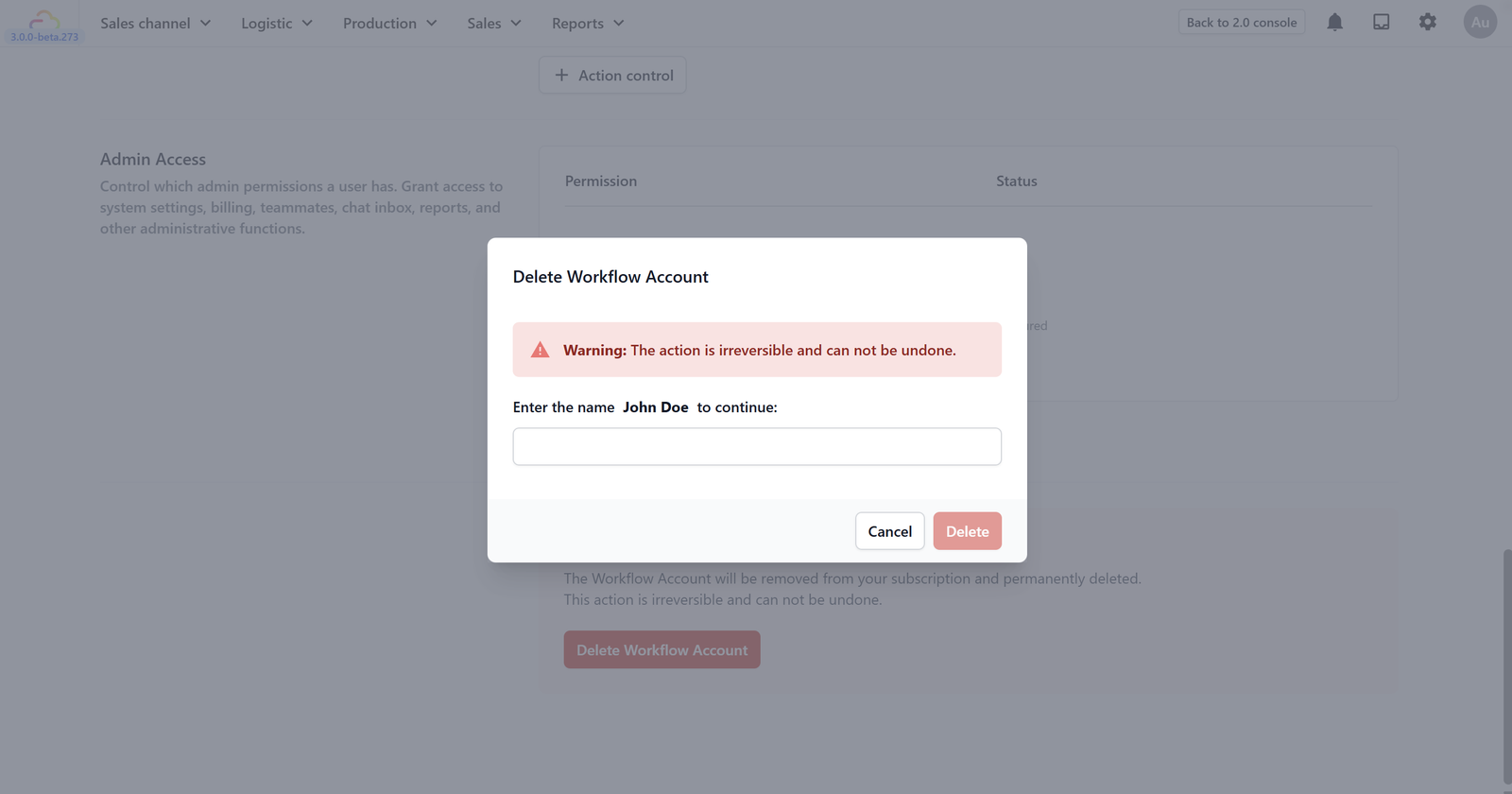
You'll be asked to type the teammate's account name to confirm. Then, Click Delete.
Give feedback
Up next
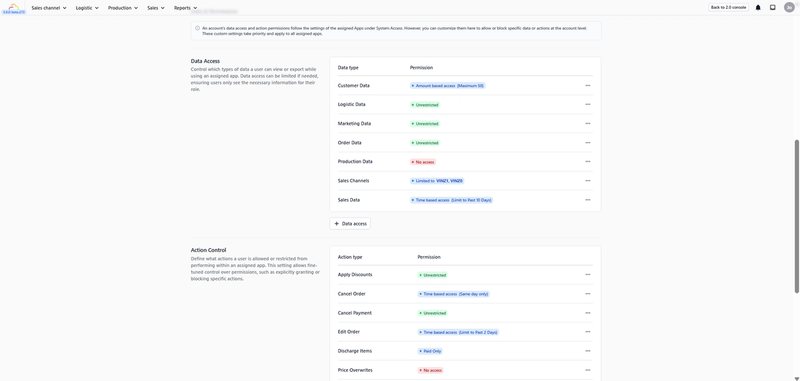
Setting Up PermissionsConfigure exactly what each teammate can see and do — covering System Access, Data Access, Action Control, and Admin Access.
Read more