
Introduction to Deals
In this article
When someone reaches out to your business — whether through WhatsApp, a phone call, or a walk-in — they might not place an order right away. They could be asking about pricing, checking availability, or just exploring their options. In EasyBiz, we call each of these potential customers a Deal. The Deals page helps you keep track of all these conversations so nothing falls through the cracks. Instead of trying to remember who messaged you last week or which customer was waiting for a quote, you can see everything in one place.
Contents
Contents
Why use Deals?
Without a system, it is easy to lose track of who you have spoken to and what was discussed. A customer might have asked for a quote three days ago, but if no one follows up, that sale is lost.
With Deals, you can:
- See every potential customer at a glance — know who is new, who has been quoted, and who is ready to commit.
- Know which deals need attention — the system shows you which deals are waiting for a reply so your team can follow up quickly.
- Track outcomes — see which deals you won and which you lost, so you can understand what is working and what needs to improve.
- Assign team members — each deal has an Owner, so everyone knows who is responsible for following up.
How are Deals created?
A new deal is automatically created when a customer sends you a message through WhatsApp. You don't need to manually log every inquiry, the system captures it for you.
For example, when a customer messages "Hi, how much for bag cleaning?", a new deal is created under the New Enquiry stage with their contact details and message source.
How are Deals organized?
Every deal moves through Stages. Think of it like a step-by-step journey:
- New Enquiry — Someone just reached out. You have not responded yet.
- Quoted — You have given them a price or proposal.
- Won — The customer confirmed and placed an order.
- Lost — The customer decided not to proceed.
These are the default stages. You can also create your own stages to match how your business works. We will walk you through how to create custom stages in the next article [Managing Your Deals].
Auto-move Deal Stages with Template Messages
Instead of manually updating each deal's stage, you can link your WhatsApp template messages to specific stages. When you send that template from your Inbox, the system automatically moves the deal forward — no extra clicks needed.
For example:
- You send your Quotation template → deal auto-moves to Quoted
- You send your Order Confirmation template → deal auto-moves to Won
- You send your Follow-up template with no response after 3 attempts → you manually move to Lost
This saves time and keeps your pipeline accurate without extra work.
To set this up, go to your template message settings and select the deal stage under the "Auto-move deal to stage" option. → Set up Templates
Not sure how this works? Don't worry — we cover the full setup with step-by-step instructions in Automating Deals with WhatsApp Templates.
Before you start
Make sure you have completed the following:
- WhatsApp Integration — Connect your WhatsApp Business account so you can manage customer communications and track leads centrally. → Set up WhatsApp
- Template Messages — Set up your WhatsApp templates and link them to specific "auto-move" deal stages. This allows the system to automatically update a deal's stage the moment you send a specific template from your Inbox. → Set up Templates
Where to find the Deals Page
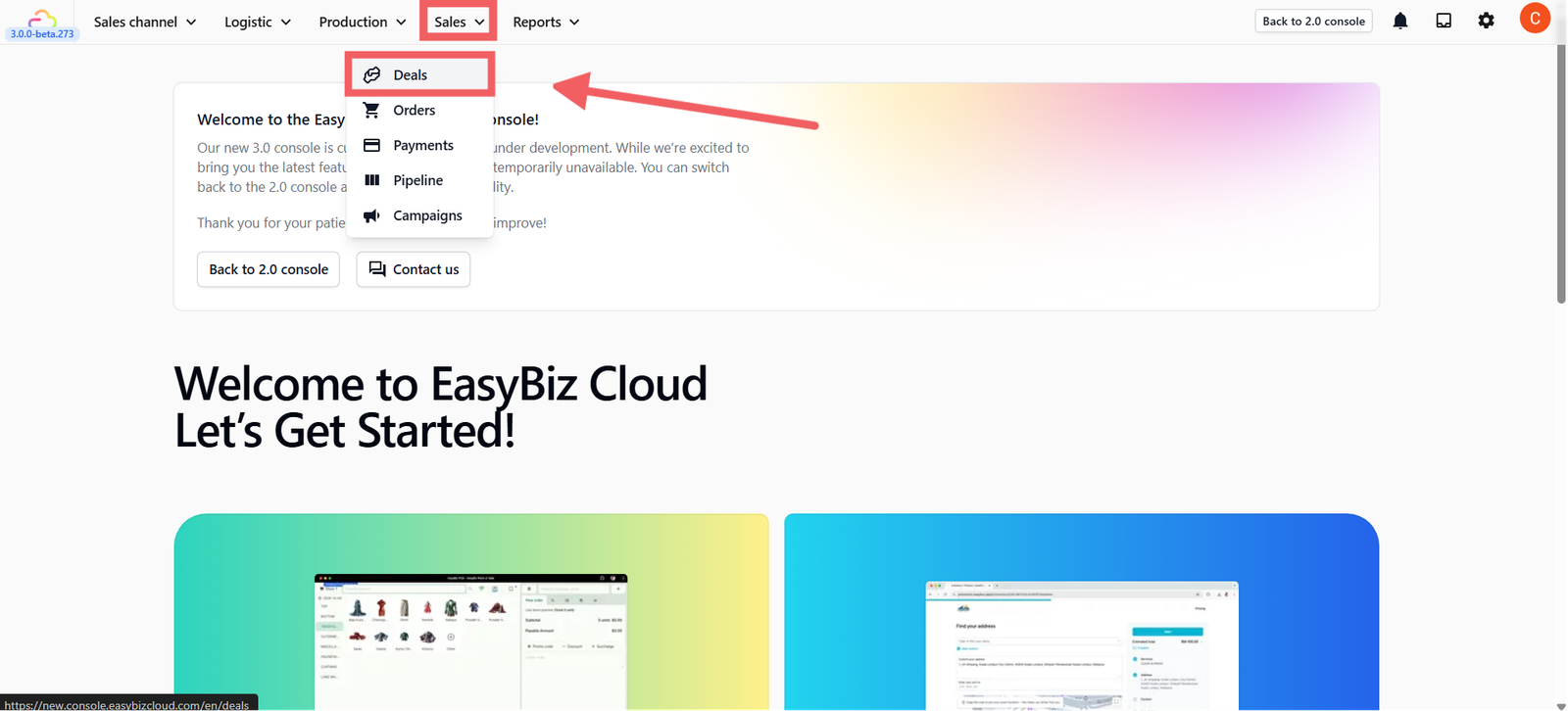
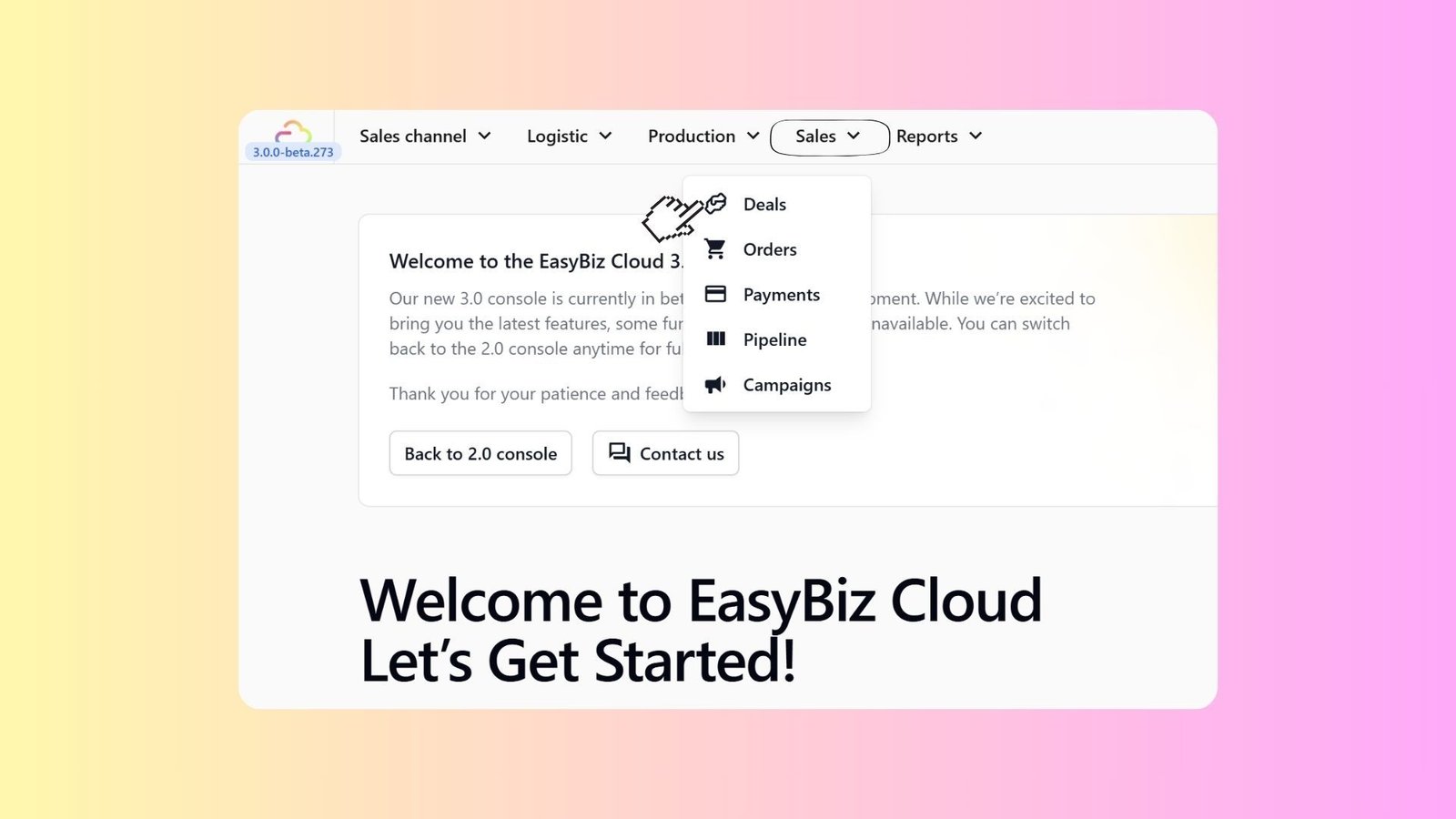
On the top navigation bar, click Sales and select Deals from the dropdown menu.
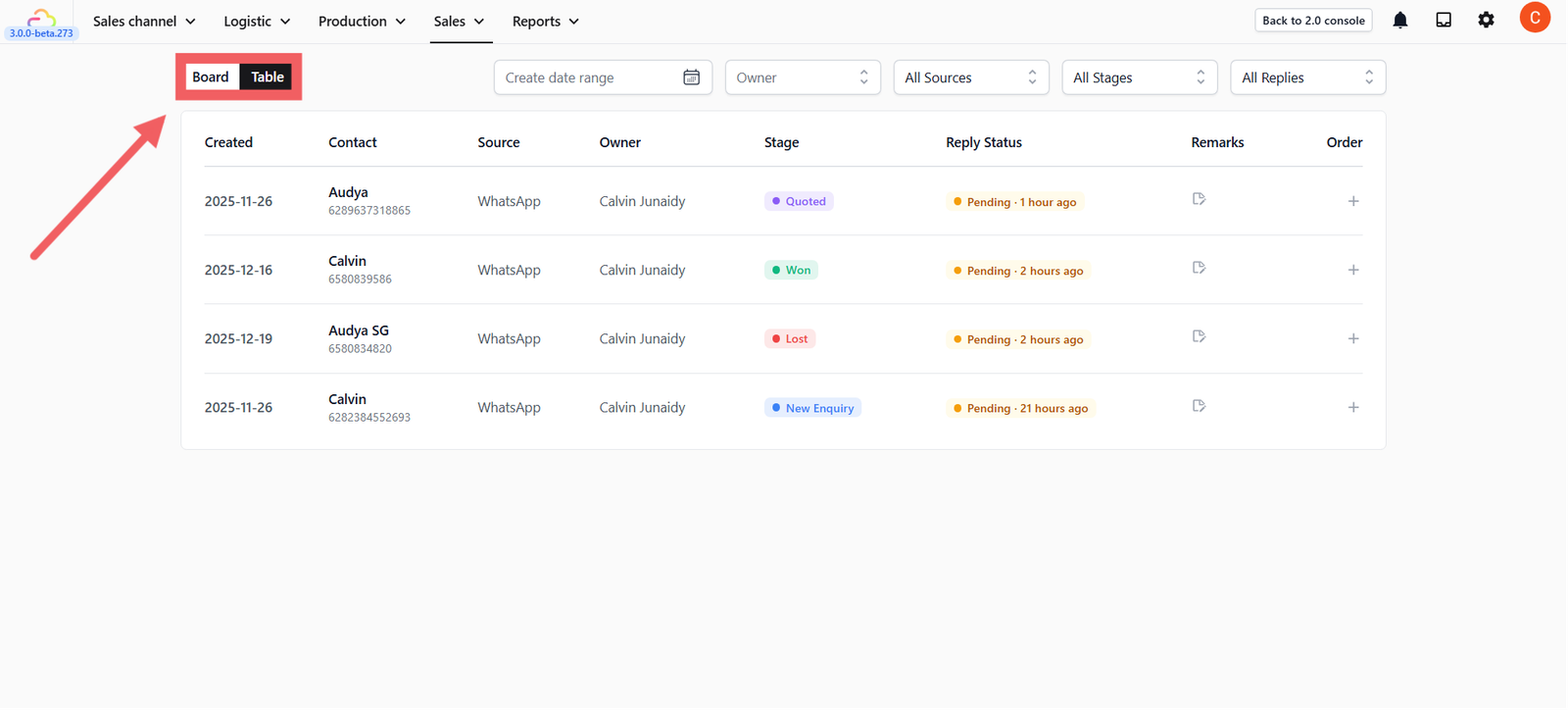
You will see the Deals page, which can be viewed in either Board View or Table View.
How Deals Work
Here is a quick overview of how a typical deal flows:
- A customer messages you on WhatsApp → A deal is automatically created under New Enquiry.
- You review their request and send a price quote → The deal moves to Quoted.
- The customer agrees and confirms the order → The deal moves to Won ✅.
- If the customer does not proceed → You move the deal to Lost ❌.
The video above walks through this flow in the EasyBiz console, showing how deals appear on the board and how stages update as you communicate with the customer.
Give feedback
Up next
Managing Your DealsEverything you need to manage your deals effectively on a daily basis.
Read more