
Your POS shows your products in clear tabs, such as Repairs or Retail Products, in the order your staff need them.
Before You Start
- Add your products first. A collection groups products that already exist in your Product Catalog, although you can also create a new service item or retail product from the collection card. See Adding Service Items and Adding Retail Products.
- You need the business unit itself. A business unit is one line of business in your shop, for example Laundry or Bag Repair. See Creating and Editing a Business Unit.
- You need access to Settings in the Console.
- If you set up collections before: they are no longer in the Product Catalog. Your shop now keeps one list of collections, under Settings › Collections, and each business unit chooses which of them to show, in its Catalog tab.
Choose your setup
| Level | Fits shops like | What you set up | Read these sections |
|---|---|---|---|
| Easy | A laundry that sells everything from one price list | Nothing. You don't need this page: the POS shows your price list's tab. | Why set it up |
| Intermediate | A laundry that also sells detergent, hangers or laundry bags at the counter | One ready-made tab, such as All retail products, after the price list | Everything in Easy, Where to find it, Adding a ready-made tab, What staff see |
| Advanced | A bag repair counter with about 15 jobs and no price list, or a shop that wants its own groups of items | Your own custom collections, in your own tab order | Everything in Intermediate, Adding a custom collection, Adding a collection your shop already has, Example setup, Managing collections later |
Why set it up
Collections put the right items one tap away. Your staff stop scrolling through a long list while a customer waits, and they pick the wrong item less often.
- A shop with a small range, such as a bag repair counter, can price each job on the product itself and show the jobs in a few tidy tabs instead of building a price list.
- A laundry with a price list can add its retail items in their own tab, so detergent and hangers sit next to the laundry prices.
If you skip this, the POS shows only your price list's tab. A business unit with no price list and no collections has nothing to sell on the POS, so staff see a message that the business unit has no catalog.
Where to find it
- Click the ⚙️ Settings icon in the top-right corner.
- Under the Company & business structure section, click Business Units.
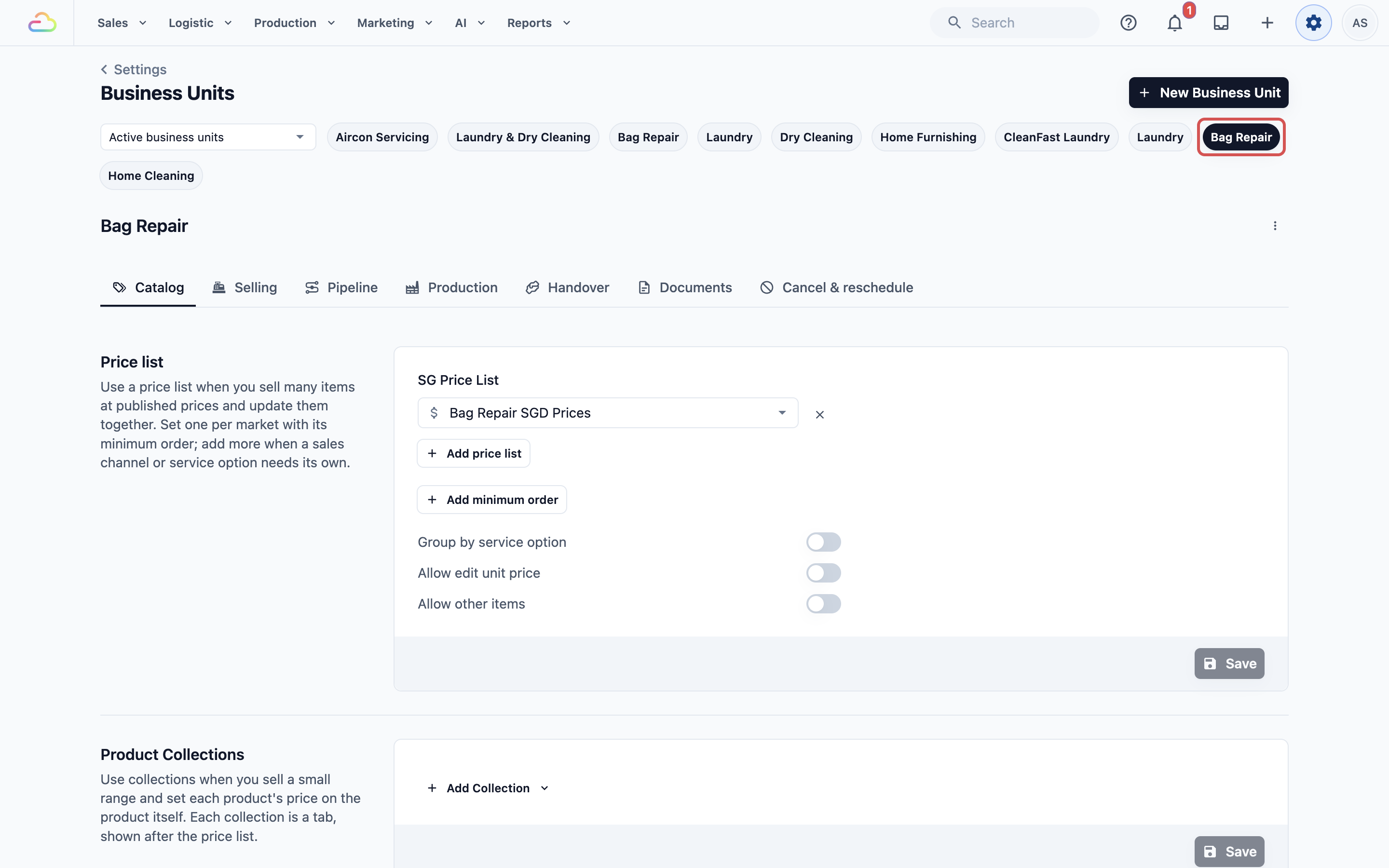
- Click the business unit, for example Bag Repair.
- Click the Catalog tab and scroll to the Product Collections section.
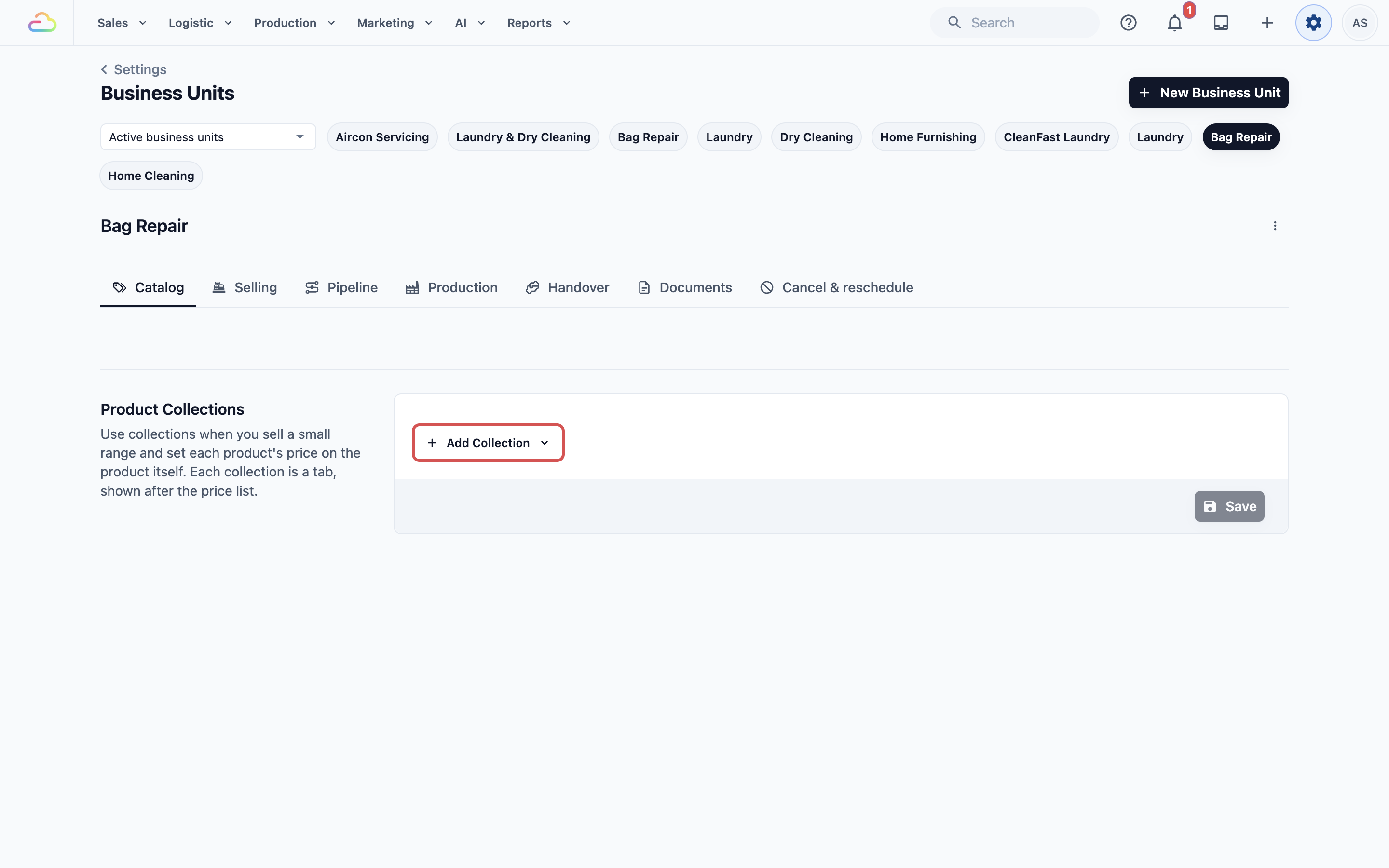
Adding a collection
Click Add Collection to open a list you can search. Under New, it offers three types of tab. Under Your collections, it lists the collections your shop already has.
| Type | What the tab shows on the POS |
|---|---|
| New collection | A custom collection: only the products you pick, under the name you give it, for example "Repairs". |
| All service items | Every service item in your Product Catalog, in a tab called Service Items. Items already sold through the price list's tab are left out, so nothing shows twice. |
| All retail products | Every retail product in your Product Catalog, in a tab called Retail Products. |
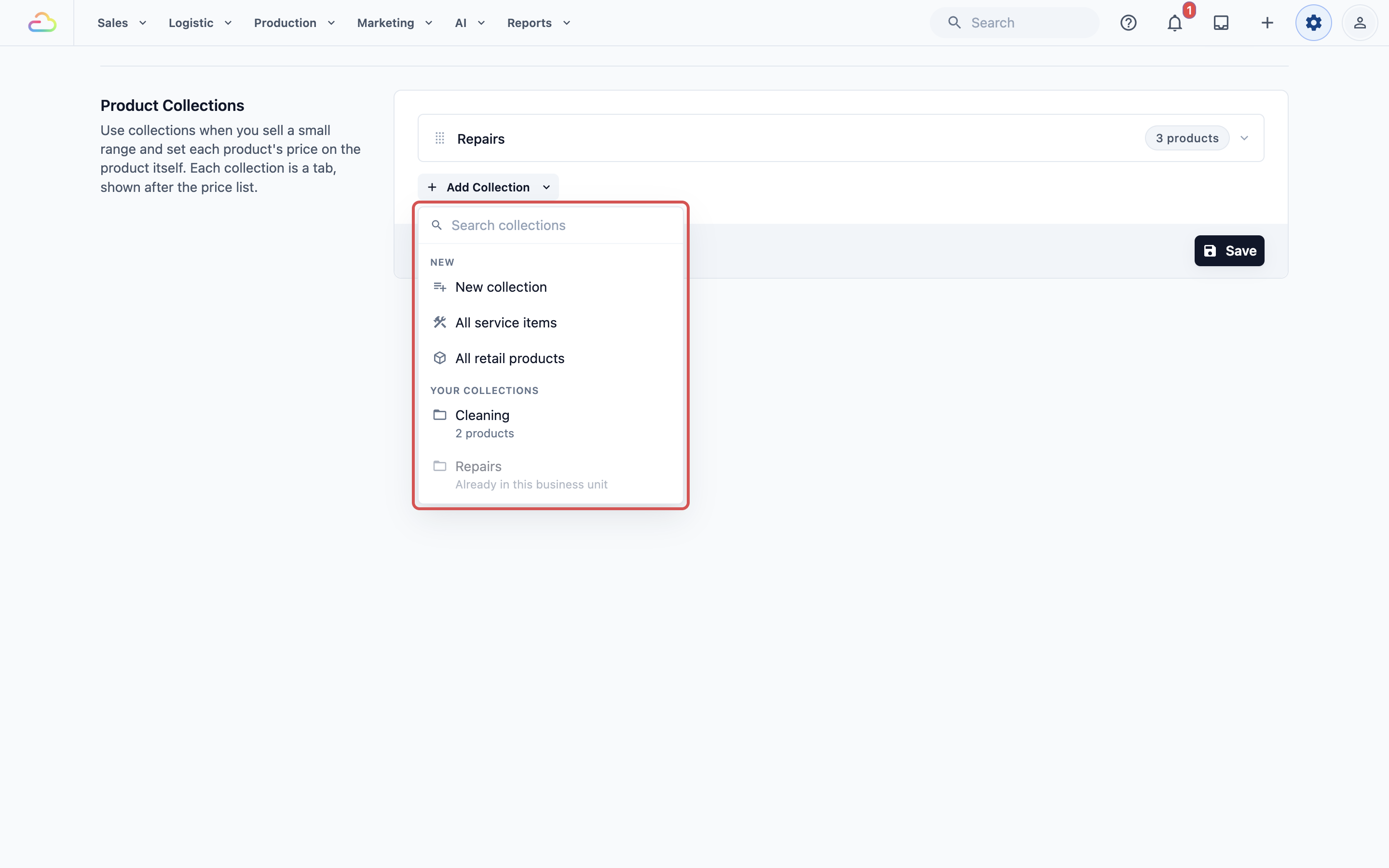
You can add several custom collections. All service items and All retail products can each be added once. After you add one, it no longer shows in the list.
Adding a ready-made tab
- Click Add Collection.
- Click All service items or All retail products. A new card appears at the bottom of the list.
- Click Save.
A ready-made tab fills itself. When you add a new retail product to your Product Catalog later, it shows in the Retail Products tab without any change here.
Adding a custom collection
Use this only if you want a tab with products you choose yourself.
- Click Add Collection, then click New collection. A new card opens, called Unnamed collection.
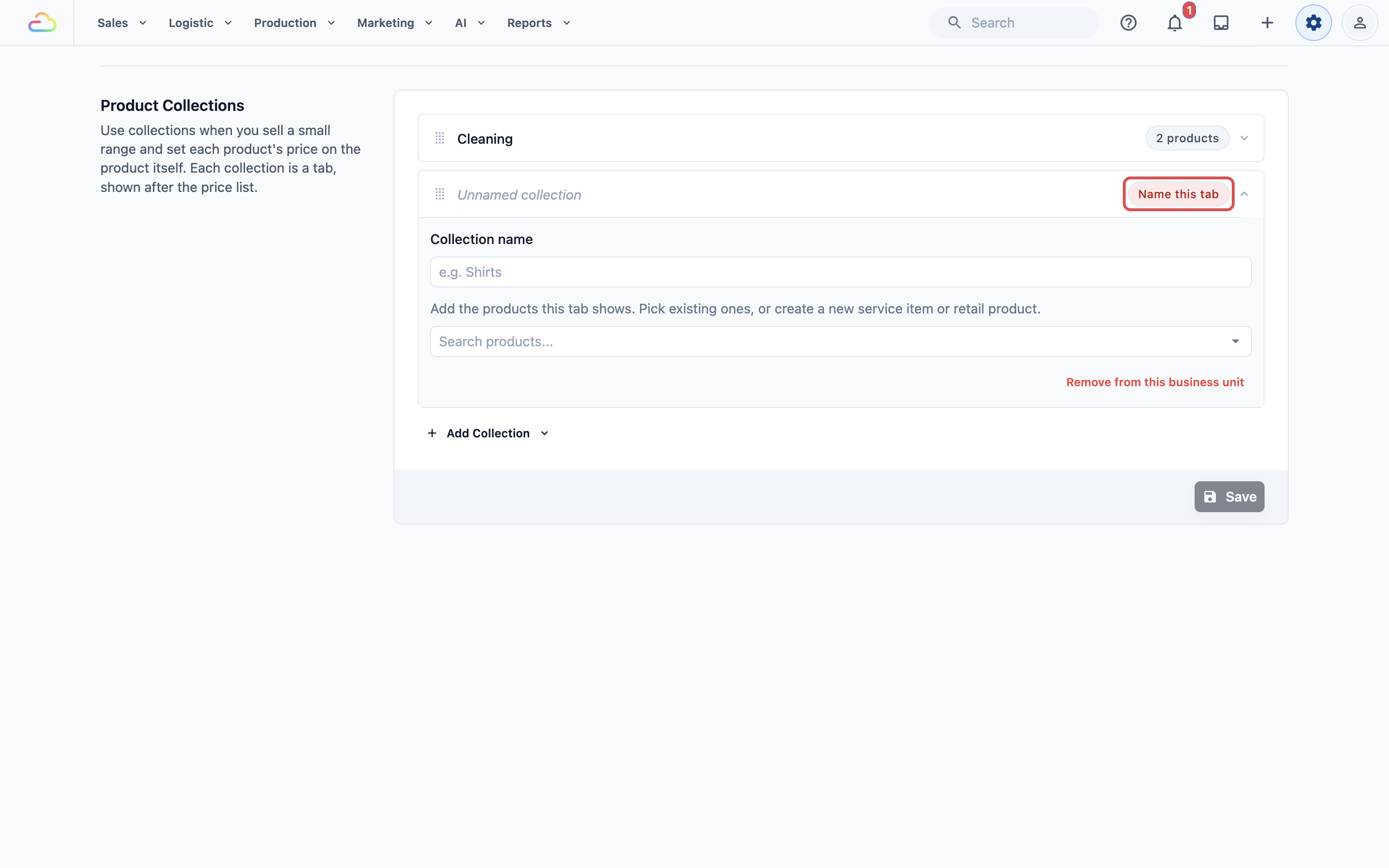
- In Collection name, type the tab's name, for example "Repairs". This is the name your staff see on the POS, up to 60 characters.
- Click the Search products... box and type part of a product's name. Click a product to add it.
- To add a product that doesn't exist yet, choose to create a new service item or retail product in the search list, fill it in and save it. It is added to this collection straight away.
- Repeat until the collection has every product it needs, then click Save.
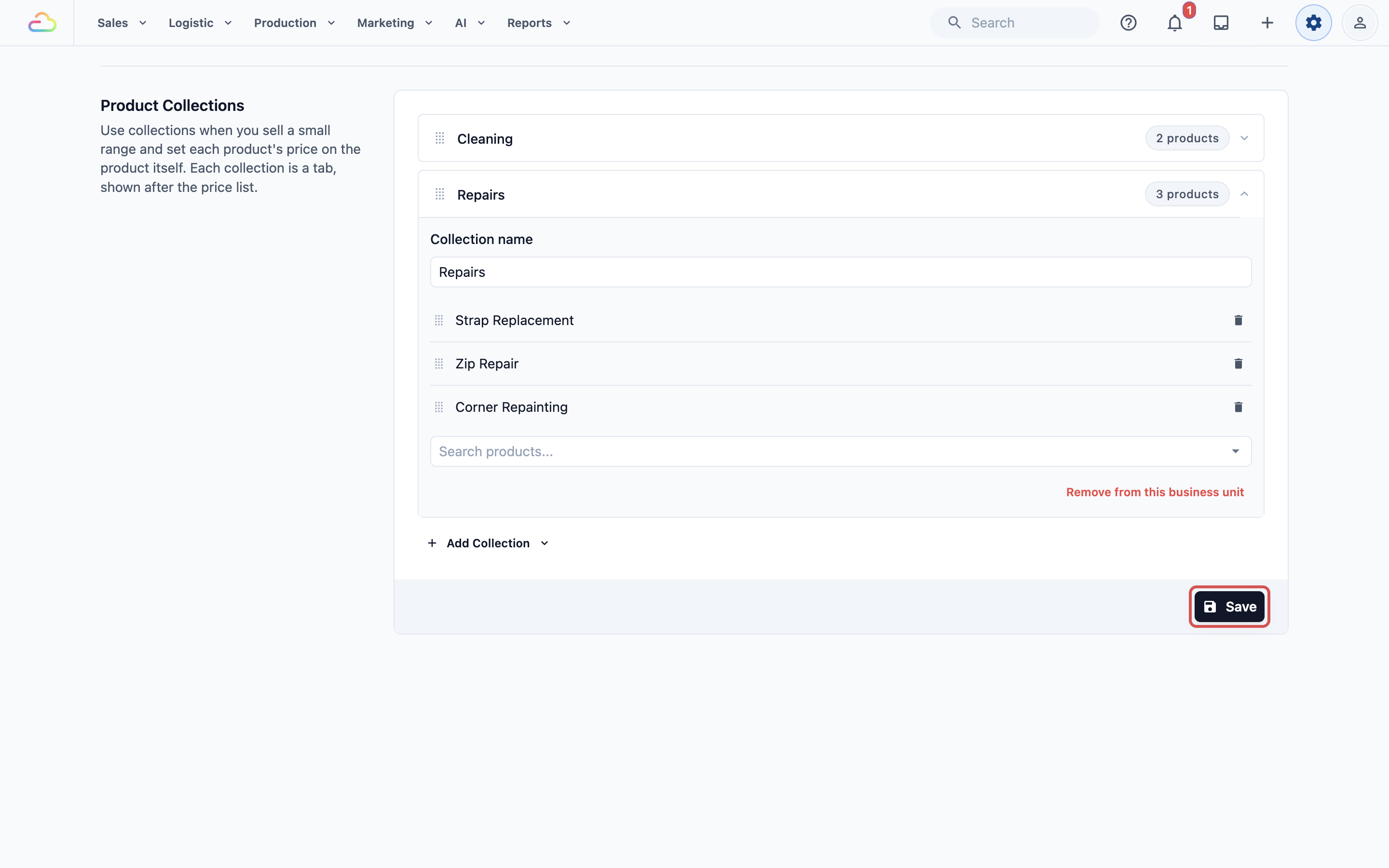
A custom collection needs a name and at least one product. Until it has both, its card shows "Name this tab" or "Add at least one product" in red, and you can't save.
A collection you make here joins your shop's list in Settings › Collections when you save, so another business unit can show it too.
Adding a collection your shop already has
Use this only if the collection you want already exists in your shop.
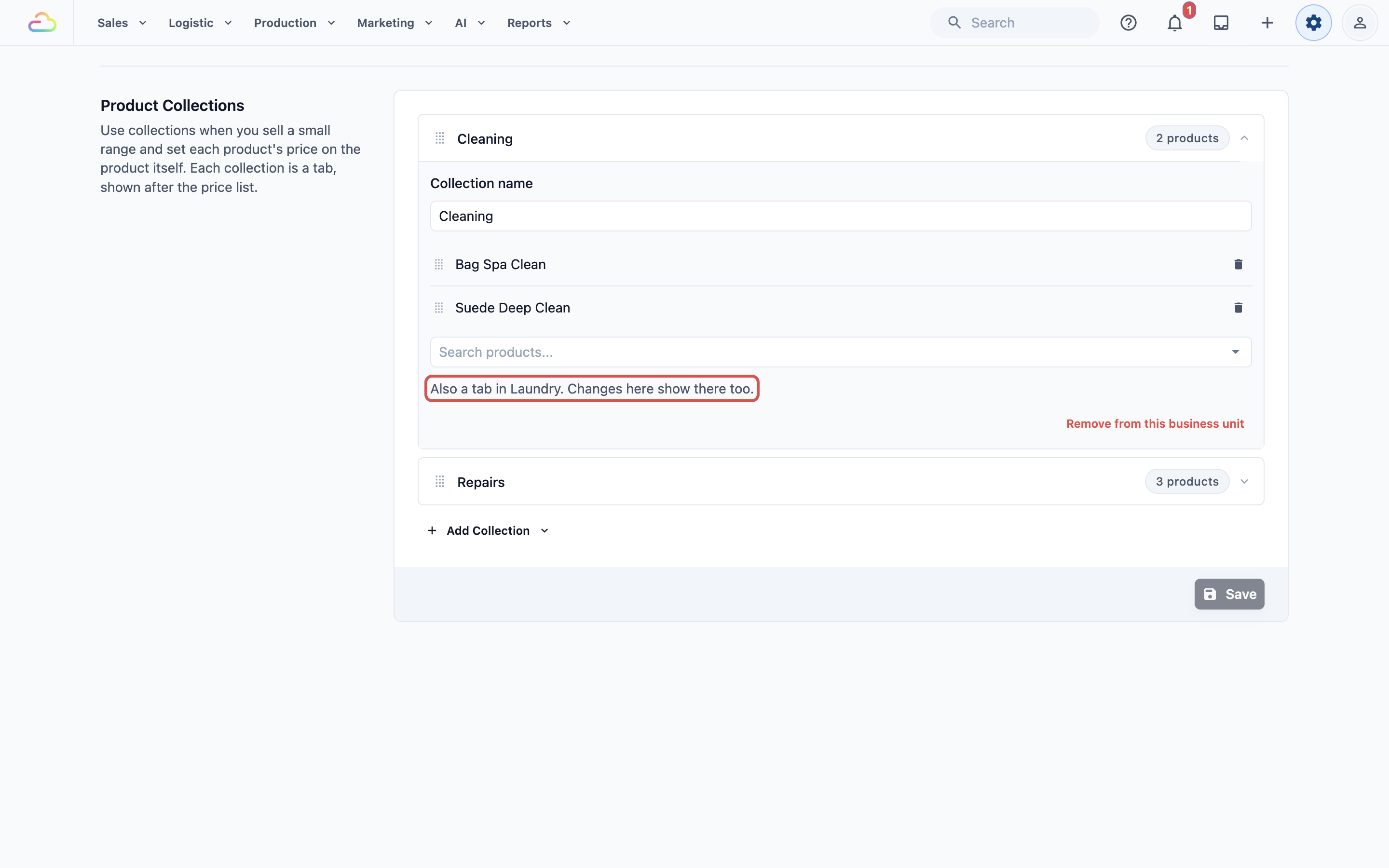
For example, CleanFast Laundry later wants its Laundry counter to take bag cleaning jobs too. The owner opens the Laundry business unit and adds Cleaning from Your collections. Both business units then show the same Cleaning tab.
Your collections lists every collection in your shop: the ones made in any business unit, the ones added in Settings › Collections, and the price list categories you made into collections. Under each name you see how many products it has.
- Click Add Collection.
- Type part of the collection's name in Search collections, or scroll down to Your collections.
- Click the collection. Its card appears at the bottom of the list.
- Click Save.
A collection you can't pick is greyed out, and the line under its name says why.
| Reason shown | What it means |
|---|---|
| Already in this business unit | This business unit already shows it as a tab. |
| Has no name yet | Give it a name in Settings › Collections first. |
| Has no products yet | Add at least one product to it first. |
| Has more than 200 products | A tab can show up to 200 products. Take some out first. |
| Its name is longer than 60 characters | A tab's name can have up to 60 characters. Shorten it first. |
| A business unit can have up to 20 collections | This business unit is full. Remove a collection from it first. |
The tab and the collection are one and the same. When you rename it or change its products in one business unit, every business unit that shows it gets the same change. Its open card tells you when another business unit shows it, for example "Also a tab in Laundry. Changes here show there too."
Choosing a product's collections on the product
You don't have to open a collection to put a product in it. Every service item and retail product has its own Collections field, so you can set its collections while you add or edit it.
- Click the ⚙️ Settings icon in the top-right corner.
- Under the Catalog & pricing section, click Product Catalog.
- Click the product, for example Shirt, or add a new one.
- In Collections, pick each collection the product belongs to, for example Clothing and Tops. Under each name you see how many products it has.
- Click Save, or Add for a new product.
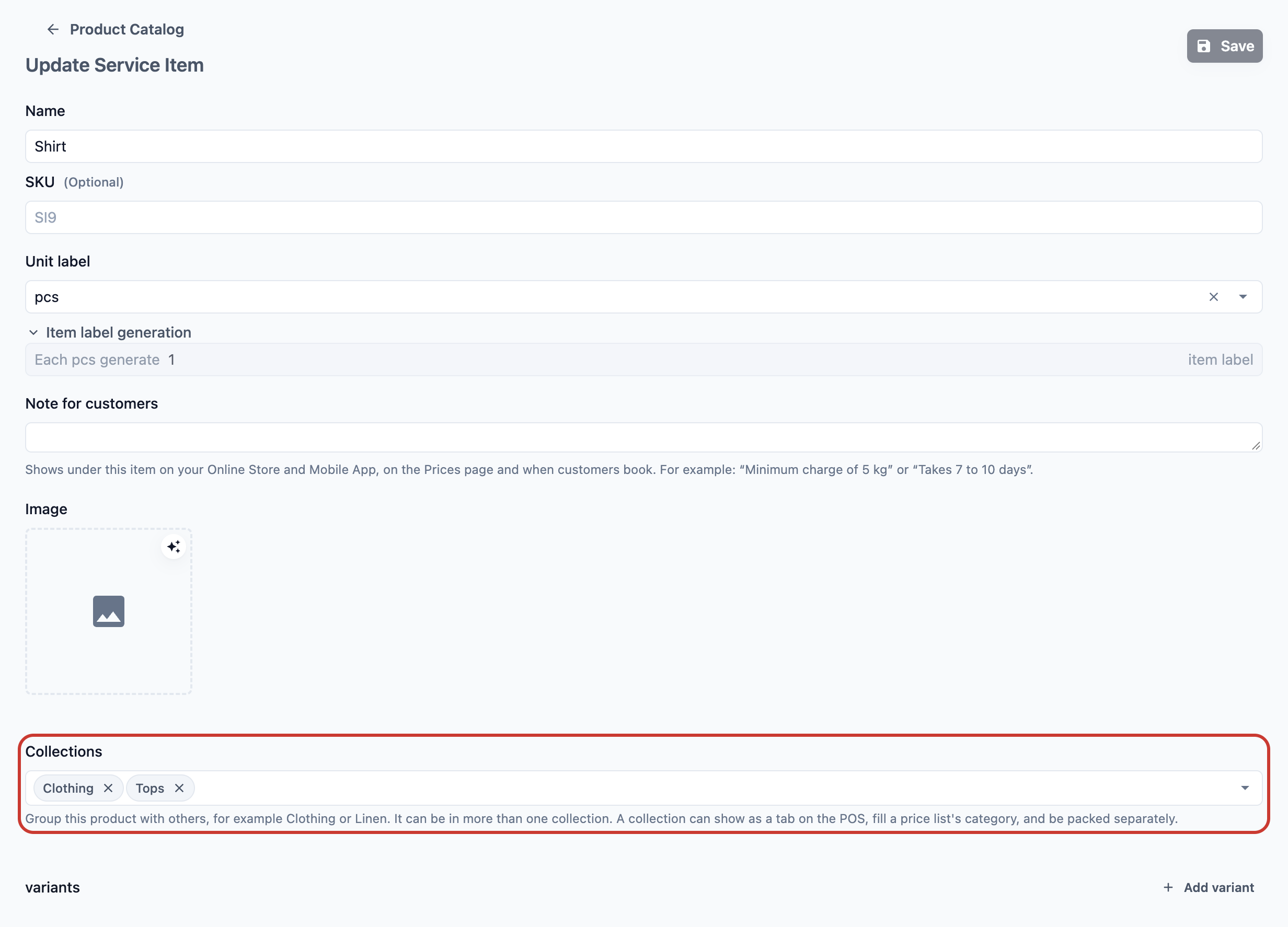
The product joins those collections when you save, and every POS tab that shows one of them gets it too. To take the product out of a collection, remove the collection from the field and save.
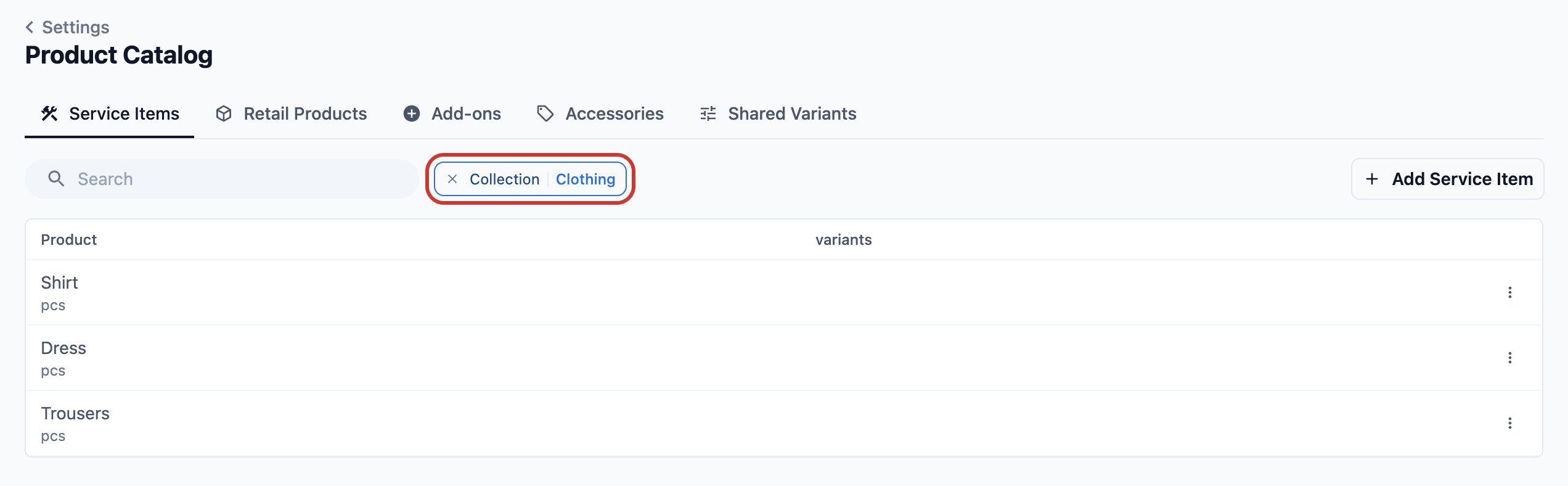
To list the products of one collection, click Add filter above the Service Items or Retail Products list, click Collection, then pick the collection. Remove the filter to see every product again.
A collection is also how a business unit packs part of an order on its own, for example Clothing and Linen in separate bags. See Setting Up Packing Flows and Work Orders.
Using a collection in a price list
A price list groups its items into categories, such as Tops or Curtains. A category belongs to its own price list, so each price list can group its items its own way. When you want the same group in more than one place, use a collection as the category.
- Open the price list's draft and click Add Category.
- Type a name to add a category to this price list only. To use a collection instead, pick it under Your collections.
- Click Add Category.
A category that uses a collection lists the products of that collection that have a price in this price list.
Under the category's name, the editor tells you which kind it is.
| It says | What it means | To change it |
|---|---|---|
| Only in this price list | Adding or removing a product here changes this price list only. | Click Make it a collection. The category becomes a collection with the products it has here. |
| One of your collections | Adding or removing a product here changes the collection everywhere it is used. | Click Keep only in this price list. The category keeps its products, and the collection itself does not change. |
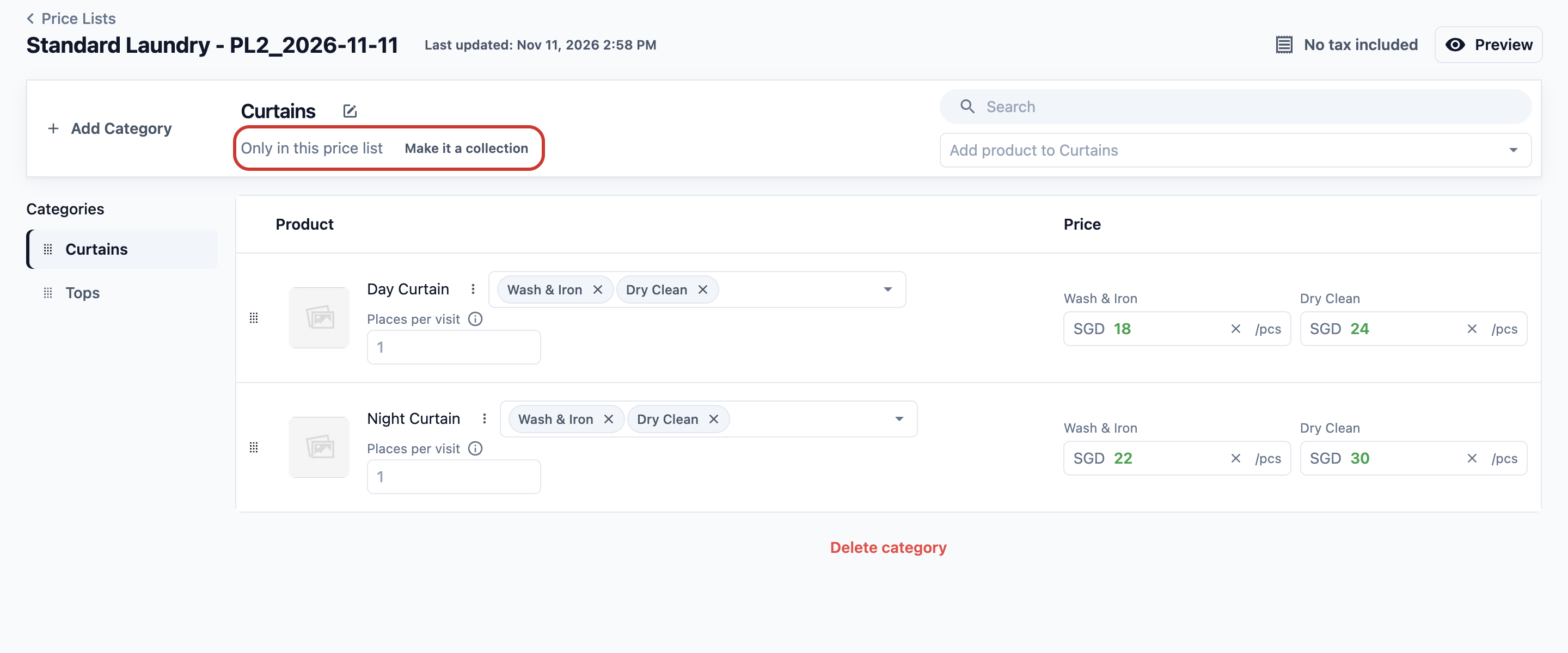
If your shop already has a collection with the same name, the editor asks you to rename the category first, or to pick that collection in Add Category instead.
For example, CleanFast Laundry wants Linen packed separately from clothing. It makes the Linen category of its price list a collection, then picks Linen in the Laundry business unit's packing settings.
Example setup
CleanFast Laundry has two business units, Laundry and Bag Repair.
Laundry business unit
- Sells from its price list, called Standard Laundry.
- Adds one ready-made tab, All retail products, for its counter items: Laundry Detergent 1L at $8.90 and Plastic Hangers (pack of 10) at $5.00.
Bag Repair business unit
- Has no price list. Each job has its own price on the product.
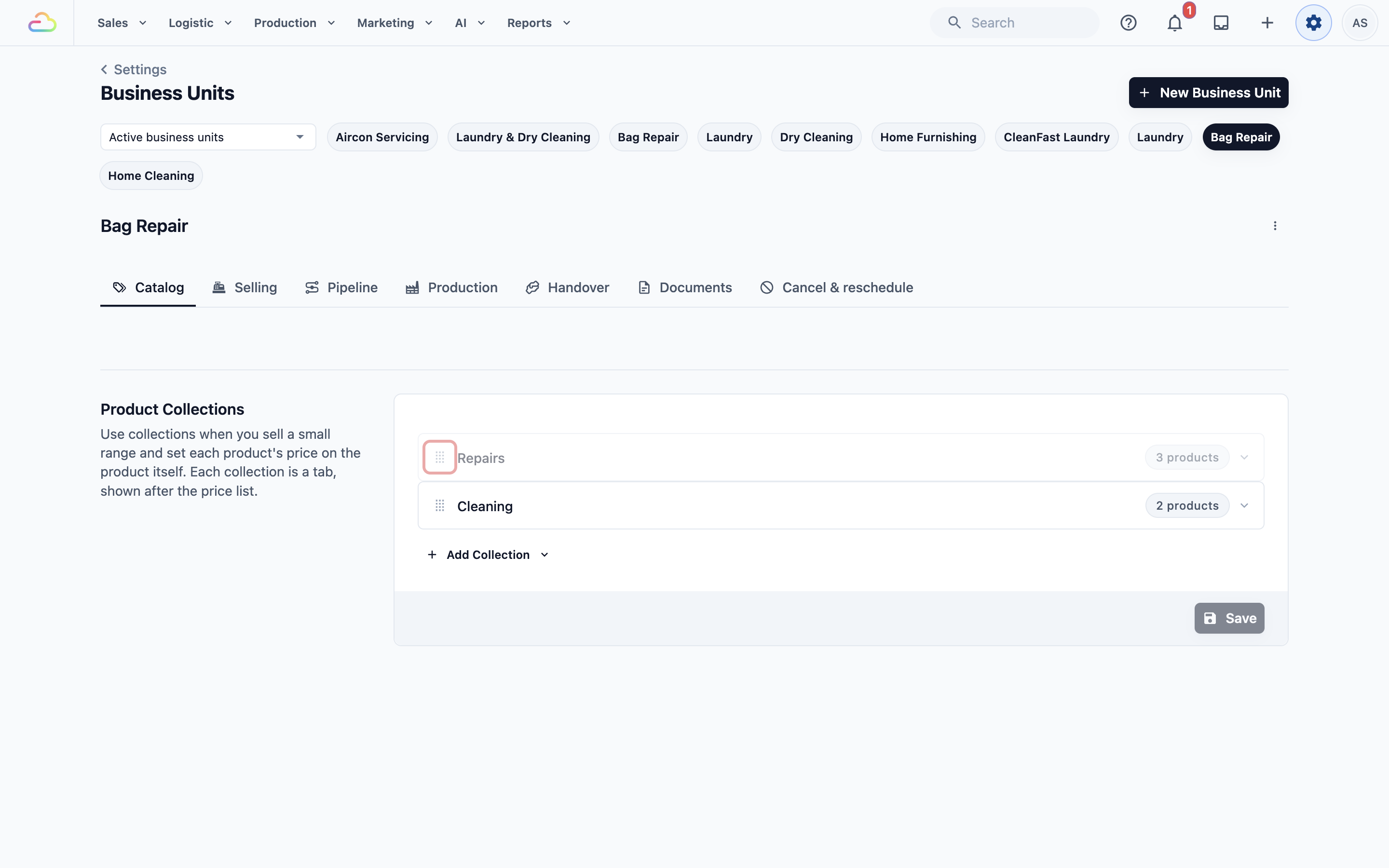
- Adds two custom collections, in this order:
| Collection | Products |
|---|---|
| Cleaning | Bag Spa Clean ($45.00), Suede Deep Clean ($60.00) |
| Repairs | Strap Replacement ($35.00), Zip Repair ($28.00), Corner Repainting ($40.00) |
What staff see
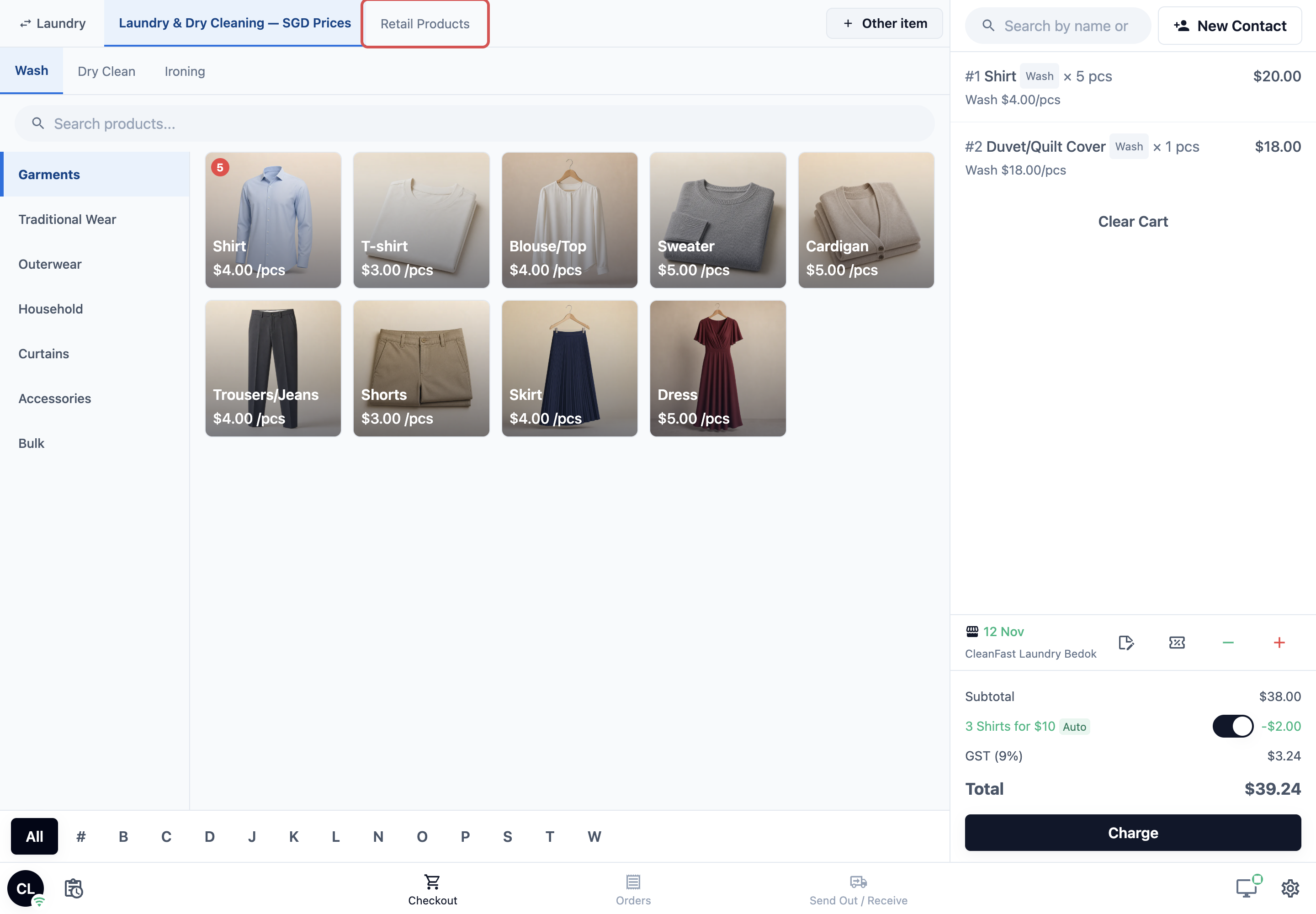
After you save, the POS shows one tab for each collection, in the order of your cards.
- When the business unit has a price list, the price list's tab comes first, under the price list's name. Your collections follow it.
- Ready-made tabs show as Service Items and Retail Products.
- Collections are the same in every market where the business unit sells.
At CleanFast Laundry's Tampines shop, staff selling for the Laundry business unit see two tabs: Standard Laundry, then Retail Products. Staff selling for Bag Repair see Cleaning, then Repairs.
Managing collections later
Click a card to open it. For a custom collection you can:
- Rename it in Collection name.
- Add more products.
- Remove a product with the trash icon next to it. The product itself stays in your Product Catalog.
- Drag products by their handle to change their order inside the tab.
Every business unit that shows the same collection gets these changes too.
To change the order of the tabs on the POS, drag the cards by their handle at the left.
To remove a tab, open its card and click Remove from this business unit, or Remove Tab for a ready-made tab. Click Save after any change. Removing a tab never removes products from past orders.
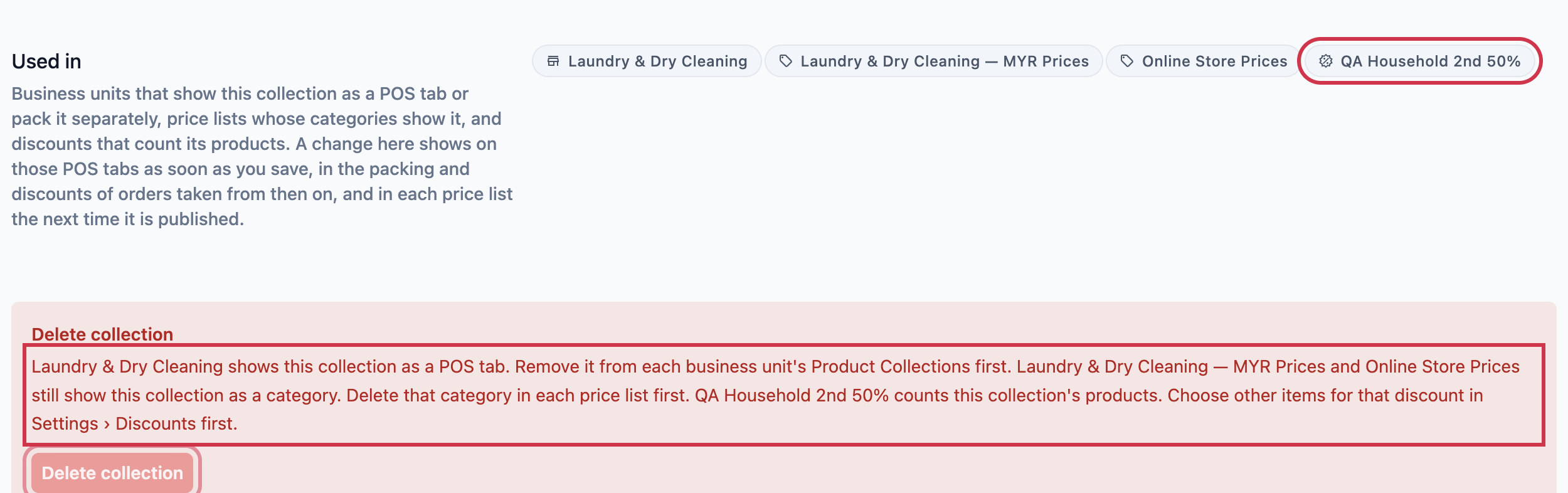
Removing a collection takes it off this business unit only. It stays in Settings › Collections, so you can add it again later from Your collections. To delete it for good, open it there and click Delete collection. The button works once no business unit shows it as a tab or packs it separately, no price list uses it, and no discount counts its products. Under Used in, the page lists each place that still uses it, discounts included.
Limits
- Up to 20 collections for each business unit. After 20, New collection and the collections under Your collections are greyed out in the list, and you see "A business unit can have up to 20 collections".
- Up to 200 products in each collection. After 200, the search box stops adding products.
FAQs
Where did the Collections tab in Product Catalog go?
Collections now have their own page, and your shop keeps one list of them. Open Settings › Collections, in the Catalog & pricing section, to see every collection and where it is used. To choose which collections a business unit shows on the POS, open Settings › Business Units › your business unit › Catalog › Product Collections.
Do I need collections if I already sell from a price list?
No. The price list's tab is enough for most laundries. Add a collection only when you also sell items the price list doesn't cover, such as retail products.
Why are some service items missing from the Service Items tab?
Items your price list already sells are left out of that tab, so staff never see the same item twice. They are still in the price list's tab.
I see a Service options tab in Product Collections, but it's not in the Add Collection list. Why?
Some business units set up earlier still have this tab. On the POS it shows one tab for each service option of your price list, in place of the price list's tab. You can keep it, or remove it with Remove Tab, but you can't add it again.
Can a product be in more than one collection?
Yes. The same product can sit in any number of collections, and a custom collection can mix service items and retail products. You can pick all of a product's collections in one place, in the Collections field on the product.
Can a discount count a collection's products?
Yes. An item offer, such as "2nd Household item 50% off", can count every product in a collection instead of products you pick one by one. See Setting Up Automatic Discounts.
Why does my collection not show on the POS?
Check that you clicked Save on the business unit's Catalog tab, and that the POS is selling for that business unit.
What's Next
Your products now sit in clear tabs on the POS for each business unit. Next, set up the paid extras staff can attach to an item, such as express service or stain removal, in Adding Add-ons.