
Your staff tick an add-on such as Starch on a cart line, and the POS adds its surcharge for every piece on that line.
Before You Start
- Add the items your shop sells first, so staff have a cart line to put an add-on on. See Adding Service Items and Adding Retail Products.
- You need access to the Console settings to open the Product Catalog.
- If you sell in more than one market (for example Singapore and Malaysia), set up those markets first, so each one appears in the add-on form with its own currency.
- If you set up add-ons before: your add-ons and their prices are still there. Open each paid add-on once to check its surcharge for every market you sell in.
Overview
An add-on is an optional extra attached to an item on an order, not something sold on its own. Typical laundry add-ons are Starch, Folding, Extra Hanger and Express Handling. Each add-on has a name, an optional short code and a surcharge per unit, which is the extra amount charged for every piece on the line. An add-on with no surcharge is free and works as an instruction for your workshop, such as Folding. Add-ons are shared by every business unit in your shop, so you set each one up only once.
Where it works
- Console: you create, edit, reorder and delete add-ons in the Product Catalog.
- POS: staff pick add-ons when they edit an item in the cart. The same picker appears when staff edit an order's items in the Console.
- Receipts: each add-on prints under its item with its charge.
- Online Store and Mobile App: customers do not choose add-ons themselves. Your staff add them to the order.
Why set it up
- Faster counter work. Staff tick Starch instead of working out and typing an extra charge for each shirt.
- The same price every time. Every shop and every staff member charges the same surcharge, so customers are never charged differently from one visit to the next.
- Clear instructions for the workshop. Free add-ons such as Folding show on the item, so the workshop knows exactly what the customer asked for.
If you skip this page, staff can still take orders. They will have to write extras in the item note and add any extra charge another way.
Where to find it
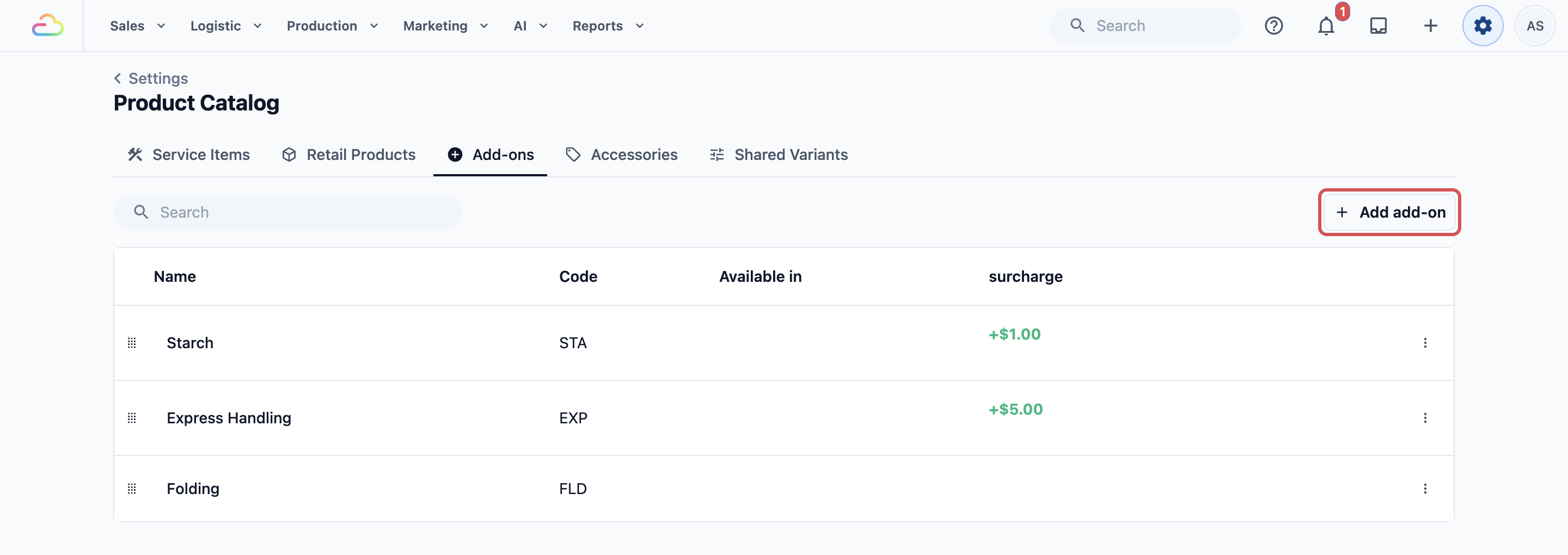
- Click the ⚙️ Settings icon in the top-right corner.
- Under the Catalog & Pricing section, click Product Catalog.
- Click the Add-ons tab.
- Click Add add-on in the top-right corner of the list.
Setting it up
The Add add-on button opens the Add Add-on pop-up.
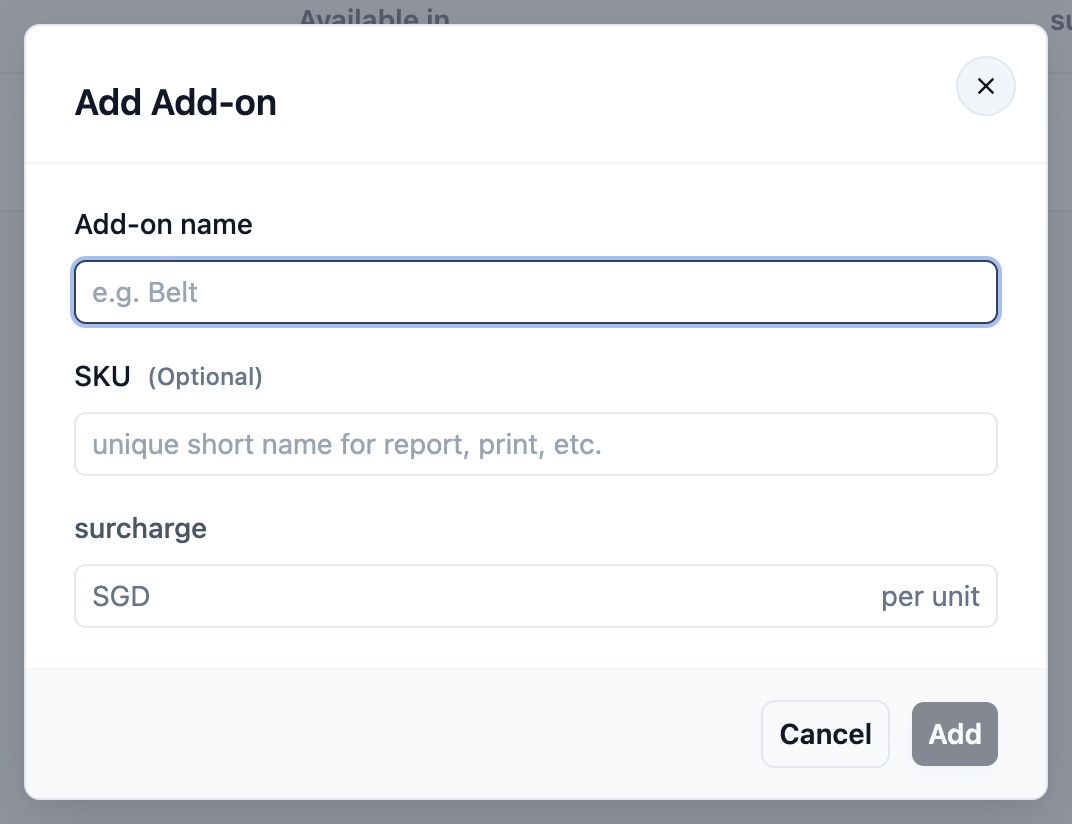
- Type the Add-on name.
- Type a SKU if you want a short code.
- Type the Surcharge, or leave it empty for a free add-on.
- Click Add. The message "Add-on added" appears and the add-on shows in the list.
The Add button stays greyed out until you type a name.
Add-on name
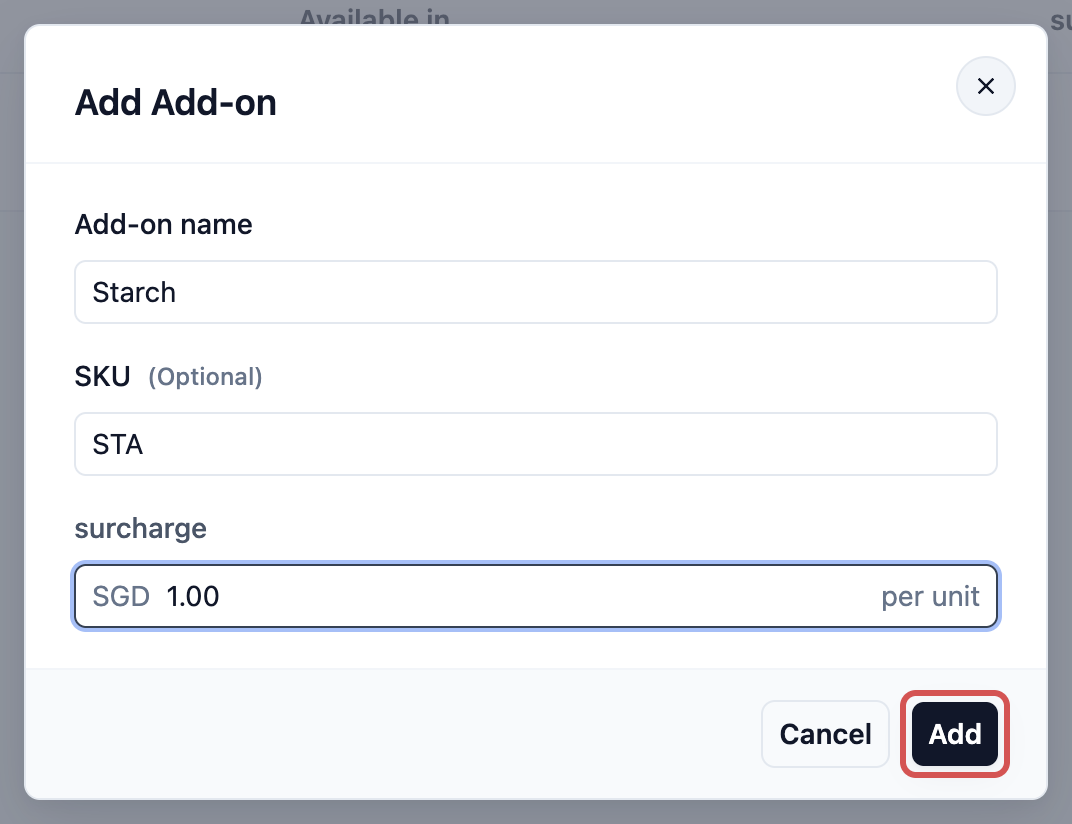
Type the name your staff see on the POS and that prints on the receipt, for example Starch or Express Handling.
SKU
A short code, for example STA for Starch. It is optional and the letters change to capitals as you type. Staff see the code in square brackets in front of the name on the POS, for example [STA] Starch, and can search for it in the add-on list. Receipts print the name, not the code.
Surcharge
The extra amount charged for every piece on the line, which is why the field says "per unit".
| What you enter | What happens |
|---|---|
| Leave empty | The add-on is free. Staff can still pick it, and it shows on the item as an instruction. |
| 0 | The add-on shows a charge of SGD 0.00. Use this only if you want staff to see that the extra is included. |
| An amount, such as 1.00 | That amount is added for every piece. Starch at SGD 1.00 on 3 shirts adds SGD 3.00. |
Selling in more than one market
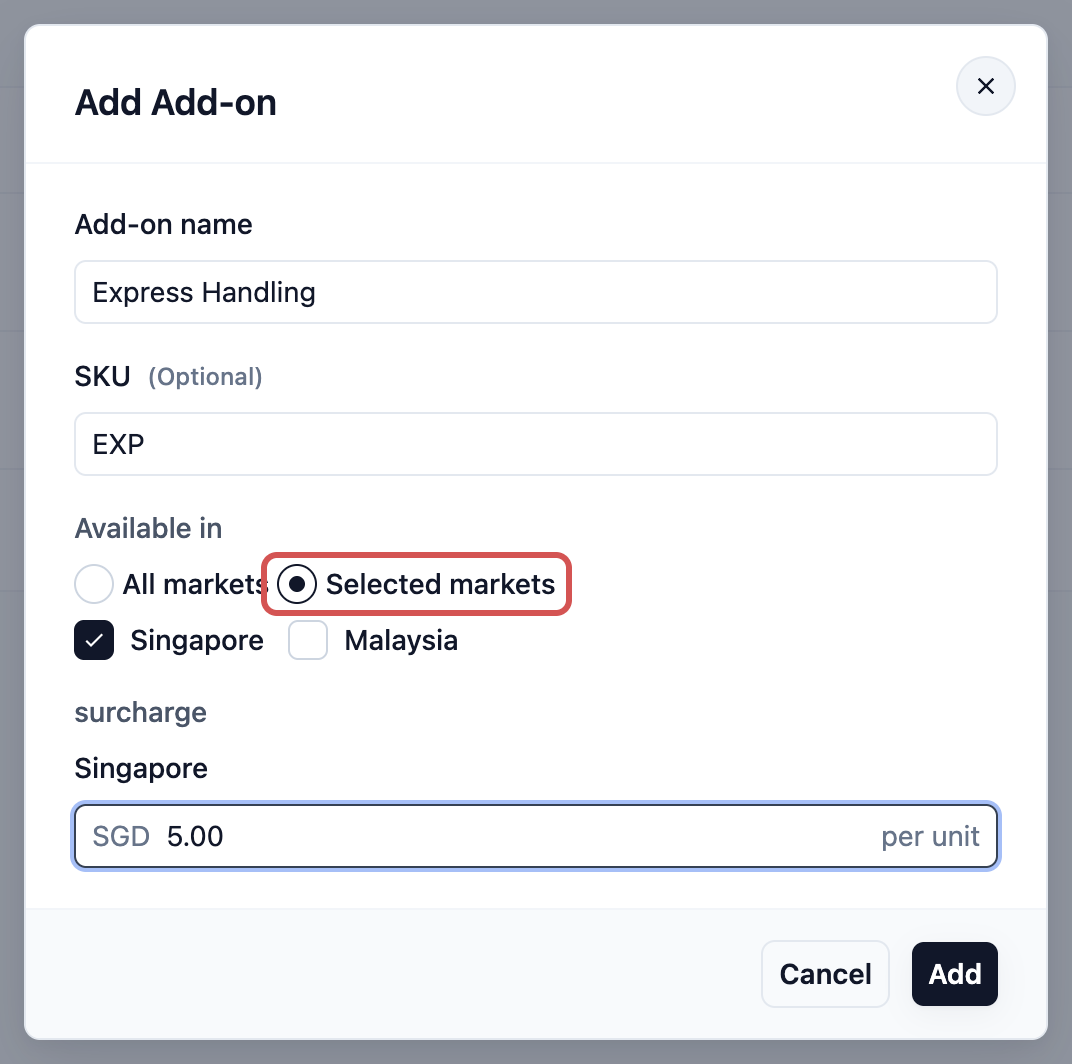
Use this only if your account sells in more than one market, for example a shop in Singapore and another in Malaysia. A market is a country you sell in, with its own currency and tax. In a single-market account, the Available in choice is hidden and you see one Surcharge field.
Available in
| Option | What it does |
|---|---|
| All markets | The add-on is offered in every market you have now and in any market you add later. |
| Selected markets | A tick box appears for each market. Untick the markets where you do not offer it. At least one market stays ticked. |
If you choose Selected markets and keep every market ticked, a market you add later is not included. Choose All markets if you want new markets to get the add-on.
Surcharge for each market
The pop-up shows one surcharge field for each market the add-on is offered in, labelled with the market name and its currency, for example SGD for Singapore and MYR for Malaysia. Type each amount separately. EasyBiz never converts one currency into another or copies a price across.
Example setup
CleanFast Laundry sells in one market, Singapore, from its Tampines and Jurong shops. It sets up three add-ons:
| Add-on name | SKU | Surcharge |
|---|---|---|
| Starch | STA | SGD 1.00 per unit |
| Express Handling | EXP | SGD 5.00 per unit |
| Folding | FLD | Leave empty (free) |
A customer at the Tampines counter brings 2 shirts for Shirt Wash & Iron at SGD 3.50 each and asks for starch and folding. CleanFast's price list adds 9% GST on top of its prices.
- Shirt Wash & Iron: 2 × SGD 3.50 = SGD 7.00
- Starch: 2 × SGD 1.00 = SGD 2.00
- Folding: free = SGD 0.00
- Line total: SGD 7.00 + SGD 2.00 = SGD 9.00
- GST 9%: SGD 0.81
- Total: SGD 9.81
If the customer also wanted Express Handling on both shirts, it would add 2 × SGD 5.00 = SGD 10.00, because every add-on is charged per piece.
What staff and customers see
After you save, the add-ons are ready on the POS straight away. They are listed in the same order as your Add-ons tab.
- On the POS, add the item to the cart, for example Shirt Wash & Iron.
- Tap the item's cart line to open it.
- Tap the pencil icon on the line. The item's edit panel opens with Note, Add-ons and Accessories.
- Under Add-ons, tap each add-on the customer wants. A tick appears next to it.
If the item uses line item steps, the line shows Edit instead of the pencil icon. Edit reopens the item's steps, so add-ons appear there only when the steps include an add-ons step.
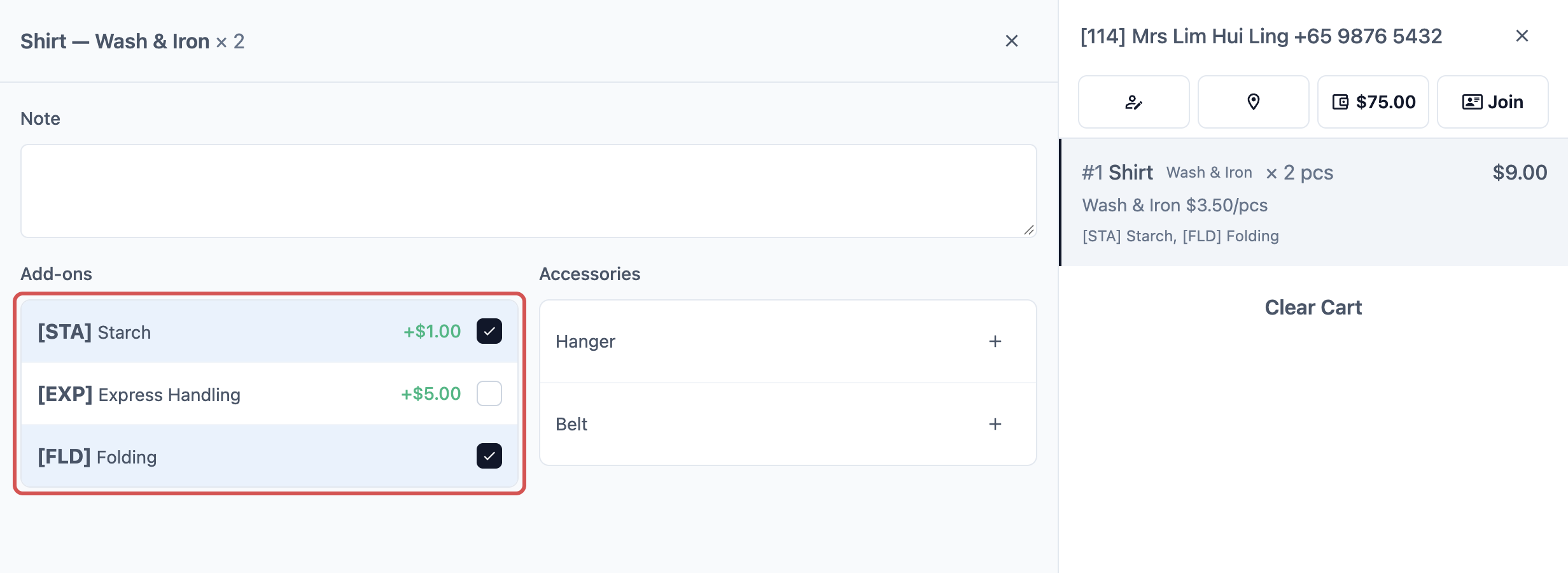
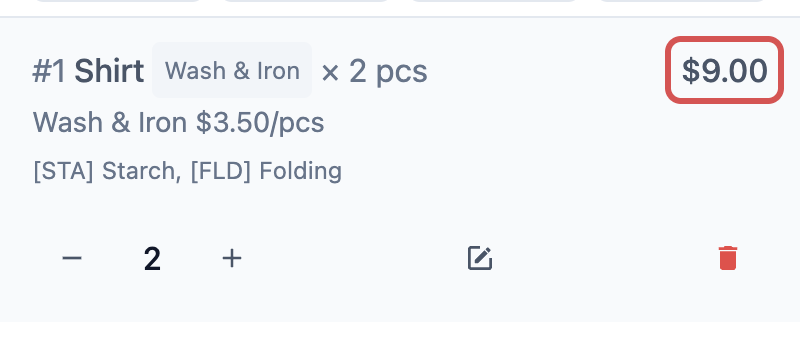
Your changes apply as you tap. The cart line then lists the add-ons under the item name, and its total includes the surcharge for every piece.
The same Add-ons list sits next to Accessories, the items a customer hands over with a garment, such as hangers or belts. Those are covered in Adding Accessories.
On the receipt, each add-on prints under its item with its charge. Customers do not pick add-ons themselves on your Online Store or Mobile App.
Managing it later
Reading the list
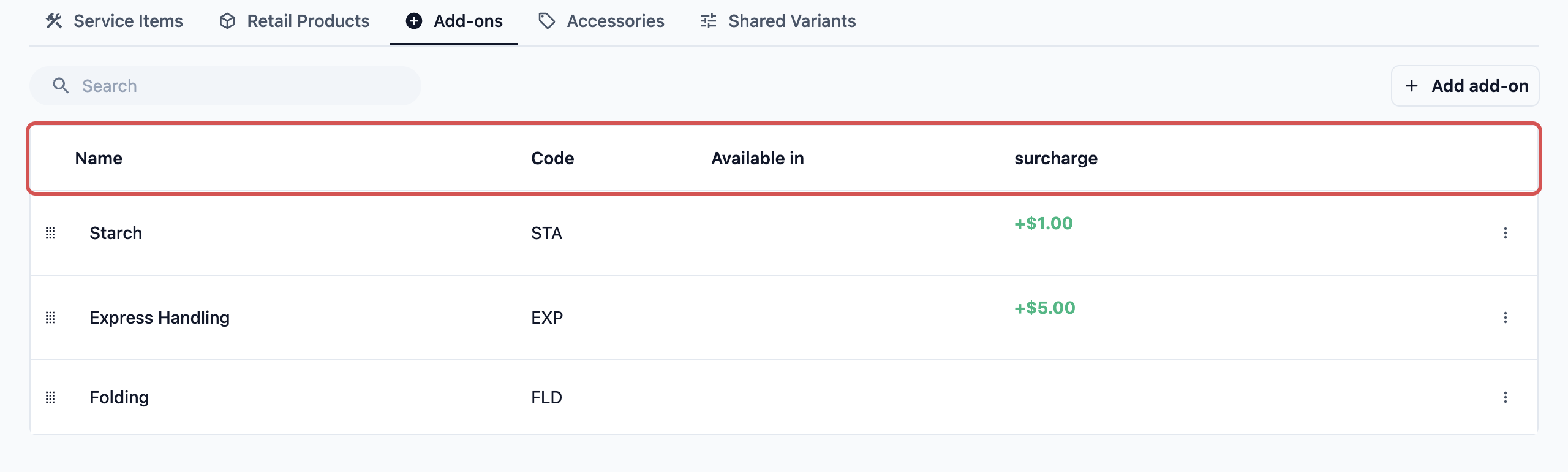
- Name and Code show the add-on name and its SKU.
- Available in shows All markets or the names of the selected markets. It stays empty in a single-market account.
- Surcharge shows the price in your main market, for example +SGD 1.00. A free add-on shows nothing here.
- No surcharge set means the add-on has a price in another market but not in your main market.
- Priced in 1 of 2 markets (or another count) means a paid add-on still has no surcharge in one of the markets it is offered in. Staff in that market will not see it until you add one.
Editing an add-on
- Click anywhere on the add-on's row. The Update Add-on pop-up opens with its details filled in.
- Make your changes.
- Click Update. The message "Add-on updated" appears.
Changing the order
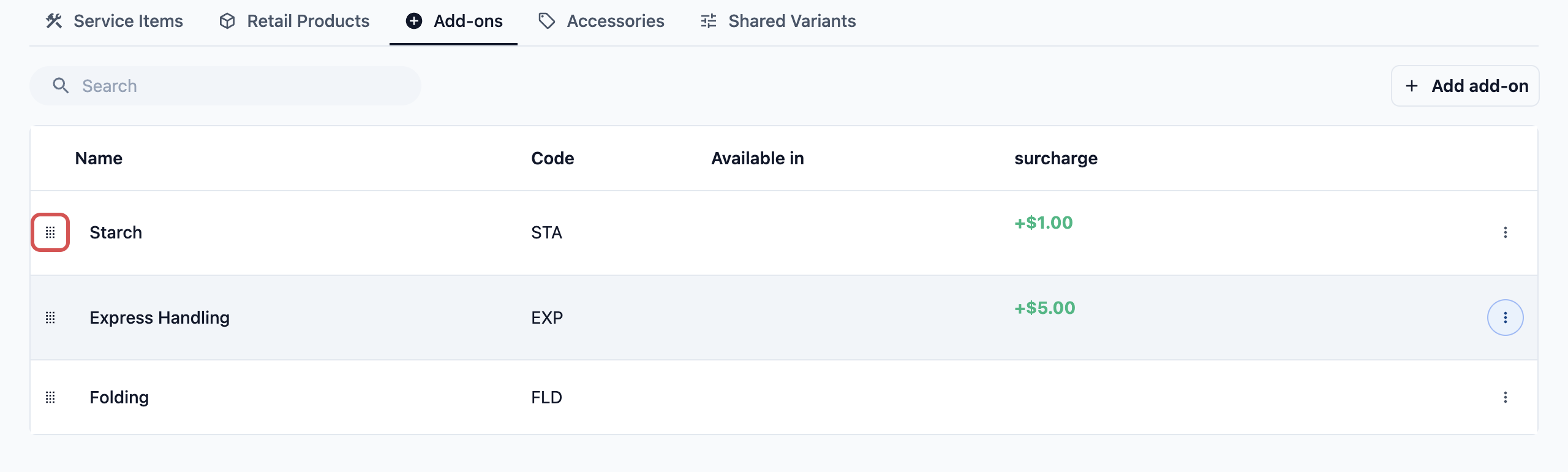
Press and hold the drag handle at the left of a row, then drag the add-on up or down. The message "Add-ons order updated" appears. Staff see add-ons on the POS in this same order, so put the ones they use most at the top.
Deleting an add-on
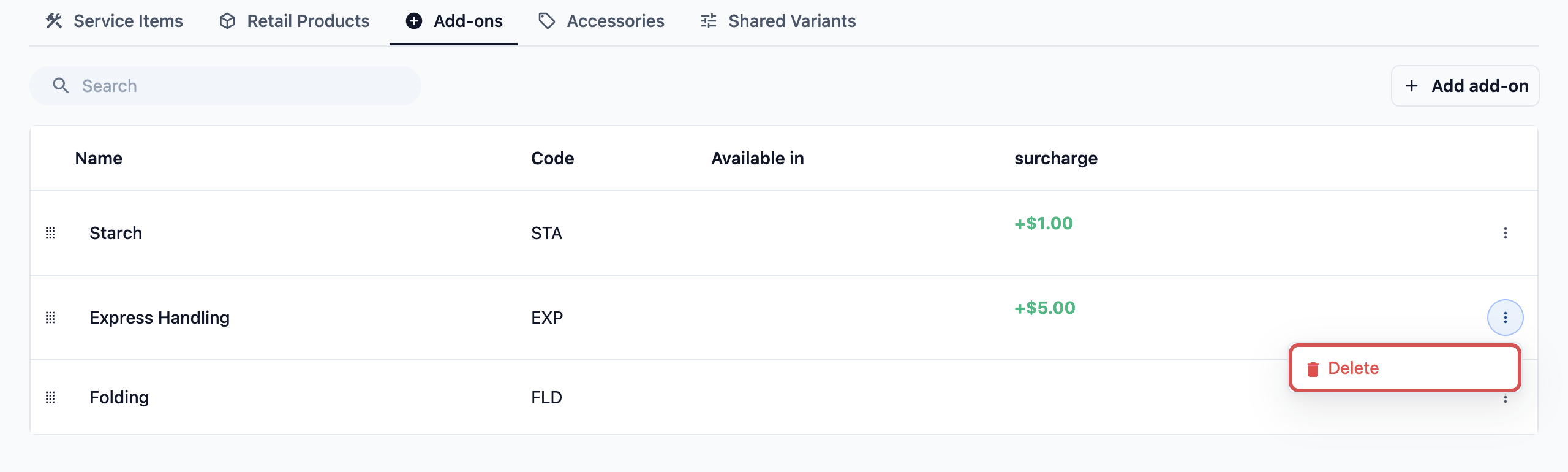
- Click the ••• menu at the right of the add-on's row.
- Click Delete.
- In the Delete Add-on pop-up, click Delete to confirm. This cannot be undone.
FAQs
Do I need to link each add-on to a service item or business unit?
No. Once you save an add-on, it is ready in every business unit in your shop, and staff can put it on any cart line.
Is the surcharge charged for each piece or once per line?
For items counted in pieces, it is charged for every piece. Starch at SGD 1.00 on 2 shirts adds SGD 2.00. For items sold by weight, such as Wash & Fold by the kg, the surcharge is added once for the line. Express Handling at SGD 5.00 on a 4.5 kg load adds SGD 5.00, not SGD 22.50.
How is tax worked out on an add-on?
Add-ons have no tax setting of their own. They follow the same tax as the rest of the order, which comes from the order's price list or your company setup. If your prices include tax, the tax is already inside the surcharge. If tax is added on top, it is added to the surcharge too. See Introduction to Price Lists.
If a customer's prepaid package covers the item, do they still pay for the add-on?
Yes. A prepaid package covers the item itself, and add-ons on that line are still charged. For example, a customer using a shirt package still pays SGD 1.00 per shirt for Starch.
Why can't my staff see an add-on on the POS?
Check three things in the Add-ons list. The add-on may be offered only in other markets, its row may say Priced in X of Y markets because the surcharge is empty for that shop's market, or it may have been deleted.
Why does the list say "Code" while the pop-up says "SKU"?
They are the same thing. The list column is called Code and the field in the pop-up is called SKU.
My item uses line item steps. Where do staff pick add-ons?
In the item's steps. Add a step that asks staff to choose add-ons, and it appears each time the item goes into the cart. Without that step, staff will not see the add-ons list for that item. See Setting Up Line Item Steps.
What's Next
Your add-ons are ready, so staff can charge for extras like Starch with one tap. Next, set up the items customers hand over with their garments, such as hangers and belts, so staff can record them on the same cart line. Continue to Adding Accessories.