
By the end of this article, you will know which tab each of your items belongs in and which tab to fill in first.
Before You Start
- Sign in to the Console (EasyBiz in your computer's web browser) with an account that can open ⚙️ Settings.
- Write down what your shop takes in and sells, for example the garments you clean, the products on your shelf and the extras you charge for.
- You don't need Price Lists yet. Add your items here first, then give service items their prices in Create Price Lists.
Every shop needs Service Items or Retail Products. Add-ons, Accessories and Shared Variants are only for some shops, and their own articles say who needs them.
What is Product Catalog?
Product Catalog is the list of every item your shop works with. It holds the things customers hand over for you to clean or repair, the products you sell over the counter, and the small extras that go with them. Each item is saved once, with its name, unit and options. After that, the POS, your Online Store and your price lists all use that same item.
Where it works
- Console: you add and edit every item in ⚙️ Settings, and set what service items cost in Price Lists.
- POS: staff pick service items and retail products when they create an order, attach add-ons to an item and record the accessories a customer leaves with it.
- Online Store and Mobile App: customers book the service items in your published price lists. Add-ons are added by staff, not chosen by customers online.
Why set it up
A ready catalog saves your staff from typing item names on every order. Every counter uses the same names, so receipts, labels and reports stay tidy, and accessories such as a dust bag are written down at intake instead of being remembered. If you skip it, staff have nothing to pick on the POS, and Price Lists have no items to put a price on.
Where to find it
- Click the ⚙️ Settings icon in the top-right corner.
- Under the Catalog & pricing section, click Product Catalog.
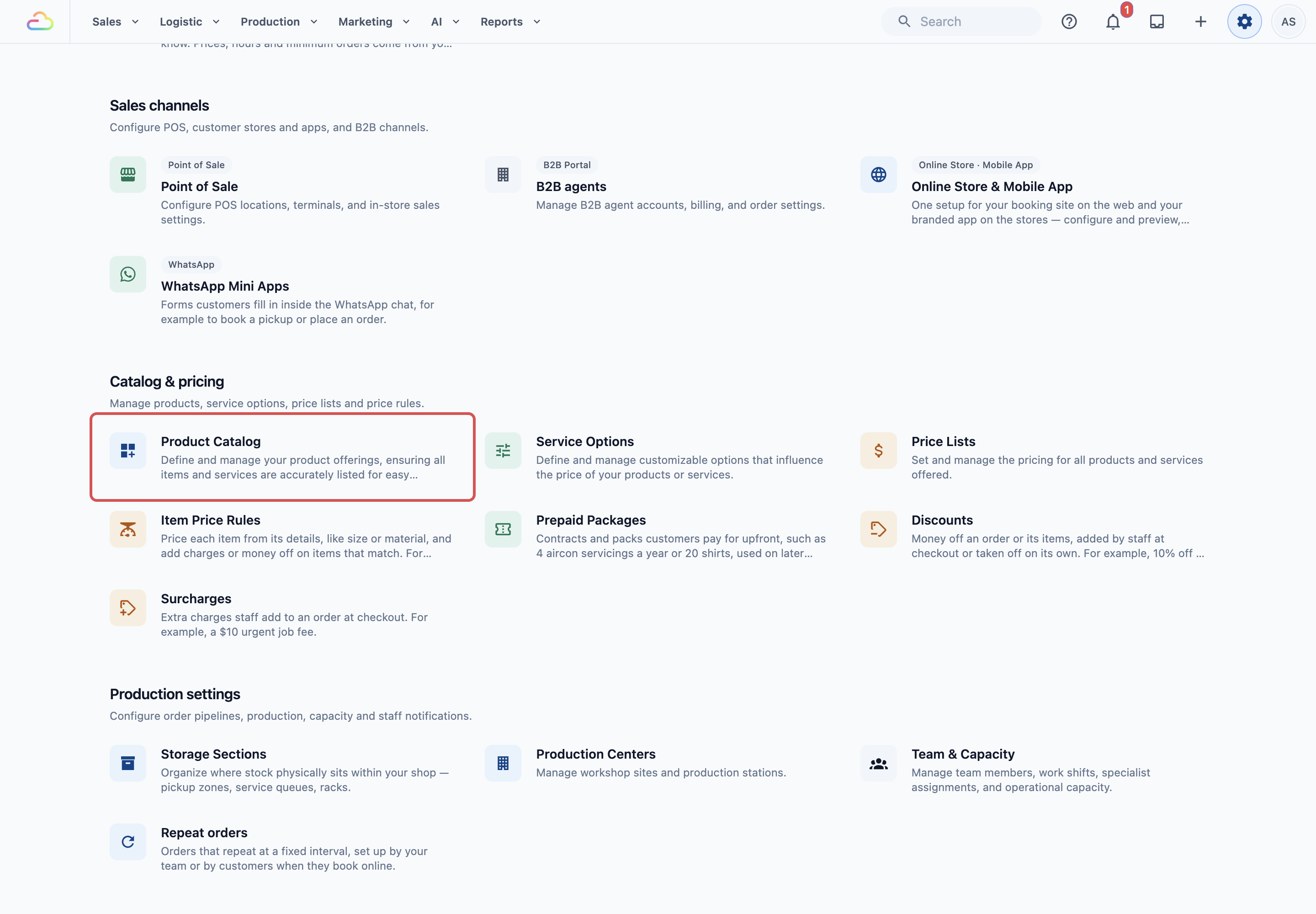
The page opens on the Service Items tab. The other four tabs sit next to it.
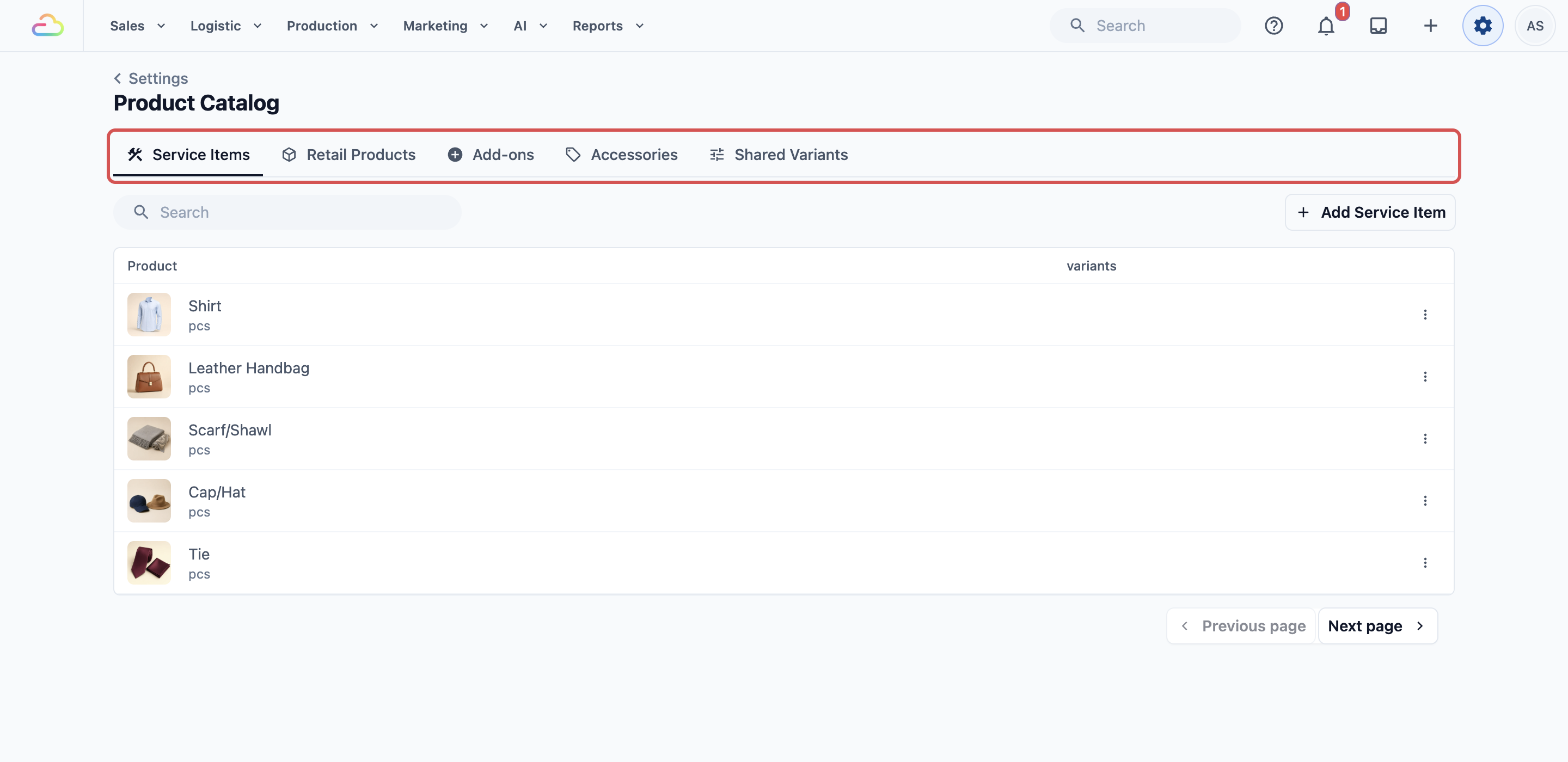
The five tabs
| Tab | Use it for | How it is charged |
|---|---|---|
| Service Items | What a customer hands over for your team to work on, like a shirt, a curtain or a handbag. | You set its price for each service, such as Wash or Dry Clean, in Price Lists. |
| Retail Products | Goods you sell as they are, over the counter, like detergent or a shoe care kit. | You set the price on the product itself. |
| Add-ons | A small extra staff attach to an item, like Starch or Gift Wrapping. | You set an extra charge on the add-on, or leave it free. |
| Accessories | Things a customer leaves with the item, like a belt or a dust bag, so staff record them at intake. | Never charged. |
| Shared Variants | One set of options, like Small, Medium and Large, that you reuse on many items. | Not sold on its own. It adds options to the items that use it. |
Not sure between a Service Item and a Retail Product? Ask whether your team works on it. A shirt the customer collects after cleaning is a Service Item, and a bottle of detergent they take home today is a Retail Product.
The order to set them up
- Service Items: add what customers bring in, then price them in Price Lists. See Adding Service Items.
- Retail Products: add the goods you sell over the counter, if you sell any. See Adding Retail Products.
- Add-ons: add the paid or free extras staff attach to an item. See Adding Add-ons.
- Accessories: add the things customers leave with their items. See Adding Accessories.
- Shared Variants: save the option sets many items share. See Adding Shared Variants.
Collections, the tabs of products staff see on the POS, are not set here. They are set on each business unit (one line of your business, such as Laundry or Bag Repair), as shown in Adding Collections.
Example setup: CleanFast Laundry
CleanFast Laundry has a Laundry and a Bag Repair business unit, POS shops in Tampines and Jurong, and an Online Store. Here is one item in each tab.
| Tab | CleanFast Laundry item | What staff or customers see |
|---|---|---|
| Service Items | Shirt, counted per piece | Once Shirt is in the Laundry price list, staff tap it on the Tampines POS and customers can book it on the Online Store. |
| Retail Products | Detergent 1L at $8.90 | Staff sell it at the Jurong counter from a retail collection. |
| Add-ons | Starch, $1.00 | Staff add Starch to a shirt on the order. |
| Accessories | Dust Bag | Staff record the dust bag that came in with a handbag for Bag Repair, so it goes back with the bag. |
| Shared Variants | Bag Size: Small, Medium, Large | Staff pick Handbag in Medium, instead of choosing from three separate handbag items. |
With Shirt priced at $4.00 for Wash in the Laundry price list, a shirt with Starch adds up like this:
- Shirt (Wash): $4.00
- Starch: $1.00
- Total before any tax: $5.00
FAQs
Why are services and products in the same catalog?
So every counter, your Online Store and your price lists all work from one list. A service item like Shirt is saved once, then priced for each service, such as Wash or Dry Clean.
Do products appear on POS immediately?
Not always. A service item shows once it is in the price list its business unit sells from. A retail product shows once it is in one of the business unit's collections, for example All retail products. Both are set in the business unit's Catalog tab. See Adding Collections.
Can I edit products later?
Yes. You can update names, images, variants and other details at any time. If the item is already used in a price list, EasyBiz asks you to confirm before it applies the change.
What's Next
You now know what each Product Catalog tab is for and the order to fill them in. Next, add the items your customers hand over in Adding Service Items, the first tab every service shop sets up.