
Each item your shop accepts gets its own entry with a name, a unit and a tag count, so staff pick it in one tap and every order is counted the same way.
Before You Start
- Read Introduction to the Product Catalog to see how Service Items fit with Retail Products, Add-ons and Accessories.
- You need access to Settings in the Console.
- Agree with your team how each item is measured: per piece, per pair, per kg or per hook.
- If you set this up before: adding an item now opens a full page instead of a pop-up, and prices are no longer entered here. You set them in Price Lists.
Choose your setup
| Level | Fits shops like | What you set up | Read these sections |
|---|---|---|---|
| Easy | One shop where every item is counted by the piece, pair or kg and gets the usual tags | Name and Unit label for each item. EasyBiz makes the SKU and the tag count for you | Where to find it, Setting it up, Choosing a Unit |
| Intermediate | A shop that takes curtains, sets or bundles that need more than one tag, and wants photos on the POS | Everything in Easy, plus your own units, tag counts and item photos | Item Labels, Adding a photo |
| Advanced | A shop that takes the same item in different versions, such as long and evening dresses, or several shops sharing one size list | Everything in Intermediate, plus variants, shared variants and a unit per variant | Variants, Example setup |
With only the Easy steps, staff can already pick every item on an order, and pair items print 2 tags on their own. You can add photos, tag counts and variants later.
Overview
A Service Item is the "what" a customer hands over, such as a shirt, a curtain or a pair of shoes. It is not the work done to it, and it carries no price. You list each kind of item once on the Service Items tab of your Product Catalog. Each item has a unit that says how it is counted, and a tag count that says how many item labels it prints. Once an item is in a price list, staff can pick it on every order.
Where it works
- Console: you add, edit and delete Service Items in Settings.
- POS: staff pick the item when they take an order, and its tags print with the count you set.
- Online Store and Mobile App: customers see the item and its price once it is in the price list your store uses.
Why set it up
- Same names on every order. Staff pick "Shirt" from a list instead of typing it, so reports and searches stay clean.
- Right tags every time. Shoes print 2 tags, a 2-panel curtain set prints 2 tags, without staff counting.
- Ready for pricing. A Price List can only price items that exist here.
If you skip it, there is nothing for staff to choose on an order and nothing to put in a price list.
Where to find it
- Click the ⚙️ Settings icon in the top-right corner.
- Under the Catalog & Pricing section, click Product Catalog.
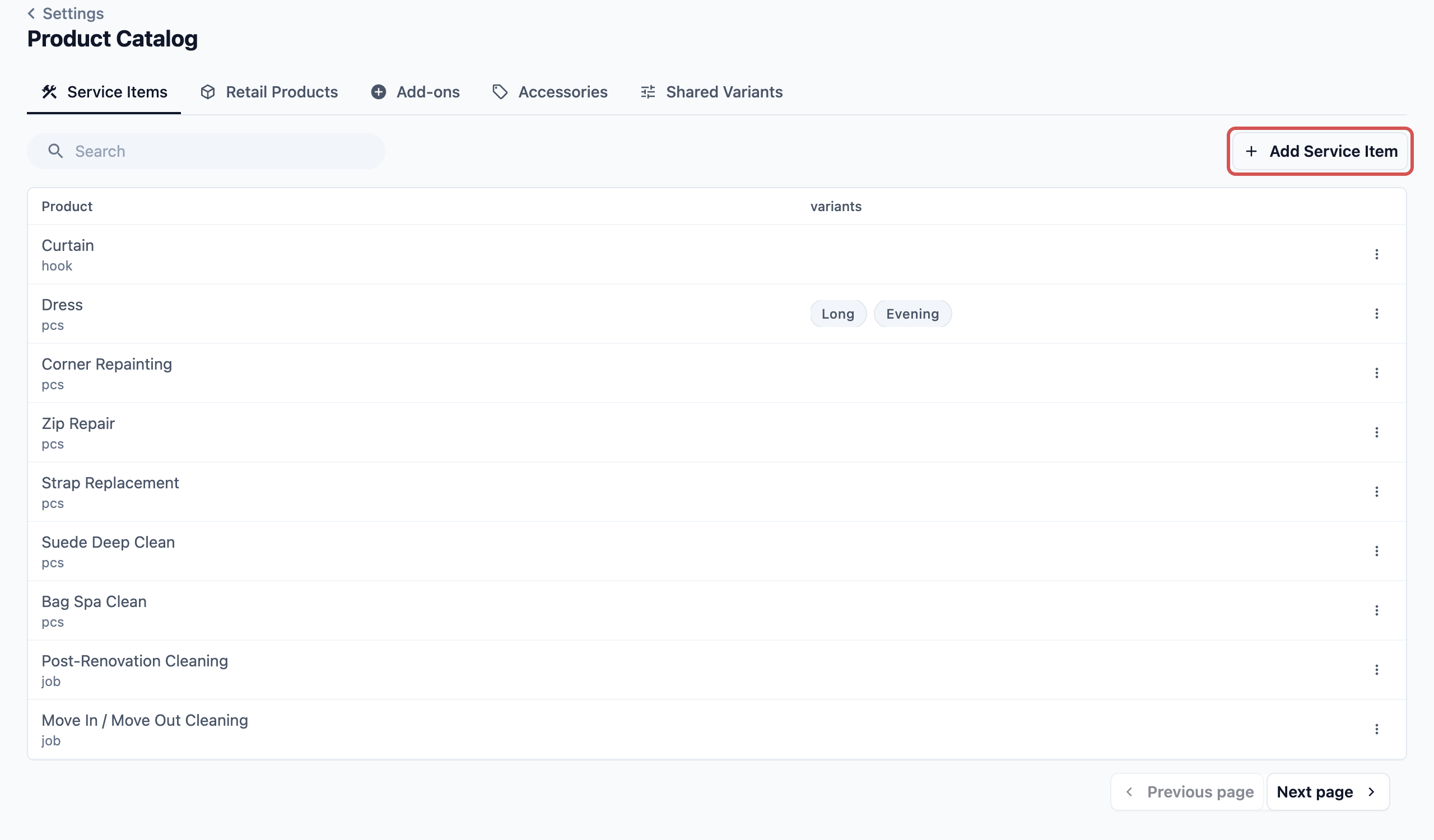
- The Service Items tab opens first.
Setting it up
- On the Service Items tab, click Add Service Item. The Add Service Item page opens.
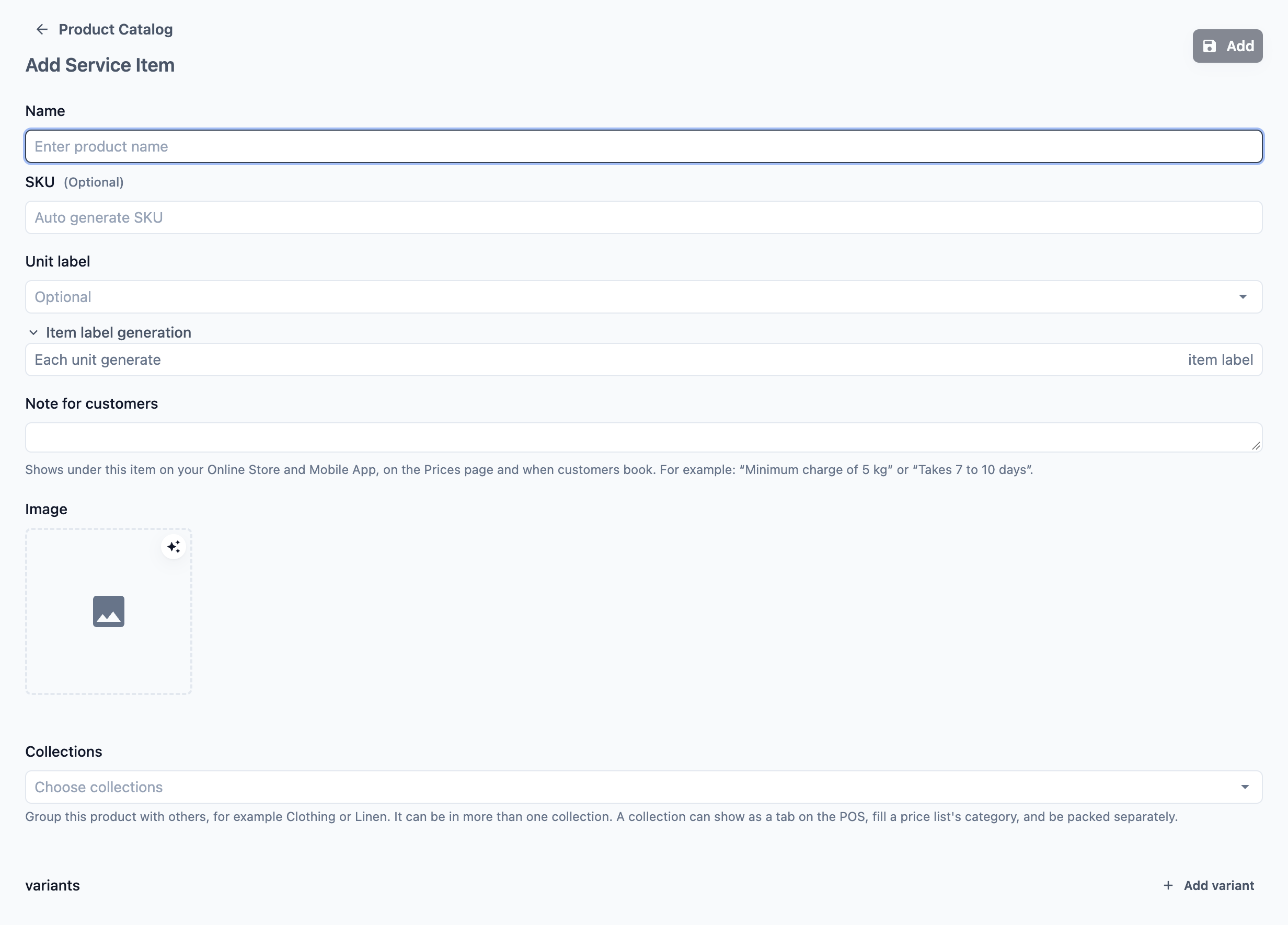
- Fill in the fields below.
- Click Add in the top-right corner. You return to the Service Items list.
To leave without saving, click ← Product Catalog at the top left.
Name
Type the item as your staff and customers call it, for example Shirt or Curtain. This is the name staff see on the POS. It is the only field you must fill in.
SKU
A SKU is your own short code for finding and reporting on the item. Leave it empty and EasyBiz makes one for you when you click Add.
Unit label
How this item is counted and priced. Pick a ready-made unit from the list, or type your own, such as "hook". See Choosing a Unit.
Item label generation
How many tags print for each unit staff add. See Item Labels.
Image
A photo staff and customers see beside the item. See Adding a photo.
Collections
The groups this item belongs to, for example Clothing or Linen. Pick one or more from the list, or leave it empty. An item can be in several collections, so Shirt can be in both Clothing and Tops. A collection can show as a tab on the POS, fill a category in a price list, and be packed separately from the rest of an order. To create a collection first, see Adding Collections.
Variants
Different versions of the same item, such as a Long and an Evening dress. See Variants.
Choosing a Unit
The Unit label sets how this item is counted and priced in your price lists. It also decides how its tags are counted.
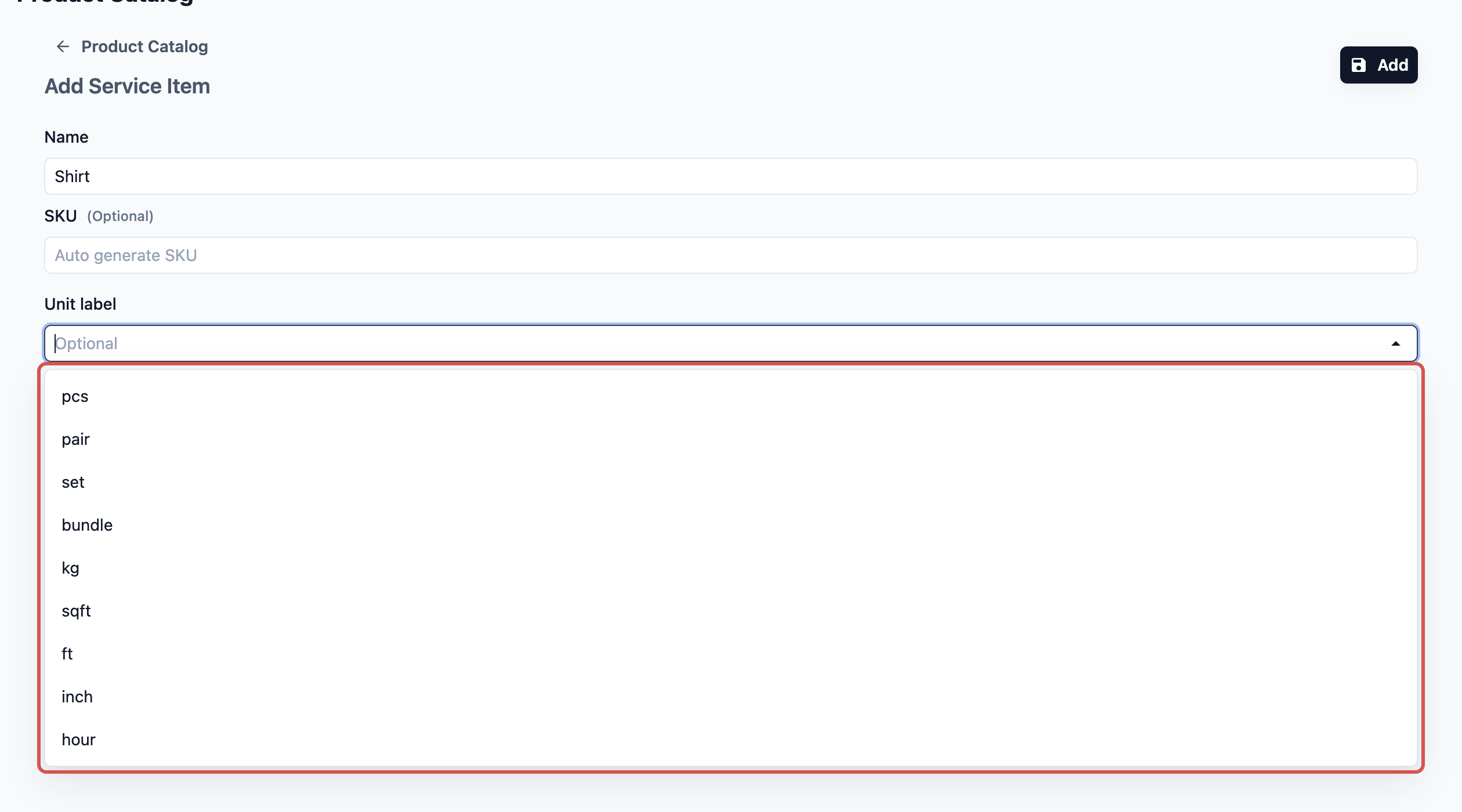
| Unit | What it measures | Typical use |
|---|---|---|
| pcs | Single countable items | Shirt, dress, bag |
| pair | Two items handled as one | Shoes, gloves, socks |
| set | A fixed group | 3-piece suit, curtain set |
| bundle | A tied or wrapped batch | Bundled bedsheets |
| kg | Weight | Bulk wash, comforters |
| sqft | Area | Large drapes, rugs |
| ft | Length | Long curtains, blinds |
| inch | Small measurements | Alterations, narrow blinds |
| hour | Time worked | General cleaning by the hour |
To use your own unit, type it into the Unit label box, for example "hook" for curtains priced by the hook, and select it. If you leave the Unit label empty, the item is counted as one "unit".
Item Labels
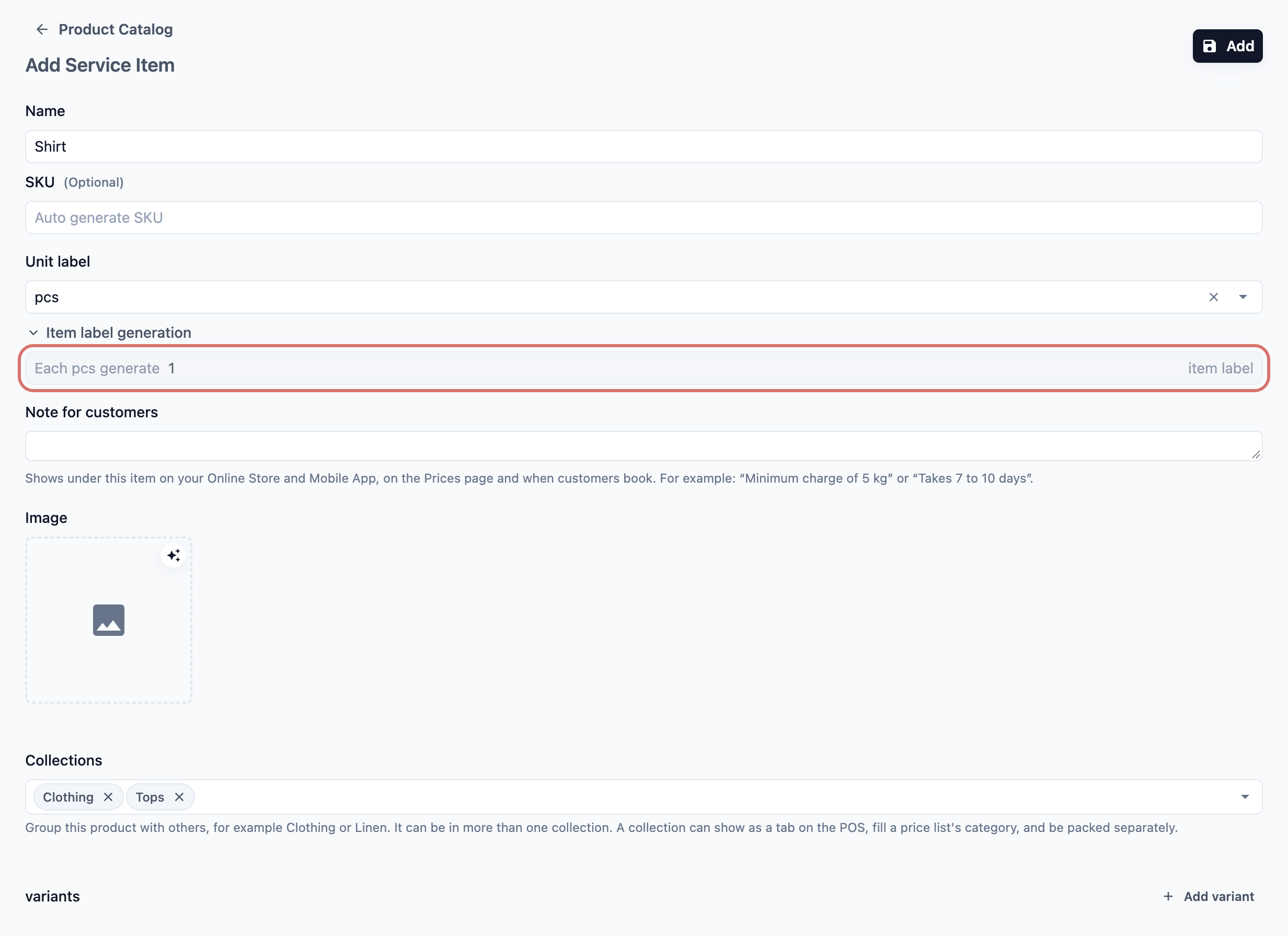
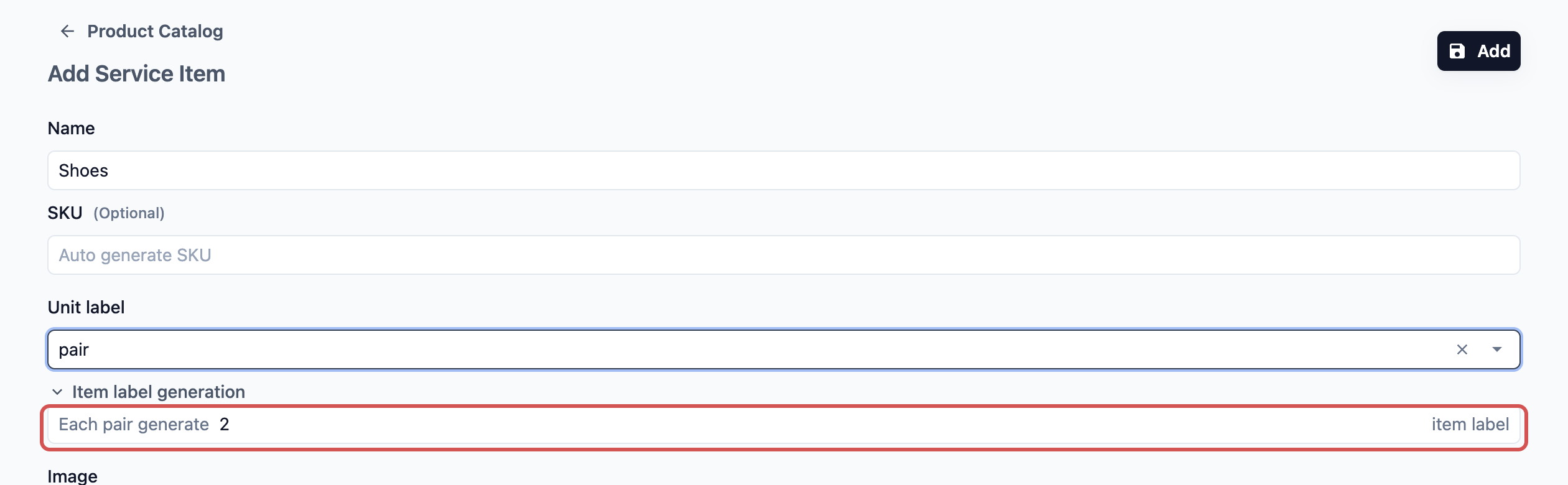
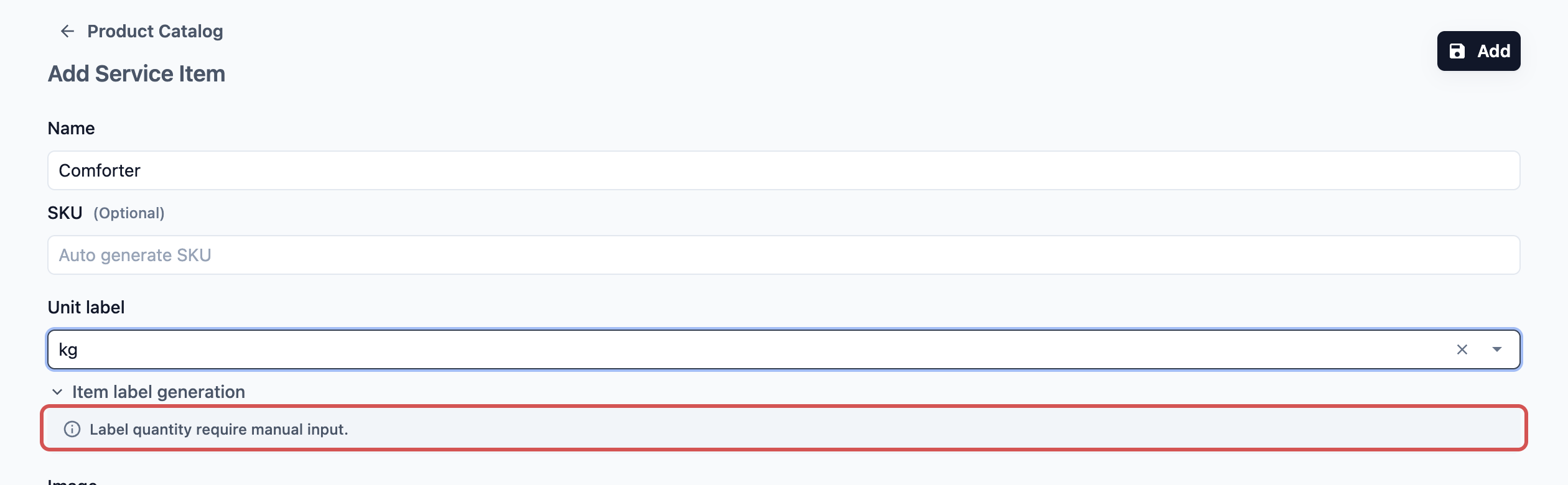
Item labels are the tags your shop prints to follow each item through the workshop. They are not the customer's receipt. Under Item label generation, the line "Each [unit] generate [number] item label" tells EasyBiz how many tags to print every time staff add one unit of this item.
| Unit | Tag count |
|---|---|
| pcs | Always 1 tag per piece. The number is fixed. |
| pair | Starts at 2, so each shoe gets its own tag. You can change it. |
| set, bundle, hour or your own unit | You type the number, for example 2 for a curtain set with two panels. |
| kg, sqft, ft, inch | No number to set. The page shows "Label quantity require manual input." and staff enter the tag count at the counter. |
Adding a photo
A photo helps staff find the right item on a busy counter. It is optional.
- Click the Image box on the page. Your Media Center opens.
- Upload a photo, or choose one you already have, then confirm your choice.
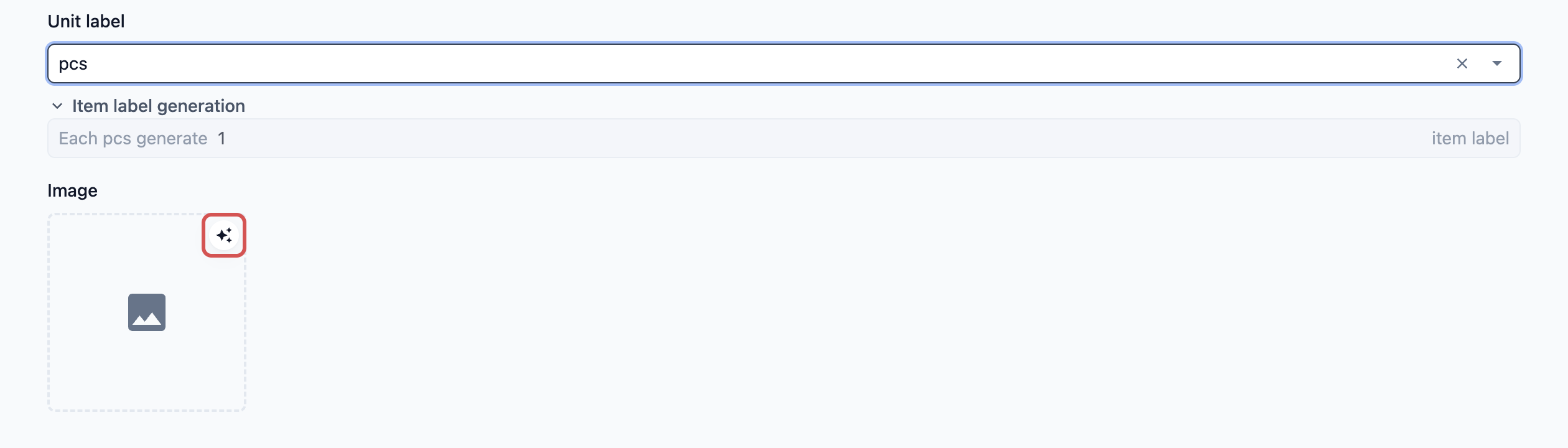
If your account can use the Design Agent, the Image box also shows a small Generate button in its corner. Click it to have EasyBiz create a clean product photo from the item's name, so type the Name first.
Variants
Use this only if the same item comes in different versions that staff need to tell apart, such as a Long and an Evening dress. A variant records which version came in. The work done to it, such as wash or dry clean, is a service option, not a variant.
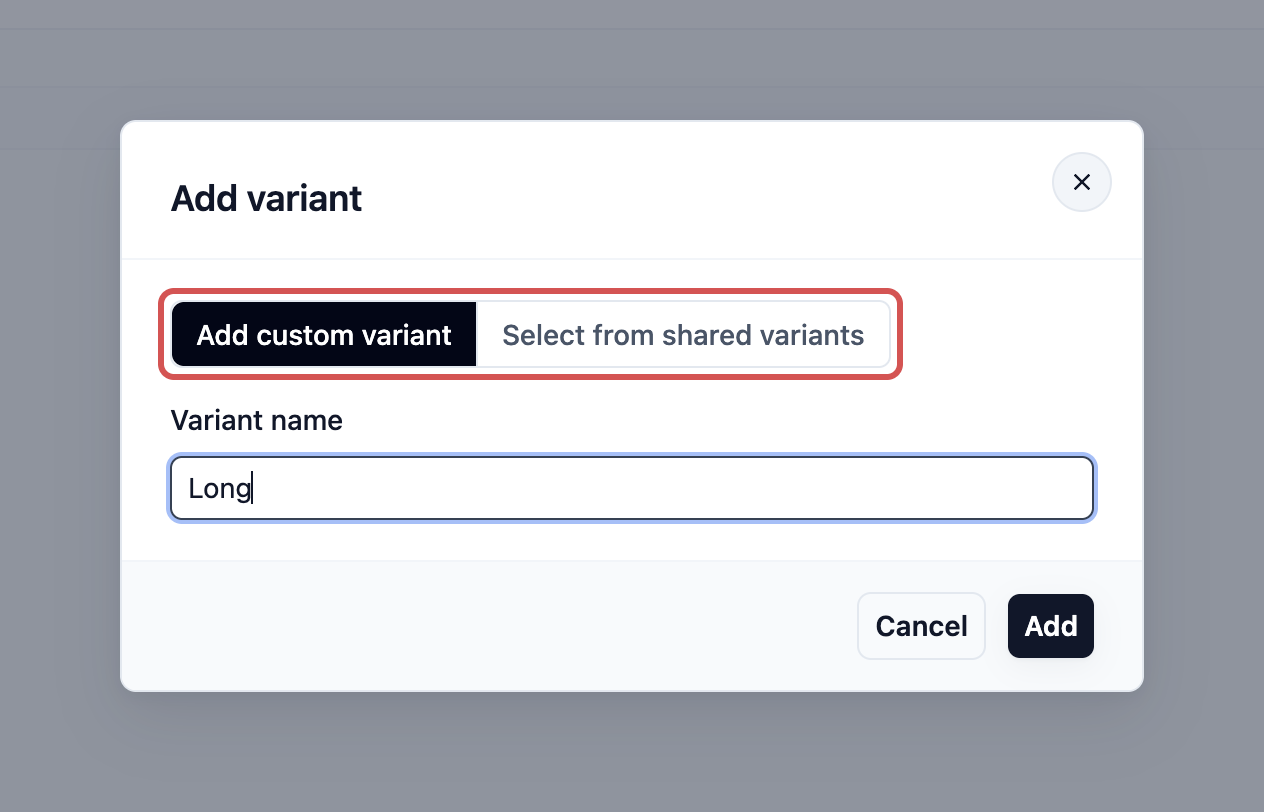
- Under Variants, click Add variant. The Add Variant window opens.
- Choose one:
- Add custom variant: type a Variant name, for example Long.
- Select from shared variants: pick a Shared variant you already set up, for example Sizes. All of its options are added at once.
- Click Add. The variant appears in the Variants table.
- Repeat for each version.
- Click Add at the top of the page to save the item.
In the Variants table, each variant has its own Image box. Drag a row to change the order staff see. Click ⋯ beside a variant to Edit or Delete it.
Giving a variant its own unit
Each variant uses the item's Unit label unless you give it its own. Click ⋯ beside the variant, then Edit. In the Update Variant window, choose a Unit label (it shows "Default to main product unit" when left empty), set its Item label generation if needed, and click Save.
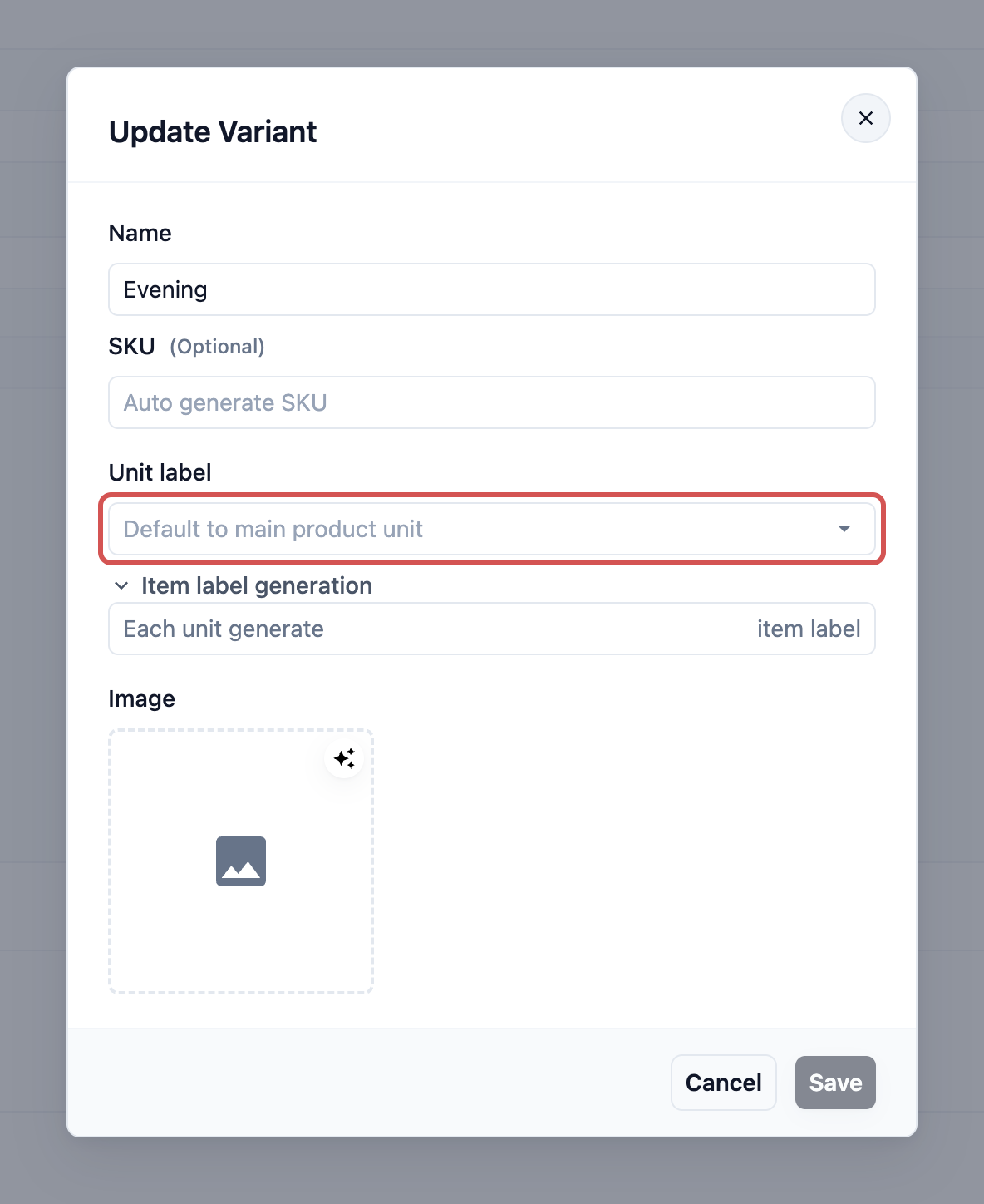
To reuse the same list of versions across many items, see Adding Shared Variants.
Example setup
CleanFast Laundry runs POS shops in Tampines and Jurong and an Online Store. The owner adds three Service Items:
| Name | Unit label | Item label generation | Variants |
|---|---|---|---|
| Shirt | pcs | Each pcs generate 1 item label | None |
| Curtain | hook (typed in) | Each hook generate 1 item label | None |
| Dress | pcs | Each pcs generate 1 item label | Long, Evening |
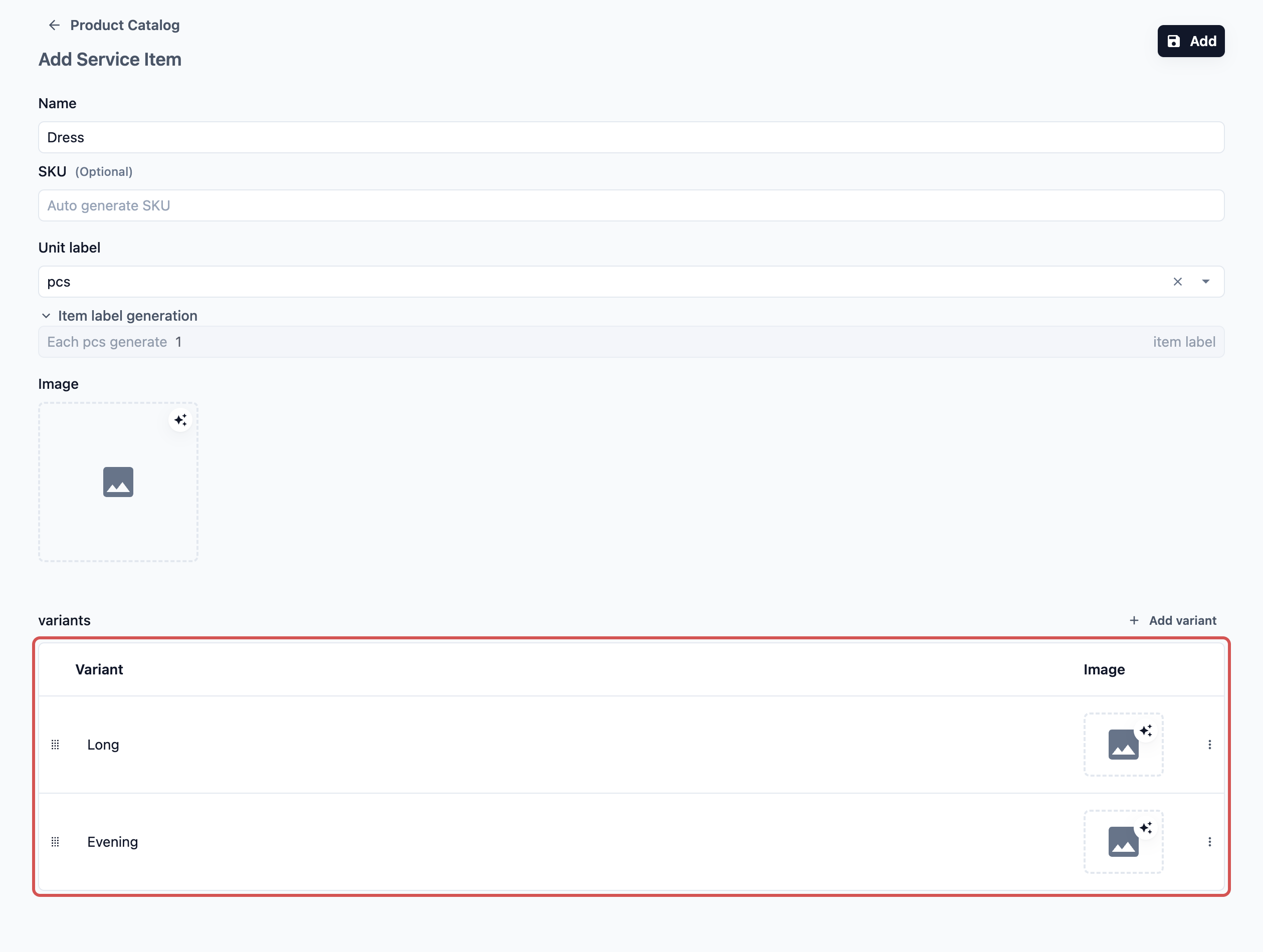
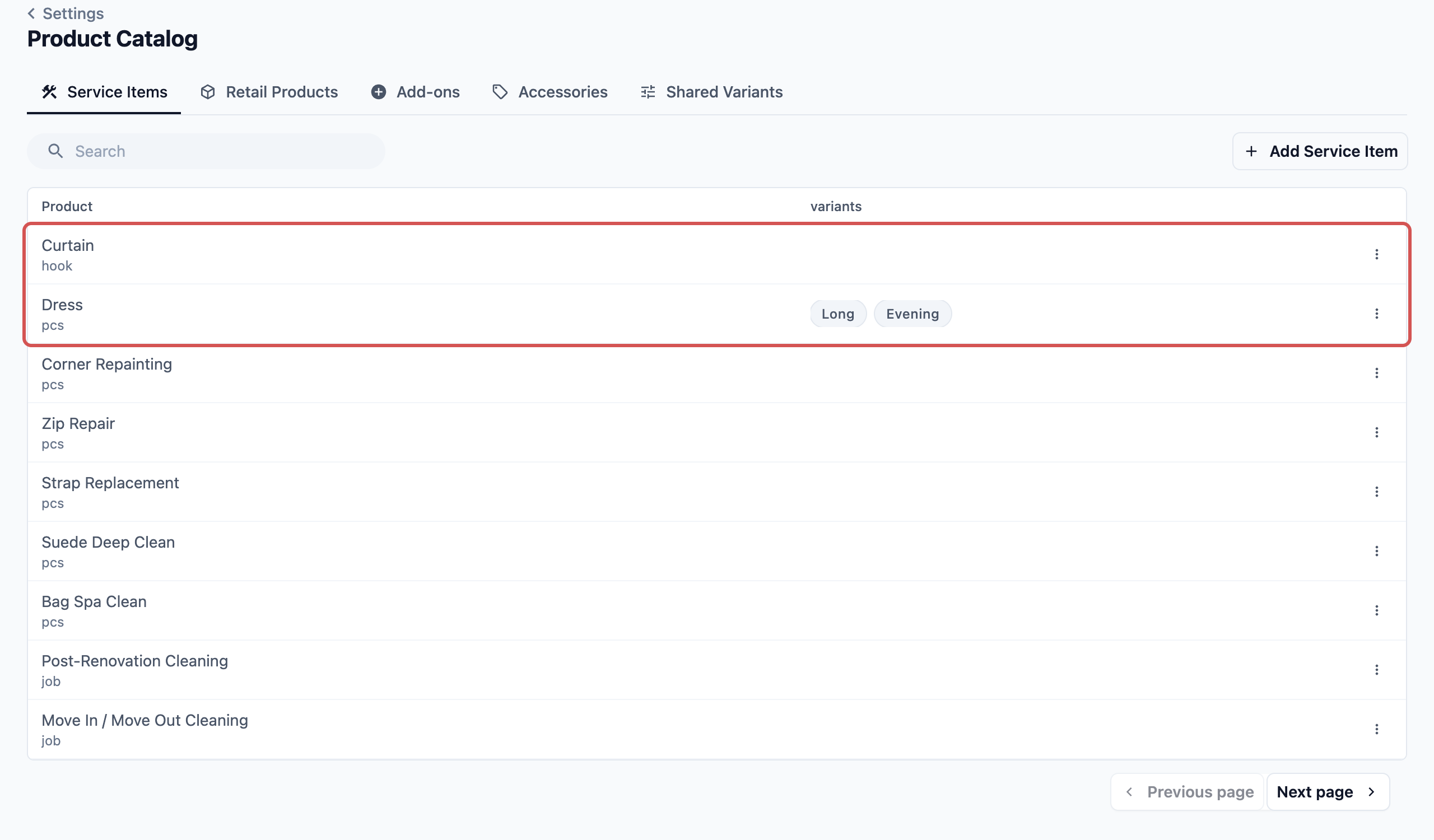
After clicking Add for each, all three appear on the Service Items tab, with their unit under the name and their variants in the Variants column.
The curtains are priced per hook. When the curtains themselves need one tag per panel, the owner uses the Quantity and Pcs flow so staff key in the hook count for the price and the panel count for the tags.
What staff and customers see
Once these items are in a price list, staff at Tampines and Jurong pick Shirt, Curtain or Dress on the POS. For Dress, they then choose Long or Evening. Tags print with the count you set. Customers see the items and their prices on the Online Store when the item is in the price list the store uses.
Managing it later
Edit an item
- On the Service Items tab, click the item's row. The Update Service Item page opens.
- Make your changes and click Save.
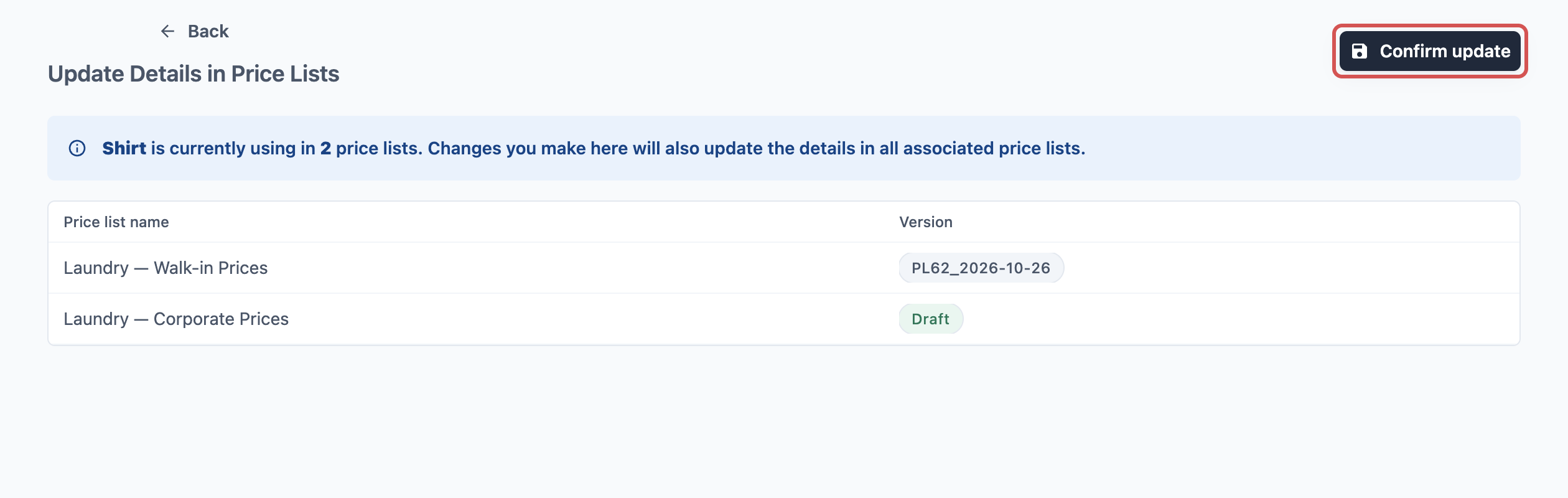
If the item is in an active price list and you changed its name, unit, tag count, photo or variants, the page switches to Update Details in Price Lists. It names how many price lists use the item and lists them. Click Confirm update to update the item and those price lists together, or Back to keep editing.
Delete an item
- On the Service Items tab, click ⋯ at the end of the item's row.
- Click Delete.
- Read the message. It says either that the item is not in use, or that it is in price lists and which ones.
- Click Delete to confirm.
A deleted item stays in the price list versions that already have it, but staff can no longer add it to new entries.
FAQs
Why is there no price on the Add Service Item page?
The same item can have different prices for walk-in and corporate customers, for different services or for different business units. So prices live in Price Lists, and this page only describes the item.
I changed an item's name. Will my price lists show the new name?
Yes. When the item is in an active price list, Save takes you to Update Details in Price Lists. Click Confirm update and the item and those price lists change together.
Why does my new variant show no price on the POS?
A published price list only has prices for the variants that existed when it was published. Draft a new version of the price list, price the new variant and publish it again.
My curtain is priced per hook, but the customer brings 3 panels. How do I print 3 tags?
Use the Quantity and Pcs flow. The hook count sets the price and the panel count sets the tags, see Setting Up the Quantity and Pcs Flow.
How do I sell the same item as wash or dry clean?
That is a service option, not a variant. Keep one Shirt item and add the services in your price list.
Do I need variants for every item?
No. Most items, like Shirt, need none. Add variants only when staff must record which version came in, because each variant is priced separately.
Why don't I see the Generate button on the Image box?
It shows only to team members who can use the Design Agent. Everyone can still upload a photo.
What's Next
Your Service Items are now listed, with the right units, tags and versions. Next, add the goods you sell over the counter, such as detergent or garment bags, in Adding Retail Products.