
You never edit live prices directly. You change a draft, preview it, and publish it, and the draft becomes the live version. In ⚙️ Settings › Catalog & pricing › Price Lists, click a price list's row to open it. Its versions are listed in the Versions panel beside the prices, with the live one marked Live. To roll back, open an older version and click Republish this version. Which business units sell from a price list is chosen in each business unit's Catalog tab, not when you publish.
What is a Draft and What is the Live Version
The live version is the price list your shop uses right now. The POS, the Console, your Online Store and agents all read from it. A draft is a working copy you can edit freely without affecting orders. A price list can have one live version and one draft at the same time.
Open a Price List
Click the ⚙️ Settings icon in the top-right corner.
Under the Catalog & pricing section, click Price Lists.
Find the price list in the table. The table shows each list's Price list name, Used by (the business units, or sales channels, that sell from it) and Last published. A Draft tag means a draft is waiting, and Not published means the list has never been published.
Click the row. If the list has a draft, the draft opens. Otherwise its live version opens.
To start a draft from the table instead, open the row's three-dot menu and click Draft new version, or Edit draft version if one already exists.
Edit Prices in a Draft
On a version page, click Edit prices. If there is no draft yet, EasyBiz makes one from the live version and opens it.
Change prices, add products or reorder them in the draft. Edits save on their own. The draft's name shows the Last updated time.
To throw a draft away, click the Last updated time next to the draft's name and confirm Discard. The live version is not touched.
Import Items and Prices from a Spreadsheet
Moving from another system? Import your items and their prices into the draft instead of typing them in. Save the spreadsheet as a CSV file first (Excel and Google Sheets both can).
- Open or create a draft as above, then click Import at the top right.

Starting from scratch? Click Download a sample file: it has a price column for each of your services, such as Dry Clean and Wash & Iron. Otherwise choose your file, up to 500 items at a time. Each row is one item: its name, and optionally its category, unit and code, with its price for each service.
Check the columns. EasyBiz matches each column by its heading, for example "Item" to Item and "Dry Clean" to your Dry Clean service. If a match is wrong, pick another from its list. Then click Check rows.
Check the rows before anything is saved. A row with something to fix shows in red and is left out: for example a price that isn't a number, a price in another currency, or an item sold per piece that the file prices per kg. An item already in this price list gets the prices from the file; a blank price cell keeps the price it has.
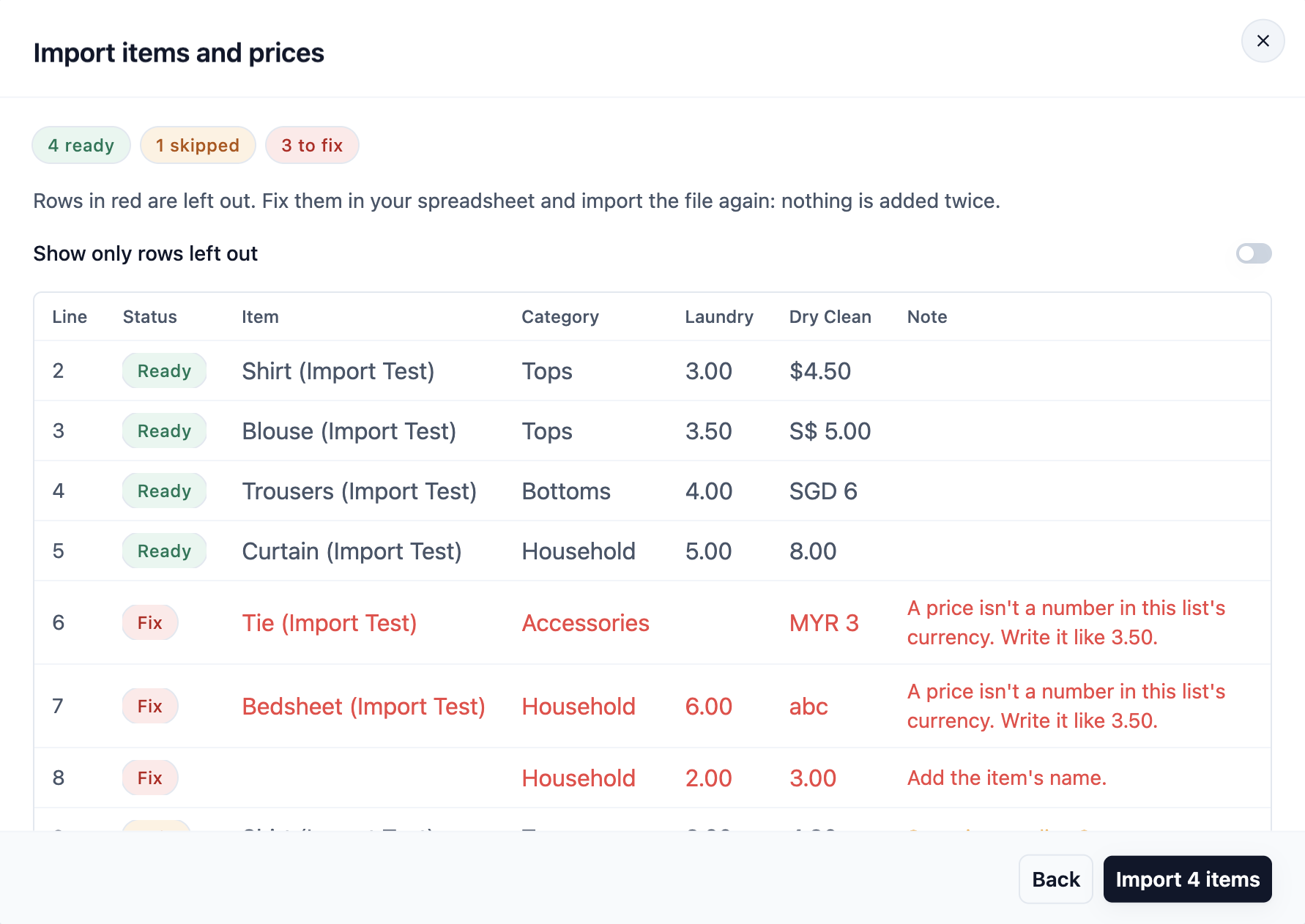
Click Import. New items are added to your products and to this draft, in the category from the file (a new category is made when the list doesn't have it yet).
Check the draft, then click Preview and Publish. Until you publish, nothing changes at the counter or online.
Prices that depend on a choice or on the quantity are set in the draft after the import.
Put Frequently Used POS Items First
The POS shows each category's items in the order of the live version.
Open or create a draft as above.
Select the category that has the items you want to move.
Drag frequently used items such as Shirt or Pants upward by the dots handle. If they are in different categories, repeat this in each category.
Click Preview and check the order.
Click Publish to make the new order show on the POS.
Preview a Draft Before Publishing
Inside the draft, click Preview at the top right.
The page shows the prices as a grid: one row per product, with its sizes or variants indented under it, and one column per service option, so you can compare prices side by side. Use the search box to spot-check a product.
When you are done, click Back to edit to keep editing, or Publish to go live.
Publish a Draft
In the preview, click Publish. The Publish Price List dialog opens.
Check what it says:
- Updates the prices of lists the business units, or sales channels, that sell from this price list. They get the new prices.
- If no business unit uses the list yet, it says "No business unit sells from this price list yet. Choose it in Business units › Catalog after publishing."
Click Publish.
The draft becomes the live version. The POS and agent orders use the new prices straight away, and your Online Store and Mobile App within a few minutes.
To make a business unit sell from this price list, go to Settings › Business Units › your business unit › Catalog and choose it there. See Choosing What You Sell and Your Prices.
When the New Prices Start Applying
New orders always use the newly published prices. Orders already saved keep the prices of the items on them. What changes is how items added to an existing order later are priced, and that depends on the version control setting you chose when you created the list:
| Setting | Items added to an existing order later |
|---|---|
| Yes, price list updates apply only to new orders | Use the version the order was placed with |
| No, price list updates apply to all orders | Use the prices published now |
See Older Versions
For a price list with version control on, the Versions panel sits beside the prices on every version page:
- The draft, if there is one, is at the top with a Draft tag.
- Below it, every published version, newest first, with its date and who published it.
- The version in use now is tagged Live.
Click a version to see its prices. The page title shows Live or Old version.
Restore an Older Version (Republish)
Open the price list and click the version you want in the Versions panel.
Click Republish this version.
Confirm with Republish.
That version becomes the live version again. The version you replaced stays in the panel and can be republished later.
Rename, Export, or Delete a Price List
- Rename: in the price list's row on the Price Lists page, open the three-dot menu and click Rename Price List. The prices don't change.
- Export: on any version page, click Export at the top right to download that version's prices as a spreadsheet.
- Delete: open the row's three-dot menu and click Delete. This removes the price list and all its versions.
FAQs
Do I have to publish every change immediately?
No. You can leave a draft open as long as you need. Customers keep seeing the live version until you publish.
What happens to receipts and quotes already sent?
They keep the price that was live when they were made. Republishing does not change past documents.
Can I undo a publish?
Yes, for a price list with version control on. Open the version before it in the Versions panel and click Republish this version.
When I publish, where do the updated prices appear?
The POS, the Console and agent orders use the new prices right away, and your Online Store and Mobile App within a few minutes. Orders already saved are not changed.
Marketing messages already sent don't update. Send a new one if it needs the latest prices.
Can I delete a draft without affecting the live version?
Yes. Click the Last updated time next to the draft's name and confirm Discard.
What is the difference between Republish and Draft new version?
Republish this version makes an older version live again, with no edits. Use it to roll back. Draft new version makes an editable copy of the live version so you can change prices and publish later.
Why is there no Versions panel on my price list?
The panel shows only on price lists with version control on. A list set to "updates apply to all orders" keeps only the live version.
Why does the publish dialog not ask for a business unit?
Business units choose their price list in Settings › Business Units › Catalog. Publishing only releases the new prices to everyone who already sells from the list.
What's Next
Now that you know how to preview, publish and roll back your price list versions, the next step is setting up special prices for B2B partners. See Set Up Agent Pricing for B2B Orders.