
Connect & Configure WhatsApp
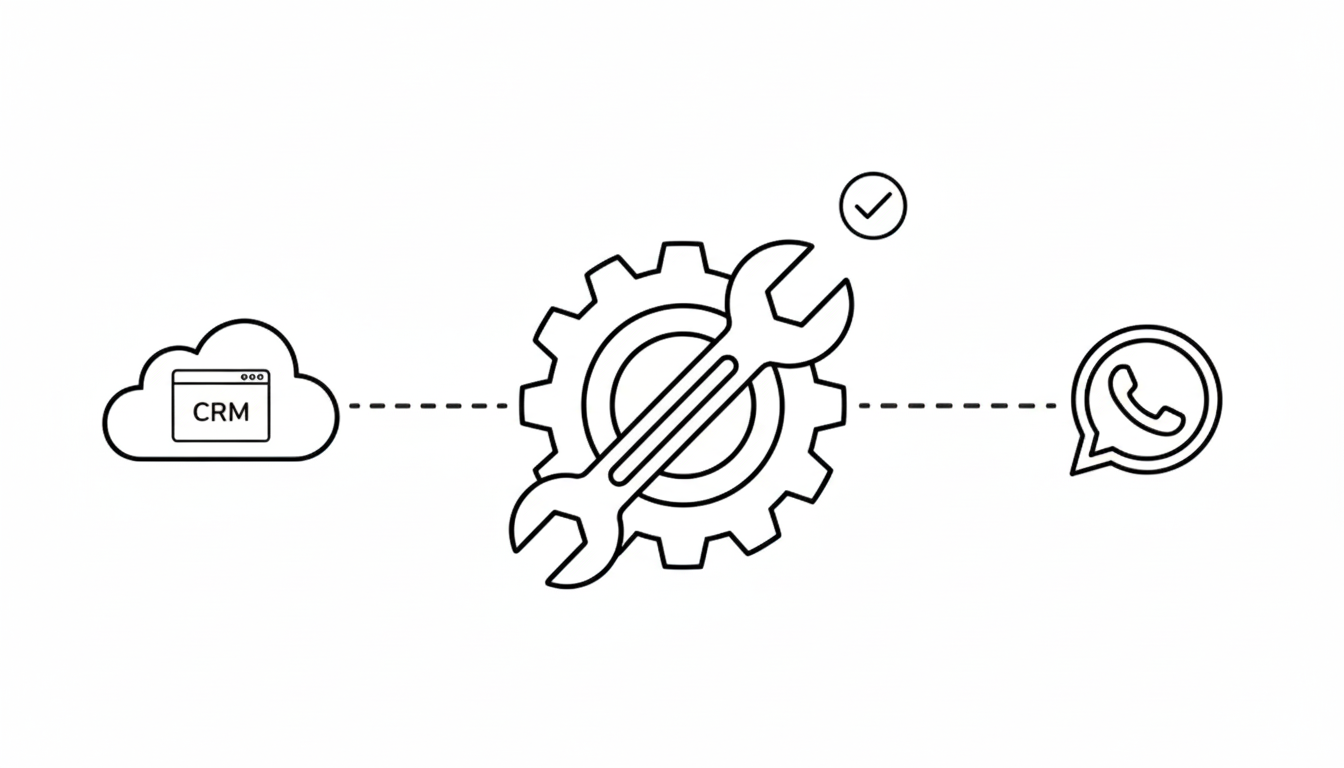
Connect your Meta Business Account to manage all WhatsApp conversations directly from EasyBiz. This integration lets you automate notifications and collaborate on customer support from a single, shared inbox.
Step 1: Link your Meta Account
To start sending messages, you need to grant EasyBiz permission to manage your WhatsApp Business number.
- Go to Settings in your sidebar, then select Business Portfolio.
- Open the Integrations tab and find the WhatsApp Business card.
- Click the ••• menu and select Connect.
- In the popup, click Login with Facebook.
- Follow the prompts to select your existing WhatsApp Business account or create a new one.
tip:
Use a phone number that isn't currently active on the personal WhatsApp or WhatsApp Business mobile app to avoid connection conflicts.
Step 2: Set up your business profile
Customize how your business appears to customers on WhatsApp.
- Click the ••• menu on the WhatsApp card again.
- Select WhatsApp business info.
- Upload your Logo and fill in key details like your About info, Address, Email, and Website Link.
Was this helpful?
Up next
Creating Message TemplatesTo start a chat with a customer who hasn't messaged you recently (past 24 hours), you must use a Message Template.
Read more