Before You Start
- Your WhatsApp Business number must be connected. See Connect and Configure WhatsApp. If you use more than one number, set them up first in Connect Multiple WhatsApp Numbers, so you can pick the right one for each source.
- You need access to the Lead Sources settings page. If you can't open it, ask the person who manages your EasyBiz account.
- If you set this up before: your sources, links and QR codes still work. The page is now under the CRM section of Settings.
Overview
A lead source is one place where customers find you, such as a QR code on your counter, a button on your website or a stack of flyers. Each source gets its own WhatsApp link and QR code with a short message already typed in for the customer. When a customer sends that message, EasyBiz knows which source they came from. You then see in one report how many enquiries, sales and dollars each place brought in. That tells you where your marketing money works and where it doesn't.
Where it works
- Console: you create sources in Settings, and the results show in Reports › Deals.
- WhatsApp: customers tap your link or scan your QR code on their phone, and a chat with your business opens with the message ready to send.
- Inbox: the chat arrives like any other WhatsApp chat, so your team replies as usual.
Why Set It Up
Most shops share one WhatsApp number everywhere. At the end of the month they know they got 80 enquiries, but not whether the counter QR, the website or the new flyer brought them in. With a source for each place, you stop guessing. You can print more of what works and stop paying for what doesn't.
If you skip it, nothing breaks. Customers still reach you on WhatsApp, but every enquiry looks the same in your reports.
Where to Find It
- Click the ⚙️ Settings icon in the top-right corner.
- Under the CRM section, click Lead Sources.
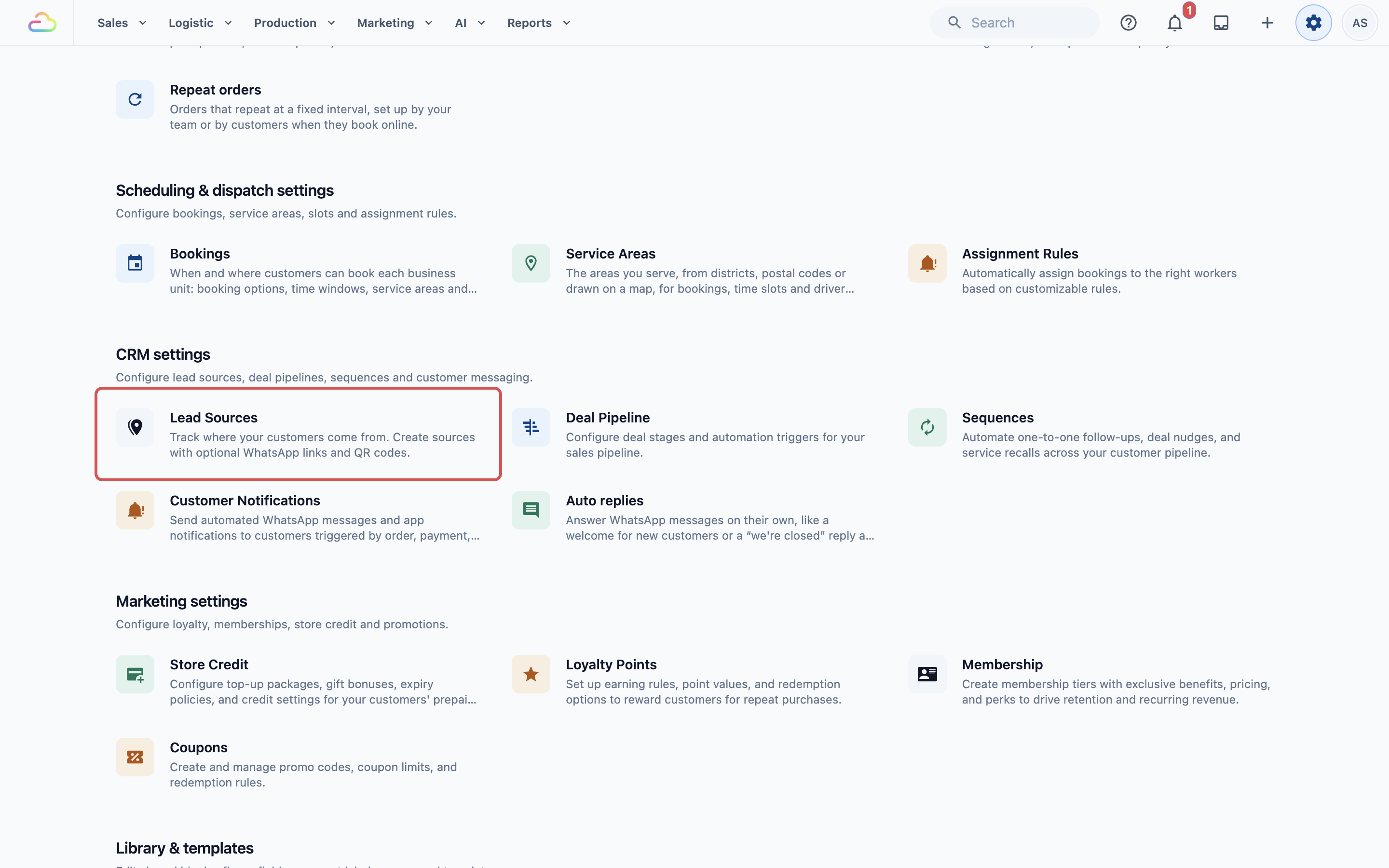
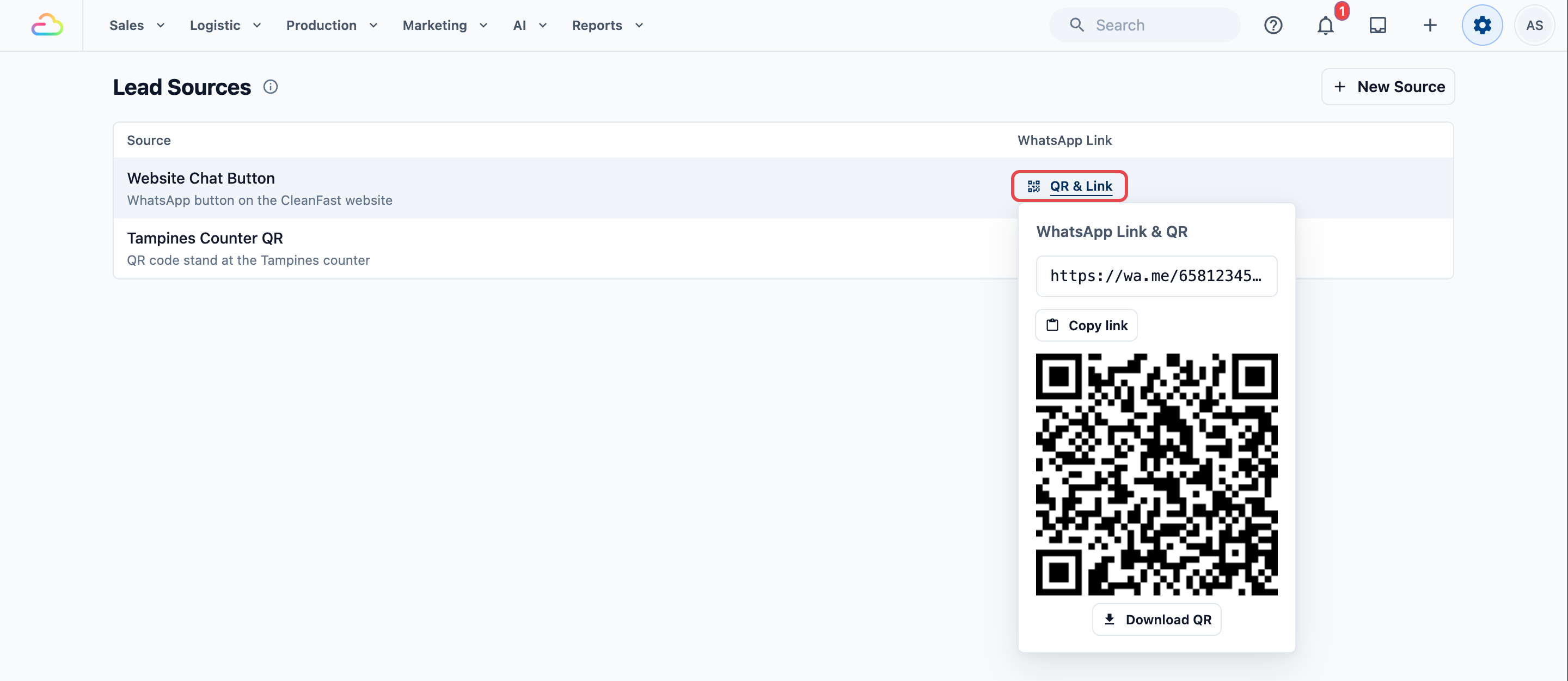
The page lists your sources by name, with a QR & Link shortcut for each one that has a WhatsApp link.
Setting It Up
- Click New Source . The New Lead Source panel opens.
- Type a Source Name and, if you like, a Description.
- Switch on Enable WhatsApp Link & QR Code.
- Choose the WhatsApp Account.
- Type the Pre-filled Message.
- Click Save .
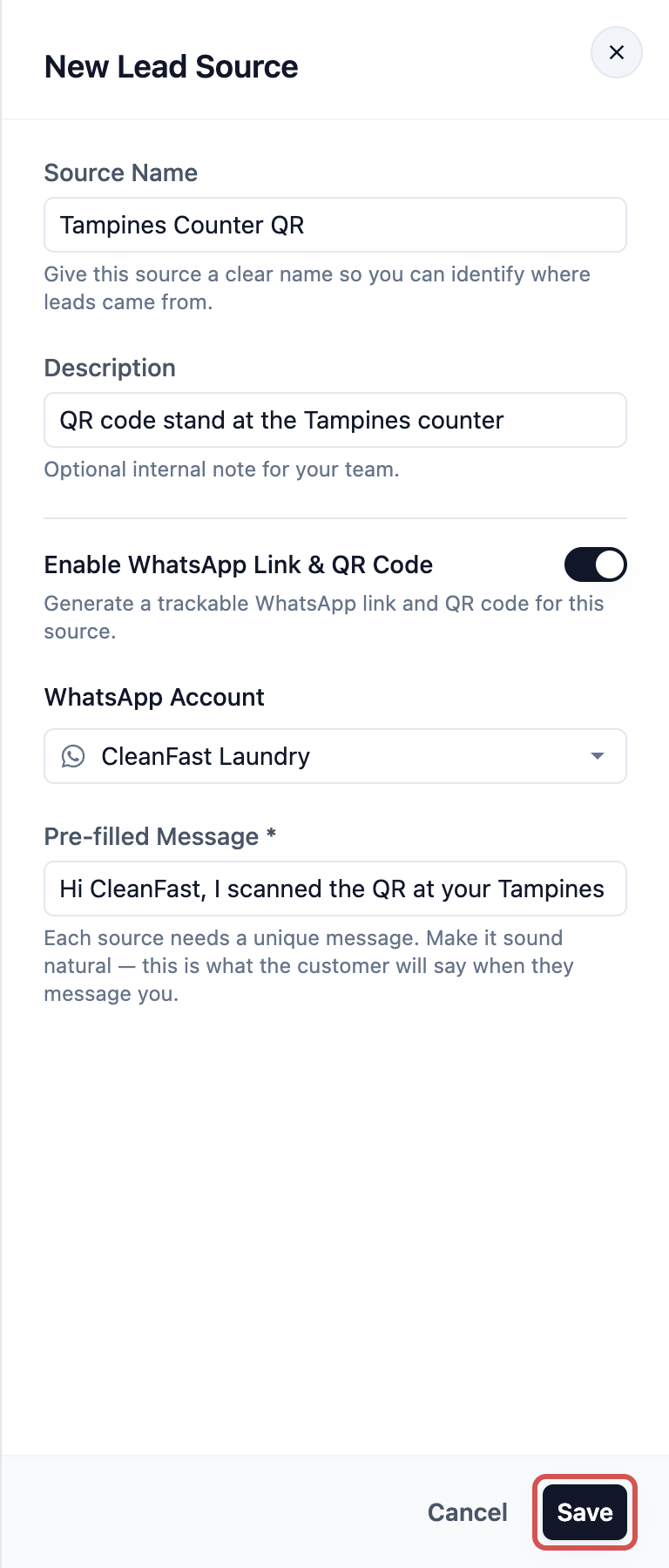
Source Name
A clear name you will recognise in your reports, for example "Tampines Counter QR" or "Website Chat Button". Customers never see it.
Description
An optional note for your team, for example "QR code stand at the Tampines counter". Customers never see it.
Enable WhatsApp Link & QR Code
If you turn this on, EasyBiz makes a WhatsApp link and QR code for this source after you save, and the WhatsApp Account and Pre-filled Message fields appear. If you leave it off, the source has no link or QR code, and the QR & Link shortcut on the list shows a dash.
WhatsApp Account
The WhatsApp number customers will message. If you have only one number, it is picked for you.
Pre-filled Message
The words already typed in for the customer when WhatsApp opens. This is what the customer sends you, so make it sound natural. Give each source its own message, different from all your other sources, otherwise EasyBiz can't tell them apart.
How EasyBiz recognises the message
- Capital letters don't matter.
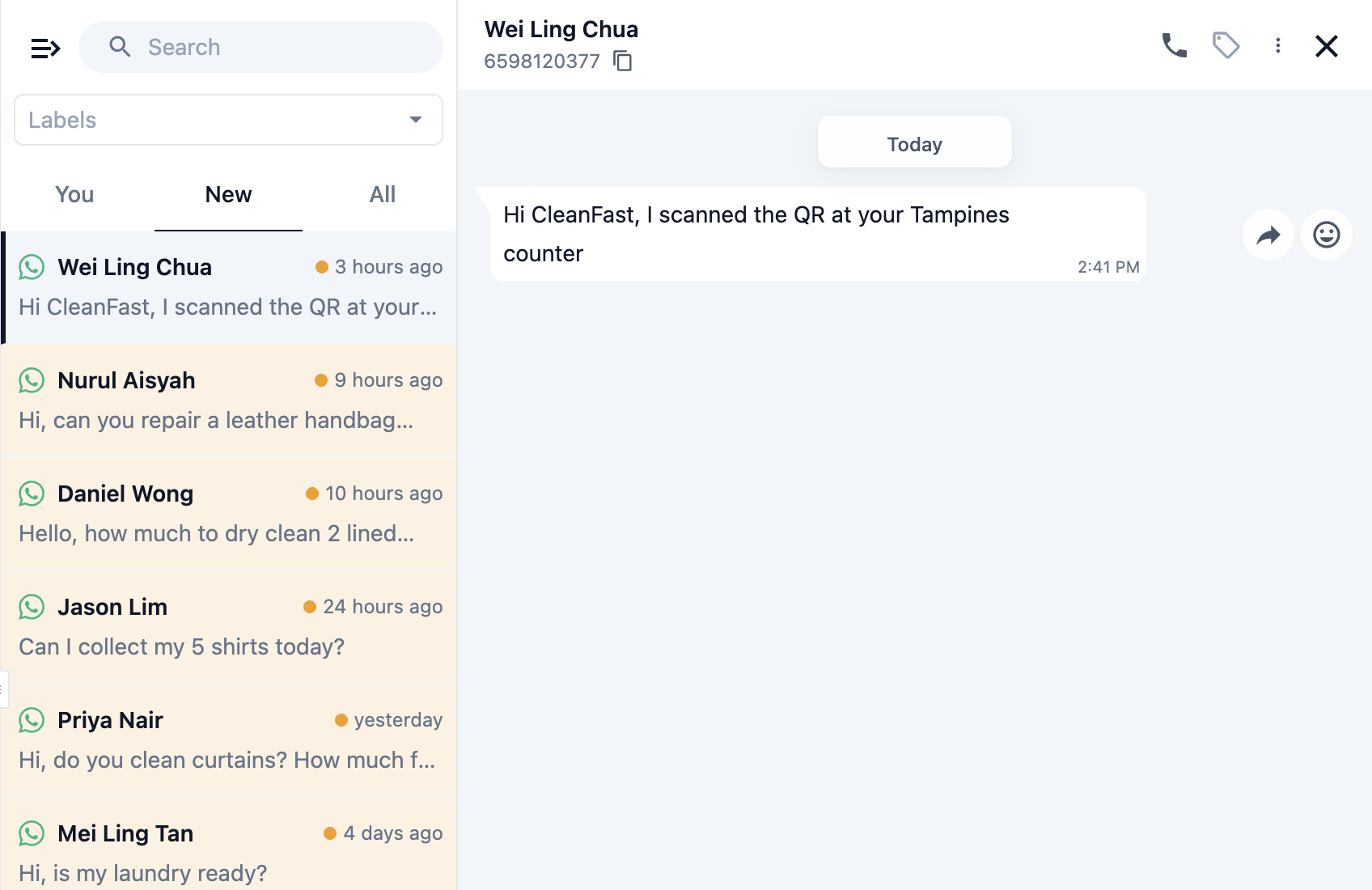
- The customer can add their own words. "Hi CleanFast, I scanned the QR at your Tampines counter. How much for a king-size duvet?" still counts.
- If the customer deletes or rewrites the pre-filled words before sending, the chat is not counted for the source.
Sharing Your Link and QR Code
- Click the source in the Lead Sources list to open it again.
- Scroll to the WhatsApp Link & QR Code section. It shows Your WhatsApp Link and its QR code.
- Click Copy link to copy the link, then paste it wherever you promote your business online.
- Click Download QR Code to save the QR image for anything you print.
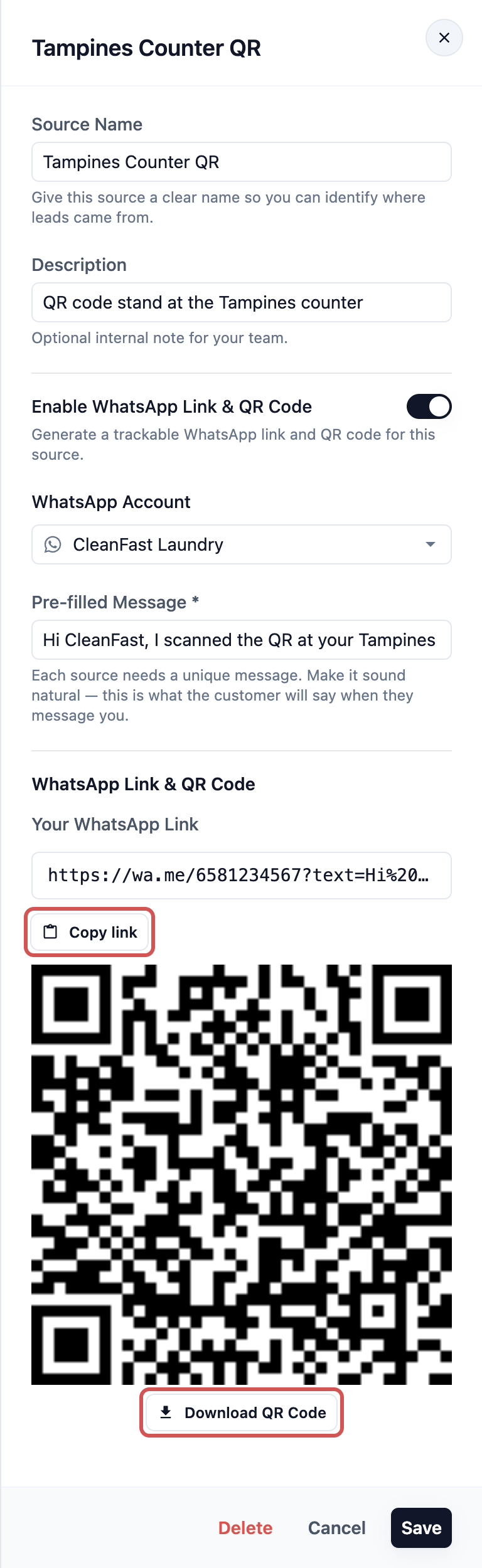
You can also click QR & Link on a source's row in the list. A small window shows the link with Copy link and Download QR , so you don't need to open the source.
Good places for your links
- Shop counter or window: a "Scan to chat with us on WhatsApp" QR code for walk-in and passing customers.
- Your website: point your WhatsApp button at the source's link.
- Flyers and posters: give each print run its own source so you can compare them.
- Receipts and business cards: a QR code so customers reach you for their next order.
- Google Business Profile, Instagram or TikTok bio: one source for each.
What Happens When a Customer Scans
- The customer scans your QR code or taps your link.
- WhatsApp opens a chat with your business, with your pre-filled message ready.
- The customer sends it, and EasyBiz records the enquiry as coming from that source.
The chat lands in your Inbox's New tab until a teammate picks it up, so a customer from your QR code reaches your team there. See Find Your Way Around the Inbox.
Each of these enquiries is recorded as a deal, which is how EasyBiz follows an enquiry until it becomes a sale or doesn't go ahead. See Get Started with Deals.
Seeing Which Source Works
- In the top navigation bar, click the Reports dropdown, then click Deals.
- Pick the period you want to check.
- In the Source Performance table, click the Lead Source row. It opens a row for each of your sources, by name.

Each row shows:
- Deals: enquiries that came from the source.
- Won and Lost: how many of those ended as a sale or did not go ahead.
- Conversion Rate: the share of enquiries that were won.
- Net Sales and Avg Net Sales: the value of the won deals, in total and per won deal.
To look at one source across the whole report, choose it in the Source filter at the top of the page.
Example Setup
CleanFast Laundry wants to know whether its Tampines counter or its website brings in more customers. The owner creates two sources:
- Tampines Counter QR, with the message "Hi CleanFast, I scanned the QR at your Tampines counter". The QR code goes on a stand next to the till.
- Website Chat Button, with the message "Hi CleanFast, I found you on your website". The link goes on the website's WhatsApp button.
At the end of October, the Source Performance table shows:
- Tampines Counter QR: 32 deals, 14 won. Conversion Rate 43.8%. Net Sales $1,260.00, so Avg Net Sales $90.00 (that is, $1,260.00 ÷ 14).
- Website Chat Button: 20 deals, 6 won. Conversion Rate 30.0%. Net Sales $540.00, so Avg Net Sales $90.00 (that is, $540.00 ÷ 6).
Both bring in customers who spend about the same, but the counter QR brings in more of them. The owner prints a second QR stand for the Jurong shop, with its own source, to see if it does as well there.
Managing It Later
To change a source, click it in the Lead Sources list, make your changes and click Save .
To delete a source:
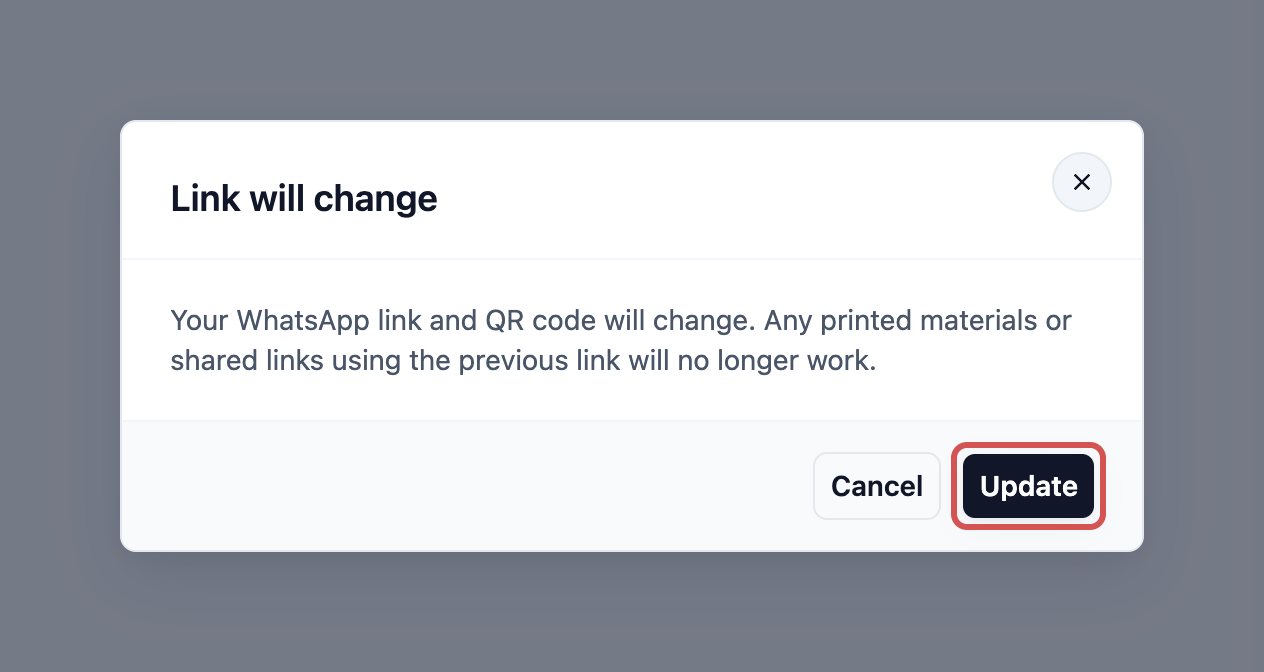
- Click ⋮ on its row and choose Delete , or open the source and click Delete at the bottom of the panel.
- Confirm in the Delete Lead Source window.
Deleting can't be undone. The old link and QR code stop being counted, so remove them from your counter, website and flyers.
FAQs
Do I need a source for walk-in customers who don't scan anything?
No. A source with Enable WhatsApp Link & QR Code switched off has no link. Only switch it on for places where customers can tap or scan.
A customer messaged us from the QR code but it wasn't counted. Why?
The customer probably changed or deleted the pre-filled words before sending. Only a message that still contains your whole pre-filled message is counted.
Can two sources share the same message?
No. Give each source its own message, otherwise EasyBiz can't tell which one the customer came from.
I have two WhatsApp numbers. Which one should a source use?
The one you want those customers to message. For example, the Tampines counter QR can use the Tampines number. The chat then arrives in the Inbox on that number, like any other chat.
Are these the same as WhatsApp campaigns?
No. Campaigns send messages out to your customers. Lead sources track which place brought a customer to you. See Sending WhatsApp Broadcasts and Campaigns for sending.
Do I still need hashtags or tags in the message?
No. The pre-filled message itself tells EasyBiz the source. There is nothing else to add.
What's Next
You've finished setting up WhatsApp: your numbers are connected, and every place you advertise now has its own link and QR code. Next comes the part your team uses every day: answering those chats. Start with Find Your Way Around the Inbox.