
Before You Start
- Your first number is connected. Connect it in Connect & Configure WhatsApp and set up its profile in Set Up Your WhatsApp Business Profile.
- You use one WhatsApp Business account. Every number you add goes into the WhatsApp Business account already connected to EasyBiz. You can't connect a second account: logging in with a different one replaces the account you have.
- You have the new number's phone with you. Meta, the company behind WhatsApp, sends a verification code to that number by text message or voice call.
- You can open Integrations in Settings. Ask your account owner if you don't see it.
- Selling in more than one country? Set up each country as a market first in Setting Up a Market. A market is a country you sell in, with its own currency and tax. You need this only for Number per market.
If you set this up before: Number per market has moved from Settings › WhatsApp › General Settings to the Manage button on the WhatsApp Business card. Open it once to check your choices.
Overview
You can connect more than one WhatsApp number to EasyBiz, for example one for each brand, outlet or country. All the numbers belong to the same WhatsApp Business account, so they share your message templates and arrive in the same Inbox. Each chat shows which number the customer messaged, and replies always go out from that same number. Order updates, payment reminders and sign-in codes go out from your default number, the first number you connected. If you sell in more than one country, you can choose a different number for each market instead.
Why set it up
- Customers see the right brand. A Malaysia customer chats with your Malaysia number and never gets a reply from your Singapore number.
- One Inbox for your team. Staff don't switch between phones or apps to answer each number.
- Local order messages. Each country's customers get order updates from a number they recognize.
If you skip Number per market, every automatic message goes out from your default number, even for orders in another country.
Where to find it
- Click the ⚙️ Settings icon in the top-right corner.
- Under the Administration section, click Integrations.
- Find the WhatsApp Business card. Your connected numbers show on it. The first one, marked Connected, is your default number.
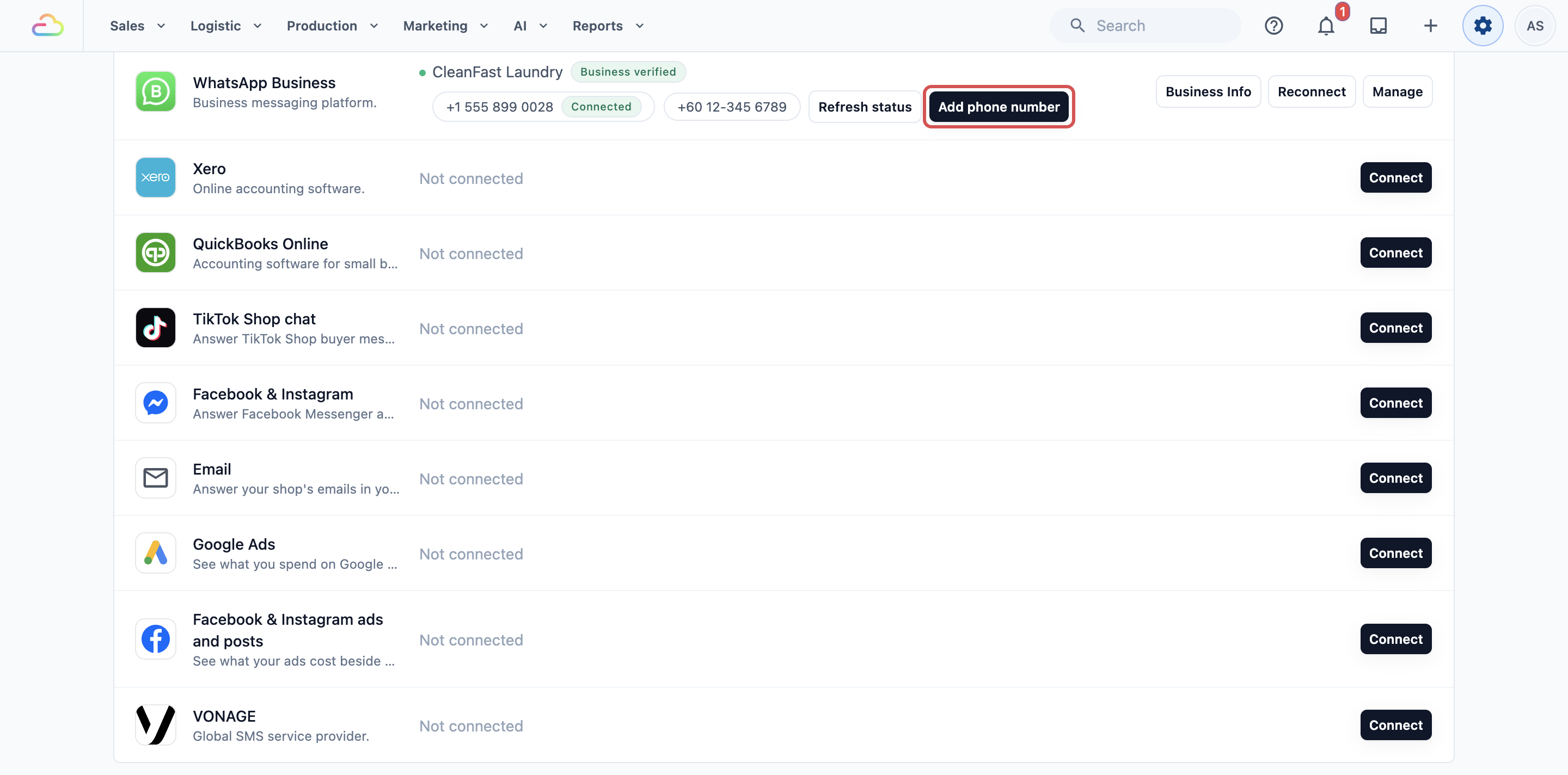
Add a phone number
Use this for a number that is not on any WhatsApp app yet.
- On the WhatsApp Business card, click Add phone number .
- Fill in the form and click Continue .
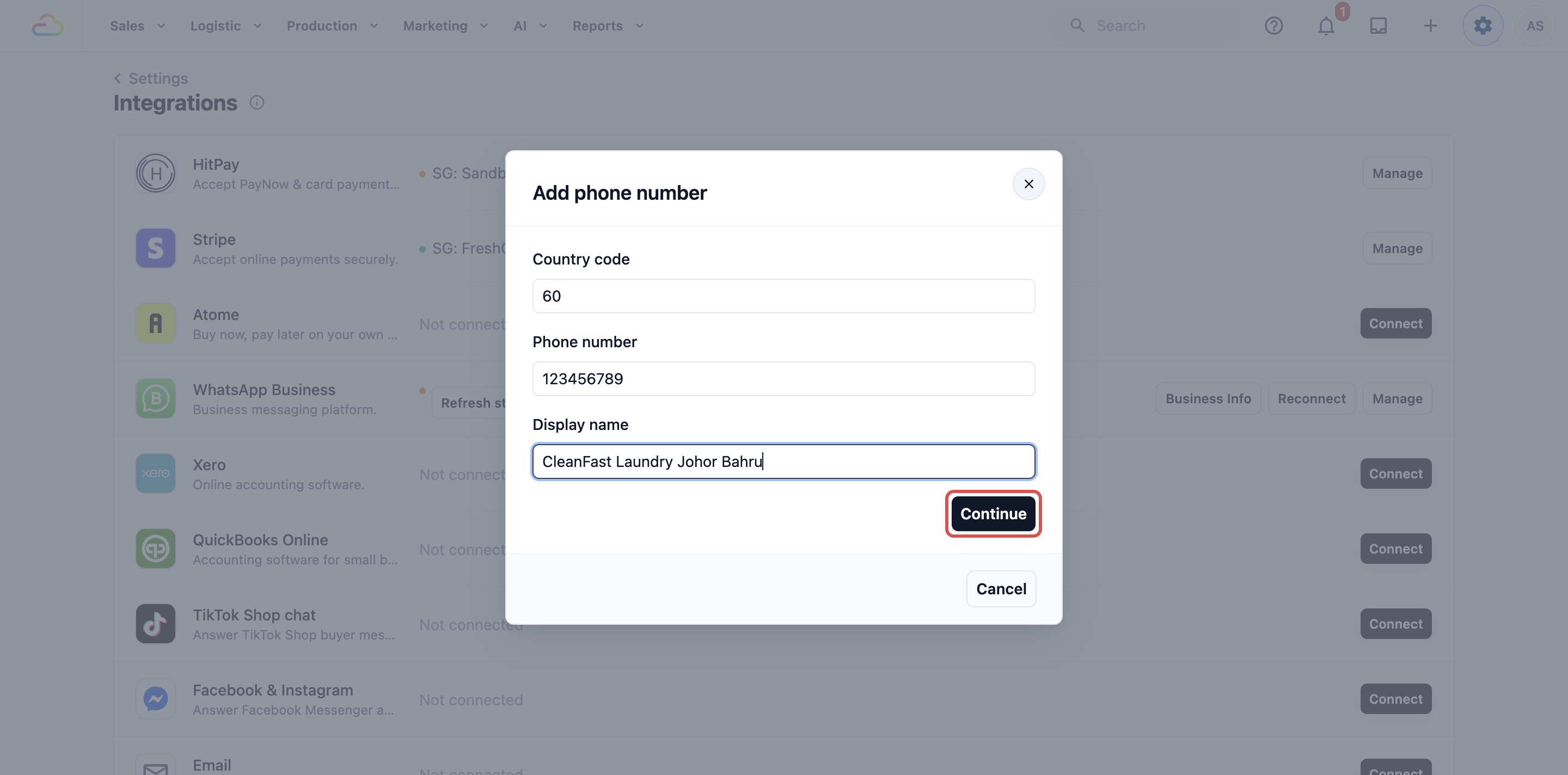
Country code
Enter the country's dialling code without the plus sign, for example 65 for Singapore or 60 for Malaysia.
Phone number
Enter the number without the country code.
Display name
Enter the name customers see in WhatsApp. Your team also sees it in the Inbox, so give each number a different name, for example CleanFast Laundry Johor Bahru.
- Under How should we send the verification code?, choose how to get the code:
| Option | What it does |
|---|---|
| Text message (SMS) | Meta texts the code to the new number. |
| Voice call | Meta calls the new number and reads out the code. |
- Click Send code .
- Enter the Verification code and click Verify . If the code doesn't arrive, click Resend code .
- When you see "Number added and registered. It can now receive messages in your inbox.", click Close .
The new number now shows on the WhatsApp Business card, and messages sent to it arrive in your Inbox.
Number already on a WhatsApp app?
Add phone number works only for numbers that are not on a WhatsApp app. To bring in a number you already use in the WhatsApp Business app:- On the WhatsApp Business card, click Reconnect .
- Click Login with Facebook .
- In the Meta window, choose the same WhatsApp Business account and follow the steps to connect the number.
The number keeps working in the WhatsApp Business app on your phone.
Choose the number for each market
Use this only if you sell in more than one country.
- On the WhatsApp Business card, click Manage .
- Under Number per market, each of your markets has a list. Choose the number that market sends from.
- Click Save . You see "Numbers per market saved".
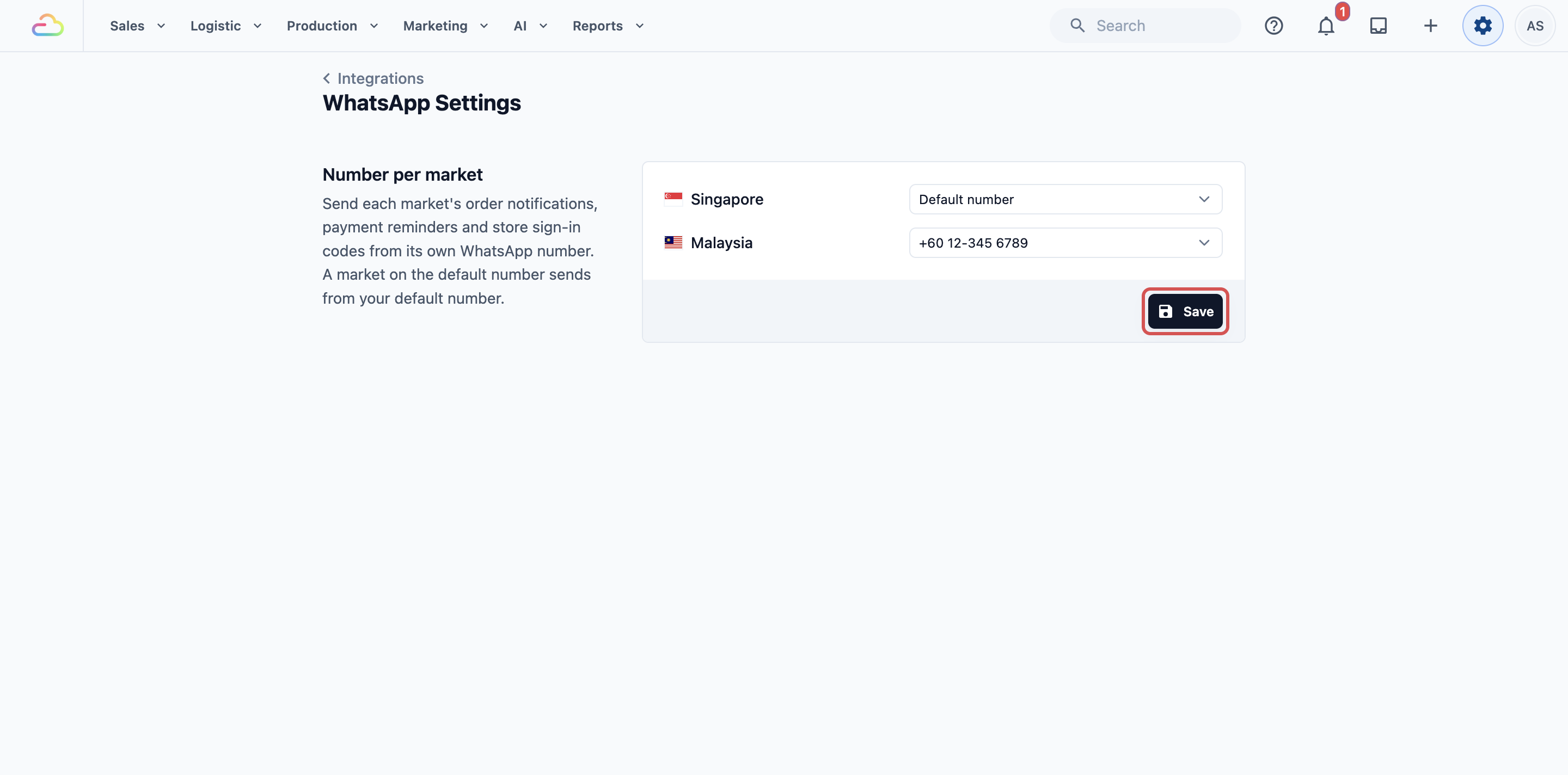
Number per market
| Option | What it means |
|---|---|
| Default number | The market sends from your default number. Every market starts here. |
| One of your numbers | The market's order updates, payment reminders and Online Store sign-in codes go out from that number. |
If you have only one number, this section shows "Add a second number in Settings › Integrations › WhatsApp to send each market from its own number." instead of the lists.
Example setup
CleanFast Laundry runs its Tampines and Jurong shops in Singapore and opens a new outlet in Johor Bahru.
- Default number: +65 6123 4567, display name CleanFast Laundry
- Added number: +60 12-345 6789, display name CleanFast Laundry Johor Bahru
- Number per market: Singapore stays on Default number, Malaysia uses +60 12-345 6789
After saving, a Johor Bahru customer's "Order ready" message comes from the Malaysia number, and a Tampines customer's comes from the Singapore number.
What staff see in the Inbox
Each chat shows which number the customer messaged, with a "via CleanFast Laundry Johor Bahru" line in the chat list and "Replying from" above the reply box. Staff can use the Number filter to see one number's chats, as explained in the Inbox guide.
Good to know
- Automatic messages use your default number unless you set Number per market.
- Campaigns pick their own number. When you set up a campaign, choose the number it sends from under Phone Number.
- Message templates are shared, but you can keep one to certain numbers. Templates belong to your WhatsApp Business account, so every number can use them. To keep a template to one brand's number, open it in Settings › WhatsApp Templates, click Template Settings , and under Numbers choose Only on certain numbers and tick the numbers. In the Inbox, a chat then offers that template only when the chat is on one of those numbers. Templates left on All numbers show in every chat.
- To rename a number, change it in Meta's WhatsApp Manager, then click Refresh status on the WhatsApp Business card to update EasyBiz.
FAQs
Do I need Number per market if I only sell in Singapore?
No. Leave it as it is. All automatic messages go out from your default number, and customers who message your other numbers still get replies from the number they messaged.
Can a customer who messaged my Malaysia number get a reply from my Singapore number?
No. Replies go out from the number the customer messaged, whether your staff, an auto-reply rule or an AI agent sends them.
Can I connect a number from another WhatsApp Business account?
No. EasyBiz connects one WhatsApp Business account. Logging in with a different account through Reconnect replaces the one you have, so add every number to the same account.
Why do both numbers show the phone number instead of the name in the Inbox?
The Inbox shows the phone number when two numbers have the same display name. Give each number its own display name in Meta's WhatsApp Manager, then click Refresh status.
I changed Number per market. Does it change messages already sent?
No. Messages already sent stay as they were. The new number is used for messages sent after you save.
What's Next
You've connected your second number and chosen which number each market sends from. Next, find out which flyer, poster or webpage brings you new enquiries with Lead Sources: WhatsApp Links and QR Codes.