
Settings › WhatsApp › General Settings has four sections: Business Hours (when auto replies treat a message as within or after hours), Number per market (which WhatsApp number each country's automatic messages come from), Test Group (your team's numbers for testing auto reply rules) and Calling (calling customers from the Inbox). Each section has its own Save button.
Where to Find General Settings
- Click the Settings icon at the top right of your EasyBiz Console
Under CRM settings (called CRM for some users), click WhatsApp
Click the General Settings tab
Setting Up Business Hours
The Within business hours and After business hours conditions in your auto reply rules rely entirely on what you set here. Without this configured, those conditions will not work correctly.
This is the only thing these hours do. They are a WhatsApp setting, separate from a POS shop's opening hours, and they do not open or close the POS counter or change the times a customer can pick when booking.
Enabling Business Hours
Toggle Enable business hours on.
Select your timezone from the dropdown.
Make sure this matches your physical shop location. If your shop is in Singapore, select Asia/Singapore.
Configuring Your Weekly Schedule
For each day, toggle it on if you are open. Click the day's Opening hours field, pick the start and end times (hour, minutes, AM or PM) and click Confirm. If your team takes a lunch break, set the Break field the same way.
Toggle a day completely off if your shop is closed that day — it will be treated as fully "after hours" for the entire day.
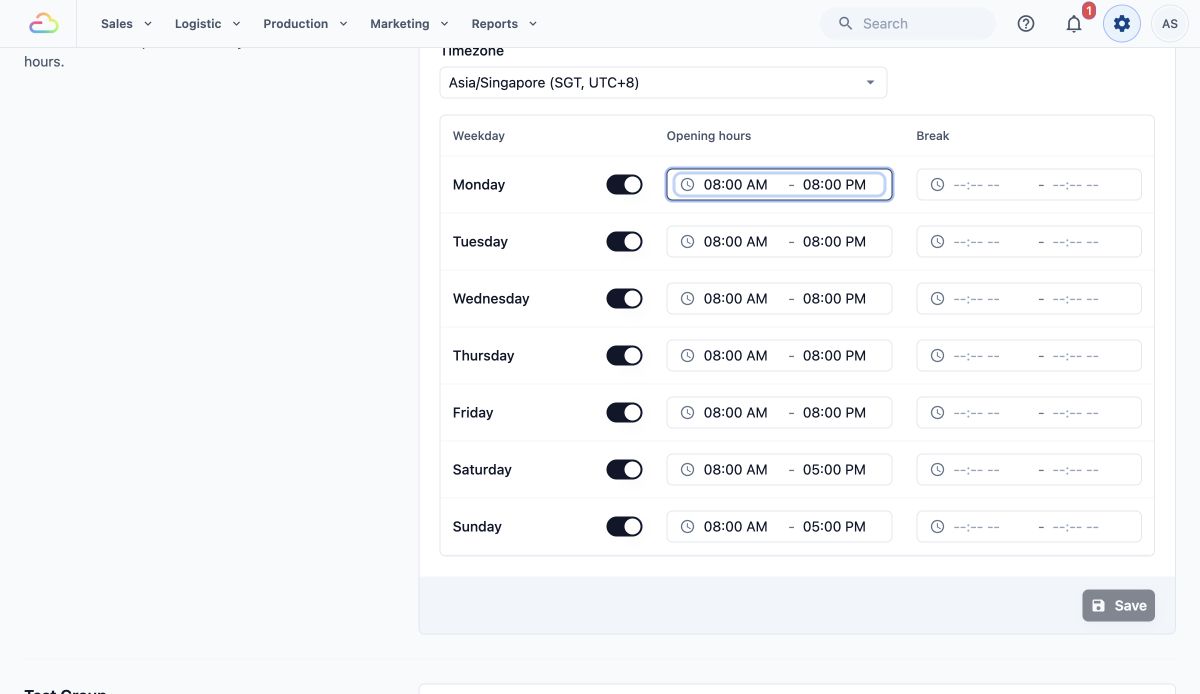
For example, a typical service business might set:
| Day | Hours | Break |
|---|---|---|
| Monday – Friday | 08:00 AM – 08:00 PM | - |
| Saturday | 08:00 AM – 05:00 PM | - |
| Sunday | 08:00 AM – 05:00 PM | - |
Click Save at the bottom of the Business Hours section.
Number per Market
If you sell in more than one country, for example Singapore and Malaysia, and have connected a WhatsApp number for each, choose here which number each market's order notifications, payment reminders and Online Store sign-in codes are sent from. Pick a number for each market and click Save. A market left on Default number sends from your default number.
With only one number, this section asks you to add a second number in Settings › Integrations first. See Connect Multiple WhatsApp Numbers.
Setting Up Your Test Group
The Test Group is a list of your own team's phone numbers. When you set a rule to Testing mode, it only fires for these numbers — not for real customers. This lets you safely test a rule on yourself before releasing it.
Adding a Test Number
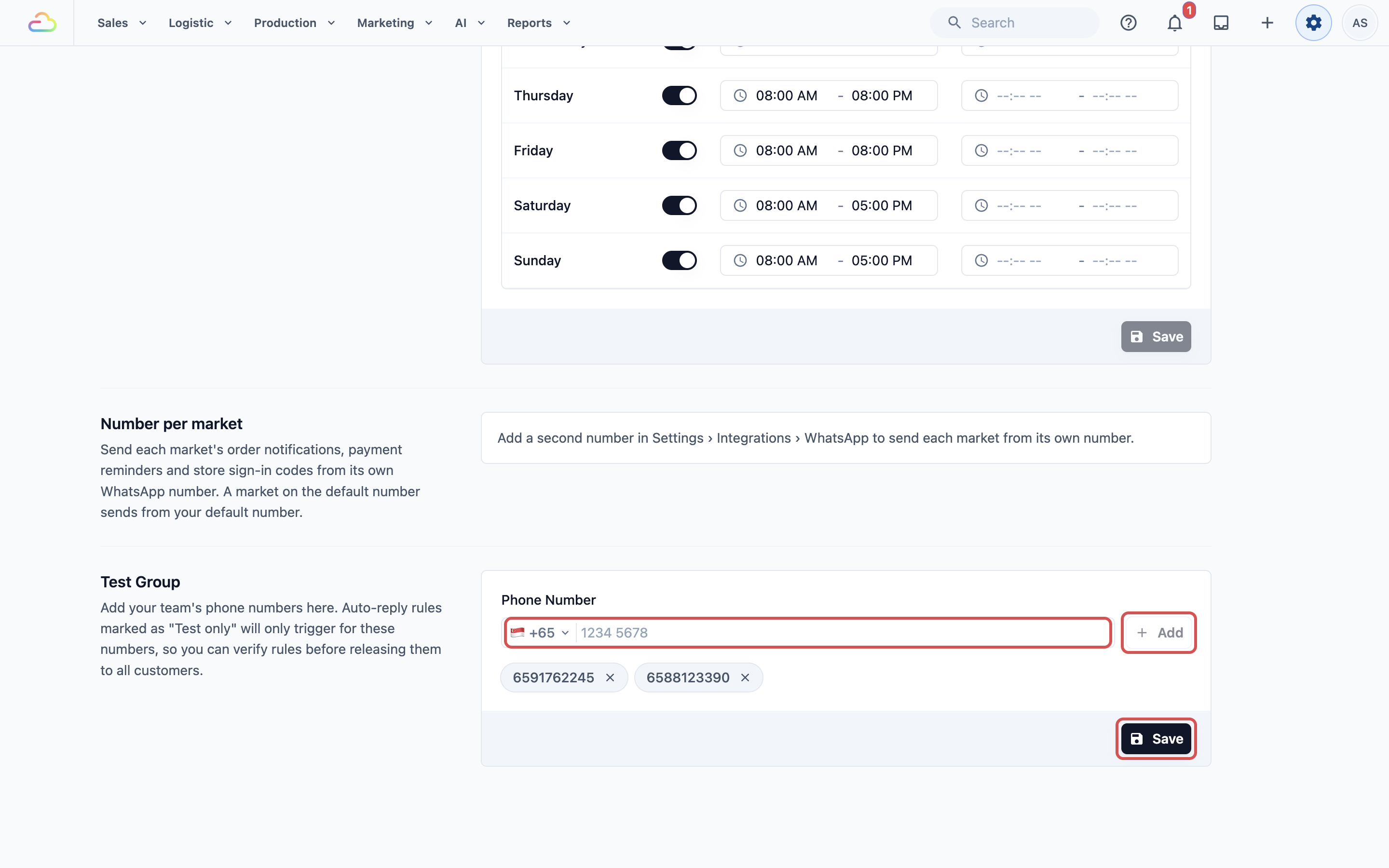
Still in General Settings, scroll down to the Test Group section.
Select your country code from the dropdown at the start of the Phone Number field (e.g. +65 for Singapore, +60 for Malaysia, +62 for Indonesia).
Type in a phone number and click
Add.Click Save.
Removing a Test Number
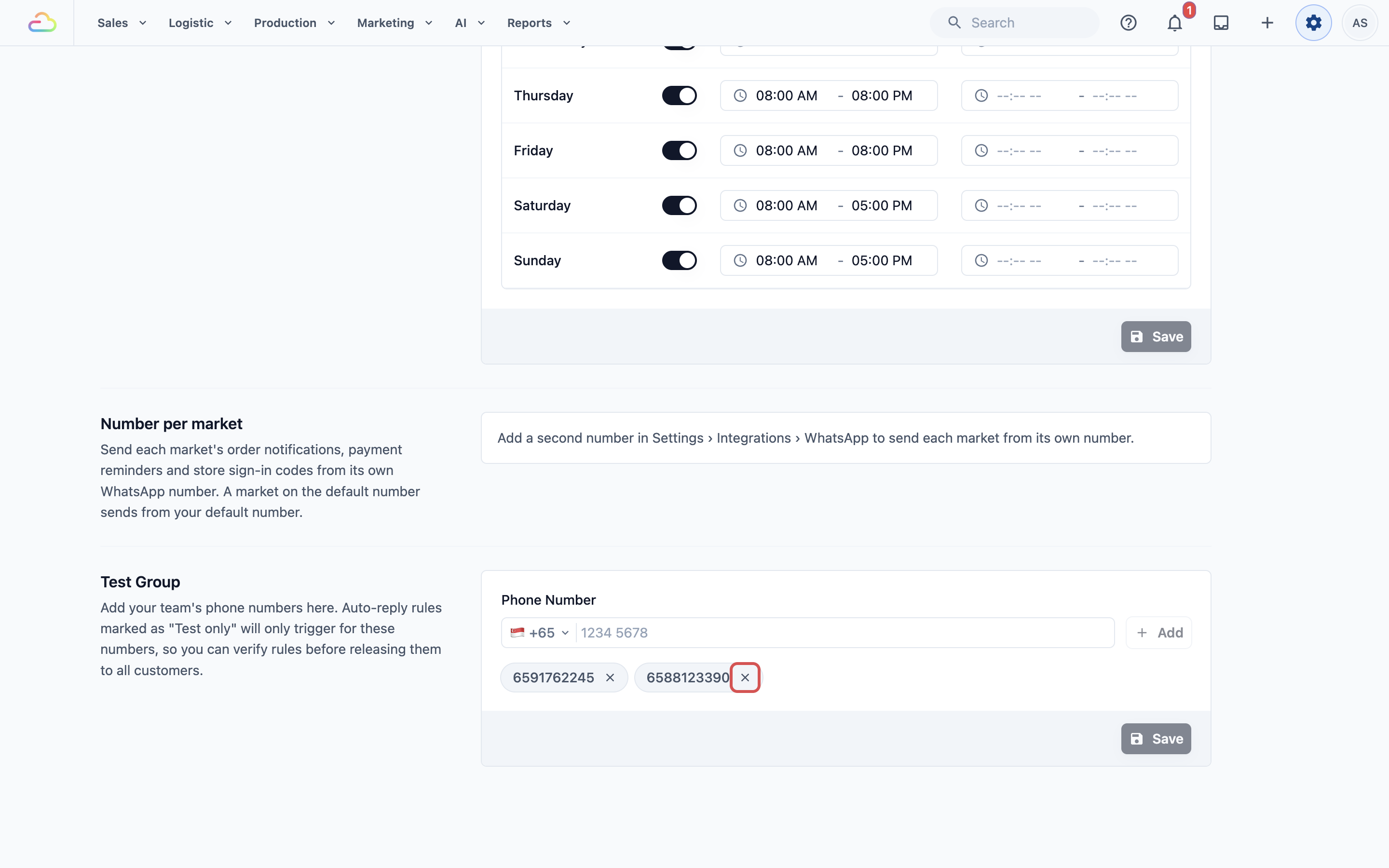
Click the × button next to any phone number chip to remove it from the test group, then click Save.
How Testing Works
When a rule's status is set to Testing (blue dot):
Messages from numbers in the Test Group → auto reply fires
Messages from numbers not in the Test Group → auto reply does not fire
This means you can test your entire auto reply setup without any real customers seeing the messages.
Calling
On the Professional plan, the Calling section lets your team call customers on WhatsApp from their chat in the Inbox. Switch on Call customers from the inbox, choose whether to Record calls, and click Save. See Call Customers on WhatsApp from the Inbox.
Checklist Before Going Live
Before switching any auto reply rule from "Testing" to "Live," run through this checklist:
| Checklist | What to Verify |
|---|---|
| ✅ Business Hours enabled | The toggle is ON |
| ✅ Hours are correct | Your daily schedule matches your real opening hours |
| ✅ Timezone is correct | Matches your shop's physical location |
| ✅ Closed days are toggled off | Any day you're closed has its toggle switched off |
| ✅ Test Group has numbers | At least one team phone number is added |
| ✅ Rules tested | You've sent test messages and verified the right replies come through at the right times |
What's Next
Now that your general WhatsApp settings are in place, continue to New Customer Welcome to set the first auto-reply that greets unknown numbers messaging your business.