
Your new shop is on the Shops tab in training mode, with its profile, working hours and running number set, and your staff can practise on its POS without touching your real sales.
Before You Start
- Set up your market, location and company first. See What to Set Up Before Your First Shop.
- Create at least one POS app before your staff practise. You can add the shop without one, but a device signed in without a POS app has nothing to take orders on. See Create Your POS App.
- You need a current trial or subscription. Without one, the Add Shop page shows Add training location is unavailable.
- You need access to Settings in the EasyBiz Console, for example as the account owner or an admin. Taking a shop live, closing it, restoring it and deleting it also need billing access.
If you set this up before: your existing shops, their codes and their order numbers stay as they are. Training mode on a live shop is now a switch in the POS settings, in place of the old Training tab.
Overview
A shop is a place where your staff take orders on the POS, such as an outlet, a branch or a counter in a mall. Each shop has its own name, a short code that starts every order number, a company that owns its invoices and tax, and its own opening details. Every new shop starts in training mode, a safe practice mode where orders take no payment, send customers nothing and stay out of your sales. Your staff can learn the counter on real devices, with real prices, without any risk to your books. When the team is ready, you take the shop live in one step.
Where it works
- Console: you add the shop, finish its settings and see which tills (POS devices) use it.
- POS: staff see a "Training mode active" banner while the shop is in training, and practice orders are numbered #T-00001 and up.
- Customers get no notifications or payment requests from training orders.
Why set it up
Each outlet needs its own shop so its orders, receipts, staff and reports stay separate. Starting in training saves you from cancelling and refunding real orders while new staff learn. It also lets you test your printers, prices and receipts before your first customer walks in. If you skip the practice and go live on day one, every mistake becomes a real order in your sales and a real message to your customer.
Where to find it
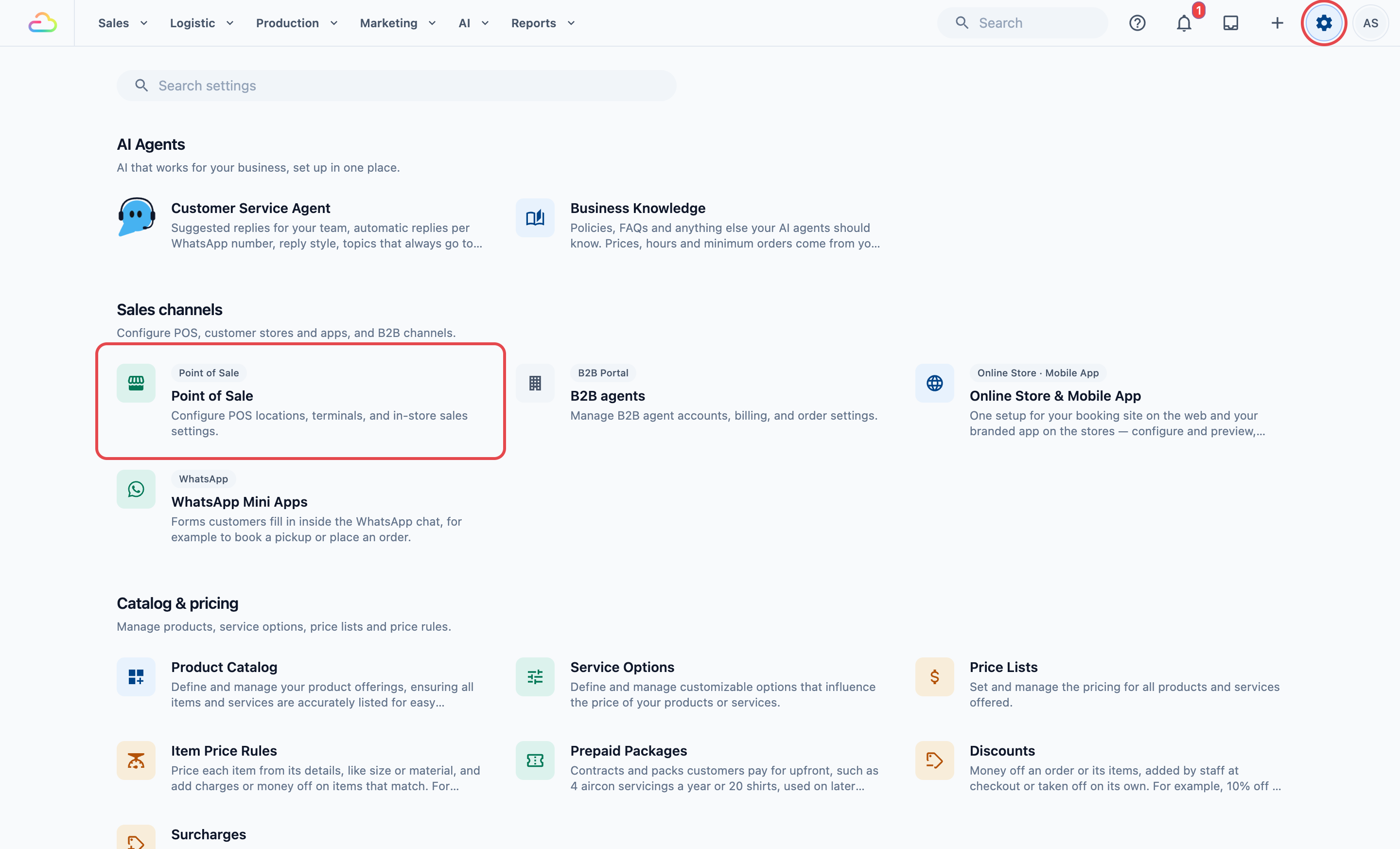
Click the ⚙️ Settings icon in the top-right corner.
Under the Sales channels section, click Point of Sale.
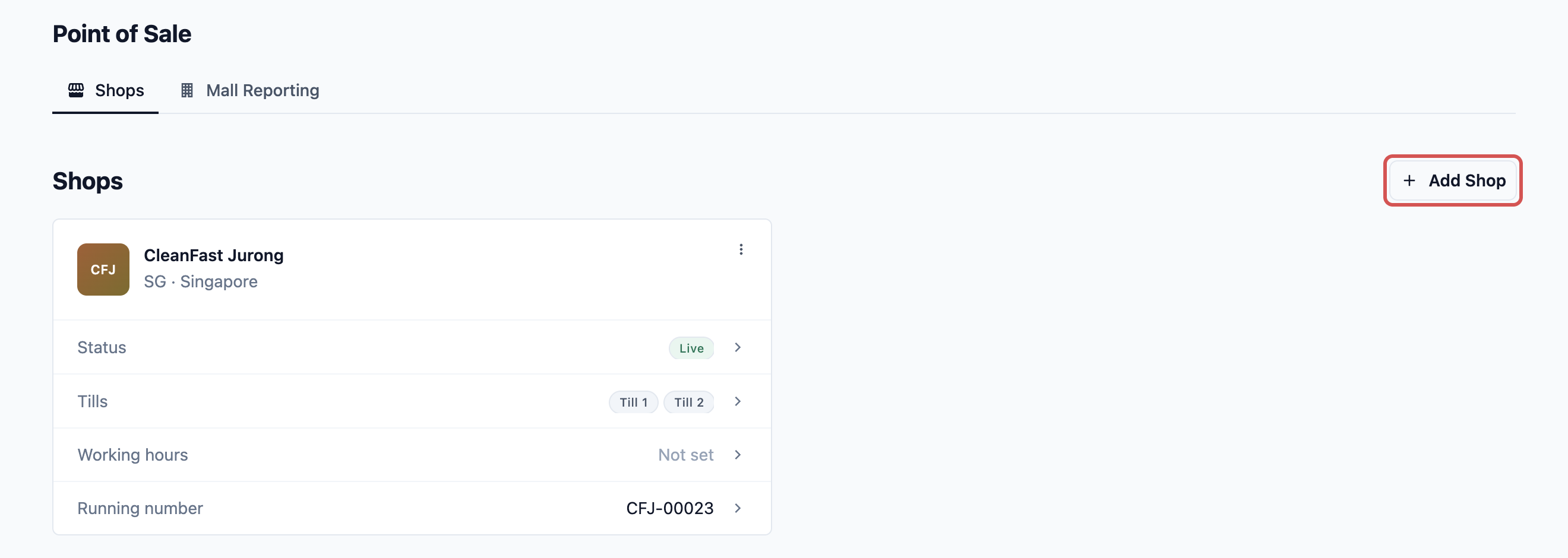
- On the Shops tab, click Add Shop.
The Add a training location page opens. The note at the top, Start with a training location, reminds you that the shop starts in training mode and you take it live separately.
Adding the shop
Fill in the page from top to bottom, then save.
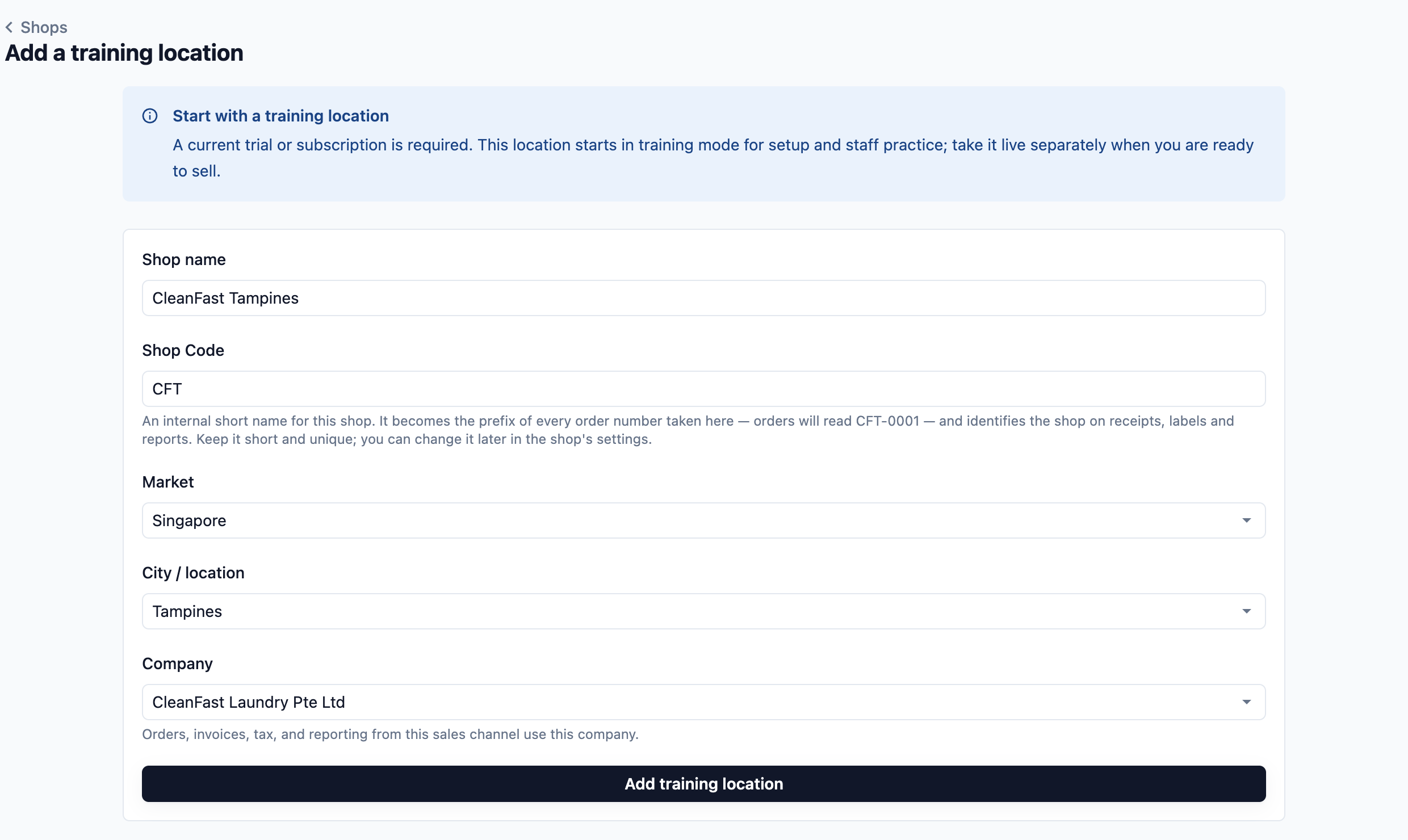
- Shop name
Enter the name your customers know this outlet by. It appears on receipts, invoices and customer messages, so a brand name plus the branch or building works well, for example CleanFast Tampines.
- Shop Code
Enter a short code of up to 8 letters or numbers. It turns into capitals as you type. The code starts every order number taken at this shop, for example CFT-00001, and identifies the shop on receipts, labels and reports. Each shop needs its own code, and the page tells you if another shop already uses it. You can change the code later in the shop profile.
- Market
Choose the country this shop sells in. The market sets the currency and language for the shop. The list shows the markets you set up before.
- City / location
Choose the city or area the shop is in. The list shows the locations in the market you chose.
- Company
Choose the company that owns this shop's sales. Its orders use this company's tax and rounding settings, and reports and e-invoices list them under it. If the market has no company yet, the page shows No Company for this market with a Set up Company button.
When everything is filled in, click Add training location.
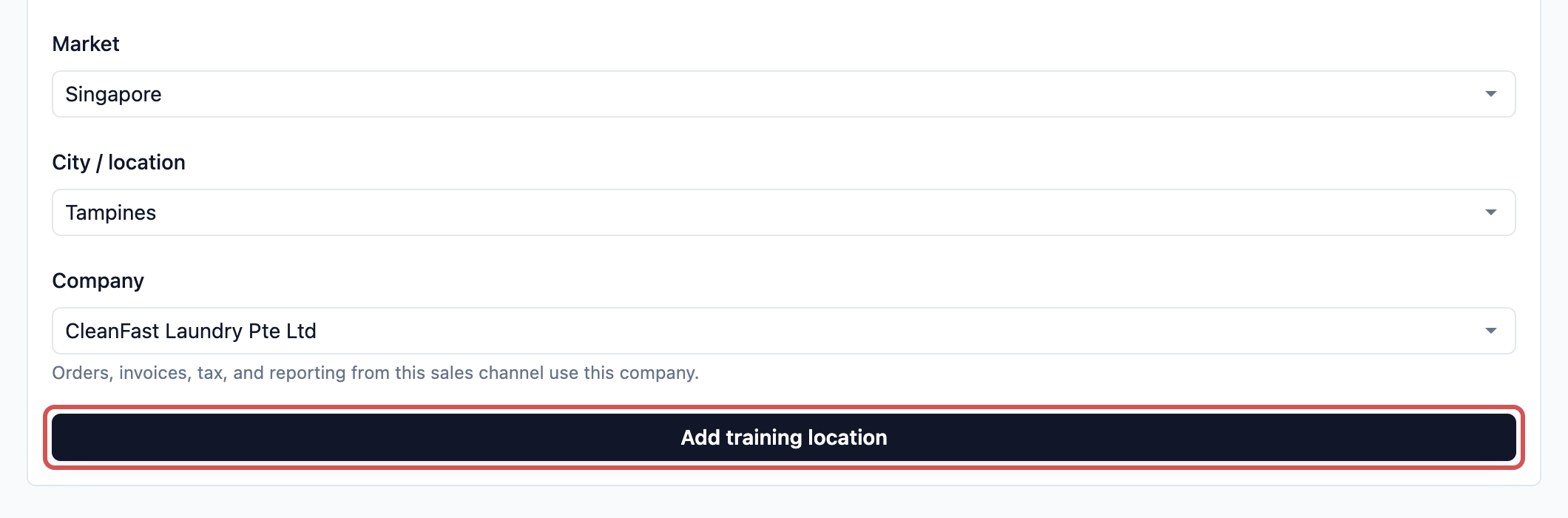
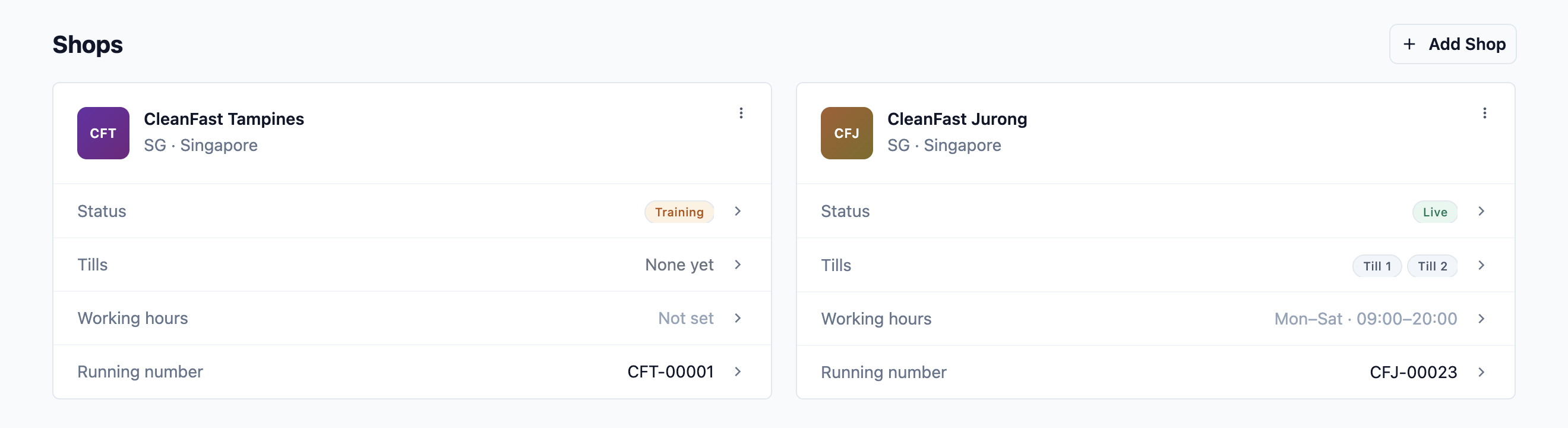
You return to the Shops tab, and your new shop's card shows Training in its Status row.
What training mode means
While a shop is in training, every order taken on its POS is a practice order:
- Orders are numbered #T-00001 and up, so they never use your real order numbers.
- They collect no payment, so the payment step is skipped.
- Customers get no notifications.
- They stay out of your sales records.
- Receipts print TRAINING ORDER and are not valid tax invoices.
On the POS, staff see the banner Training mode active with the note "Training orders do not collect payment or appear in sales records. Receipts are not valid tax invoices."
To check a shop's status, click its Status row. The Shop status dialog explains what training means for that shop.
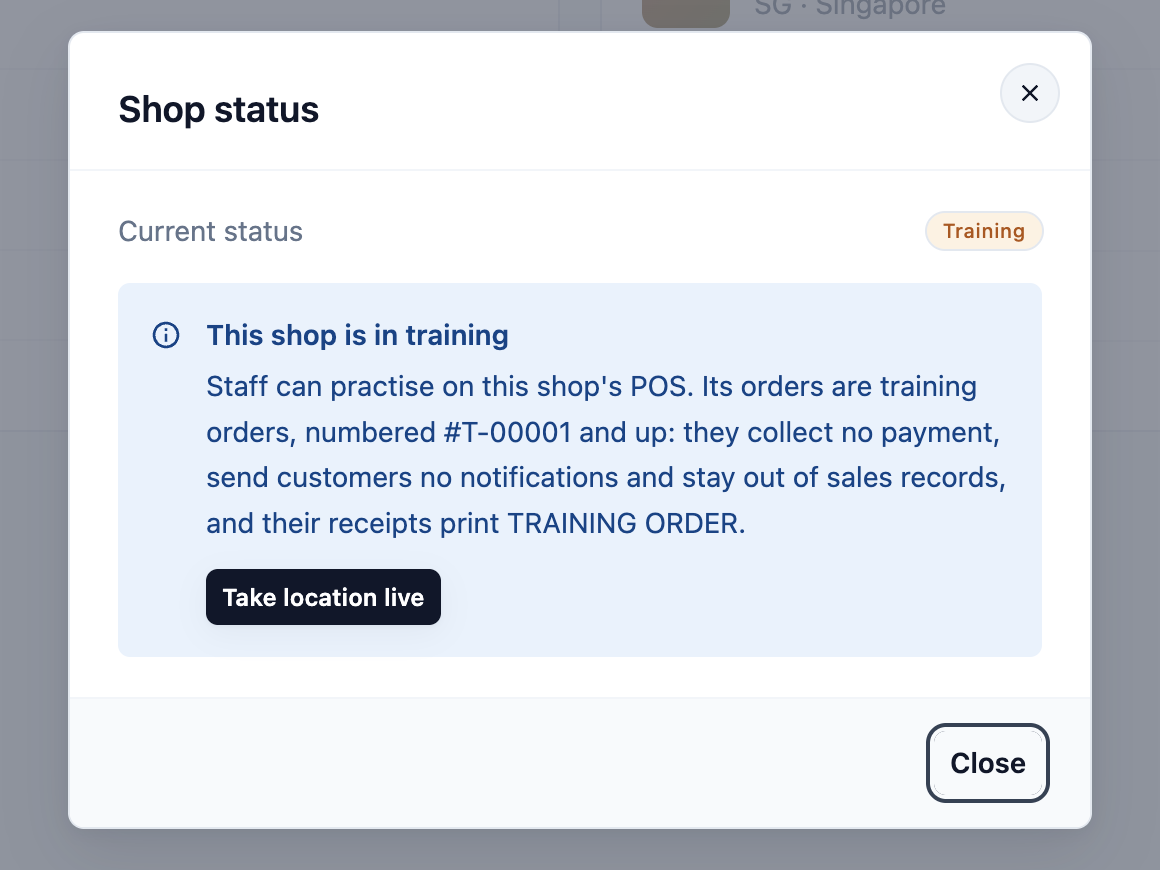
When your staff are ready, take the shop live from this dialog. See Taking a Shop Live, or Moving It Back to Training.
Practice orders on a live shop
A live shop can still take practice orders, for example to train a new staff member. On the POS, open Settings and turn on the Training mode switch.
- If you turn this on, orders on that POS device become practice orders, with the same rules as above. Other devices at the shop keep taking real sales.
- Staff who can use the POS can turn it on or off, so remind them to switch it off after practice.
- On a shop that is in training, the switch is on and locked. It reads "This location is set to training mode in EasyBiz Console and cannot take live sales."
Finishing the shop's settings
Each shop card shows the shop code, the shop name, its market and city, and four rows: Status, Tills, Working hours and Running number. Click the shop name to open the shop profile, or click a row to change that setting. A row with nothing saved yet shows Not set.
1. Shop profile
Click the shop name on its card. The Shop profile dialog opens.
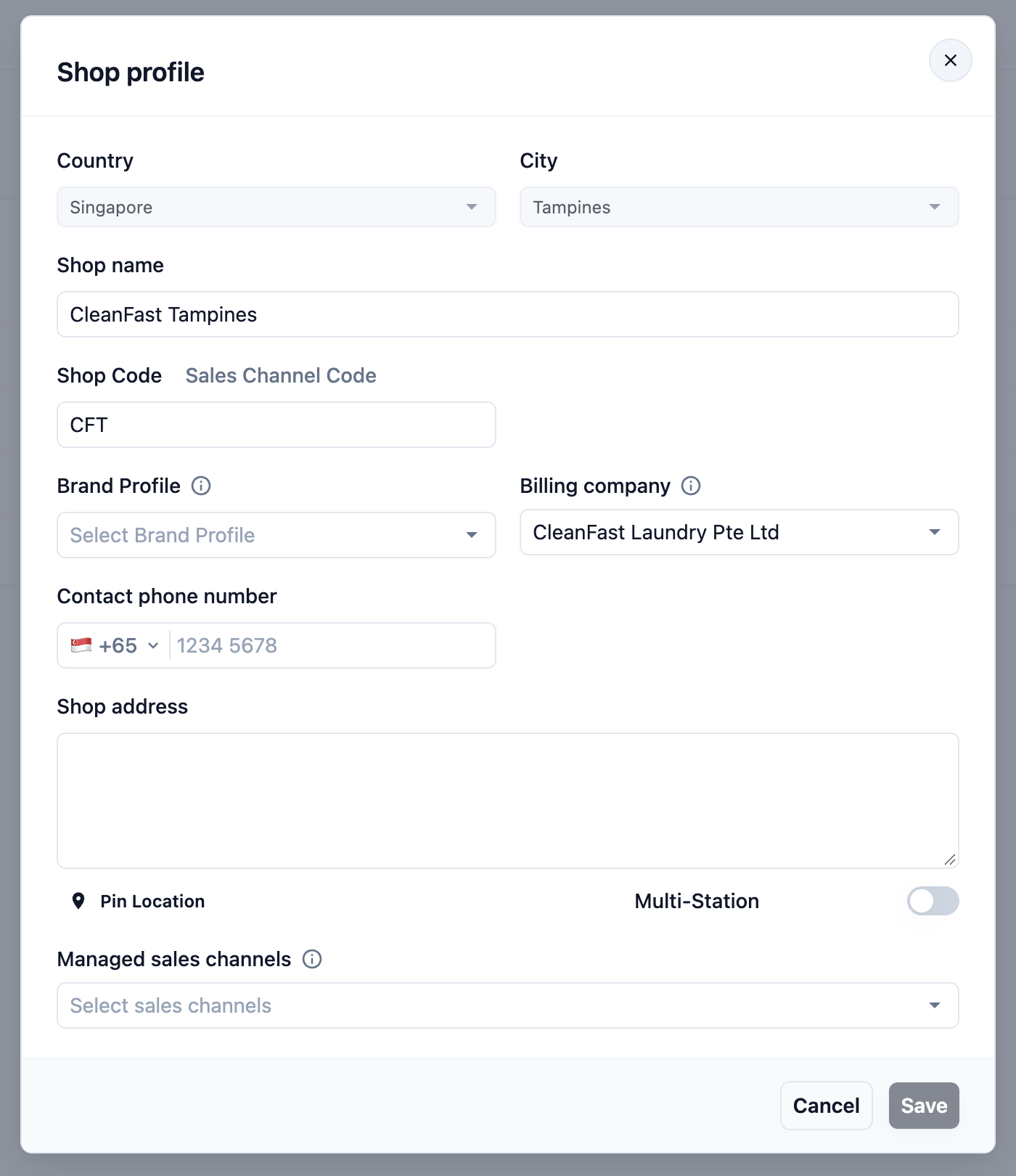
- Country and City: shown read-only. They come from the market and location you chose.
- Shop name and Shop Code: change the outlet name or code here.
- Brand Profile: choose the brand customers see for this shop.
- Billing company: the company that bills this shop's sales. Change it only if the outlet moves to another company.
- Contact phone number and Shop address: the outlet's contact details.
- Pin Location: pin the outlet on the map.
- Multi-Station: use this only if more than one POS device runs at this shop at the same time. If you turn this on, every POS device at the shop must allow location access so EasyBiz can check it is at the shop.
- Managed sales channels: use this only if this shop handles orders from other shops, collection points or your Online Store.
Click Save.
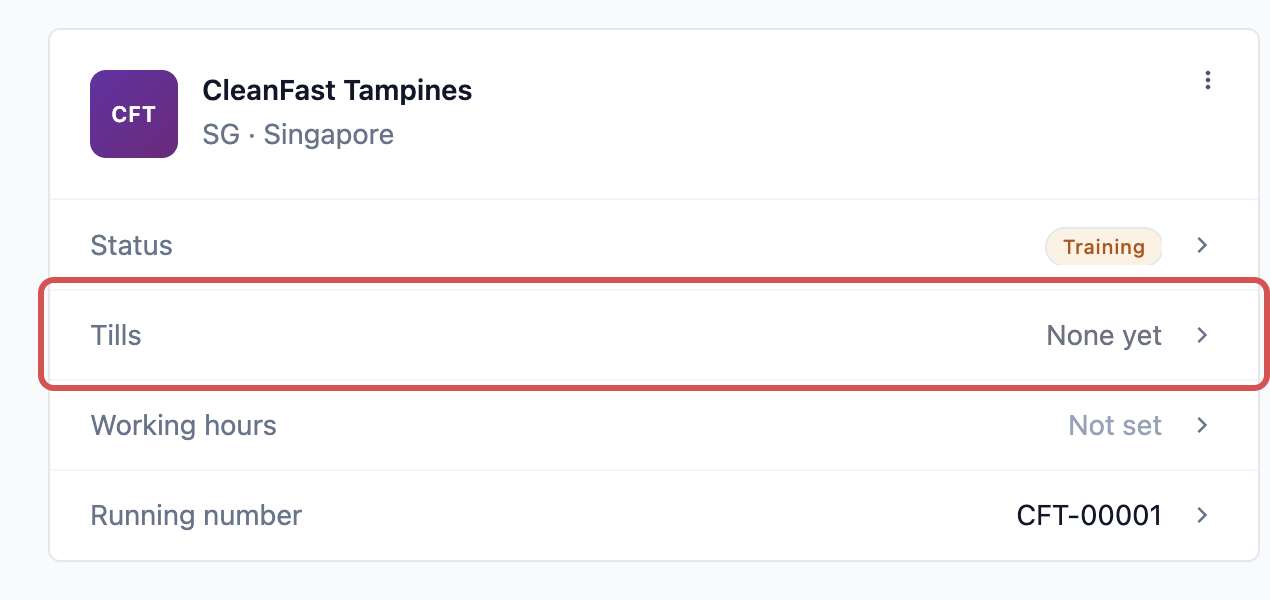
2. Tills
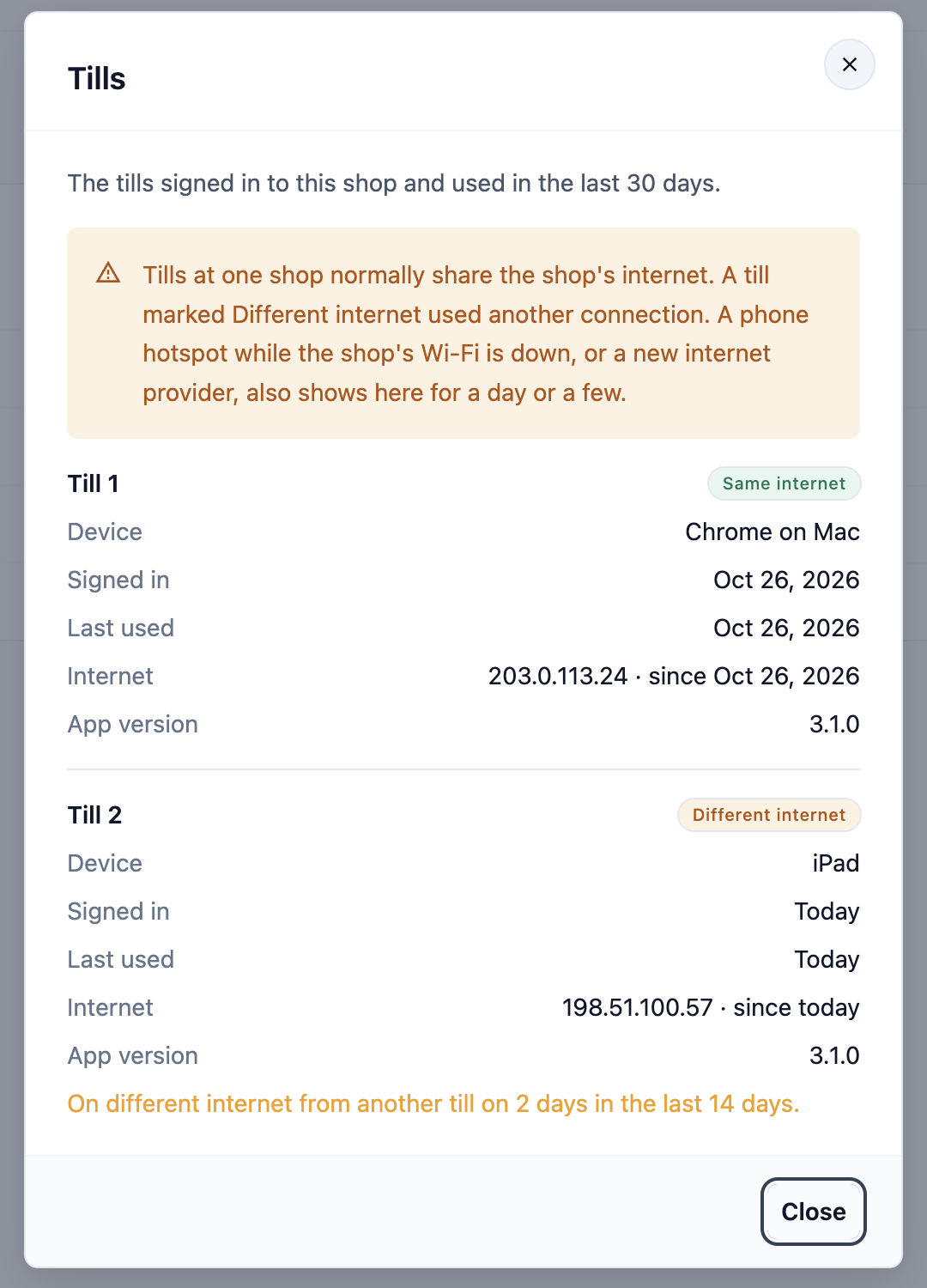
Click the Tills row. A till is a POS device signed in to this shop. The card shows one badge per till, or None yet before any device signs in.
The Tills dialog lists the tills signed in to this shop and used in the last 30 days:
- Device: the browser and system the till runs on, or Not known yet.
- Signed in: when the till signed in to this shop.
- Last used: when it was last used.
- Internet: the connection it uses, and since when. A new till shows "Shows after its first order".
- App version: the POS app version on the device.
A till marked Different internet used another connection from the shop's other tills. This is normal for a day or a few when the shop's Wi-Fi is down and staff use a phone hotspot, or after you change internet provider.
Signing a device in to the shop is covered in Signing In, Switching and Signing Out a POS Device.
3. Working hours
Click the Working hours row. For each weekday:
- Turn the day on or off.
- Set the opening and closing time.
- Add a break time if you need one, such as lunch.
- Click Save.
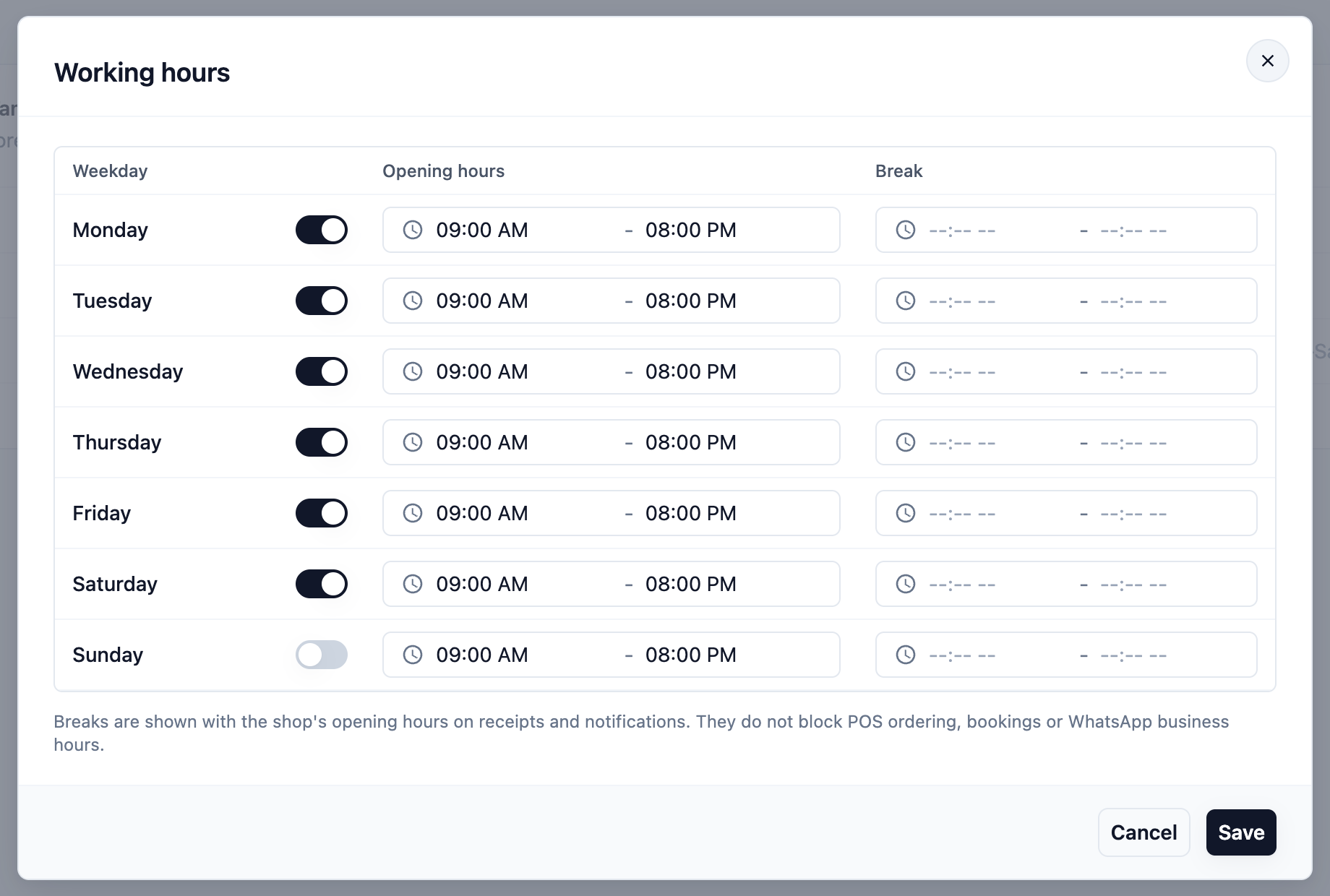
The card then shows your hours in short form, such as Mon–Sat · 09:00–20:00, or Closed all week if every day is off. Receipt and message templates that show opening hours use them too.
Working hours are also not booking times for customers. Customers pick dates and times from your Booking Options and Time Windows, and WhatsApp auto-replies use their own hours in WhatsApp General Settings. One older behaviour remains in some booking setups: a day you turn off here may also show as an off day in the customer's date picker.
4. Running number
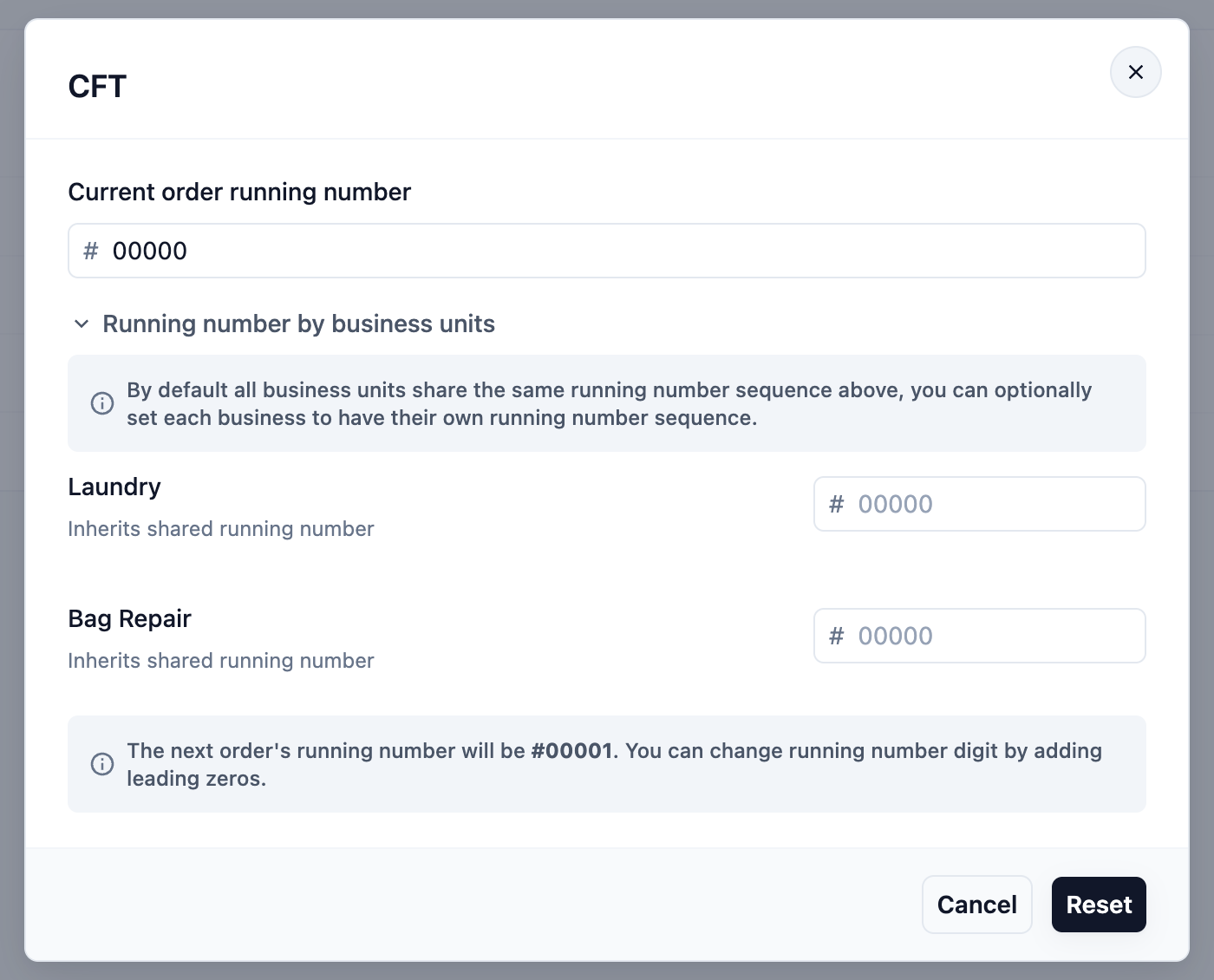
Click the Running number row to set the next order number for this shop. The card shows the next number, such as CFT-00001.
By default, all your business units share one running number. Under Running number by business units, you can give a business unit its own sequence instead, for example one for Laundry and one for Bag Repair.
Example setup
CleanFast Laundry already runs a live shop in Jurong and opens a second branch in Tampines:
- Shop name: CleanFast Tampines.
- Shop Code: CFT.
- Market: Singapore. City / location: Tampines.
- Company: CleanFast Laundry Pte Ltd.
- Working hours: Monday to Saturday, 9:00 AM to 8:00 PM, Sunday off.
The new card shows Status Training. For a week, staff practise laundry and bag repair orders on the Tampines POS. Their orders are numbered #T-00001, #T-00002 and so on, receipts print TRAINING ORDER, and nothing shows in CleanFast's sales. On opening day the owner takes the shop live, and the first real order is CFT-00001.
Closing a shop
Use this only if an outlet closes for good or you no longer need the shop.
- On the shop card, click the ⋮ menu.
- Click Close shop.
- Type the shop name exactly as shown, then click Close shop to confirm.
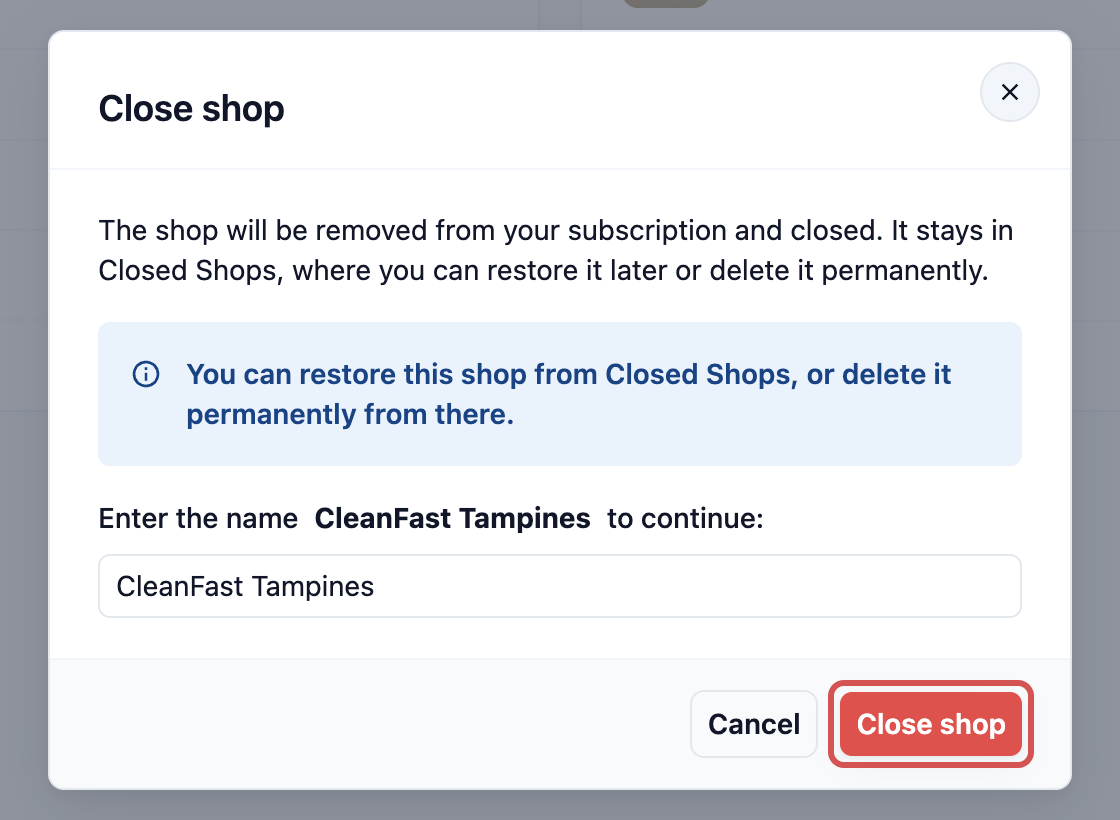
A live shop is removed from your subscription and moves to Closed Shops, below your shop cards. From there you can click Restore to bring it back, or Delete permanently to remove it for good.

FAQs
I added a shop but the POS shows nothing to sell. Why?
Check two things. The device needs a POS app with a Checkout page, chosen when you sign it in. See Create Your POS App. The shop's business unit also needs a price list or collections, or the counter shows "This business unit has no catalog."
Can I change the Market or City later?
No. Both are locked once the shop is created. If you chose the wrong one, add a new shop with the right market and city, then close the wrong one.
What does "No city linked" mean?
It shows on older shops created before a city was required. It is a label only. The shop keeps working, and the shop profile has no way to link a city to it.
Do training orders show in my sales?
No. Training orders collect no payment, send customers nothing and stay out of your sales records. When you take the shop live, the practice orders stay as training orders and real orders start from your running number.
Does a training shop cost anything?
You need a current trial or subscription to add one, but a shop that has never been live is added to your subscription only when you take it live. See Taking a Shop Live, or Moving It Back to Training.
Does closing a shop stop billing for it?
Yes. Closing a live shop removes it from your subscription.
When do I turn on Multi-Station?
Only when two or more POS devices take orders at the same shop at the same time, for example a front counter and a back-room station. With one counter, leave it off. Pin the shop's location first.
Why does a till say Different internet?
That till used another internet connection from the shop's other tills. A phone hotspot during a Wi-Fi outage or a new internet provider shows this for a day or a few. If you don't recognise the till, check its Device and Last used details with your staff.
What's Next
Your shop is added, its settings are complete and it is in training mode. To start practising, sign in a POS device to the shop with your POS app, so your staff can take training orders on it, in Signing In, Switching and Signing Out a POS Device. When your staff are ready for real customers, take the shop live in Taking a Shop Live, or Moving It Back to Training.