
The Active Users report shows how many people open your Online Store or Mobile App, which signed-in customers they are, and how far they get when they book.
Before you start
- Sign in to the Console. The Console is the back-office website where you run your business.
- You need a published Online Store or Mobile App, so customers can open it. If you haven't set one up yet, the report says No Online Store yet, with a link to Set up your Online Store.
- The account owner can always open this report. Your staff need the Sales product on their Full seat. Giving Your Staff Access to Reports shows how.
- If you used this report before: it now also shows how far visitors get when they book. Booking steps are counted from the end of October 2026, so earlier months show visits but no booking steps. Your Mobile App counts booking steps once customers have its latest update.
Overview
An active user is one phone or computer that opened your Online Store or Mobile App. The report counts them for you, day by day and month by month. It shows where they came from: your Online Store in a web browser, your iPhone app or your Android app. It also follows them through your booking, from pressing Place order to placing the booking. You only read the report, so there is nothing to set up.
Where it works
- Console: you and your staff read the report under Reports. It is not in the POS.
- Online Store and Mobile App (iPhone and Android): these are the visits and bookings the report counts. Your customers see nothing different.
- Orders your staff take in the POS, and orders that come in through WhatsApp, are not counted.
Why use it
It helps you answer everyday questions. Did the QR code on the counter bring more customers to the app? Are customers still opening the app after the launch promotion? Do they sign in, so you know who they are?
It also shows where customers give up a booking. When many people stop at one step, you know what to fix, for example too few time slots or a confusing address step.
Without it, you only see the orders that came in. You can't tell how many people opened your store and left without booking, or where they left.
Open the Active Users report
- Sign in to the Console.
- In the menu bar at the top of the screen, click Reports.
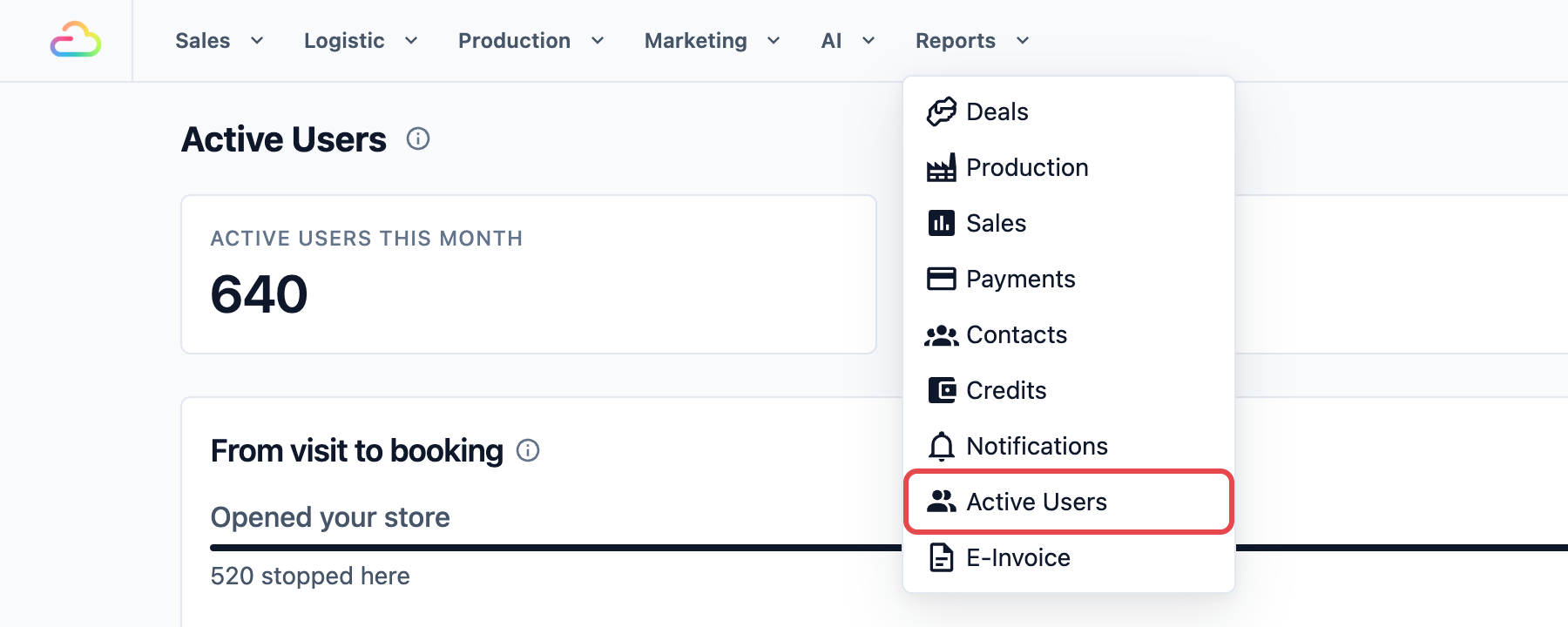
- Click Active Users.
The report opens on the current month. To see how people are counted, hover over the ⓘ next to the Active Users title.
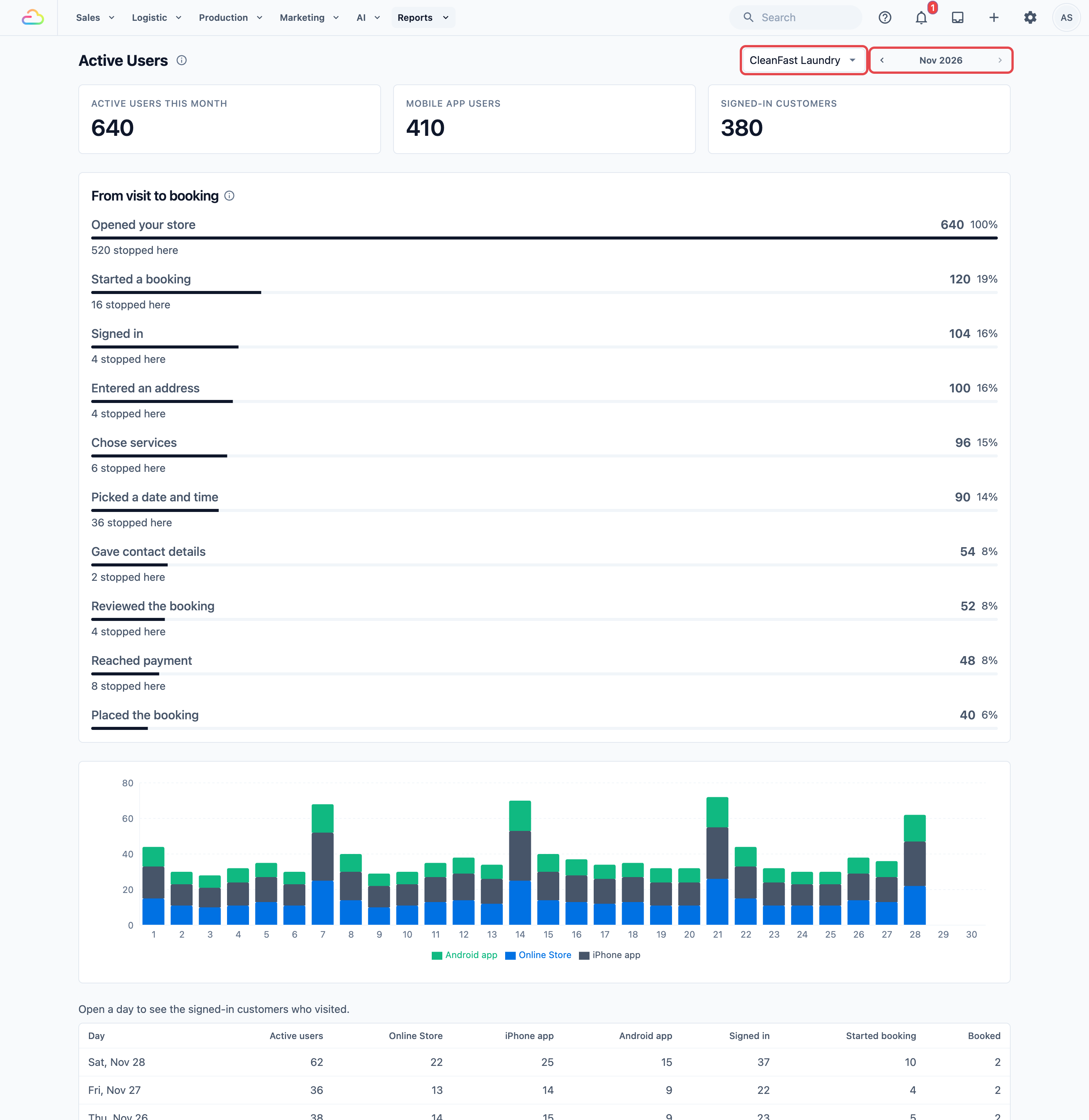
- To see an earlier month, click the left arrow next to the month name at the top right. The right arrow takes you forward again.
- If you have more than one store, for example one for each brand, pick the store in the box next to the month.
Read the cards
The three cards at the top count the whole month. Each phone, computer or customer counts once, however many times they came back.
- Active users this month: every phone and computer that opened your Online Store or Mobile App this month.
- Mobile App users: the ones that used your iPhone or Android app.
- Signed-in customers: the customers who were signed in to their account when they opened your store.

Follow visitors from visit to booking
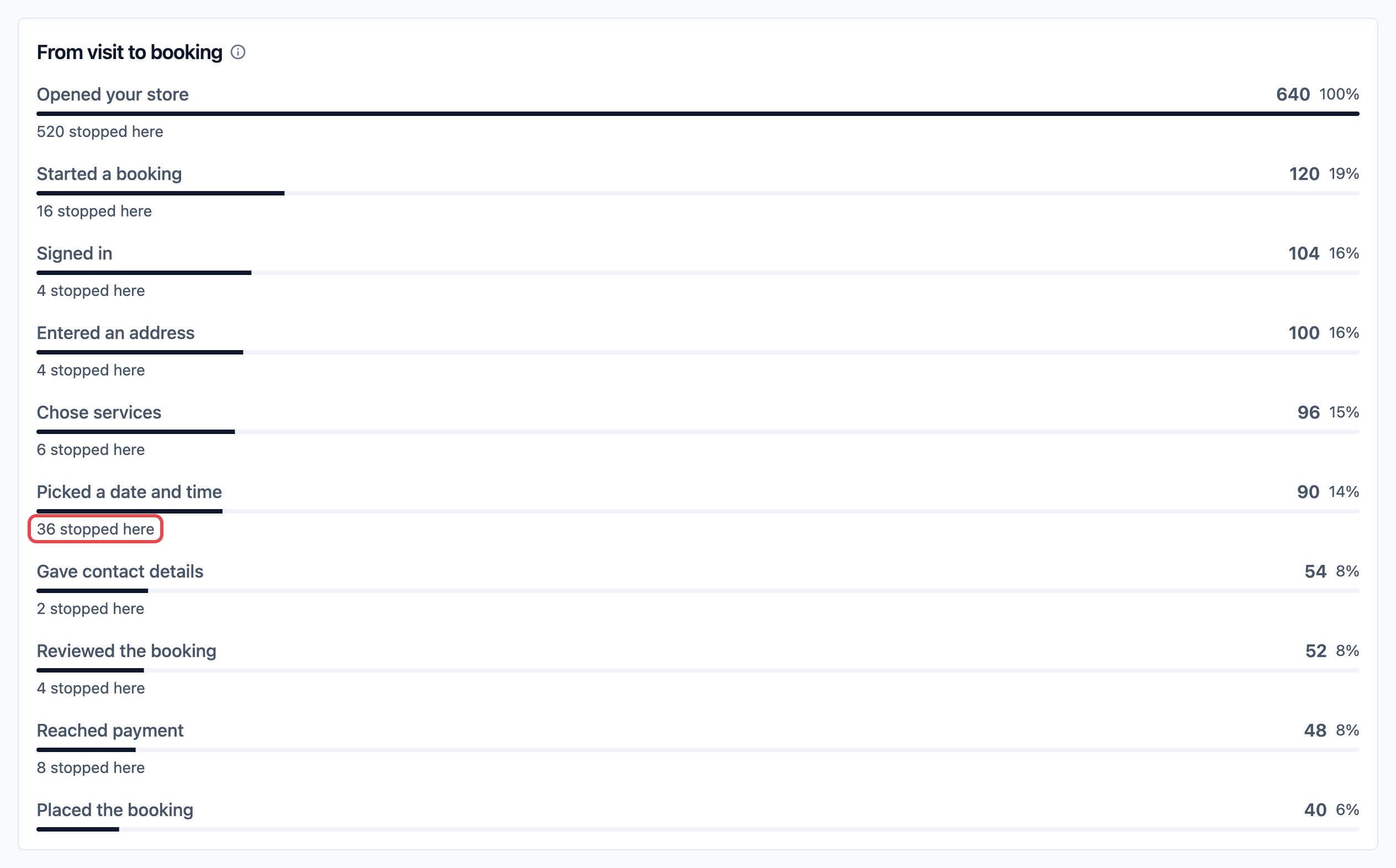
Below the cards, the From visit to booking card shows how far the people who opened your store got when they booked this month. Each row is one step of your booking, in this order:
- Opened your store: everyone who opened your Online Store or Mobile App this month. This is the same number as Active users this month.
- Started a booking: pressed Place order, signed in or not.
- Signed in: had the booking open while signed in to their account. Visitors who aren't signed in are asked to sign in first, so the people who stop at Started a booking usually left at sign-in.
- Entered an address: got to the address step.
- Chose services: got to the step where they pick services or items.
- Picked a date and time: got to the date and time step.
- Gave contact details: got to the contact details step.
- Reviewed the booking: got to the last check before placing the booking.
- Reached payment: got to the payment step.
- Placed the booking: placed the booking.
Each row shows three things:
- The number of people who got to that step.
- Their share of everyone who opened your store, shown as a percentage and a bar.
- A line such as 36 stopped here: the people who got to this step but not to the next one.
The step with the biggest stopped here number is where customers give up. Many people opening your store without pressing Place order is normal: they check prices or opening hours. Look most closely at the steps after Started a booking.
A few more things about the card:
- The four steps in the middle, from Entered an address to Gave contact details, are shown in the order your customers go through them, so they match your own booking steps.
- A step your booking doesn't have is left out. For example, if you don't take payment online, there is no Reached payment row.
- Booking questions you added yourself are not counted as steps.
- If people opened your store but nobody pressed Place order this month, the card says No bookings started this month.
- If nobody opened your store this month, the report says No visitors this month instead of showing this card and the chart.
Read the daily chart and table
Below the booking card, a bar chart shows each day of the month. Each bar is split by where people came from: Online Store in blue, iPhone app and Android app.
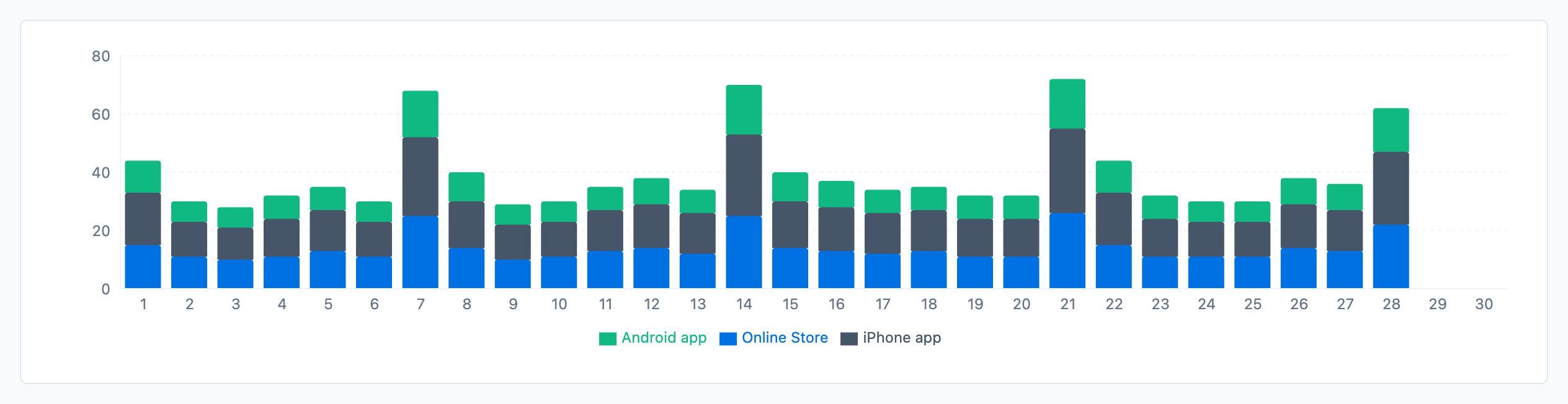
The table below the chart lists the same days, newest first. Above it, the report reminds you: "Open a day to see the signed-in customers who visited."
The table's columns are:
- Day: the date.
- Active users: every phone and computer that opened your store that day.
- Online Store, iPhone app and Android app: the same people, split by where they came from.
- Signed in: the customers who were signed in when they opened your store.
- Started booking: the people who pressed Place order that day.
- Booked: the people who placed a booking that day.
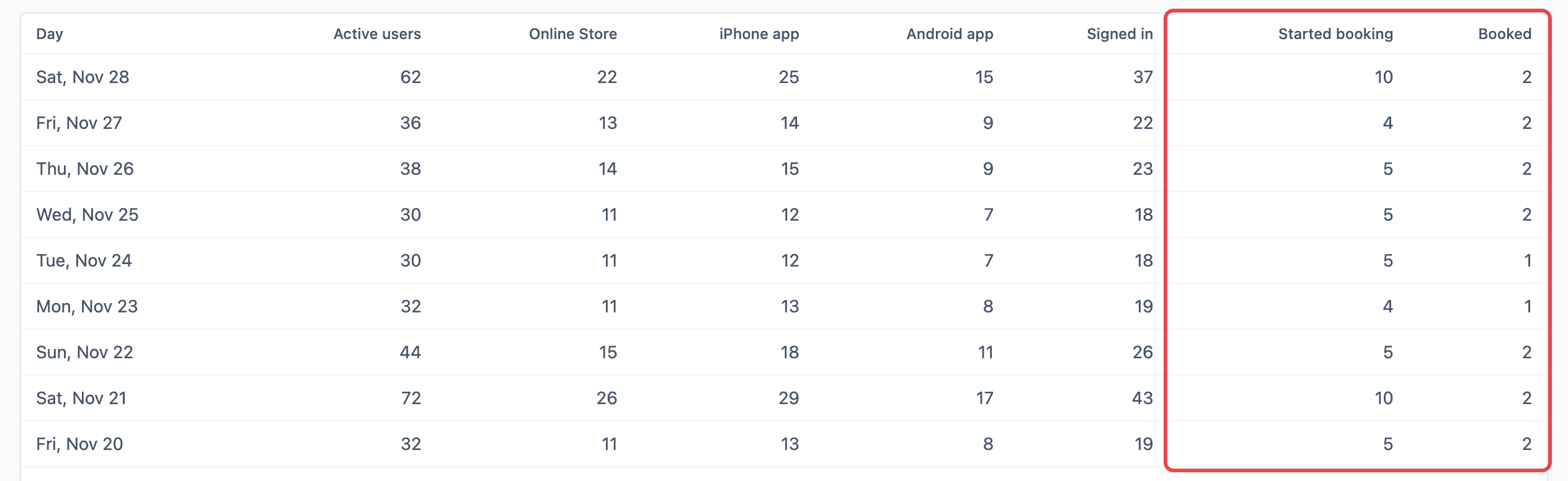
In the chart and the table, each phone or computer counts once a day. For example, a customer who opens your store on 5 days this month counts on each of those 5 days, but only once in Active users this month.
See who visited on one day
- In the table, click a day.
- A panel opens with the customers who were signed in when they opened your store that day. Each one shows where they came from, such as iPhone app, and the time of their visit.
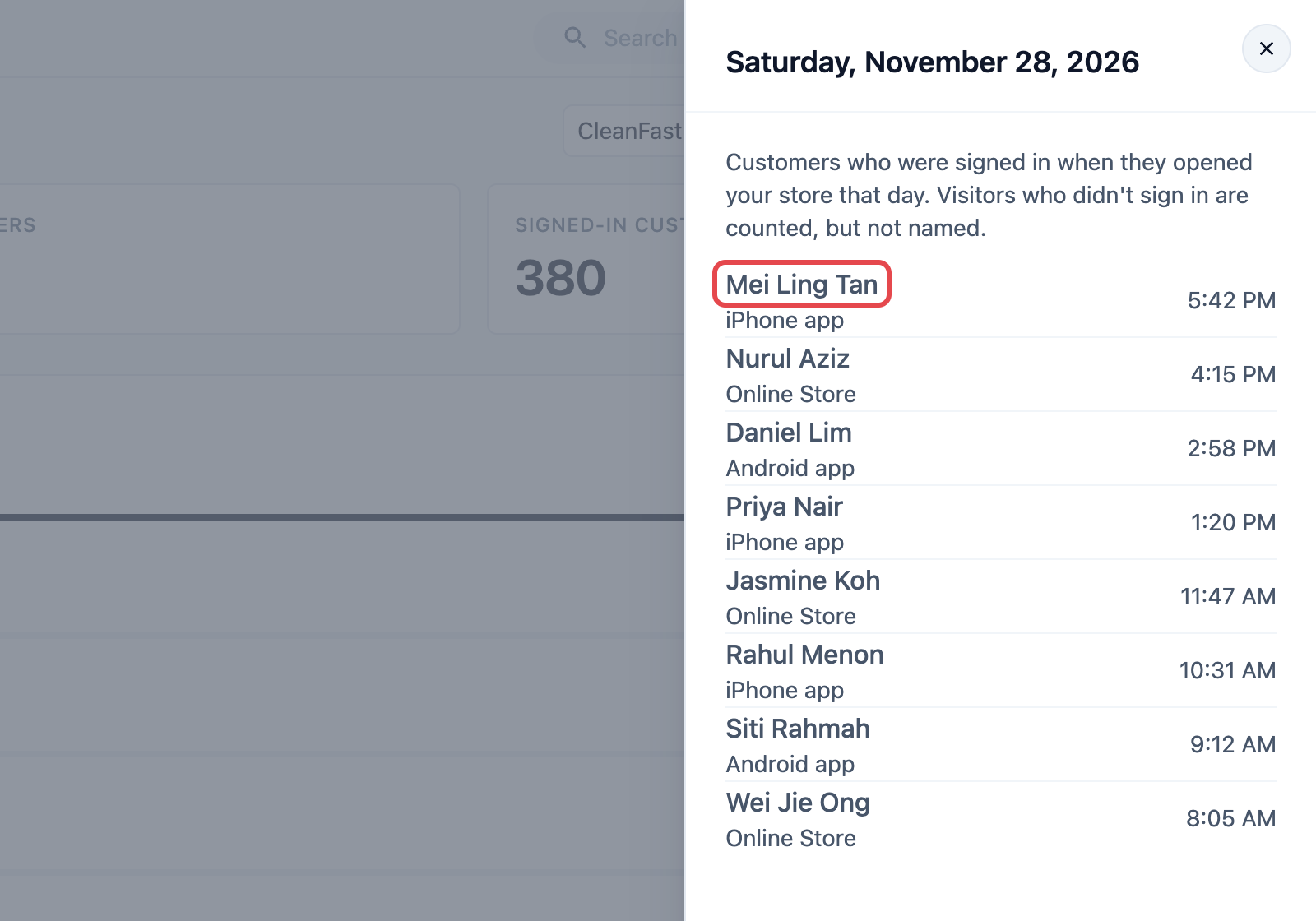
- Click a customer's name to open their contact.
Visitors who didn't sign in are counted in the numbers, but not named. A contact you deleted shows as Deleted contact. If nobody signed in that day, the panel says No signed-in customers that day.
Example: CleanFast Laundry finds where bookings are lost
CleanFast Laundry takes laundry and bag repair bookings on its Online Store and Mobile App. Its booking asks for an address, then services, then a date and time, then contact details, and customers pay online. In November, the owner notices that online bookings are lower than she expected.
- She clicks Reports, then Active Users.
- She reads the cards: 640 Active users this month, 410 Mobile App users and 380 Signed-in customers. Plenty of people open the store.
- She reads the From visit to booking card:
- Opened your store: 640 people (100%), 520 stopped here
- Started a booking: 120 people (19%), 16 stopped here
- Signed in: 104 people (16%), 4 stopped here
- Entered an address: 100 people (16%), 4 stopped here
- Chose services: 96 people (15%), 6 stopped here
- Picked a date and time: 90 people (14%), 36 stopped here
- Gave contact details: 54 people (8%), 2 stopped here
- Reviewed the booking: 52 people (8%), 4 stopped here
- Reached payment: 48 people (8%), 8 stopped here
- Placed the booking: 40 people (6%)
- After people start a booking, the biggest drop is at Picked a date and time: 90 people got to that step, but only 54 went on to give their contact details. So 36 customers left while choosing a date and time.
- She clicks a few Saturdays in the daily table. Started booking is highest on Saturdays, but Booked stays low. Her Saturday collection slots are full by Friday.
She adds more Saturday time slots. The next month, she checks the card again to see whether fewer people stop at Picked a date and time.
FAQs
Can I see which pages customers looked at, such as my price list?
No. The report counts who opened your store and how far they got in a booking. It doesn't show which pages they looked at before they pressed Place order.
Why is Booked lower than the online orders I received?
Each phone or computer counts once a day in Booked, so a customer who places two bookings on the same day counts once. Bookings placed from a Mobile App that customers haven't updated yet are not counted either.
Why does one customer count more than once in a day?
The report counts phones and computers, not people. A customer who opens your Mobile App on their phone and your Online Store on their laptop on the same day counts twice. Signed-in customers are counted once each.
Why don't I see visitors' names?
Only customers who were signed in are named. Visitors who browse without signing in are counted, but the report can't tell who they are.
Why are earlier months empty, or missing the booking steps?
The report started counting visits in October 2026, for your new Online Store and Mobile App, so months before that show no visitors. Booking steps were added at the end of October 2026, so October shows visits but few or no booking steps.
Why does the old Daily active user page in Console 2.0 show almost no one?
That old page counts only customers who open your old 2.0 website or apps. Once you move your customers to your new Online Store, your old web address opens the new store, so those visits are counted in this report instead. For example, if the old page shows 2 customers on 23 October, open Reports › Active Users and find 23 October in its table to see that day's visitors.
Can I export the Active Users report?
No. The Active Users report has no Export button. To keep a record, note the monthly cards and the booking steps at the end of each month.
Why can't my staff see Active Users in their Reports menu?
It needs the Sales product on the staff member's Full seat. The CRM product alone doesn't open it. Giving Your Staff Access to Reports shows how to turn it on.
What's next
You can now see how many people open your store and where they give up a booking. Continue to Reading the Contacts Report to see how many customers came in, who your top customers are and how often they come back.