## The Problem
When customers message you on WhatsApp, every message looks the same, you have no idea if they found you from your website, a flyer, a QR code, or a Google search. And if you share a link on a website that leads to WhatsApp, standard website tracking stops working the moment WhatsApp opens. So even if people are clicking your links and messaging you, there's no way to know which source they came from.
---
## How WhatsApp Links Solve This
Instead of giving out your plain WhatsApp number everywhere, you create a **WhatsApp Link** for each marketing channel. Each link includes a unique **campaign tag** (a hashtag like #summer-promo or #clementi-flyer) that gets embedded in the customer's first message. When they send it, EasyBiz tags their phone number to that campaign and tracks everything from there leads, orders, and revenue.
This means you can finally see things like:
- "My website WhatsApp button brought in 35 leads and $2,400 in revenue this month."
- "The storefront QR code brought in 12 leads and $800 in revenue this month."
- "Nobody is using the link on our business card — time to update the design."
---
## Setting Up a WhatsApp Link
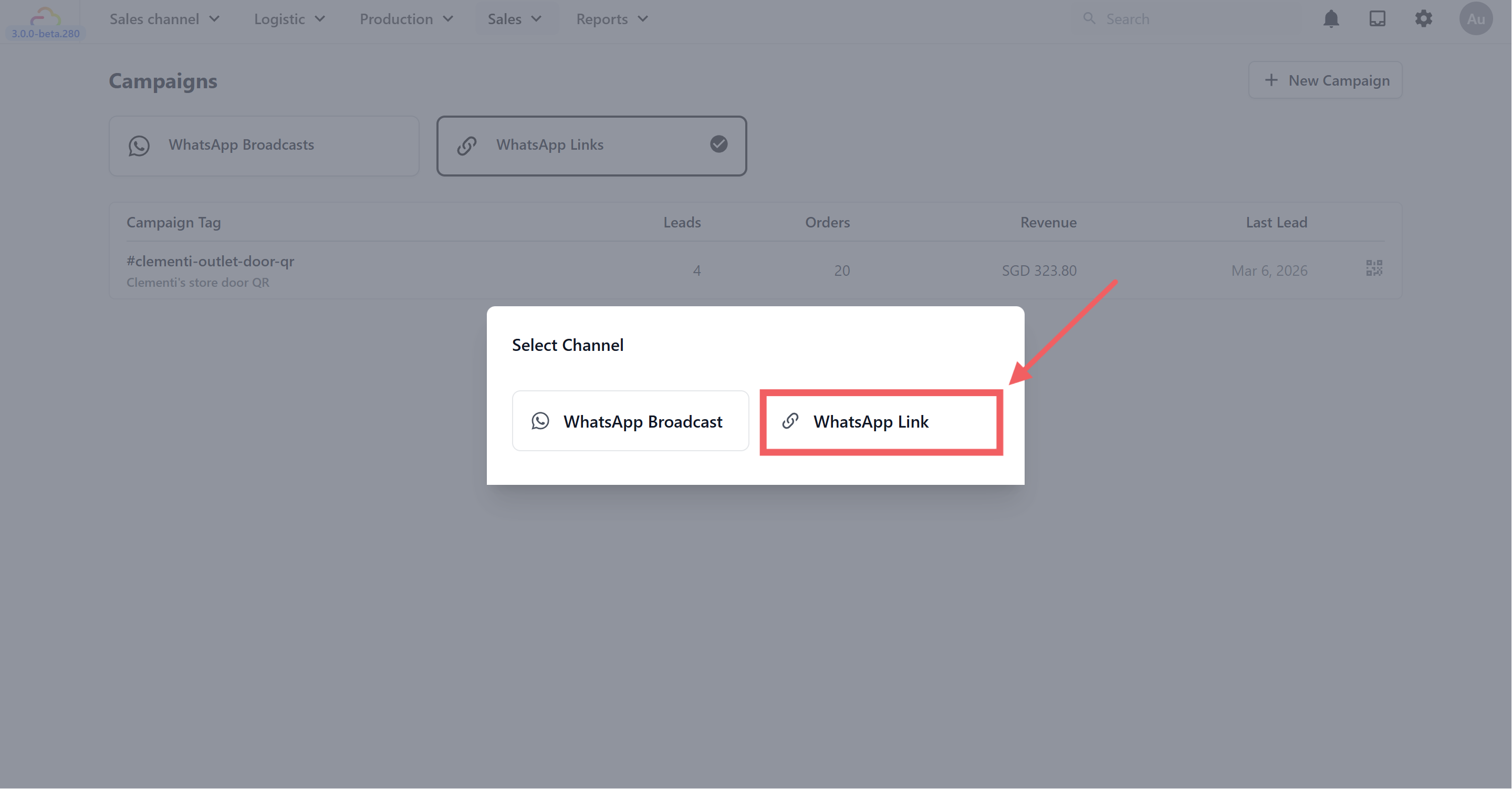
1. Go to Sales **→** Campaigns.
2. Click + New Campaign in the top right corner.
3. In the Select Channel dialog, choose WhatsApp Link.
### Campaign Details
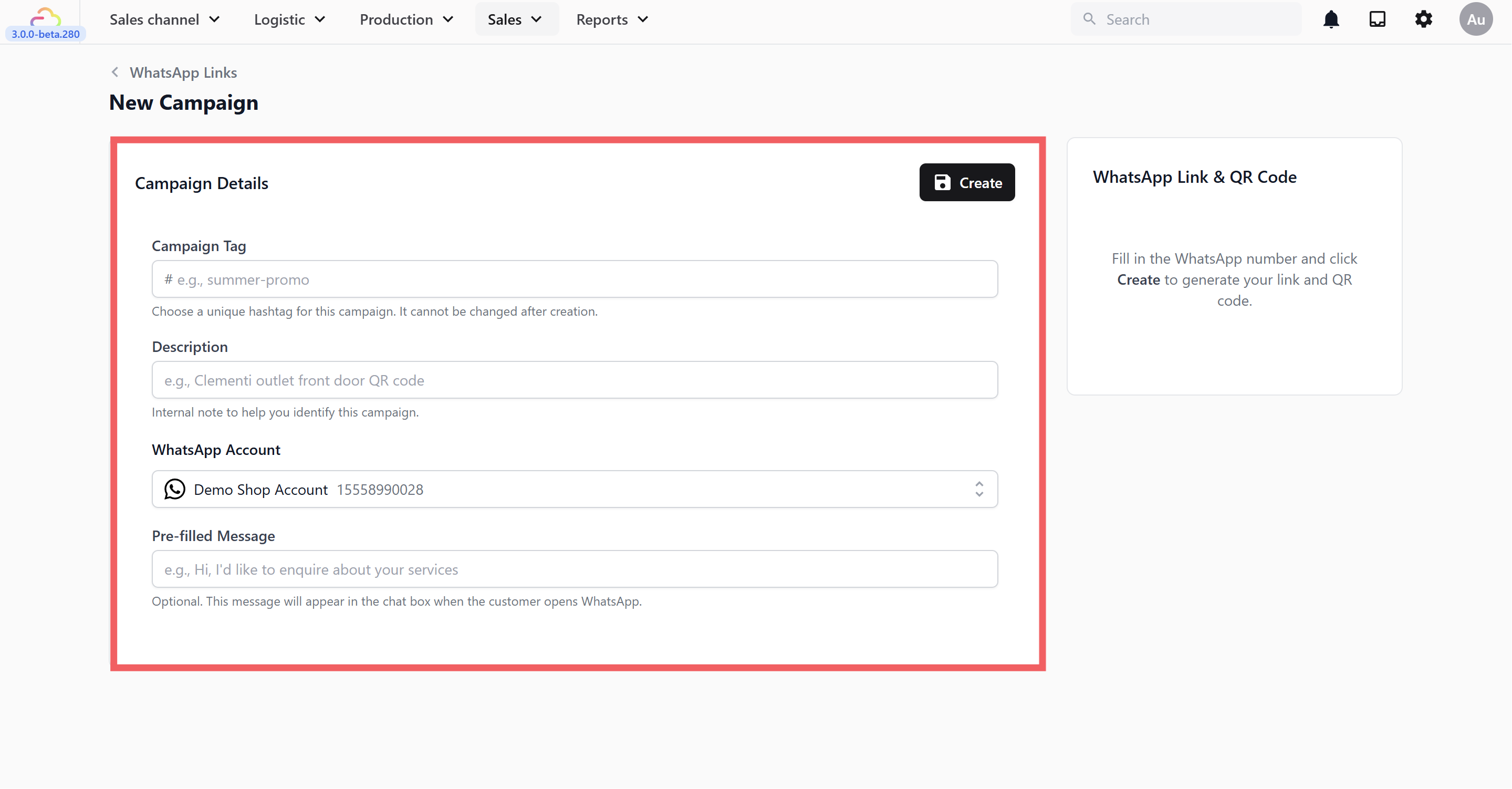
- **Campaign Tag** — A unique hashtag that identifies this campaign (e.g., #summer-promo, #clementi-qr, #receipt-link). This will appear in the customer's first message and is how the system tracks them.
The campaign tag cannot be changed after creation, so choose carefully.
Use a consistent naming pattern like **#location-channel** (e.g., #clementi-flyer, #orchard-counter). Avoid vague names like #promo1 — you won't remember what it was for after a few months.
- **Description** — An internal note for your reference (e.g., "QR code on Clementi outlet front door"). Only visible to your team.
- **WhatsApp Account** — Your connected WhatsApp business number.
- **Pre-filled Message** — The message that appears in the customer's chat box when they open WhatsApp through the link (e.g., "Hi, I'd like to enquire about your services"). Optional but recommended, it makes it easy for customers to start the conversation without typing anything.
### Generate Your Link
Click Create in the top right. The system generates your WhatsApp Link and QR code on the right side.
---
## Sharing Your Link and QR Code
After your link is created, you have two ways to share it:
- **Copy the link** — Click Copy link and paste it anywhere you promote your business online your website as a button, Google Business Profile, TikTok bio, LinkedIn, email newsletters, or online directories.
- **Download the QR code** — Click the Download QR Code button and use the QR image on printed materials like flyers, posters, receipts, business cards, or your storefront window.
Create a separate link for each channel. One for your website, one for a specific flyer, one for your Google Business Profile. If you use the same link everywhere, you won't be able to tell which channel is performing best.
---
## How Tracking Works
Here's what happens when a customer uses your link:
1. Customer clicks your link or scans your QR code.
2. WhatsApp opens with a pre-filled message that includes the campaign tag (e.g., "Hi, I'd like to enquire about your services #summer-promo").
3. Customer sends the message → recorded as a **Lead**.
4. Customer places an order → **Orders** count increases.
5. Order is confirmed → **Revenue** is added.
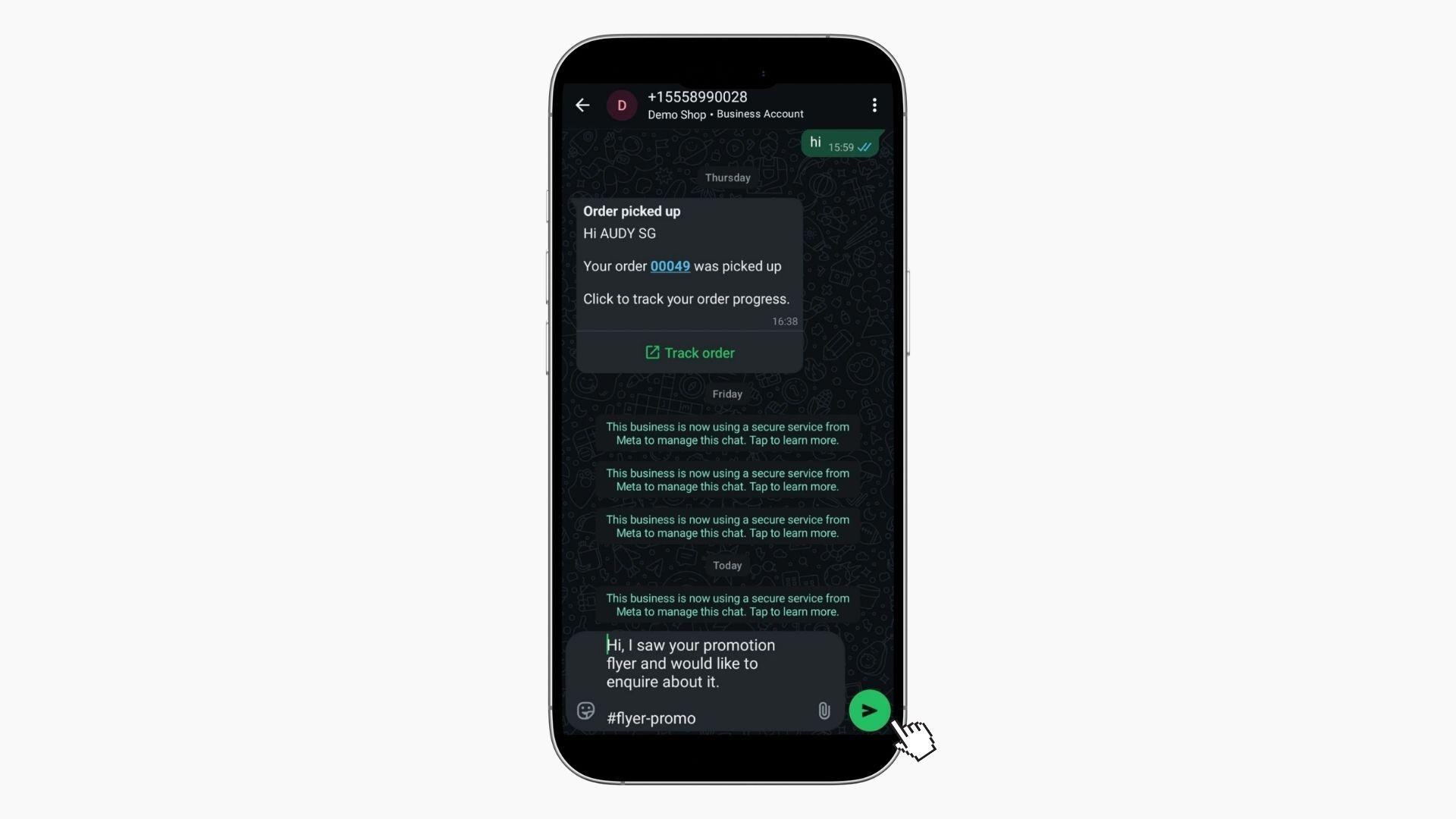
Tracking only works if the hashtag is included in the message. Since it's part of the pre-filled message, most customers will send it as-is. To reduce the chance of customers editing it, keep your pre-filled message short and natural.
---
## Viewing Performance
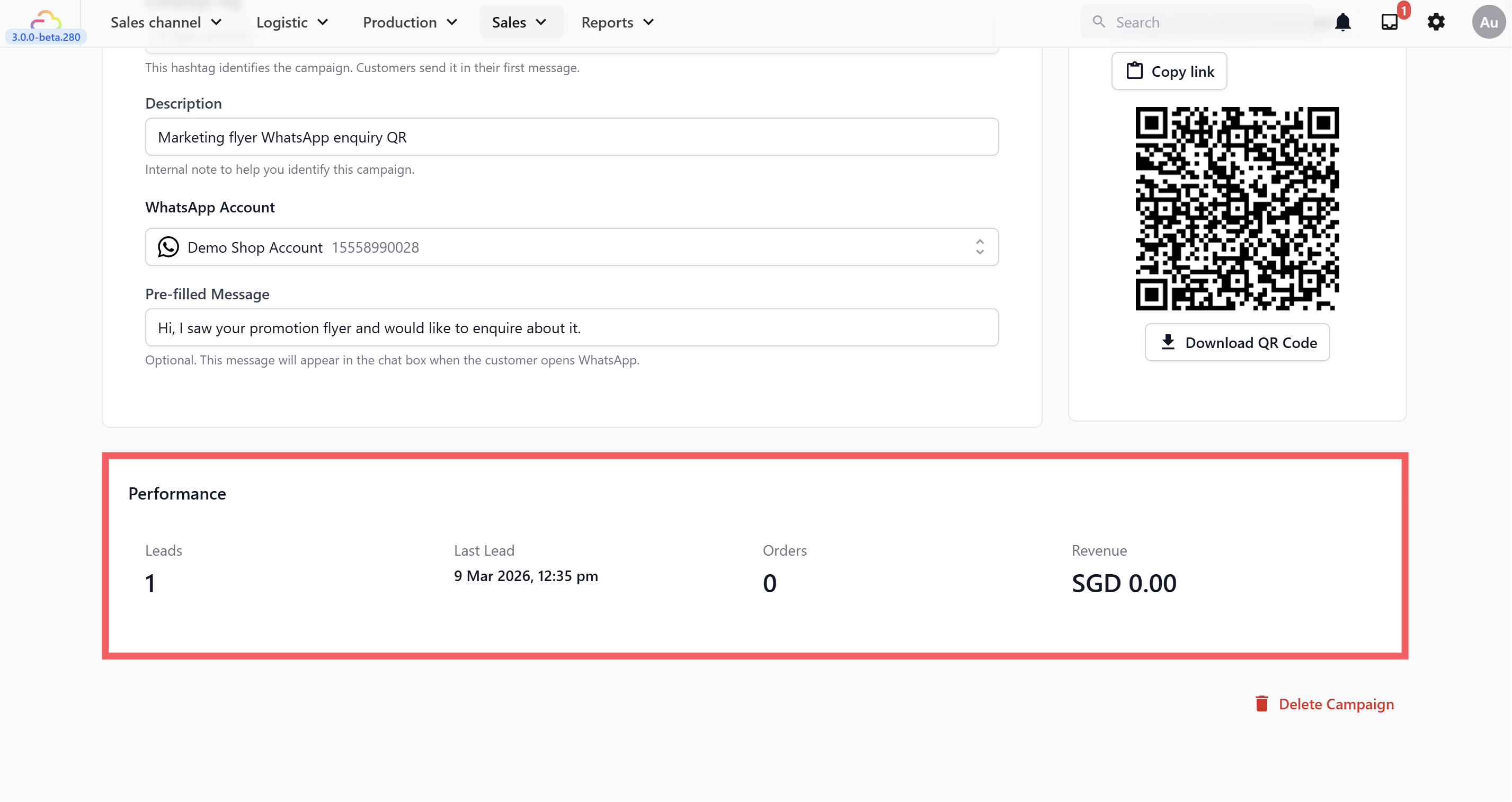
Open your campaign from the **WhatsApp Links** tab to see the Performance section:
You will see:
- **Leads** — People who messaged you through this link.
- **Last Lead** — When the most recent lead came in.
- **Orders** — Orders placed by customers from this link.
- **Revenue** — Total confirmed revenue from this campaign.
If you want to update the campaign details (like the description or pre-filled message), make your changes and click Save in the top right corner.
Review your campaigns regularly. If one link consistently outperforms others, focus your budget there. If a link has zero leads after a month, the flyer or poster it's on probably isn't working.
---
## Where to Use Your Links
Here are some ways businesses like yours are using WhatsApp Links:
- **Your website** — Replace your WhatsApp button URL with a tracked link to see how many website visitors turn into paying customers.
- **Storefront window** — "Scan to chat with us on WhatsApp" QR code for walk-by traffic.
- **Receipts** — Add a QR code so customers can easily reach you for their next order.
- **Flyers and posters** — Give each print campaign its own link so you can compare results.
- **Google Business Profile** — Add a link so people searching for you online can message you directly.
- **Business cards** — Add a QR code so new contacts can reach you in one tap.
- **Email signatures** — Every email you send becomes a potential lead source.
- **External websites** — If you're listed on directories or partner sites, use a unique link for each.
**Example:** A laundry shop creates two tracked links — #website-chat for their website and #clementi-counter for their shop counter. By month-end, the website brought in 35 leads and $2,400 in orders, the counter QR brought in 47 walk-in leads.
---
## Deleting a Campaign
If you created a campaign by mistake or no longer need it, you can delete it.
1. Open the campaign from the **WhatsApp Links** tab.
2. Scroll to the very bottom of the page.
3. Click the red Delete Campaign button.
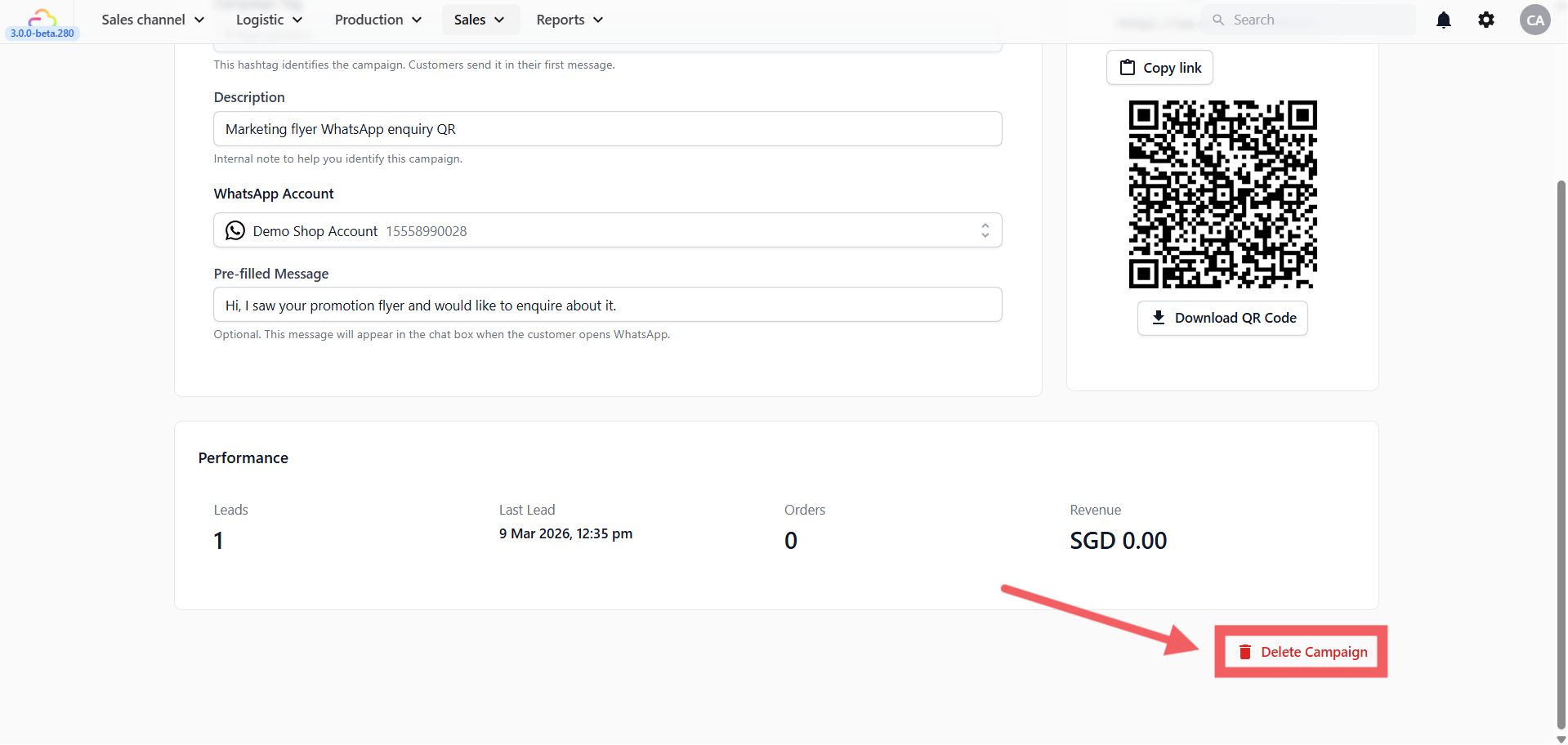
A confirmation dialog will appear asking if you are sure. Click Delete to confirm.
Deleting a campaign is permanent and cannot be undone. All performance data will be removed and the link/QR code will stop working.