## What Are Quantity and Pieces Steps?
Quantity and pieces steps are line item steps that prompt staff for two values whenever a qualifying item is added to the cart, the quantity (the measured amount used for pricing, for example weight in kg) and the pieces (how many physical items there are for labelling). The steps open on the order screen when staff tap the item, so both values are captured in one go.
Before 1 October 2026 this was set up as the **Quantity and Pcs** flow on Process Flows and attached in the Business Unit's Line Item Flows table. Line item steps are now set up directly on the business unit, as described below.
---
## Why You Need It
Some items are priced by one measure but tracked, tagged, and produced by another. Without these steps, staff have to do the maths in their head, manually adjust prices, or print the wrong number of labels, which leads to mispriced orders, missing tags in production, and items getting lost on the shop floor.
---
## Example Use Case: Curtains Priced by Hook
A customer brings in 1 long curtain with 12 hooks. Your price list charges curtain cleaning per hook, but each physical curtain panel still needs its own tag so it doesn't get mixed up in production.
Staff add the curtain to the cart, the quantity and pieces steps open.
Quantity = 12 (hooks), price is calculated as 12 × the per-hook rate from the price list.
Pieces = 1 (panel), 1 label is printed for the production team.
Same idea works for laundry by weight: a 5 kg bag with 8 garments, quantity 5 (price by kg), pieces 8 (8 labels).
---
## Before You Start
You need at least one product in your catalogue that uses a unit the steps should apply to, for example kg or hook. The steps attach to items by their unit, so the units must exist on your products first. See [Adding Service Items](/docs/adding-service-items).
If the unit you want to use (for example hook) is not in the list, type it into the product's **Unit label** field. For a unit such as hook, leave the product's **Item label generation** empty. If it is set, the label count is the quantity times that number, not Pieces.
---
## Create the Steps
### Step 1: Open the Business Unit you want to set up
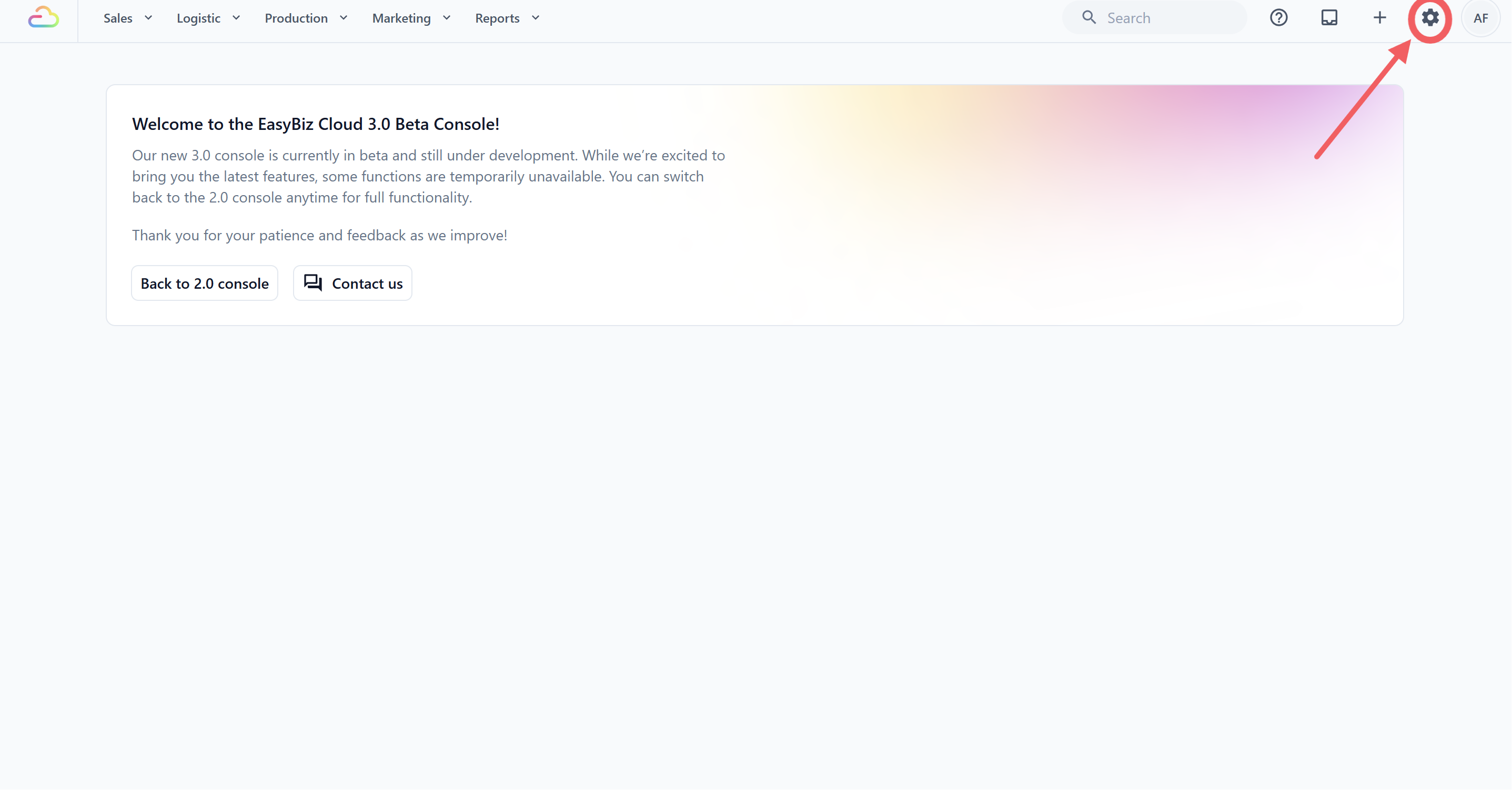
1. Click the ⚙️ Settings icon in the top-right corner.
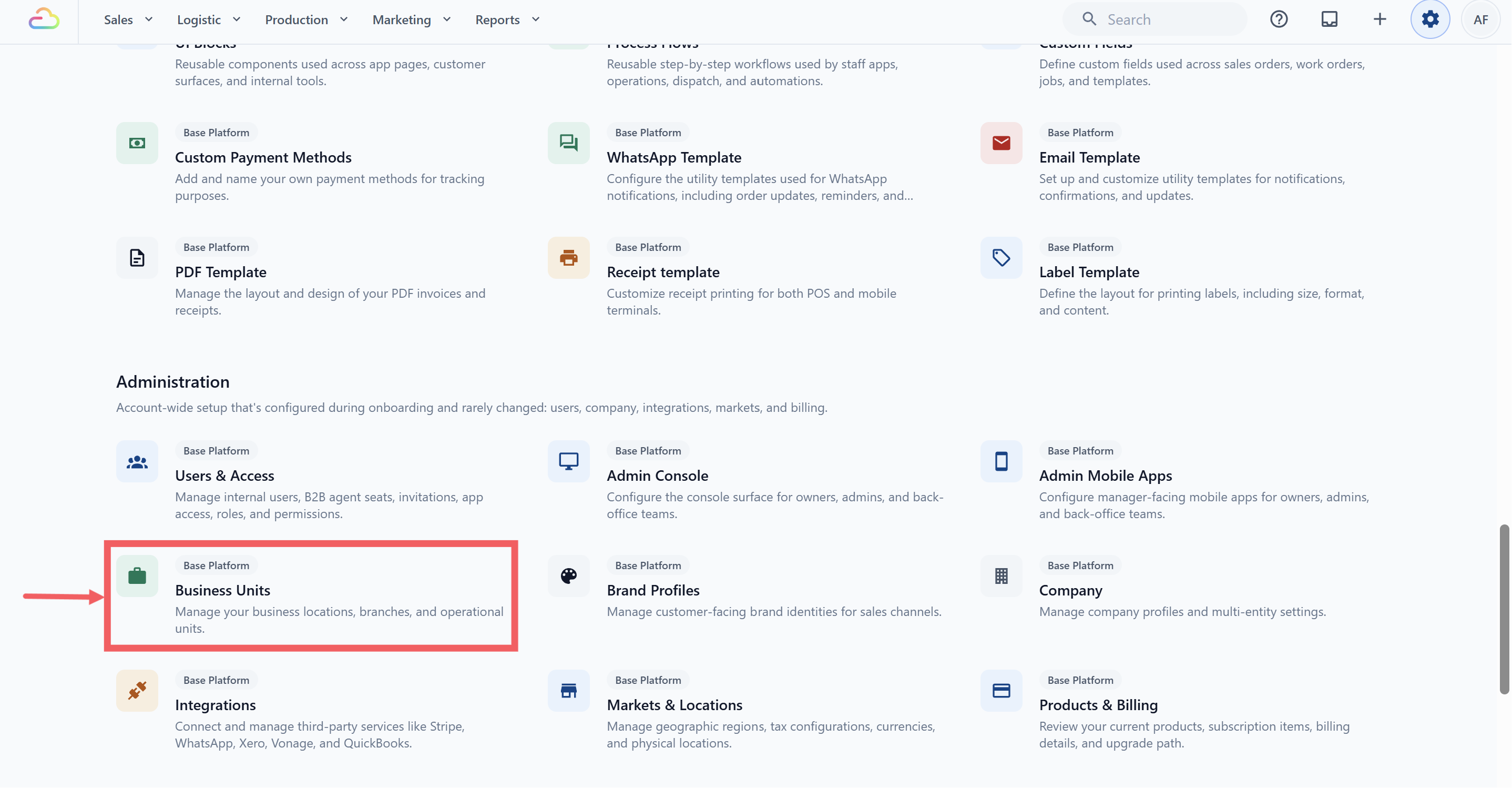
2. Under **Company & business structure** or **Administration**, click Business Units.
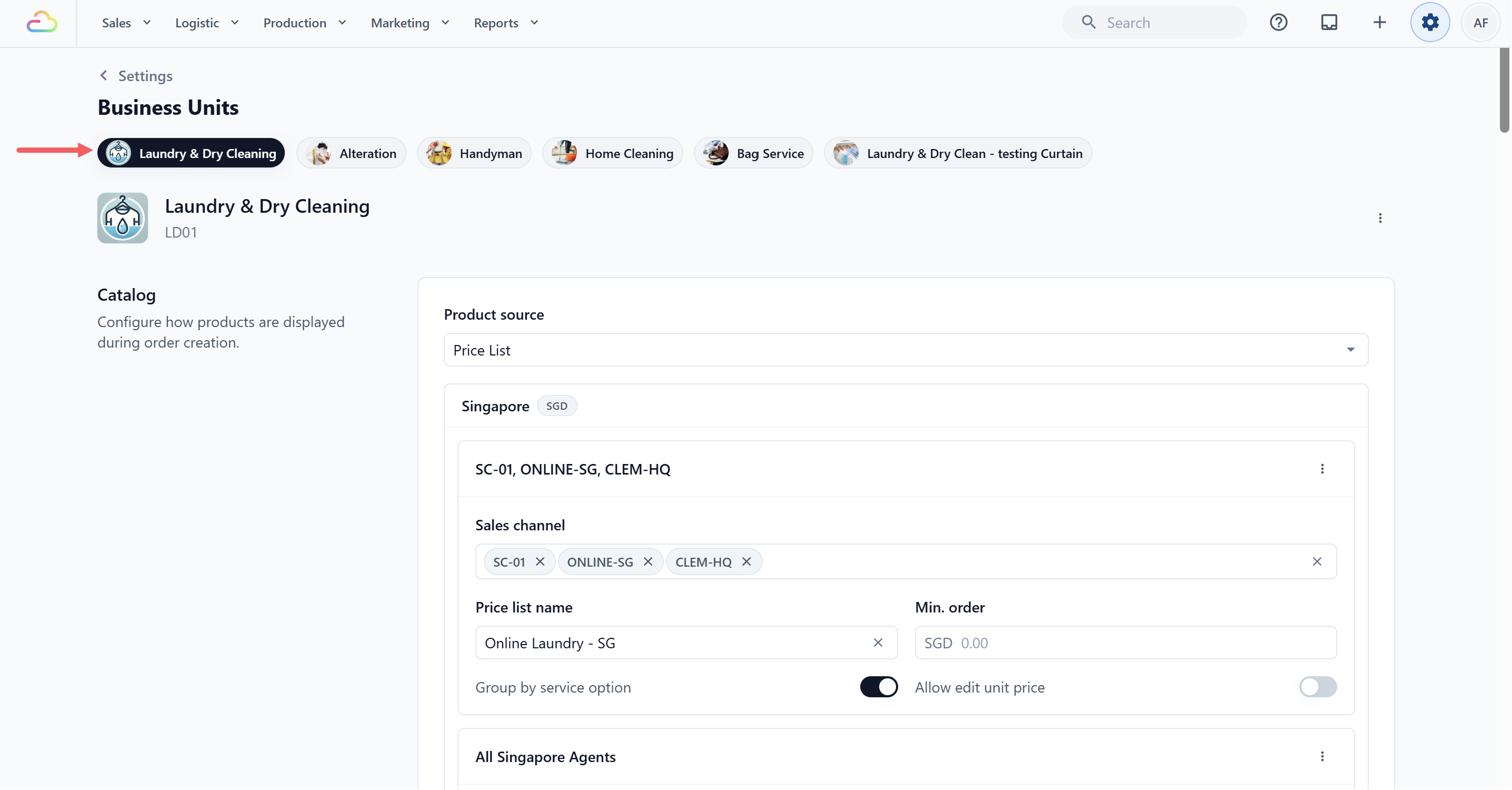
3. Click the tab for your laundry unit, for example Laundry & Dry Cleaning
### Step 2: Open Line item steps
1. Go to the Selling tab. Under **Staff checkout**, find **Line item steps**.
2. Click Add line item steps. A full page opens with **Apply To** at the top and the steps below it.
### Step 3: Choose what the steps apply to
Click the **Apply To** dropdown.
| Pick this | Result |
| --- | --- |
| All service items | The steps run for every service item in this Business Unit |
| All retail products | The steps run for every retail product in this Business Unit |
| Specific units | The steps run only for items measured in the units you select |
| Specific products | The steps run only for the products you select |
| Mix and match | Add more sets of line item steps with different Apply To values |
Leave **Apply To** empty to run the steps for all items. For laundry priced by weight, pick Specific units.
### Step 4: Choose the units
1. A unit picker appears on the **Select units** dropdown.
2. Select the units the steps should run for, for example **kg** and **hook**.
### Step 5: Add the four steps
Click Add Step and pick each step from the list, in this order:
| Step | Process Method | What it captures |
| --- | --- | --- |
| Enter Quantity | Required | The measured amount, for example weight in kg |
| Enter Pieces | Required | The number of pieces, for example 5 panels |
| Enter Unit Price | On Demand | Override the price list rate when staff need to |
| Enter Note | On Demand | A free-text note attached to this line item |
New steps start as **Required**. Select **Enter Unit Price** and **Enter Note** and change their **Process Method** to **On Demand**.
Process Method controls when a step shows.
| Process Method | What it does |
| --- | --- |
| Required | Must be filled in before staff can go on. |
| Optional | Can be skipped. |
| On Demand | Hidden until staff open it. Good for rare fields like a price override. |
### Adding More Steps
These four steps cover most laundry items, but you can add more when staff need to capture something extra per item. To add one, click Add Step, pick a step from the list, set its Process Method, and Save. Drag a step by its handle to reorder it.
Two common extras for a garment shop:
- **Take Photos** → capture intake stains or existing damage on a delicate item, so there is no dispute later.
- **Capture Signature** → have the customer sign to accept the risk on items you cannot guarantee, like silk or beaded gowns.
For fields specific to your shop, like fabric type or stain type, see [What Is Data Fields](/docs/what-is-data-fields).
### Step 6: Save
1. Click Save at the top of the page.
**Save** stays greyed out until there is at least one step and, for Specific units, at least one unit is selected.
The steps are live. Staff adding a kg or hook item now see the quantity and pieces steps.
---
## Cross-Feature Connections
Line item steps run only when an item is added or edited in the cart. They do not change how that item is priced, but the values they capture feed other parts of EasyBiz
- **Pricing** uses the Quantity value against your existing price list rule. The matching price per unit comes from the price list, not the steps.
- **Label printing** uses the Pieces value to decide how many labels to print for that line item. One piece, one label.
- **Unit Price** is filled in from the price list by default. The On Demand step lets staff override it on the rare item that needs a different rate.
- **Note** is saved on the line item and shows up on the order detail.
---
## See It in Action
---
## FAQs
**I set Unit Price and Note as On Demand, but I want them filled in every time. Can I change that?**
> Yes. Open the set with **Edit steps**, select the step, and change Process Method to Required. Save. The change applies to this Business Unit only, because each Business Unit has its own line item steps.
**Can I have separate steps for kg and for hook?**
> Yes. Add one set of line item steps for Specific units, kg, and another for Specific units, hook. Each set has its own steps. To remove one, open it with **Edit steps** and click **Remove**; the other sets are not touched. Each item uses one set: the one for its product, else the one for its unit, else the one for all items.
**Do these steps affect the price?**
> No. The price comes from your price list rule for the matching service item. The steps capture the inputs (quantity, pieces, unit price override) that the price calculation reads.
**Where do staff see these steps?**
> On the POS and when staff take orders in Console. Line item steps are tied to the Business Unit and run wherever staff add line items there.
**Does this work for online orders or only POS?**
> Staff screens only: the POS, orders taken in Console, and editing an order's items. Customers ordering online never see these steps.
**Can staff change the values after the order is confirmed?**
> Yes. On the order detail page, click **Edit** in the line items section, tap the line and choose **Edit** to re-open its steps, then click **Update Order**. This is blocked once an order is voided or cancelled, or after your edit period has passed.
**Do I need to publish or activate the steps after saving?**
> No. There is no publish step. Saving makes the steps live the next time a staff member adds the item. Items already in carts or orders keep the steps they were added with.