## Tax Settings
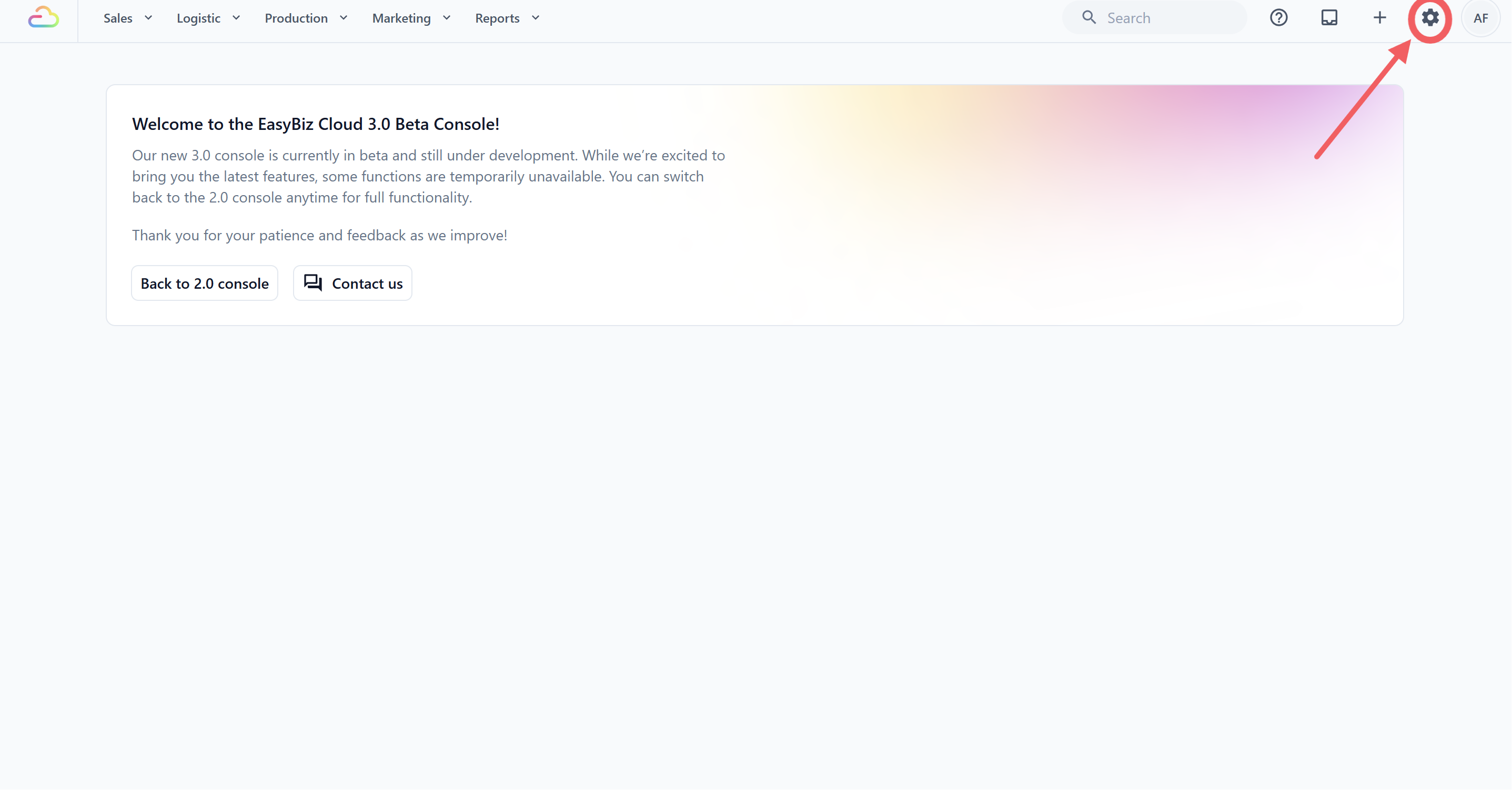
1. Click the ⚙️ Settings icon in the top-right corner.
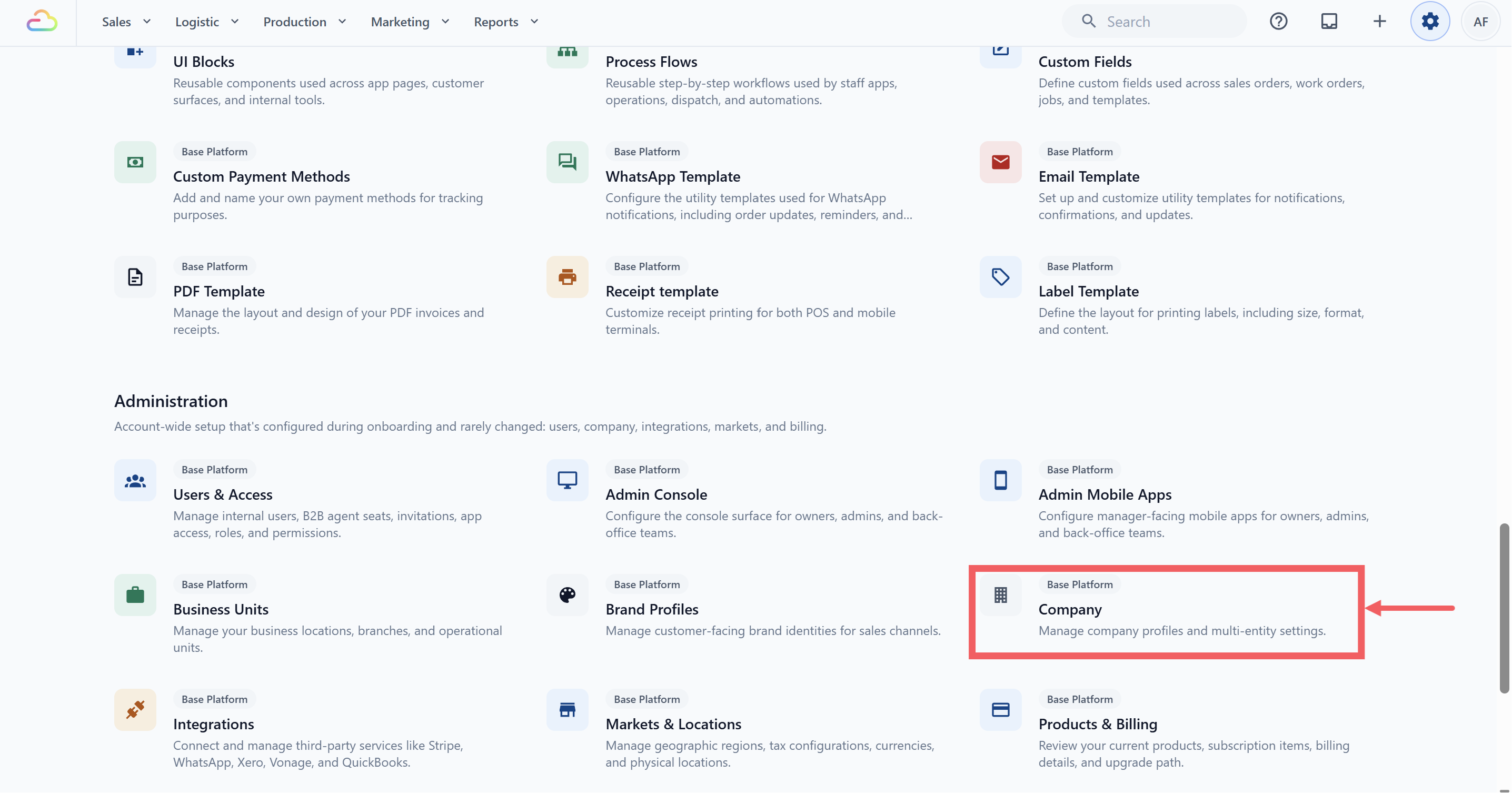
2. Under the Administration section, click Company.
3. Open the Company you want to edit.
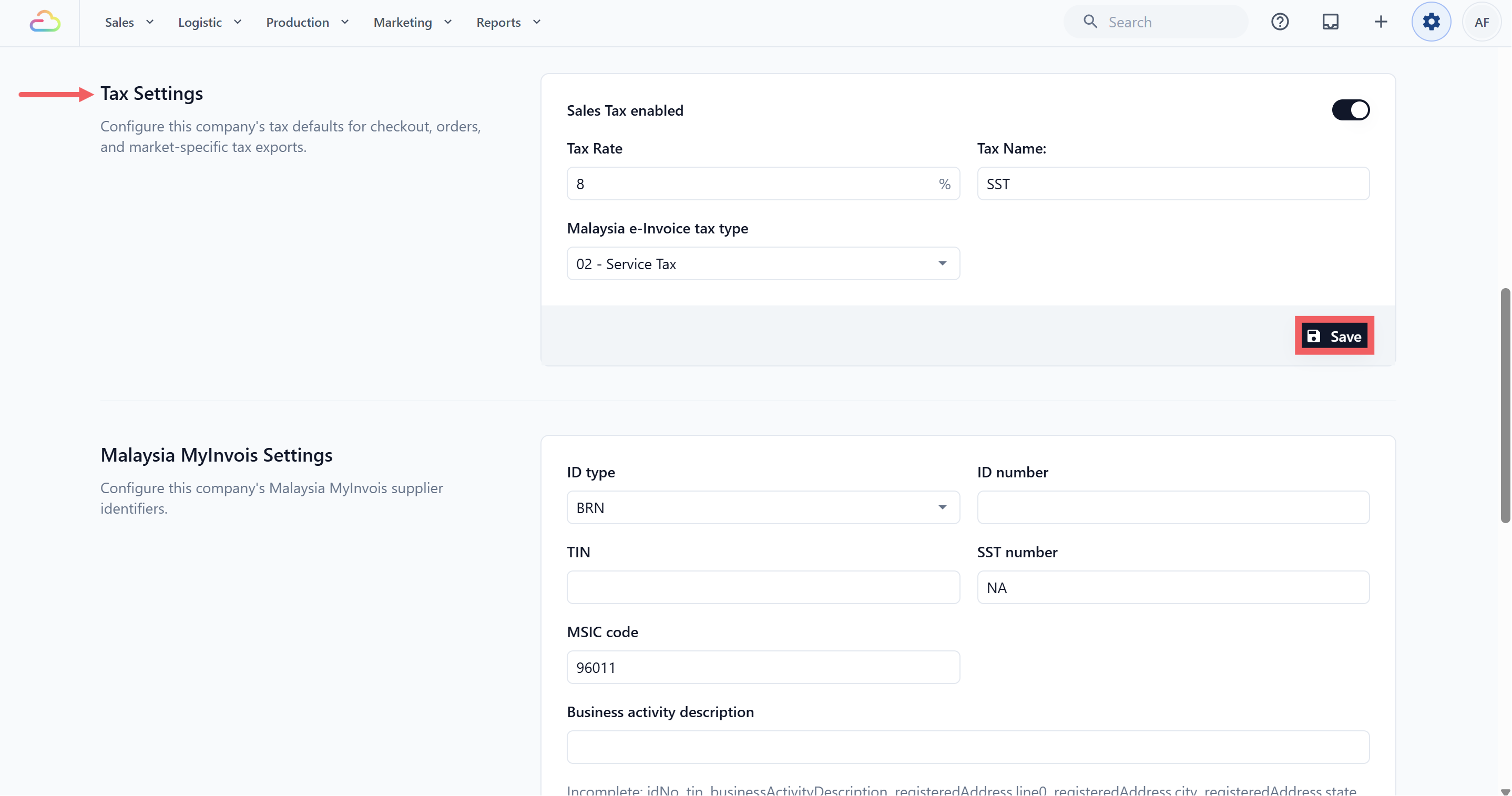
4. Scroll to Tax Settings.
**Tax toggle**
Flip the switch on to turn Tax on for this Company. The label reads "Tax enabled" when on and "Tax disabled" when off. With the switch off, the Tax Rate and Tax Name fields are greyed out.
**Tax Rate**
Enter the percentage as a number, for example 9 for 9%. The field is suffixed with % so type the number only.
**Tax Name**
Enter the name that prints on receipts in place of the word "Tax", for example GST, SST, or VAT. Defaults to "Tax" if left blank.
For Malaysia companies, an extra Malaysia e-Invoice tax type dropdown appears here. It sets the tax category reported in MyInvois, not the rate.
5. Click Save at the bottom of the section.
---
## How Tax Works Across Your Shop
Tax in EasyBiz comes from one of two places, and it helps to know which one you are using.
- **Company Tax** (this page) adds tax on top of every taxable charge: items, add-ons, express surcharge, and delivery fee. The customer pays the price plus the tax.
- **Price List Tax** (set on each price list) means the tax is already inside the price you show. Nothing is added on top. You set this in the price list's own tax settings.
Do not turn on Company Tax and a tax-inclusive Price List at the same time with different rates. If both are on, the Price List wins for the order and the Company rate is ignored, so customers are never taxed twice.
If you are GST-registered, IRAS requires the prices you show customers to be GST-inclusive. So Singapore shops should price using a tax-inclusive Price List rather than adding GST on top at checkout. Other countries differ, for example Malaysia SST is commonly shown added on top, so check your local rule before you choose.
---
## Rounding Rules
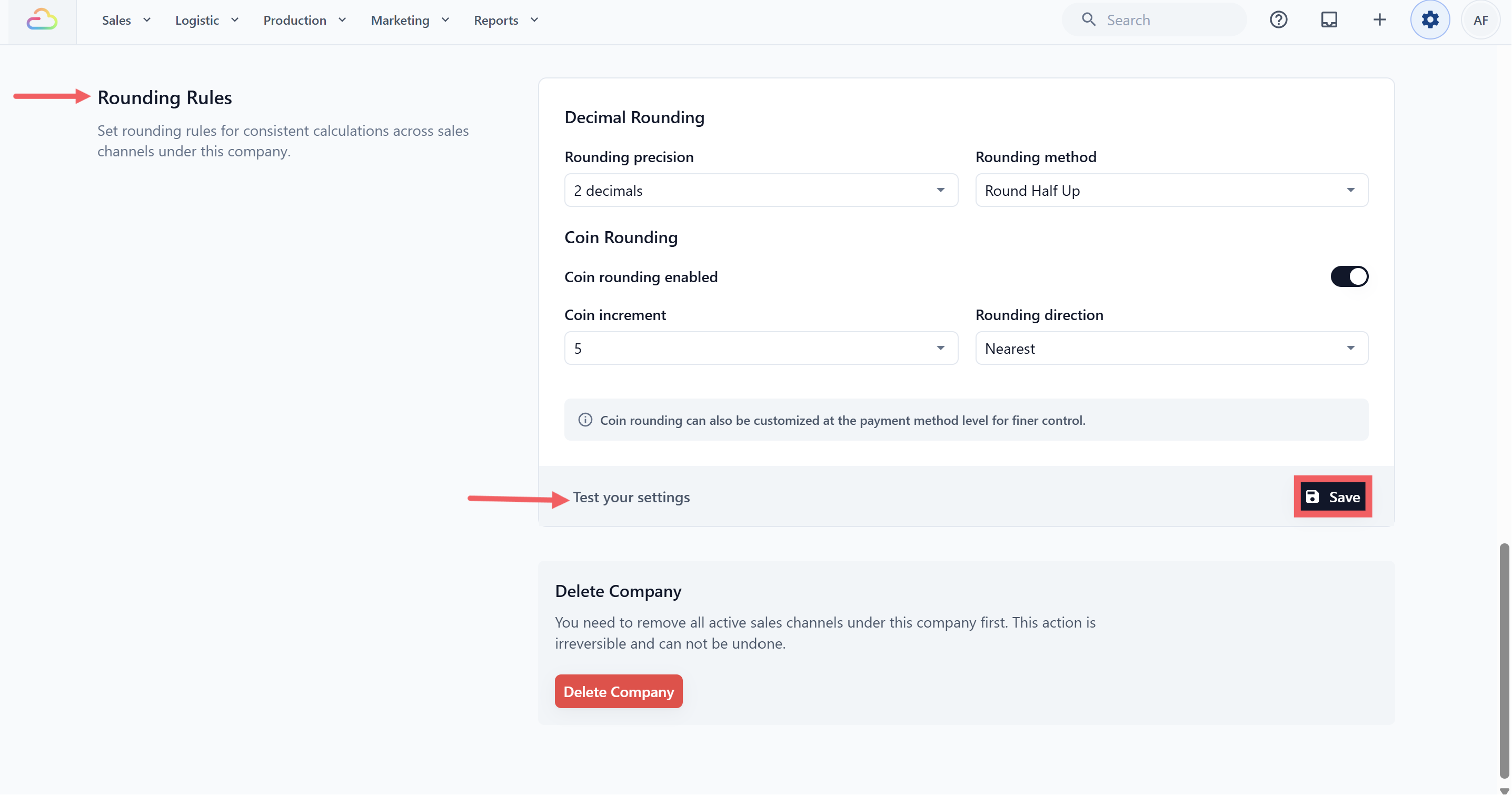
This section controls two separate rounding behaviours: Decimal Rounding (how many decimals an amount is stored at and how half values are resolved) and Coin Rounding (whether final totals snap to a coin increment so cashiers don't have to make tiny change).
1. Scroll to Rounding Rules.
### Decimal Rounding
**Rounding precision**
| Option | What it does |
| --- | --- |
| 0 decimals | Rounds to the nearest whole number. Use in markets where the currency has no fractional unit (for example IDR or VND). |
| 1 decimal | Rounds to the nearest tenth. |
| 2 decimals | Rounds to the nearest hundredth, the most common setting for SGD, MYR, USD. |
| 3 decimals | Rounds to the nearest thousandth. Use only when your prices need sub-cent precision. |
**Rounding method**
| Option | What it does |
| --- | --- |
| Round Half Up | Standard rounding. A .5 always goes up. Most shops want this. |
| Round Half Down | A .5 always goes down. Rare. |
| Round Half To Even | Banker's rounding. A .5 rounds to the nearest even number. Reduces bias on large totals. |
### Coin Rounding
**Coin rounding toggle**
Flip the switch on to make final totals snap to a coin increment. When off, totals keep their full decimal precision.
**Coin increment**
Pick 5 or 10. The number represents the smallest unit you want totals to land on. 5 means the total snaps to the nearest 5 cents (or 5 sen, 50 rupiah, etc.), 10 means the nearest 10. The display shows the actual currency increment (for example 0.05 for SGD with 2 decimal places).
**Rounding direction**
| Option | What it does |
| --- | --- |
| Nearest | Snaps to the closest increment. Standard choice. |
| Up | Always snaps up to the next increment. Use if you want to bias slightly in your favour |
| Down | Always snaps down to the previous increment. Use if you want to bias slightly toward the customer. |
A Singapore shop sets Decimal Rounding to 2 decimals, Round Half Up, then turns Coin Rounding on with Increment 5 and Direction Nearest. A line total of $12.43 prints as $12.45 on the receipt because 5-cent coins are the smallest cash unit.
### Test your settings
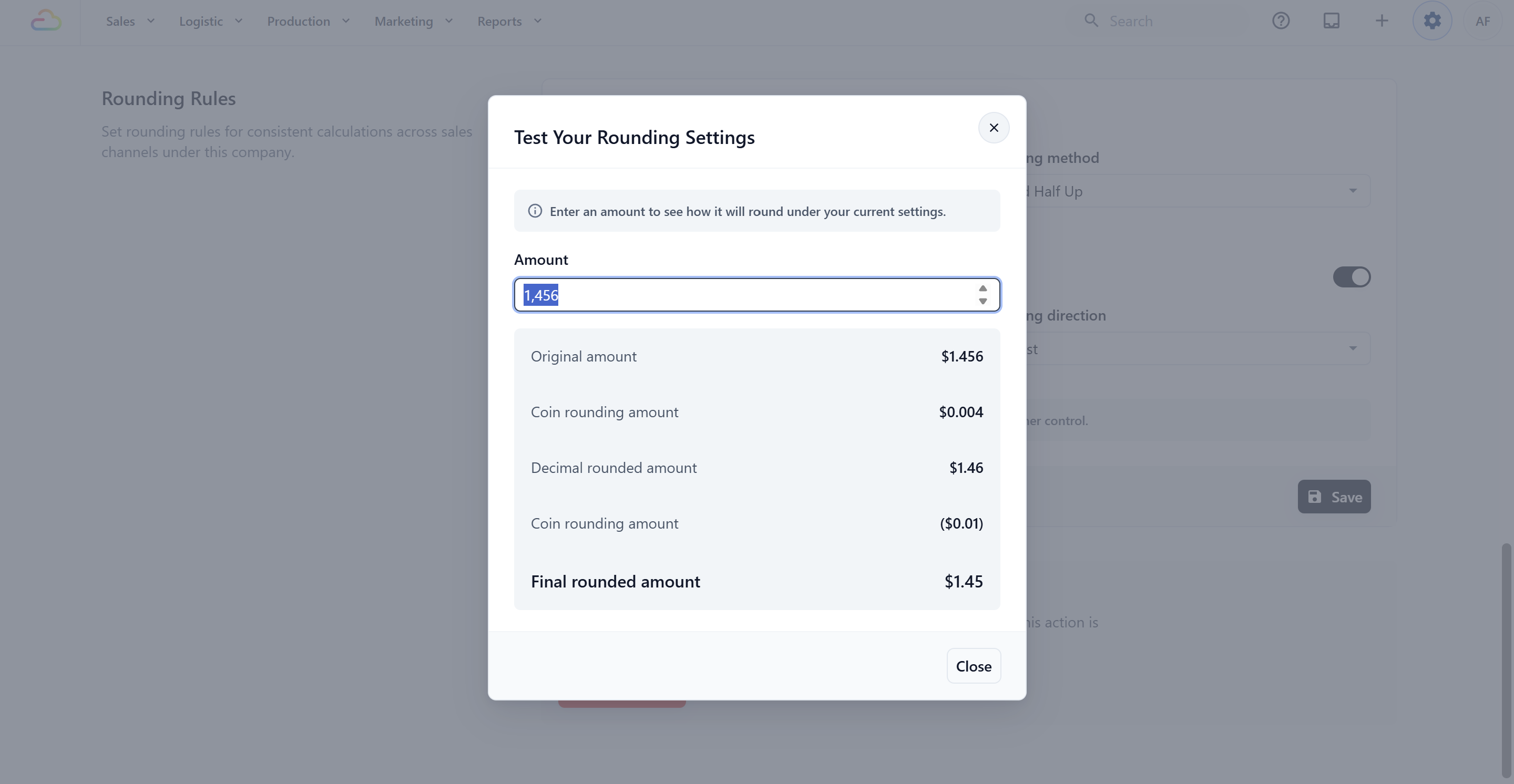
Click the Test your settings button at the bottom of the section to preview how a sample total is rounded with your current settings before you save. This opens a small dialog where you can type any amount and see the rounded result. Closing the dialog does not save anything.
1. Click Save at the bottom of the section.
---
## FAQs
**Do I need to turn on Tax before I go live?**
> Only if your business is tax-registered. If you are not GST/SST/VAT registered, leave Tax disabled. It is off by default. You can turn it on later when you register.
**What happens to my old orders if I change the Tax Rate?**
> Existing orders keep the rate that was active when they were created. Only new orders use the new rate. The same applies to Rounding Rules.
**If I disable Coin rounding and re-enable it later, what increment will I get?**
> If you have never set an increment, EasyBiz plants the defaults Increment: 5 and Direction: Nearest when you flip the toggle back on. If you had previously chosen 10 and Up, those choices come back when you re-enable.
**Why do my receipts still show 3-decimal prices when I set Decimal precision to 2?**
> Decimal precision controls the rounded display on receipts. Internal storage may still hold more decimals for unit prices that compound (for example weight times rate per kg). Receipt line totals are always rounded to your chosen precision.
**Does Coin rounding apply before or after Tax?**
> Coin rounding applies to the final total, after tax. The Test your settings dialog shows exactly what happens to a sample amount end to end.
**Can different Sales Channels under the same Company use different rounding rules?**
> No. Rounding Rules are Company-wide. If you need different rounding for different channels, those channels need to sit under different Companies. Coin Rounding can be overridden per payment method though, for example "cash uses 5-cent rounding, card does not".
**Do add-ons, express surcharge, and delivery fee get tax added?**
> It depends on your mode. A tax-inclusive Price List treats every charge as already inclusive. Company tax only adds tax on top of every taxable charge.