## Why set up Price Rules?
Configuring this section gives you three powerful capabilities:
- **Automation:** Automatically apply extra fees (e.g., for "Silk" material) without staff needing to remember the price.
- **Upselling Strategy:** Create "Buy X, Get Y" bundle deals to encourage larger orders.
- **Accuracy:** Prevent undercharging by enforcing rules that trigger based on specific item conditions.
---
## Base Price Rules
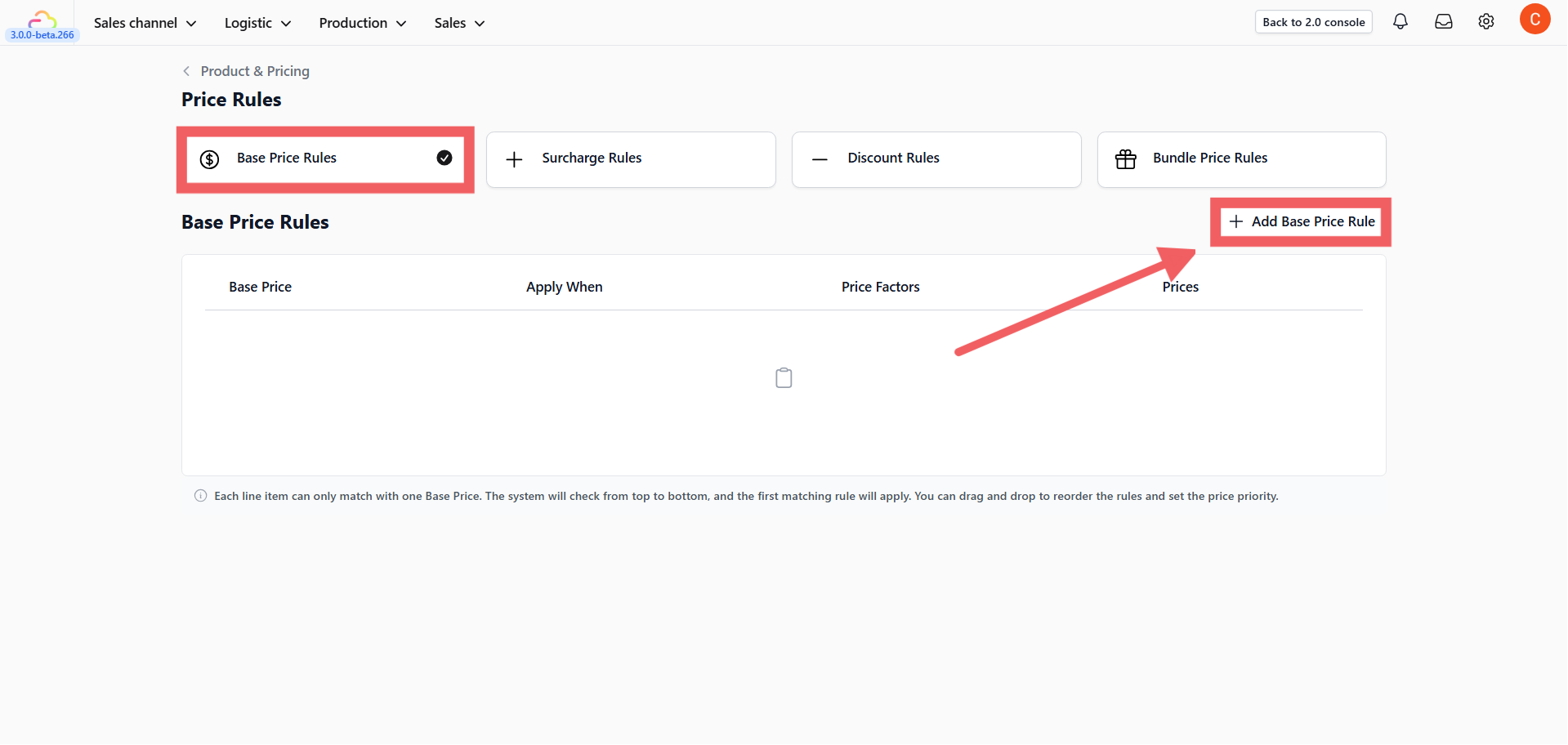
This section allows you to set the foundational logic for how an item's starting price is determined before any extra fees are added.
---
## Surcharge Rules
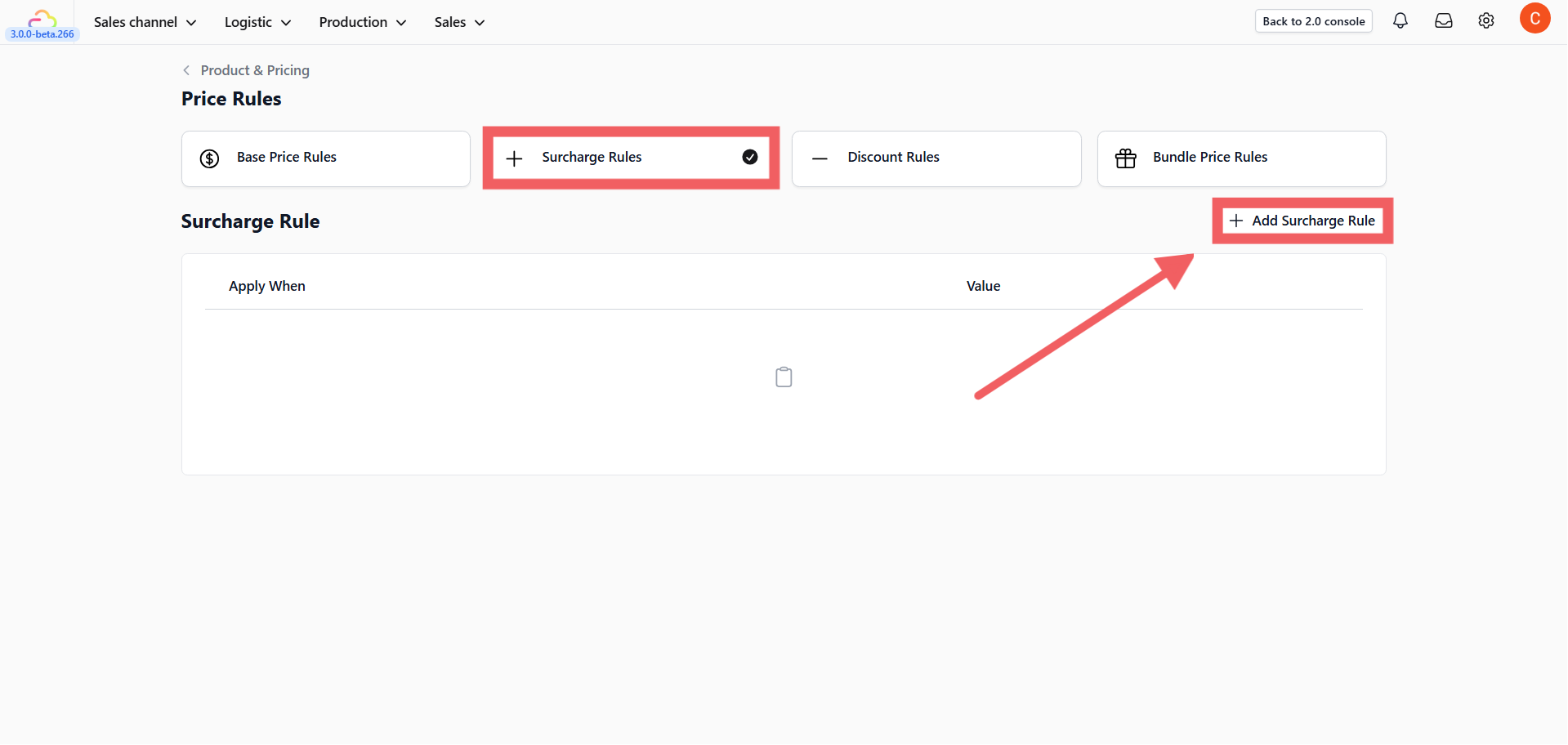
Surcharges are used to add extra costs to an order based on specific conditions (e.g., Material = Silk)
### Set the Trigger Conditions
First, determine exactly when this rule should apply by clicking + Add Condition.
- **Field:** Select the data source. This can be a Product, a Service Option, or a Custom Data Field (e.g., Damage, Material, Brand).
If your business has a very unique requirement, you can create your own custom data fields. These will appear here once you have configured them. Learn how to set up [Configure Data Fields](/docs/configure-data-fields).
- **Operator:** Choose **is** (exact match), **is not** (excludes value), or **is any of** (matches multiple values).
- **Value:** Select the specific attribute (e.g., "Silk").
If you select "Service Option" as your trigger, the dropdown will **only** display Service Options that have their Pricing Mode set to **Rule-based pricing**. Options set to Fixed, Hourly, or Custom will not appear here.
### Choose Surcharge Type
Select whether the fee is a percentage or a fixed amount.
**1. Flat Amount ($)**
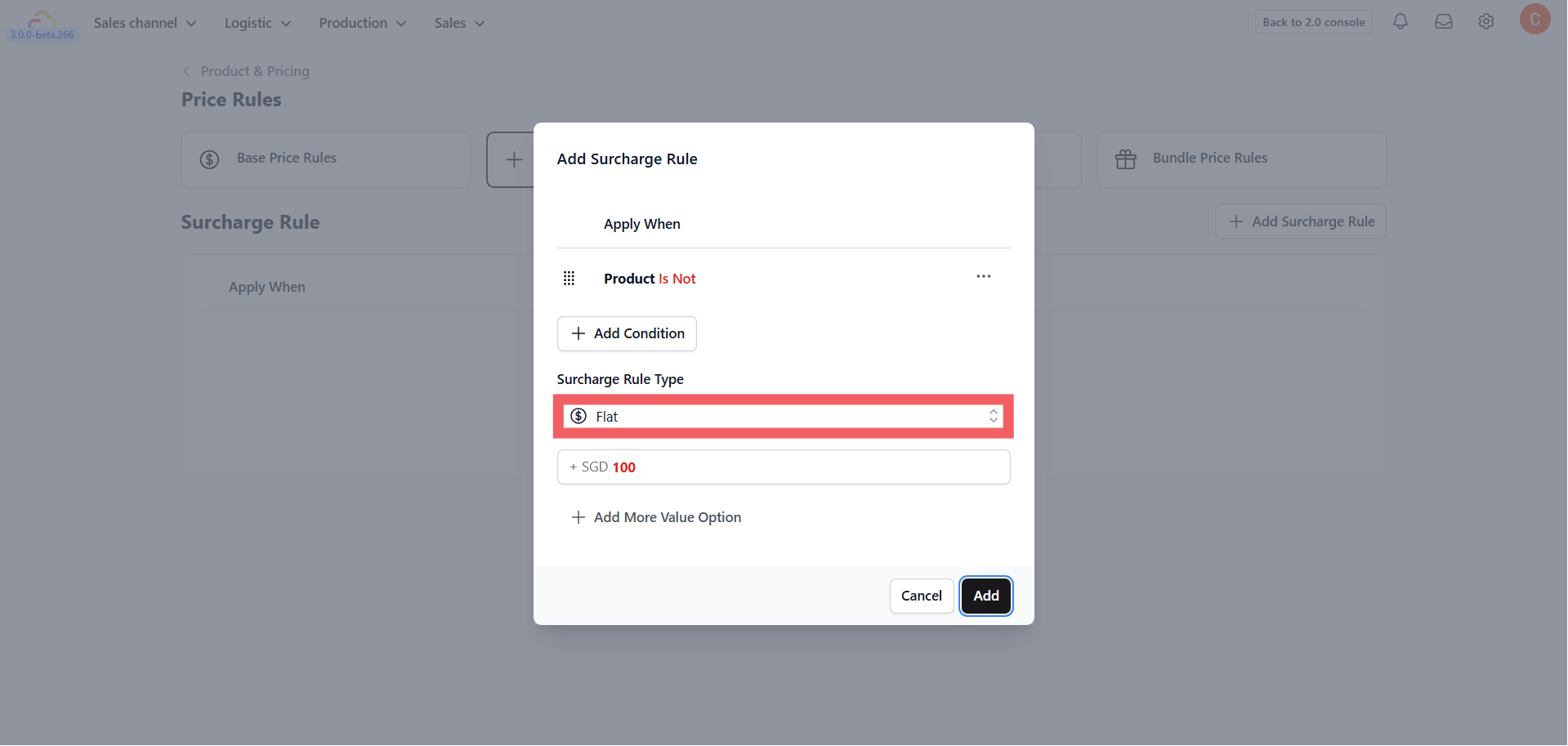
Simply enter a fixed dollar amount (e.g., +$5.00) to add to the price.
**2. Percentage (%)**
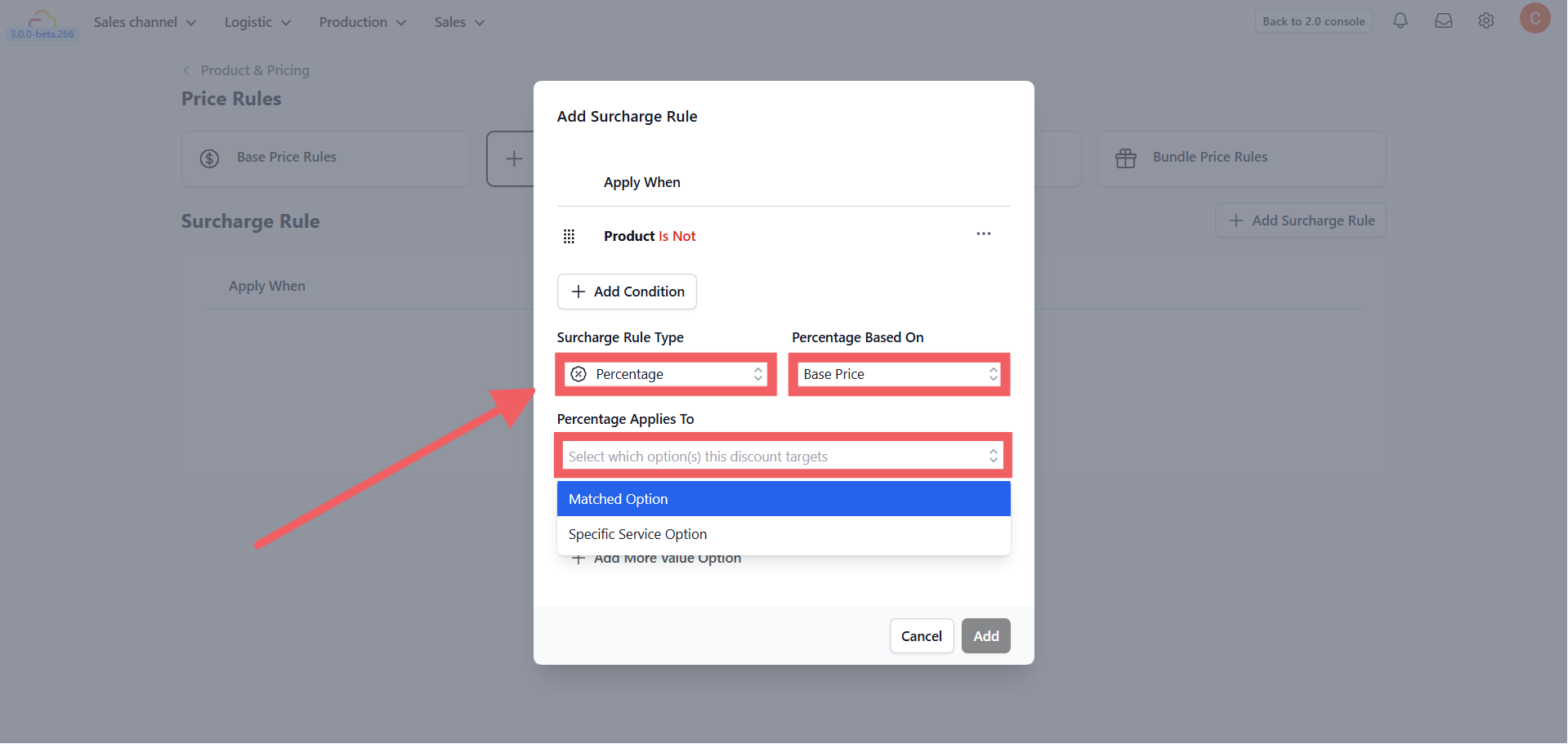
Adds a calculated fee based on the item's value. You must configure two settings:
- **Percentage Based On:** Choose **Base Price** (original item price) or **Accumulated Amount** (item price + previous surcharges).
- **Percentage Applies To:** Choose **Matched Option** (applies to the specific attribute) or **Specific Service Option** (targets a specific service line).
### Advanced Options
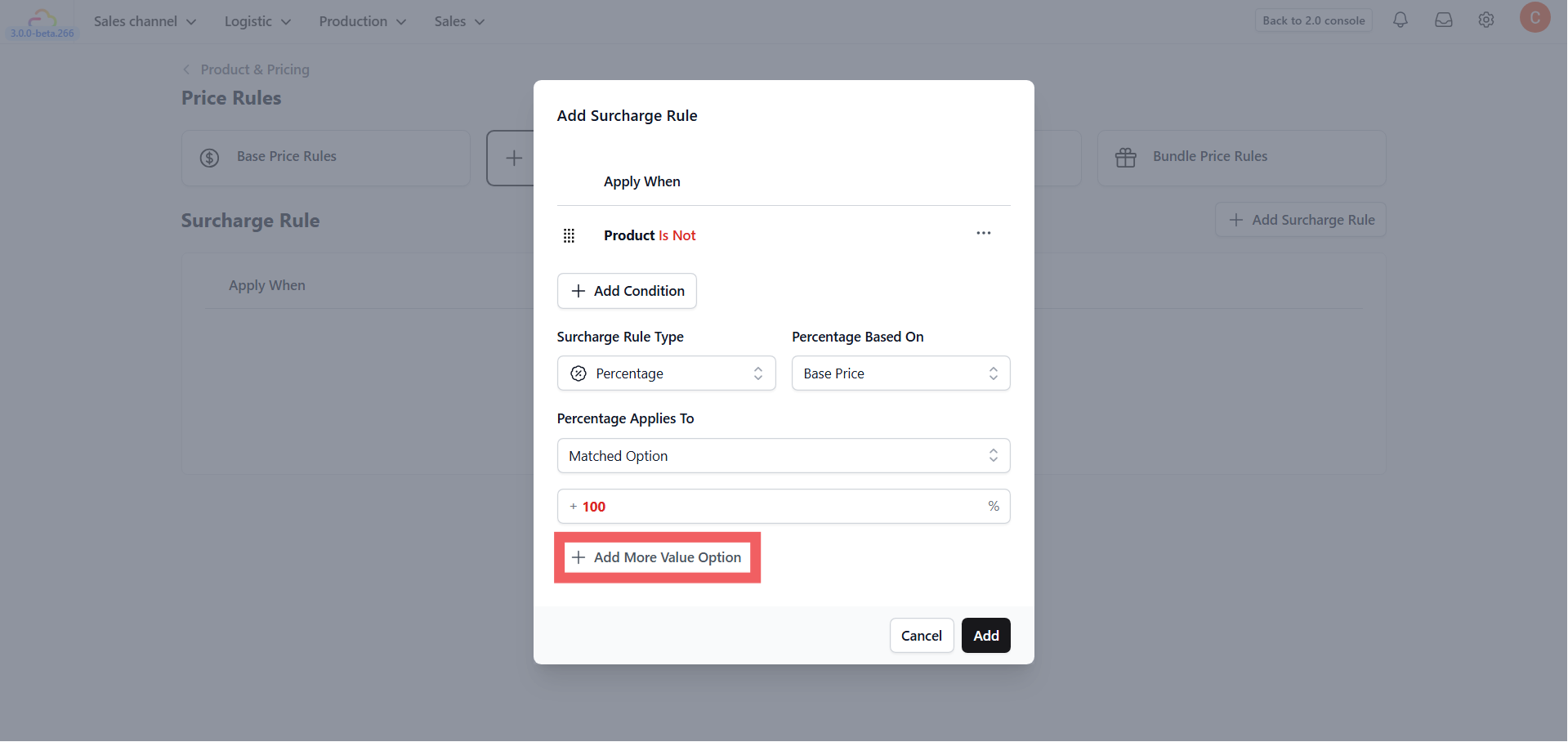
You can add multiple value rows (e.g., +$5, +$10, +$15) within a single rule.
If you add multiple values to a single rule, the surcharge will not be auto-applied. Instead, the system will prompt the staff member to manually select the correct value during the order process.
---
## Discount Rules
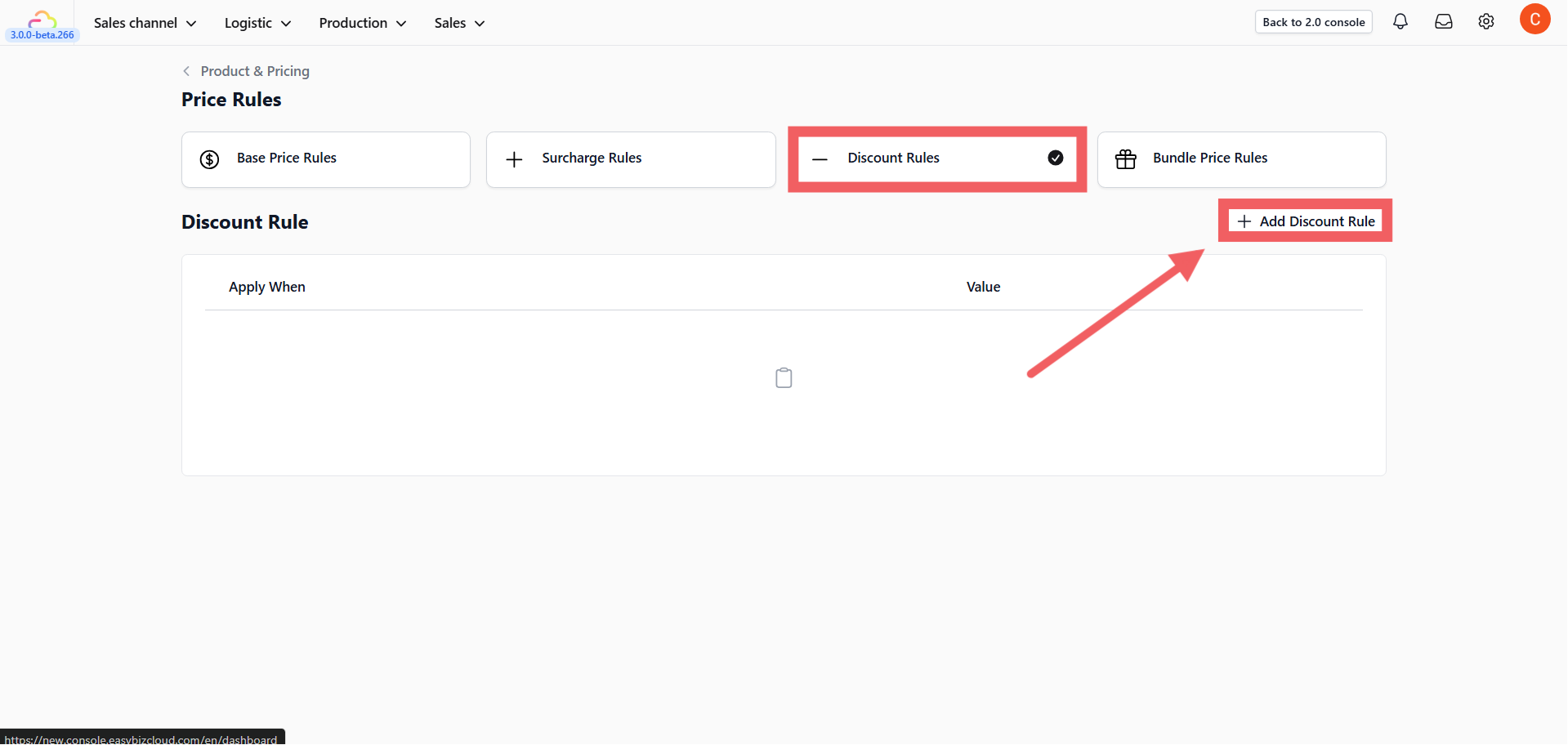
Discount rules function exactly like Surcharges but **subtract** value from the order.
The setup for Trigger Conditions (Apply When) and Rule Types (Percentage vs. Flat) is identical to Surcharges. However, the value is applied as a deduction (e.g., `- 10%` or `- $5.00`)
---
## Bundle Rules
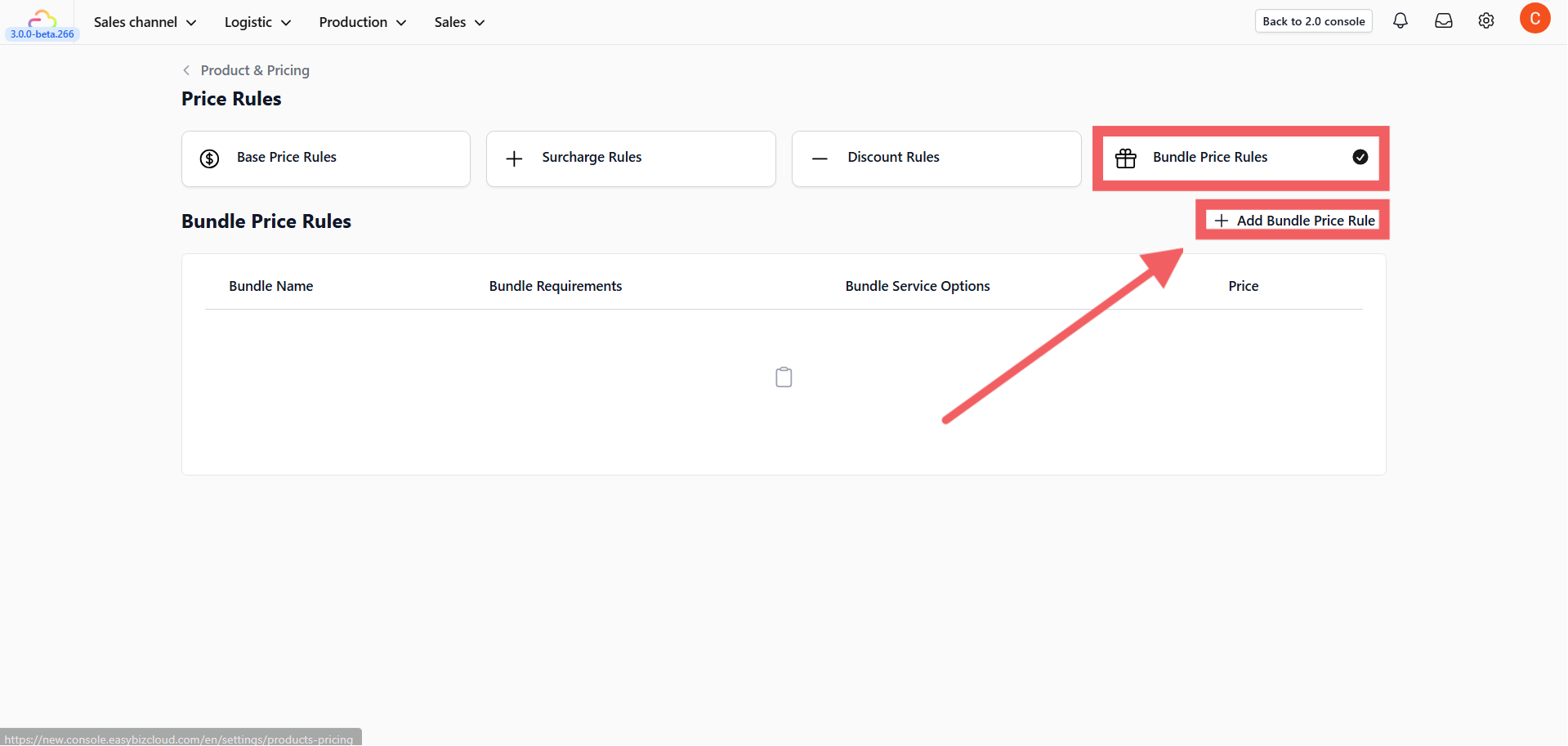
Bundle Rules allow you to create automated package deals (e.g., "3 Shirts for $20").
### Bundle Name
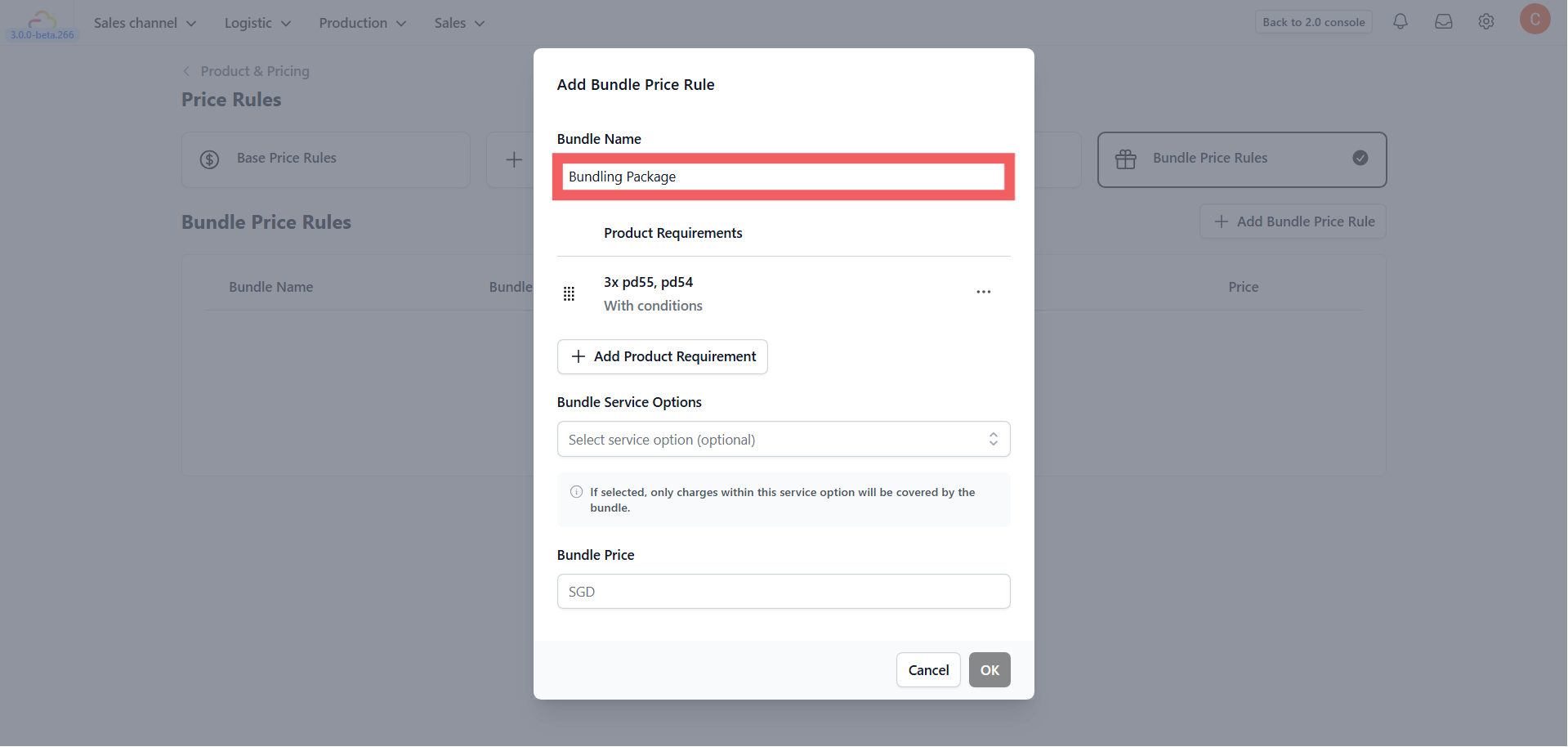
Enter a clear name for the bundle (e.g., "3-Pc Suit Promo"). This is for internal reference.
### Add Product Requirement
Define the qualifying items.
- **Products:** Select one or more eligible items (e.g., "Shirt" and "Trousers").
- **Quantity:** Define how many items are needed to trigger the price (e.g., "3").
- **Item Conditions (Optional):** Add restrictions, such as limiting the bundle to "Cotton" items only.
### Bundle Service Options (Optional)
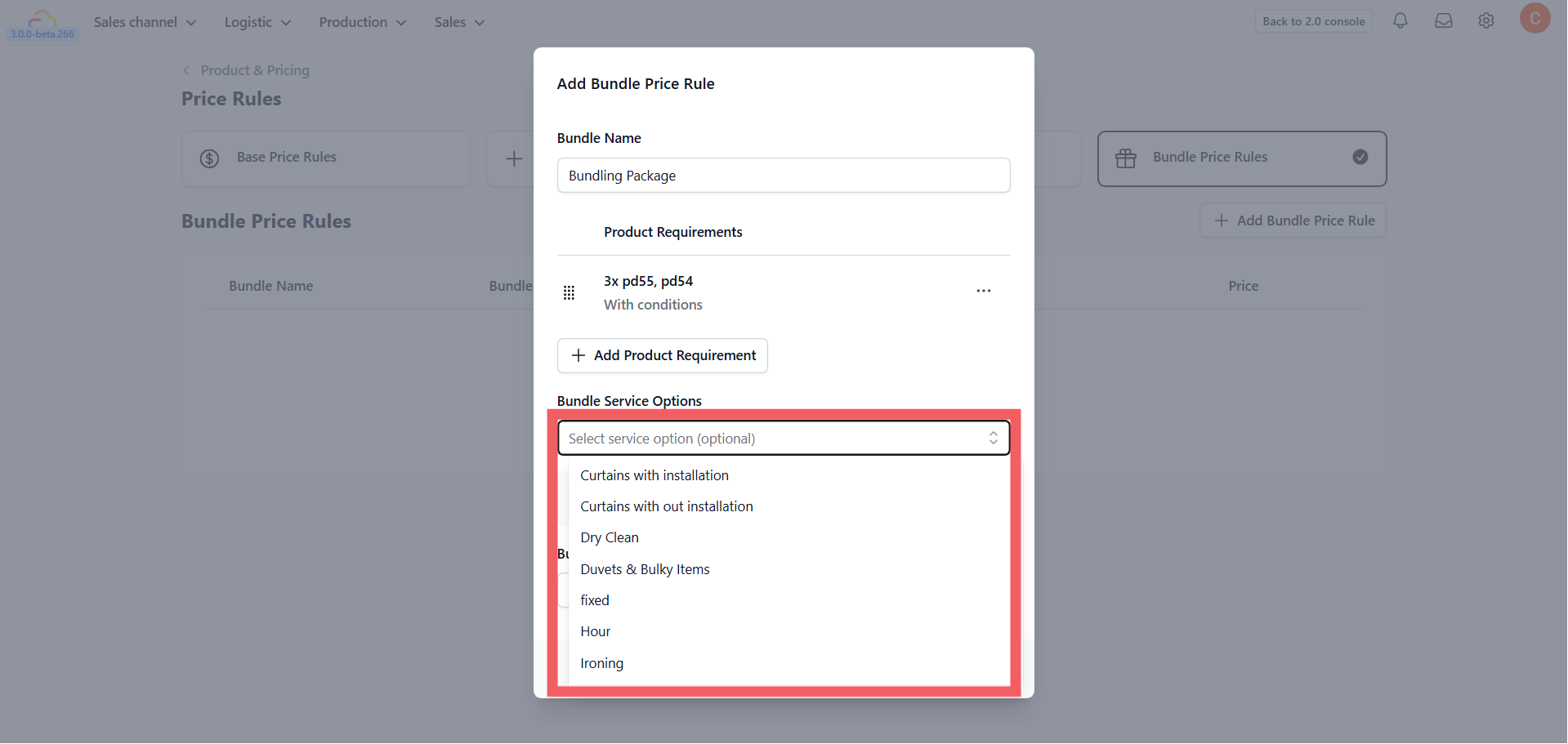
Select specific service options to limit the scope of the bundle price.
If selected, the bundle price will **only cover charges within this service option**. Any extra add-ons outside this scope will be charged at the normal rate.
### Bundle Price
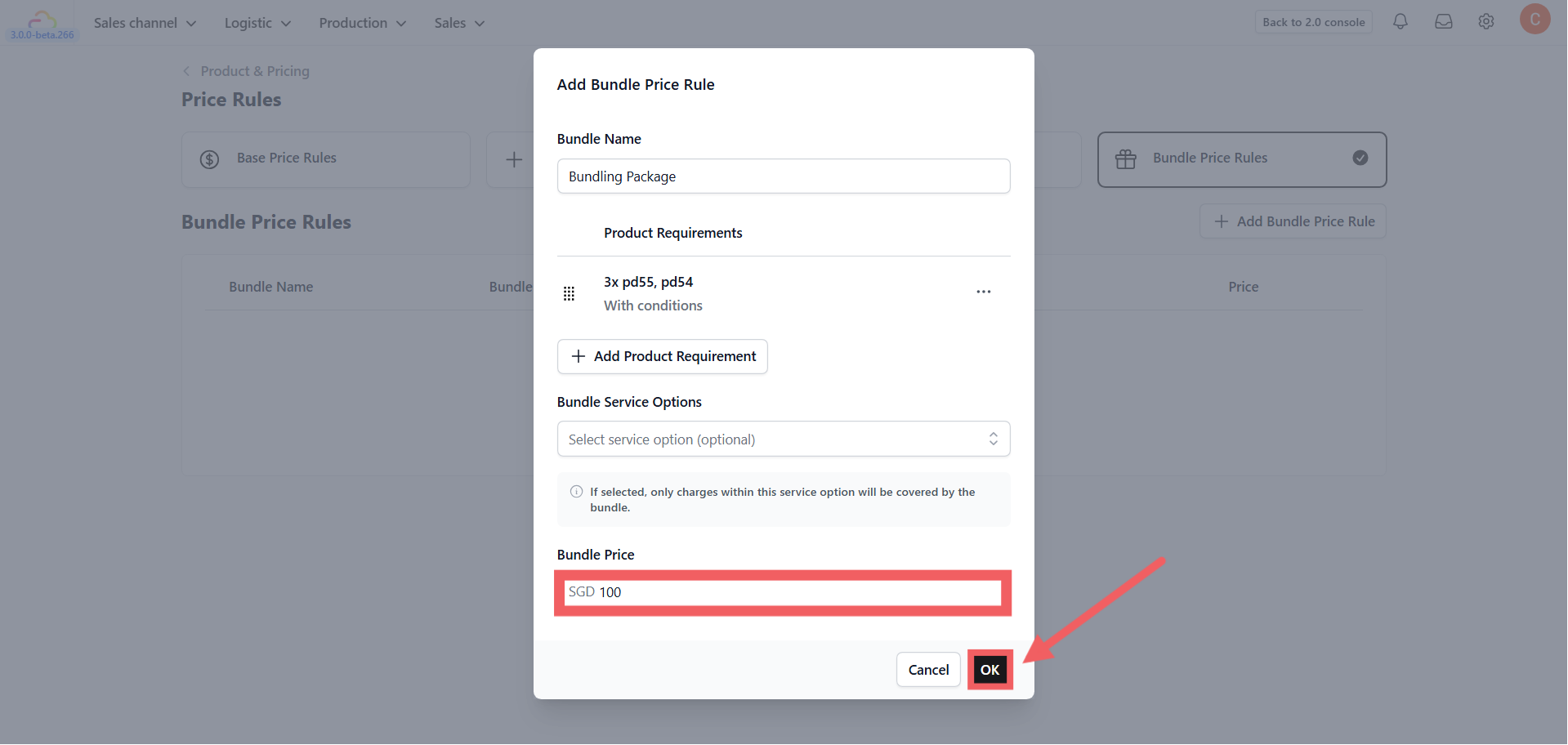
Enter the final fixed price for the entire package (e.g., $20.00).
Click OK to save.