## Before You Start
1. If the POS shows a message on screen, look that up first. See [Printer Error Messages on the POS](/docs/printer-error-messages-on-the-pos).
2. Check the **Printer** section of POS Settings still shows the receipt printer as Connected. See [Connecting Your Printers to the POS](/docs/connecting-your-printers-to-the-pos).
3. Keep a spare roll of thermal receipt paper at the counter, in the width your printer takes.
4. The power switch is on the back of the receipt printer.
---
## Changing the Receipt Roll
Thermal paper carries no ink, so a roll that has run out gives you no warning. The printer keeps working and the paper simply comes out blank or stops. It is the first thing to check when a receipt does not appear, and it takes under a minute at the counter.
1. Have a new thermal receipt roll ready, in the same width as the one coming out.
2. Switch the printer off. The power button is on the back of the printer.
3. Press the cover open button on the left side of the printer and lift the cover.
4. Lift out what is left of the old roll.
5. Drop the new roll into the well, with the paper coming over the top towards you.
6. Pull out a short length of paper, then close the cover and press until you hear the click.
7. Tear the paper off against the cutter on the front of the printer.
8. Switch the printer on, then print a receipt from a recent order to check.
Only one side of thermal paper takes the print. If the paper comes off the underside of the roll, the printer runs normally and the receipt comes out blank, so turn the roll over and try again.
---
## The Printer Will Not Switch On
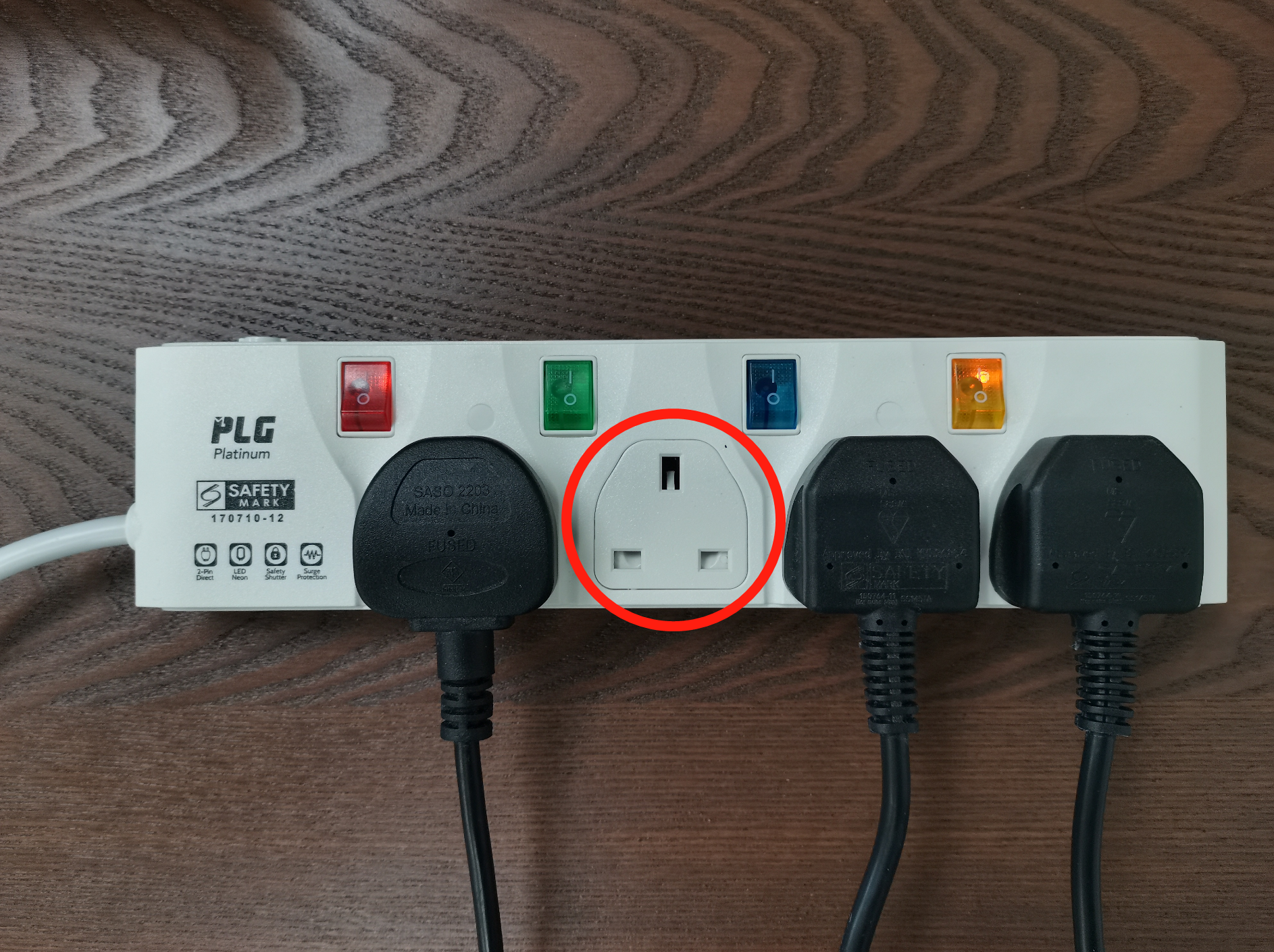
1. Check the wall socket is switched on at the socket itself.
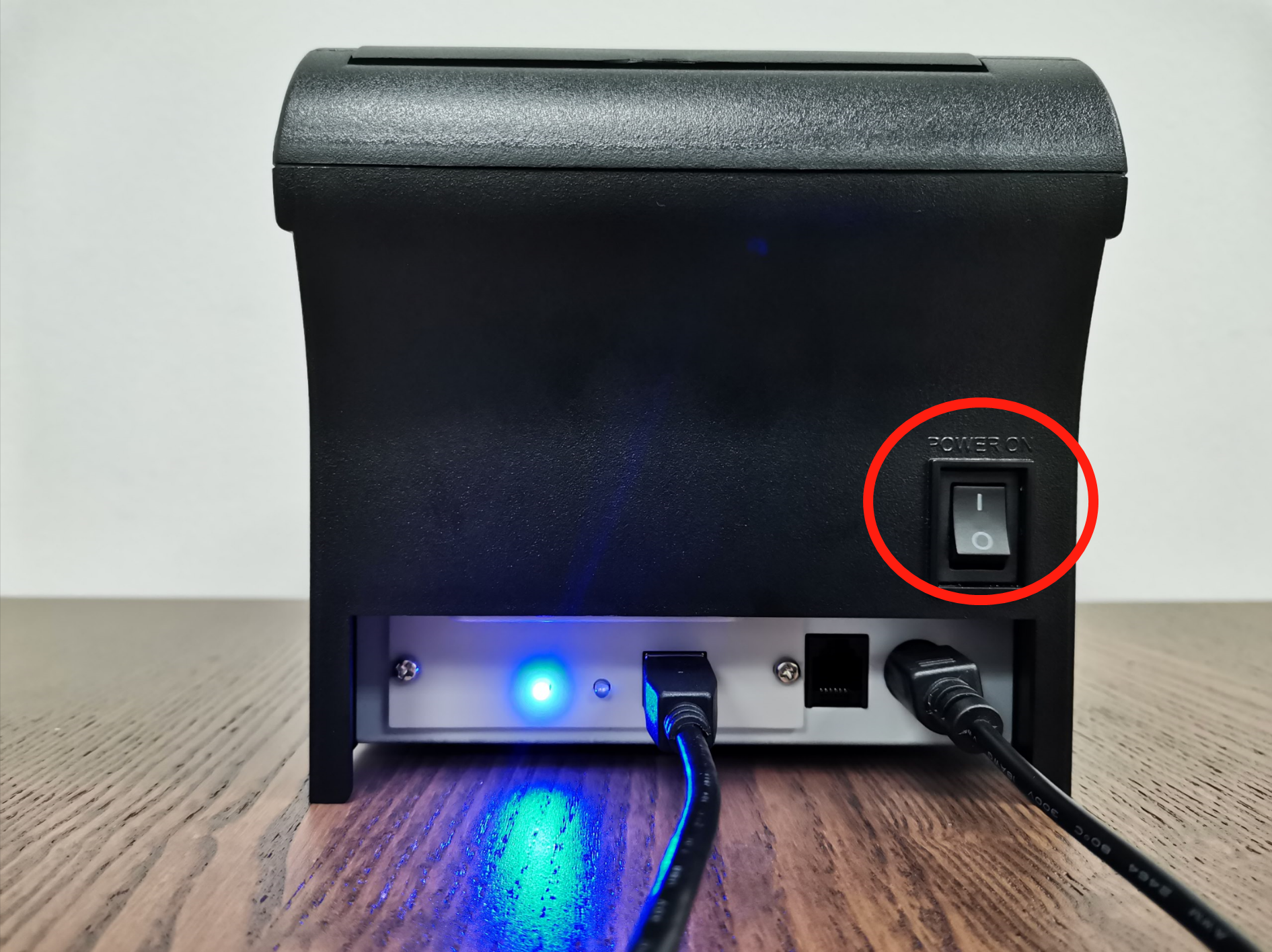
2. Press the switch on the back of the printer to switch it on.
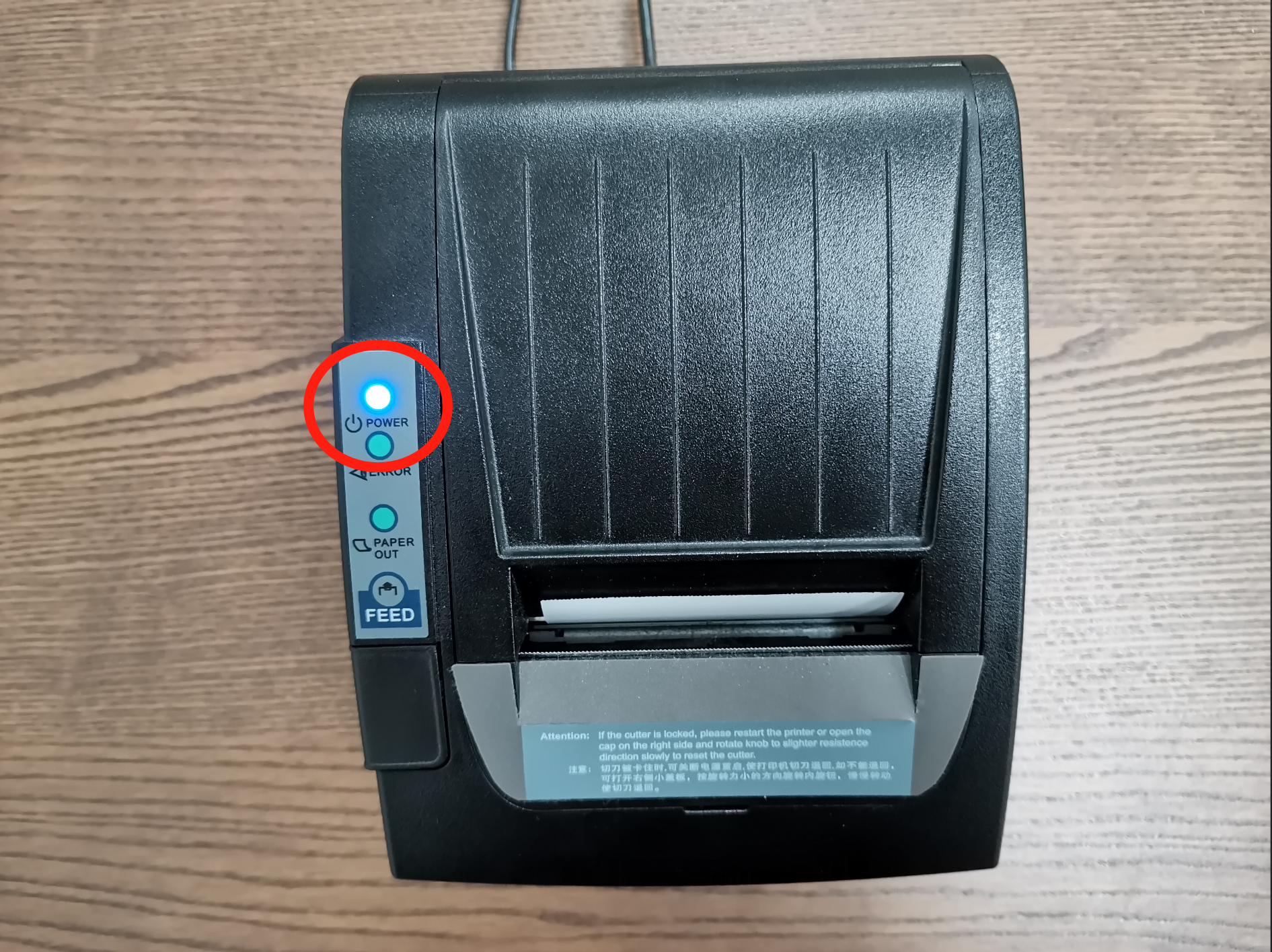
3. Look at the front panel and check the POWER light is lit.
4. Push the power cable firmly in at both ends, at the back of the printer and at the power brick, and check the plug is fully in the socket.
5. Move the printer to a different socket. If it comes to life there, the first socket needs an electrician.
Your cash drawer is cabled to this printer, and the POS opens the drawer through it. While the printer is down, the POS cannot open the drawer, so use the key or the release switch underneath. See [Connecting Your Cash Drawer to the POS](/docs/connecting-your-cash-drawer-to-the-pos).
---
## The Printer Is On but Nothing Prints
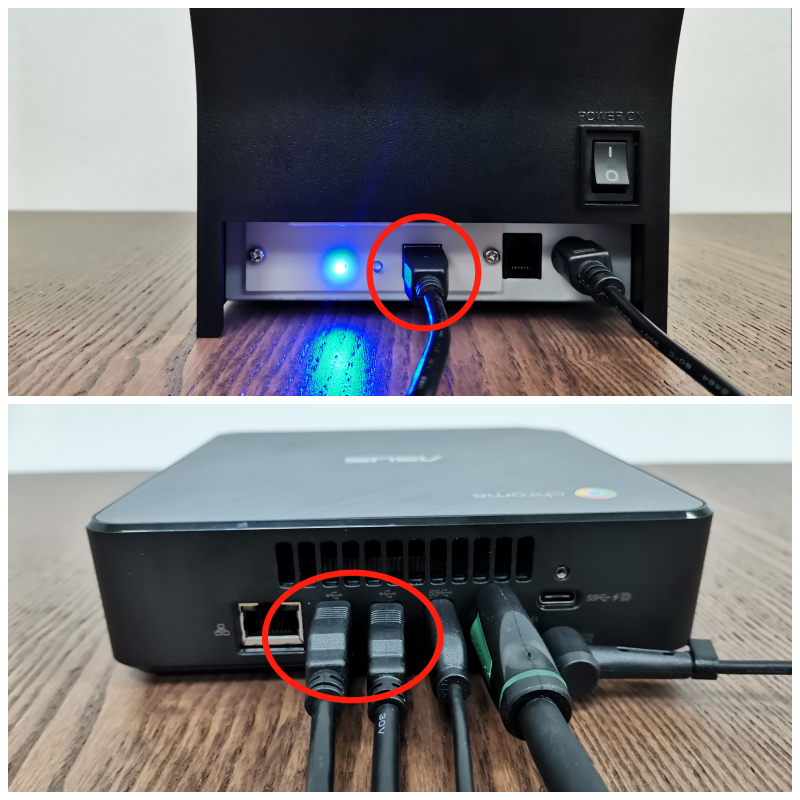
1. Push the cable between the printer and the counter computer firmly in at both ends, and look at each plug for a bent or crushed end.
2. Switch the printer off and on again with the switch on the back.
3. Open the paper cover and check the roll is sitting in the well with the paper coming over the top, then close the cover until it clicks.
4. Print a receipt from a recent order to check.
---
## Receipts Print Faint or Blurry
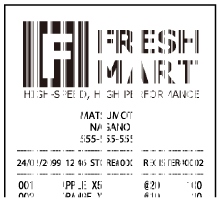
Thermal paper has a coating that fades with age, heat and sunlight, so an old roll prints grey or not at all even on a healthy printer.
1. Fit a fresh roll and print again.
2. If it is still faint, try a roll from a different batch, because a whole batch can be old stock.
3. Try that same roll on another counter's printer. If it is faint there too, the paper is the problem.
4. If only this printer prints faint on every roll, clean its print head. Switch the printer off, press the cover open button and lift the cover, then wipe the thin grey strip above the roller once from side to side with a cotton bud dipped in isopropyl alcohol of 95% or higher. Let it dry for a minute, close the cover until it clicks, and switch the printer on.
Use isopropyl alcohol only. Water and hand sanitiser damage that strip, and a dry tissue can scratch it. A scratched strip leaves a white line down every receipt from then on.
Receipt printers have no darkness setting in the POS. Only label printers do, so a faint receipt is always the paper or the print head.
---
## Receipt Columns Do Not Line Up
1. Open ⚙️ **Settings**, then **Printer**, and click **Settings** on the **Receipt printer** row.
2. Set **Characters per line** to match your paper. 80mm printers use 48. 58mm printers such as the GP-58 usually need 32.
3. Click **Test print**. The dashed lines and the 10.00 row should each fill exactly one line.
---
## When the Printer Itself Has Failed
If power, cables, paper and a clean head all check out and nothing prints, the printer has failed. Send us the model name from the label on it before you buy a replacement. Most receipt printers of this type work with the POS, but the same model is often sold in several versions, so one message from you confirms it before you spend anything.
---
## FAQs
**Can my staff keep taking payments while the receipt printer is down?**
> Yes. Payments are recorded in the POS whether or not a receipt prints, so nothing is lost. The one catch is the cash drawer: the POS cannot open it until this printer works, so open it with the key or the release switch underneath in the meantime.
**The customer is standing here and wants a receipt now.**
> If your shop has an email receipt template set up, the order page has an Email Receipt button, so you can send it while they wait. If not, take their details and print the receipt from the order once the printer is back.
**Does the receipt paper have to come from EasyBiz?**
> No, buy it from any supplier in the width your printer takes. Store the rolls somewhere cool and out of the sun, because heat and sunlight are what turn a new roll faint.
**My label printer prints but receipts do not. Is my account broken?**
> No. The two are separate printers in separate slots on the same counter, so one can fail while the other is fine. Nothing on the order or the payment is affected.
**Do I have to connect the printer again in the POS after switching it off and on?**
> Not for a USB printer, it stays paired. A Bluetooth printer drops its connection whenever the POS page is closed or reloaded and has to be connected again by hand.
---
## What's Next
Receipts are printing again, so the POS can open your cash drawer again too. If the drawer still will not open, see [Connecting Your Cash Drawer to the POS](/docs/connecting-your-cash-drawer-to-the-pos). If the POS shows a message on screen instead, look it up in [Printer Error Messages on the POS](/docs/printer-error-messages-on-the-pos).