## Key Numbers
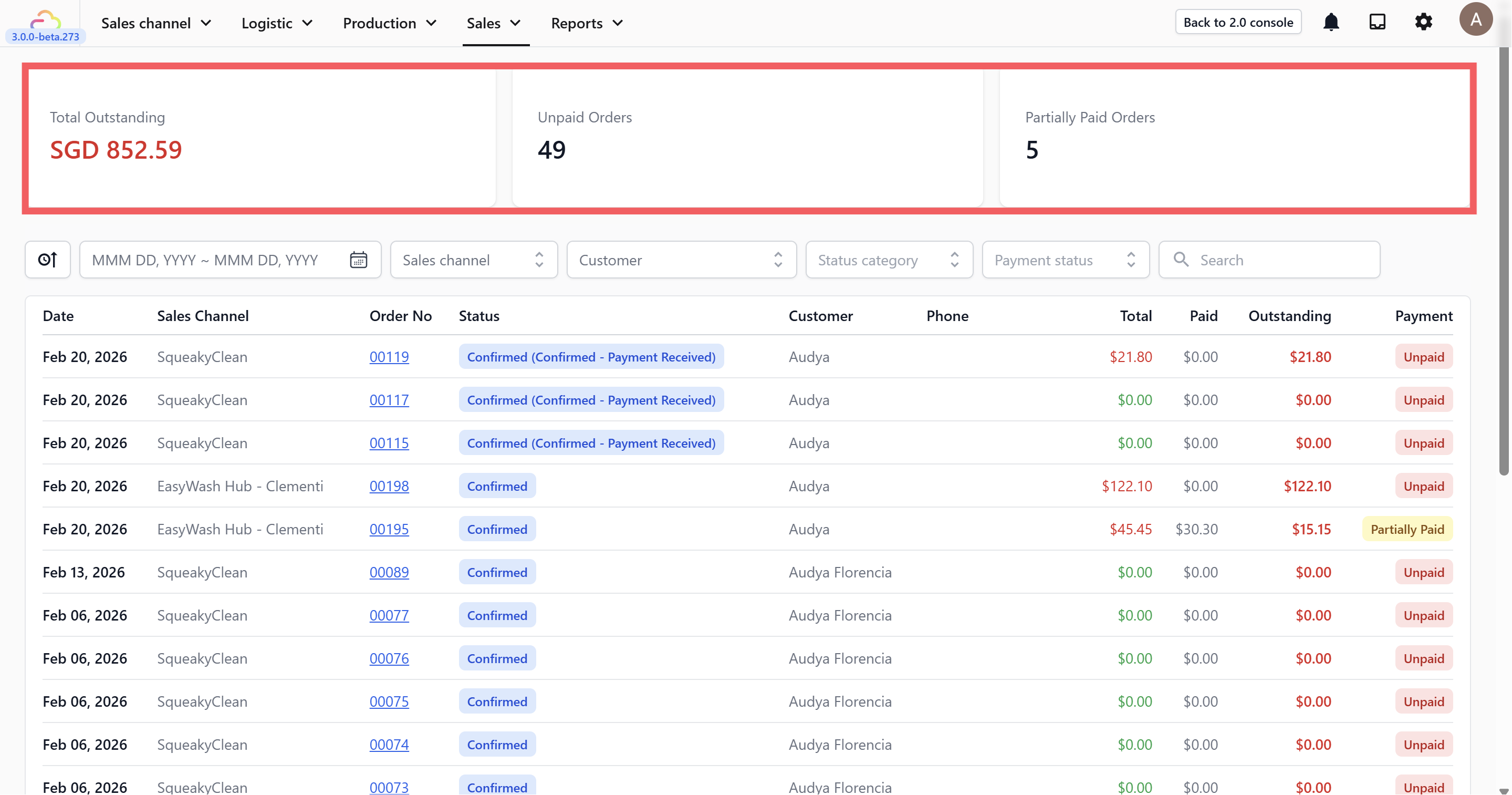
At the top of the page, you will see three cards that give you a quick snapshot of your outstanding payments:
- **Total Outstanding** — The total amount of money that is still owed to your business across all unpaid and partially paid orders.
- **Unpaid Orders** — The number of orders where no payment has been made at all.
- **Partially Paid Orders** — The number of orders where the customer has paid some of the total but still has a remaining balance.
Check these numbers at the start of each day so you know how much money is still owed to you.
---
## Order List
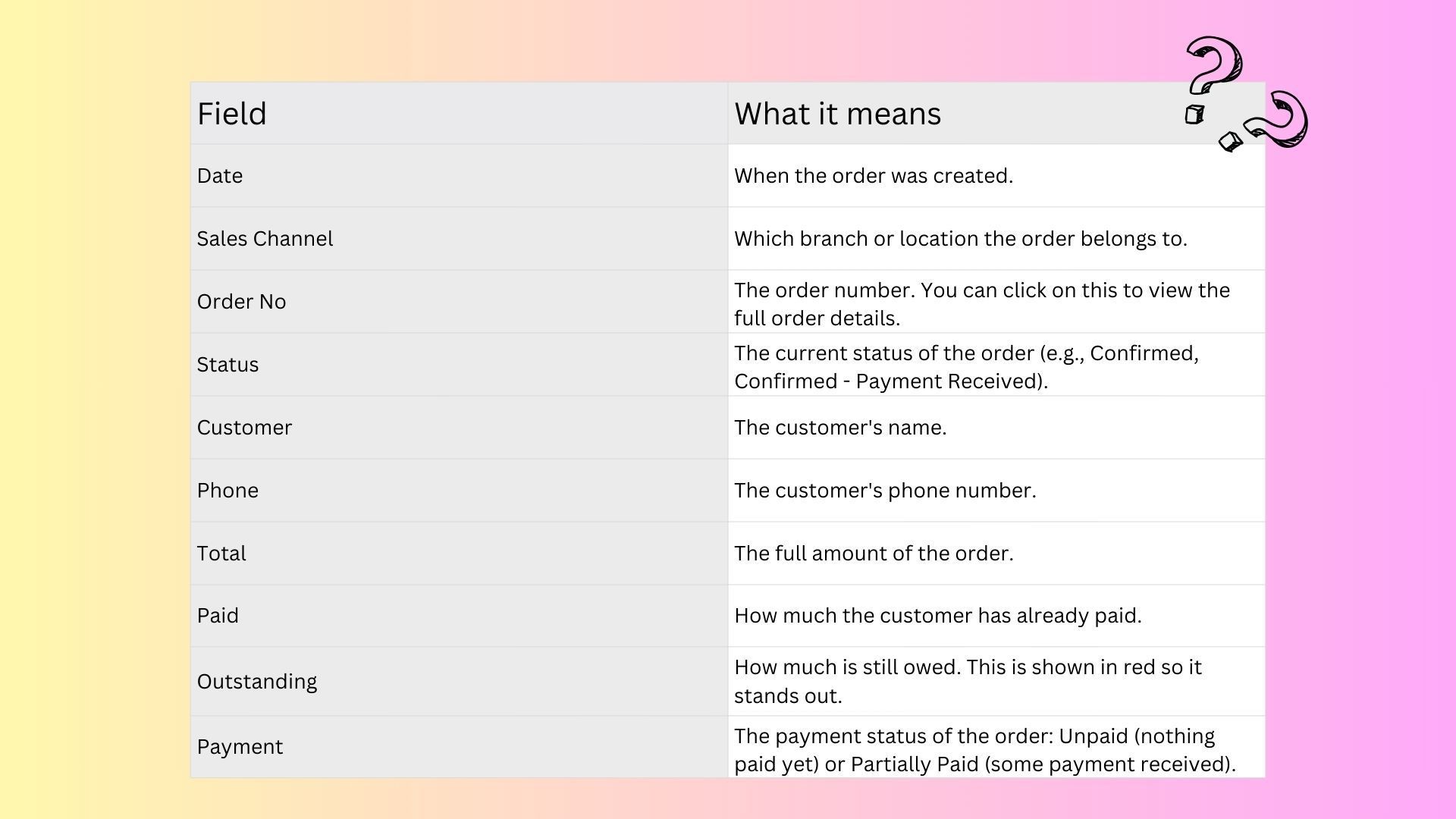
Below the key numbers, you will see a list of all orders with outstanding payments. Each row shows the following information:
---
## Filtering Your Receivables
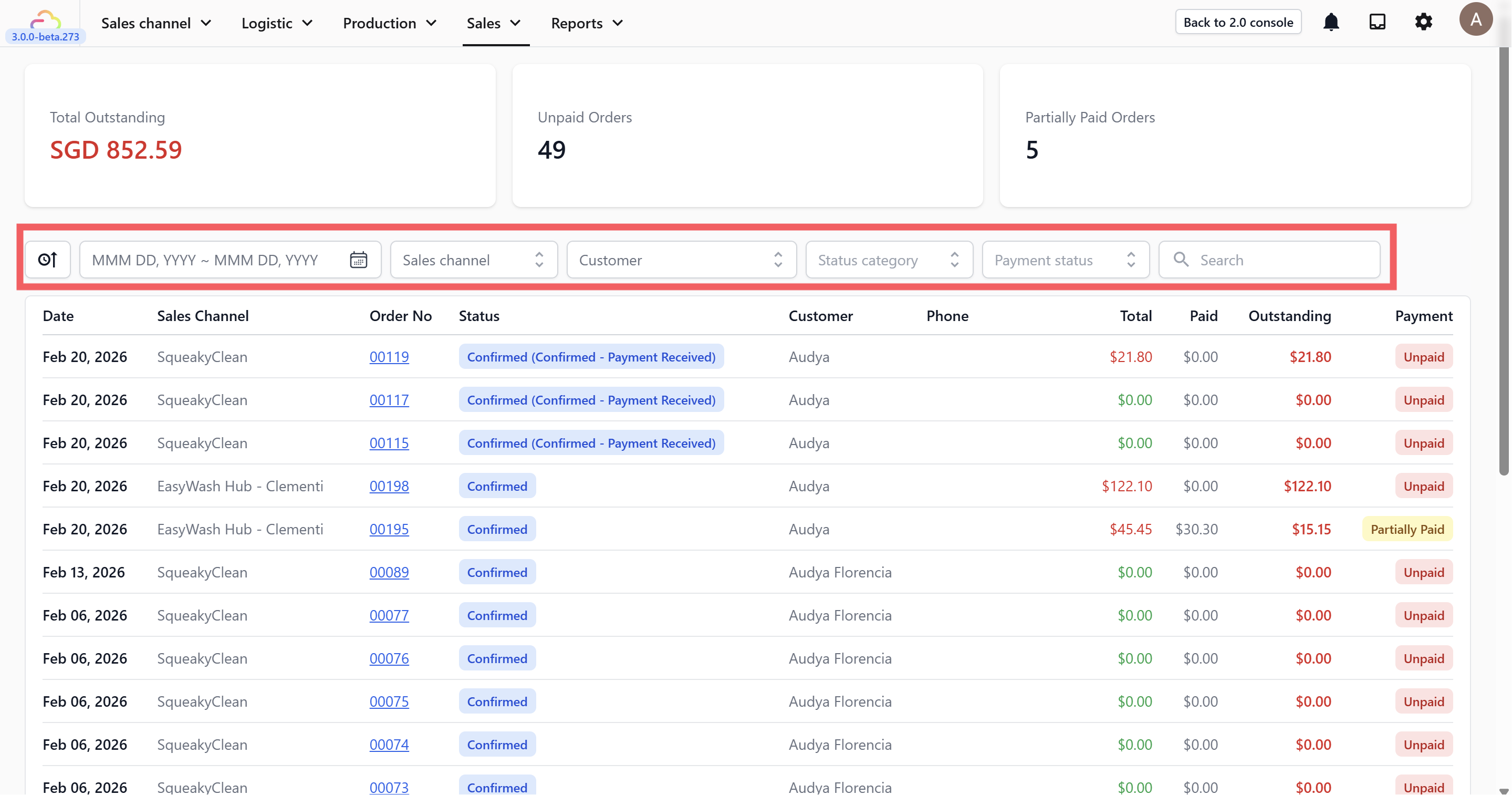
When you have many outstanding orders, filters help you find what you need quickly. You can filter by:
- **Date range** — See orders created within a specific period.
- **Sales Channel** — See outstanding orders from a specific branch or location. For example, if you want to see all unpaid orders from one of your branches this month, select the date range and sales channel.
- **Customer** — Search for a specific customer's unpaid orders.
- **Status category** — Filter by order status.
- **Payment status** — Show only Unpaid or only Partially Paid orders.
- **Search** — Search by order number, customer name, or other keywords.
---
## Viewing Order Details
When you click on an Order No in the list, the order details will open on the right side of the page. From here, you can quickly see:
- The order items, subtotal, and amount payable.
- The payment status (Unpaid or Partially Paid) and order status.
- Customer information such as name, email, phone number, and address.
- Pickup and delivery schedule.
- Order events, which show what has happened to the order so far.
You can also take action directly from this view, such as sending a WhatsApp message, emailing the customer, printing a receipt, or leaving a note for your team.
---
## Tips and Best Practices
- **Check your Receivables daily** — Make it part of your morning routine so nothing gets missed.
- **Follow up within X days** — If an order has been unpaid for more than X days, reach out to the customer as a friendly reminder.
- **Use the Partially Paid filter** — Check who still has a remaining balance so you can collect the rest.
- **Leave a Note** — Use the note feature on the order to record any follow-up details, such as "Customer said will pay on Friday."