## What is a Draft and What is an Active Version
The active version is the price list your shop is using right now. POS, Online Store, and agents all read from this version. A draft version is a working copy you can edit freely without affecting live orders. A price list can have one active version and one draft at the same time.
---
## Open a Draft to Edit
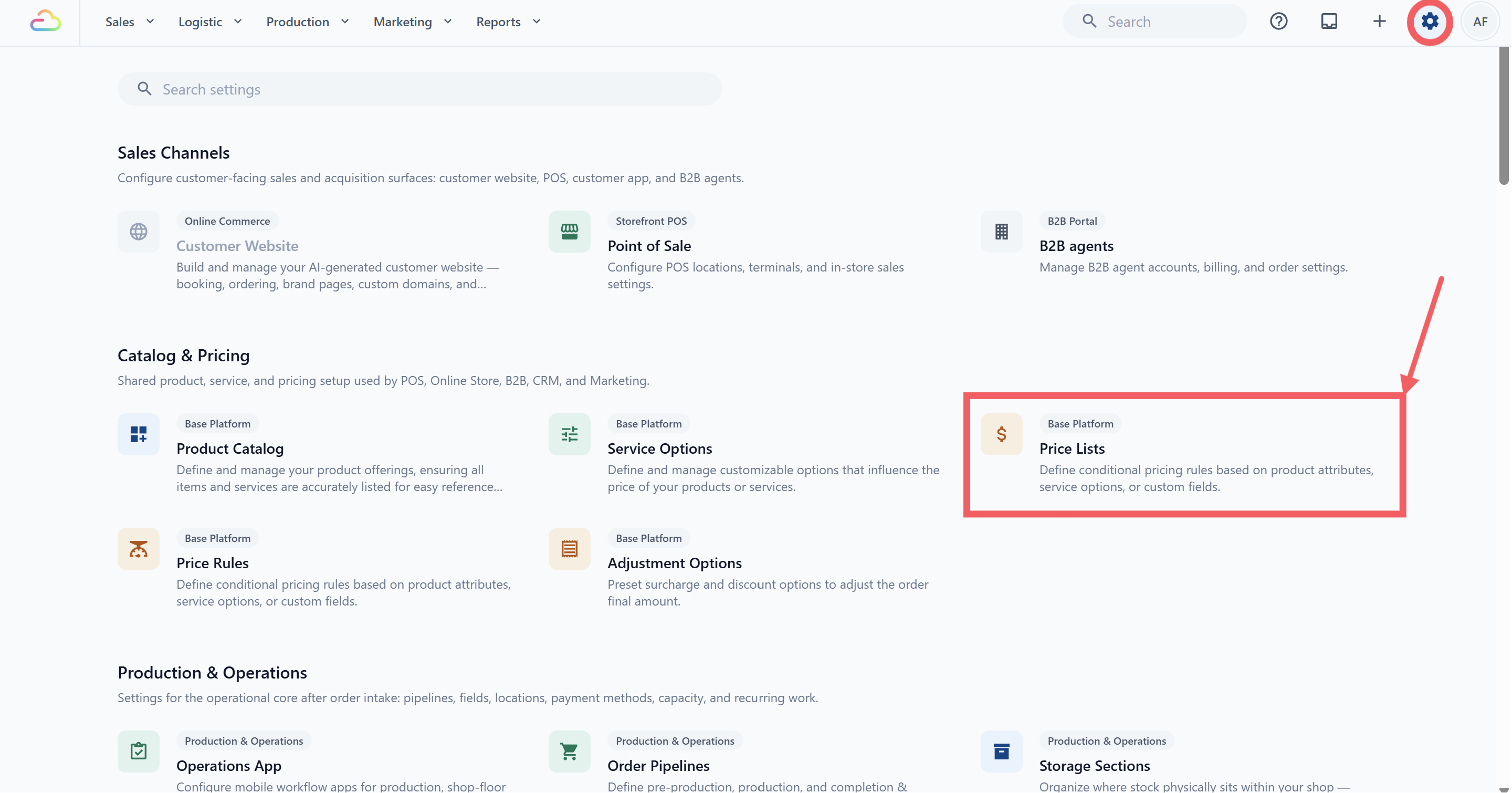
1. Click the ⚙️ Settings icon in the top-right corner.
2. Under the **Catalog & Pricing** section, click **Price Lists**.
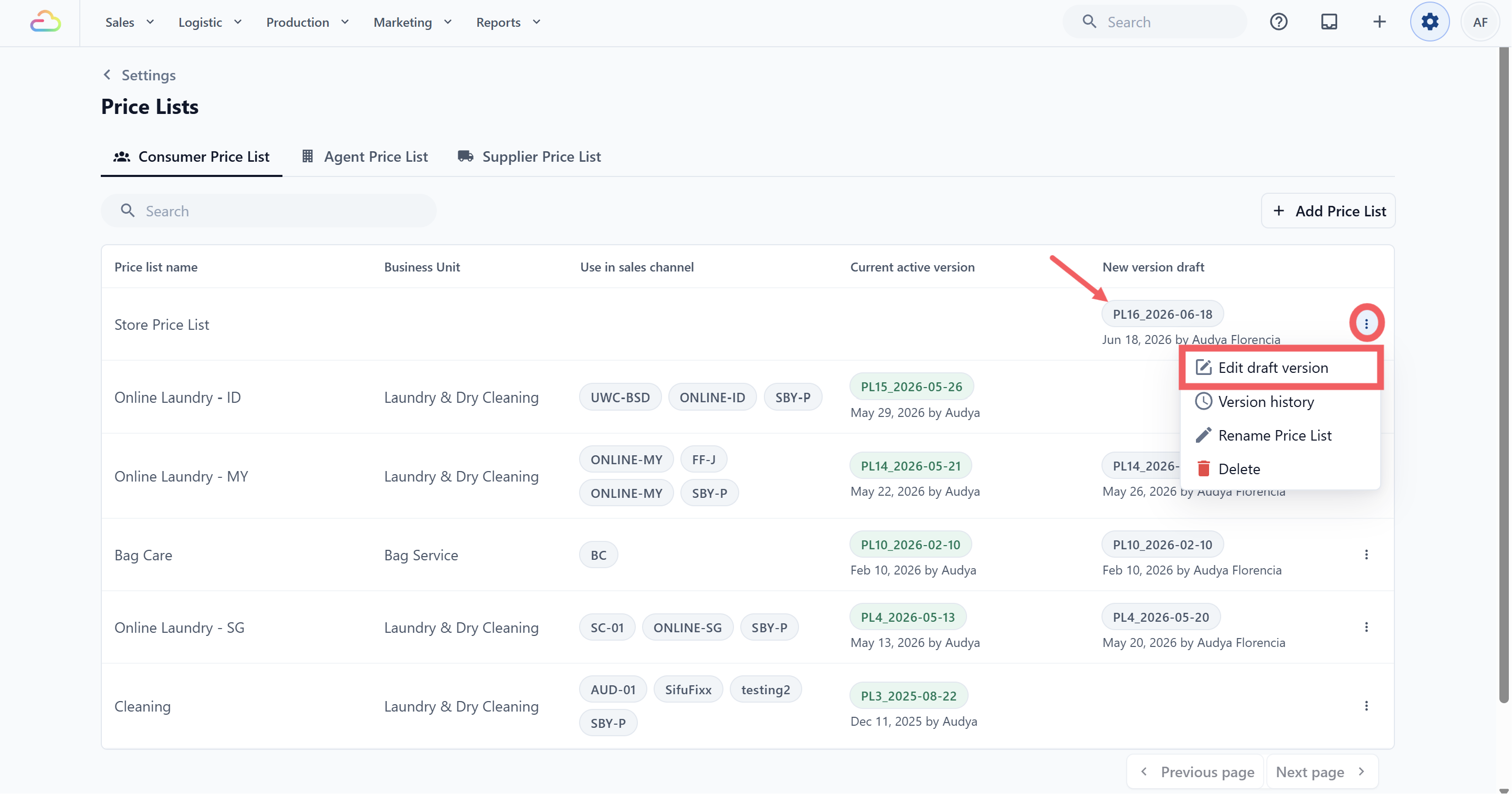
3. Find the price list in the table. In the **New version draft** column, click the draft link, or open the three-dot menu and click **Draft new version** (or **Edit draft version** if one already exists).
---
## Put Frequently Used POS Items First
For a POS that uses a Price List, the item order in each category comes from the active published version of that Price List.
1. Open or create a draft using the steps above.
2. In the draft editor, select the category that contains the items you want to move.
3. Find frequently used items such as Shirt or Pants and drag them upward by the dots handle. If the items belong to different categories, repeat this step in each category.
4. Click Preview and check that the items appear in the intended order within that category.
5. Click Publish to make the new order available in POS.
Reordering a draft does not change the live POS. POS continues to use the active version's order until you publish the draft. This changes only the selected category in the Price List tab; a Collection tab keeps its own separate item order. See [Adding Collections](/docs/adding-collections).
---
## Preview a Draft Before Publishing
Inside the draft editor, clickPreview at the top right.
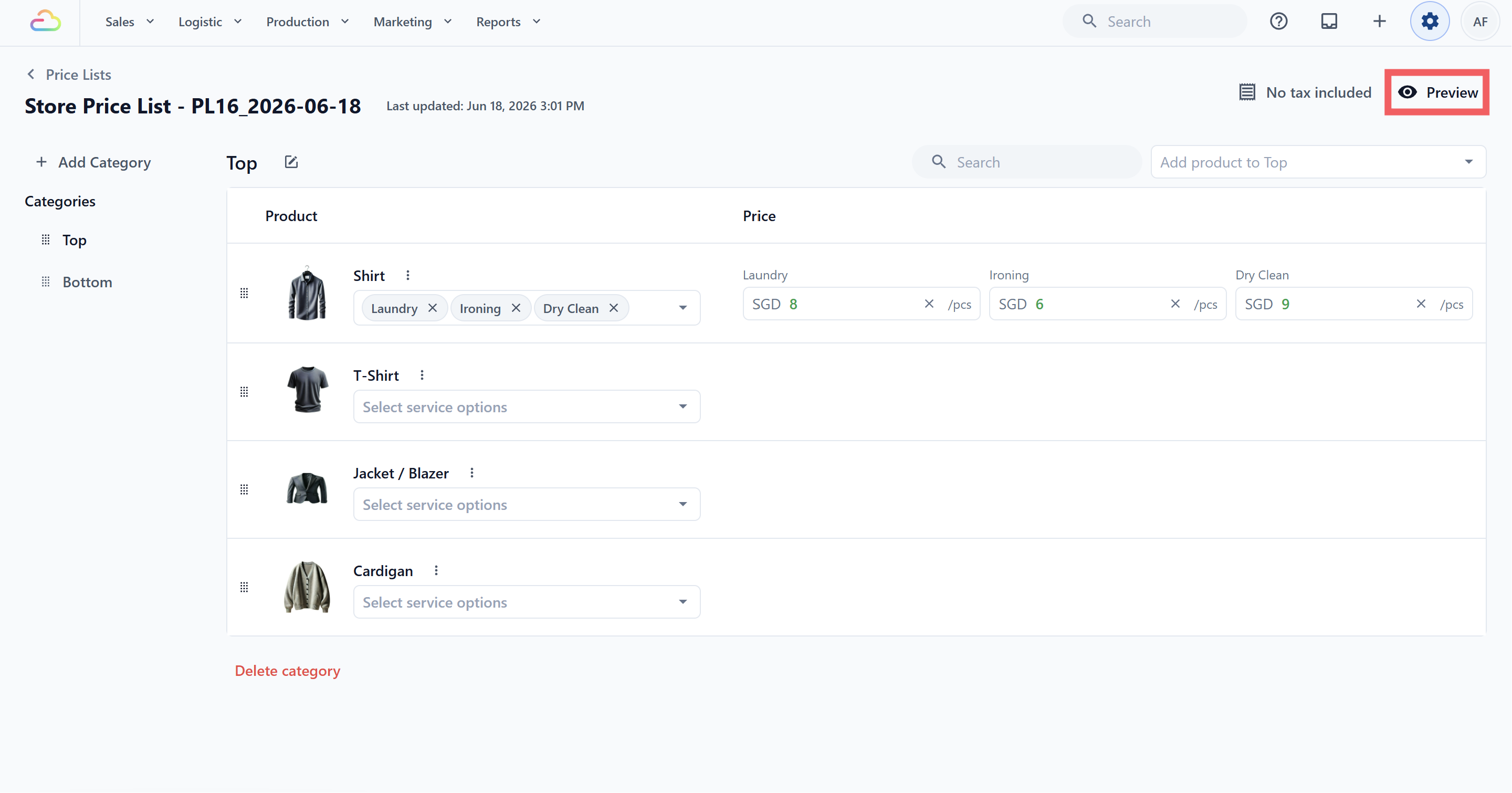
The page switches to a read-only customer-style view, with categories on the left and prices on the right.
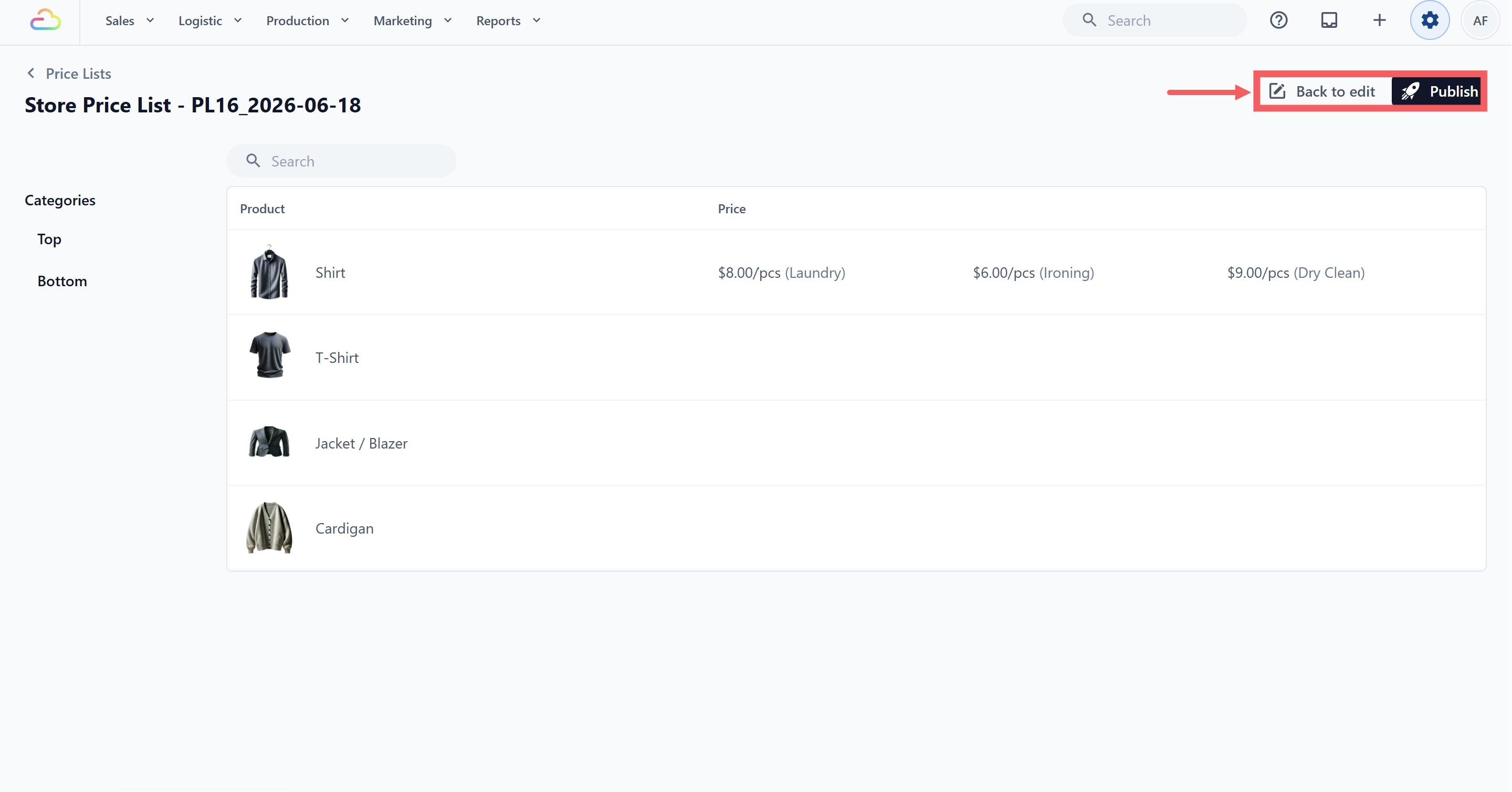
Use the search box to spot-check specific products. When you are done, click Back to edit to keep editing, or Publish to go live.
---
## Publish a Draft and Assign It
Clicking Publish opens the Publish Price List dialog. This is where you decide which part of your business uses this price list.
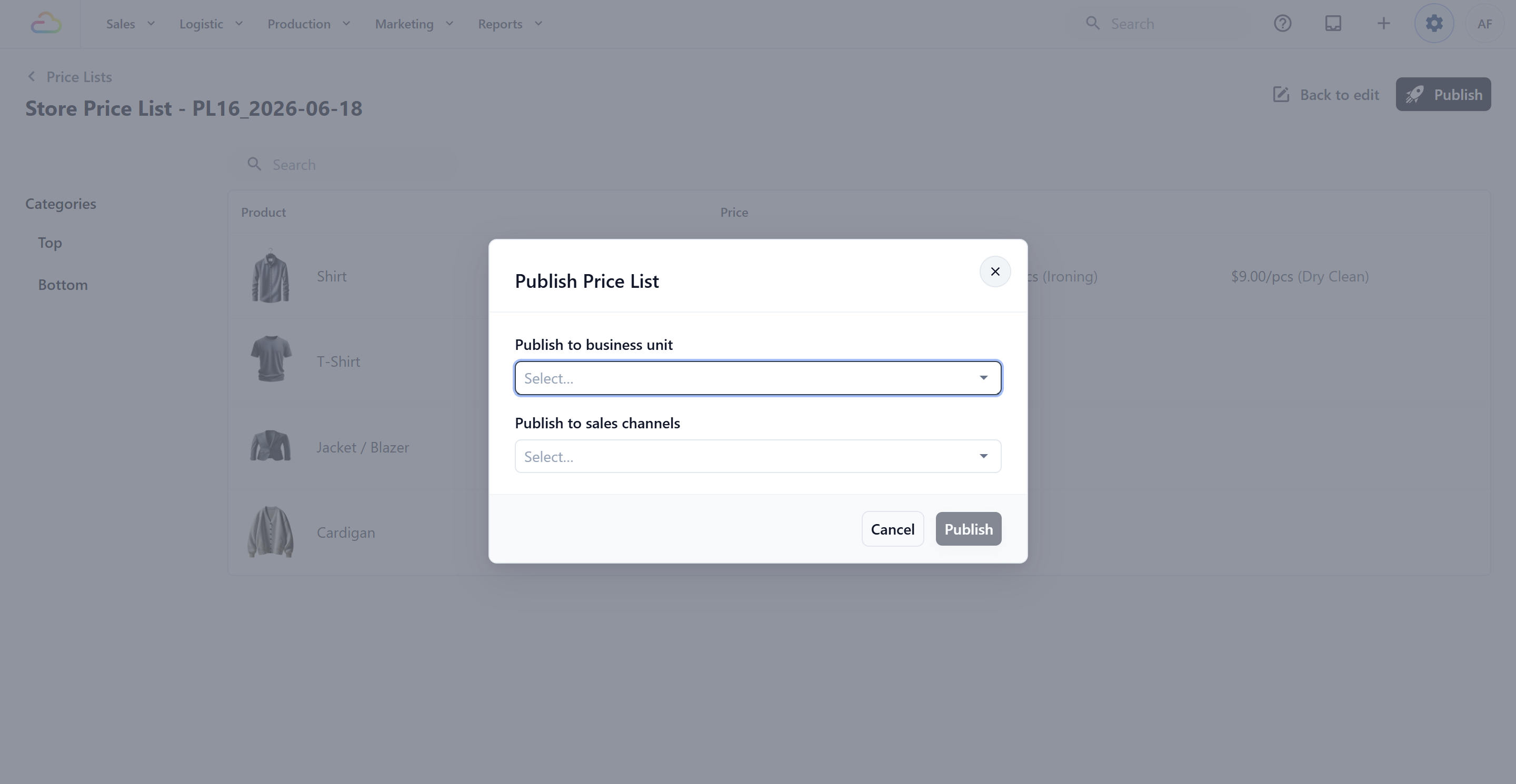
**Publish to business unit**
> Pick the business unit that will use this list, for example Laundry and Dry Cleaning, or Bag Repair. The price list is tied to this business unit going forward.
**Publish to sales channels** (Consumer Price List only)
> Pick which POS counters and Online Stores under that business unit will show these prices. You can pick more than one.
Sales channels are not attached directly to the price list, they are attached through the business unit. The publish dialog only lets you choose sales channels that already belong to the selected business unit. If a POS or Online Store is missing from the list, that means it has not been added to this business unit yet. See how to add sales channels to a Business Unit → [*Coming soon..*]
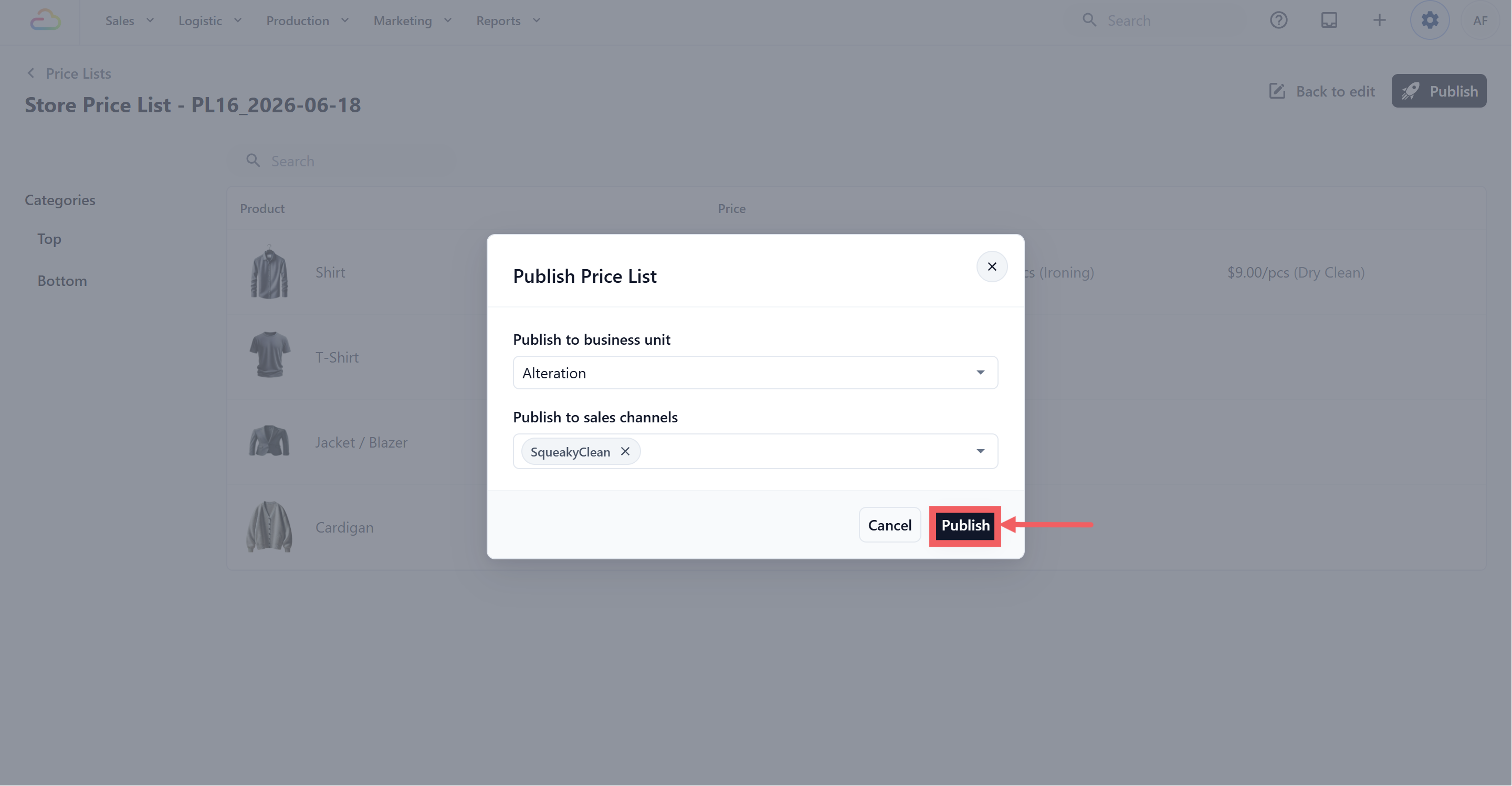
Click Publish. The draft becomes the active version. Anyone using POS, Online Store, or the agent app sees the new prices straight away.
Publishing is immediate. For high-traffic shops, publish outside peak hours so staff are not surprised by a price change mid-queue.
If another price list is already assigned to a sales channel under this business unit, an alert appears. Publishing will replace the previous assignment on that channel.
---
## When the New Prices Start Applying
This depends on the version control setting you picked when you created the list.
| Setting at creation | When publishing |
| --- | --- |
| Yes, updates apply only to new orders | New orders use the new prices. Orders already placed keep the price that was active when they were placed. |
| No, updates apply to all orders | All orders, including ones already placed, use the new prices. |
---
## Open the Version History
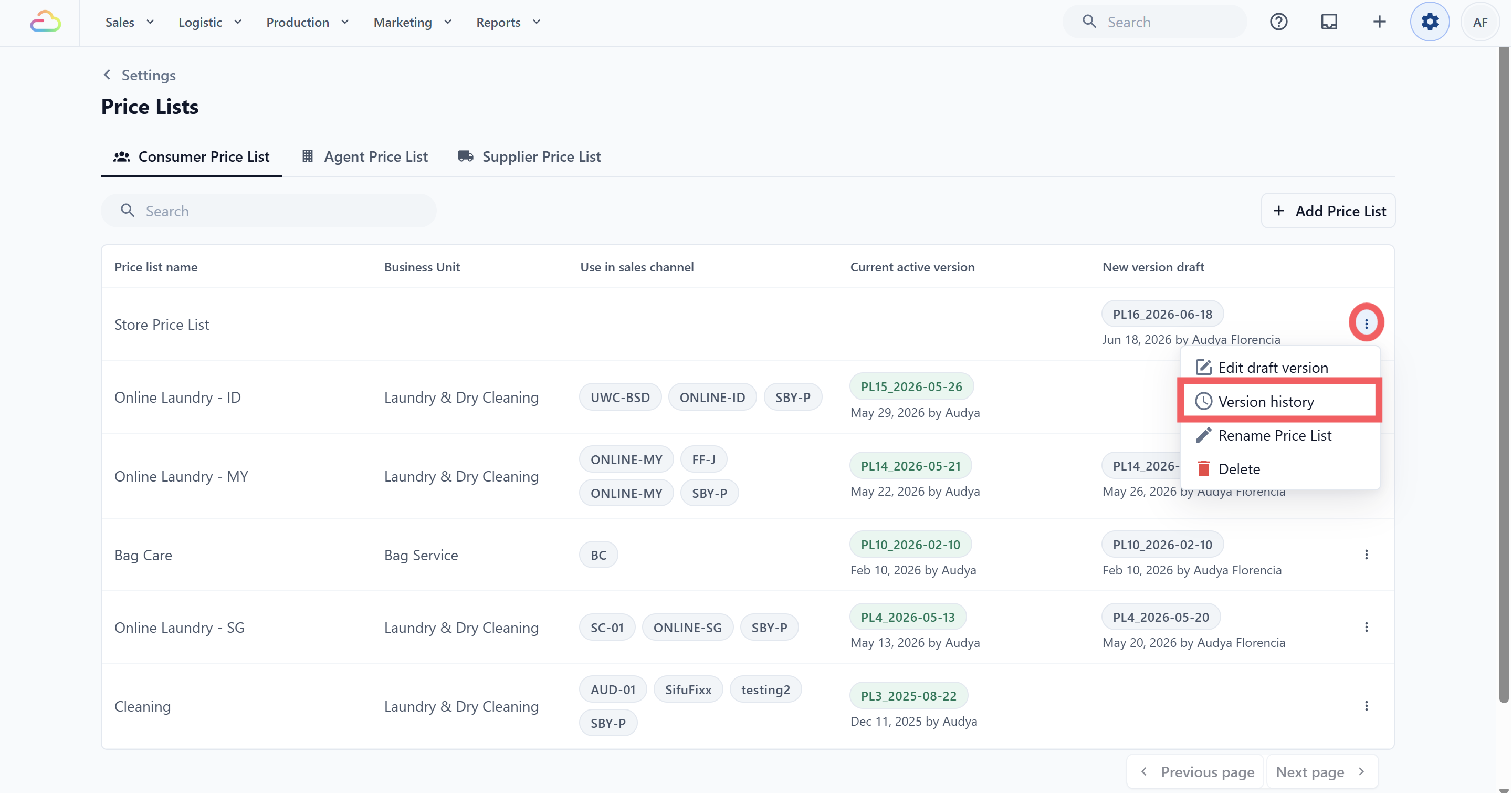
1. In the price list row, click the ••• three-dot menu and pick Version history.
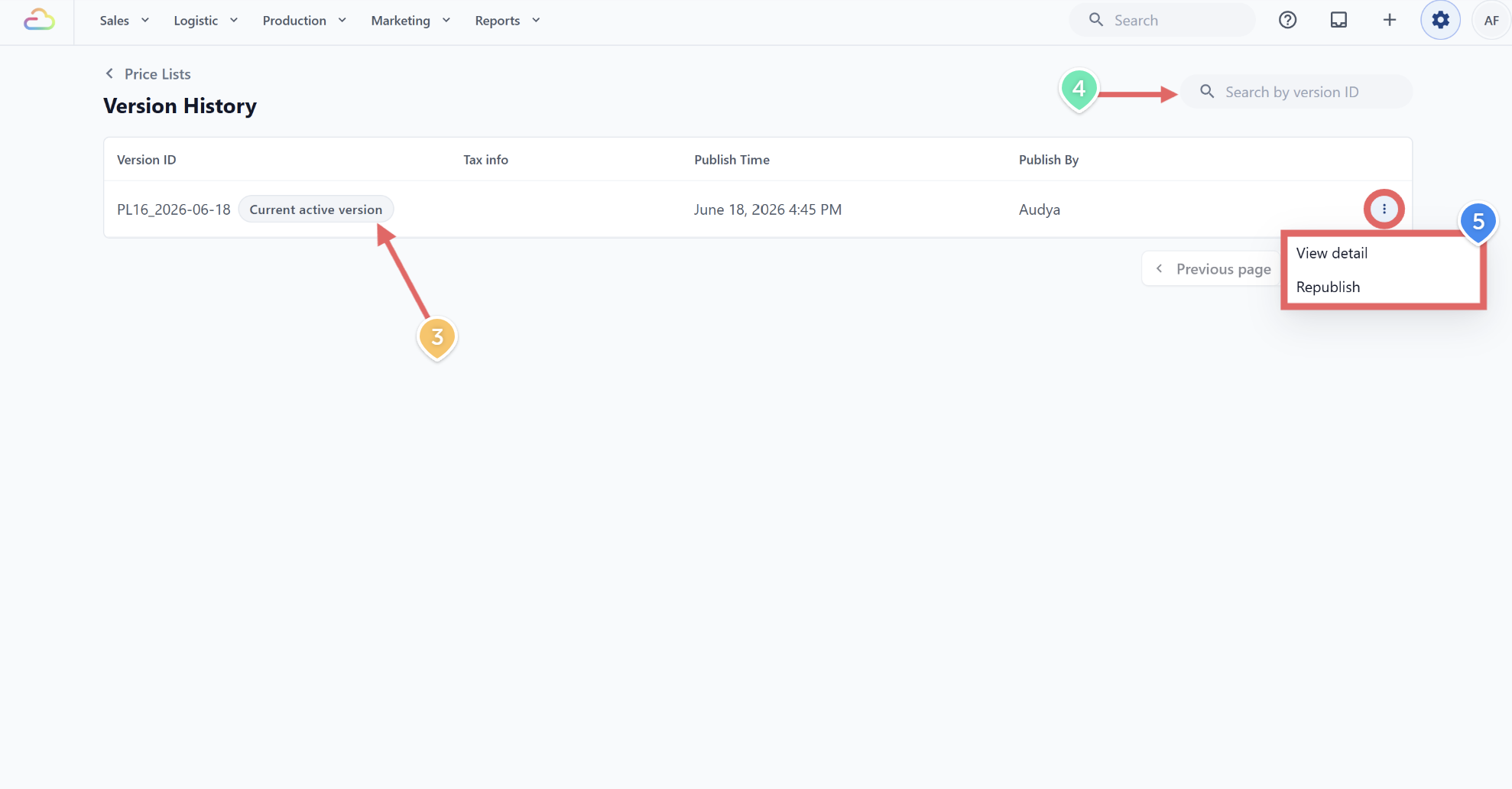
2. The history page shows every published version with these columns: Version ID, Tax info, Publish Time, and Publish By.
3. The current live version is tagged **Current active version**.
4. Use the search box to find a specific version by its ID.
5. Click the ••• three-dot menu to view details / republish the version.
---
## Restore an Older Version (Republish)
1. Open the Version History.
2. Click the ••• three-dot menu on the version you want to restore.
3. Click Republish.
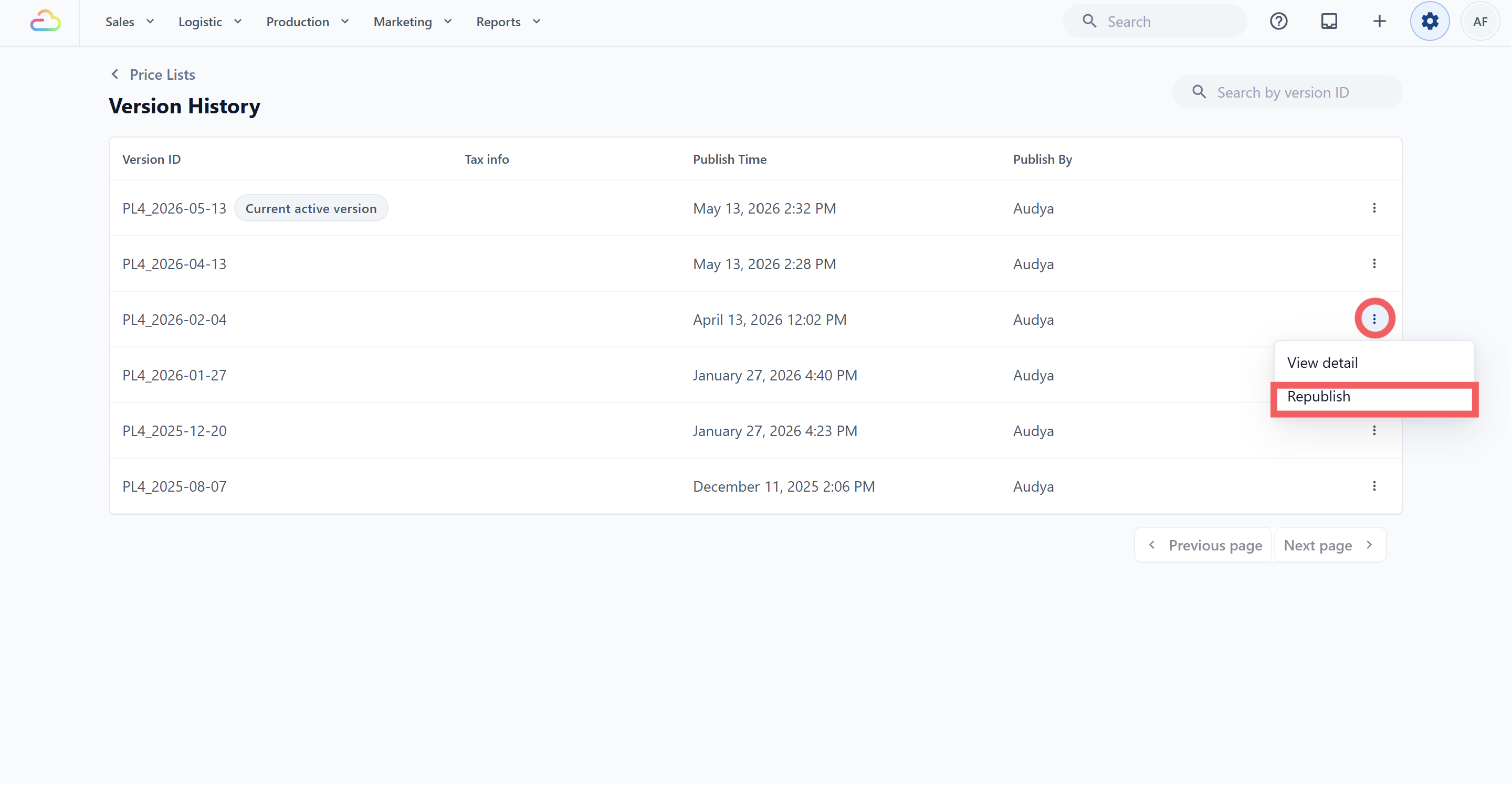
The older version becomes the new active version. The previous live version is kept in history and can be republished again later.
---
## Rename, Export, or Delete a Price List
1. From the row's ••• three-dot menu on the main Price Lists page, you can also:
- **Rename Price List** → change the display name without touching the prices
- **Delete** → remove the price list and all its versions
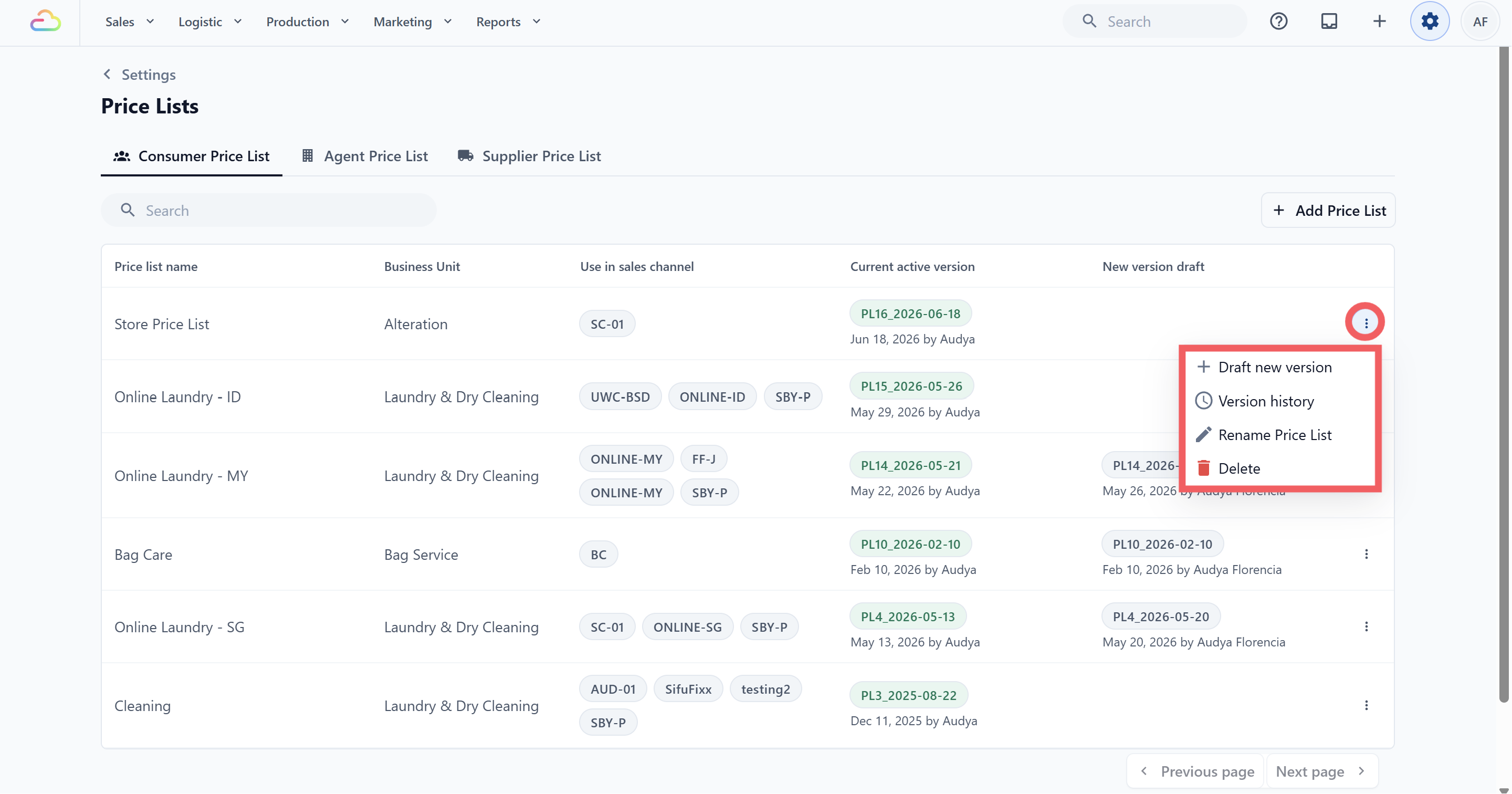
Delete removes every version of the list, including its history. It cannot be undone. Make sure no sales channel is still using the list before deleting. Existing orders that referenced this price list keep their pricing record on the order itself, but you can no longer browse the list. If you only want to retire a price list without losing the audit trail, unlink it from your Business Unit and leave it in place.
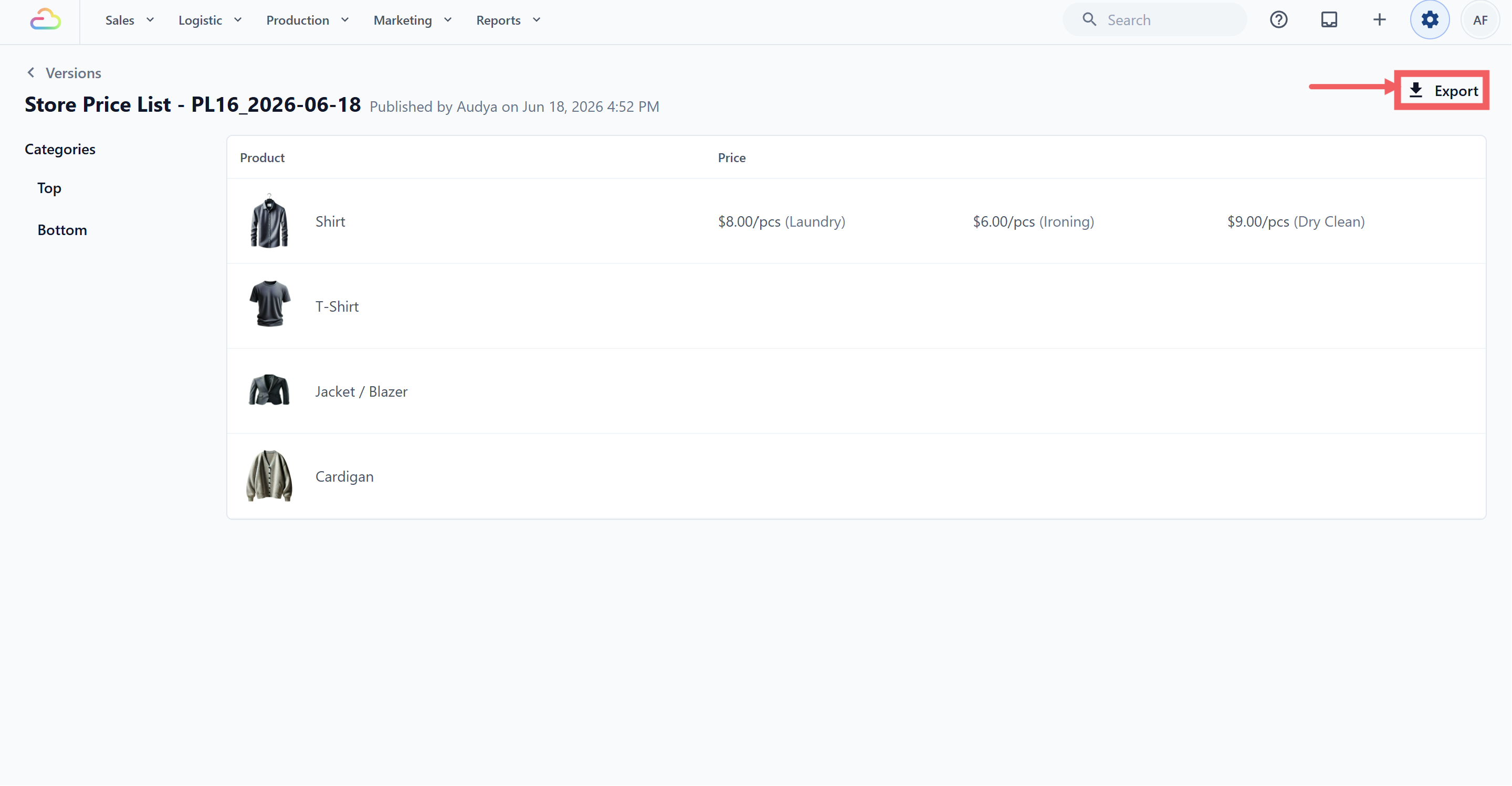
2. From inside an active version page, click **Export** at the top right to download the published prices.
---
## FAQs
**Do I have to publish every change immediately?**
> No. You can leave a draft open for as long as you need. Customers keep seeing the active version until you publish.
**What happens to receipts and quotes already sent?**
> They keep showing the price that was active when they were created. Republishing does not rewrite past documents.
**Can I undo a publish?**
> Yes. Open Version History and republish the previous version. The current live version stays in history.
**When I publish a new version, where do the updated prices appear?**
> POS, Online Store, and B2B orders use the newly published active version right away. Existing completed orders are not changed.
Marketing emails or campaigns that were already sent will not update automatically. Create or update the campaign again if it needs to show the latest prices.
**Can I delete a draft without affecting the active version?**
> Yes. Open the draft and discard it from the editor. The active version is untouched.
**What is the difference between Republish and Draft new version?**
> Republish takes a historical version and immediately makes it the live active version, with no edits. Use it to roll back. Draft new version makes an editable copy of the current active version so you can change prices and publish later. Use it to evolve forward.
**Why is Version History missing from my list?**
> Version history only shows on lists with version control turned on. Lists set to "updates apply to all orders" do not keep history because every change is immediate.
---
## **What's next**
Now that you know how to preview, publish, and roll back your price list versions, the next step is setting up special pricing for B2B partners. See [Set Up Agent Pricing for B2B Orders](/docs/set-up-agent-pricing-for-b2b-orders).