## Before You Start
You can create add-ons before finishing your Service Items or Retail Products. Add-ons are shared across your business units and do not need to be linked individually.
If your account has multiple markets, set up those markets first so their names and currencies appear in the Add-on form. After adding another market later, review your paid add-ons and enter a surcharge for the new market before staff use them there.
Each market controls its own currency. Add-on prices are entered separately for each market; EasyBiz does not perform currency conversion.
---
## What Is an Add-on?
An add-on is an optional extra attached to an existing order item, rather than a service or product sold on its own. Examples include Gift Wrapping, Starch, Folding, Extra Hanger, or Express Handling.
The add-on’s name and SKU are shared across the account, while its availability and surcharge can differ by market. A paid add-on may therefore cost SGD 4 in Singapore and MYR 12 in Malaysia, or be offered in only one of those markets. An add-on with no surcharge in any market is treated as a free extra.
---
## How to Add an Add-on
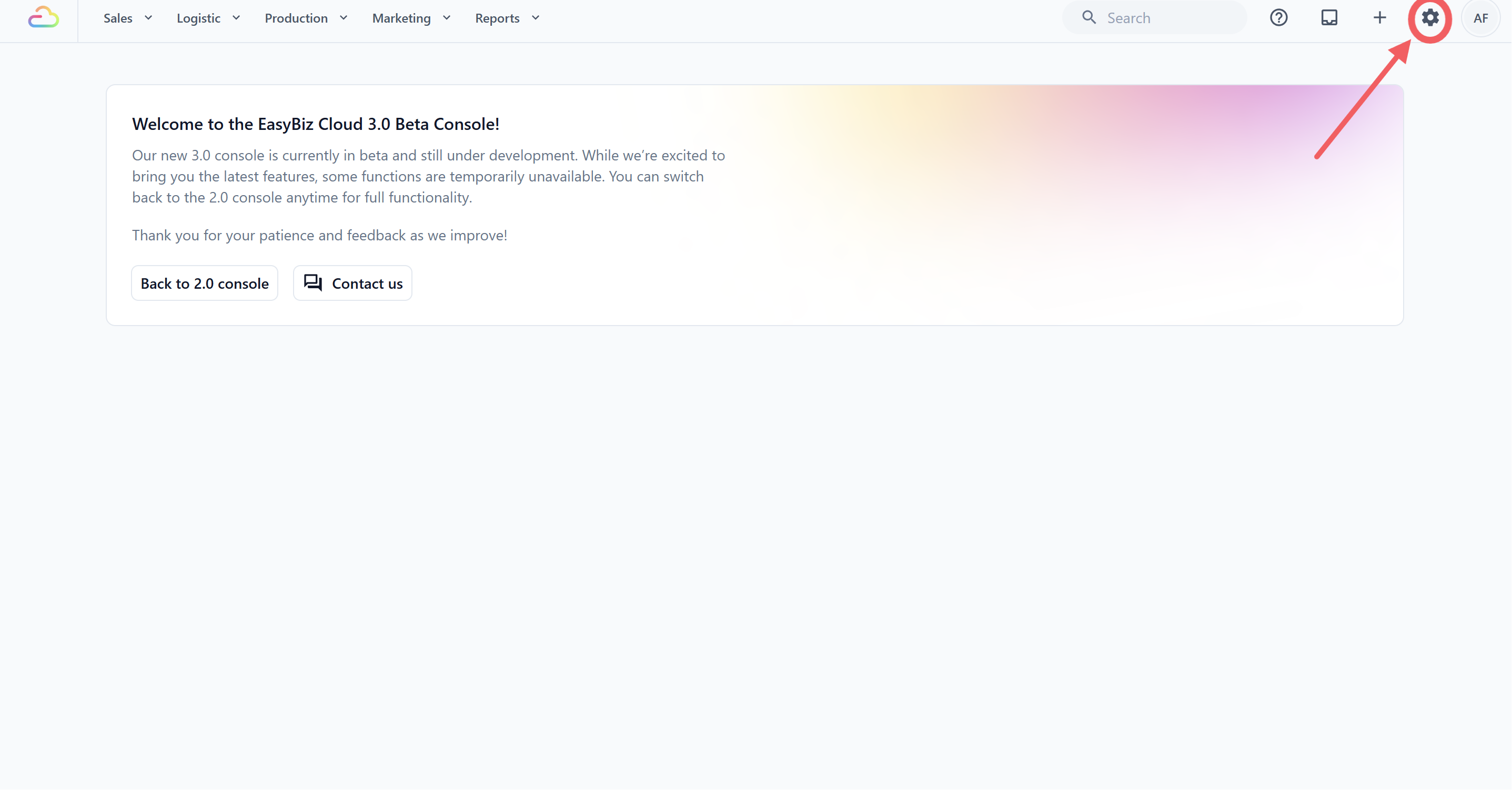
1. Click the ⚙️ Settings icon in the top-right corner.
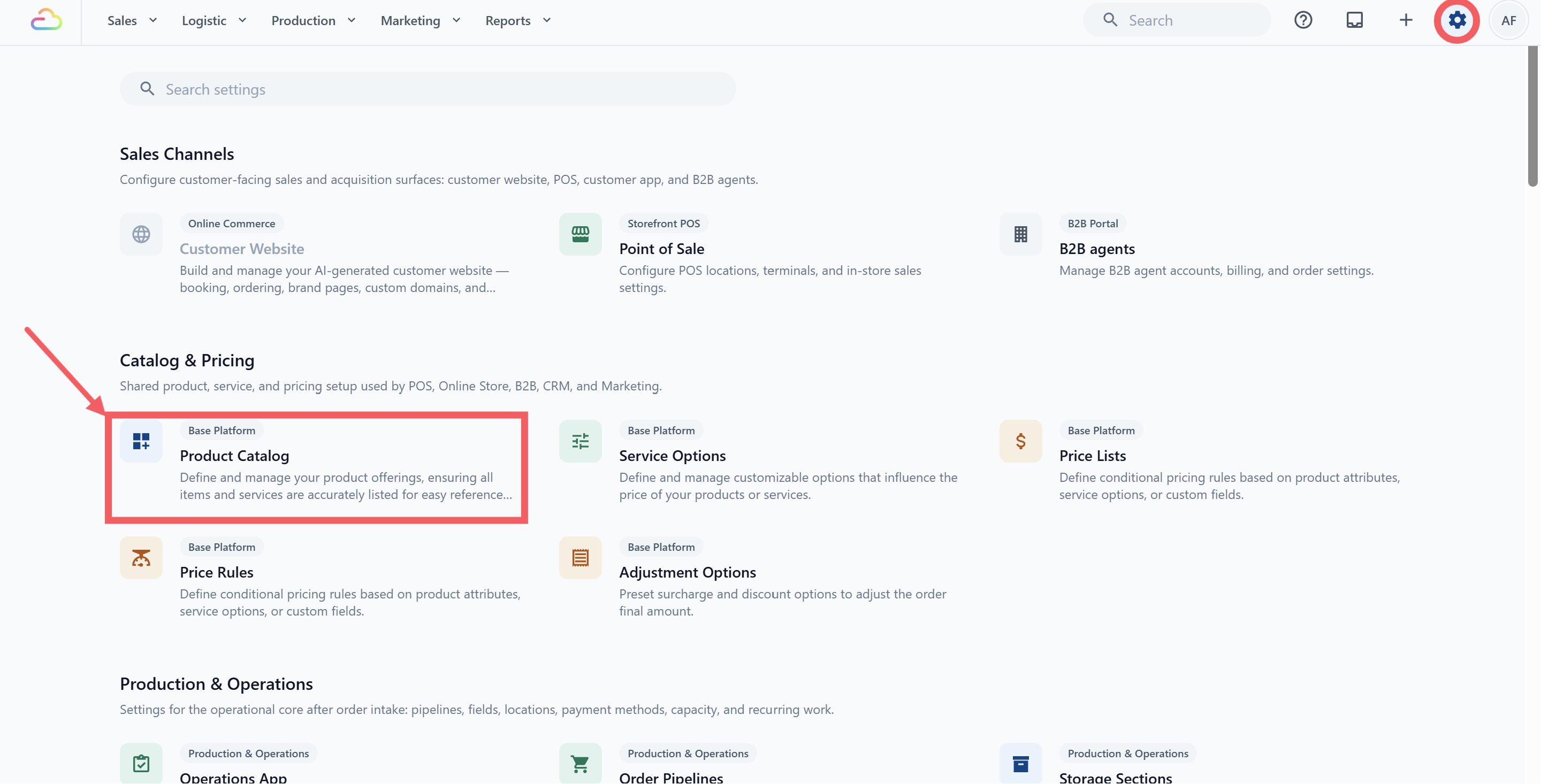
2. Under the **Catalog & Pricing** section, click Product Catalog.
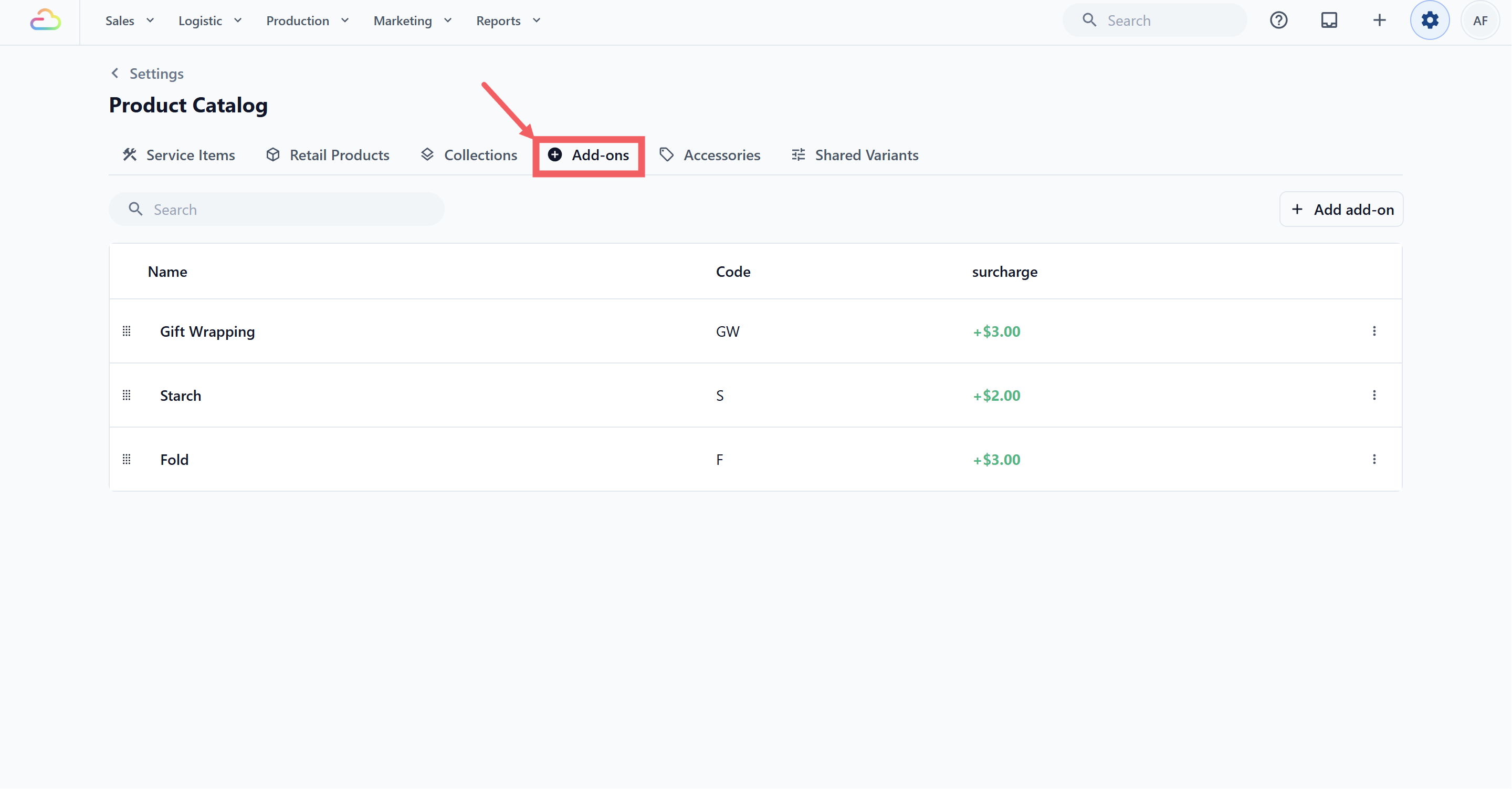
3. Click the Add-ons tab.
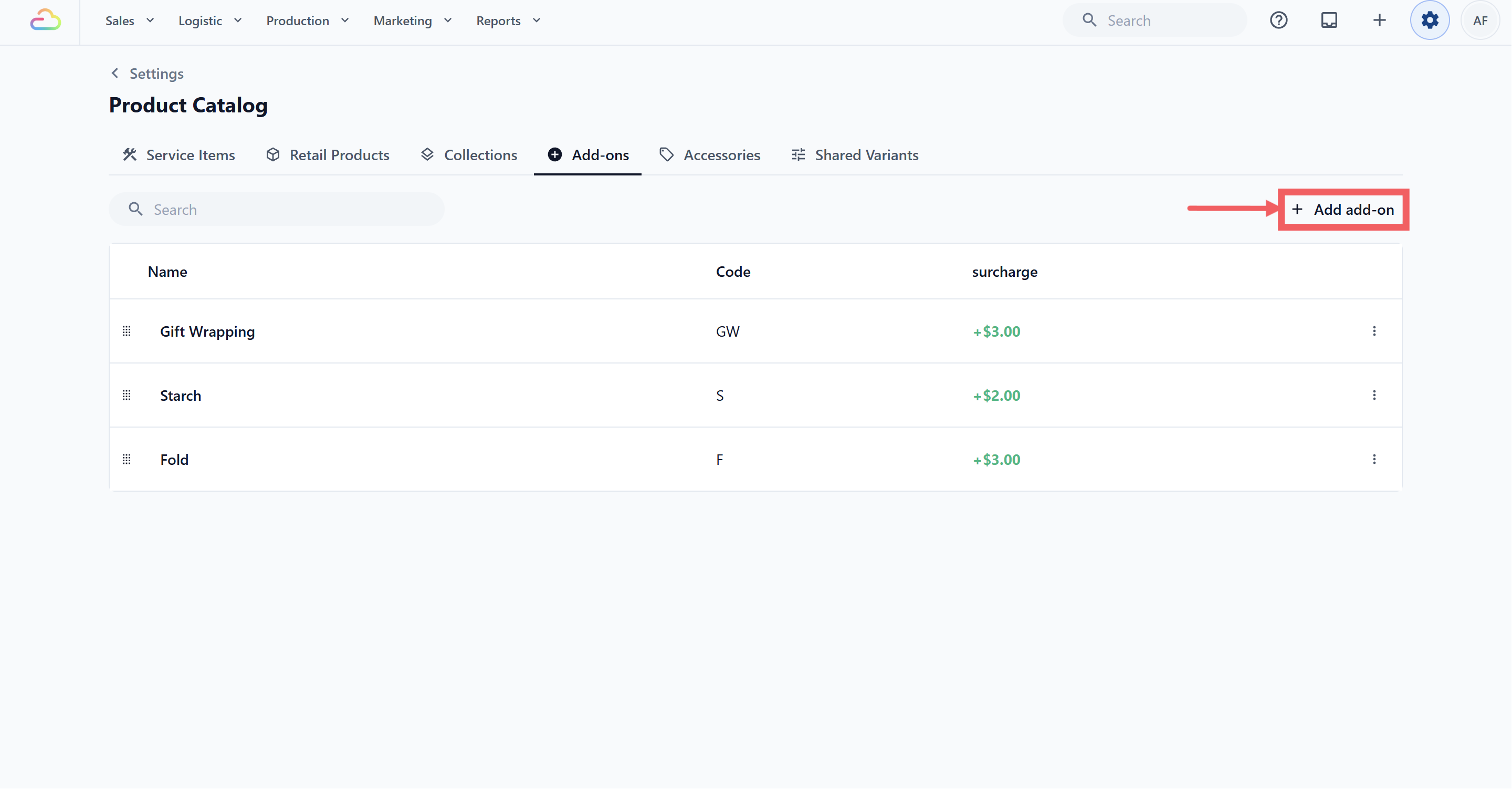
4. Click Add add-on in the top-right of the toolbar.
5. Enter the **Add-on name**.
Enter the name your staff and customers will see, for example Gift Wrapping or Starch.
6. _Optional_. Enter a **SKU**.
Enter a short code for receipts, work orders, and reports. This field is optional.
7. If your account has multiple markets, choose the add-on’s **Available in** setting:
- **All markets** makes it available in every current market and any market added later.
- **Selected markets** lets you choose the exact markets where it is offered. Even if you select every current market, this remains a fixed selection and will not automatically include a future market.
The availability control is hidden for single-market accounts.
8. Enter the **Surcharge**:
- A single-market account shows one surcharge field.
- A multi-market account shows one field for each available market, labelled with the market name and prefixed with that market’s currency.
- Enter each amount separately. EasyBiz never converts or copies a surcharge from another market.
- 0 is a valid surcharge. Leaving every surcharge blank makes the add-on free. If the add-on has a price in one market but an available market is left blank, it will not be selectable in that unpriced market.
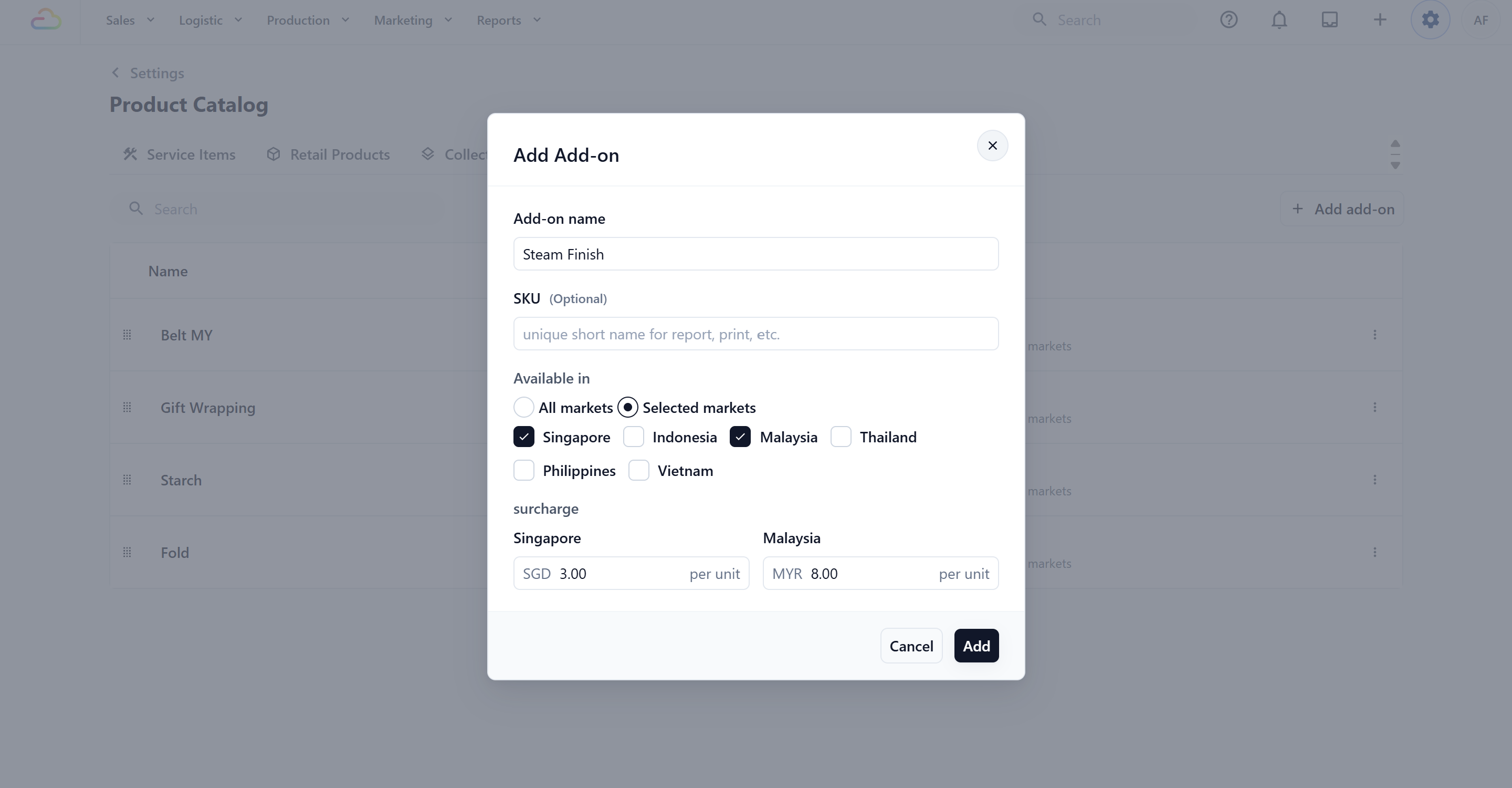
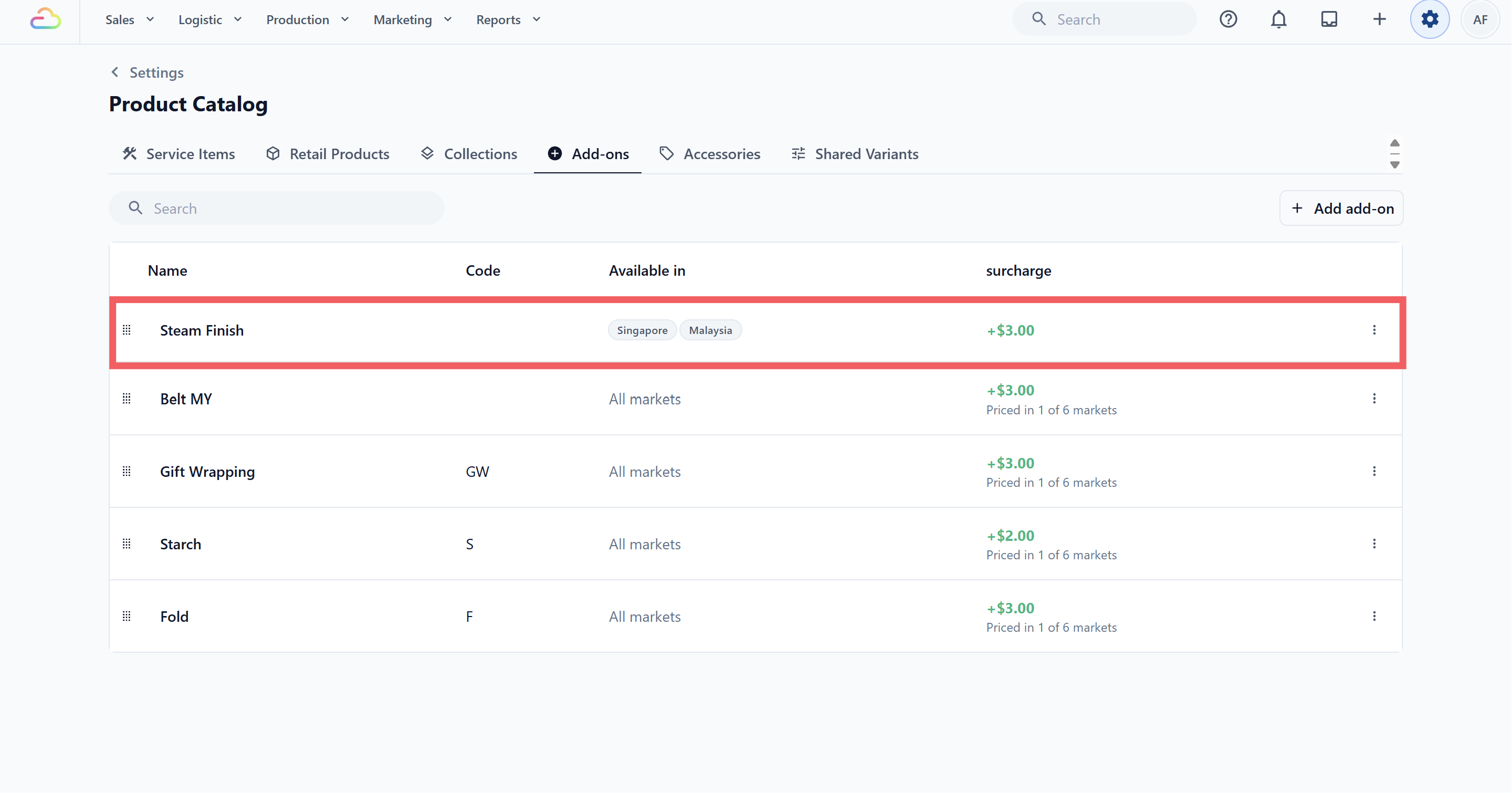
9. Click Add to save.
---
## Editing or Deleting an Add-on
To edit an existing add-on, click anywhere on its row. The **Update Add-on** dialog opens with its name, SKU, market availability, and market surcharges filled in. Make your changes and click Update.
In a multi-market account, the table’s **Available in** column shows either **All markets** or the selected market names. The **Surcharge** column shows the default market’s amount. If a paid add-on is missing a price in another available market, the row also shows **Priced in X of Y markets**.
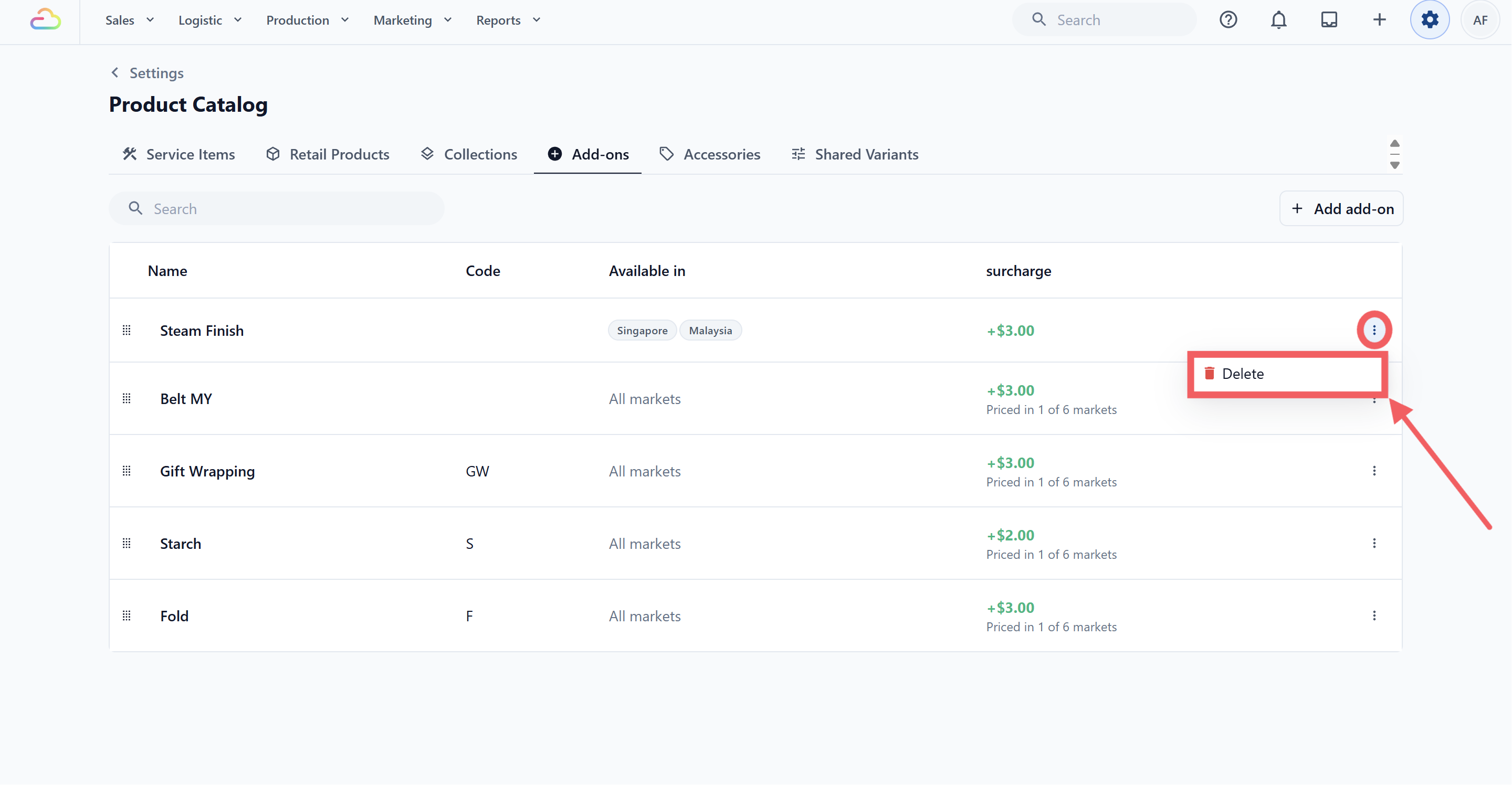
To delete an add-on, click the ••• menu at the far right of its row and choose Delete.
Availability and surcharge changes apply only to future selections. Existing orders keep the add-on name and price recorded when the order was created. Deleting an add-on removes it from future pickers but does not alter past orders.
### Reordering Add-ons
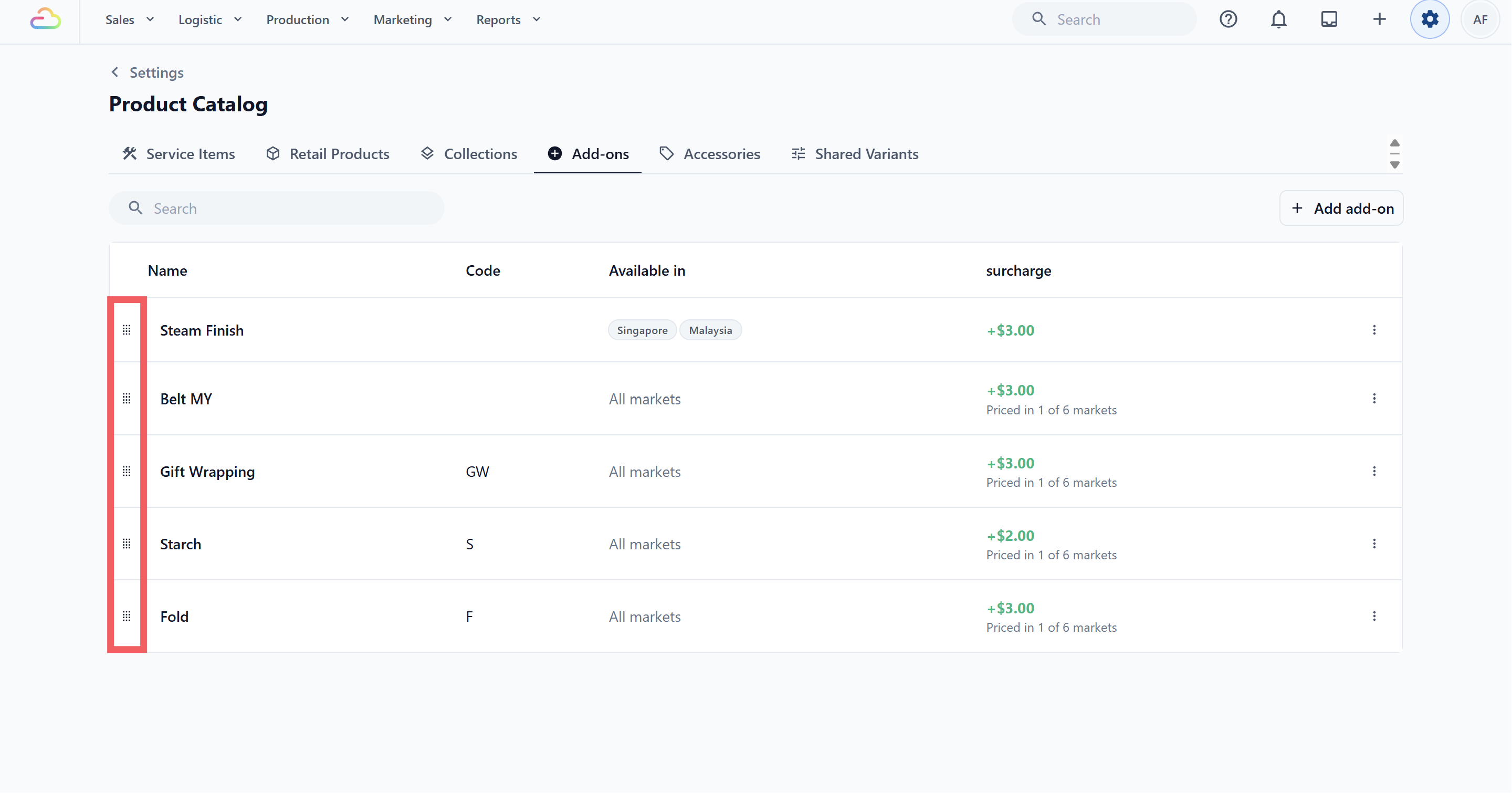
Click and hold the six-dot drag handle to move an add-on up or down. The list remains shared across markets, and the order shown here controls the order in the POS Add-ons picker. Market availability determines which entries from that shared list appear for each order.
---
## Where Add-ons Appear at the POS
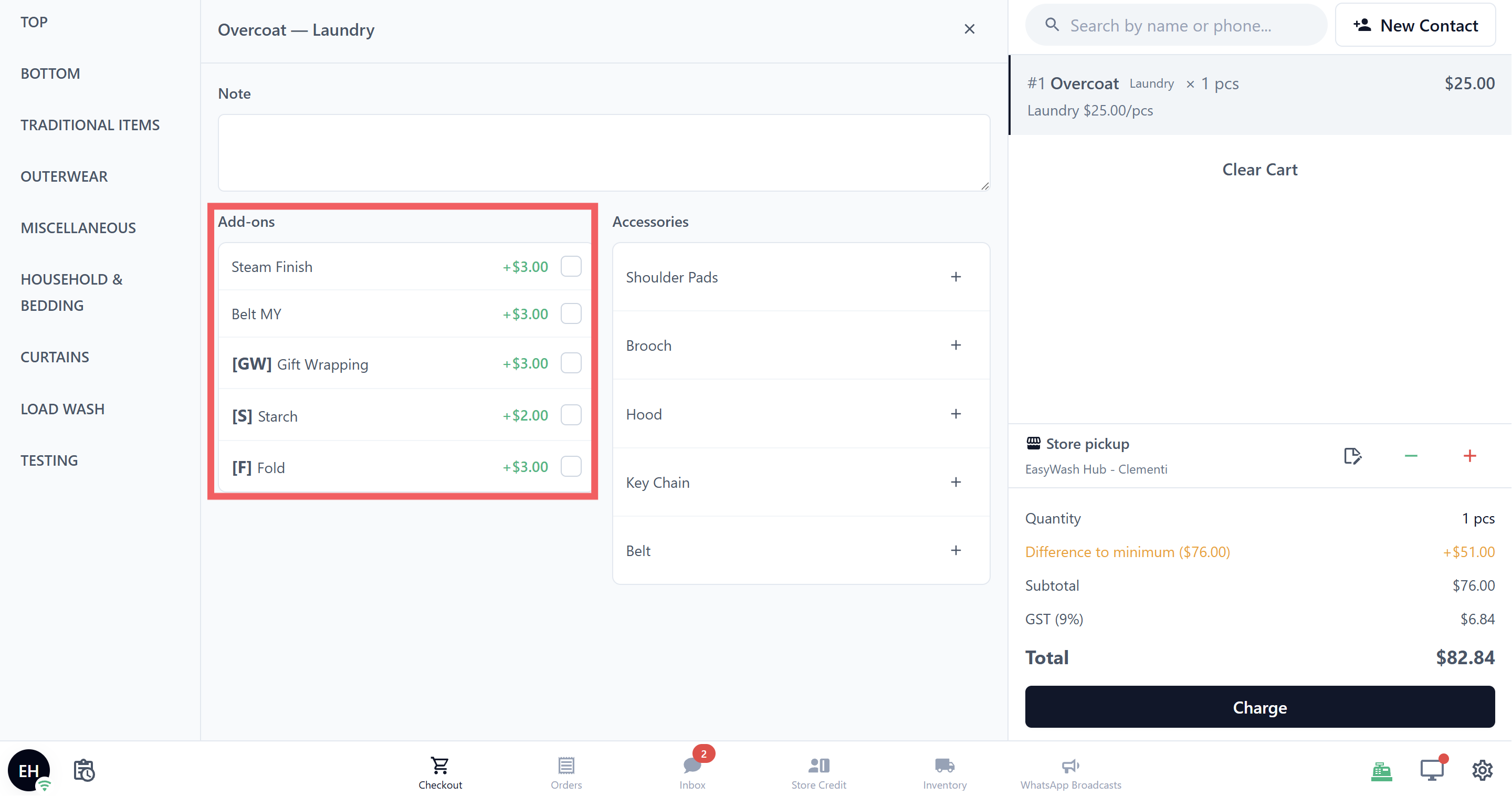
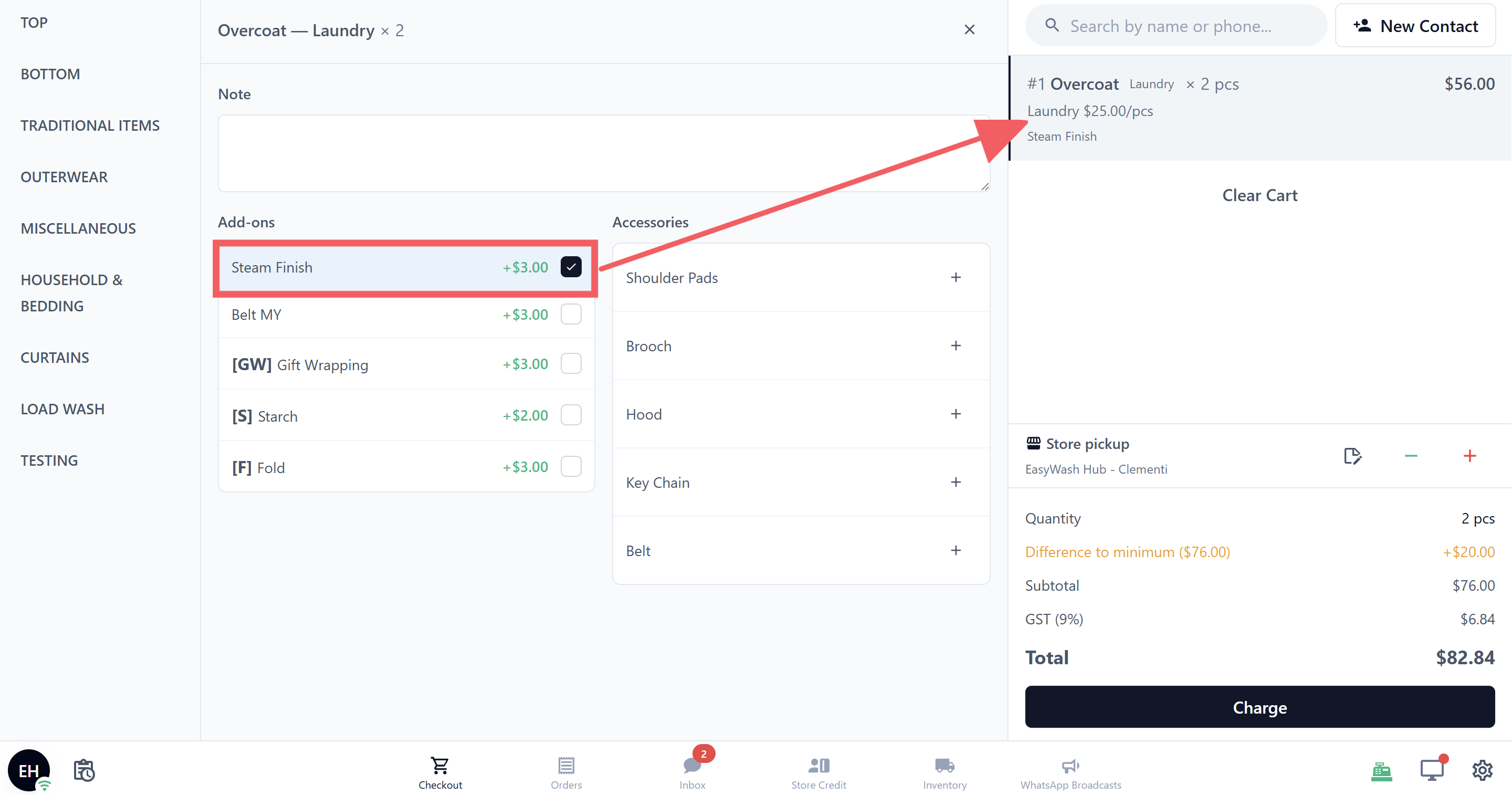
Add-ons appear when staff edit an item in the POS cart, next to [Accessories](/docs/adding-accessories). After adding a Service Item, tap its cart line, click **Edit**, and select the required add-ons.
The picker uses the order’s market. Staff see only add-ons available in that market, with the surcharge entered for that market and displayed in the order’s currency. A paid add-on that has no surcharge for the current market is hidden instead of borrowing another market’s price. An add-on with no surcharge in any market remains selectable as a free extra.
Each selected add-on is charged according to the item quantity. For example, if the quantity is 2 and the current market’s surcharge is SGD 3, the add-on contributes SGD 6.
---
## FAQs
**Do I need to link each add-on to a product or service?**
> No. Once you save an add-on here, it is automatically available across every business unit in your shop. Your staff can attach it to any order item at checkout without any extra linking step.
**Can the same add-on have different prices in different markets?**
> Yes. Enter a separate surcharge for every market where the add-on is offered. Each field uses that market's currency, and EasyBiz does not apply automatic currency conversion.
**What happens when I add a new market?**
> Add-ons set to **All markets** automatically become available in the new market. Paid add-ons still need a surcharge for that market before they appear at checkout. Add-ons restricted to **Selected markets** remain limited to their saved selection until you update them.
**Can I change the currency on a surcharge?**
> Not from the Add-on dialog. Each surcharge field uses the currency configured for its market. If the currency is incorrect, update the market's settings.
**Can an add-on be free?**
> Yes. Leave all surcharge fields blank to keep the add-on free. You can also enter `0` as an explicit zero surcharge. If the add-on is priced in one market, each other available market needs its own surcharge before the add-on appears there.
**Is the SKU printed on receipts and work orders?**
> Yes. The SKU is the short code that appears on receipts, work orders, and reports. If you leave it blank, the add-on still works, but only the full name shows.
**What happens to past orders if I edit or delete an add-on?**
> Past orders keep the add-on details and surcharge recorded when the order was created. Editing or deleting an add-on affects only future selections.
**Why does the list say "Code" but the dialog says "SKU"?**
> They are the same field. The list column header reads **Code**, while the form field reads **SKU**. Treat them as one value.
**How is tax counted on add-on surcharges?**
> Add-on surcharges follow the tax setup used by the order's market and price list. Add-ons do not have their own separate tax setting.
>
> If prices are **tax-inclusive**, tax is already included in the surcharge. If prices are **tax-exclusive**, tax is added on top using the rate that applies to the order.
---
## What's Next
Now that your add-ons are set up, the next step is to add any items your shop tracks alongside an order, such as hangers, belts, or buttons that come with a garment. Continue to [Adding ](/docs/adding-accessories)[Accessories](/docs/adding-accessories) to finish the extras section of your catalog before you set up your Price Lists.