
The Close of Day Report template is the print layout of the slip your staff print at the end of the day. To set it up in the Console, go to ⚙️ Settings › Receipt template, click Add slip under Slips and reports, pick the Close of Day Report card and click Create, then click Save. Then choose it for each POS app in the Daily Sales feature, together with the Close of Day steps.
Where to Find Receipt Templates
The Close of Day Report template lives in the same Receipt Templates page as your order receipts and other slips.
Click the ⚙️ Settings icon in the top-right corner.
Under the Library section, click Receipt template.
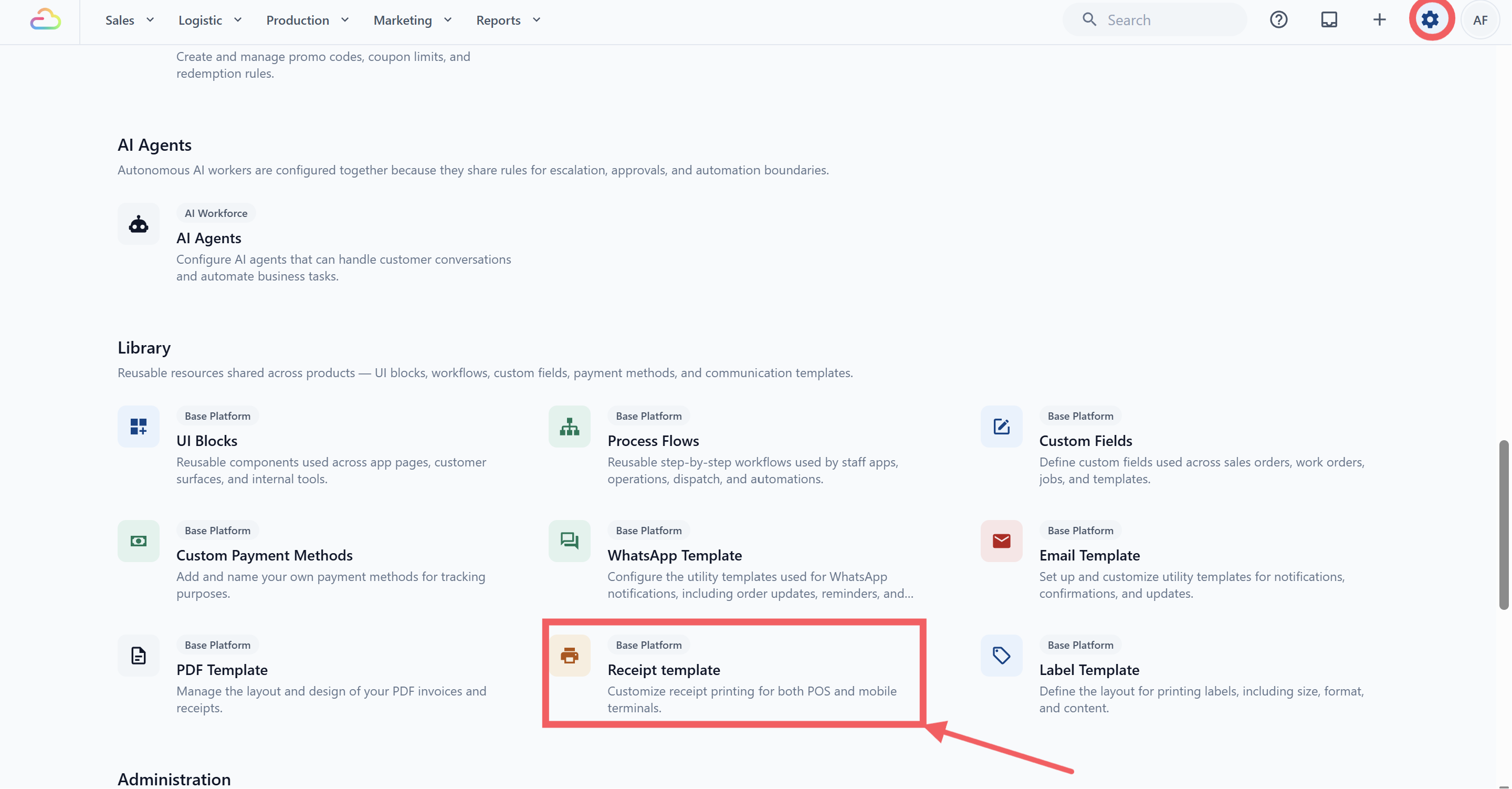
- The Receipt Templates page opens. It has 2 lists: Order receipts and Slips and reports. Your Close of Day Report is listed under Slips and reports.
Create the Close of Day Template
Under Slips and reports, click Add slip.
A pop-up titled New Receipt Template opens.
Enter a Template Name. For example, Close of Day Report.
Under Template content, click the Close of Day Report card.
Click Create. The template editor opens with the ready-made report.
The ready-made report already covers the standard sections: the sales summary, income by payment method, totals and a signature line. See Introduction to the Close of Day Report for what each section shows.
Edit the Template
The editor shows the report on the left and the settings on the right, with a Receipt tab and a Block tab. A block is one line or section of the report.
- Click a text line on the report to edit its wording in the Block tab.
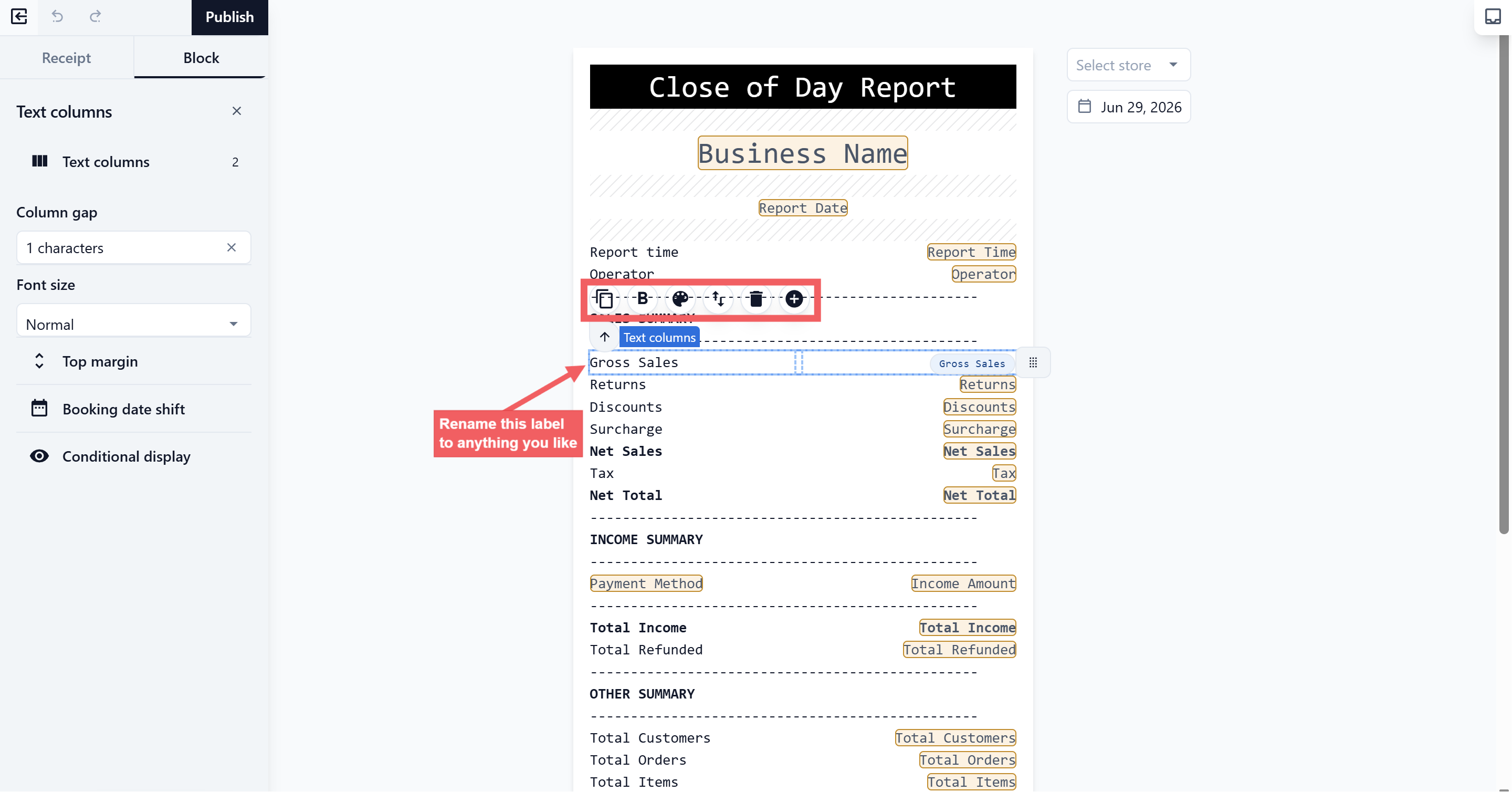
- For details that should fill in automatically, type
@and choose one, such as a sales total, a payment method or the staff name.
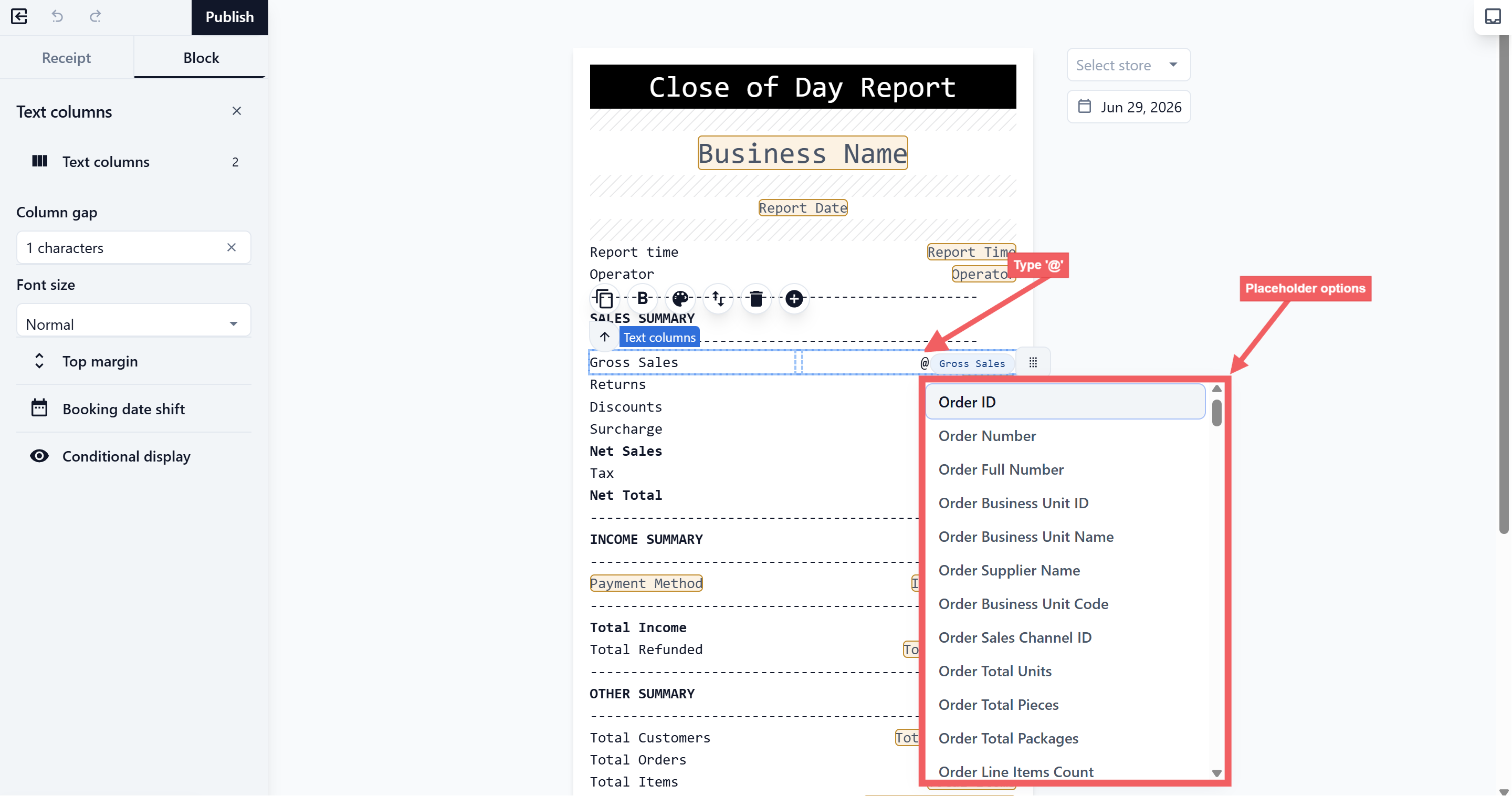
- To change a column or section, click it and update its settings in the Block tab.
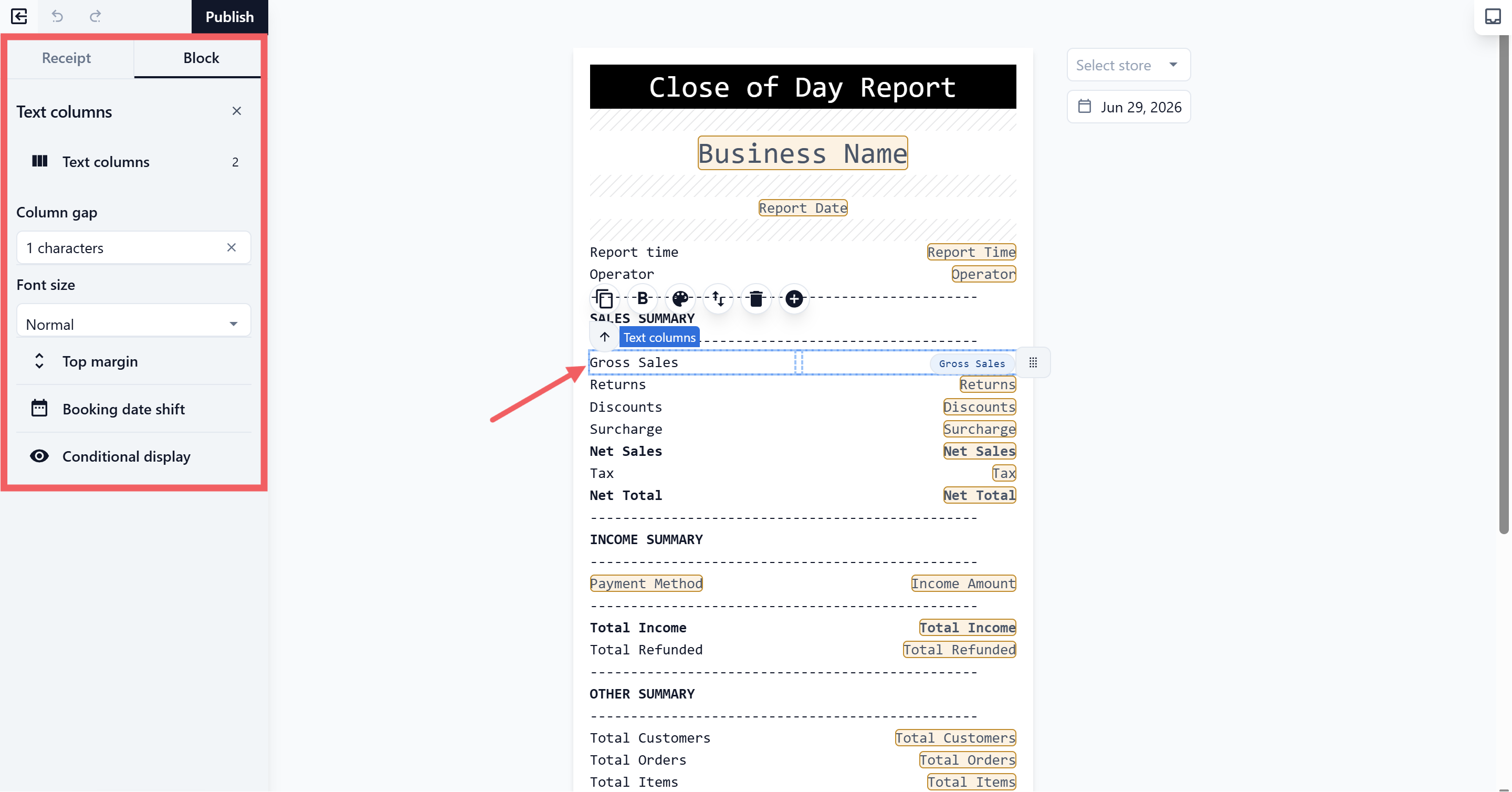
- To check the layout with real figures, pick a shop in Select store and a date above the preview. Or click Preview sample to see made-up figures.
The actual numbers are filled in when your staff run Close of Day on the POS.
Save the Template
Click Save in the top right.
The first save makes the template ready for your POS apps. Until then it shows a Draft badge in the Slips and reports list and can't be chosen in Daily Sales.
Later changes work the same way: open the template from Slips and reports, make your change and click Save. The next report your staff print uses the new layout.
Link It to Your POS App
Staff run Close of Day from the Daily Sales screen on the POS. Set it up once for each POS app:
Click the ⚙️ Settings icon, then click Point of Sale under the Sales channels section.
Choose your POS app and click Edit.
Under Features, click Daily Sales.
Under Close of Day Flow, click Add Step to add the steps staff go through before they close the day, such as counting the cash drawer or writing a closing note. You can reorder or remove steps here too.
In Close of Day Receipt Template, choose your template.
Click Publish. The POS uses the new settings once they are published.
You can link the same template to every POS app.
Delete a Template
Open the template from Slips and reports and click Delete receipt at the bottom of the Receipt tab, then confirm.
If a POS app still uses it, choose another template in that app's Daily Sales feature first, so the POS always has a report to print.
FAQs
Do I need to customise the template before staff can use it?
No. The ready-made Close of Day Report already covers the standard sections, so most teams save it as it is. You can still change the wording, details and block settings.
Can I edit the sections that appear on the report?
Yes. Open the template from Slips and reports, change the text, details or block settings, and click Save.
Why is there no date range field on the create screen?
The report always covers the current business day on the POS where it is run. The printed Report Date and Report Time are filled in automatically when staff tap Close of Day on the POS.
Can I run the report from this page?
No. This page only sets the print layout. You can preview it with a shop and date, but the report itself is run and printed on the POS, from the Daily Sales screen.
Do I need a separate template for each shop or outlet?
No. The template is shared. You choose the same template in the Daily Sales feature of each POS app.
Why can't I choose my template in Daily Sales?
It hasn't been saved yet. A new template shows a Draft badge until you open it and click Save.
What's Next
Now that the Close of Day template is in place, make sure each POS app has it chosen in its Daily Sales feature. For how to set up the rest of your POS app, see Create Your POS App.