
Price Rules let EasyBiz work out prices on its own from the details of each item, such as its fabric, size or service. Go to ⚙️ Settings › Catalog & pricing › Price Rules. The page has three tabs: Base Price Rules set an item's starting price, Item Adjustments add a discount or surcharge to matching items, and Bundle Price Rules give a fixed price for a set of items, like 3 shirts for $20. Discounts on the whole order are set in Settings › Discounts instead.
Why set up Price Rules?
- Automation: Add extra fees on their own, for example +$5 for silk, without staff needing to remember the price.
- Upselling: Create bundle deals, like 3 shirts for $20, to encourage larger orders.
- Accuracy: Avoid undercharging with rules that check each item's details.
Base Price Rules
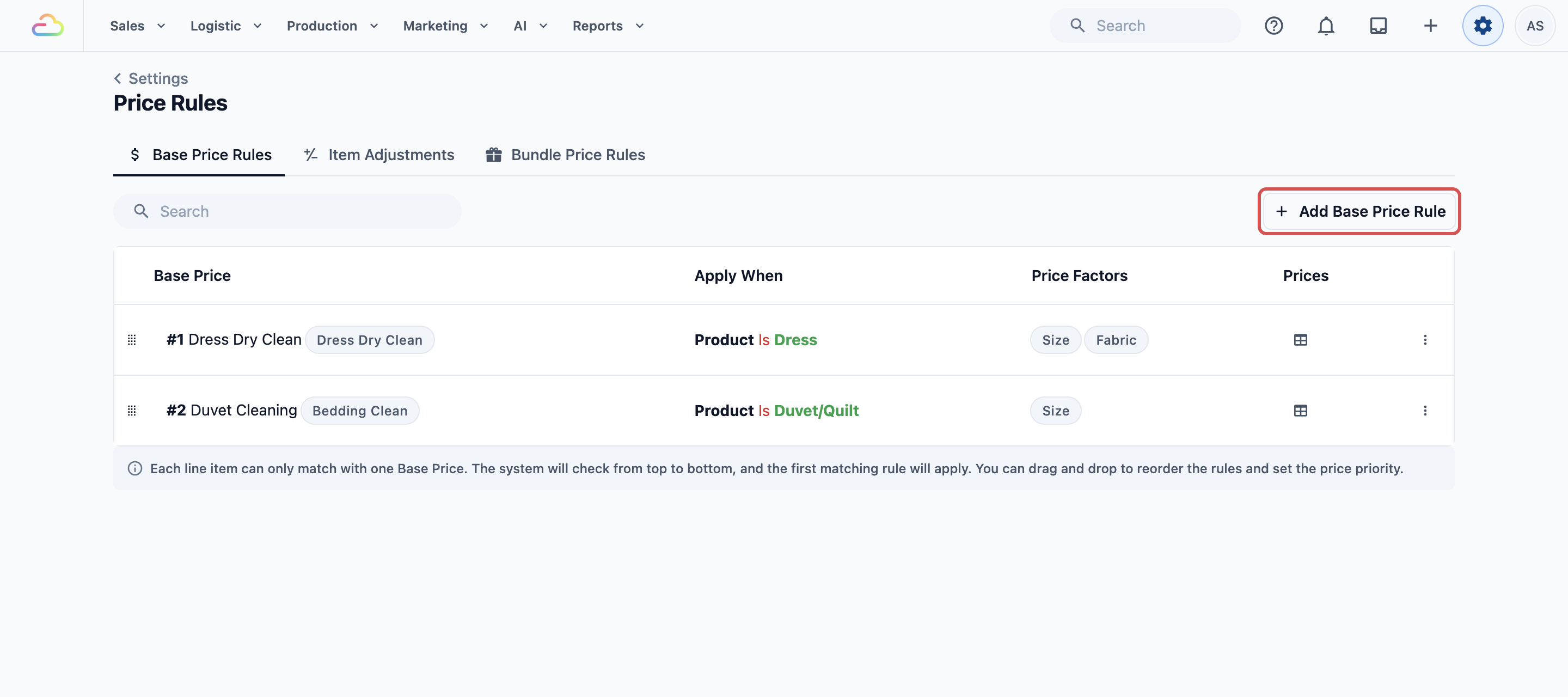
A base price rule sets an item's starting price from its details, before any extra fees are added. It is used by service options whose Pricing mode is Rule-based. See Setting up Service Options.
Click Add Base Price Rule and fill in:
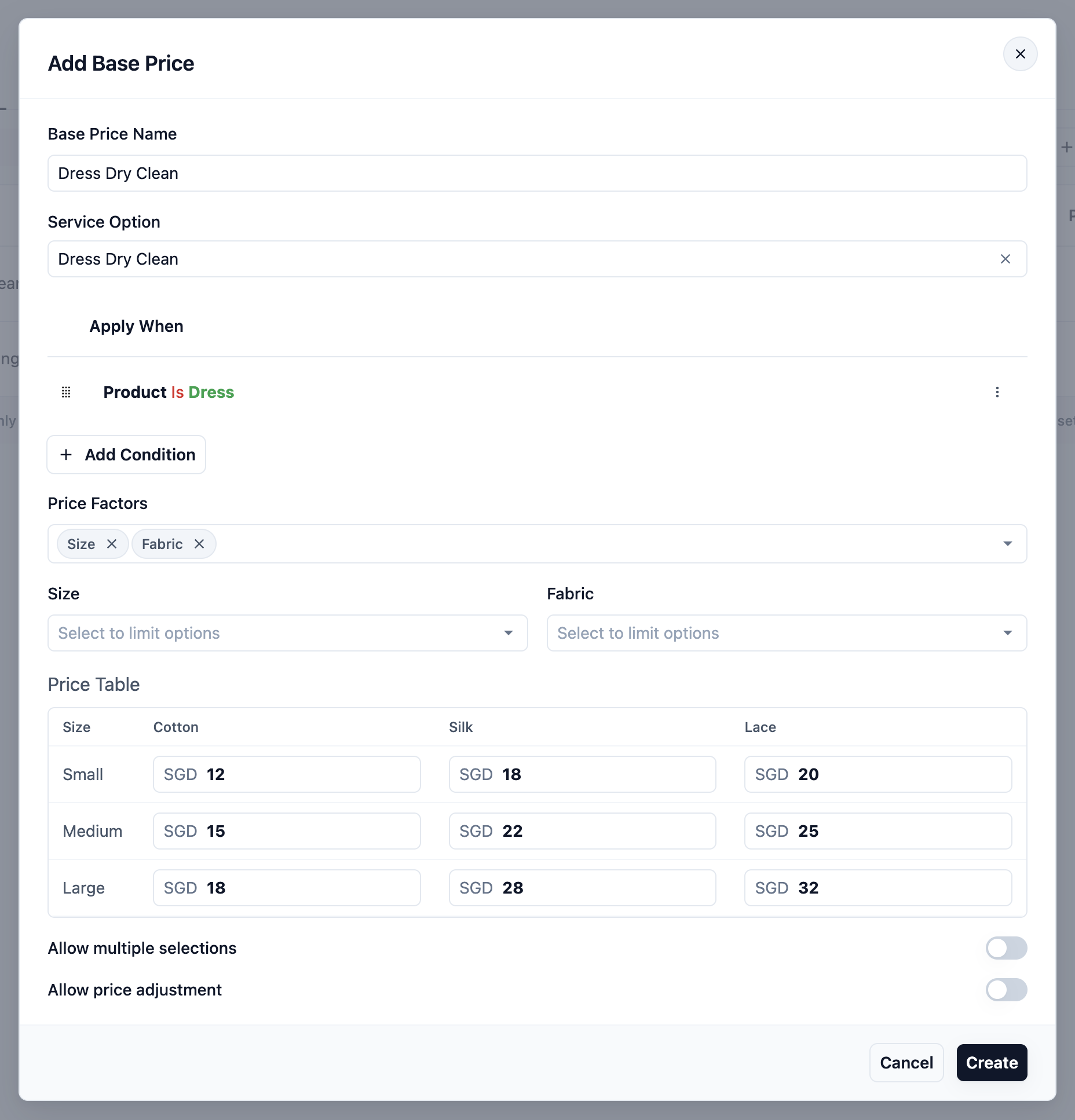
- Base Price Name: the name shown in the price breakdown.
- Service Option: the Rule-based service option this price is for. You need to pick one before you can create the rule.
- Apply When: click Add Condition to choose which items the price is for, for example Product is Dress.
- Price Factors: up to 2 of your own data fields that change the price, for example Size and Material. The Price Table below then has a price for each combination.
- Allow multiple selections: staff can pick more than one price from the table for one item.
- Allow price adjustment: staff can change the price after picking it.
Click Create to save.
Each item uses only one base price. EasyBiz checks the rules from top to bottom and uses the first one that matches, so drag the rules to put the most specific ones first.
Item Adjustments
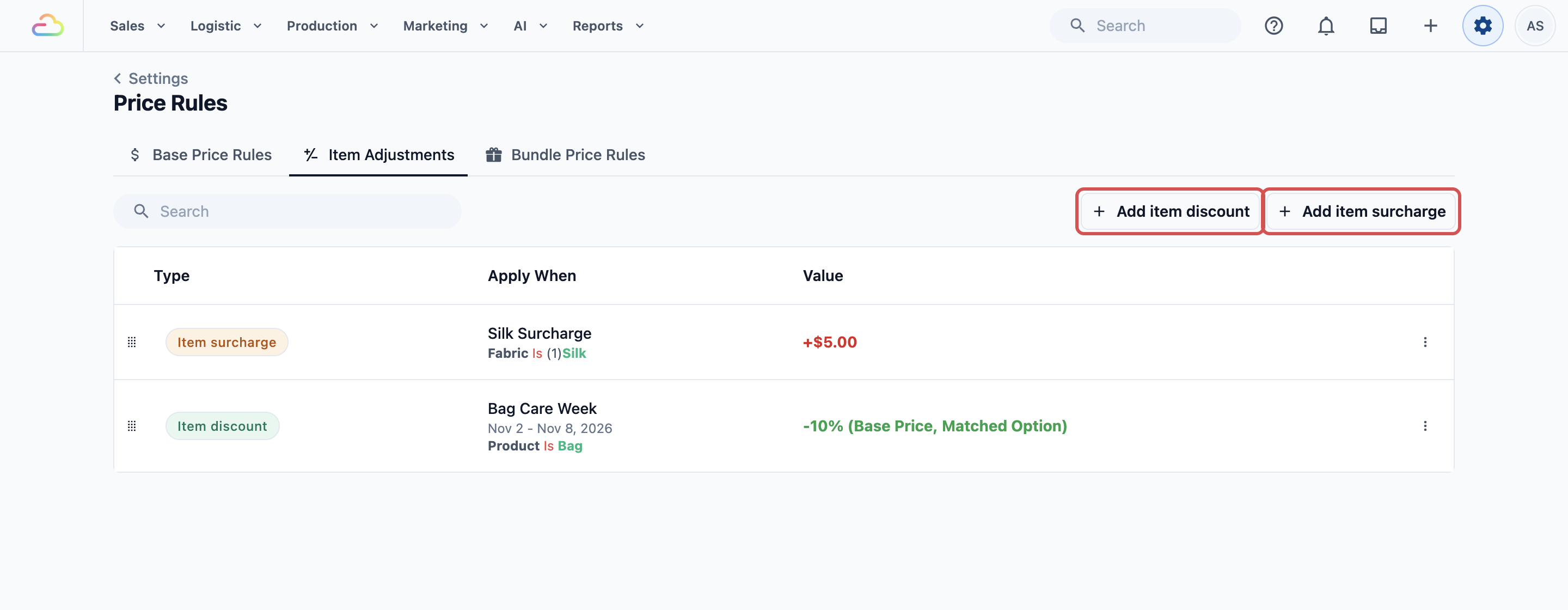
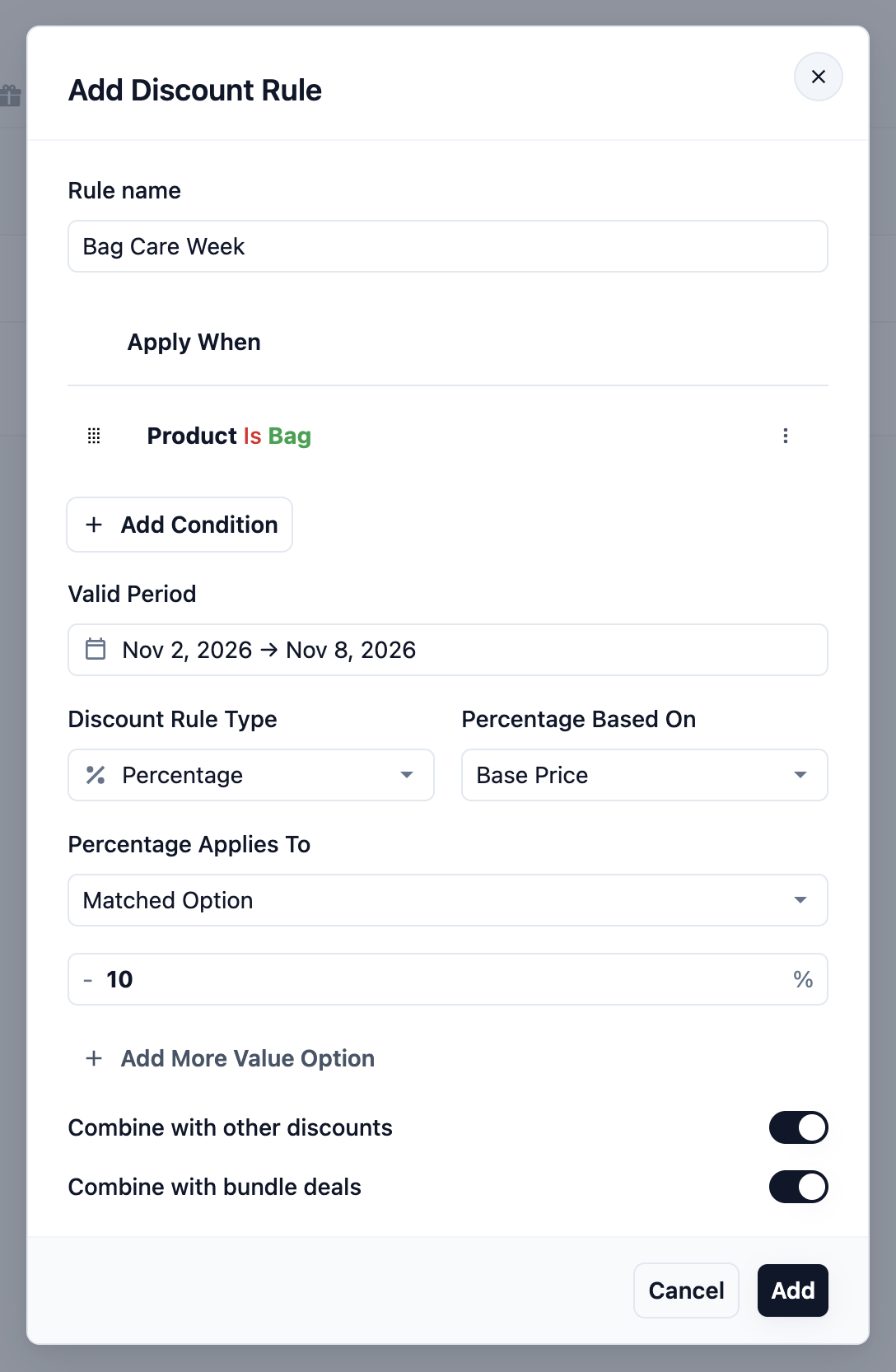
An item adjustment adds a discount or a surcharge to every item that matches its conditions, for example +$5 on silk items or 10% off bags in a bag-care week. It changes only the matching items, not the whole order.
Click Add item discount or Add item surcharge. The table lists both, with their Type (Item discount or Item surcharge), Apply When and Value.
Rule name
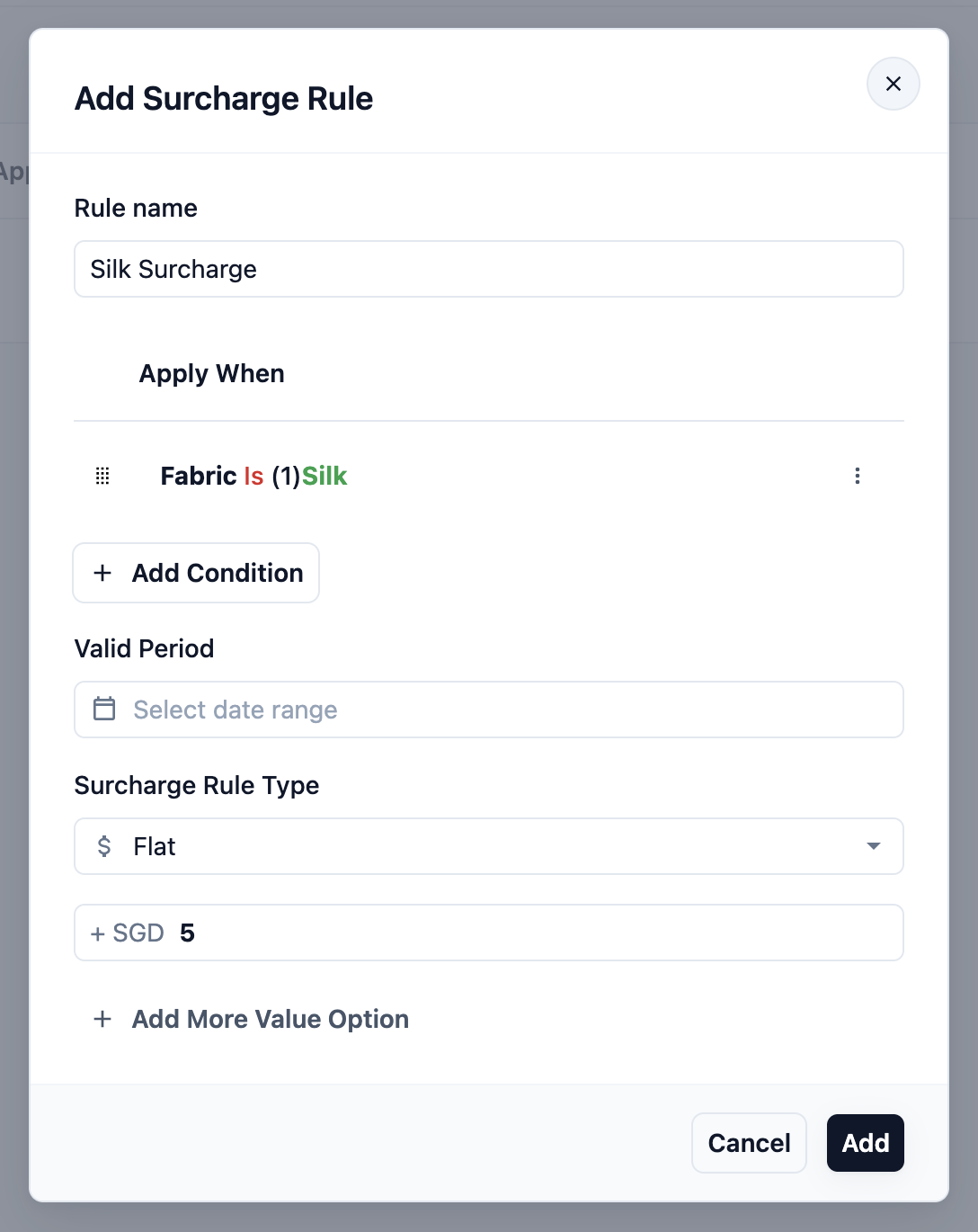
A name for the rule, for example "Silk Surcharge" or "Women's Day Special".
Set the conditions (Apply When)
Click + Add Condition to decide when the rule applies.
- When: what to check. This can be a Product, a Service Option, a Business Unit or one of your own data fields (for example Damage, Material or Brand).
- Operator: how it should match, such as is, is not or is any of.
- Value: the value to match, for example "Silk".
Valid Period
Optional. Pick a start and end date to run the rule only for a period, such as a one-week promotion. Leave it empty to run it all the time.
Choose the type and amount
Pick Percentage or Flat, then enter the amount.
- Flat: a fixed amount added to or taken off each matching item, for example +$5.00.
- Percentage: a share of the item's price. Set two more fields:
- Percentage Based On: Base Price (the item's own price) or Accumulated Amount (the item's price plus earlier surcharges).
- Percentage Applies To: Matched Option (the option that matched the condition) or Specific Service Option (the service options you pick).
More than one value
Click Add More Value Option to add several amounts in one rule, for example +$5, +$10 and +$15.
When a condition matches several options at once, the Apply per selected option switch appears. Turn it on to apply the amount once for each selected option.
Combining (item discounts only)
- Combine with other discounts: on by default. Turn it off if this discount should not come off together with other discounts.
- Combine with bundle deals: on by default. Turn it off if this discount should not come off when the order gets a bundle price.
Click Add to save, or Save when editing.
Bundle Price Rules
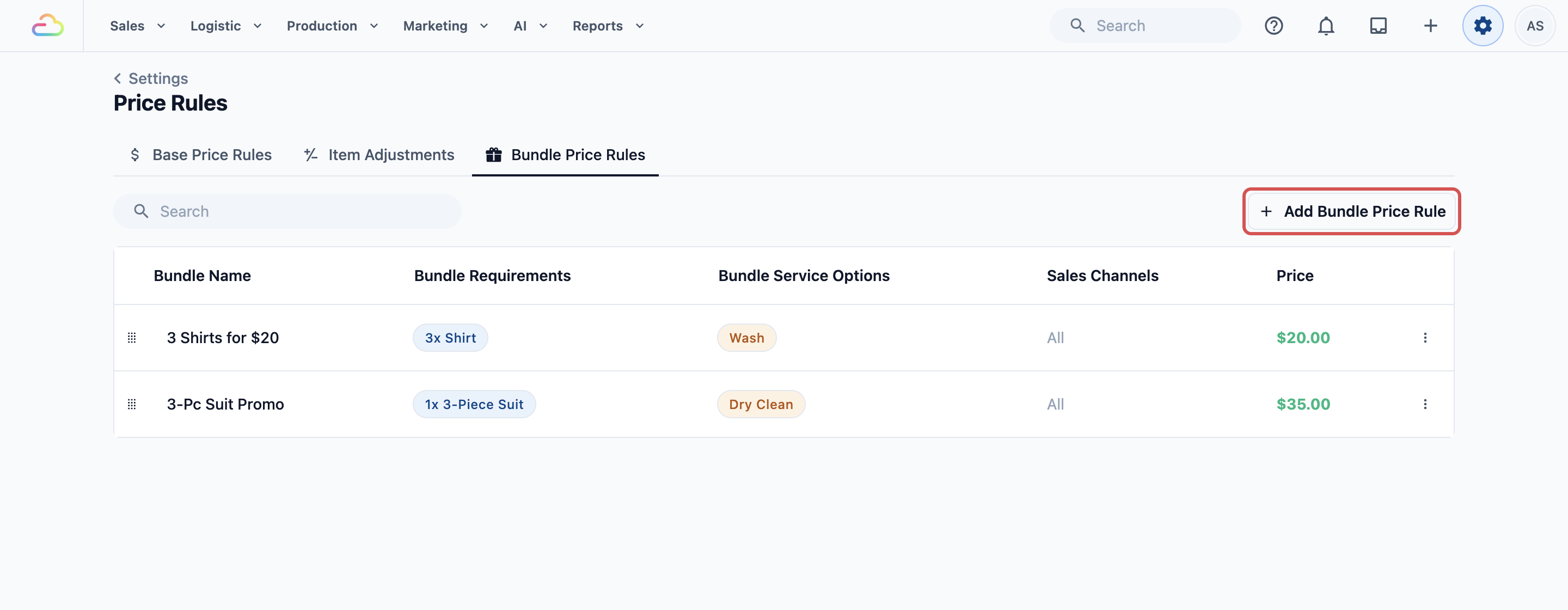
A bundle price rule gives a fixed price for a set of items, for example "3 Shirts for $20". Click Add Bundle Price Rule.
Bundle Name
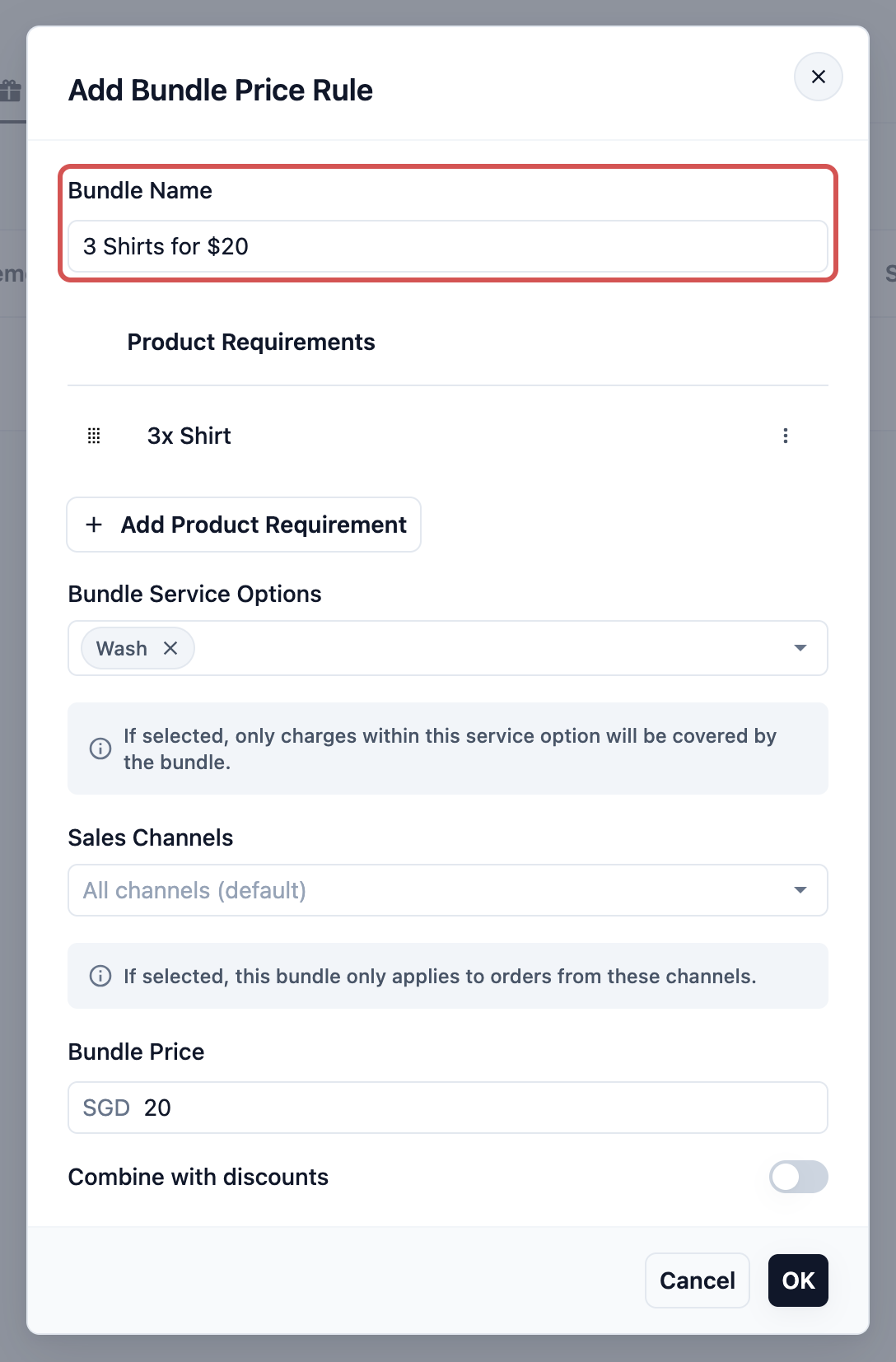
Enter a clear name for the bundle, for example "3-Pc Suit Promo". This is for internal reference.
Add Product Requirement
Click Add Product Requirement to define the qualifying items.
- Products: select one or more eligible items, for example Shirt and Trousers.
- Quantity: how many items are needed for the bundle price, for example 3.
- Item Conditions (Optional): add limits, such as Cotton items only.
Bundle Service Options (Optional)
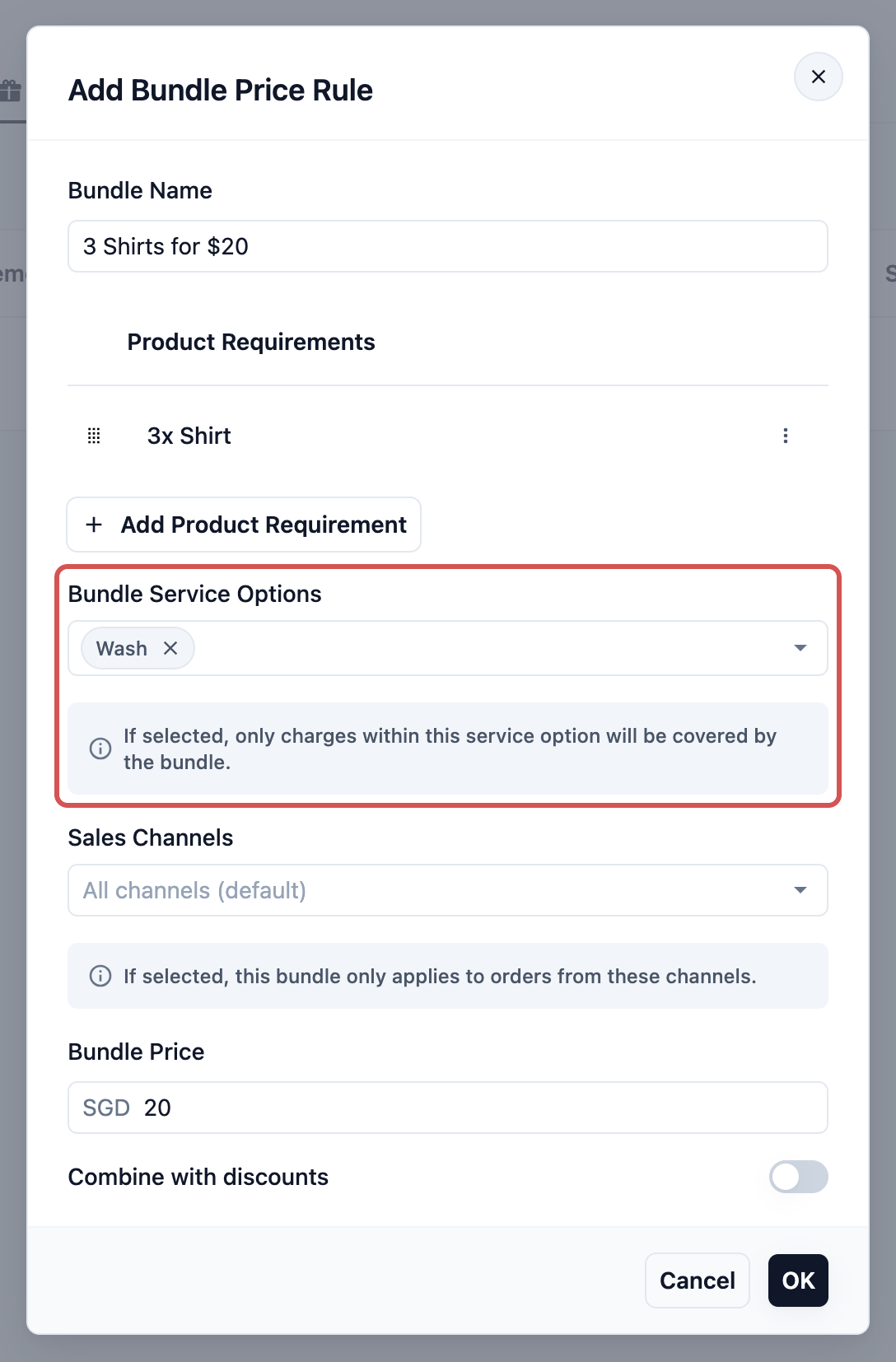
Select service options to limit what the bundle price covers.
Sales Channels (Optional)
Pick the shops or online stores the bundle is for. Leave it on All channels (default) to offer it everywhere.
Bundle Price
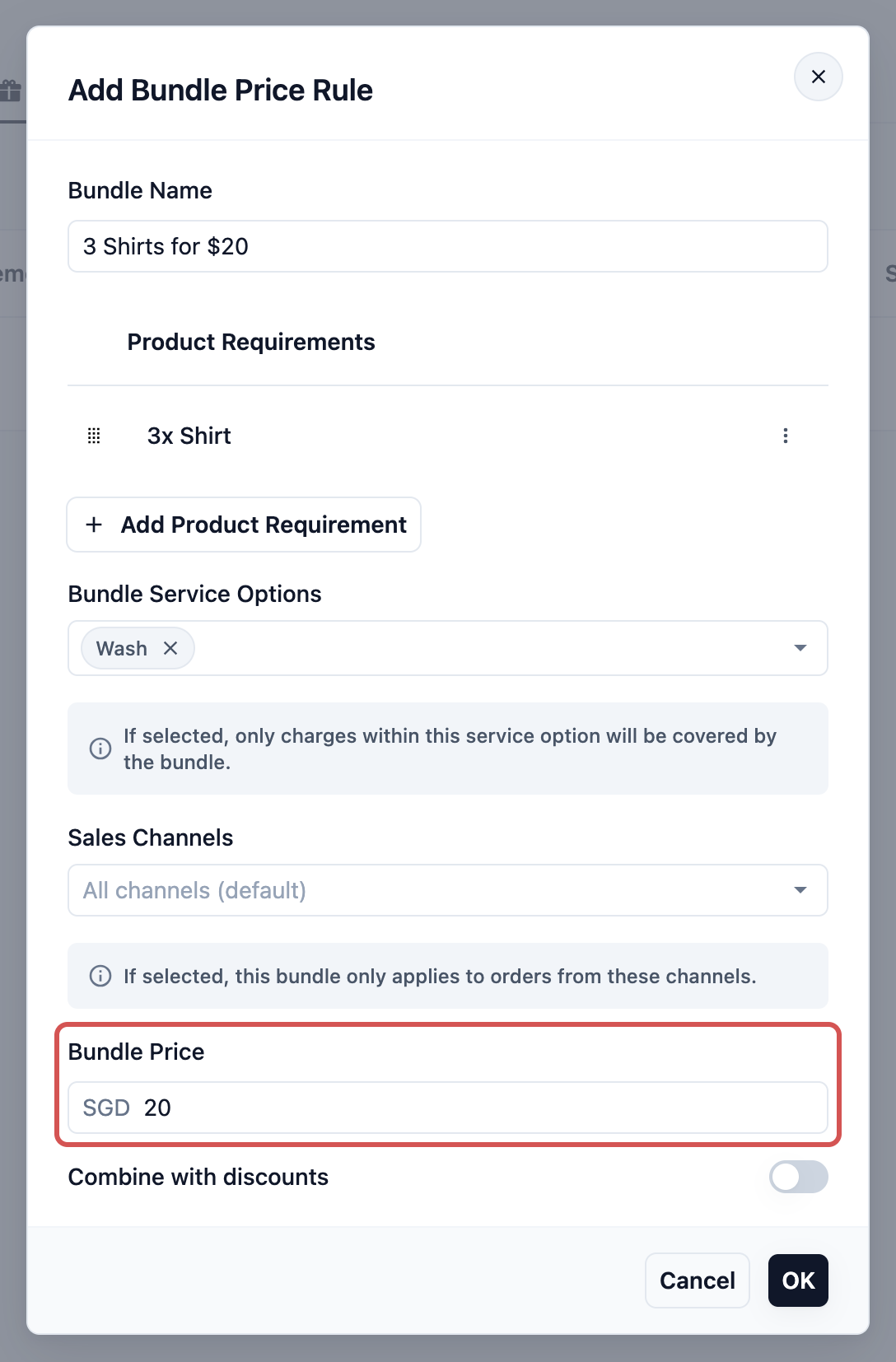
Enter the final fixed price for the whole set, for example $20.00.
Combine with discounts
Turn it on if automatic discounts may also come off an order that gets this bundle price. When it is off and an order qualifies for both, EasyBiz gives the customer whichever saves them more: the bundle price or the automatic discounts.
Click OK to save.
FAQs
Where did Surcharge Rules and Discount Rules go?
They are now one tab, Item Adjustments, with Add item discount and Add item surcharge. Discounts on the whole order, including ones with a minimum spend, are in Settings › Discounts › Applied automatically.
Can a price rule add a charge to the whole order?
No. Price rules change items. For an extra charge on the whole order, staff add a surcharge from Settings › Surcharges. Weekend, evening and public-holiday booking charges are set on the booking option.
Which rule wins when two base price rules match an item?
The one higher in the list. Each item uses only one base price.