
When you finish, each order event you pick sends your customers the right email, WhatsApp message or push, tested on yourself first.
Before You Start
- Access: you need staff access to the Customer Notifications settings.
- For emails: your emails live in ⚙️ Settings › Emails. You can also write a new one inside the notification. See Setting Up Your Customer Emails.
- For WhatsApp: connect your WhatsApp number and have an approved Utility template. See Connect & Configure WhatsApp and Setting Up Utility Templates.
- For push: customers get push notifications only after they turn them on in your Mobile App or Online Store. See Order Updates for Online Customers.
Choose your setup
| Level | Fits shops like | What you set up | Read these sections |
|---|---|---|---|
| Easy | One shop where customers are happy with emails | The Invoice and Receipt emails a new business already sends, plus email notifications for other events | Where to find it, Create a notification, Send an email, Send a test |
| Intermediate | A few POS shops whose customers prefer WhatsApp | Everything in Easy, plus WhatsApp with an approved Utility template | Everything in Easy, Send a WhatsApp message |
| Advanced | Shops with an Online Store or Mobile App, and more than one business unit | Everything in Intermediate, plus push first with WhatsApp as backup, and notifications limited by Order Sales Channel or Business Unit | Everything in Intermediate, Send a push notification, Example setup |
With Easy only, customers already get the invoice when an order is quoted and the receipt when they pay. You can add WhatsApp and push later without changing what you set up.
Overview
A customer notification links one order event to the messages it sends. One notification can send an email, a WhatsApp message and a push notification together, or any one of them. You can send it for every order, or only for orders from certain sales channels or business units. Before you save, you can send a test to yourself and see exactly what the customer will get. Once saved, it works on every new event without your staff doing anything.
Where it works
- Console: you set up, test and change notifications under ⚙️ Settings, and see how push is doing under Reports.
- Customer's email: the email you picked, filled in with their order details.
- Customer's WhatsApp: the approved template, sent from your connected WhatsApp number.
- Mobile App and Online Store: a push notification on the phones and browsers where the customer turned notifications on.
Why set it up
- Customers stop calling to ask if you received their payment or if their order is ready.
- Staff don't type the same update for every order, so nothing is forgotten on busy days.
- Push notifications are free, so customers on your Mobile App or Online Store can get them instead of a paid WhatsApp message.
If you skip it, a new business still sends the Invoice email when an order is quoted and the Receipt email when a payment comes in. Every other update has to be sent by your staff. To see which events send by themselves, read Automatic Order Notifications Explained.
Where to find it
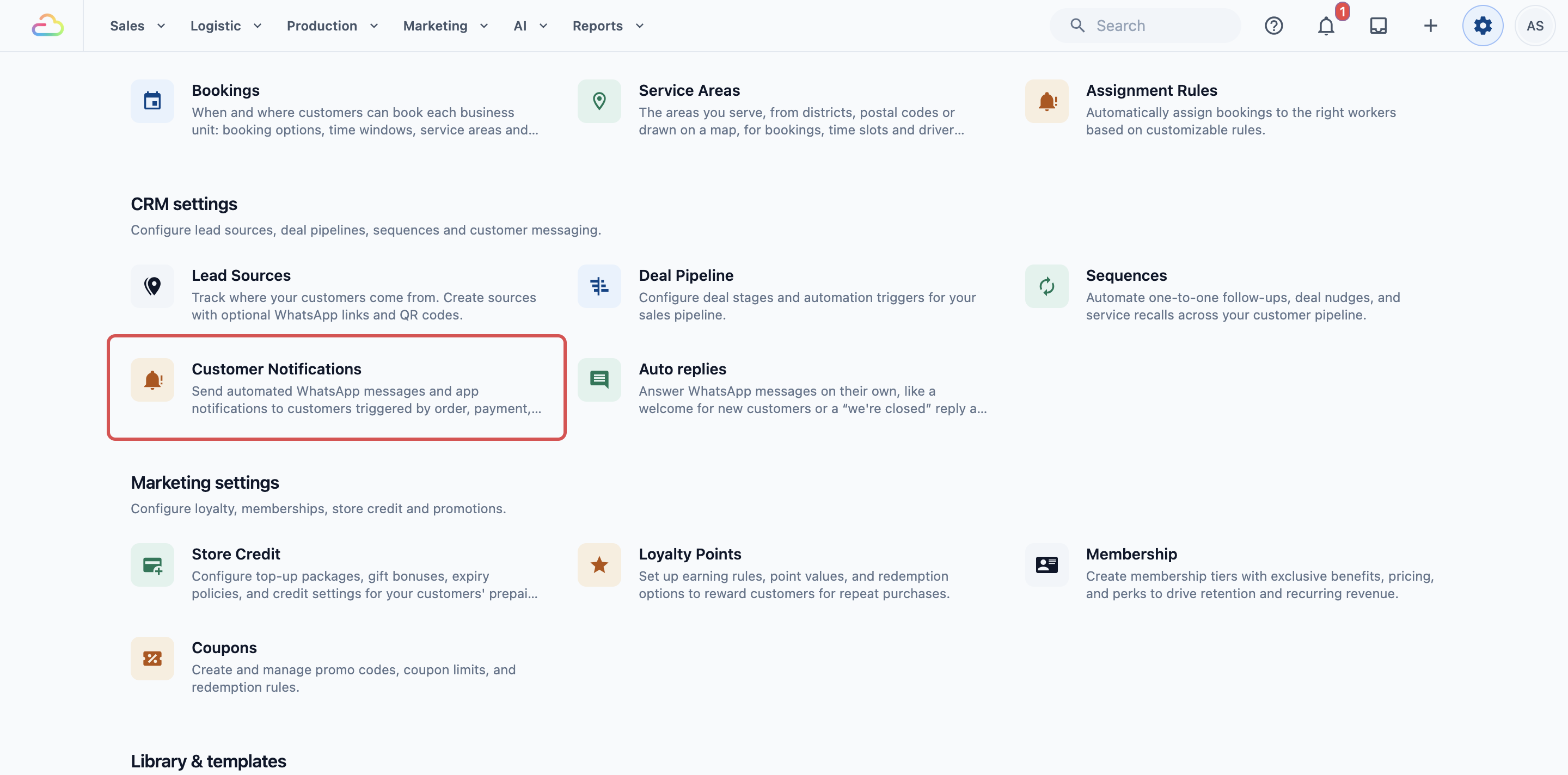
- Click the ⚙️ Settings icon in the top-right corner of the Console.
- Under the CRM section, click Customer Notifications.
The list groups your notifications by what they are about: Orders, Payments, Pick-up and delivery, Production, Customers, Conversations and Other. Each one shows a badge for what it sends (Email, WhatsApp or Push) and the sales channels or business units it is limited to. "Sends nothing" means none of its channels is set.
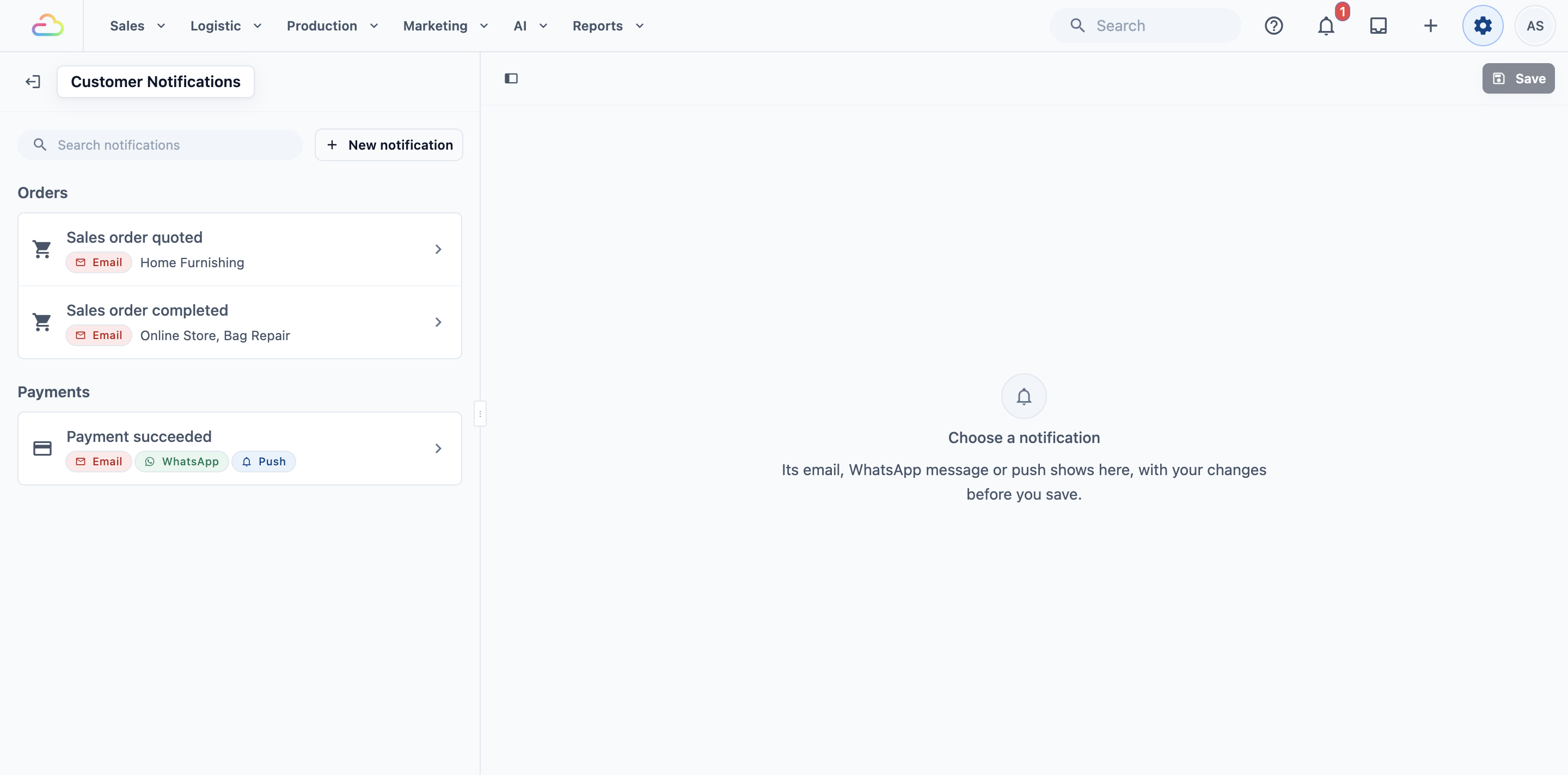
Use Search notifications to find one by event, template name or channel. Point at a notification to preview it, and click it to open it.
Setting it up
Create a notification
- Click New notification.
- Under When, choose the Trigger Event.
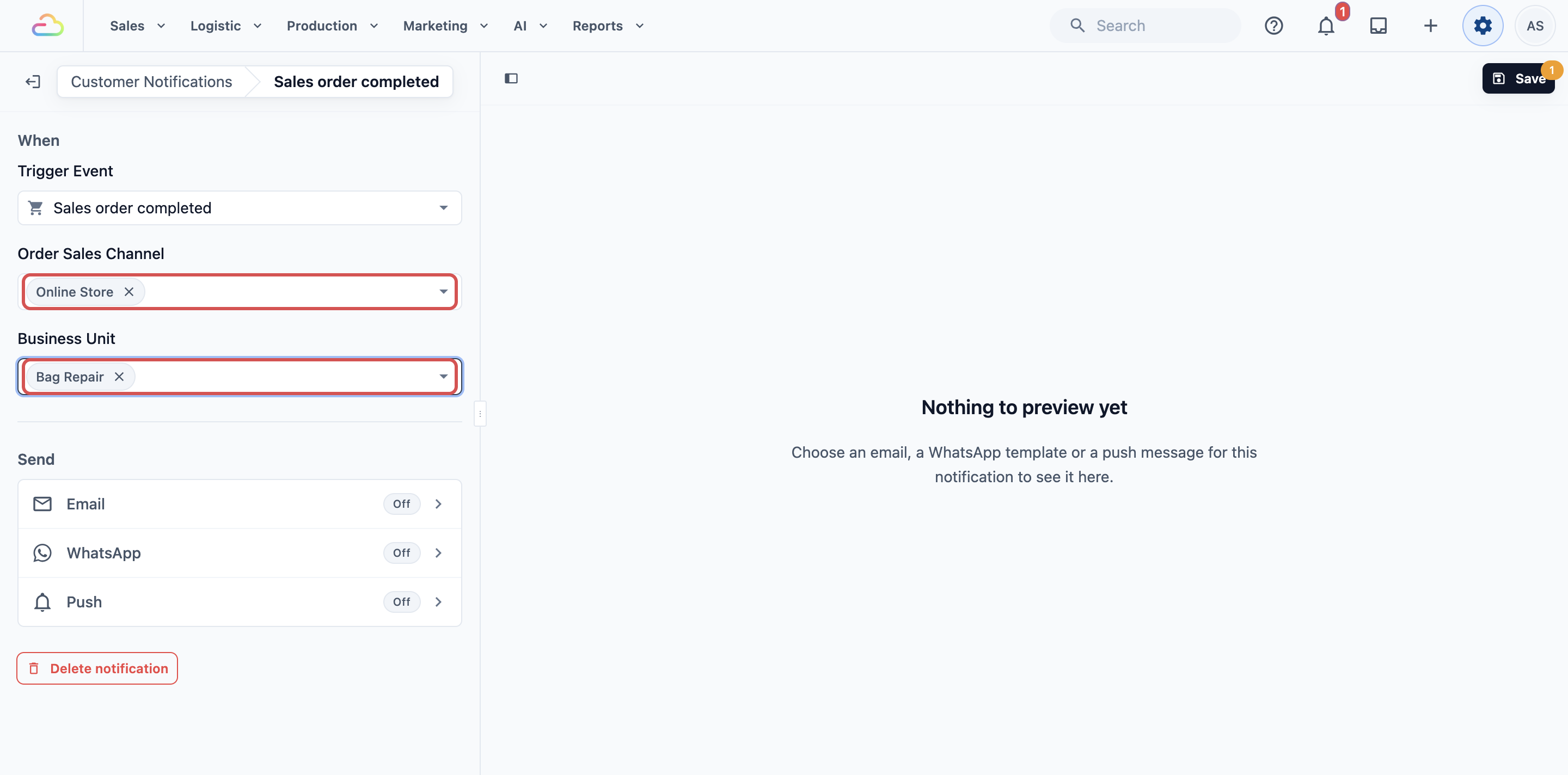
- To send it only for some orders, choose the Order Sales Channel and the Business Unit.
- Under Send, set up each channel you want, as shown in the sections below. Each row shows On or Off.
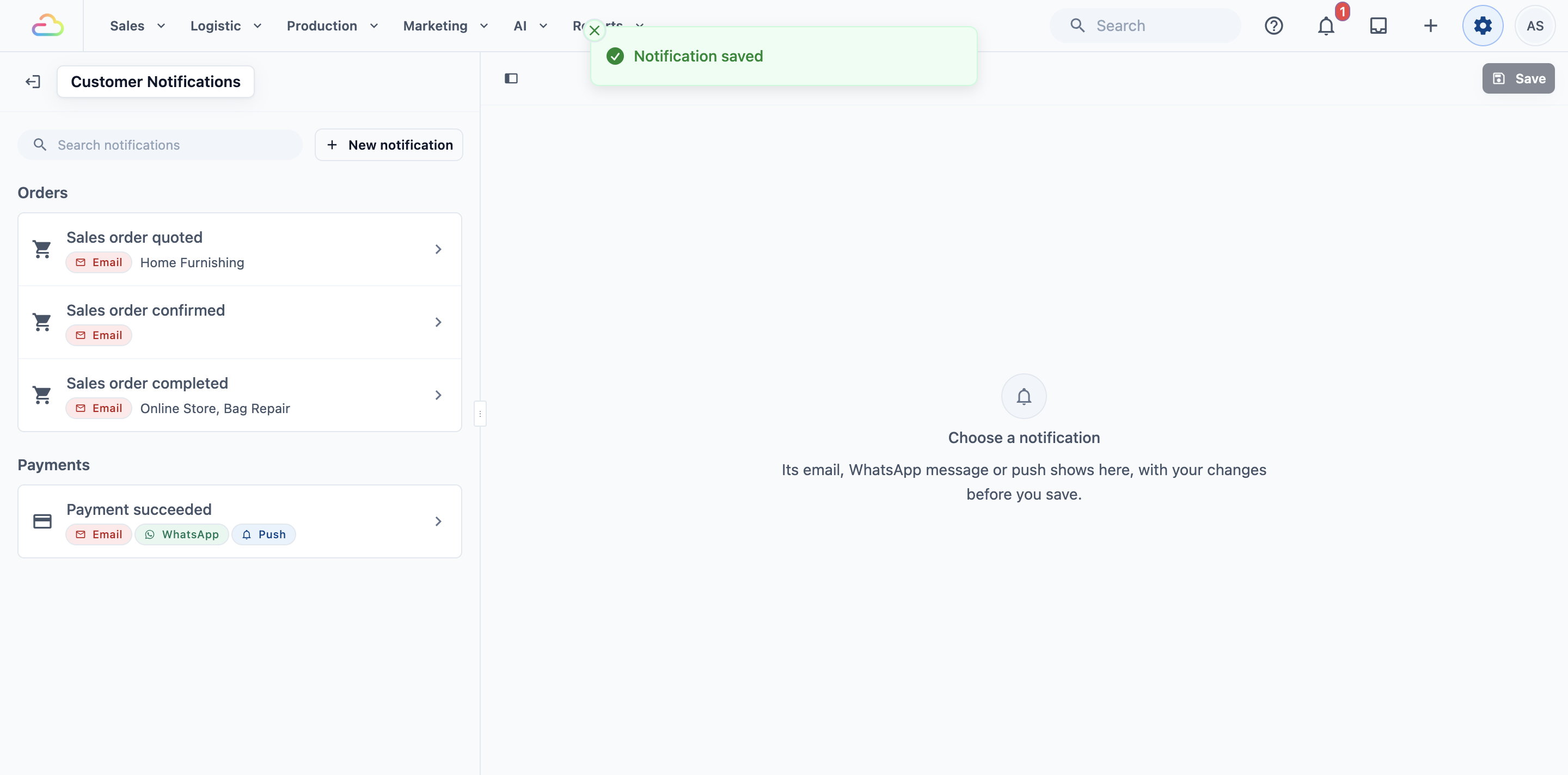
- Click Save. You will see "Notification saved".
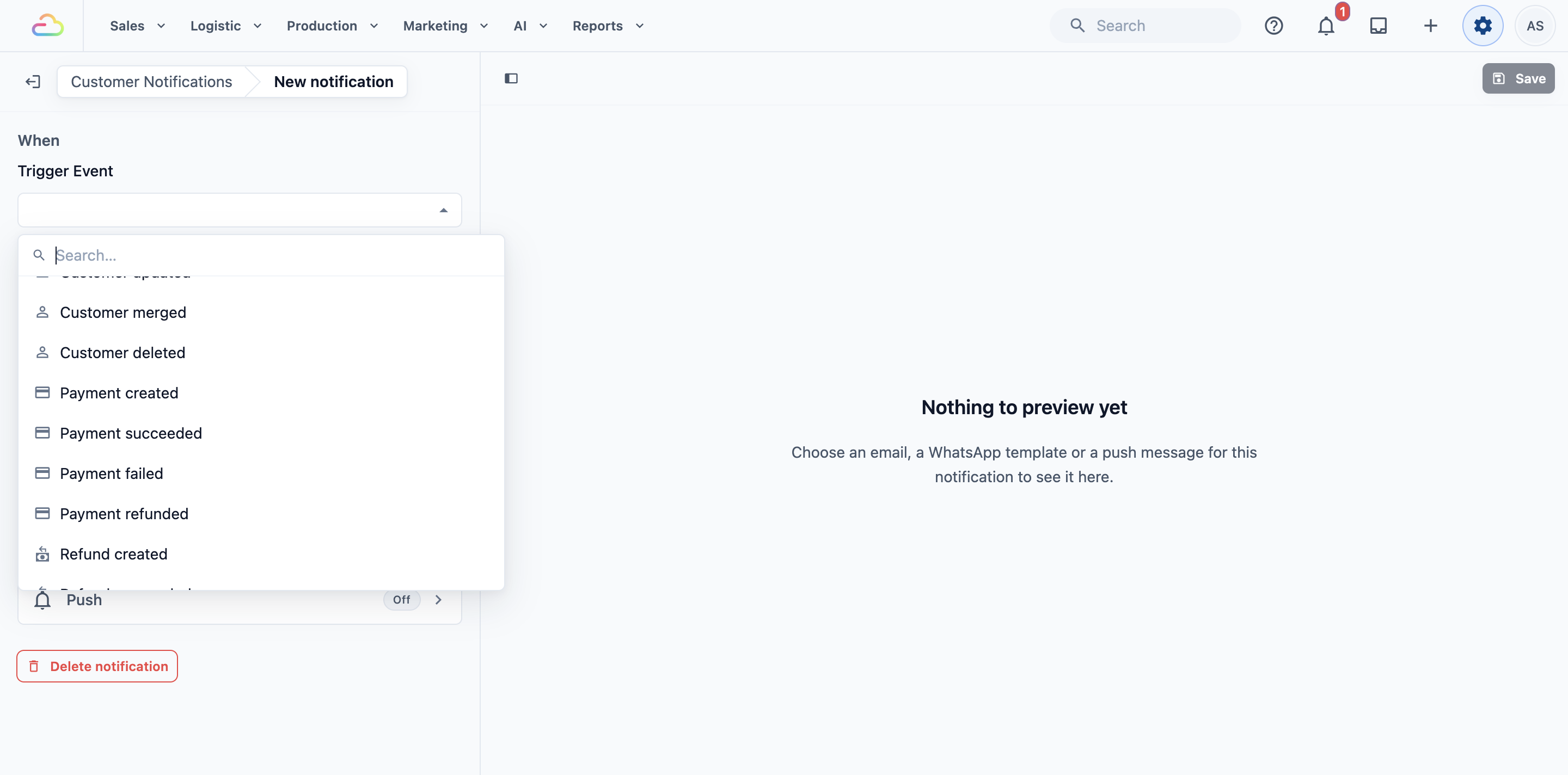
Trigger Event
The event that sends this notification, such as Payment succeeded or Sales order completed. Save stays greyed out until you choose one.
Order Sales Channel
A sales channel is where the order was taken: a POS shop, your Online Store or your Mobile App.
| Option | What it does |
|---|---|
| Leave empty | Sends for orders from every sales channel |
| POS | Sends for all POS orders |
| Online Store | Sends for all online orders |
| One shop or store by name (for example Tampines) | Sends only for orders taken there |
| Mix and match | Pick several, for example Tampines and Jurong |
Business Unit
A business unit is a line of work your shop runs, such as Laundry or Bag Repair. Pick one or more to send only for their orders. Leave it empty to send for all business units.
Send an email
- Under Send, click the Email row.
- Pick the email to send, such as Receipt. Or click New email to write one for this event.
- Change the email's text right there if you need to.
- To stop sending an email, pick None.
The preview shows the email as customers see it. Switch between Desktop and Mobile to check both.
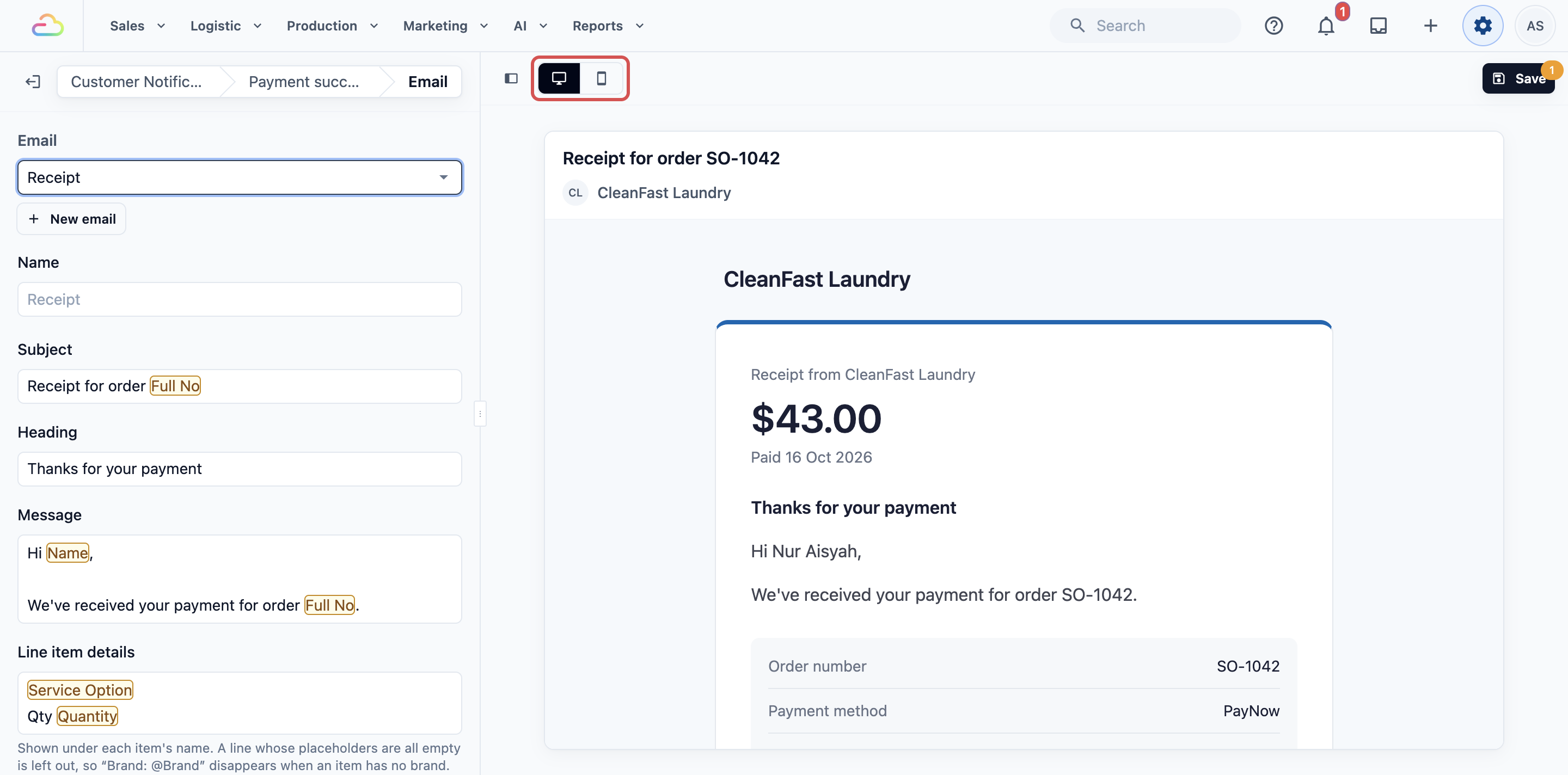
If other notifications send the same email, a note tells you how many. Your changes apply to them too.
Send a WhatsApp message
For Intermediate and Advanced setups:
- Under Send, click the WhatsApp row.
- Pick an approved WhatsApp template. Or click New WhatsApp template to write one.
- Change the template's text right there if you need to. Changes save to the template as you type.
- Click Submit to send your changes to Meta. Customers get the new wording once Meta approves it.
- To stop sending WhatsApp, click Don't send WhatsApp.
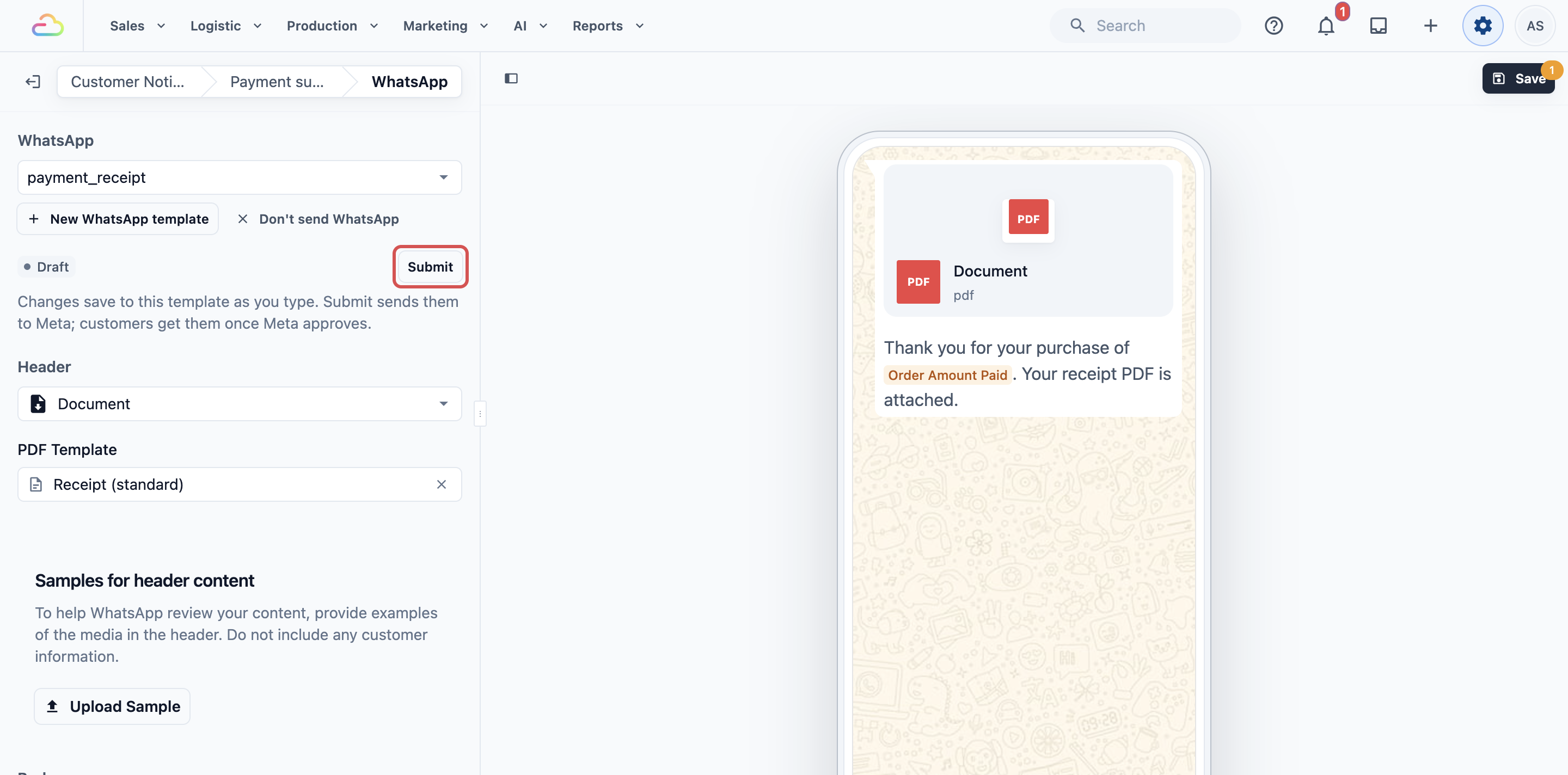
If other notifications send the same template, a note tells you how many. Your changes apply to them too.
Send a push notification
For Advanced setups:
- Under Send, click the Push row.
- Fill in Push notification title and Push notification text.
- Type @ to add details such as the customer's name or the order number.
- If the notification also sends WhatsApp, check Send WhatsApp only when push can’t reach the customer.
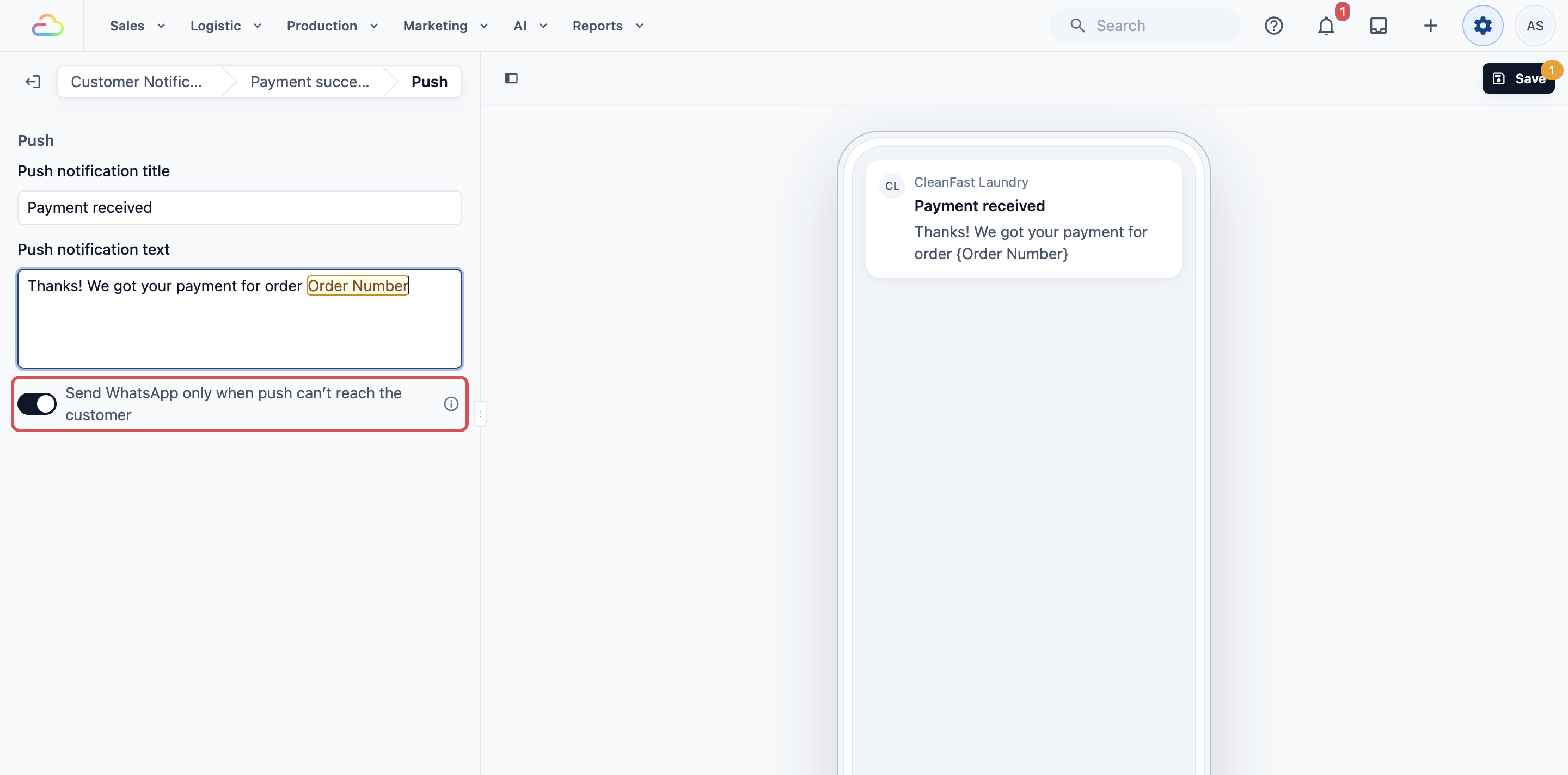
A push without a title isn't sent.
Send WhatsApp only when push can’t reach the customer
This switch shows when the notification sends both push and WhatsApp, and it starts on. If you turn this on, customers who turned on notifications in your Mobile App or Online Store get the push for free, and everyone else gets the WhatsApp message. If you turn it off, customers get both. When it is on, the WhatsApp row reads "… · if push can't reach".
Send a test
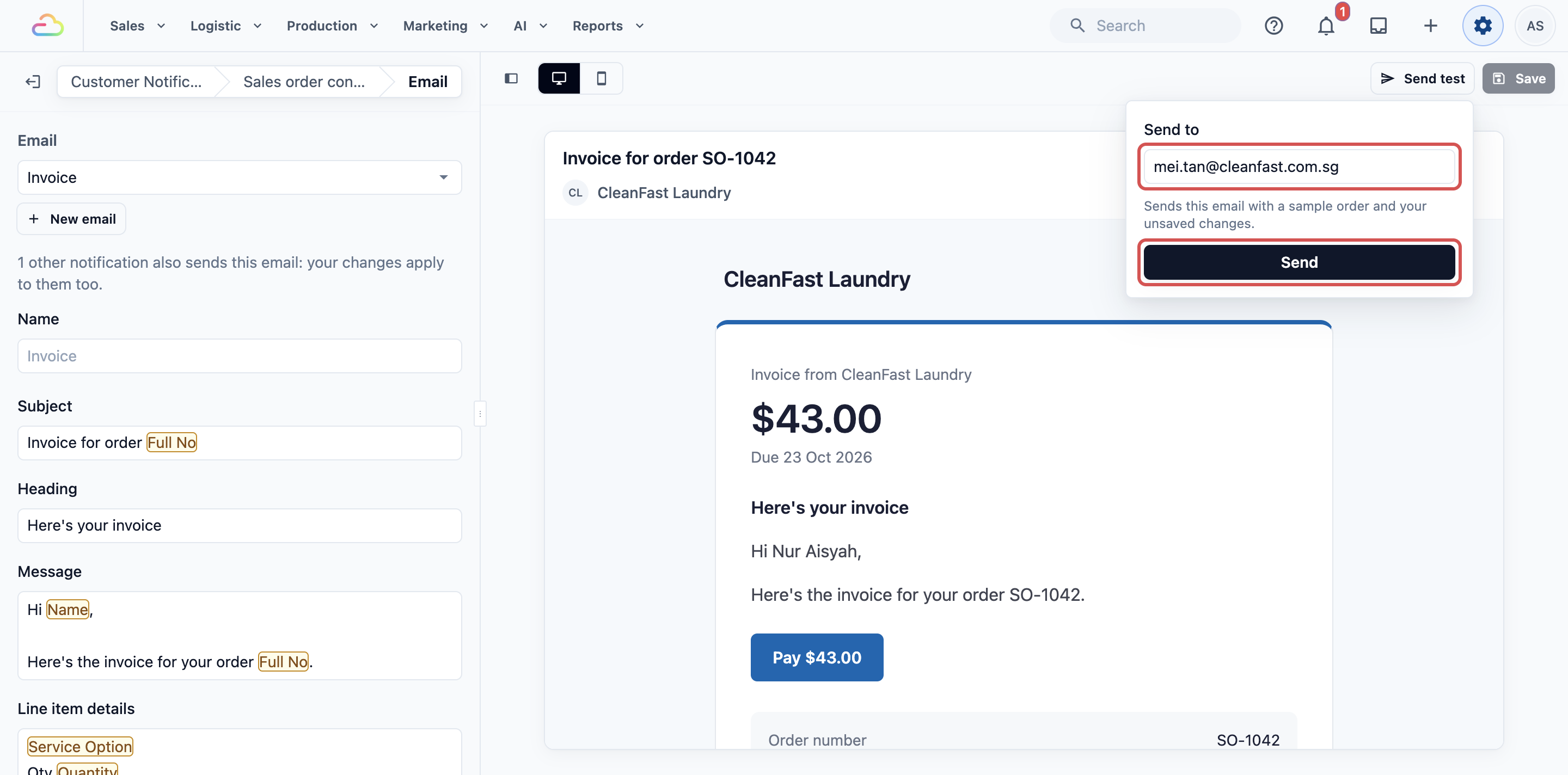
Open the channel you want to check, then click Send test above the preview. The test uses your changes, even before you save.
- Email: check the address in Send to, which starts with your own sign-in email, and click Send. The email uses a made-up order, and its subject starts with "[Test]".
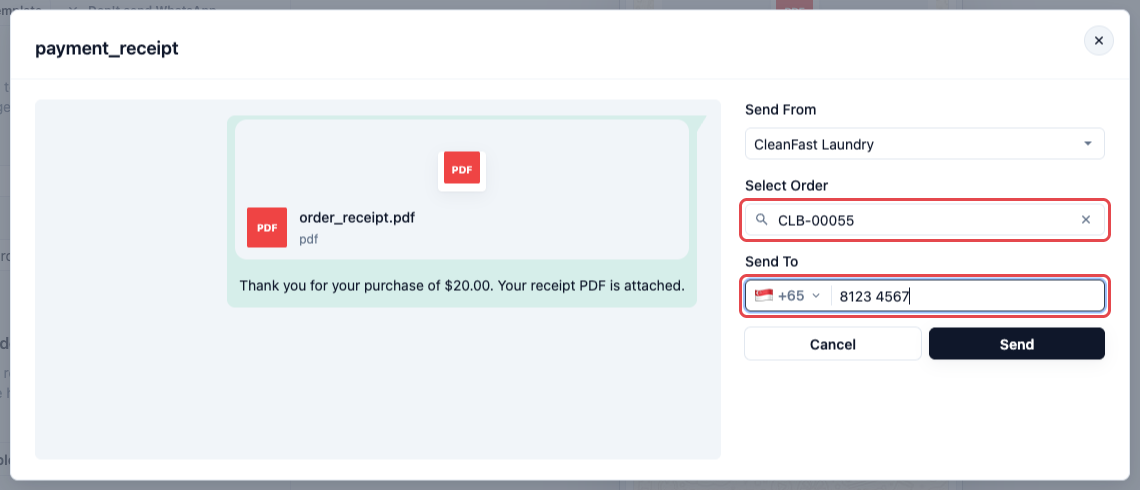
- WhatsApp: the send window sends the version of the template Meta approved. Choose yourself as the recipient, pick an order to fill in the details, then send. Choose a WhatsApp template first.
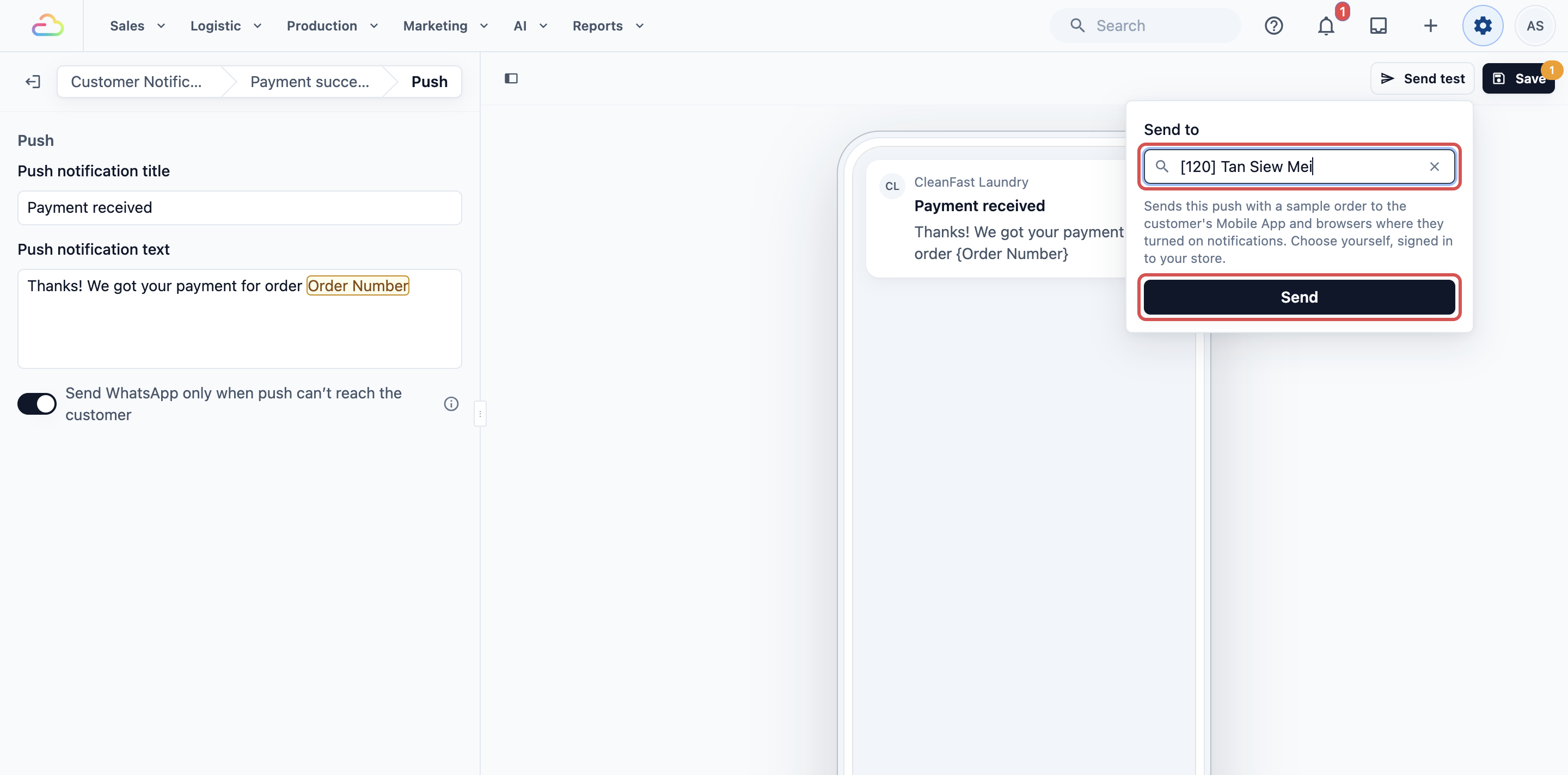
- Push: in Send to, choose yourself, then click Send. The push, filled with a sample order, goes to the phones and browsers where you are signed in to your store with notifications on. You'll see how many devices got it.
When you click Save, you'll see "Notification saved".
Example setup
CleanFast Laundry runs Laundry and Bag Repair, with POS shops in Tampines and Jurong and an Online Store.
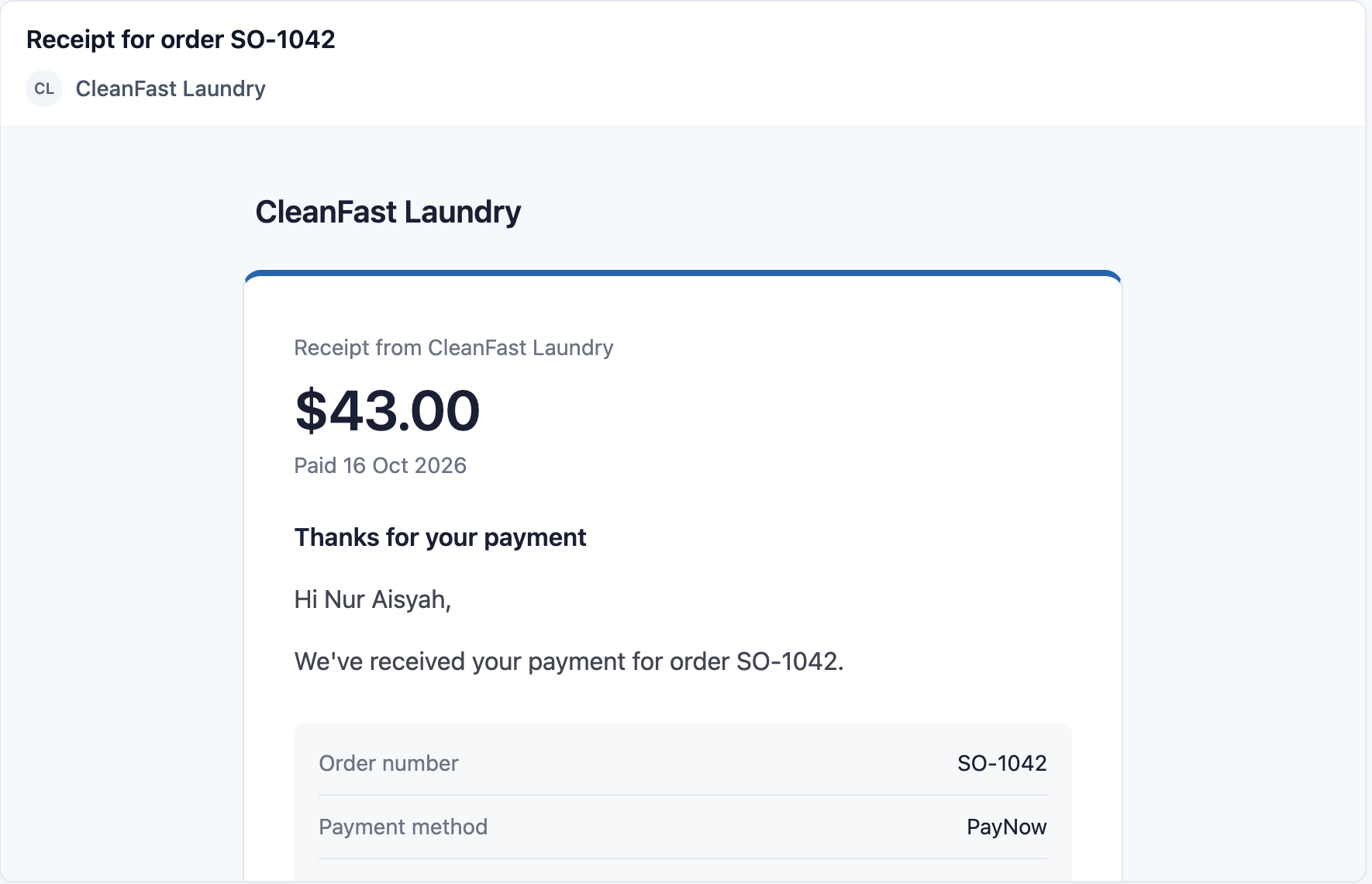
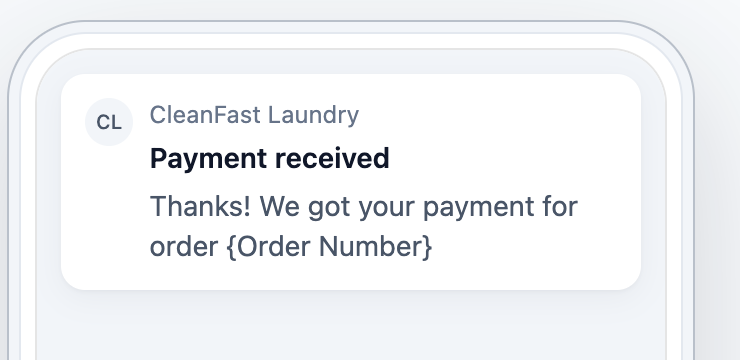
Receipt when a payment comes in
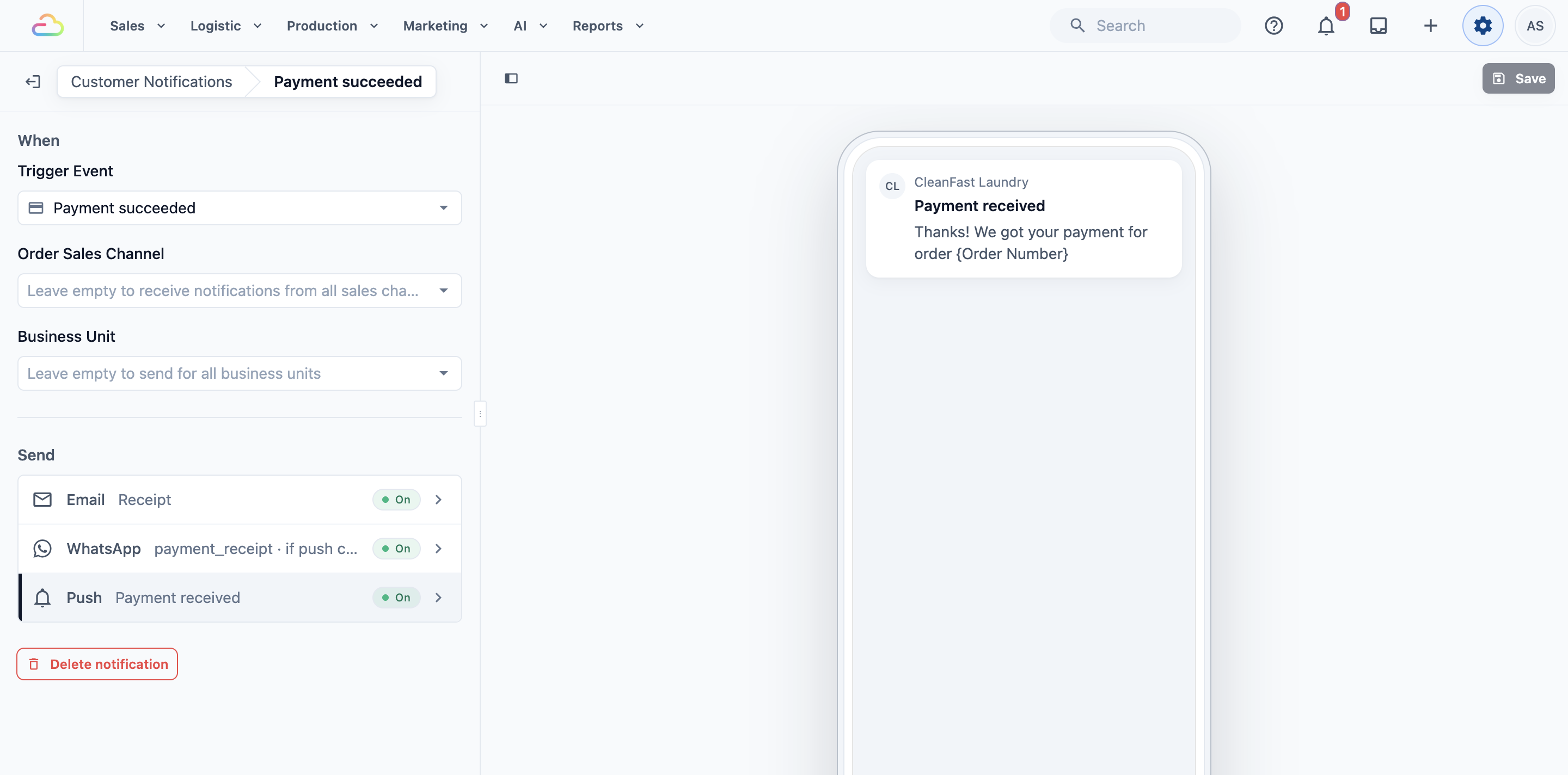
- Trigger Event: Payment succeeded
- Order Sales Channel and Business Unit: left empty, so it sends for every order
- Email: Receipt
- WhatsApp: CleanFast Laundry's approved receipt template
- Push: title "Payment received", text "Thanks! We got your payment for order", then type @ and pick the order number
- Send WhatsApp only when push can’t reach the customer: on
When Mei Ling pays $36.00 for order 00113 at the Tampines counter, she gets the Receipt email. She has the CleanFast Mobile App with notifications on, so she gets a free push instead of the WhatsApp receipt. A walk-in customer without the app gets the WhatsApp receipt.
Order completed email for online bag repairs
- Trigger Event: Sales order completed
- Order Sales Channel: Online Store
- Business Unit: Bag Repair
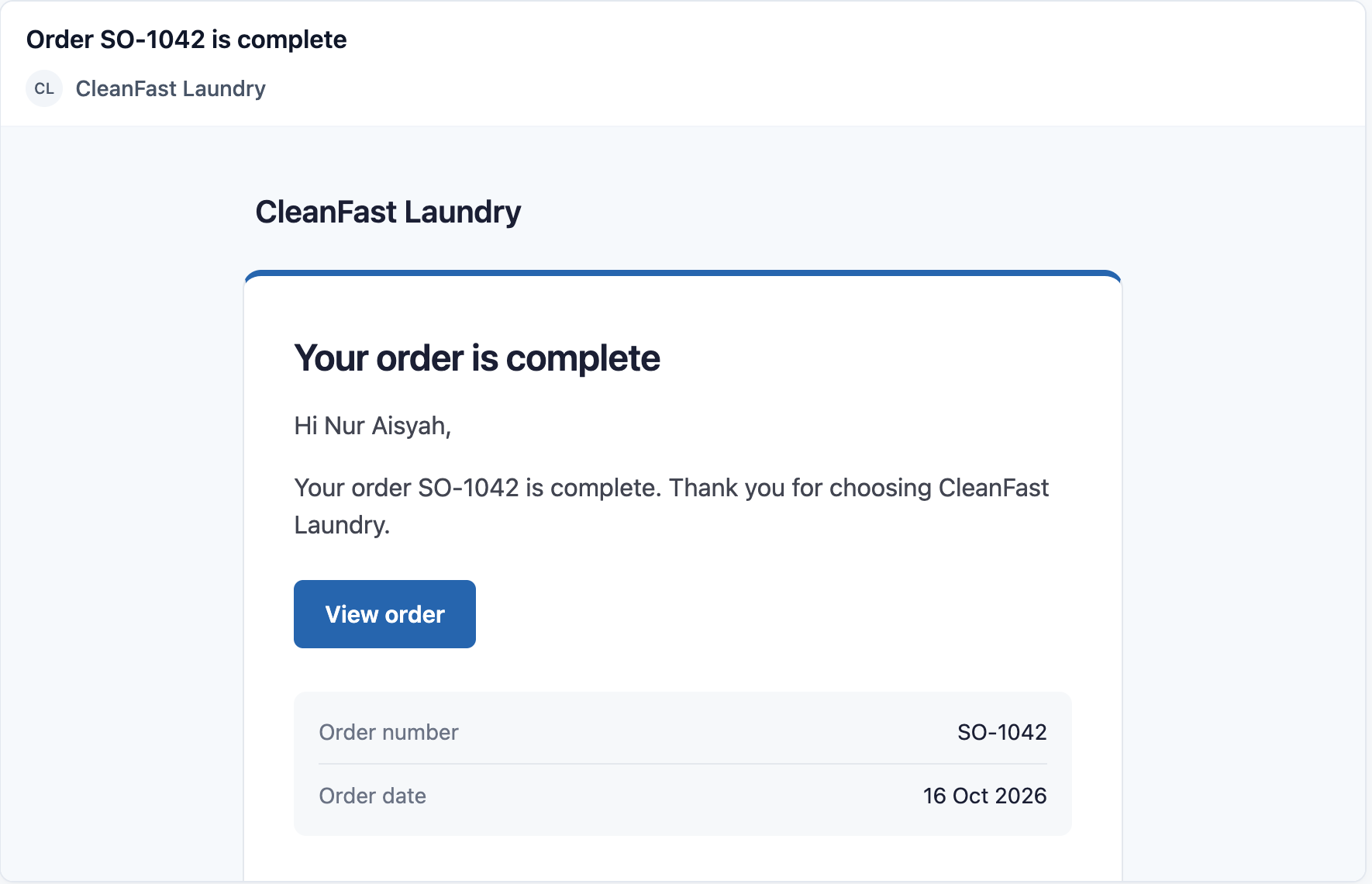
- Email: Order completed
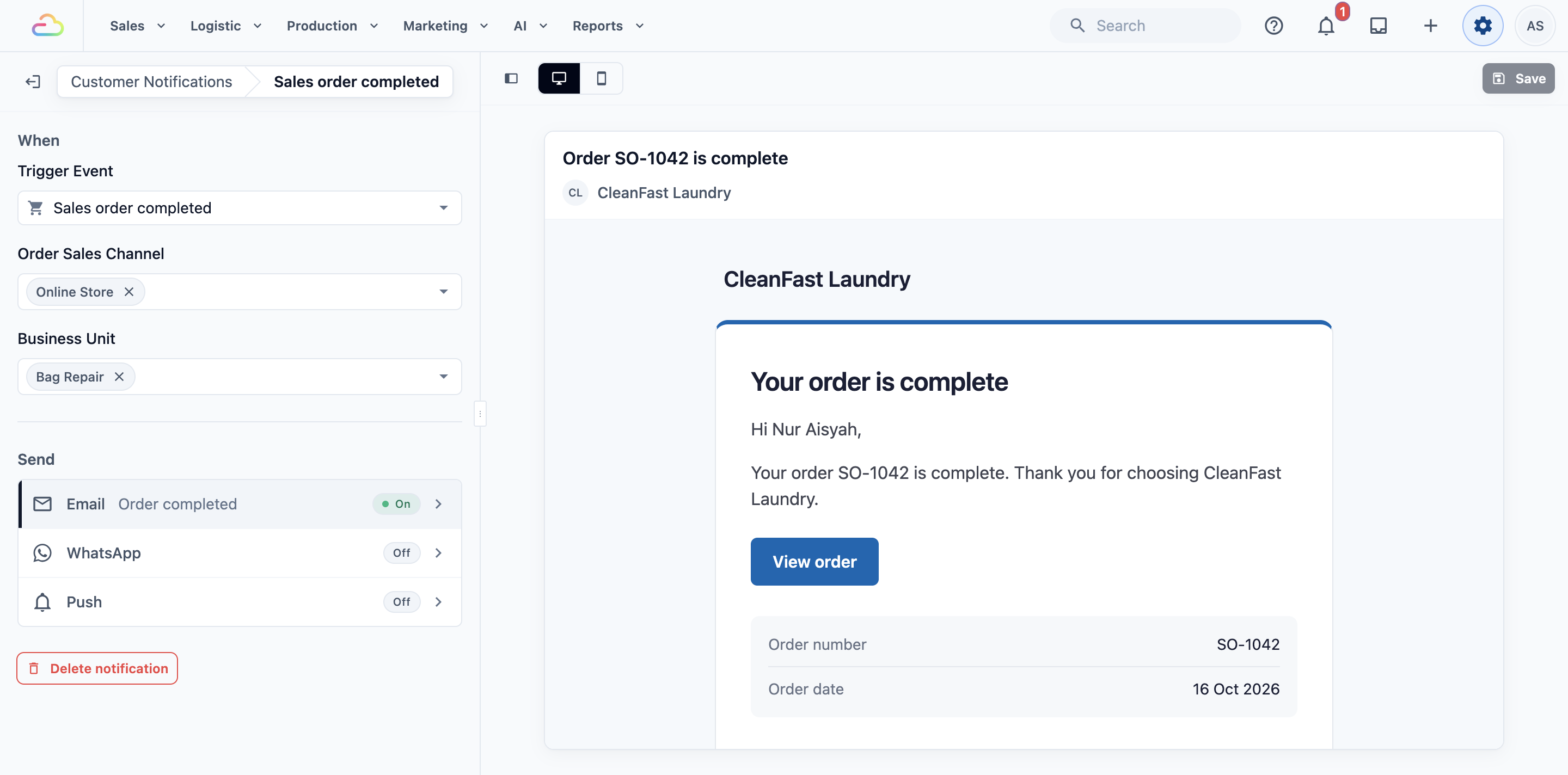
When a bag repair ordered on the Online Store is completed, the customer gets the Order completed email. Laundry orders and POS orders don't send it.
Managing it later
- To change a notification, click it, make your changes and click Save. The next message uses the new settings. Messages already sent don't change.
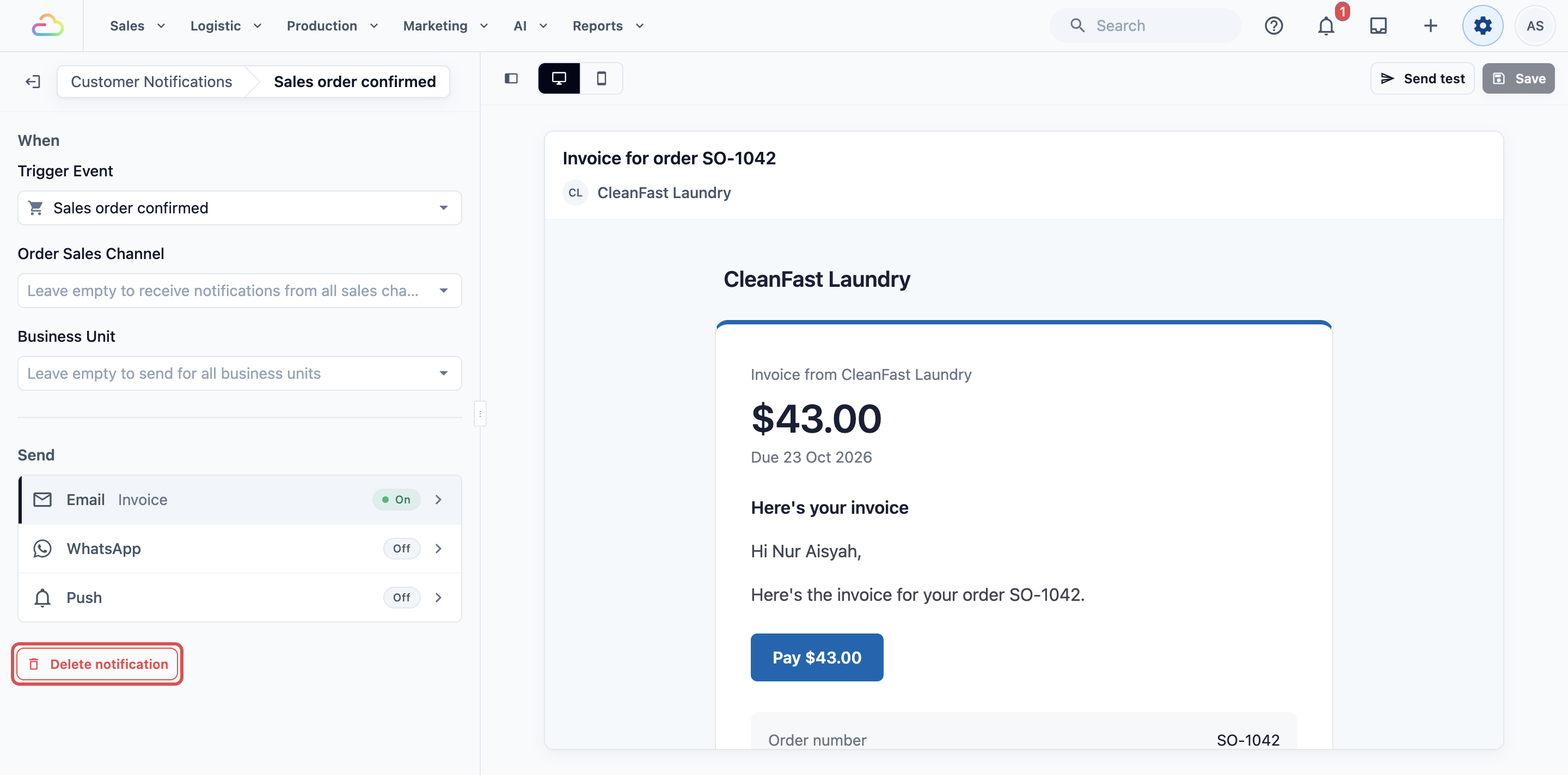
- To delete one, open it and click Delete notification.
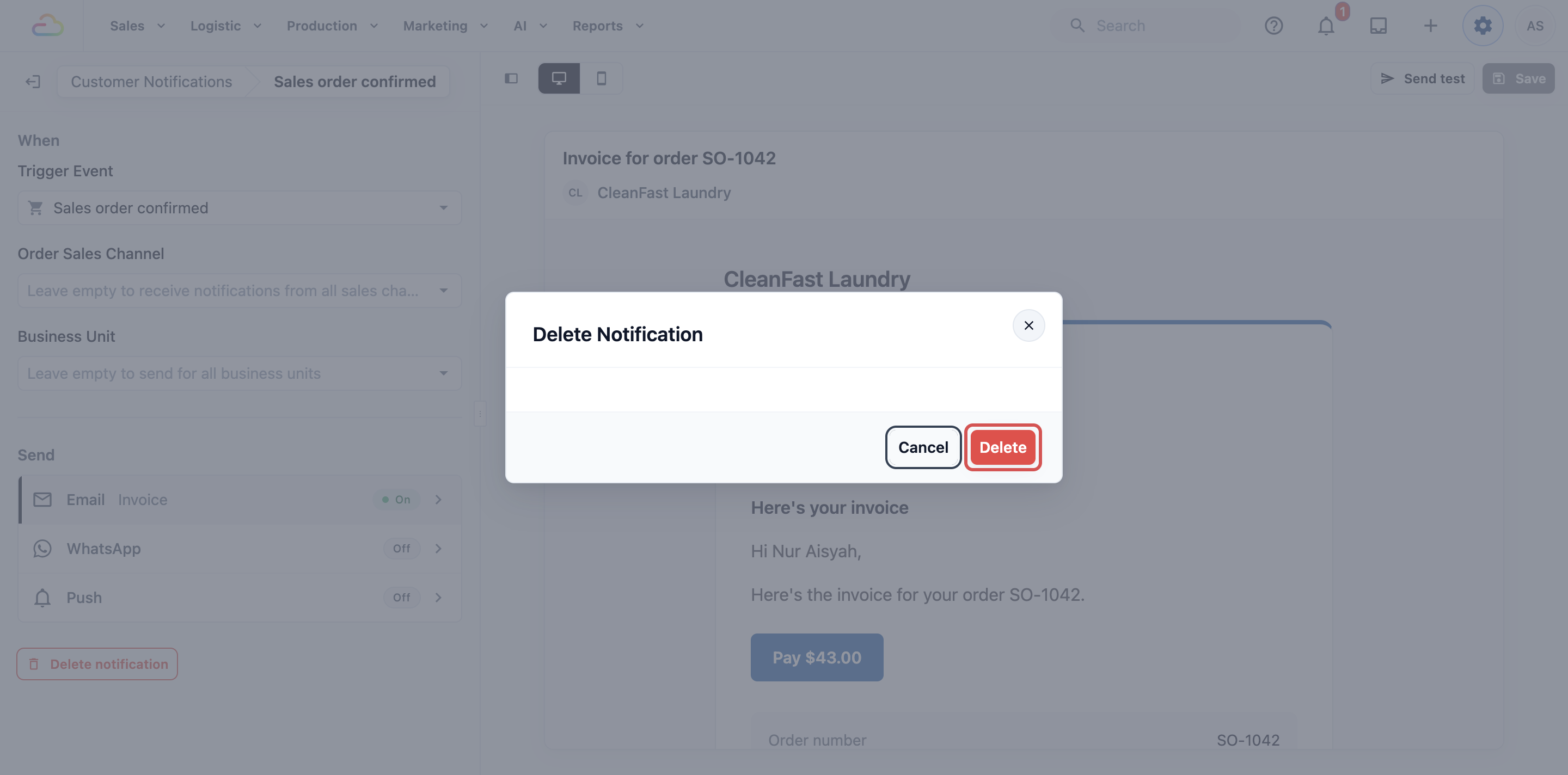
Confirm with Delete in the Delete Notification window. You'll see "Notification deleted", and customers stop getting its messages.
Checking how your notifications are doing
In the side menu, go to Reports › Notifications. For each month it shows how many push notifications were delivered, failed and opened, how many WhatsApp messages push saved you, and how many WhatsApp messages went out because push couldn't reach the customer.

FAQs
Why didn't a customer get the email?
Emails only go to customers with an email address on their profile. Check the address on the customer's profile.
Why did a customer get WhatsApp but no push?
The customer hasn't turned on notifications on that phone or browser, or turned off order updates. With Send WhatsApp only when push can’t reach the customer on, they get the WhatsApp message instead.
Can I send different messages for POS and Online Store orders?
Yes. Make one notification per sales channel, each with its own Order Sales Channel.
Can I set up a reminder before a pickup or a payment?
Not as an automatic message. Payment reminders are sent with the Send Payment Reminder button on unpaid orders. See Automatic Order Notifications Explained.
What's Next
You've set up, tested and saved your customer notifications. Next, see how they are doing each month, and how much push saves you on WhatsApp, in Reading the Notifications Report.