PDFs are the invoice, receipt and quotation files your customers get for an order, and the monthly invoice a business customer gets. You set them up in the Console under ⚙️ Settings › **PDF Template**: click **New PDF**, pick the kind (Invoice, Receipt, Quotation or Monthly invoice), fill in its wording and switches, check the preview and click **Save**. Then choose which PDF each business unit uses in its **Documents** tab. Without one, your orders print the standard invoice and receipt.
## What these PDFs do
The invoice asks for payment. The receipt confirms a payment. A quotation shows the price before the customer agrees to it. Every PDF of the same kind has the same clean layout. You choose the wording, the dates and what extra details print.
It helps you:
- Show your company name, address, registration and GST numbers on every file
- Give your customers a clear list of items, totals and the amount due, with how to pay
- Keep the same look on every invoice and receipt you send
**Can I skip this?** Yes. Your orders already print the standard invoice and receipt. Add your own PDF when you want your own wording, bank details or terms on it.
---
## Before you start
- **[Creating and Configuring a Company](/docs/creating-and-configuring-a-company)**: the PDF prints your company's name, address, email, phone, website, registration number and GST number from here. Your bank transfer details and PayNow UEN go under **How customers pay you** on the same page.
- **[Setting Up Business Unit Documents](/docs/setting-up-business-unit-documents)**: each business unit chooses its own PDF invoice and PDF receipt.
---
## Open the PDF Templates page
This part is done in the Console (the EasyBiz website your office uses), not on the POS.
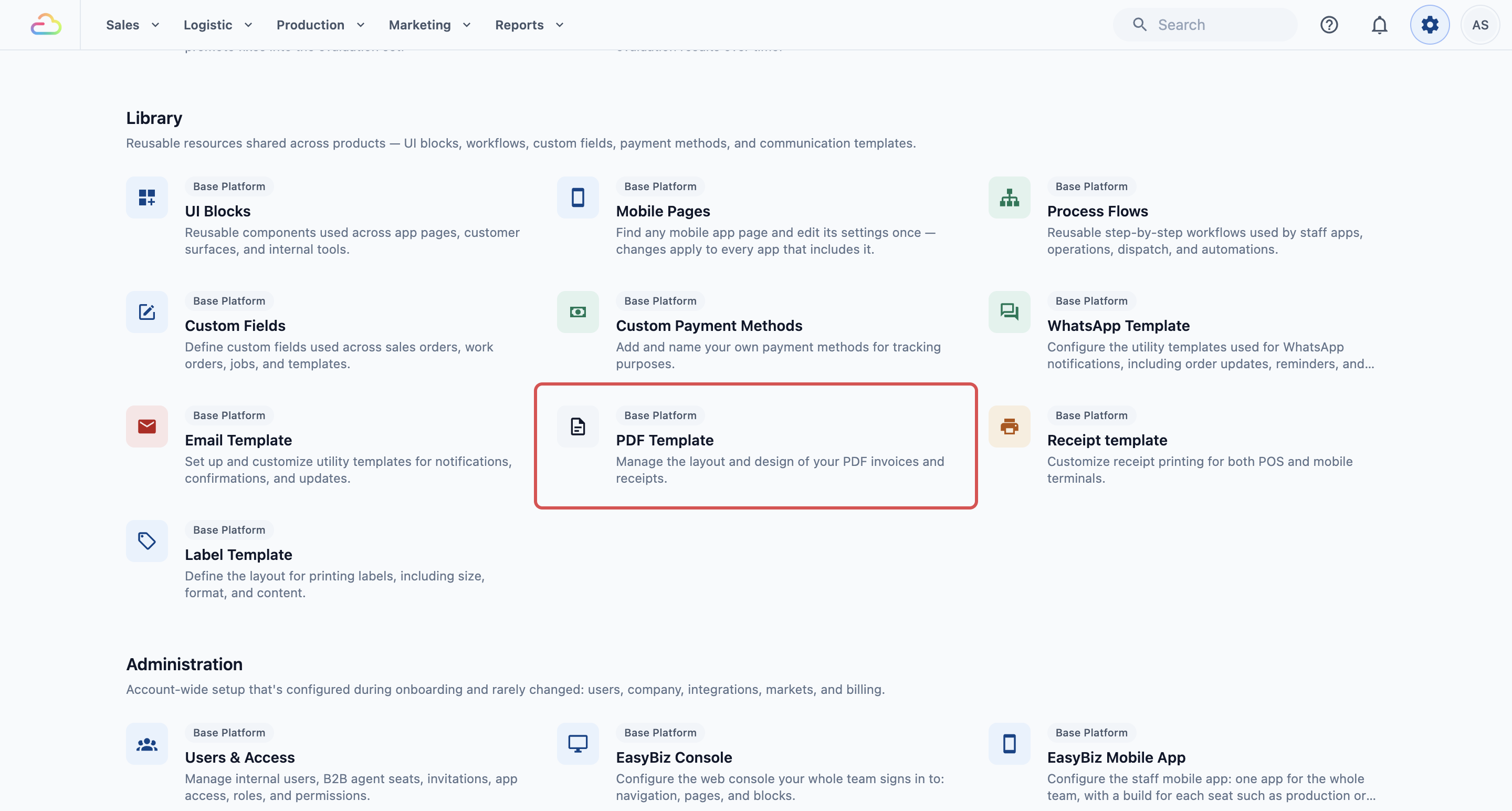
1. Click the ⚙️ Settings icon in the top-right corner.
2. Scroll to the **Library** section.
3. Click PDF Template.
The **PDF Templates** page lists your PDFs in 2 groups, **Order documents** and **Monthly invoices**. Point at a PDF to preview it with a sample order. Click it to change it. If you have none yet, the page says "No PDFs yet. Your orders print the standard invoice and receipt."
---
## Add a PDF
1. On the PDF Templates page, click New PDF.
2. Pick the kind of PDF.
3. In **Name**, type a name your staff will recognise, such as "Laundry invoice".
| Kind | What it is for |
| --- | --- |
| Invoice | An order's invoice, printed from the order or attached to the invoice email |
| Receipt | Proof of payment for an order, printed from the order or attached to the receipt email |
| Quotation | The price of an order before the customer agrees to it |
| Monthly invoice | One invoice for a business customer's orders of the month, with the list of those orders |
You can have more than 1 of each kind, for example one invoice per company.
---
## Change the wording and what prints
Each PDF has one column of settings, in the order they print:
- **Name**: what staff see when they choose the PDF.
- **Logo**: printed at the top. Leave it empty to print your brand's logo.
- **Title** and the number line, such as **Invoice number**.
- The issue date. On an invoice, **Date of issue** can be the Invoice date, Order date, Pick-up date, Delivery date, Payment date or Date printed. Turn on **Date due** to print when payment is due.
- **Date format**: Business default, or a style such as 16 Oct 2026 or 16/10/2026.
- **Print a business customer's own brand**: for partner shops whose orders you handle under their name. On their orders, the PDF shows the partner shop's logo and address at the top and is made out to the shop's customer.
- **Details**: order details printed with the number and dates, each with your own label. Click **Add detail**, for example to print a hotel's P.O. number. For a detail about the customer, such as a service or billing address, open it and set **Print with** to **Bill to**, so it prints under Bill to.
- **Message**: printed under the amount, such as "Thank you for your order".
- **Line item details**: printed under each item's name. A line whose values are all empty is left out, so "Brand: @Brand" disappears when an item has no brand.
- **Option details**: printed under the item once for each of its options, such as Repair or Cleaning. Leave it empty to print none.
- **Print how to pay**: prints your bank details, PayNow UEN and a PayNow QR code. While something is still due, the QR fills in that amount. Set the details once per company in ⚙️ Settings › **Company**.
- **Print a Pay online link**: adds a "Pay online" link under the amount. Customers tap it to open the order on your Online Store and pay there.
- **Closing note**: at the end of the PDF, such as your opening hours or "Goods once collected are not returnable".
- **Policies**: your terms printed in full at the end, in the order you pick them. You write them in ⚙️ Settings › **Policies**. See [Setting Up Your Policies and Customer Acknowledgements](/docs/setting-up-your-policies-and-customer-acknowledgements).
In the text fields, type **@** and pick a detail, such as the customer's name or the order number. It fills in with each order's real details.
Every PDF prints **Bill to**: who it is for, with their address. On a business customer's order that is the business customer, with your customer as "Attn". A new Invoice starts with **Date due**, **Print how to pay** and **Print a Pay online link** on. A new Receipt is dated by the payment date (**Date paid**). A Quotation has no **Print how to pay** setting, and its due date is called **Valid until**.
Your company's registration number (shown as UEN for a Singapore UEN) and GST registration number print by themselves under your company details, once they are filled in under Settings › Company.
---
## Preview and save
The preview sits beside the settings. It shows the PDF with a made-up order in your own name, logo, currency and payment details, and changes as you type.
- When you click a setting, the preview marks what it prints.
- Click a part of the preview to open its setting.
- When it looks right, click Save in the top right. You will see "PDF templates saved". Save stores every PDF you changed.
The preview always uses a sample order. To see a real order's PDF, open it from the order.
Once saved, your changes apply to the next PDF your customers get. Check the preview carefully before you save, so your customers never get a file with missing details.
---
## Monthly invoices for business customers
A **Monthly invoice** bills a business customer for all their orders of the month. Besides the settings above, it has a **Service line**, such as "Services for October 2026", and an **Order list**.
Click **Orders of the month** to set up the order list:
- **Print the order list**, and **Where it prints**: on its own page after the invoice, or on the invoice in place of the service line.
- **Heading**, **Columns** (such as Outlet, Date, Order no., Item columns, Items, Qty, Amount and any order detail) and **Totals rows** (such as Total excl. tax, Tax and Total incl. tax).
- **Order the rows by**, **Dates written as**, **One table per** outlet, **Leave out these items**, **Tables side by side** and **Print the list sideways**.
A monthly invoice is drawn once when it is issued and kept as a PDF file. It doesn't change later, even if you change the template. Choose which monthly invoice a business customer gets on its page in **Agents**. Open ⚙️ Settings › **B2B agents**, click the business customer, and pick the PDF in **Monthly invoice PDF**, under **Agent Billing Information**.
---
## Choose which PDF each business unit uses
1. Click the ⚙️ Settings icon.
2. In the **Administration** section, click Business Units.
3. Click the business unit, such as Laundry.
4. Click the Documents tab.
5. Find **PDF documents**.
6. In **PDF invoice**, pick the invoice.
7. In **PDF receipt**, pick the receipt.
8. Click Save. You'll see "Document settings updated".
The lists also offer the standard PDFs, such as "Invoice (standard)". A unit with nothing chosen prints the standard ones.
---
## Duplicate or delete a PDF
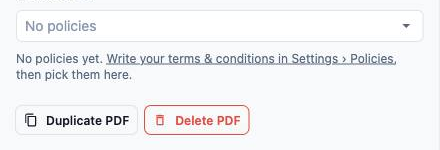
Duplicate PDF and Delete PDF sit at the bottom of an open PDF's settings. The standard invoice and receipt can be duplicated, but not deleted.
To make a copy, for example a second invoice with its own closing note for another business unit:
1. Open the PDF and click Duplicate PDF.
2. **Name** is filled in as "Copy of [name]", such as "Copy of Invoice". Change it if you like.
3. Click Duplicate. The copy opens with every setting of the PDF you copied, including changes you haven't saved yet.
4. Click Save.
A new copy isn't used by any business unit until you choose it in their **Documents** tab.
To delete a PDF, open it, click Delete PDF, then click Save. A business unit that used it shows "Removed PDF" and prints the standard PDF of that kind until you choose another.
---
## Example setups
- **Sunshine Laundry** kept the standard receipt and added one invoice with the **Message** "Thank you! Collect within 30 days."
- **Ah Hock Aircon Services** made a second invoice called "Aircon invoice" with a **Closing note** about their 90-day service warranty. Their Aircon business unit uses it, while their Laundry unit keeps the standard one.
- **Mei Ling Alterations** turned off **Print a Pay online link**, because all their customers pay at the counter.
---
## What your customers see
Your customers get a PDF, usually attached to an email. It has your logo, your company details, their name, the items and the totals. The file is named after the PDF's **Title** and number, such as "Invoice_10234".
---
## FAQs
**Do I need a different PDF for each business unit?**
>No. Several business units can use the same PDF. Make a second one only if the wording must differ.
**Where does my company address come from?**
>From your Company settings. Change it there, and every PDF picks up the new details.
**How do I show my GST number?**
>Fill in your GST registration number under Settings › Company. It prints under your company details by itself.
**Does changing the template change old invoices?**
>A PDF you have already sent or downloaded does not change. An order's PDF is made fresh each time it is opened or sent, so if you open or resend a past order after saving, that new PDF uses the new wording and your current company details. The order's items and amounts stay the same. An issued monthly invoice keeps the PDF made when it was issued.
**Can I preview a real order on this page?**
>No. The preview always uses a sample order in your own name and logo. Open the PDF from the order to see a real one.
---
## What's next
Your PDFs are ready. Next, set up the emails that carry them to your customers. See [Setting Up Your Customer Emails](/docs/setting-up-your-customer-emails).