A customer brings back a shirt with the stain still on it, and in a few clicks your staff open a free recall order for just that shirt, linked to the first order.
## Before You Start
- You need access to **Sales** in the Console to open orders. See [Inviting Your Team and Managing Access](/docs/inviting-your-team-and-managing-access).
- To turn on the **Completion & Handover** section, you need access to **Settings** in the Console. Most shops ask the account owner to do this once.
- **If you used Console 2.0:** **Redo** is now called **Recall**. It lives on the order page in the **Completion & Handover** section, which you turn on once for your whole team.
---
## Overview
A recall order is a new order to redo items the customer was not happy with, such as a shirt that needs washing again or a bag strap that came loose after repair. It is linked to the original order, so staff can always see which order it came from. The customer pays nothing for it, because EasyBiz takes the full price off with a 100% Redo Discount. The items go through your usual steps again, and their photos and notes from the first time come with them. You start a recall from the order page, once the **Completion & Handover** section is on.
**Where it works**
- **Console:** turn on the **Completion & Handover** section and create recall orders from the order page.
- **POS and the staff app:** the recall order shows with your other orders, and its items go through your usual steps.
- **Customers:** the recall order is in their order history, with a total of $0.00.
---
## Why set it up
A recall order keeps every redo on record. Staff see which items came back and why, so the same mistake is easier to spot and fix. The customer is not charged again, and your sales don't count the redo as a new sale.
If you skip it, staff have to create a normal order and take the price off by hand. That order has no link to the first one, the reason is lost, and it's easy to charge the customer by mistake.
---
## Where to find it
Recall is on the order page, inside the **Completion & Handover** section. This section is not on the order page until you turn it on, so do that first.
1. Click the ⚙️ Settings icon in the top-right corner.
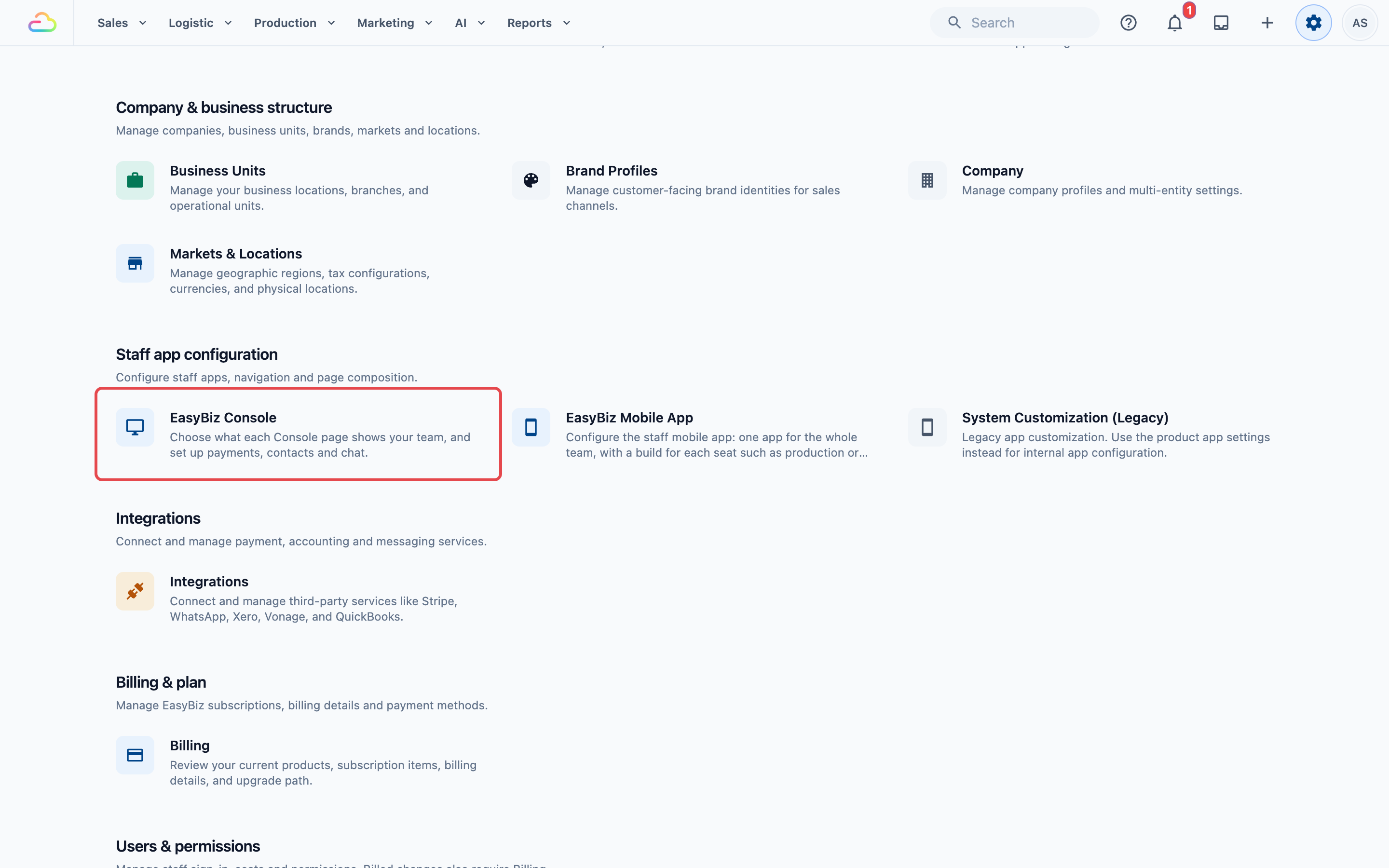
2. Under the **Staff app configuration** section, click **EasyBiz Console**.
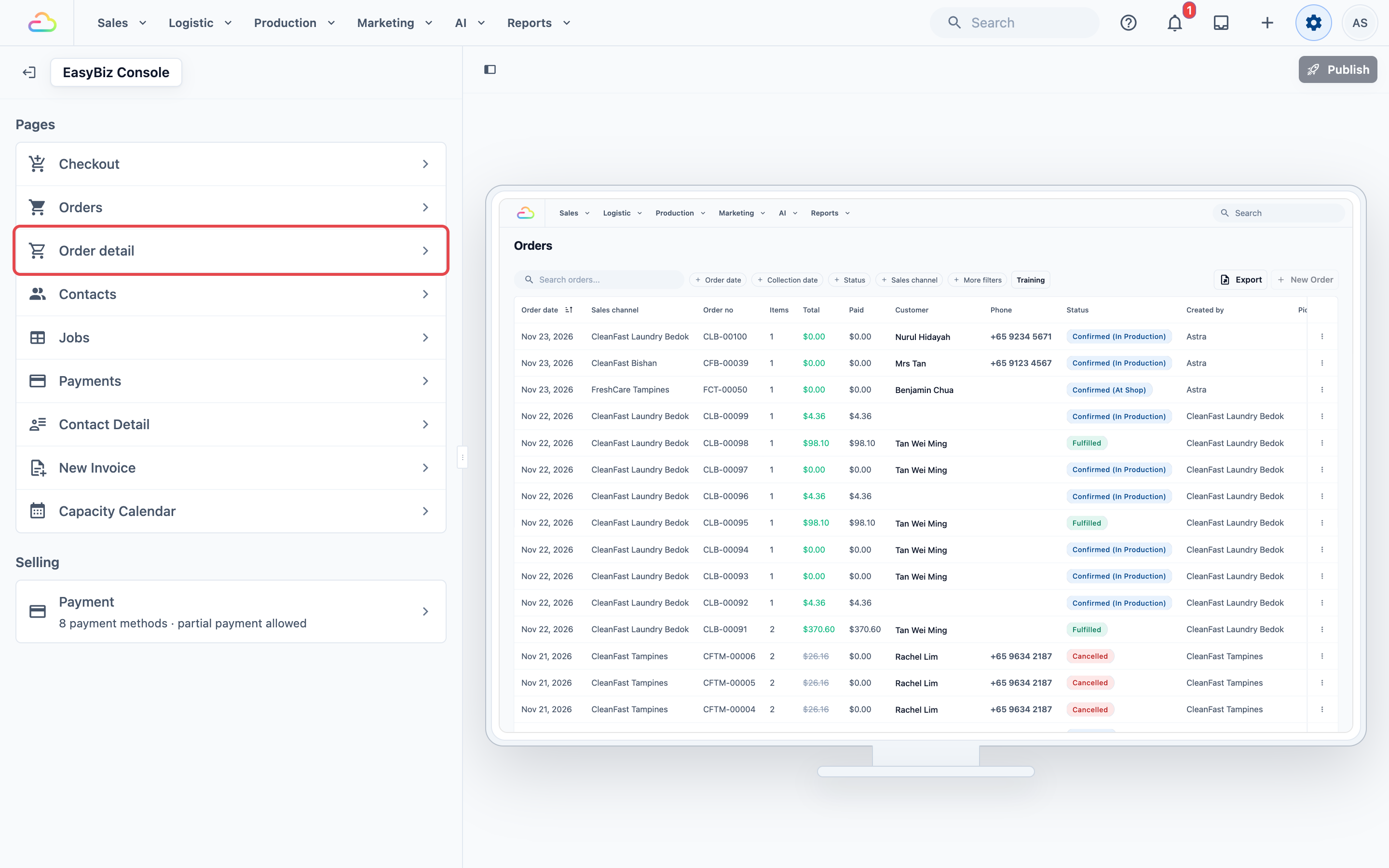
3. In the menu on the left, under **Pages**, click **Order Detail**.
---
## Setting it up
### Turn on Completion & Handover
1. Under **Sections**, find **Completion & Handover** and turn it on.
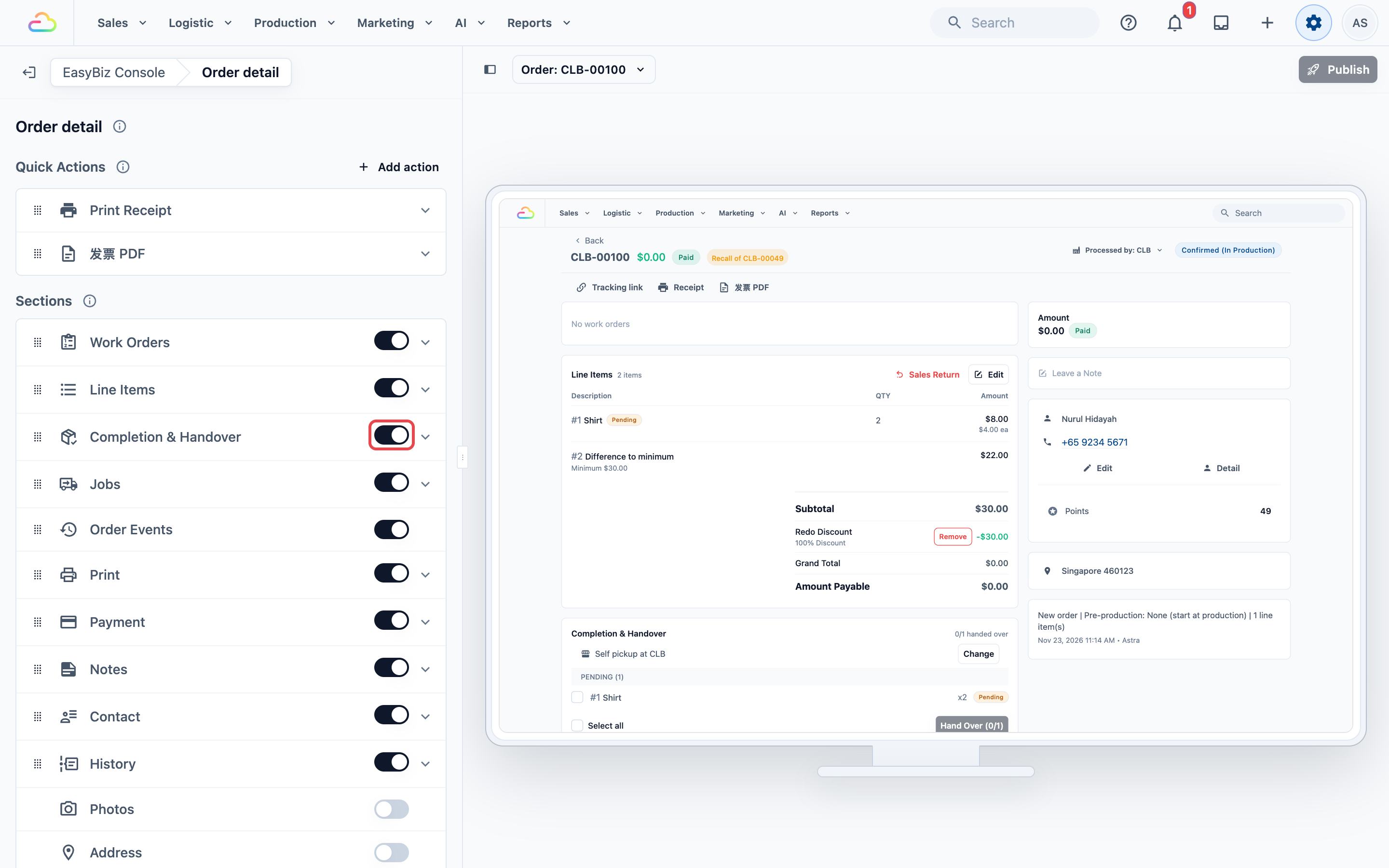
2. Click Publish at the top right of the preview.
3. Click Publish again in **Review your changes**.
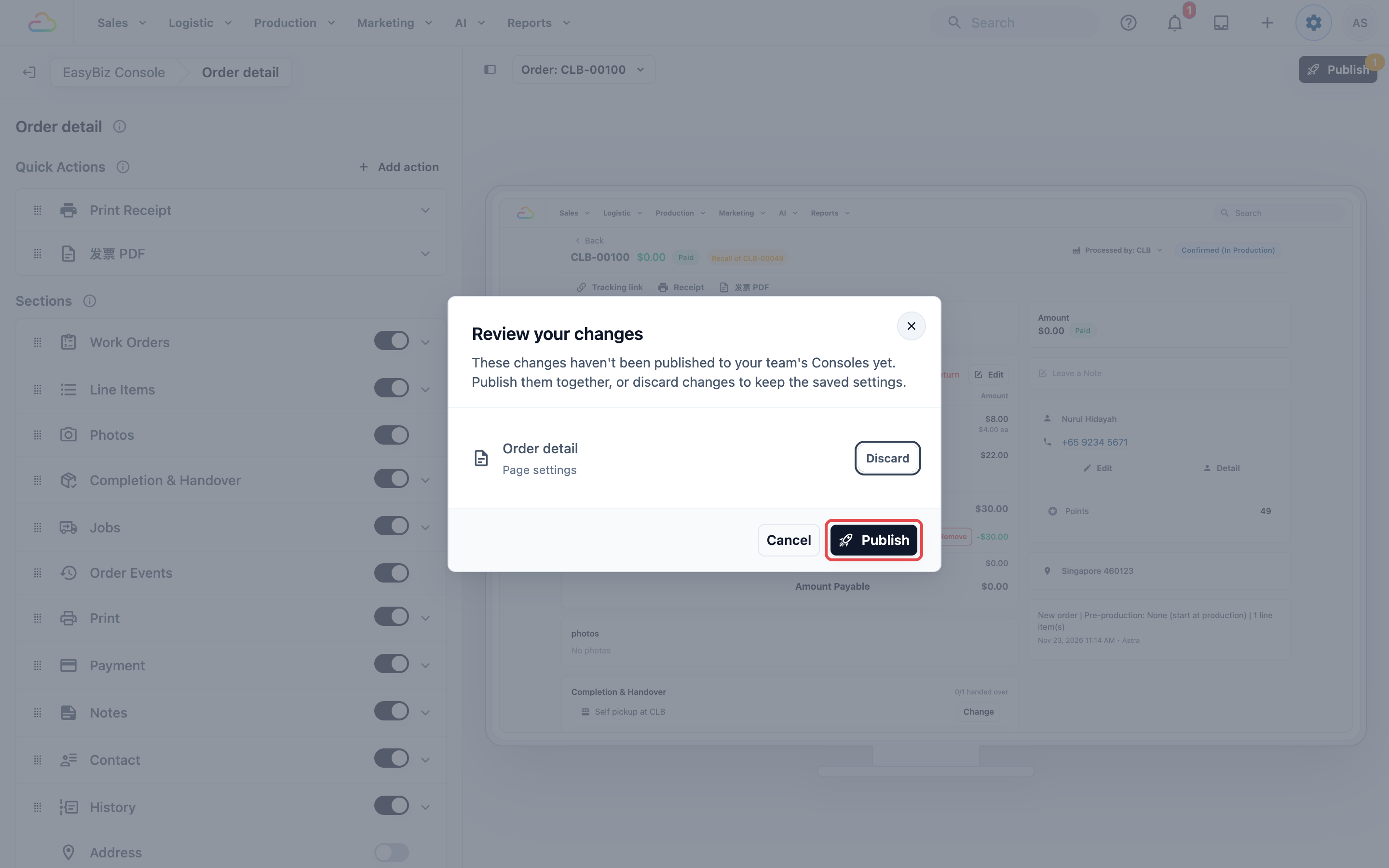
If you turn this on, every order page in your Console shows the **Completion & Handover** section, usually on the right side. Staff also use it to hand items over to the customer, so it is useful even before your first recall. Nothing changes for your team until you publish.
### Create a recall order
1. In the top navigation bar, click the **Sales** dropdown, then click **Orders**.
2. Click the order the customer brought items back from.
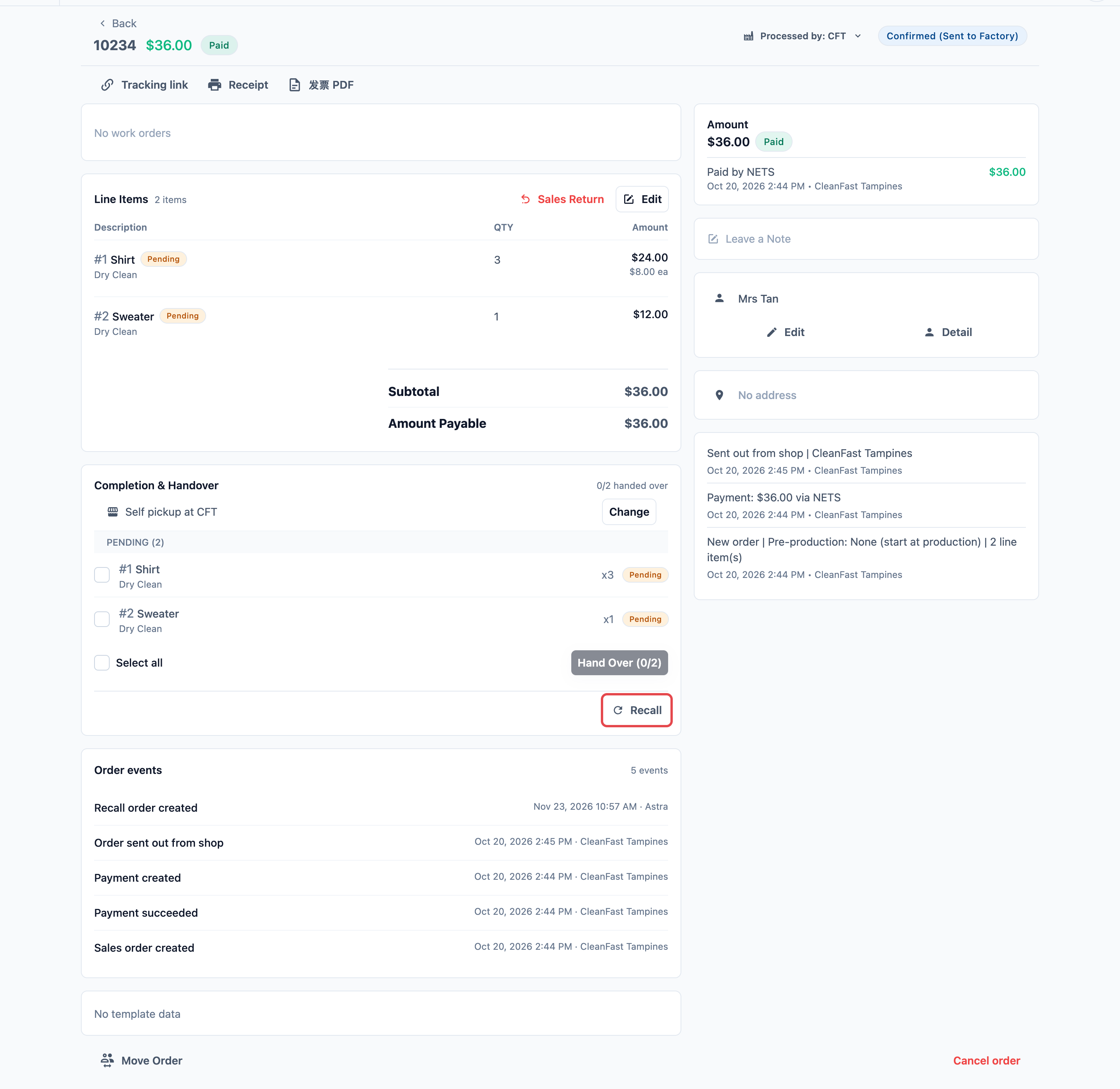
3. In the **Completion & Handover** section, click Recall at the bottom right.
4. In the **Recall Order** window, tick the items to redo. Tick **Select all** to pick every item at once.
5. For an item with more than one piece, such as 3 shirts on one line, set how many pieces to redo.
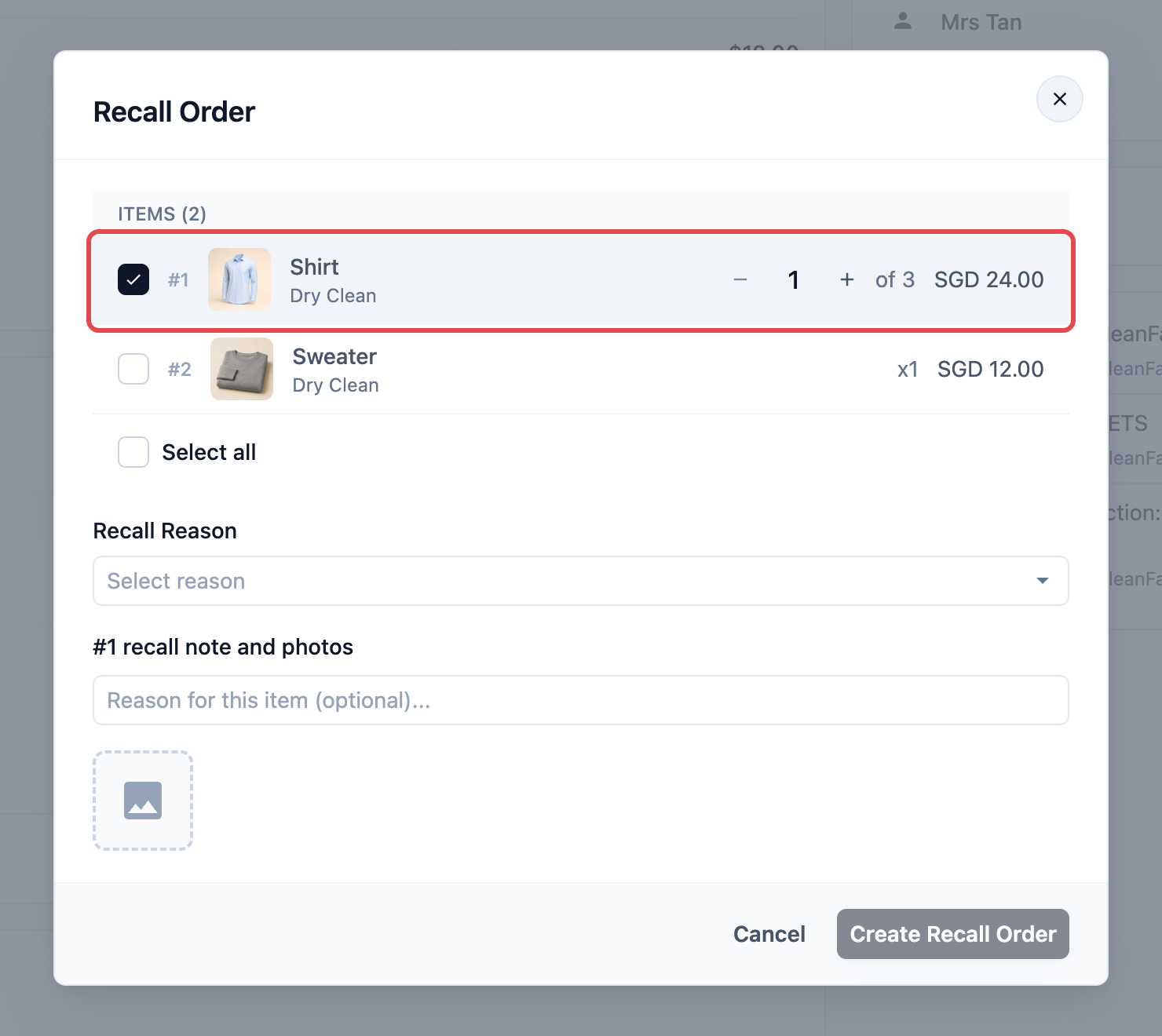
6. Choose a **Recall Reason**.
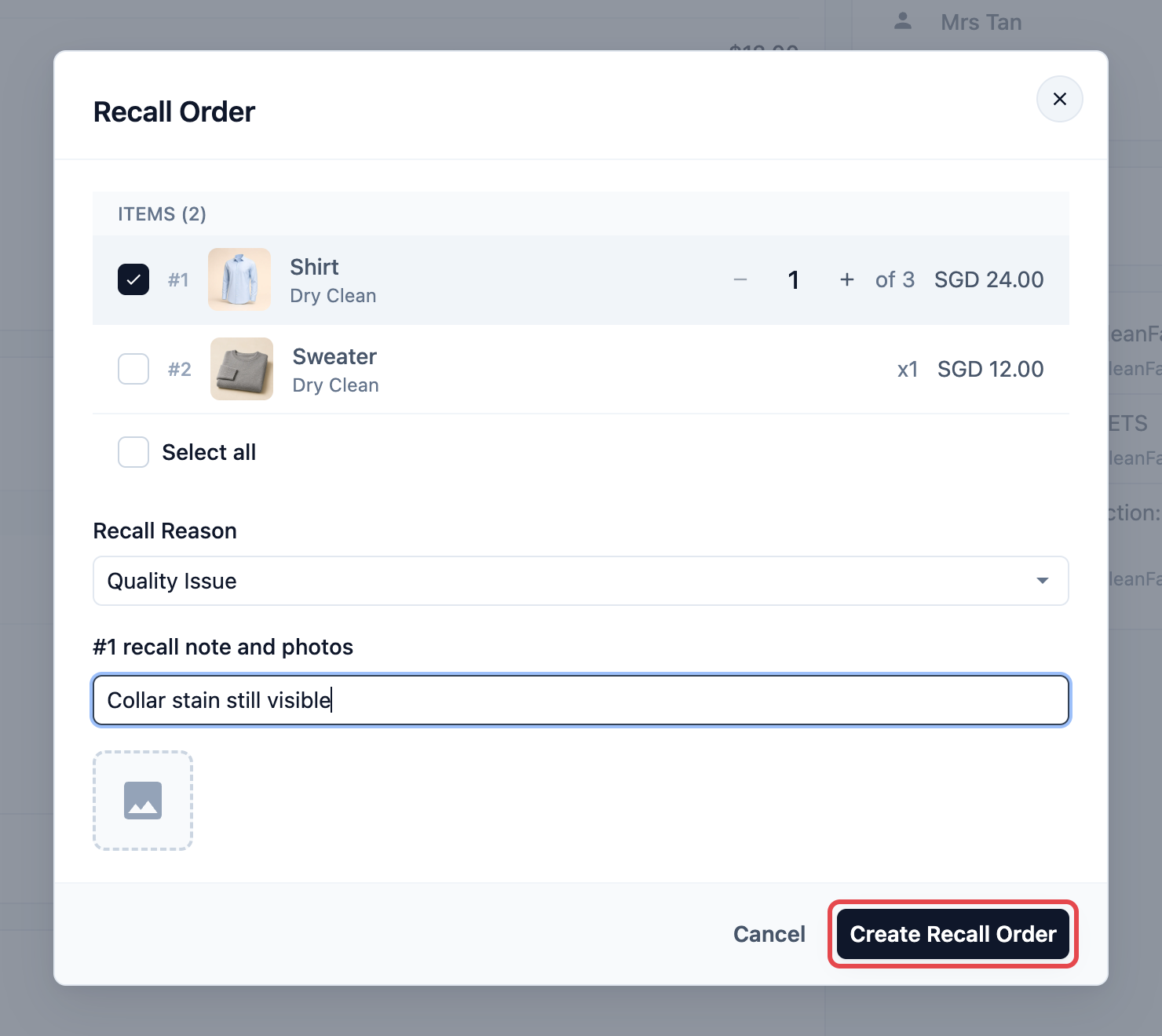
7. Type a **Note** if you want to say more, for example "Collar stain still visible".
8. Click Create Recall Order.
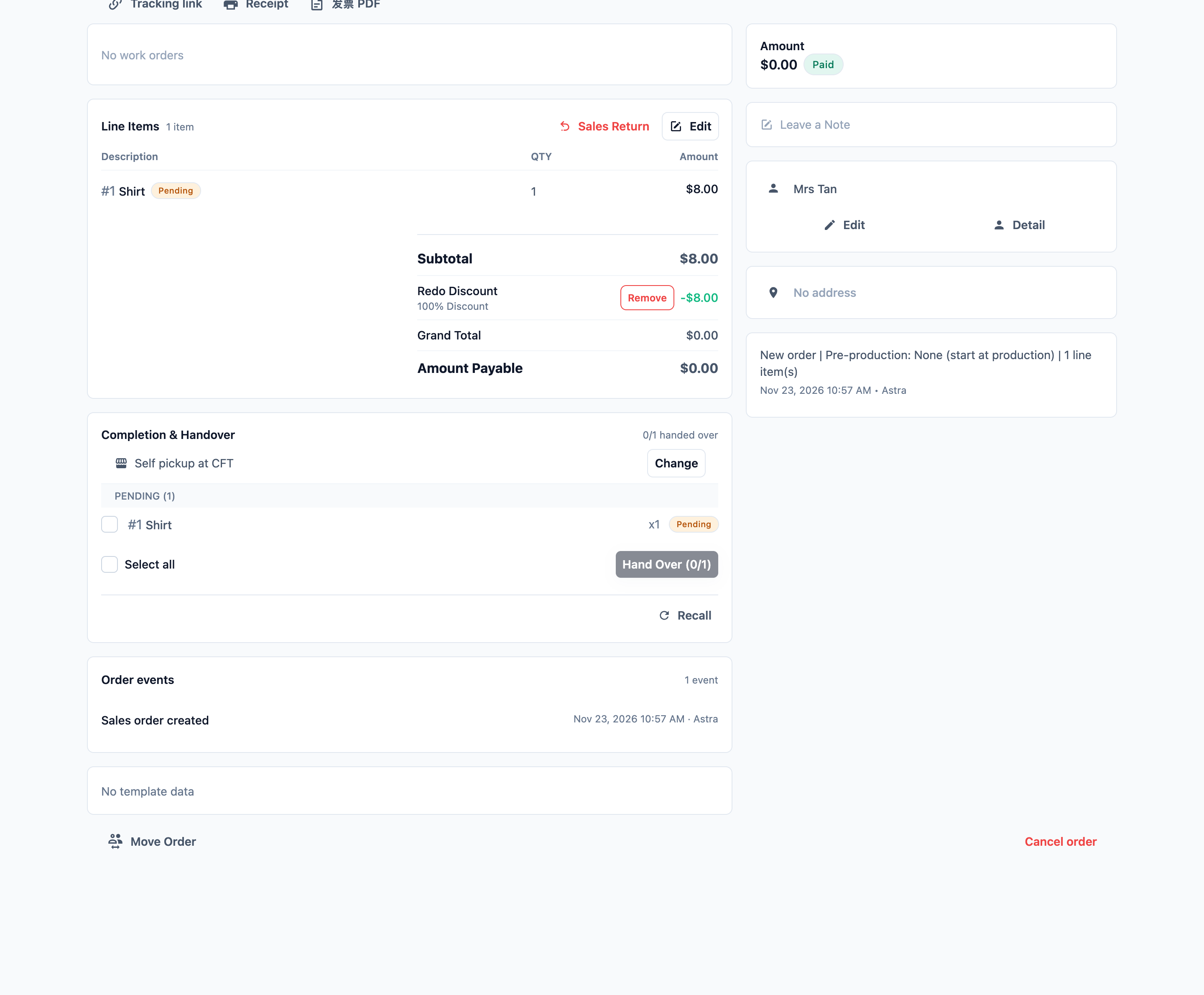
You see "Recall order created", and the new recall order opens.
**Items**
Only service items can be recalled, such as a wash, a dry clean or a repair. Products you sell, such as detergent or a shoe cleaning kit, are greyed out. Items sold by weight are recalled whole. Photos already on an item show under it, so you can check you picked the right one.
**Recall Reason**
| **Reason** | **When to use it** |
|---|---|
| Quality Issue | The work was not good enough, such as a stain still showing or a crease ironed in. |
| Damage | The item was damaged while you had it, such as a torn seam or a lost button. |
| Wrong Item | The customer got back the wrong item, or the wrong service was done. |
| Customer Request | The customer asked for it to be done again for another reason. |
Create Recall Order stays greyed out until you tick at least one item and choose a reason.
**Note**
Type anything that helps the team redo the work right. It is saved on the recall order and added to each item's tasks. You can leave it empty.
---
## Example setup
CleanFast Laundry's Tampines shop has order 10234 for Mrs Tan: 3 shirts to wash and iron at $4.50 each, and 1 bottle of fabric softener at $8.90. She collects it and comes back the next day, because one shirt still has a collar stain.
The counter staff open order 10234, click Recall, tick the shirts, set the pieces to 1, choose **Quality Issue** and type "Collar stain still visible". The softener can't be ticked.
The recall order adds up like this:
| **Line** | **Amount** |
|---|---|
| Shirt, wash and iron, 1 × $4.50 | $4.50 |
| Redo Discount (100%) | -$4.50 |
| **Total** | **$0.00** |
Mrs Tan pays nothing, and order 10234 stays as it was.
---
## What staff and customers see
- **On the recall order:** a **Recall of 10234** badge at the top, linking back to the original order. The items show the 100% Redo Discount and a total of $0.00.
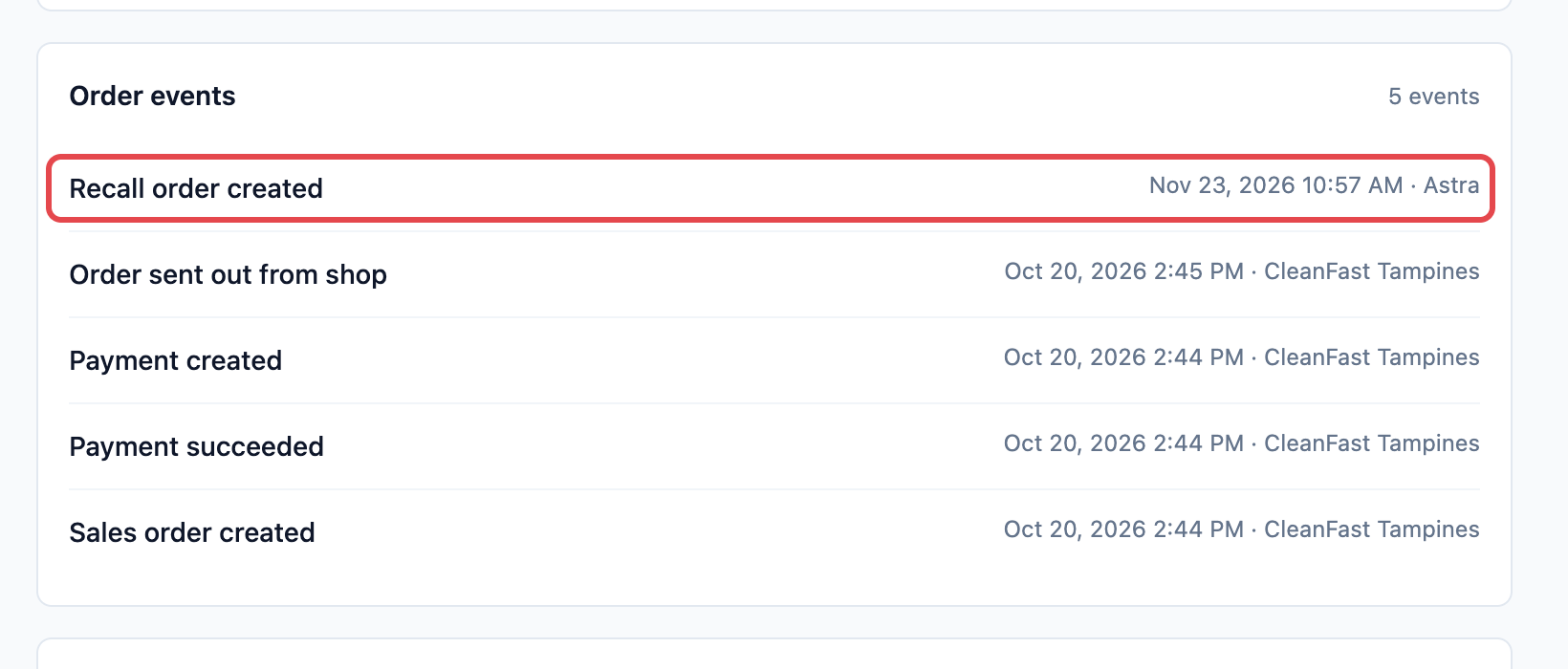
- **On the original order:** its **History** shows "Recall order created", with who made it and when.
- **In production:** each recalled item gets its work order again, with the photos, notes and details from the first time. Its tasks show the recall reason and note, so your team knows what to fix.
- **Customers:** the recall order shows in their order history with a total of $0.00.
---
## How it works with other features
- **Sales:** the recall order's total is $0.00, so it does not add to your sales. The original order's sale stays as it was.
- **Pickup and delivery:** the recall order does not copy the pickup or delivery from the original order. Book one on the recall order if the customer needs it. See [Finding and Working on an Order](/docs/finding-and-working-on-an-order).
---
## FAQs
**Why don't I see the Recall button?**
> The **Completion & Handover** section is not on your order page yet. Turn it on in ⚙️ Settings › Staff app configuration › EasyBiz Console › Order Detail and publish. The button also doesn't show on a cancelled order.
**Why is the Recall button greyed out?**
> Recall works only on a Confirmed or Fulfilled order. Confirm the order first, then recall its items.
**Does the customer pay for the recall order?**
> No. EasyBiz adds a 100% Redo Discount, so the total is $0.00 and nothing is owed.
**Can I recall only one shirt from a line of three?**
> Yes. Tick the line, then set the number of pieces to 1. The other 2 shirts stay on the original order only.
**Can I add new photos when I recall an item?**
> The Recall Order window shows the photos already on each item, and they are copied to the recall items. To add new photos, add them to the recall order after you create it.
**Does turning on Completion & Handover change it for my whole team?**
> Yes. Once you publish, every staff member who opens an order in the Console sees the section and the Recall button.
---
## What's Next
You've turned on Recall and created your first recall order, so redos are now free for the customer and linked to the first order. Next, learn how to collect what a customer still owes when they pick up or get a delivery in [Collecting the Balance at Pickup or Delivery](/docs/collecting-the-balance-at-pickup-or-delivery).