## Before You Start
- You need the **Sales** menu in your Console. If **Payments** is missing from it, ask your account owner to give your user access to sales.
- If your user can only work in some sales channels, the page and its exports show only the payments taken there. A sales channel is any place you take orders, such as an outlet, your online store or your mobile app.
- It helps to read [Reading the Payments Report](/docs/reading-the-payments-report) first. The report adds payments up. This page shows each payment on its own.
---
## What the Payments Page Is
The **Payments** page lists every payment your shop recorded, one row each, newest first. It includes cash at the counter, PayNow, card, payments made on your Online Store and refunds. Use it when you need one payment, not a total. For example, a customer says they paid by PayNow yesterday, or your bank statement shows $193.50 and you want to see which payments make it up.
Without it, you would open order after order to find one payment. With it, a search or two filters finds it in seconds.
---
## Open the Payments Page
1. In the top navigation bar, click the **Sales** dropdown.
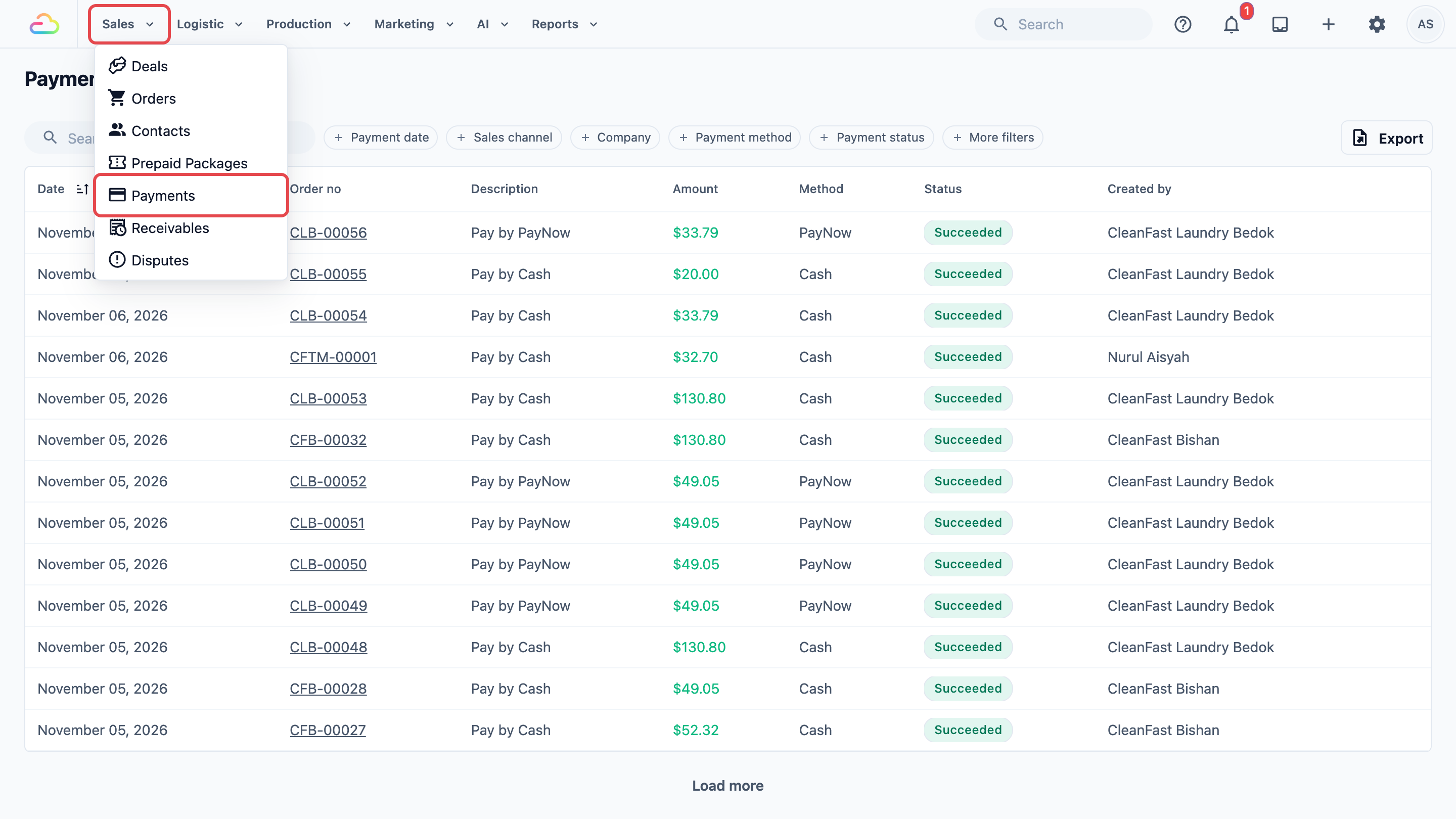
2. Click **Payments**.
---
## Reading the List
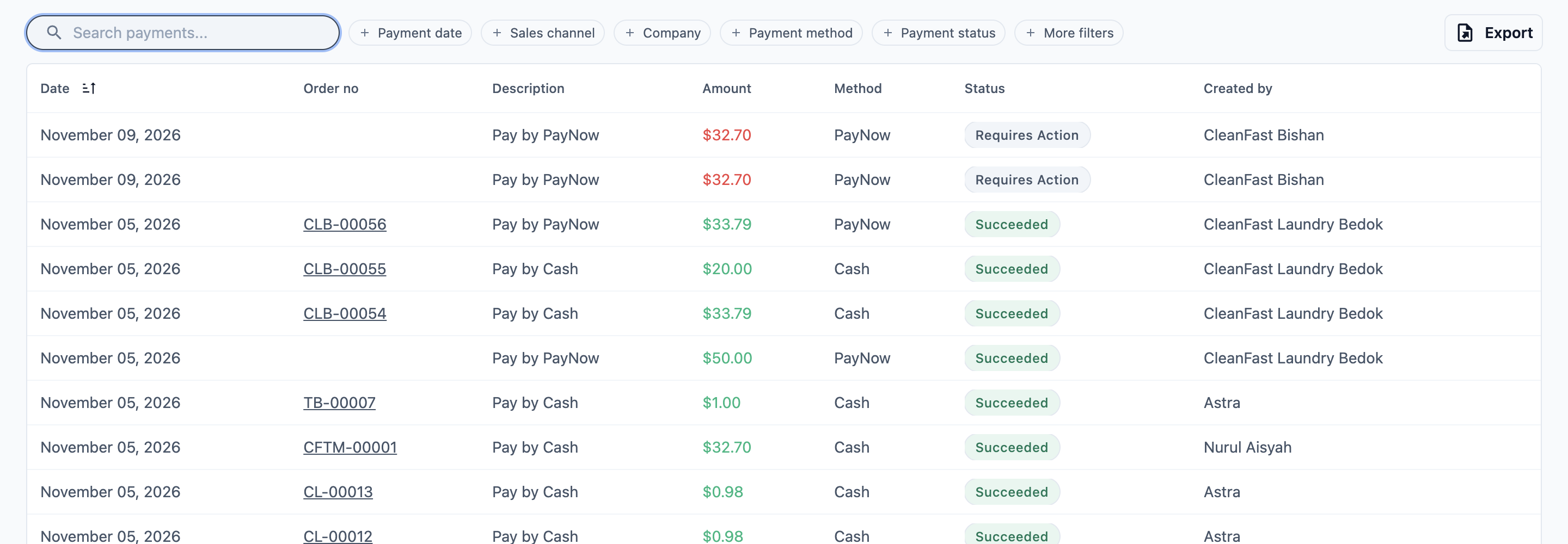
Each row is one payment. With no filters, the list shows the newest 20. Click Load more at the bottom to see 20 more.
Your list shows these columns unless your account owner changed them:
- **Date:** the day of the payment. If staff recorded a payment for an earlier day, this shows that earlier day.
- **Order no:** the order the payment was for.
- **Description:** what happened, such as Pay by Cash or Refund by PayNow, with any note staff typed.
- **Amount:** how much was paid. A refund shows as a minus amount.
- **Method:** how the customer paid, such as Cash, PayNow or a card.
- **Status:** whether the payment went through. See the table below.
- **Created by:** the staff member who recorded it, or the customer for a payment made online.
To see the oldest payments first, click the **Date** column heading. Click it again to go back to newest first.
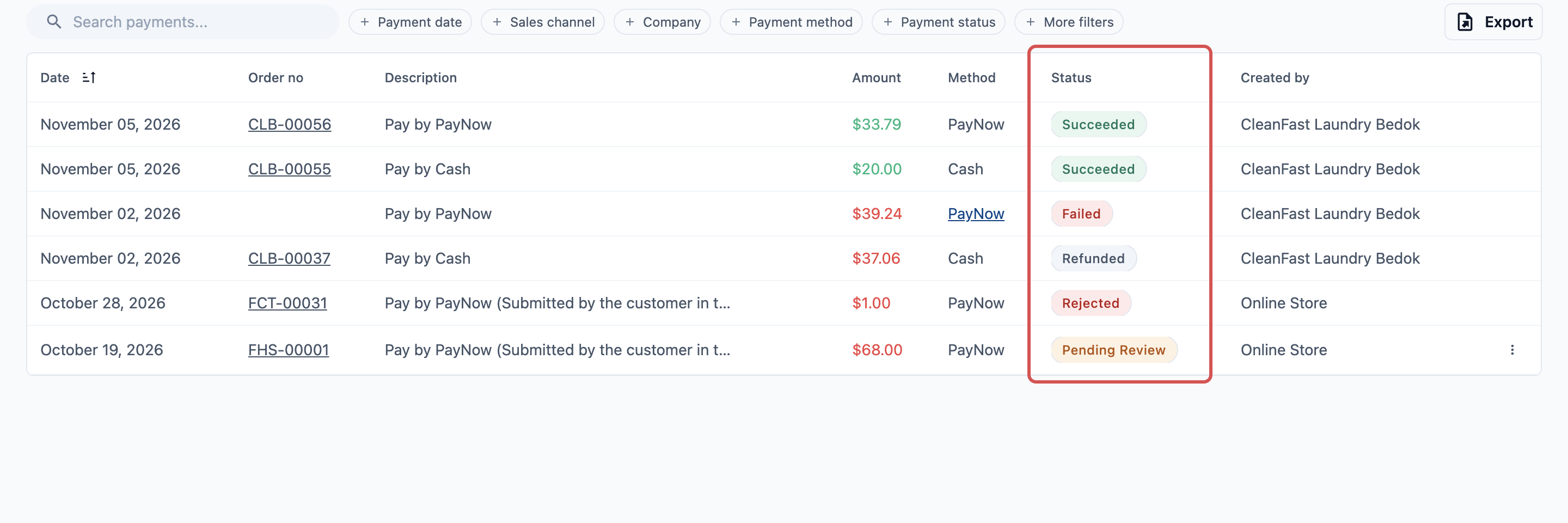
**Status**
| **Status** | **What it means** |
|---|---|
| Succeeded | The money came in. The amount shows in green. |
| Pending Review | A customer told you they paid with one of your own methods, such as a bank transfer. Staff still need to check it. See [Approve or Reject a Payment a Customer Reported](#approve-or-reject-a-payment-a-customer-reported). |
| Failed | The payment didn't go through, for example a declined card. No money came in. |
| Rejected | Staff checked a reported payment and found the money never arrived. |
### Adding a column
To add a column to the list for your whole team, for example the customer's name or phone number:
1. Click the ⚙️ Settings icon in the top-right corner, then under **Staff app configuration** click **EasyBiz Console**.
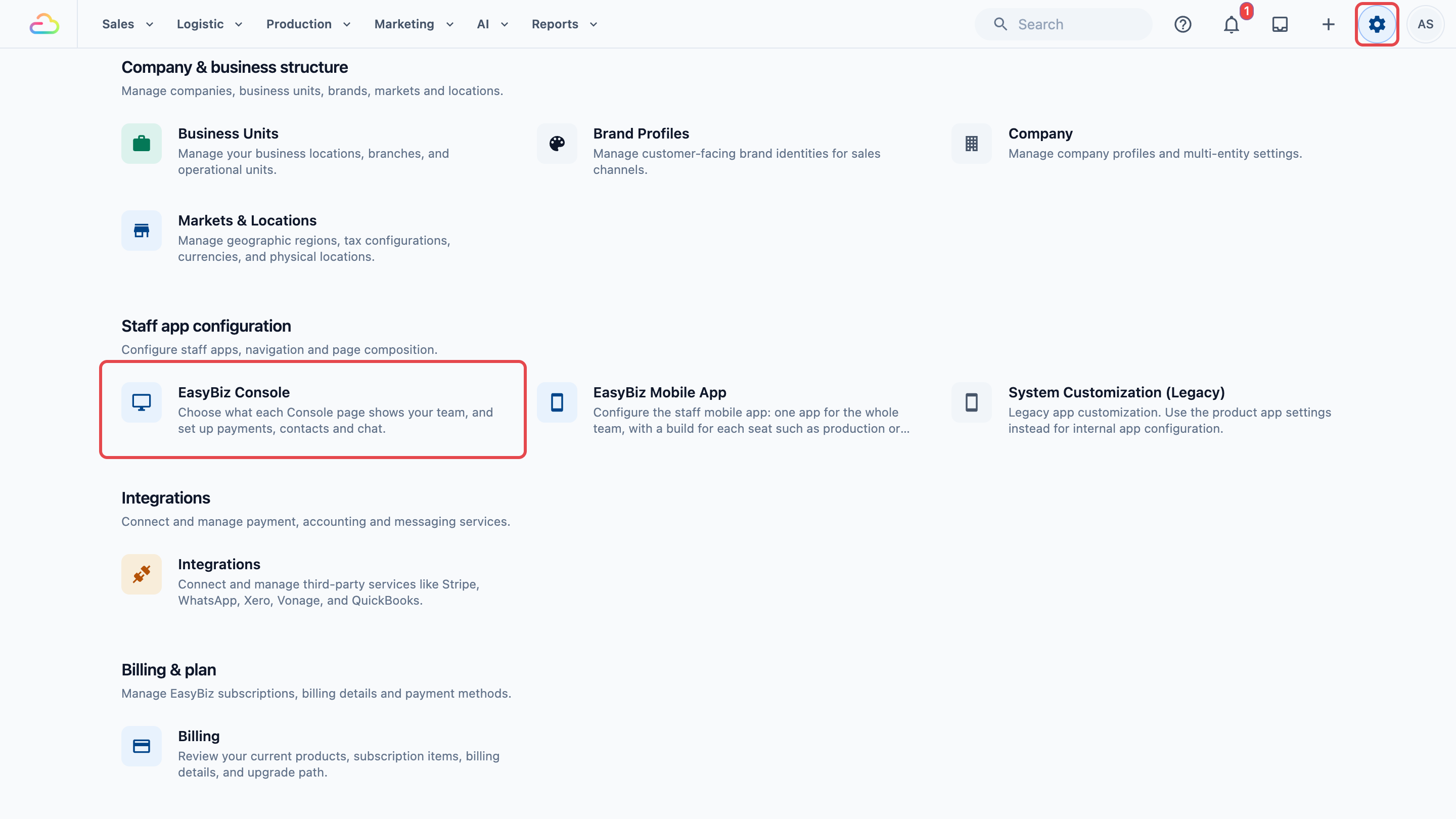
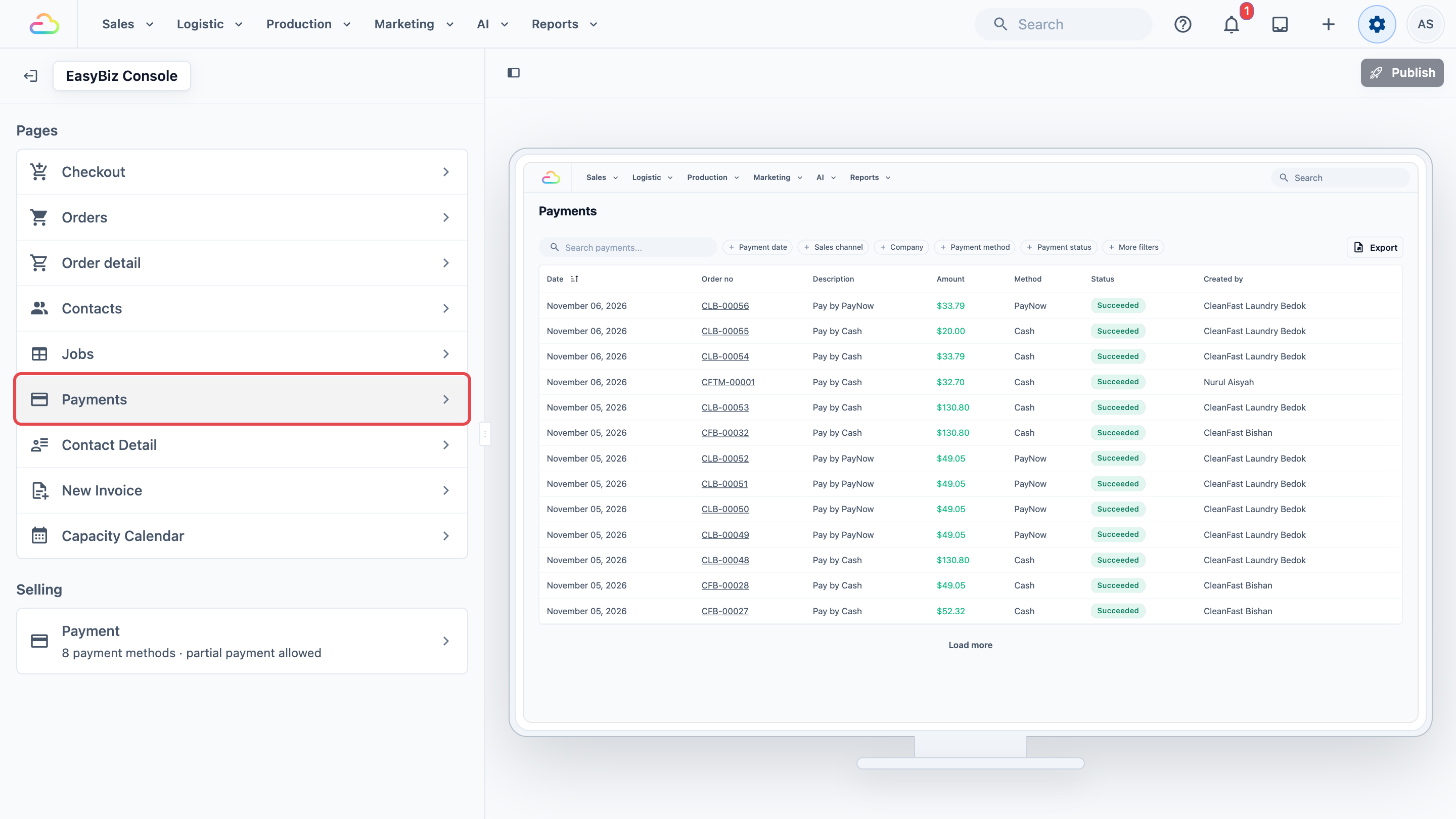
2. Under **Pages**, click **Payments**.
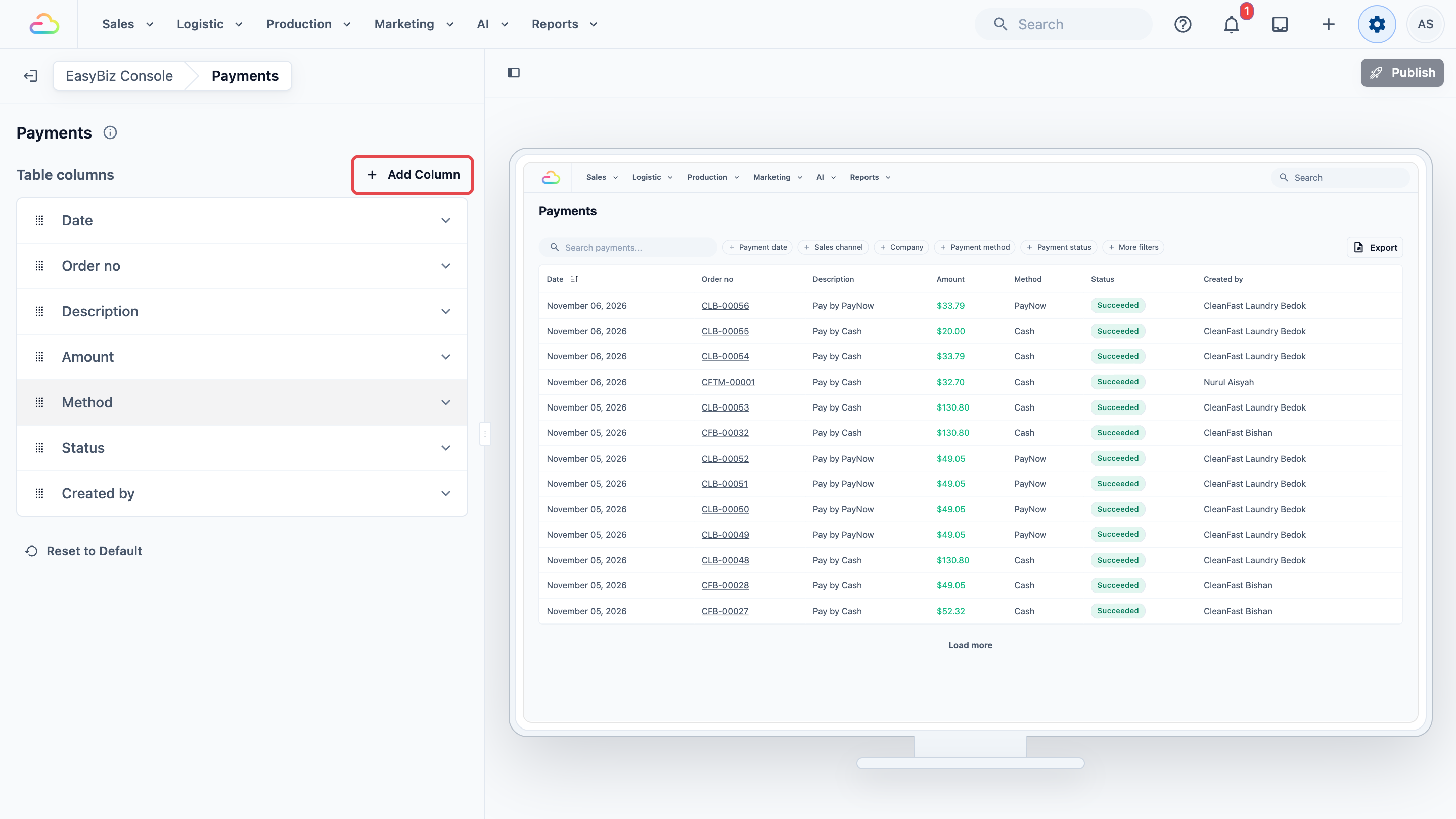
3. Under **Table columns**, click Add Column .
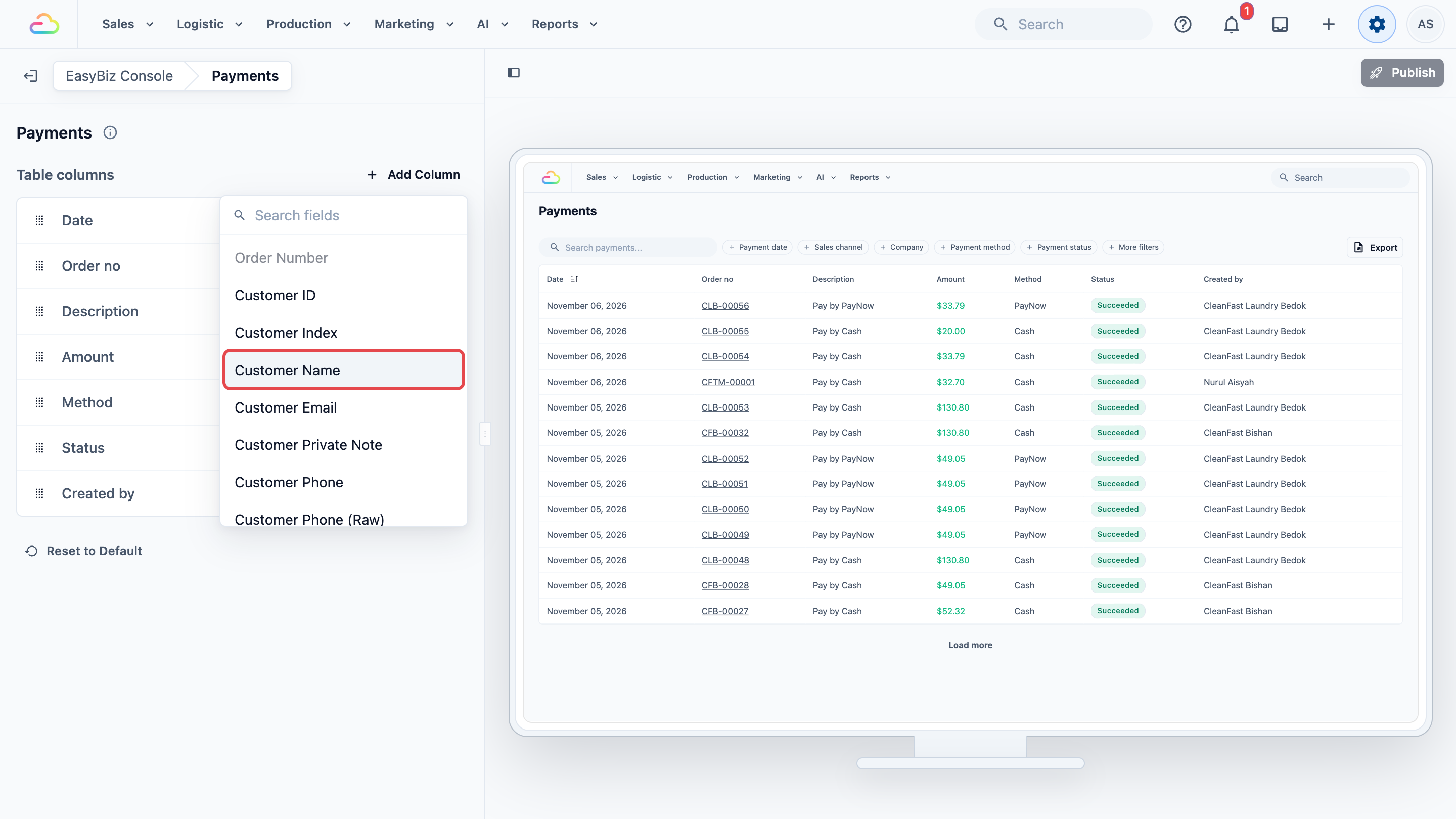
Then pick the field you need.
4. Click Publish at the top right of the preview.
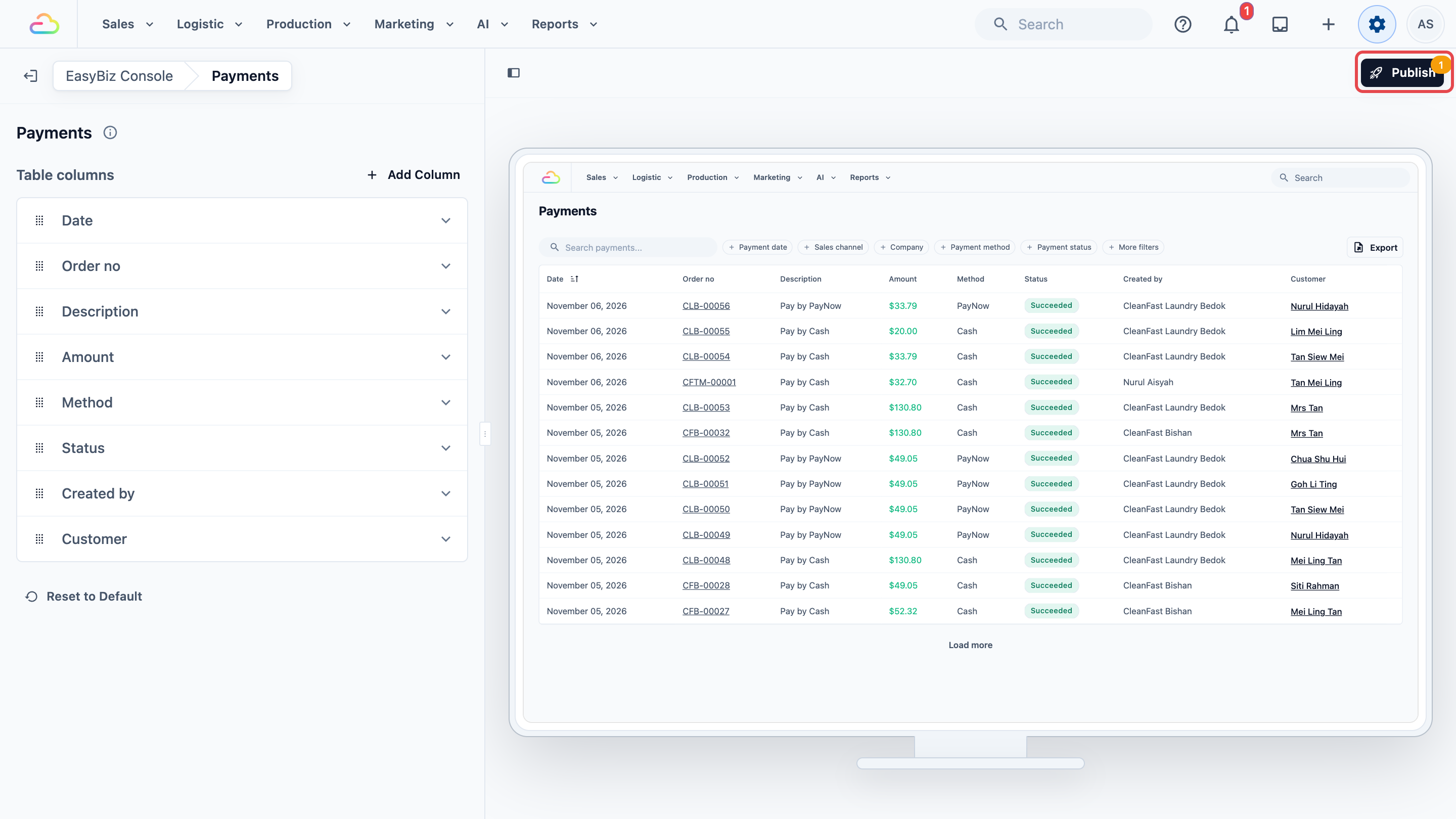
Then click Publish again in **Review your changes**. Nothing changes for your team until you publish.
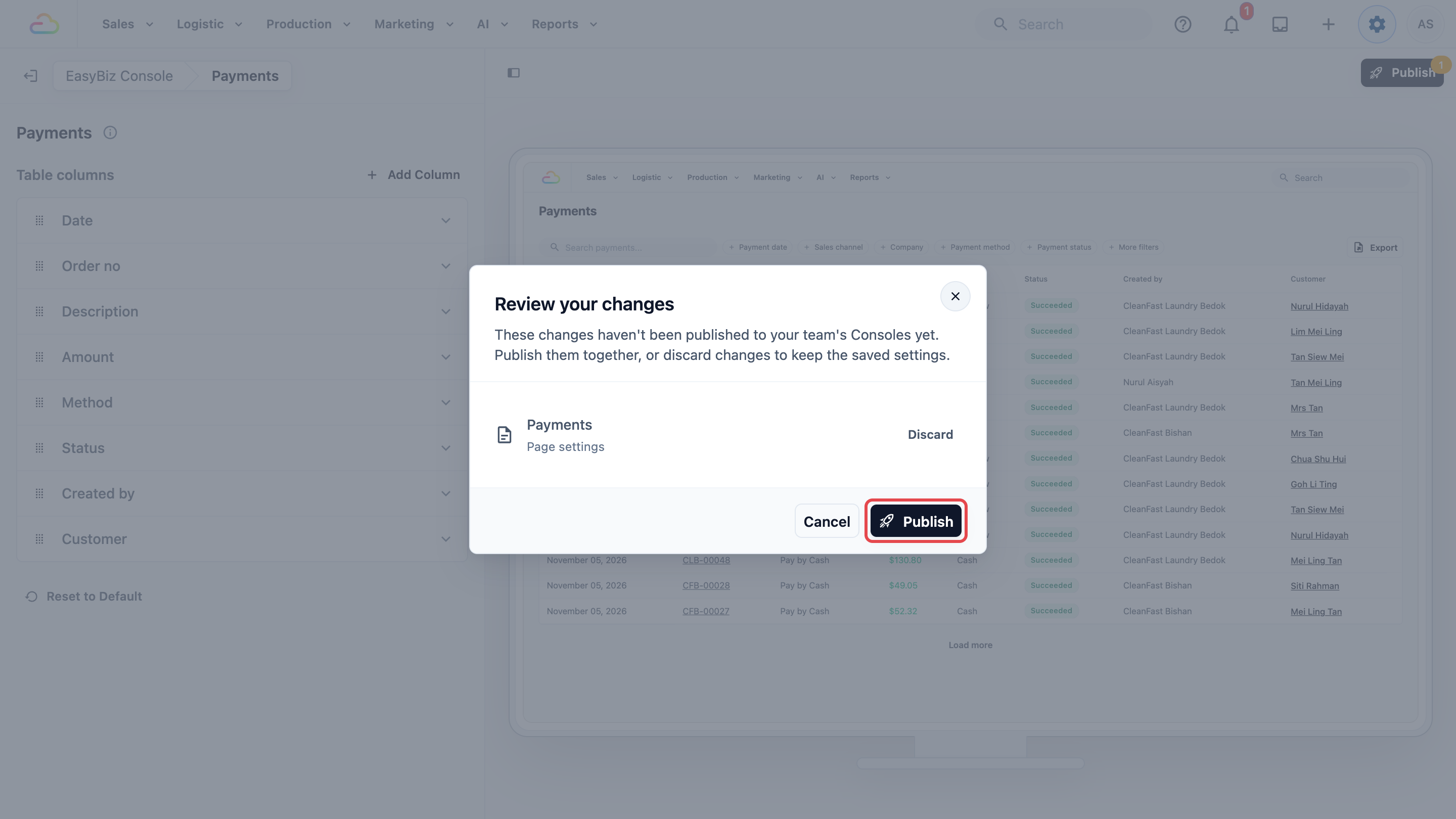
Only the **Date** column sorts the list. A column you add here shows on the page but not in the export file. See [What goes into the file](#what-goes-into-the-file).
---
## Find a Payment
Use the search box and the filter buttons above the list.
1. To find one payment, type in the **Search payments...** box. You can search by order number, customer name, the staff member's name, a note or a payment reference.
2. Click Payment date and pick a start and end date to see one period.
3. Click Sales channel to see one outlet, such as Tampines.
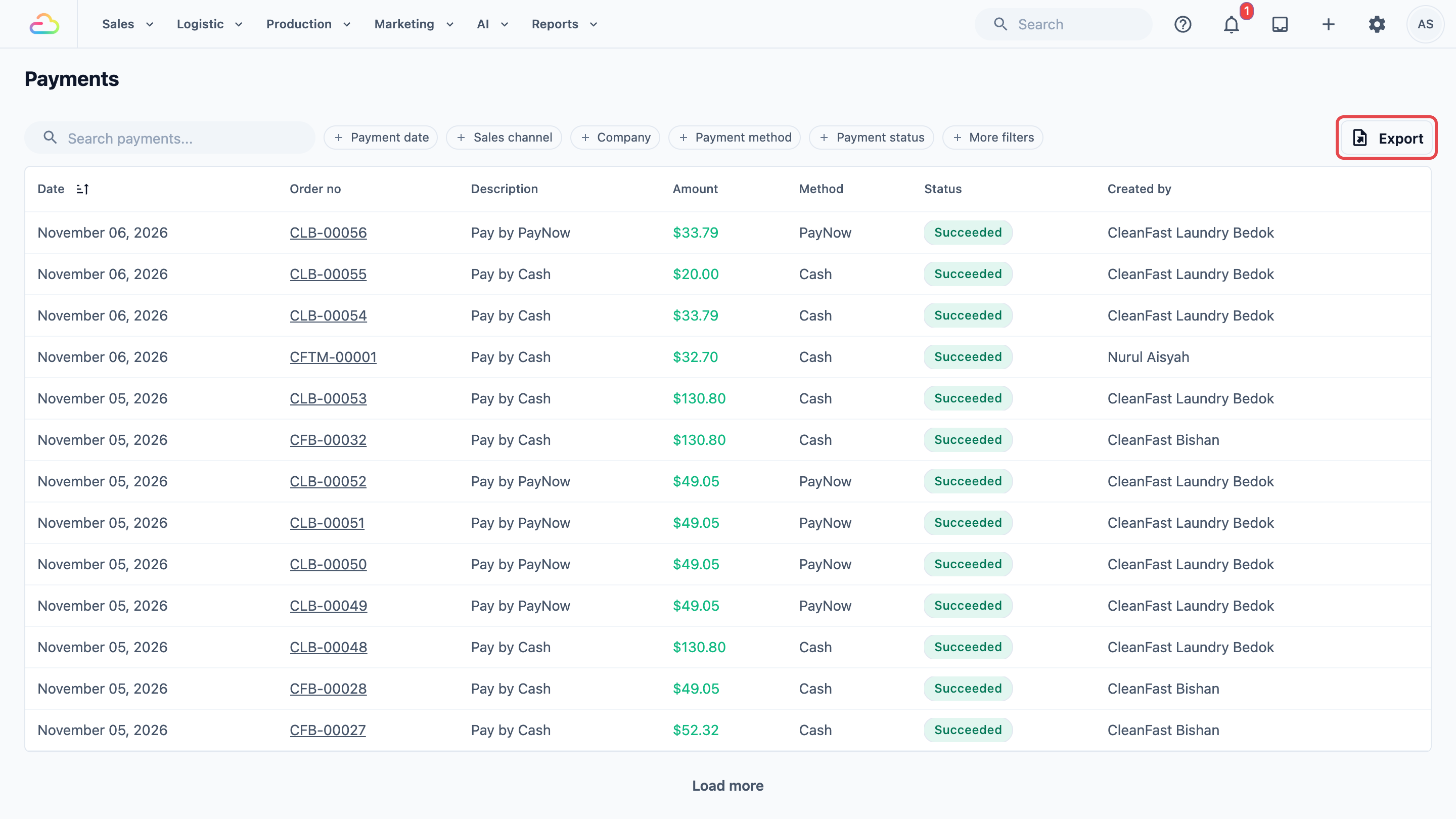
4. Click Payment method to see one way of paying, such as PayNow.
5. Click Payment status to see, for example, only Pending Review payments.
6. Click More filters for **Customer** (one customer's payments) and **Submit by** (the payments one staff member recorded).

Filters work together. Payment date October, Sales channel Tampines and Payment method PayNow shows only the PayNow payments taken at Tampines in October. Click Clear filters to see every payment again.
**Company** filters by company. Use this only if your account has more than one company, each with its own sales channels.
Search looks through the newest 500 payments that match your other filters. If you can't find an older payment, set **Payment date** to the week it was made, then search again.
The filters stay in the page address, so you can bookmark a filtered page and open it again later.
---
## Approve or Reject a Payment a Customer Reported
Use this only if your Online Store or Mobile App lets customers pay with one of your own methods, such as a bank transfer, and tell you they have paid. Each one arrives on this page as **Pending Review**. The order isn't paid until a staff member approves it.
1. Click Payment status and choose **Pending Review**.
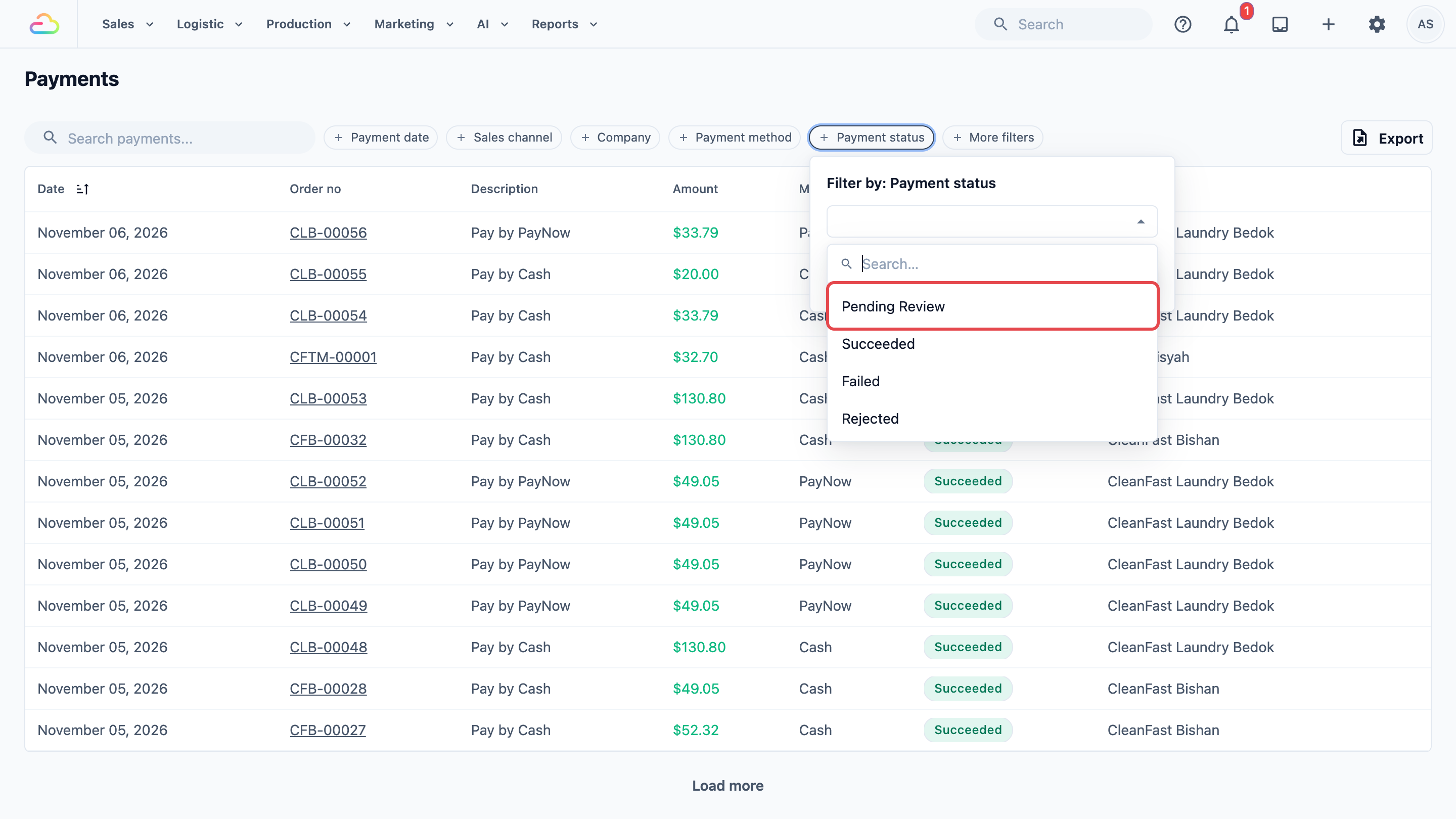
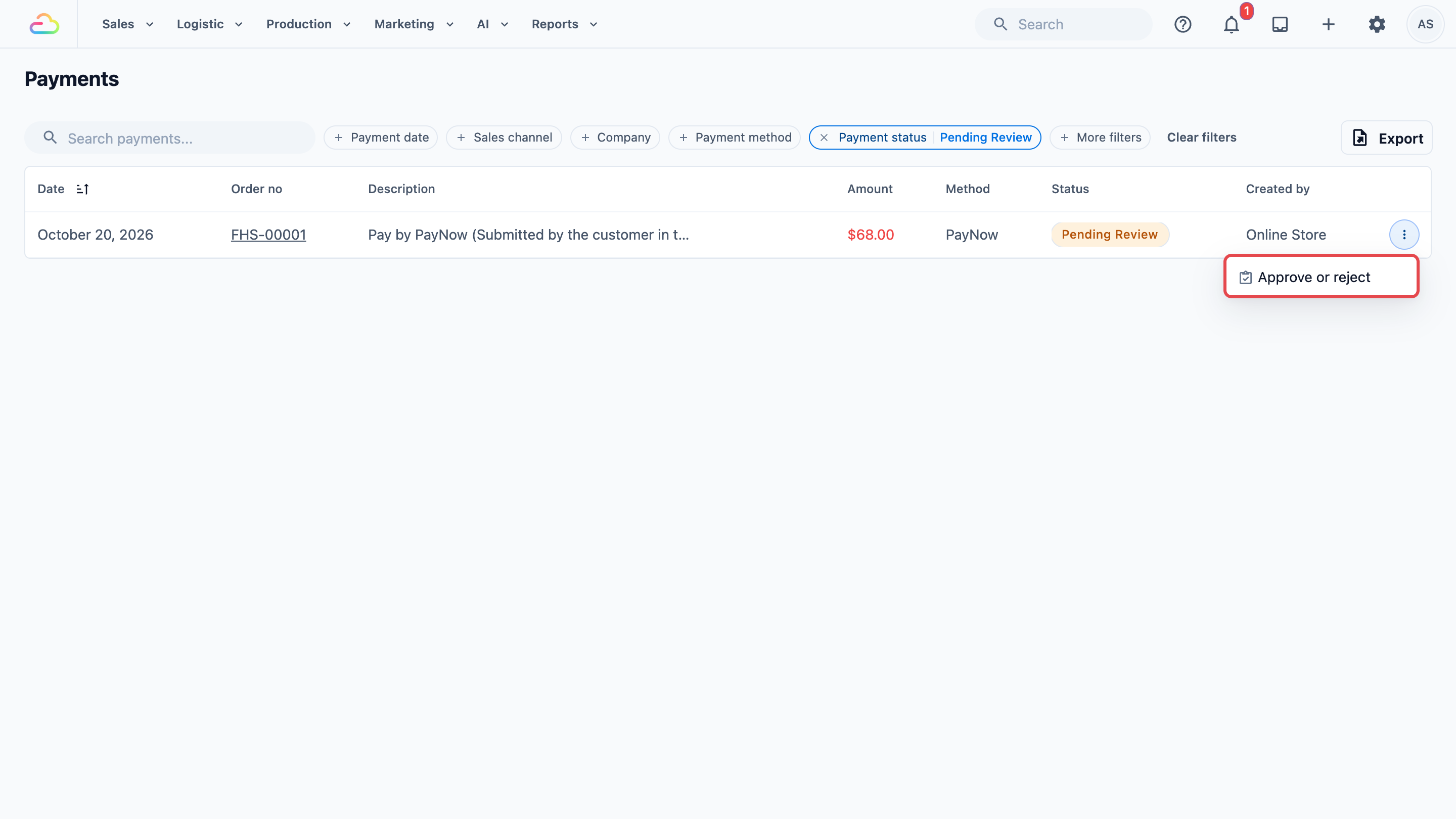
2. On the payment's row, click the ⋮ menu at the right, then click Approve or reject .
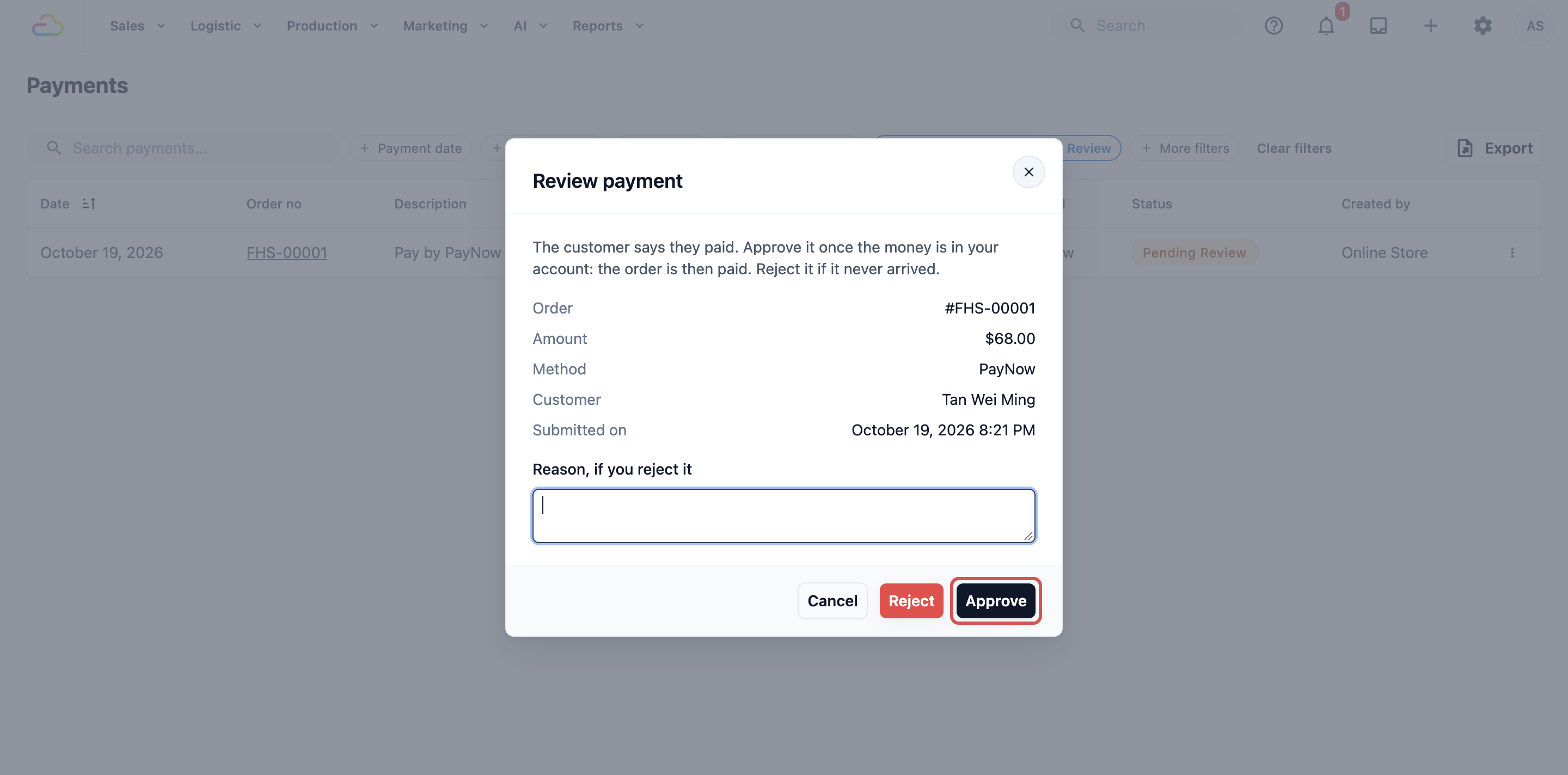
3. The **Review payment** window shows the order, amount, method, customer and when it was submitted, with any photo the customer added, such as a transfer receipt.
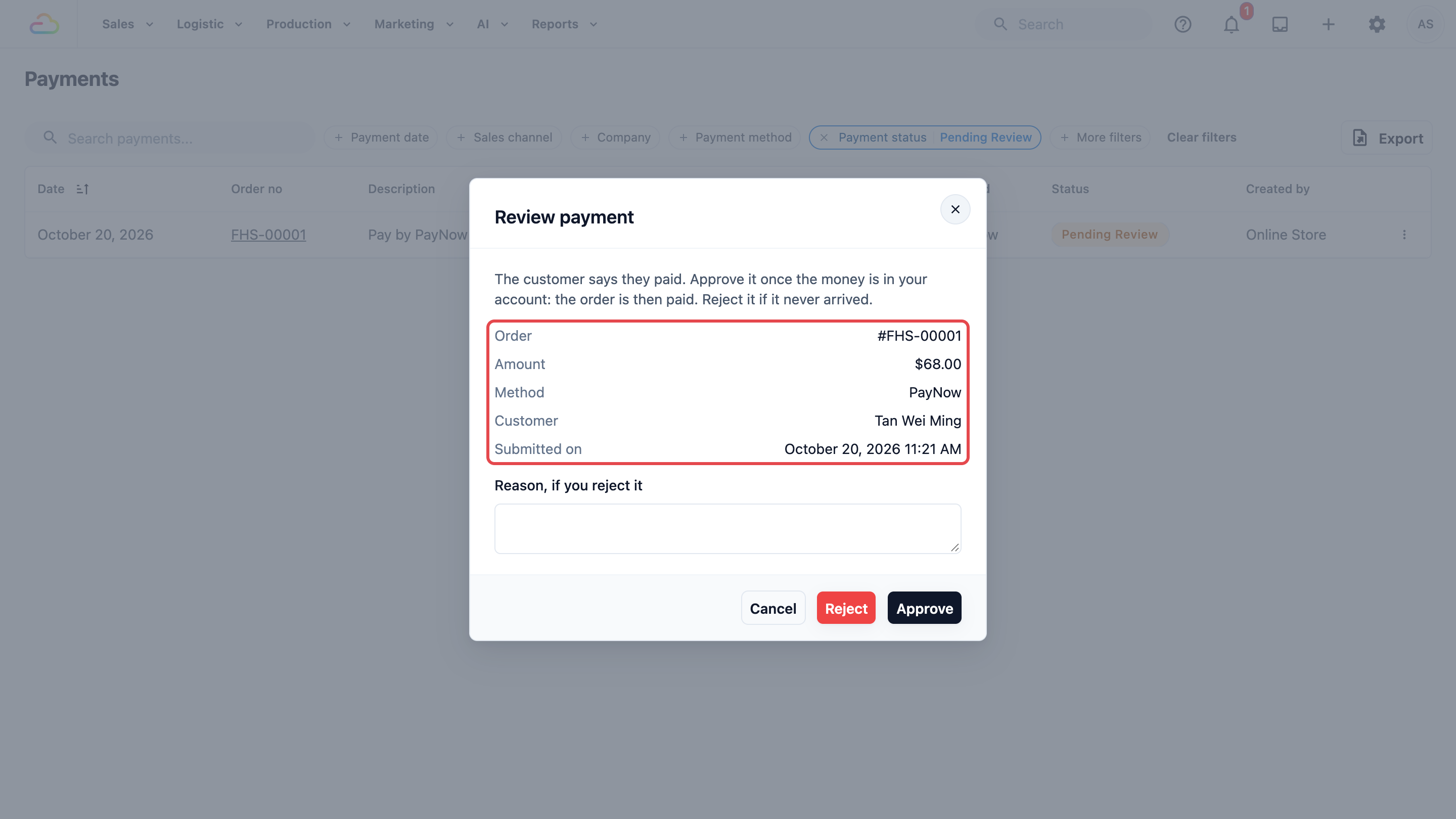
4. Check your bank account for the money.
5. If it arrived, click Approve . The order is then paid.
6. If it never arrived, type why in **Reason, if you reject it**, then click Reject . The order still owes the amount, so the customer can pay again.
To set up these methods, see [Payments on Your Online Store](/docs/payments-on-your-online-store).
---
## Export the Payment List
Use Export to get the payments in your list as an Excel file. For example, you can match a month of PayNow payments against your bank statement, or give your accountant every refund for the quarter.
1. Filter the list to the payments you need, for example **Payment method** PayNow.
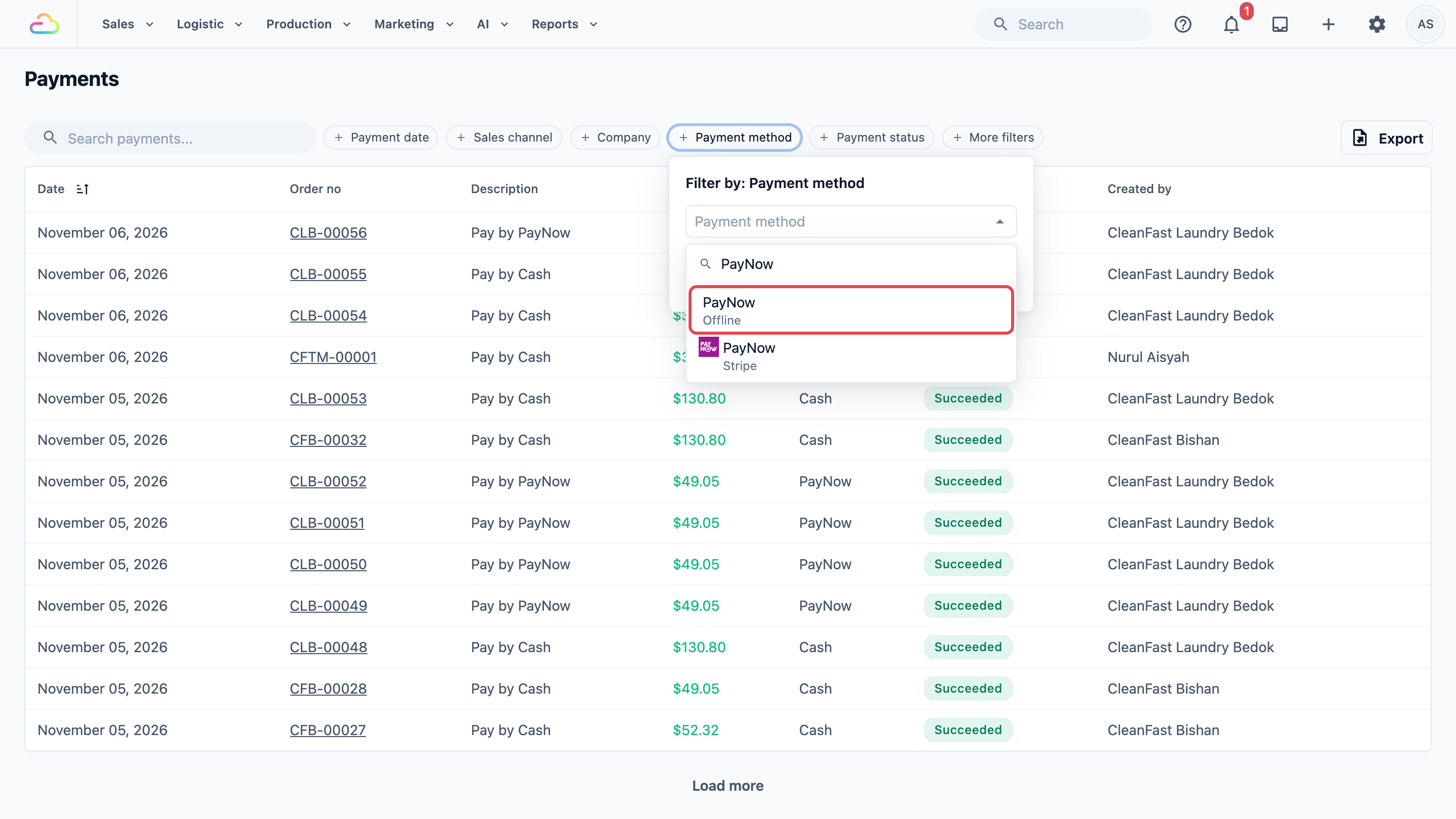
2. Click Export at the right of the filters.
3. In **Export payments**, read the grey line at the top. It names the filters that go into the file, for example "This export has the payment method filter applied."
4. Under **Date range**, pick the period.
5. Click Export . The button shows **Exporting...** while the file is made.
6. When **Export ready** shows, click Download .
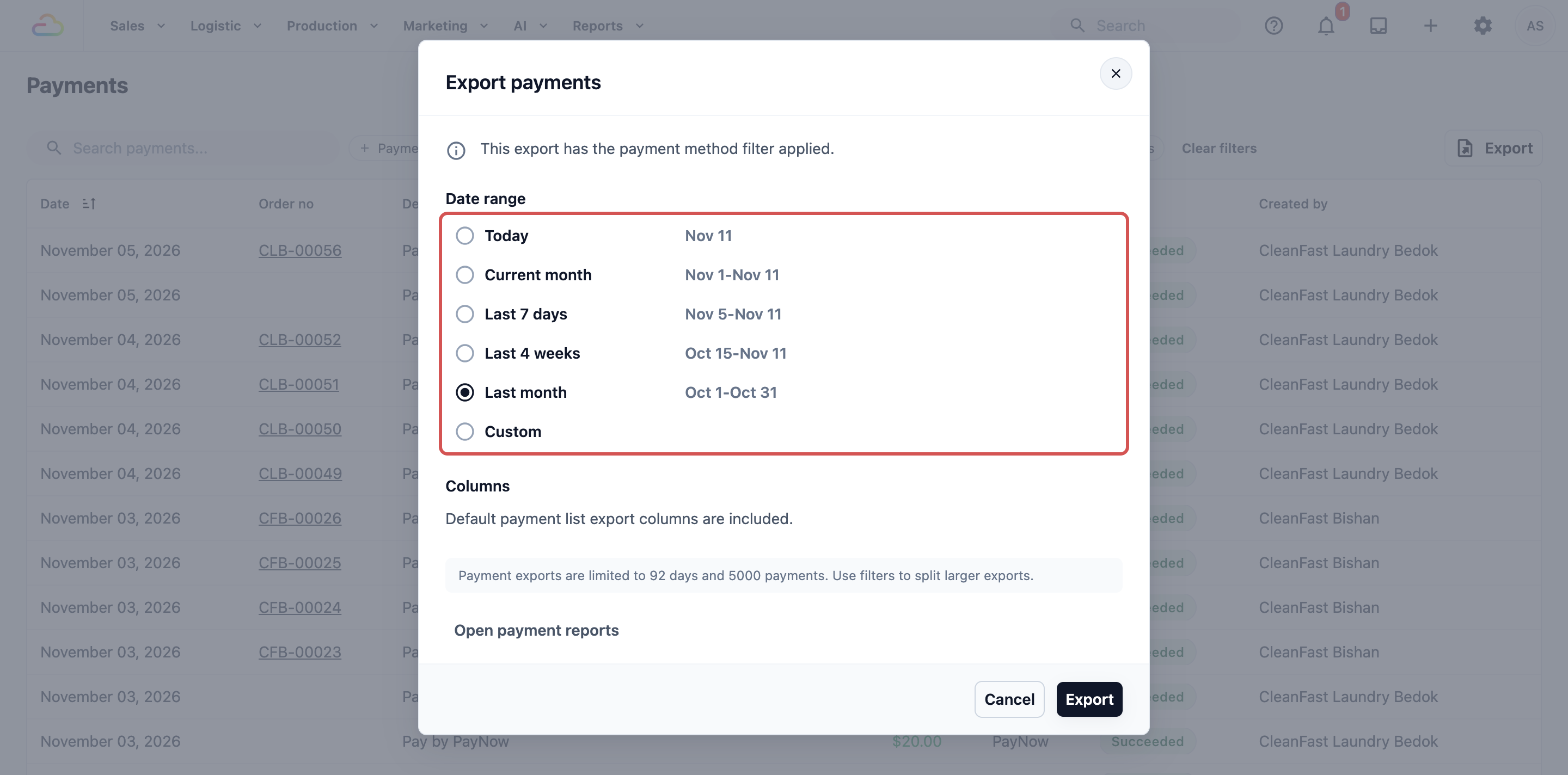
**Date range**
| **Option** | **What it covers** |
|---|---|
| Today | Today only. |
| Current month | From the 1st of this month to today. |
| Last 7 days | Today and the 6 days before it. |
| Last 4 weeks | Today and the 27 days before it. |
| Last month | The whole of last month. |
| Custom | The start and end dates you pick in the calendar. |
If you set **Payment date** on the list, the window starts on **Custom** with those dates. If you didn't, it starts on **Today**.
Without a Payment date filter, the file holds only today's payments unless you pick another range. Check Date range before you click Export.
### What goes into the file
| **Filter on the list** | **In the file?** |
|---|---|
| Search payments..., Sales channel, Company, Payment method, Payment status | Yes. Only the payments that match. |
| Customer and Submit by, under More filters | Yes. The grey line names them, for example "customer" or "creator". |
| Payment date | It sets where Date range starts. The dates you pick in the window decide the file. |
| The order you sorted the Date column in | Yes. The file follows it, newest first unless you changed it. |
The file has one **Payments** sheet with these columns: Date, Time, Order No, Customer, Phone, Sales Channel, Method, Status, Amount, Creator, Note and Reference. These are always the same. Columns you add to the list don't go into the file.
The file also stays on your **Downloads** page as **Payment Report**, so you can download it again later. See [Exporting to Excel and Downloads](/docs/exporting-reports-and-downloads).
The file has your customers' names and phone numbers. Share it only with people who need it, such as your accountant.
### Limits
Each export covers up to 92 days and 5,000 payments. If the range is longer, a red message says "Filtered payment exports are limited to 92 days." and Export stays off. If more payments match, the export stops with "Payment export is limited to 5000 payments. Narrow the date range or add more filters." Export one month at a time, or add a filter such as Sales channel.
For totals over a whole year, click Open payment reports in the window and export the Payments Report instead. See [Reading the Payments Report](/docs/reading-the-payments-report).
---
## Example: CleanFast Matches PayNow Against the Bank
CleanFast Laundry has POS shops in Tampines and Jurong and an Online Store. On 3 November, the owner, Mei Ling, sees a PayNow credit of $193.50 for 31 October on her bank statement. She wants to know which orders it covers.
1. She clicks **Sales**, then **Payments**.
2. She clicks Payment date and picks Oct 31, 2026 as both the start and the end.
3. She clicks Payment method and chooses **PayNow**.
4. The list shows three Succeeded payments:
| **Order no** | **Sales channel** | **Amount** |
|---|---|---|
| T-01842 | Tampines | $45.00 |
| J-00977 | Jurong | $28.50 |
| W-00315 | Online Store | $120.00 |
| **Total** | | **$193.50** |
5. $45.00 + $28.50 + $120.00 = $193.50, the same as the bank. That day's PayNow is matched.
6. At month end she sets **Payment date** to the whole of October, clicks Export , keeps **Custom** with Oct 1 to Oct 31, and sends the file to her accountant.
It takes about two minutes, and nobody opens a single order.
---
## FAQs
**Why does a payment I recorded for an earlier day show up under today's dates?**
> The **Date** column shows the day you picked when you recorded it. The **Payment date** filter and the export find payments by when they were entered into EasyBiz. To find it, filter by the day you entered it, or search for its order number.
**Why doesn't the Payments page total match my Payments Report?**
> The page has no total. It lists each payment. The Payments Report adds them up for one market and period. To check a total, export the list and add up the Amount column in Excel. Failed and rejected payments are on the list, but no money came in for them, so leave them out.
**Why can't my staff see every outlet's payments?**
> A staff member limited to some sales channels sees only the payments taken there, on the page and in the exports. Your account owner sets this for each user.
**A customer says they paid, but I see Pending Review. Is the order paid?**
> Not yet. The order is paid only after a staff member approves the payment in **Review payment**. Until then the order still shows the balance due, and a confirmed order stays on your Receivables list. See [Tracking Unpaid Bills in Receivables](/docs/tracking-receivables).
**Can I export all my payments for the year in one file?**
> No. One export covers up to 92 days. Export one quarter at a time, or export the Payments Report for the year, which gives totals instead of each payment.
**Why is my export empty or failed?**
> If no payment matches your filters and dates, the export fails with "No payments matched this export." On your **Downloads** page it shows as Failed. Check the grey line and the dates, clear a filter you don't need, and export again.
---
## What's Next
You can now find any single payment, approve the ones customers report and export your payments for your accountant. Next, see who your customers are and how many are new in [Reading the Contacts Report](/docs/reading-the-contacts-report).