## Before you start
- Publish your Online Store first. Until it is live, the domain page says **Publish your Online Store first. You can link your own domain once it is live.**
- Have a domain you already own, from a provider such as GoDaddy, Namecheap, Cloudflare, Vodien or Exabytes, and the login for where its DNS settings are managed. This is usually the same provider. If your web developer looks after your domain, ask them to help.
- Only staff who can manage sales channels see Link domain.
## Already have a website?
A domain you link opens your Online Store. If your business already has a website at that domain, for example one your web developer looks after, choose one of these:
- **Keep your website and add a booking button.** Ask your web developer to link a "Book now" button on your website to your store's **Web address**, like `yourbusiness.easybizcloud.app`. To open the booking page straight away, open it on your store and copy its address from your browser. Your website and domain stay as they are.
- **Keep your website and link a subdomain**, like `book.yourbusiness.com`. Your website stays at `www.yourbusiness.com`, and customers book at `book.yourbusiness.com`. Like any domain, it's included at no extra cost.
- **Replace your website with your store.** Link `yourbusiness.com`. Then `www.yourbusiness.com` opens your Online Store instead of your website, and so does `yourbusiness.com` once you do the optional extra step. Check with your web developer first.
## Link your domain
1. In ⚙️ Settings › **Sales Channels** › Online Store & Mobile App, click Link domain beside the store's **Web address**.
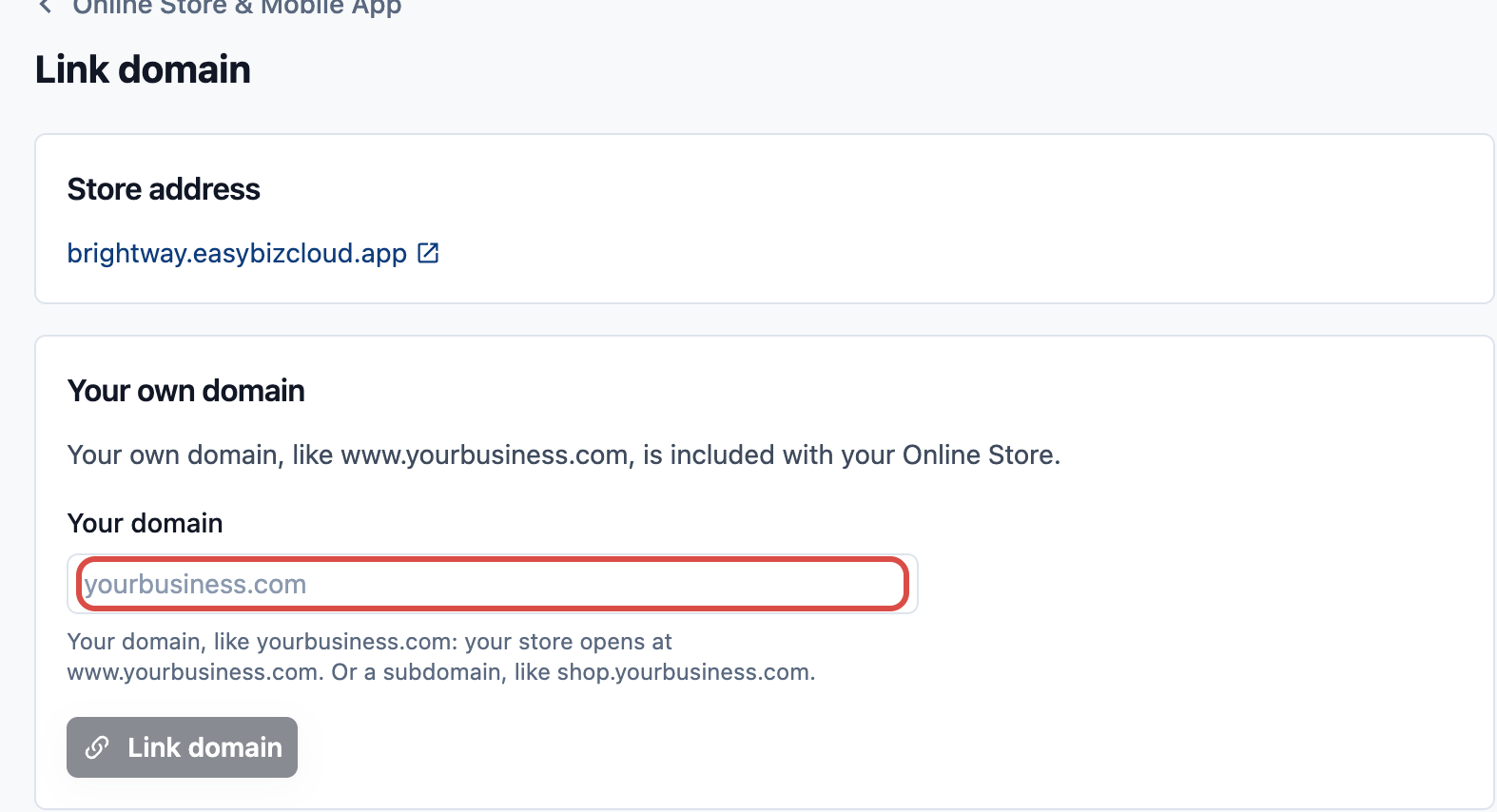
2. Under **Your own domain**, type your domain and click Link domain.
- A domain like `yourbusiness.com` opens your store at `www.yourbusiness.com`, in place of any website there now.
- A subdomain like `shop.yourbusiness.com` opens as you typed it. A website at `www.yourbusiness.com` stays as it is.
3. Under **Add this record in your domain's DNS settings**, copy the record's **Type**, **Name** and **Value** into your domain's DNS settings. Under **Where are your domain's DNS settings?**, the page shows where they are when it can find them, with the steps for that provider. For example: **We checked: the DNS settings for yourbusiness.com are at Cloudflare.** If it can't find them, choose your provider to see its steps.
4. Wait for the record to work. The page says **Waiting for your DNS change. This usually takes a few minutes, and can take up to 24 hours.** Click Check now to check again.
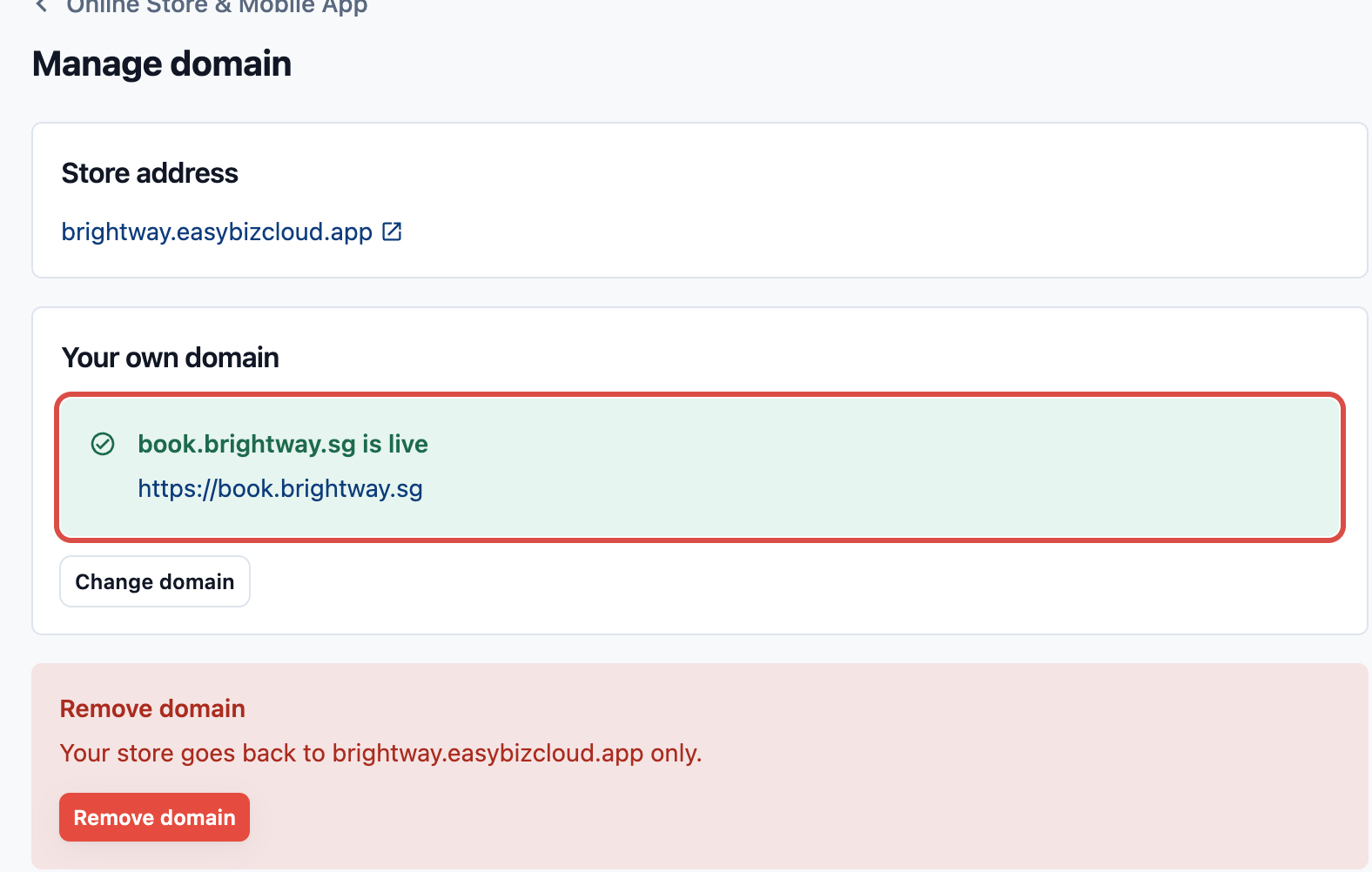
When the record works, the page shows **www.yourbusiness.com is live** and the store card's button becomes Manage domain.
To open your store at `yourbusiness.com` without "www" too, follow the extra step the page shows. It depends on your provider. If your DNS settings are on Google Cloud DNS, keep `yourbusiness.com` on your current web server and ask your web developer to have it redirect to `https://www.yourbusiness.com`. While you set up your domain, it is **Optional: open your store at yourbusiness.com too**. Once your domain is live, it shows as **yourbusiness.com: set up forwarding to www.yourbusiness.com** until it works. After you make the change, click Check now. When it works, it shows **yourbusiness.com also opens your store**, or **yourbusiness.com forwards to www.yourbusiness.com** when your provider or your own web server forwards it.
## Change or remove your domain
Click Manage domain beside the store's **Web address**.
- **Change domain:** your current domain keeps opening your store until the new one is live. Then it forwards to the new domain, so links you already sent keep working. Former domains are listed under **Previous domains**. Click Stop forwarding to release one; links you sent with it then stop working.
- **Remove domain:** your store goes back to its `.easybizcloud.app` address only.
## Common questions
**Does my own domain cost extra?**
>No. It's included with your Online Store.
**Why is there no Link domain button?**
>Your Online Store isn't live yet, so publish it first. Or your staff account can't manage sales channels.
**Can I change my .easybizcloud.app web address instead?**
>No. The web address can't be changed after you turn on the Online Store. Link your own domain instead.
**Is this the same as a Design Agent website's domain?**
>No. A Design Agent website links its own domain separately, with Pro hosting. An Online Store's domain is set on the store card.
**I already have a website. Will linking my domain replace it?**
>Linking your main domain, like `yourbusiness.com`, makes `www.yourbusiness.com` open your Online Store instead of your website. To keep your website, link a subdomain like `book.yourbusiness.com`, or ask your web developer to link a "Book now" button on your website to your store's **Web address**.